10 Best Training Video Software with AI Voiceovers
Discover the best training video creation software with AI voiceovers. Learn how AI tools help teams create professional training videos faster and improve employee learning.
Creating training videos sounds easy. You just record your screen, explain the steps, and share the video. If you've tried doing it, you know it's not that simple. It takes hours to edit a 10-minute video.
If you're looking for best training video software, you're probably not a pro video editor.
Maybe you're a course maker, teacher, or team leader who wants to explain something. You want to make a video, but it's hard.
Learning tools and recording a perfect voiceover is really stressful.
Training videos are more important than ever. Because studies show that 75% employees prefer learning through videos, not documents. Videos are easier to understand and remember.
In this blog, you'll find some of the best training video creation software available today. These tools help you make professional training videos fast.
They make it easy to create videos even if you're not a pro.
If you already have a rough screen recording, you can turn it into a course-ready video (clean pacing, AI voiceover, captions, branding) in minutes. Try VideoMule to see what ‘polished’ feels like without learning pro editing.
If you’re new to creating tutorial or educational videos, here are step-by-step guides to help you get started:
Top 10 AI Training Video Tools: A Quick Comparison
Before we look at each tool in detail, let’s first take a quick look at some of the best training video software available today.
These are some of the best training video creation tools for beginners, teams, and businesses.
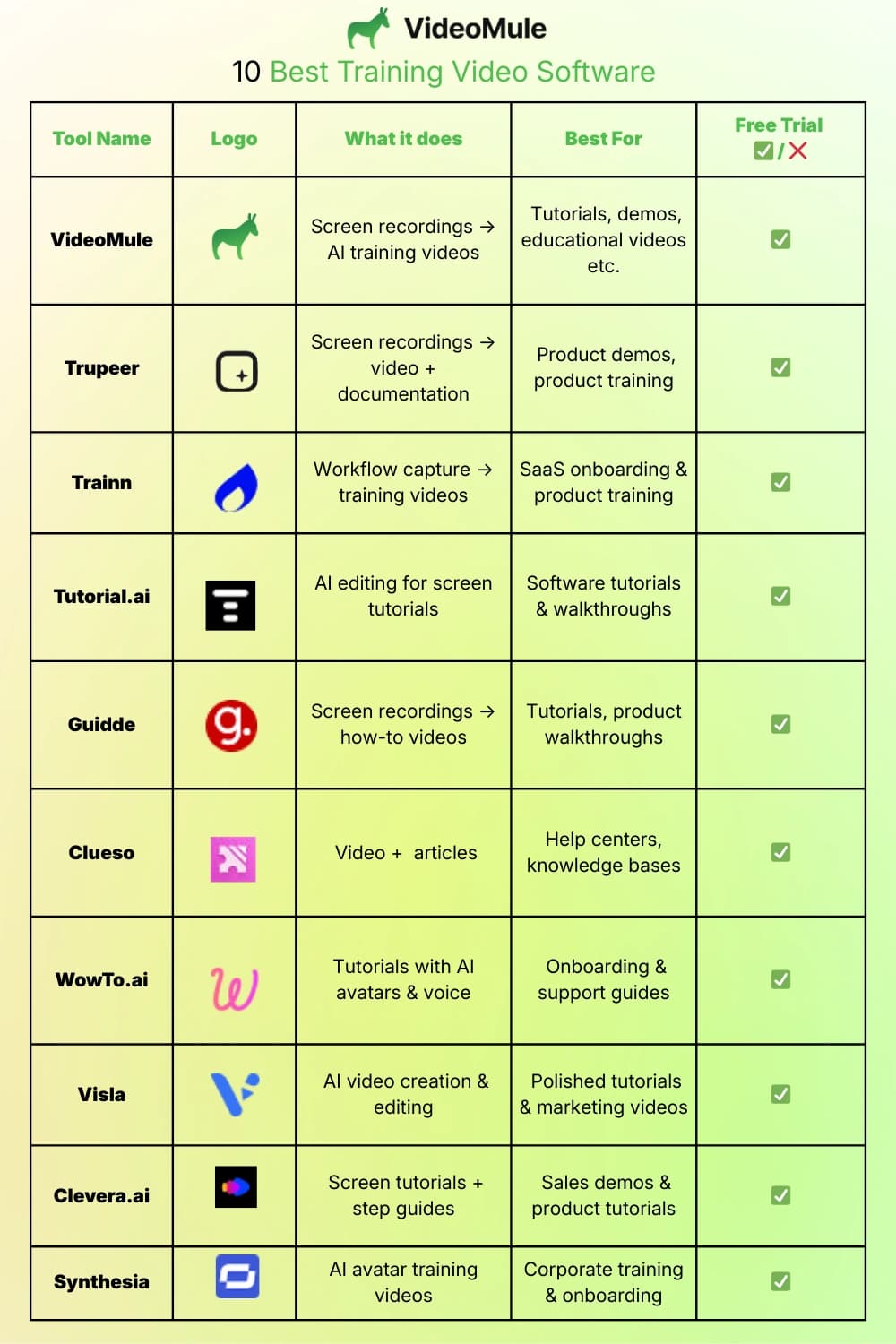
If you want to look for tutorial-focused tools, we’ve also created a detailed comparison of the best video tutorial software available today.
1. VideoMule
VideoMule makes it easy to create training videos from your screen recordings.
- No Mic Needed: Just record your screen in silence. The tool adds a natural AI voice for you.
- Perfect Sync: It automatically matches the voice to what’s happening on screen.
- AI Avatars: Add a presenter for the intro, outro, and transitions — pick a stock face, create a photo avatar from a single photo, or train a digital twin from your own footage. Avatar clips render at 1080p while the screen stays the focus.
- 70+ Languages: Translate a finished training video into 70+ languages — each one gets a translated script, a native AI voiceover, and captions with its own render.
- Best For: Making how-to videos, teaching new staff, or showing how a product works.
If you're specifically creating software walkthroughs or product explainers, you can follow our complete guide on how to make a product demo video.
How to use the tool:
So, here is how you can create a training video using AI.
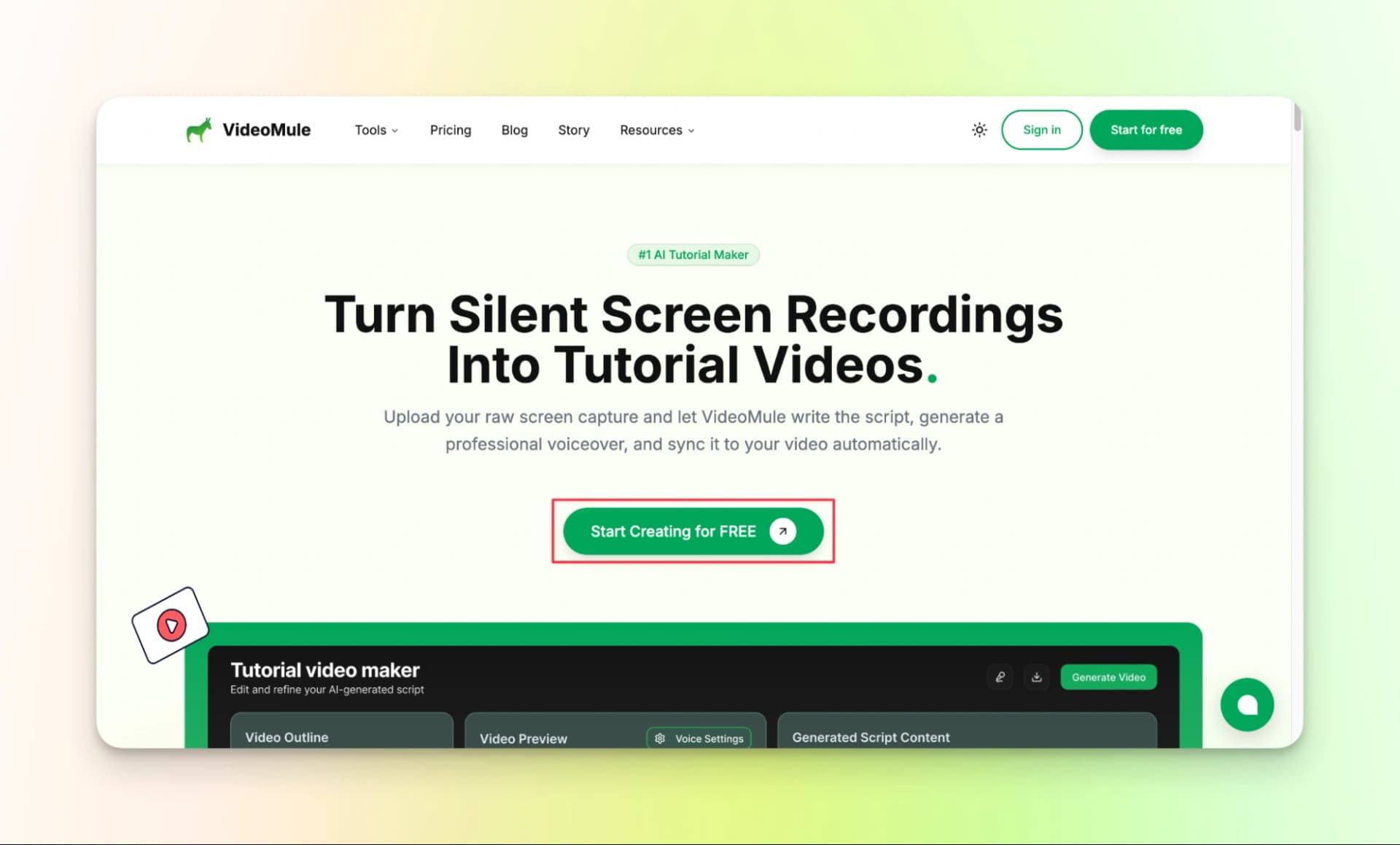
Step 1: Go to the VideoMule homepage and click Start Creating for FREE
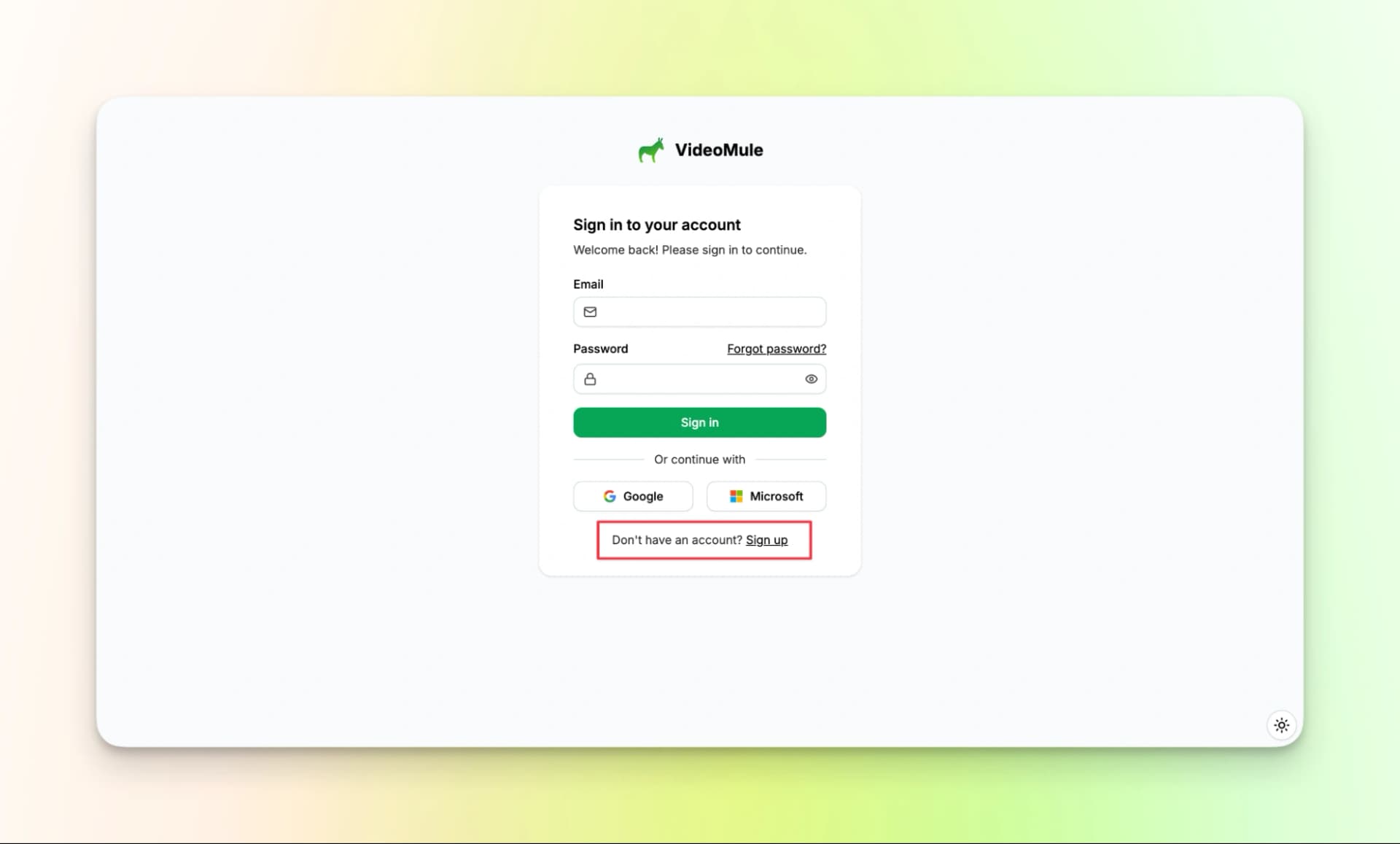
Step 2: Create an account or sign in using Google or Microsoft
Step 3: Record your screen inside the tool or upload a screen recording
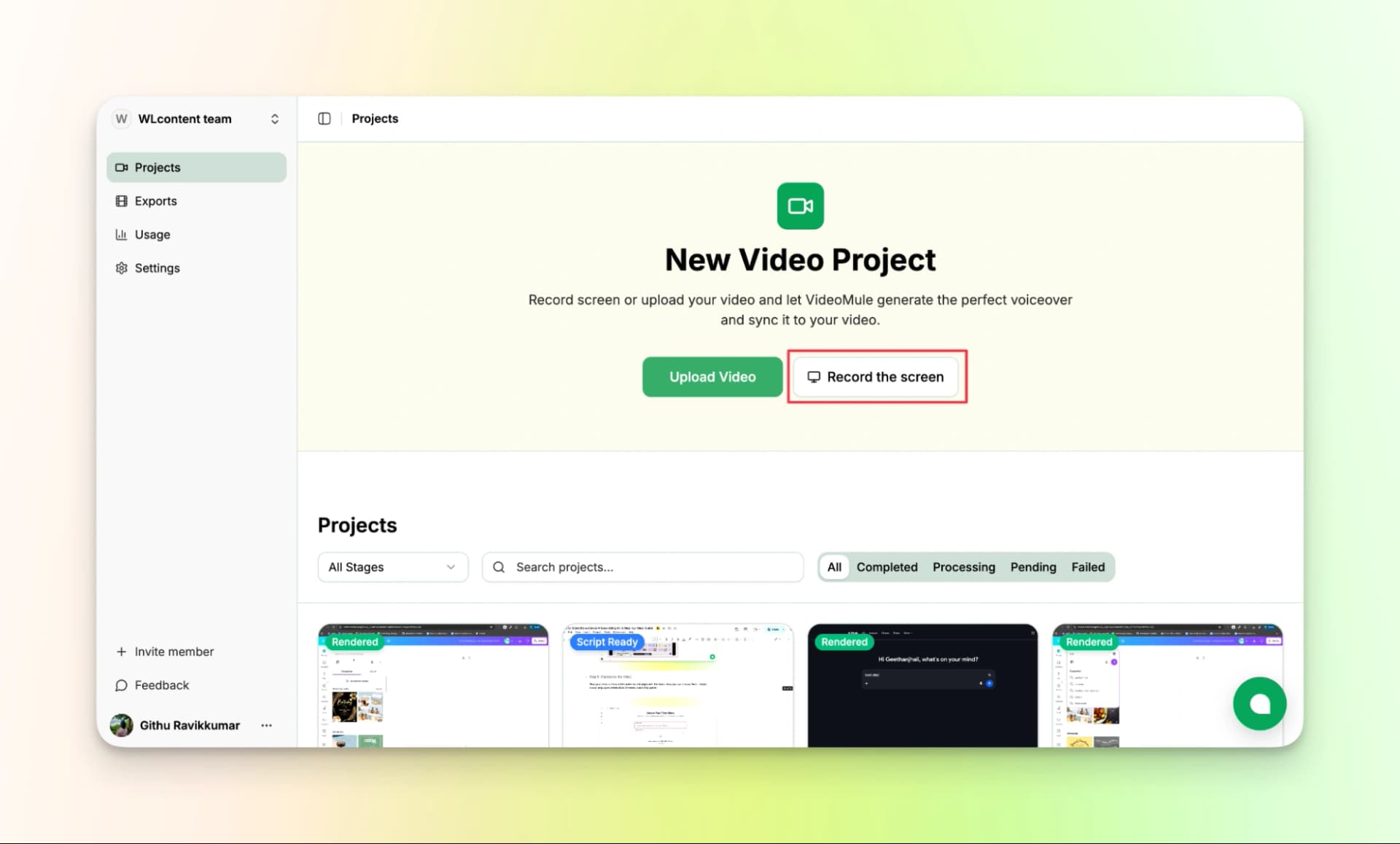
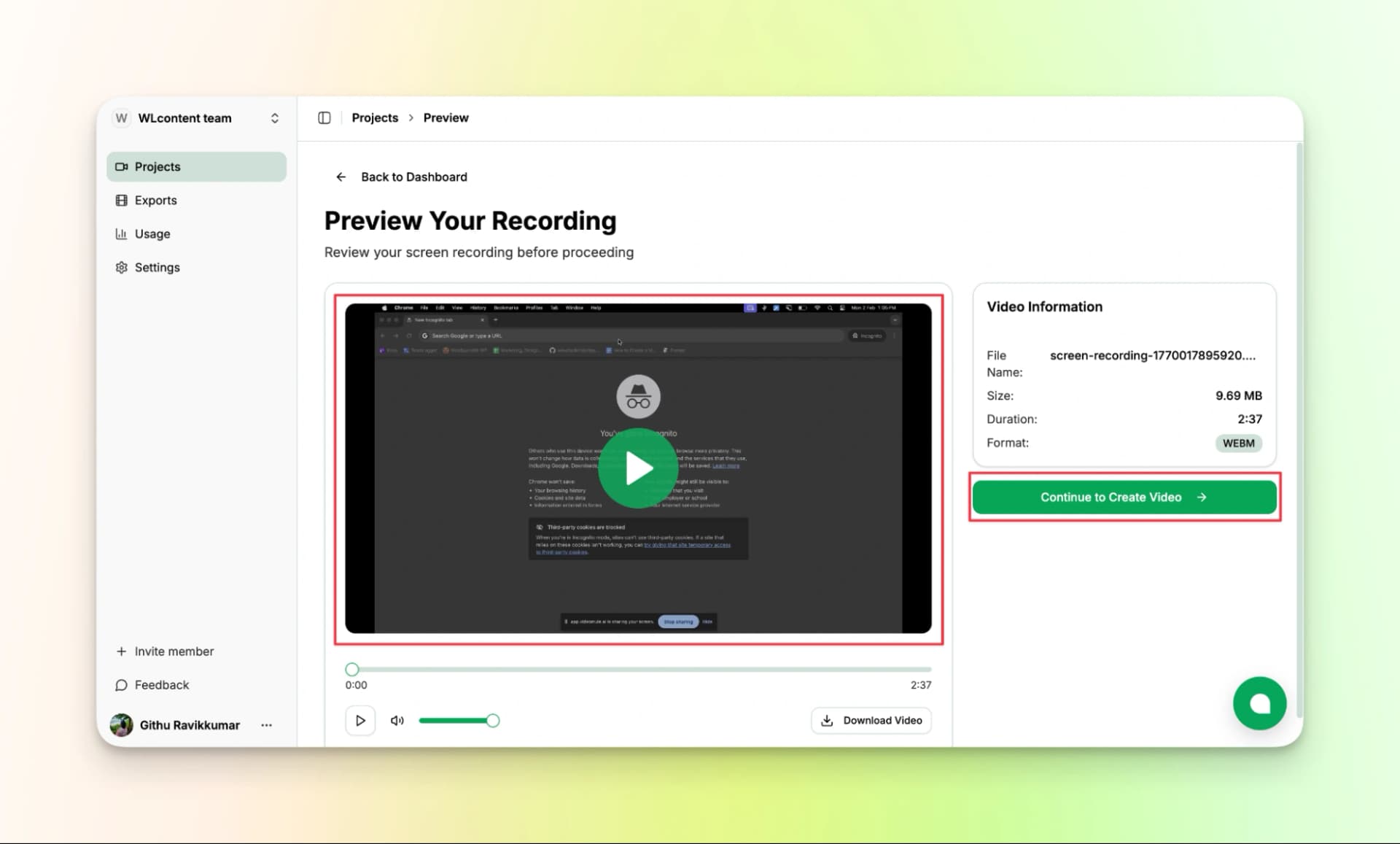
Step 4: Preview the recording and confirm it looks right.
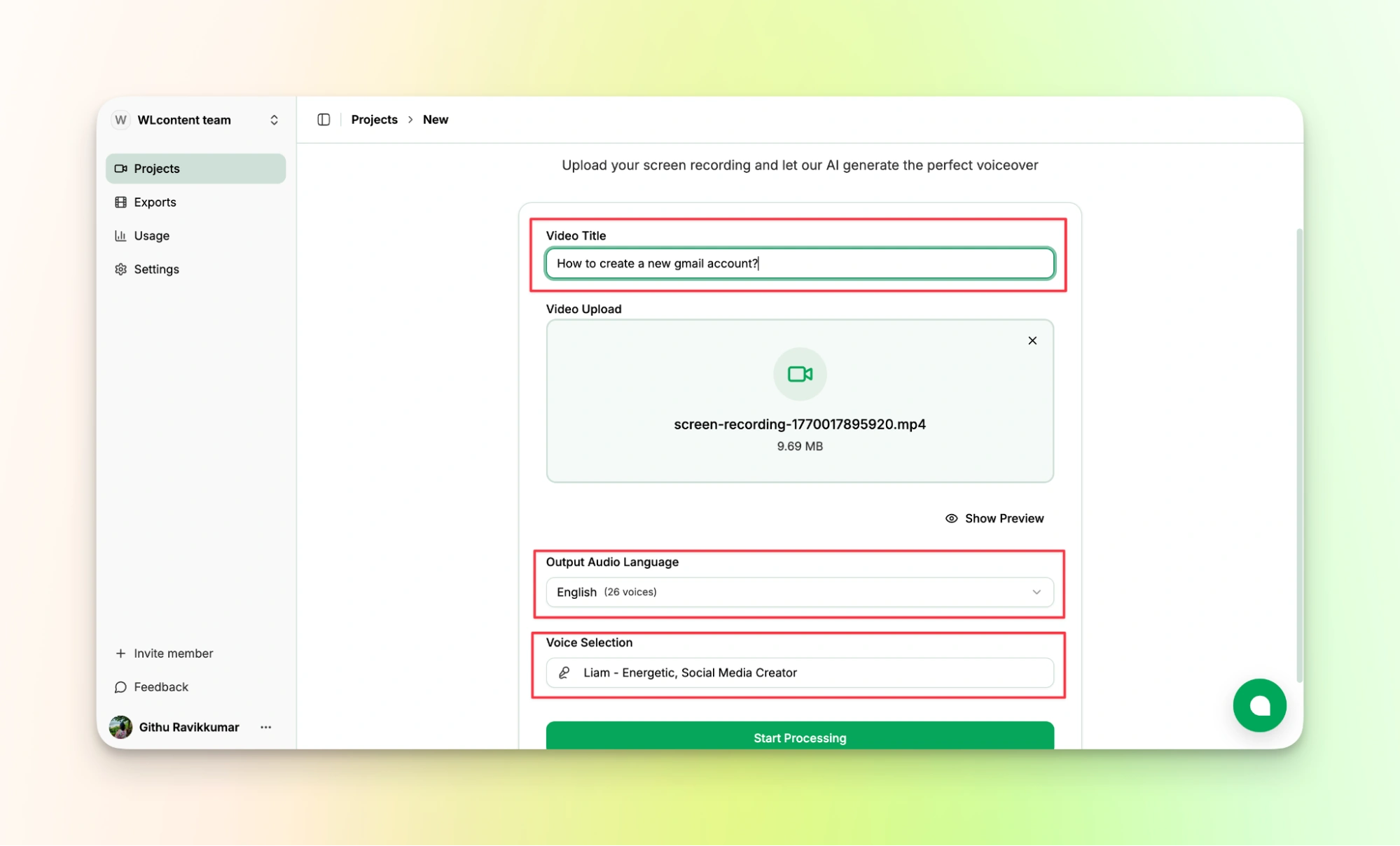
Step 5: Name the video and choose the output language and AI voice
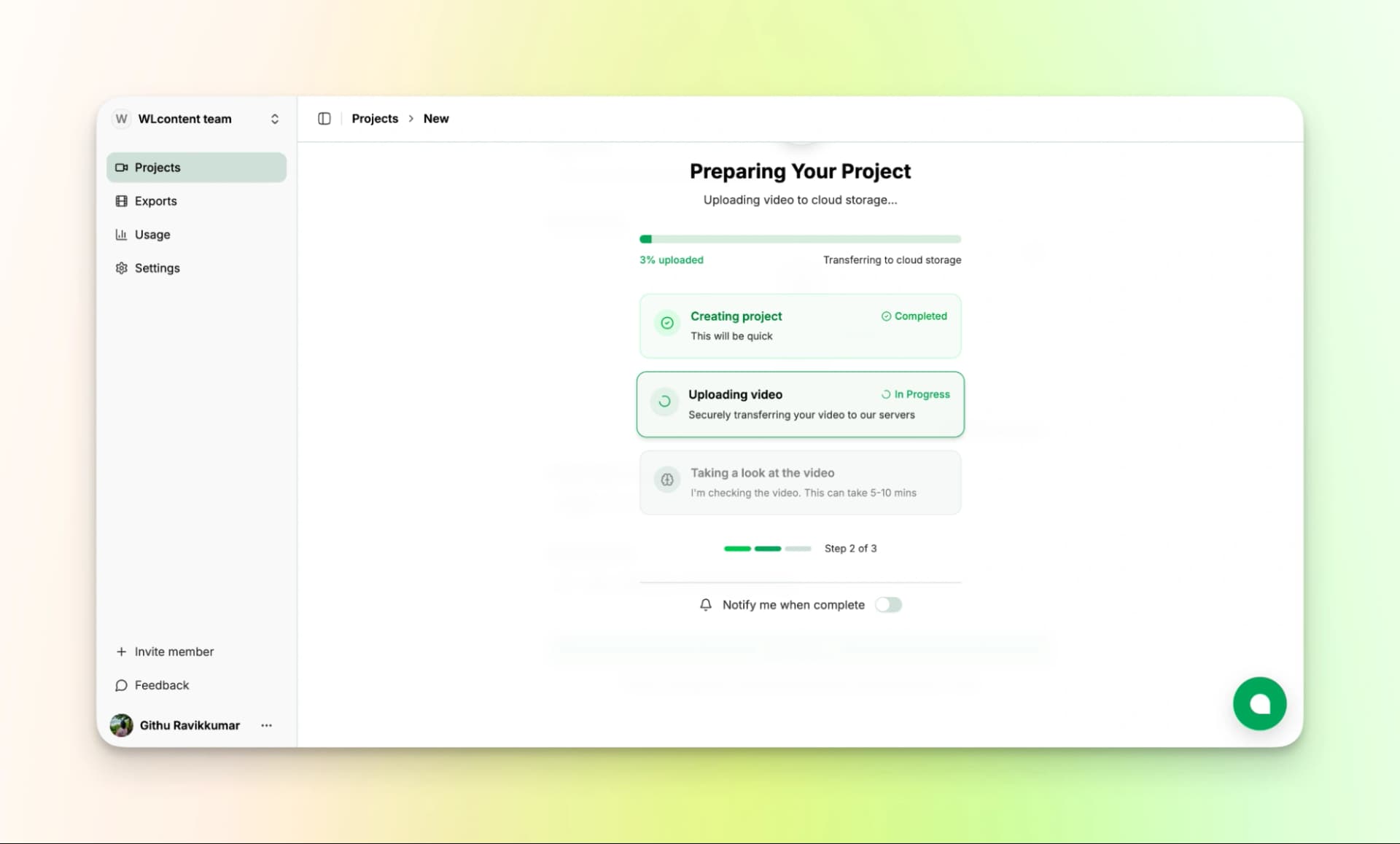
Step 6: Let the tool analyze the recording and generate a script
Step 7: Review or edit the script if needed as shown below.
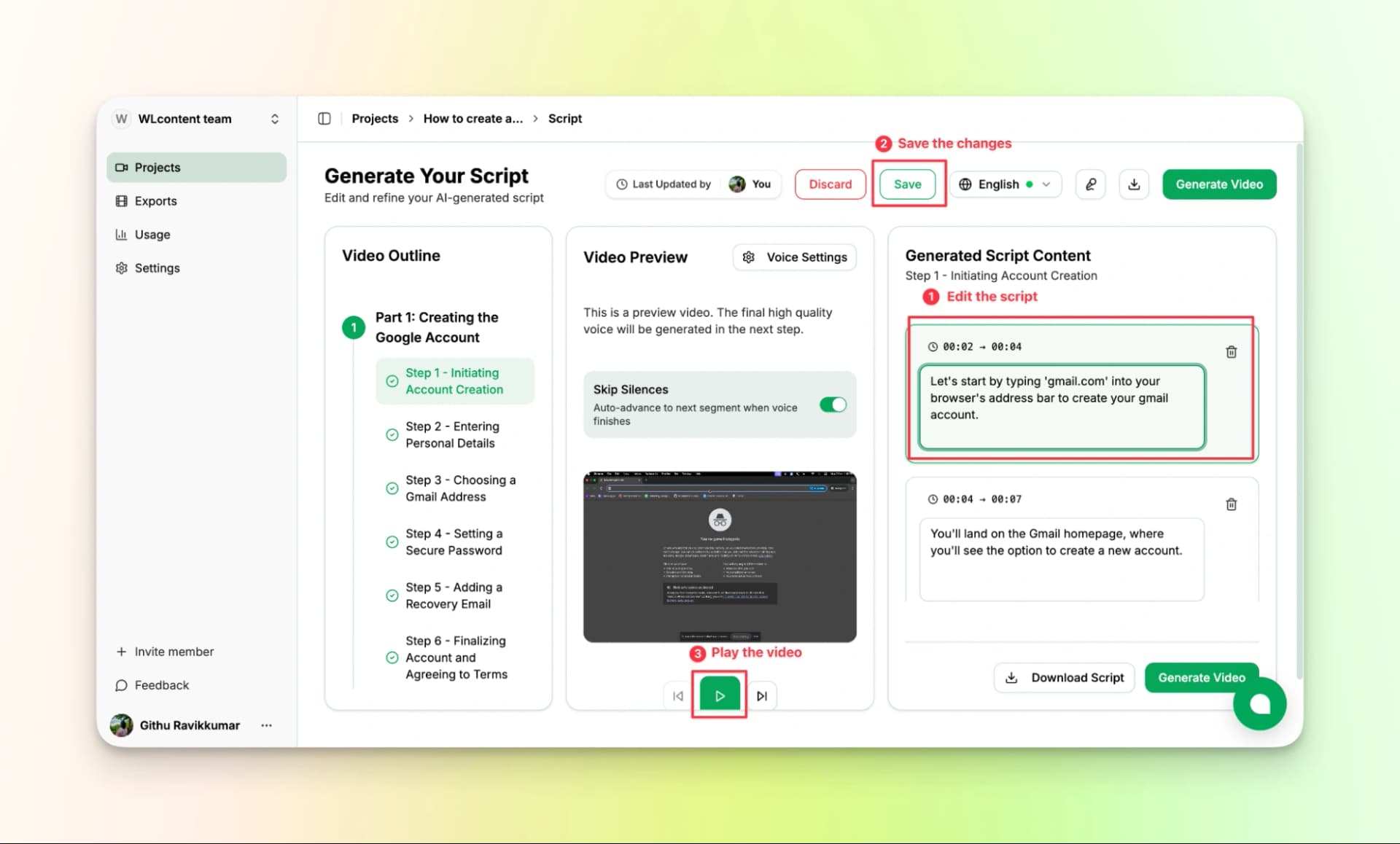
Step 8: Wait for the tool to generate the video with AI voiceover and captions. Once done, review the final video and export it.
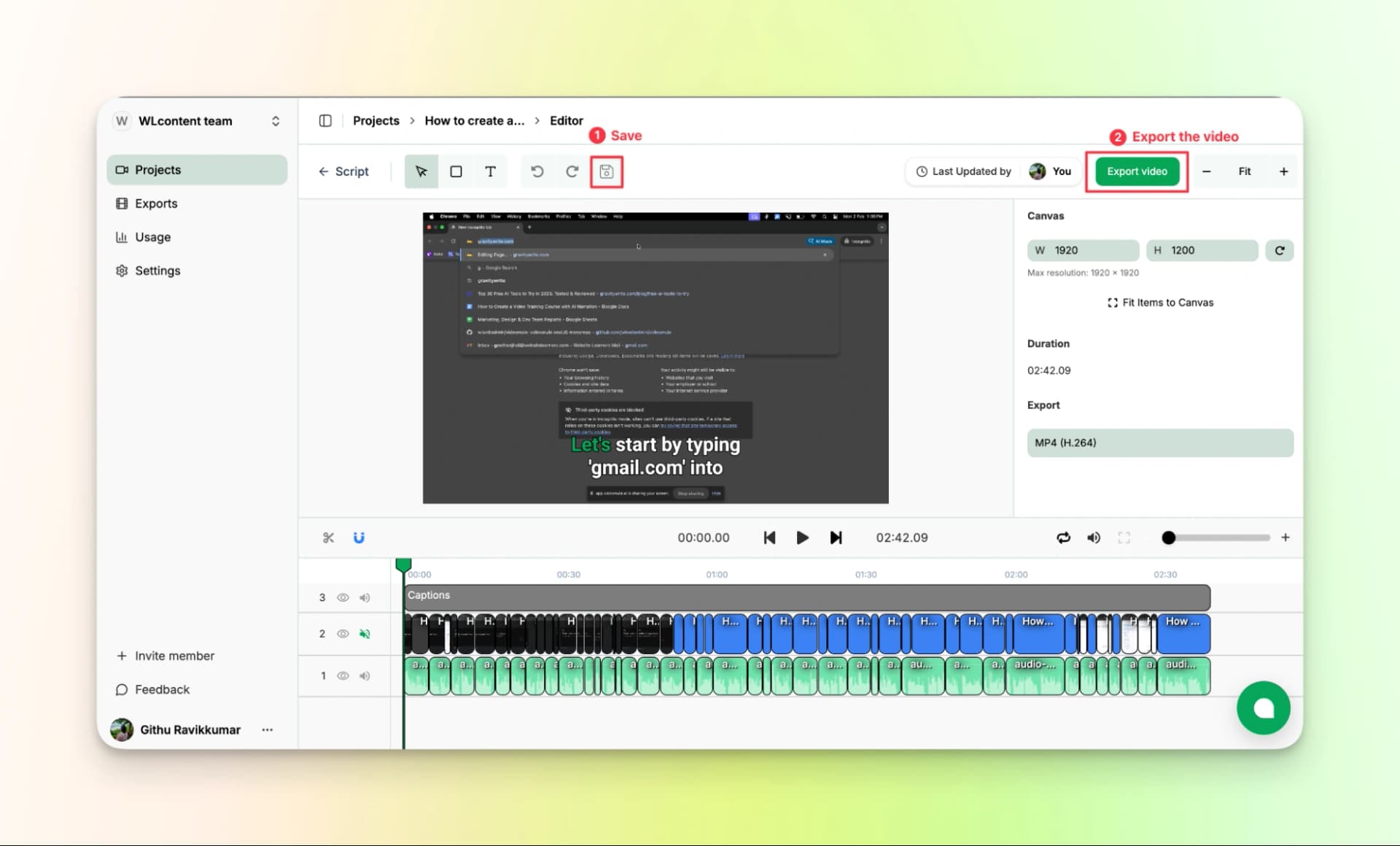
If you want an all-in-one tool to create tutorial videos without any effort, videomule is the best.
Here is the finished video:
VideoMule offers a 7-day free trial, which is enough to explore the platform and see how it works.
If you need more features and higher limits, you can upgrade to one of the paid plans based on your needs.
- Creator: $29.00/month
- Team: $69.00/month
- Agency: $199.00/month
2. Trupeer.ai
Trupeer.ai is another helpful tool for creating training videos, similar to VideoMule but with some key differences.
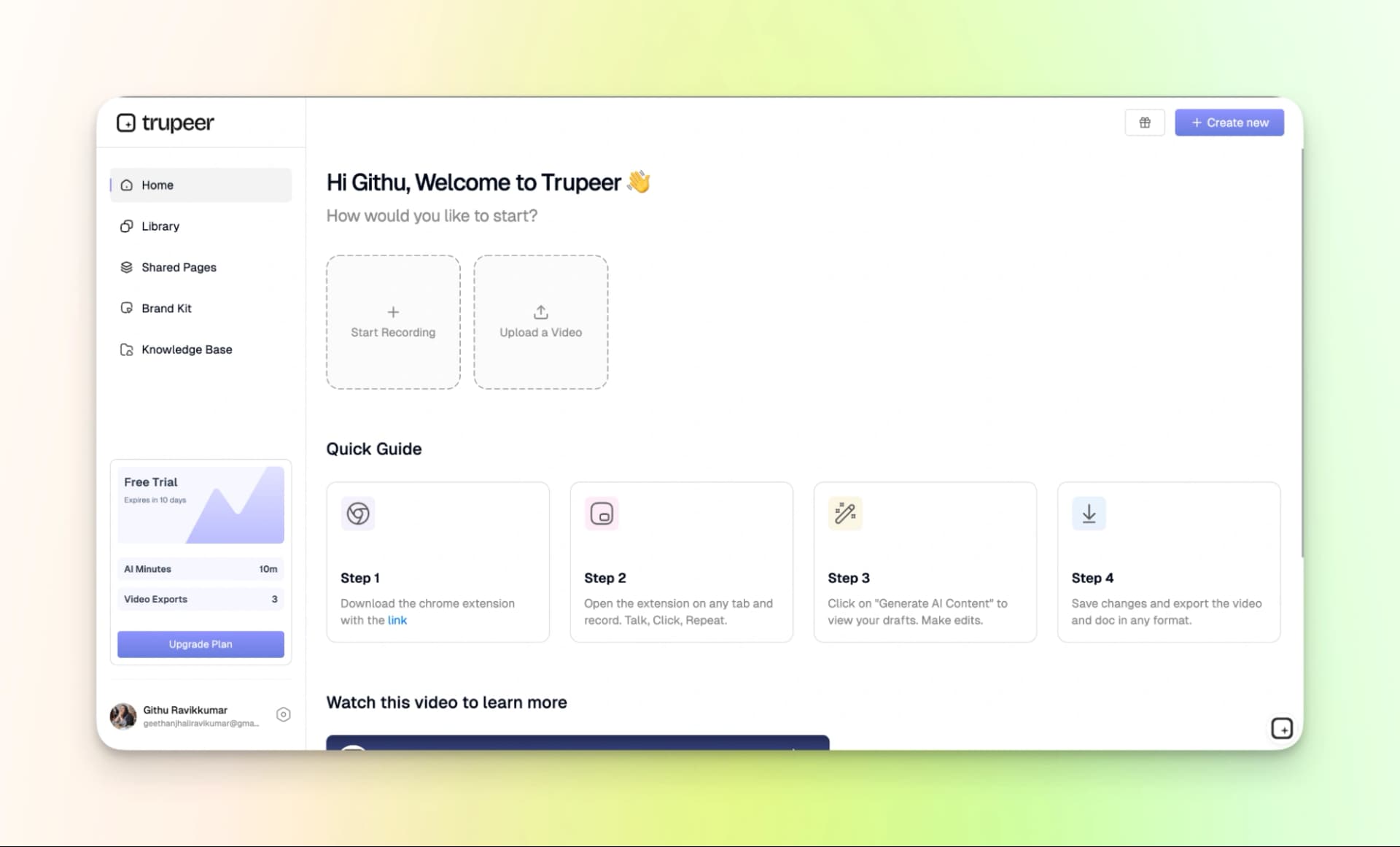
One key difference is that VideoMule lets you record in silence, while Trupeer requires you to speak while recording. This helps the tool understand the context of your actions better.
Another interesting feature of Trupeer is that it can also create written documentation along with the video.
Now, let’s see how we can use it to make training videos.
How to use the tool:
Step 1: Download the Chrome extension with the link
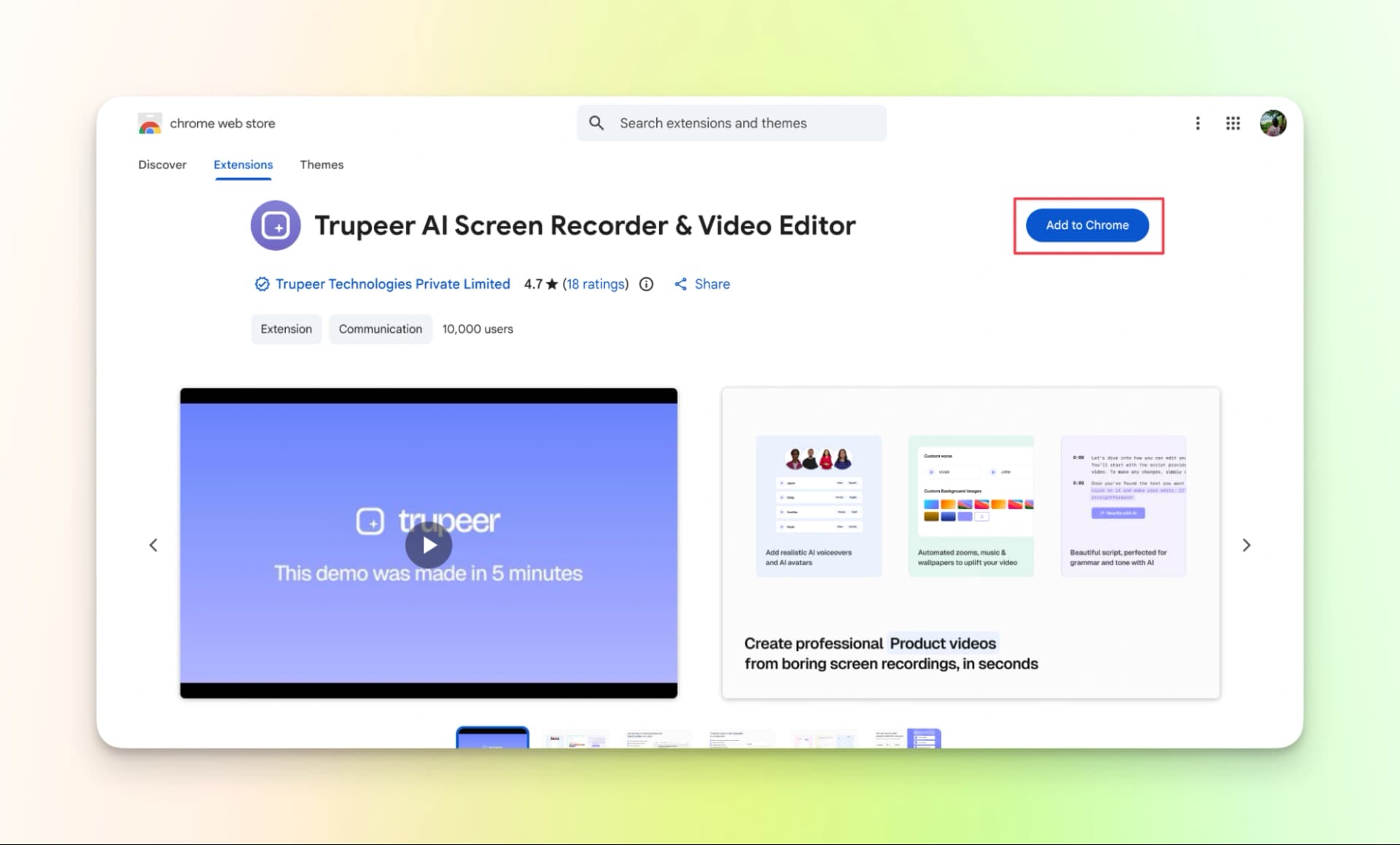
Step 2: Open the extension on any tab and start recording. Record your screen while you explain.
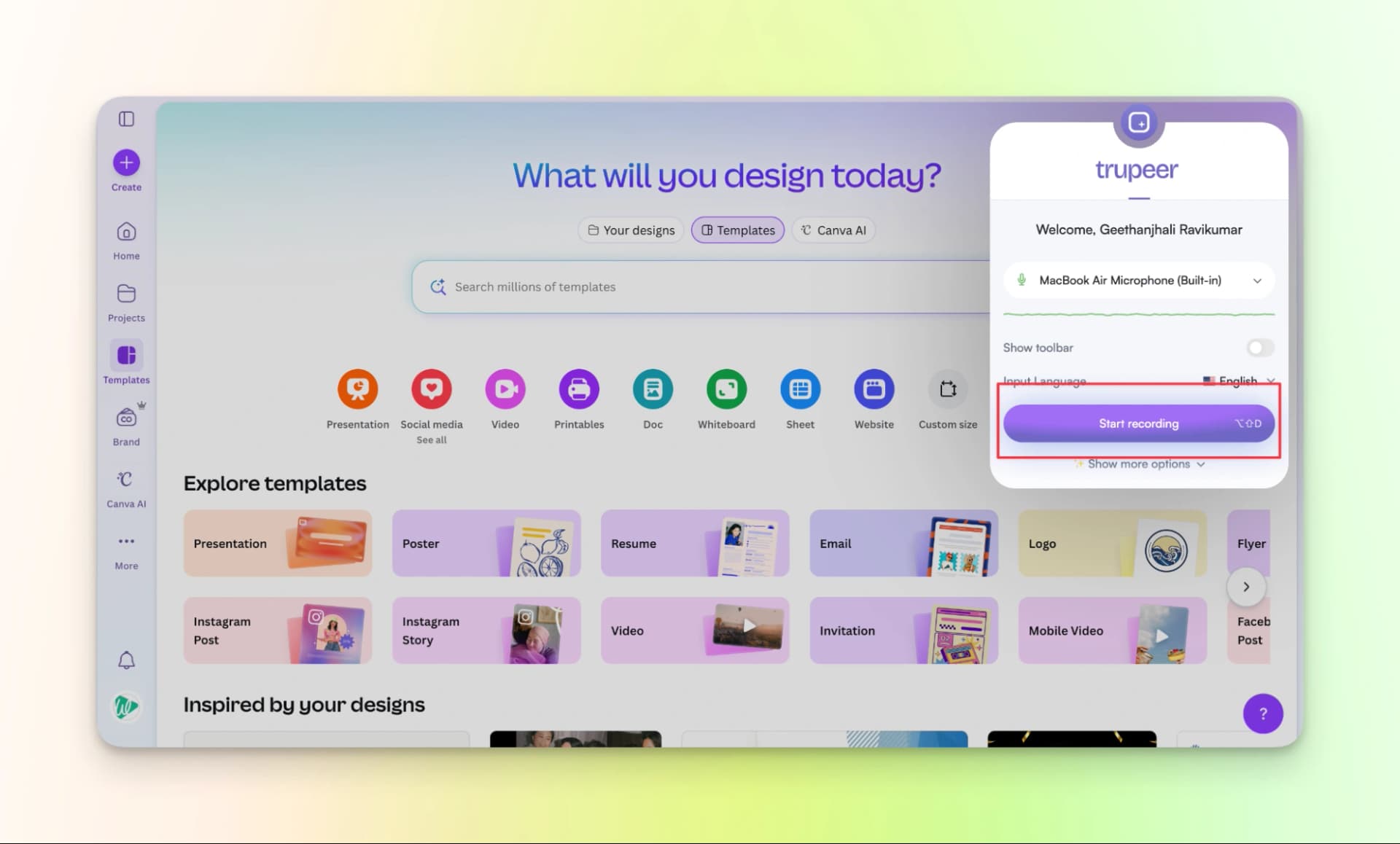
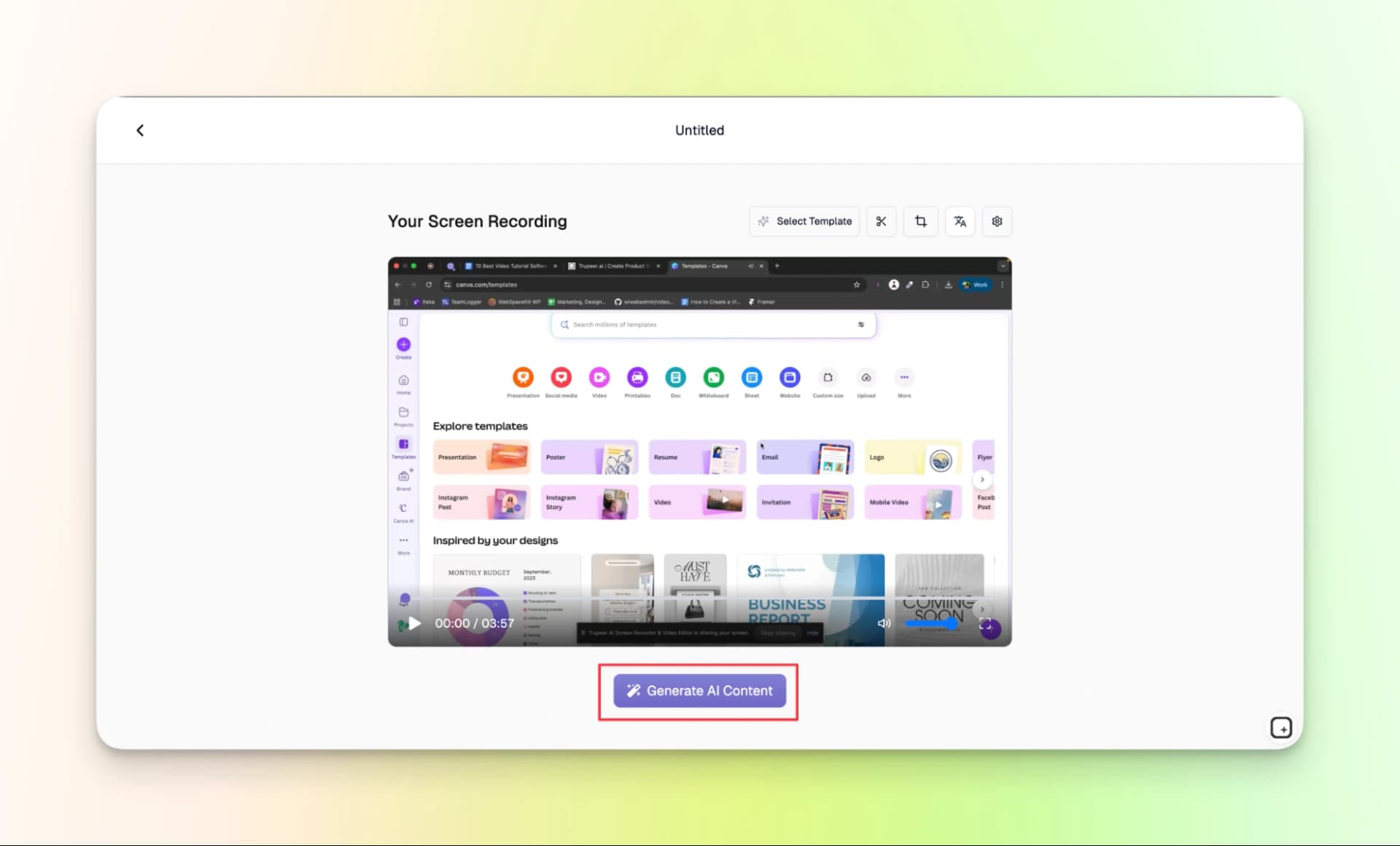
Step 3: Check your video, then click Generate AI Content.
Step 4: Make changes to the script; you can pick an AI voice or add music.
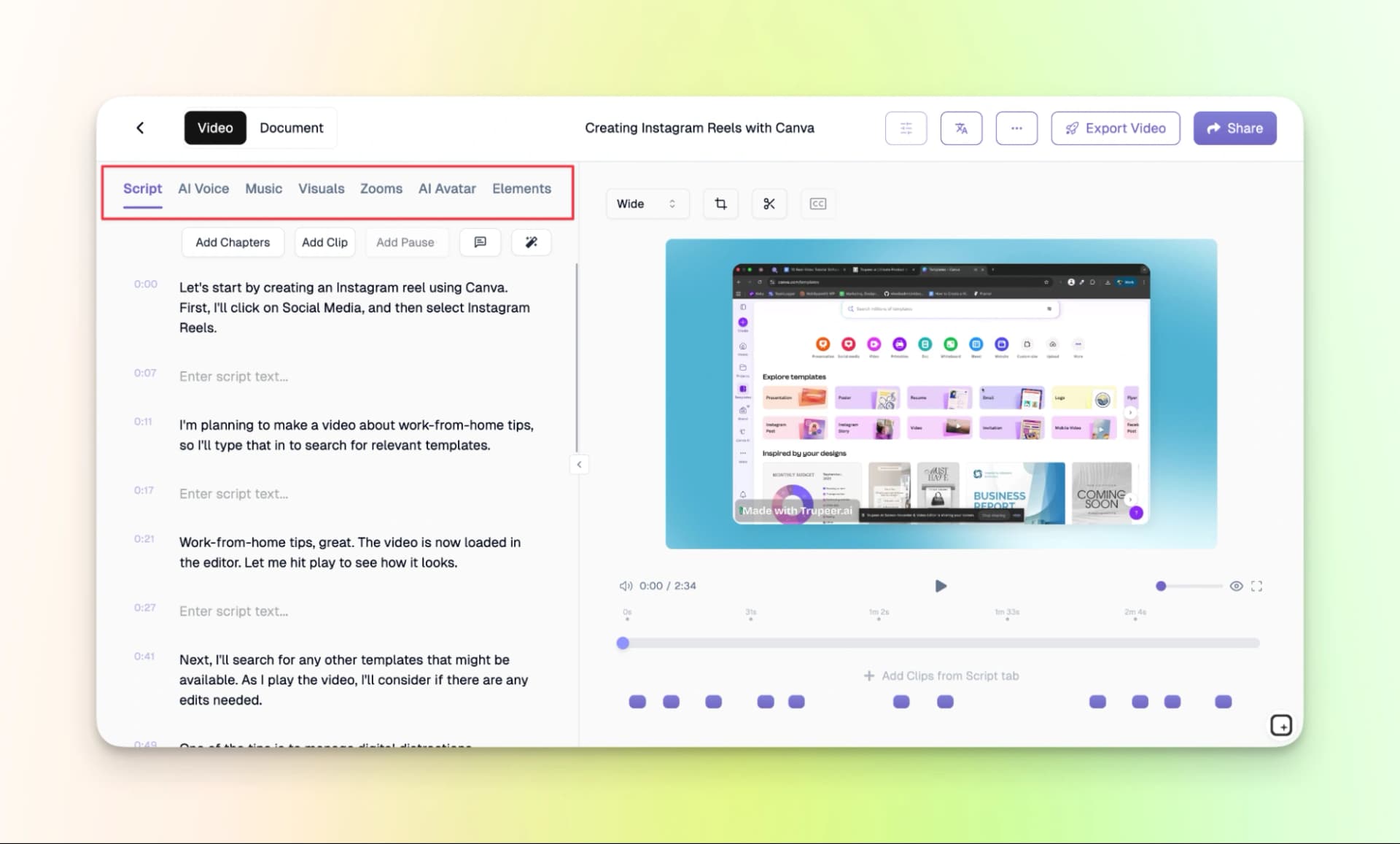
Also, it creates a guide that you can use for blogs, help guides, or other documentation.
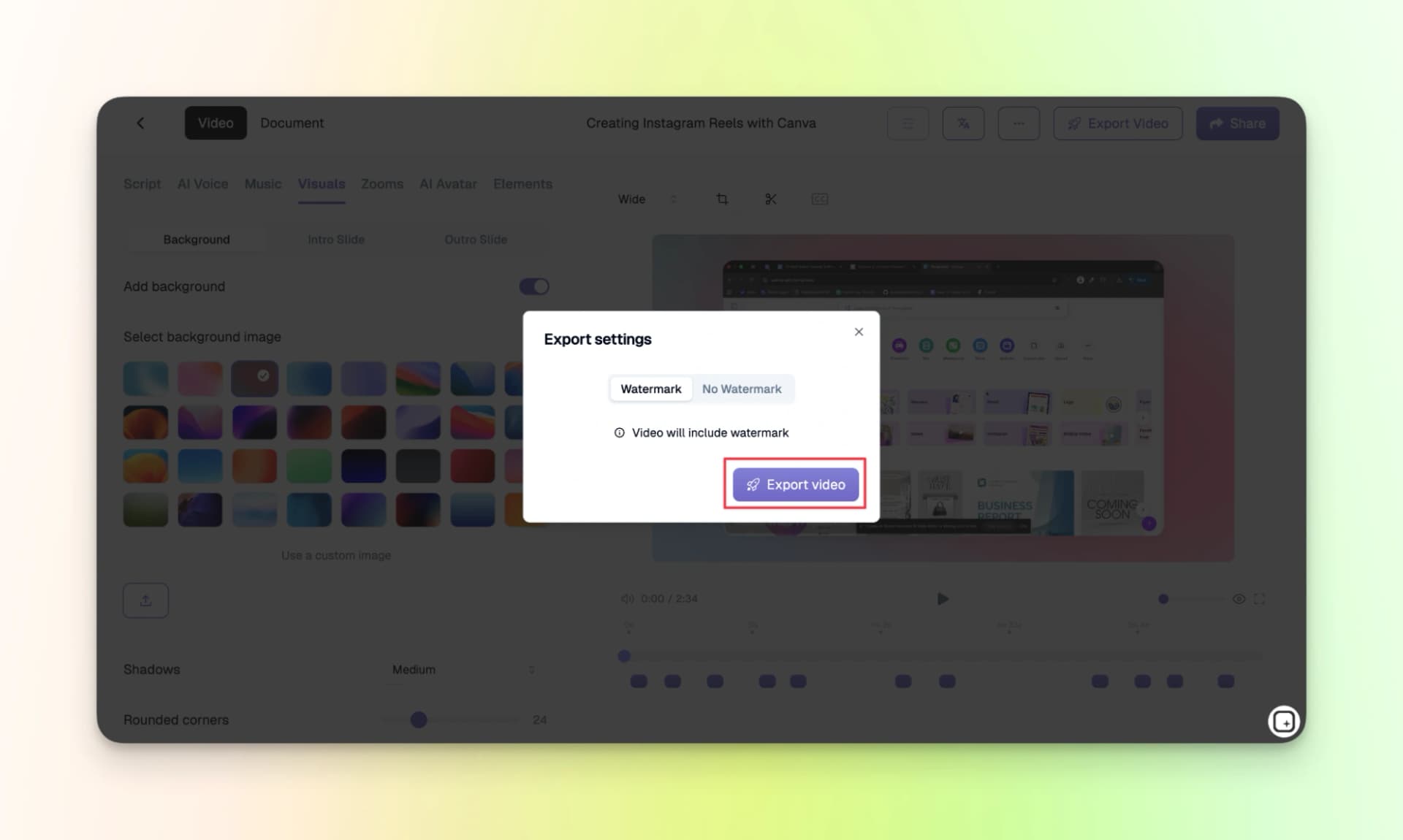
Step 5: Finally, export your video and document. Keep in mind that videos created on the free plan include a watermark. The free plan offers 10 AI minutes and up to 3 video exports.
Here is the finished video:
Pricing
Trupeer offers a free plan to try the tool, while the paid plans provide more features and higher usage limits.
- Free: $0 (10 days)
- Pro: $49/month
- Scale: $249/month
- Enterprise: Available on demand (AOD)
3. Trainn
Trainn is another tool which is similar to Videomule and Trupeer for creating training videos from screen recordings.
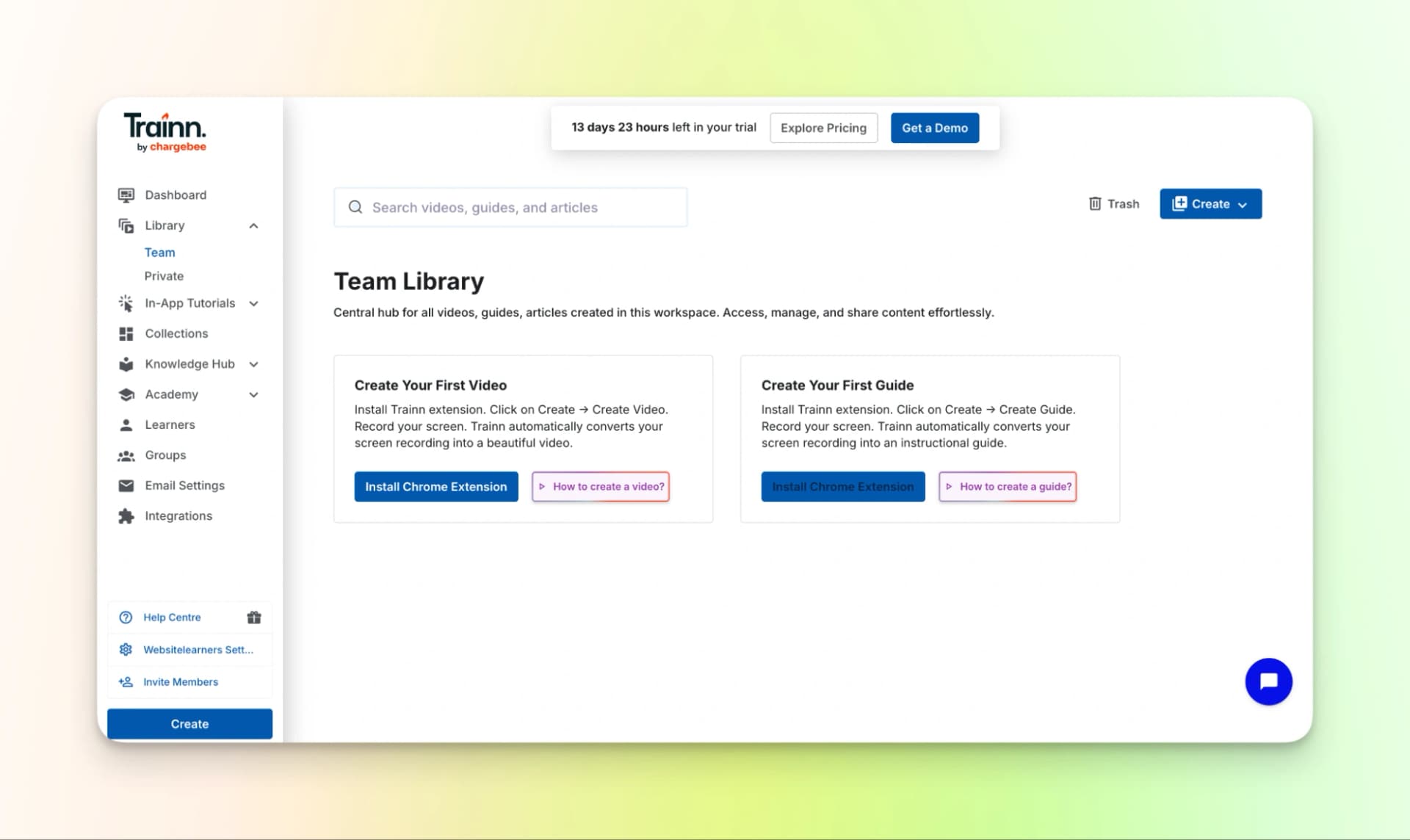
It is mainly designed for SaaS companies and product teams that want to create onboarding and product training videos.
Let’s see how we can create videos using Trainn.
How to use the tool:
Step 1: Install: Get the Chrome extension.
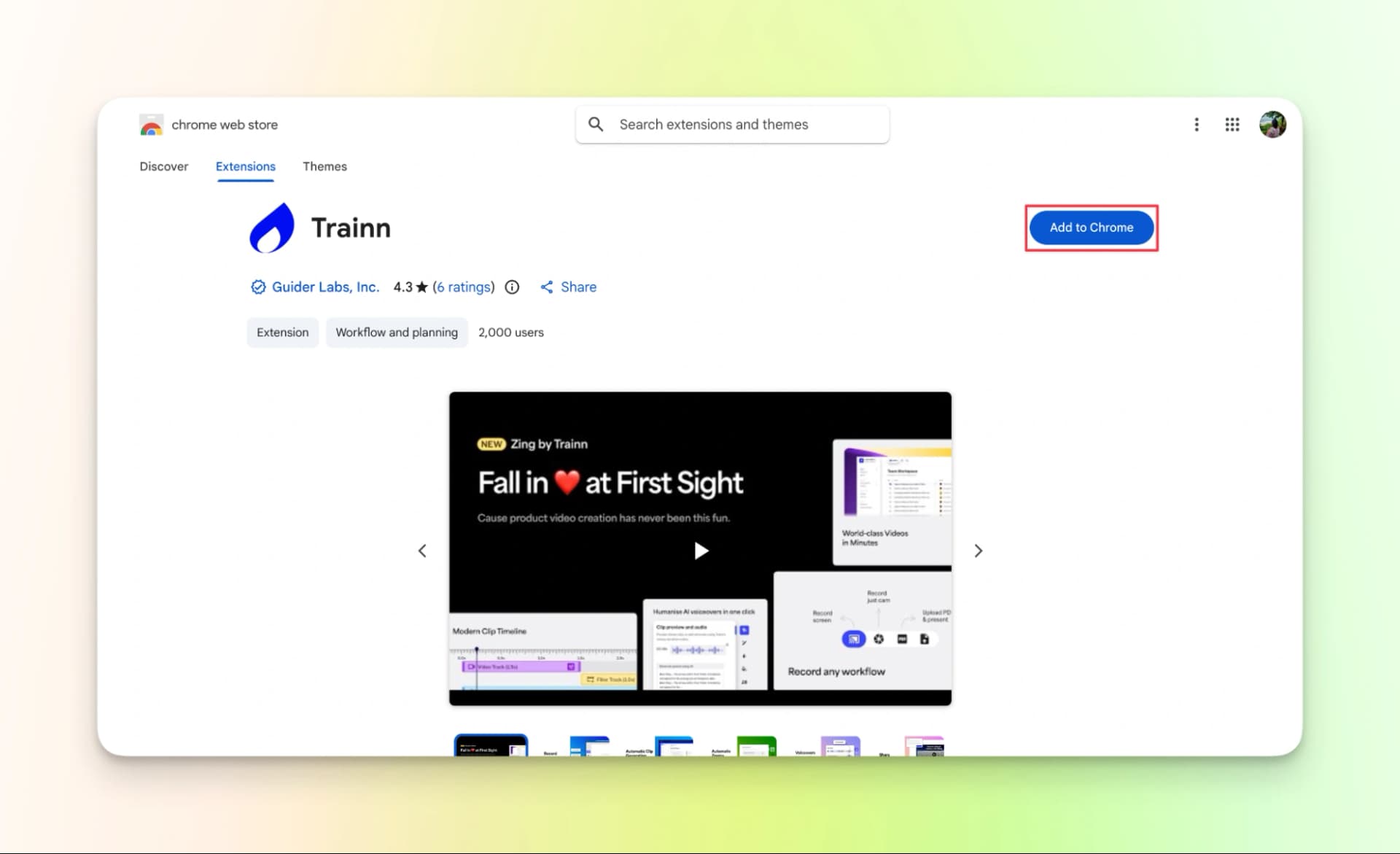
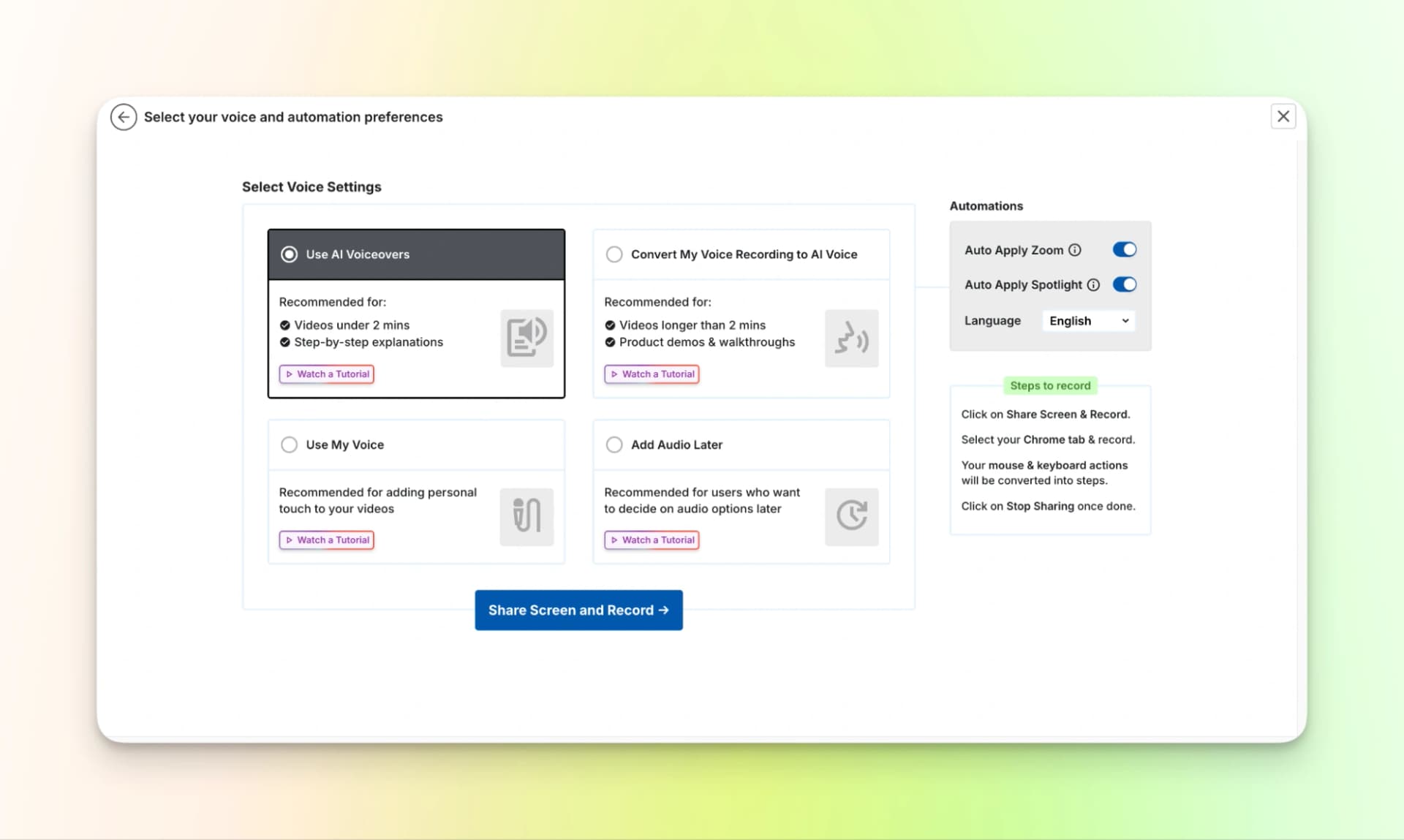
Step 2: Choose Voice: Pick the AI voice to keep it easy.
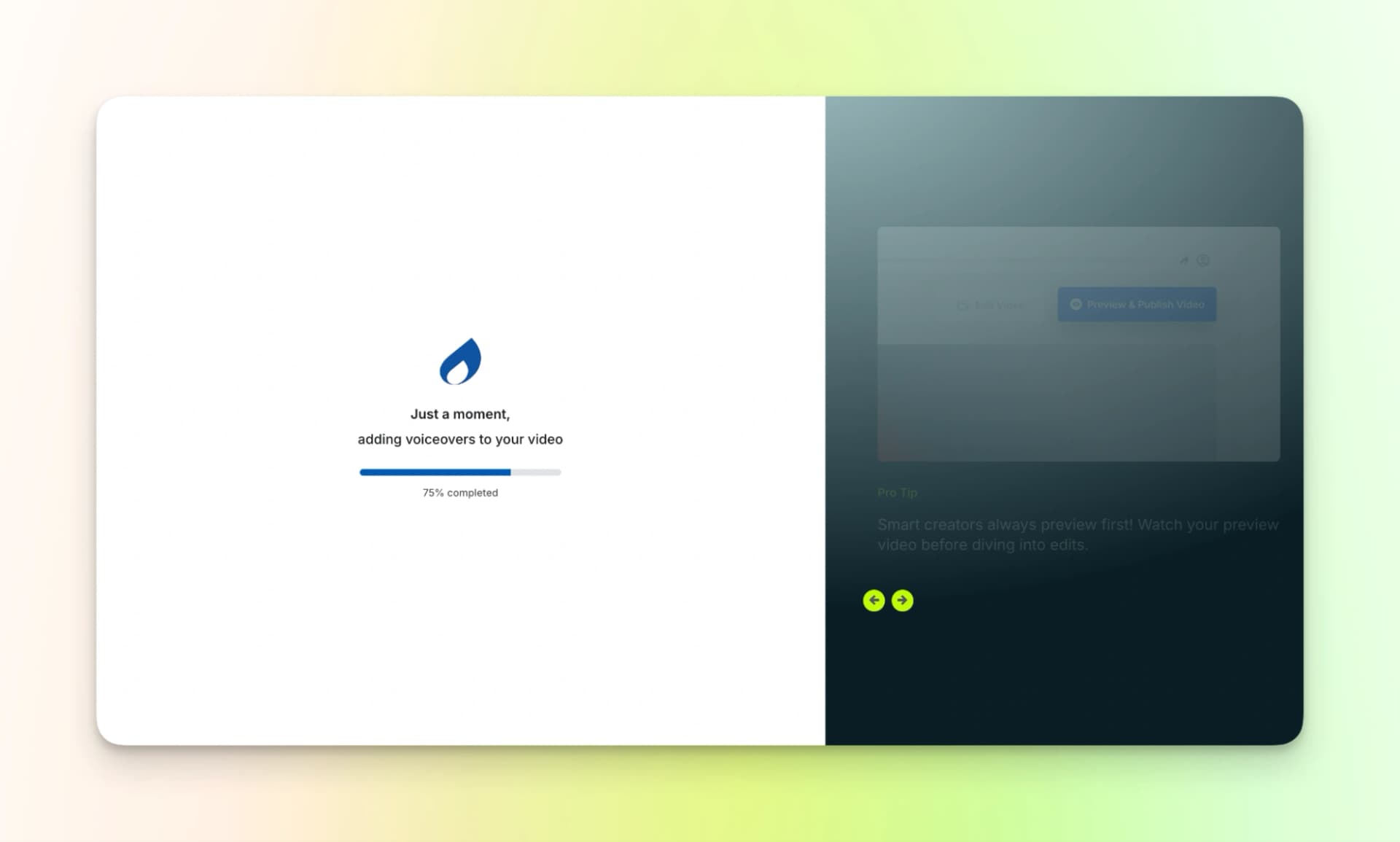
Record your screen and wait a few minutes.
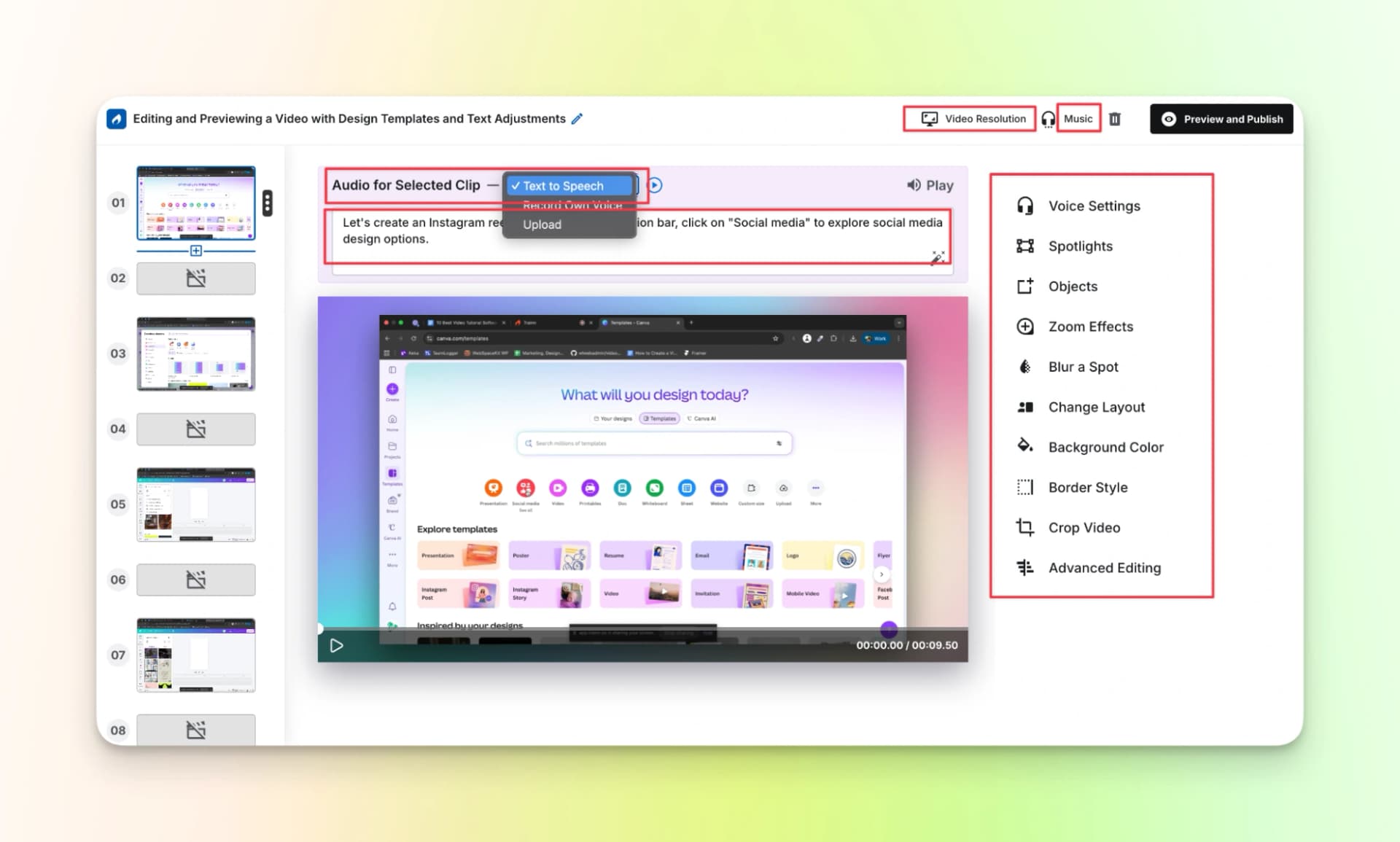
Step 3: Edit: Change anything you like in the video.
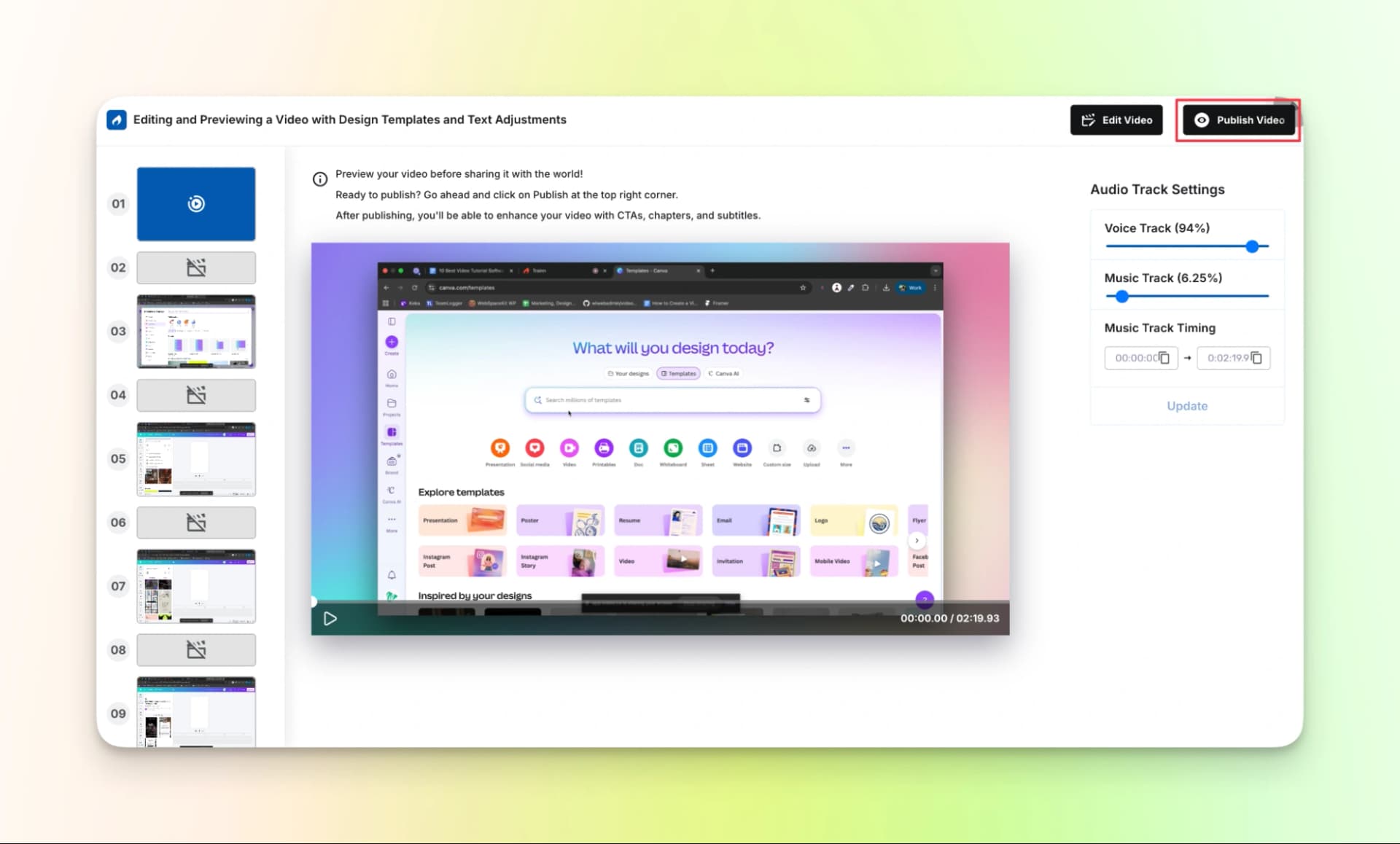
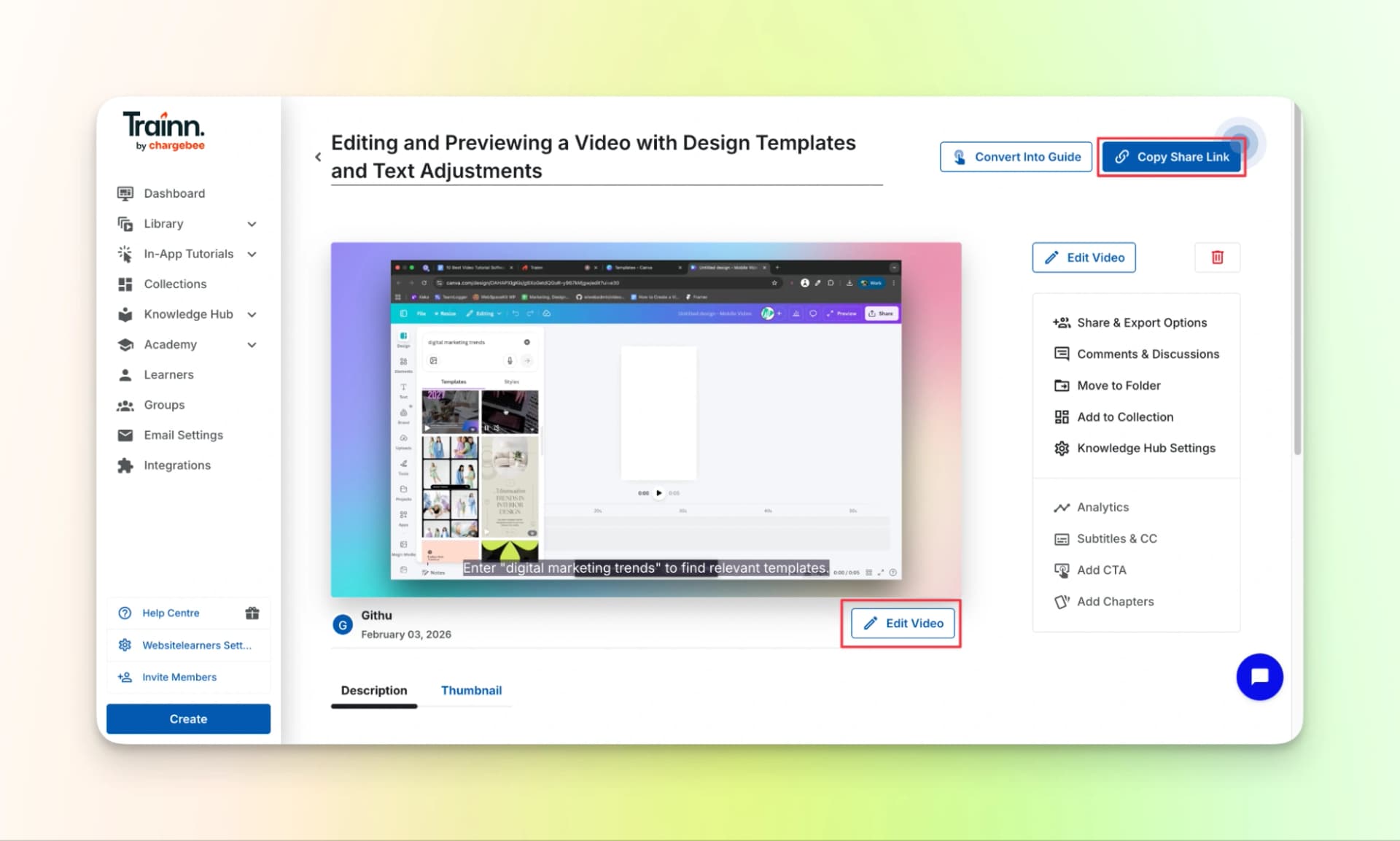
Step 4: Share: Watch a preview and copy the link.
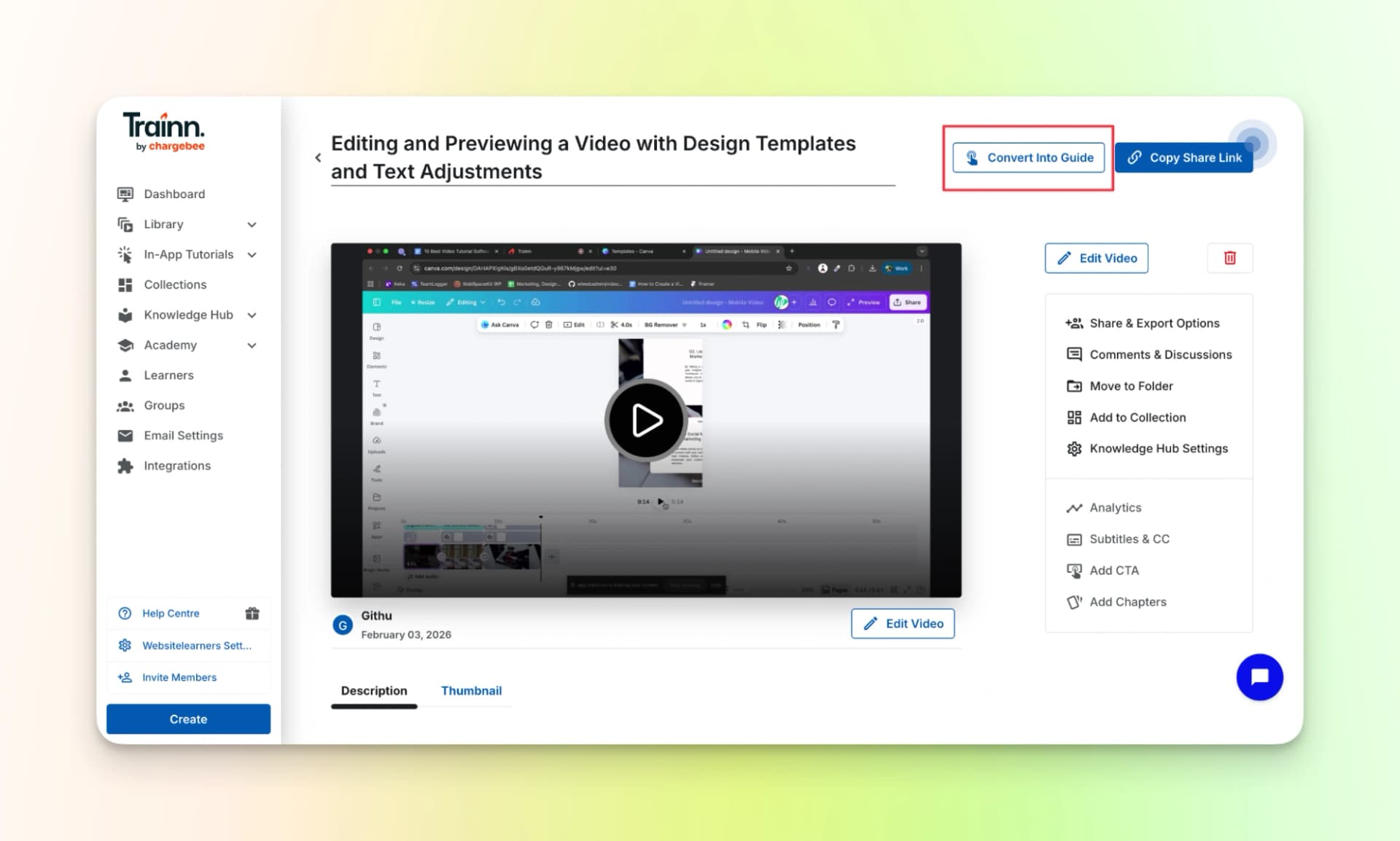
You can also turn your video into a guide with pictures.
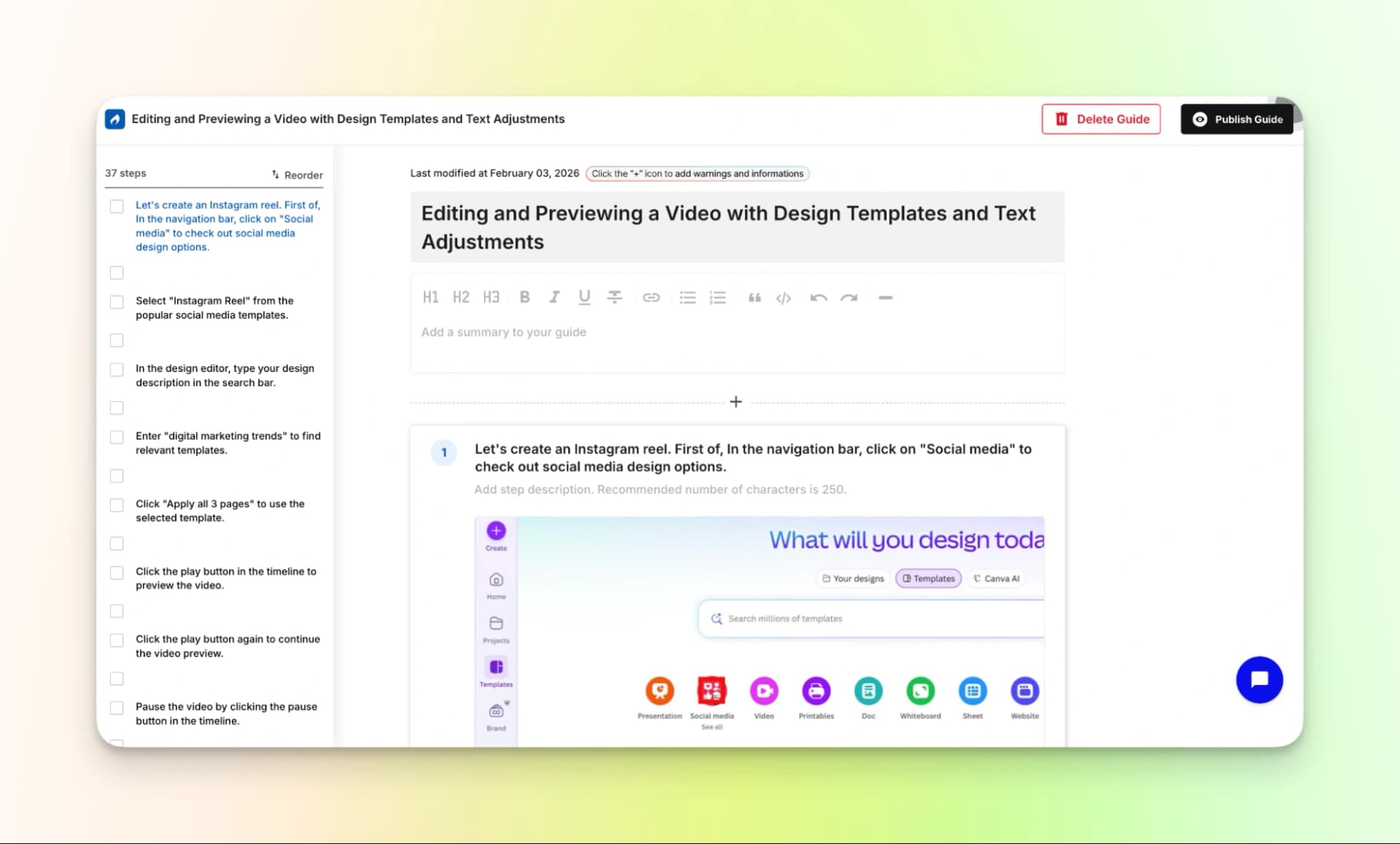
Here is the finished video:
Pricing
Trainn is mostly designed for teams and companies, so the plans can be expensive for individual creators.
- Launch: $2,400/year (includes a 14-day free trial)
- Scale: $10,000/year
- Enterprise: $39,900/year
These tools are great when you need structured internal training. In case you’re focused more on public platforms, check out how to make a tutorial video on YouTube.
4. Tutorial.ai
Tutorial.ai helps you make easy training videos. It’s perfect for showing people how to do things step-by-step.
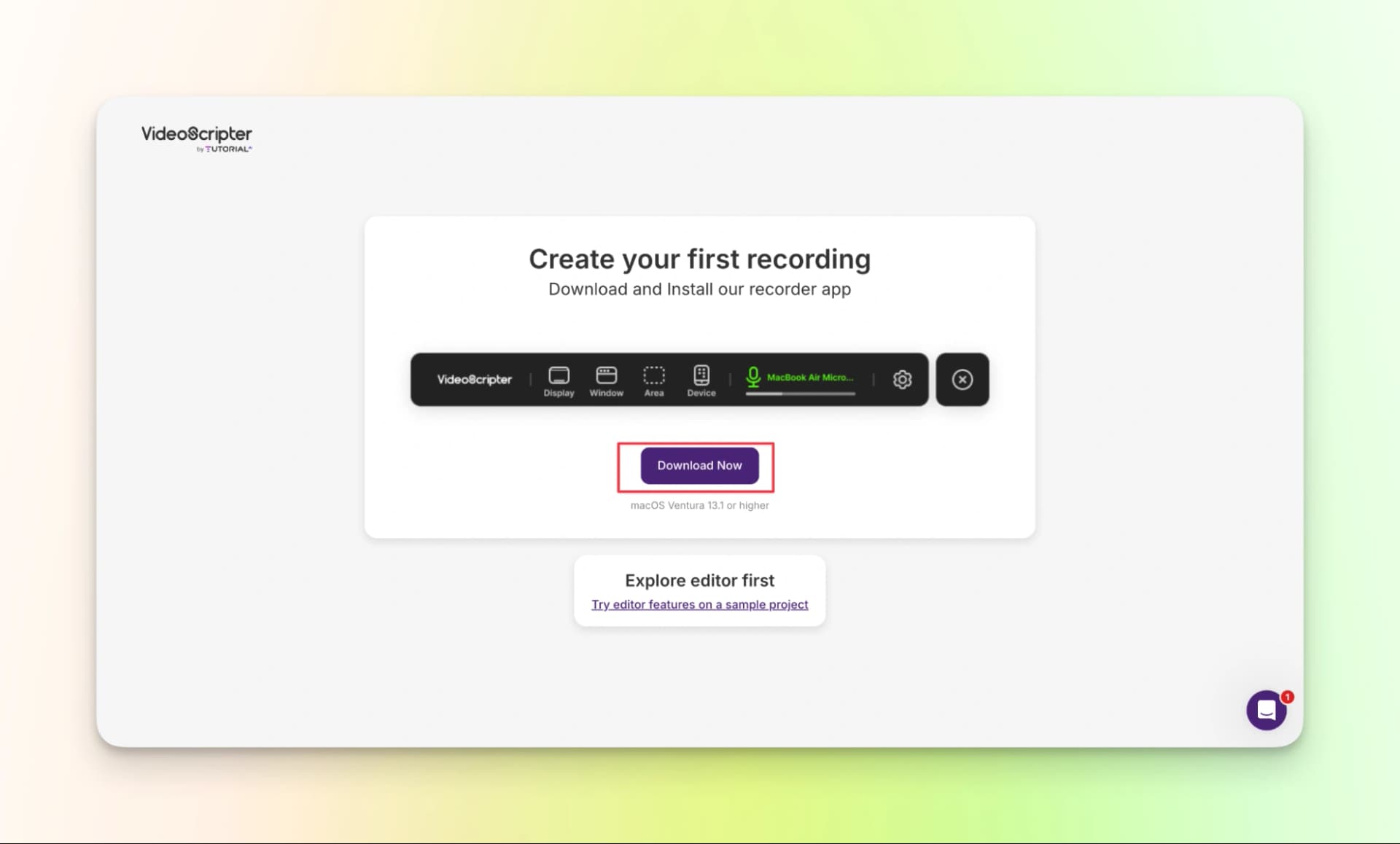
Just download the app and you’re ready to turn your screen recordings into great videos.
How to use the tool:
Step 1: Download the tool.
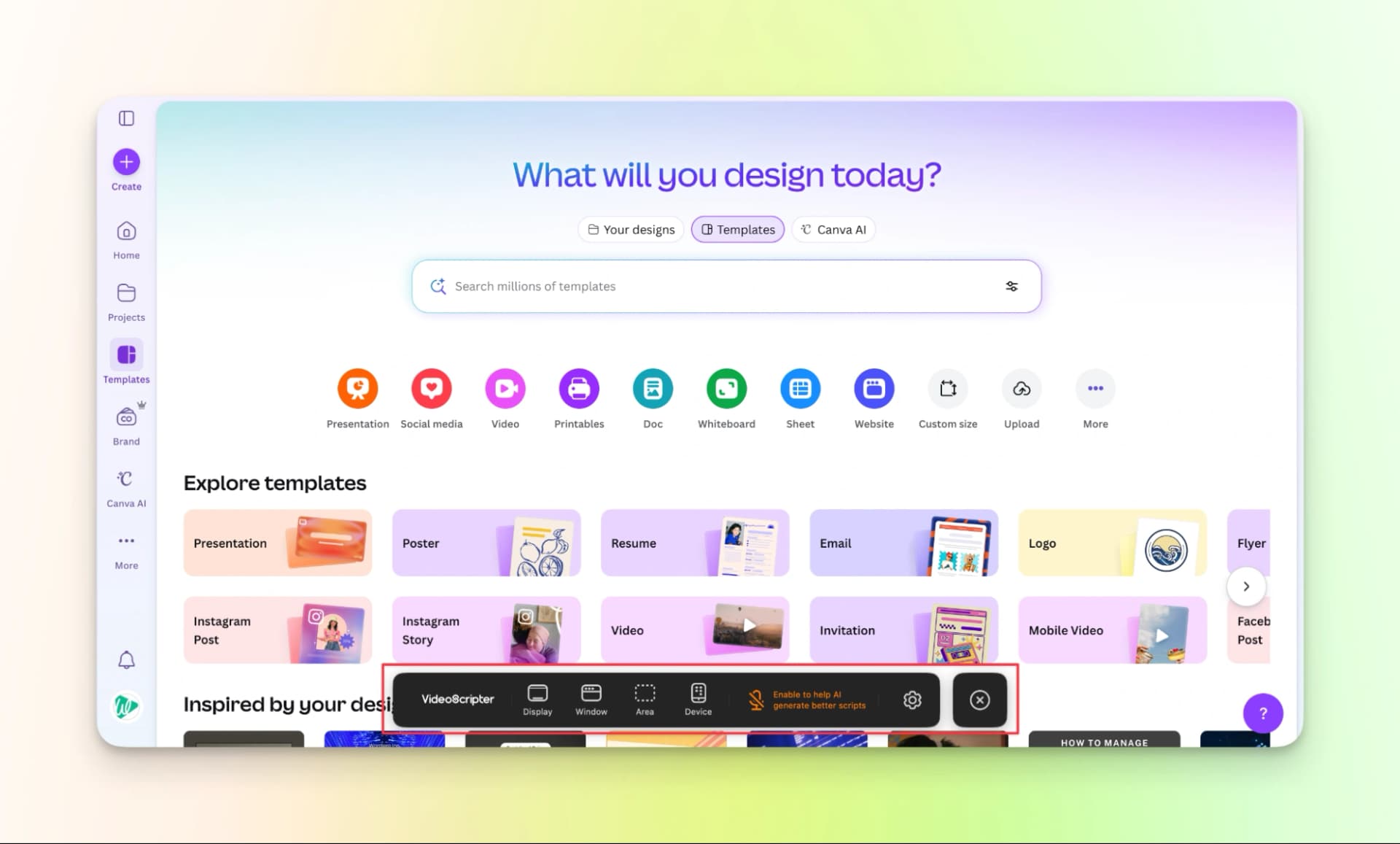
Step 2: Next, the screen recording options will appear.
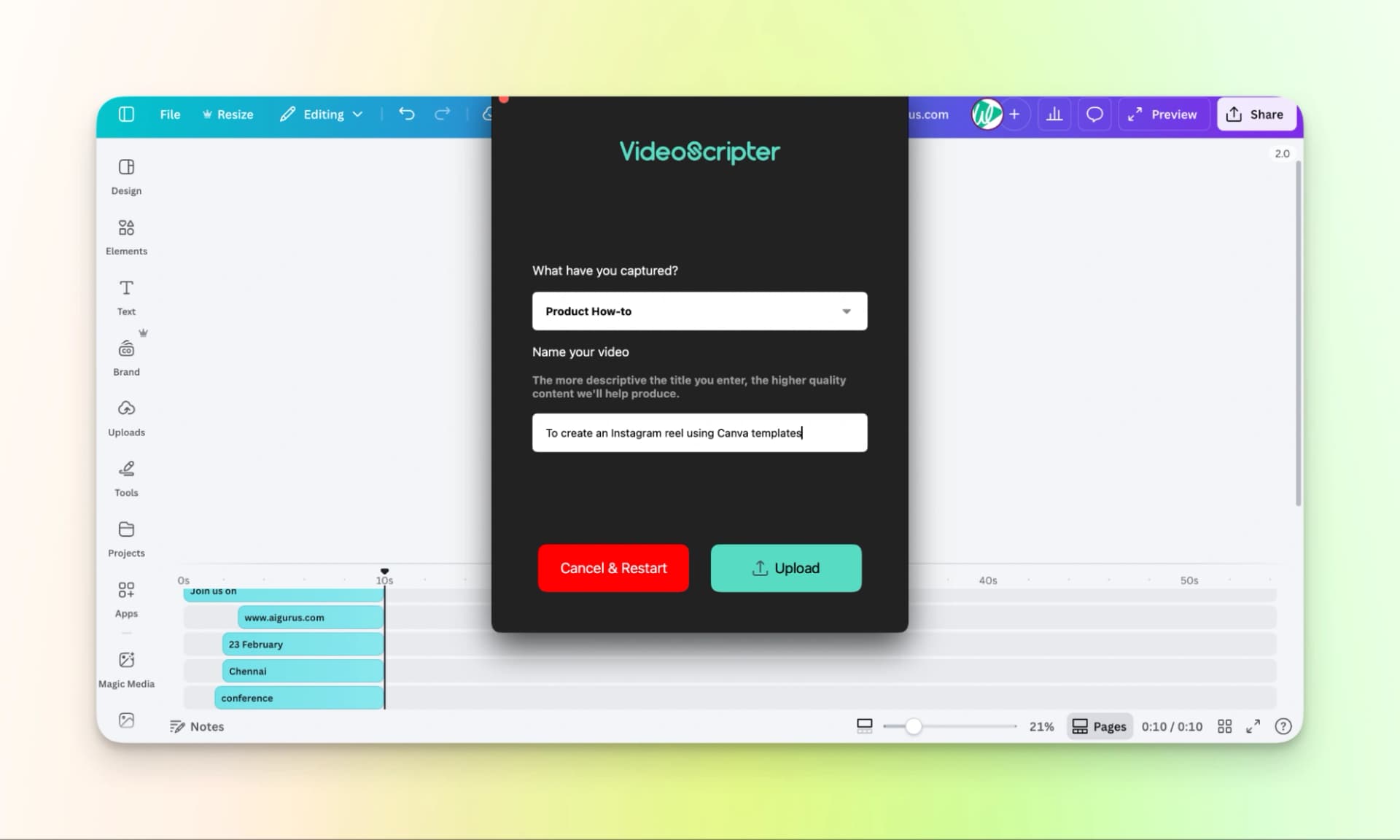
Step 3: Record your screen and add some informations about your video.
Step 4: Watch the video that is generated.
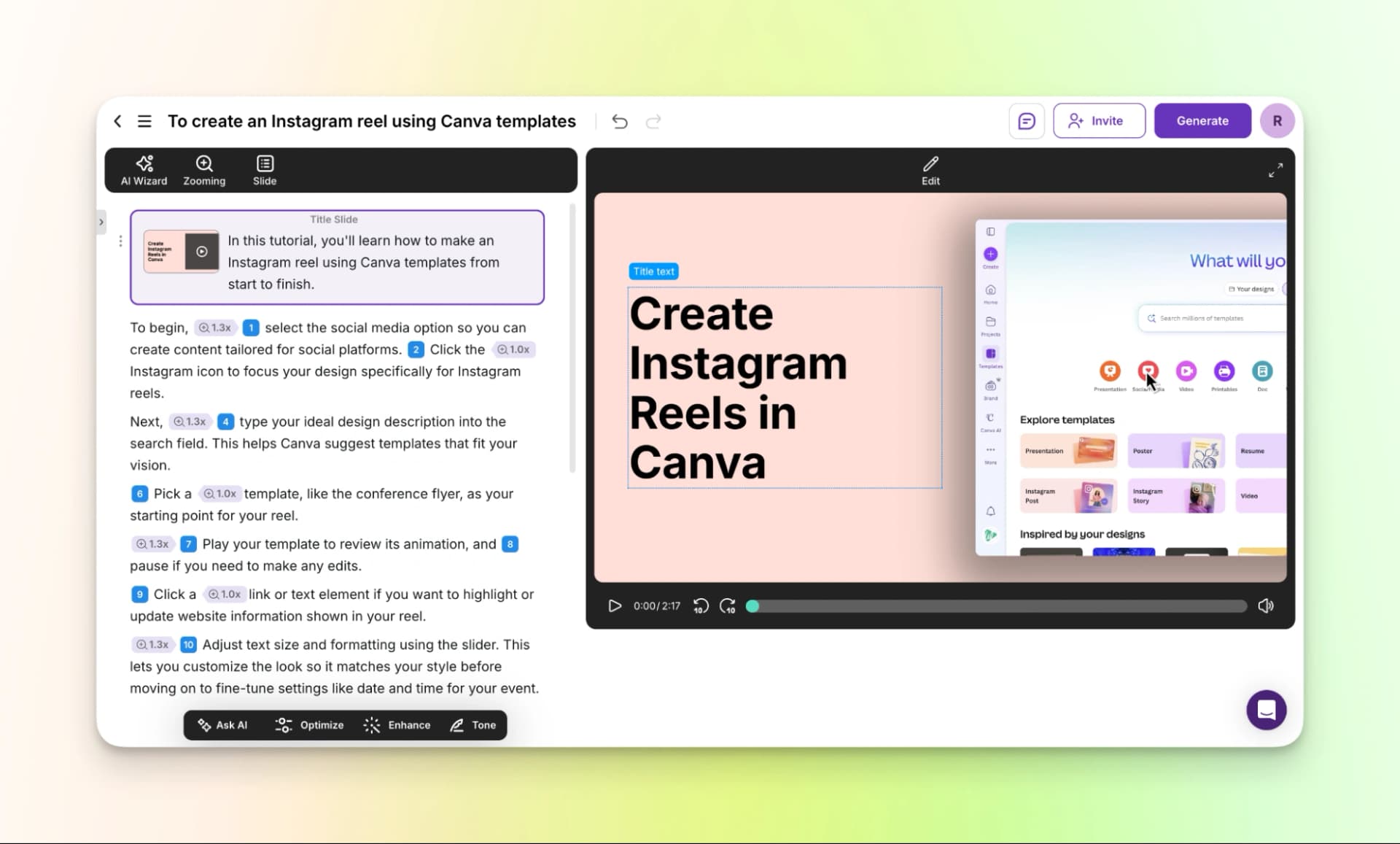
Step 5: If you like it, then generate the video.
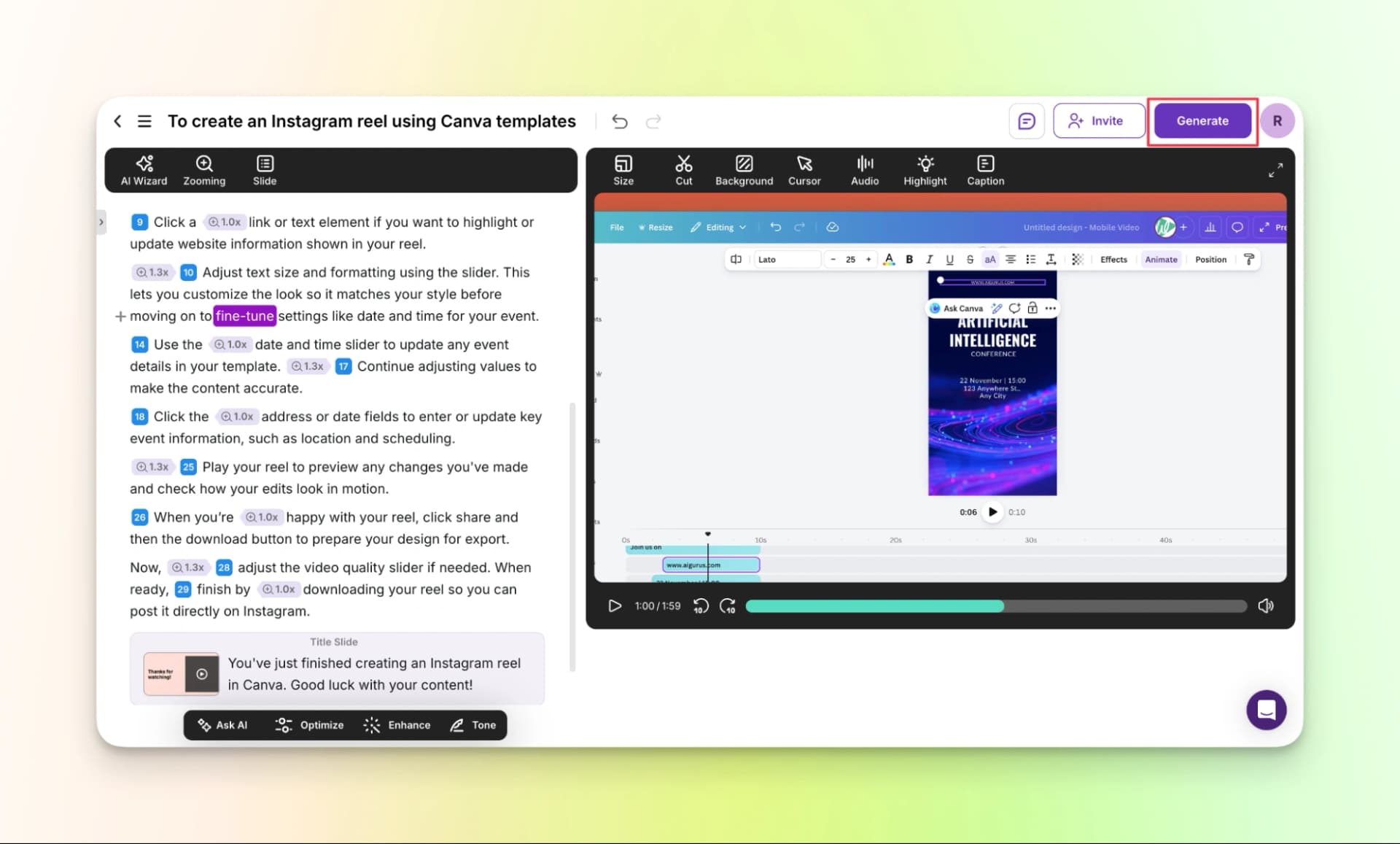
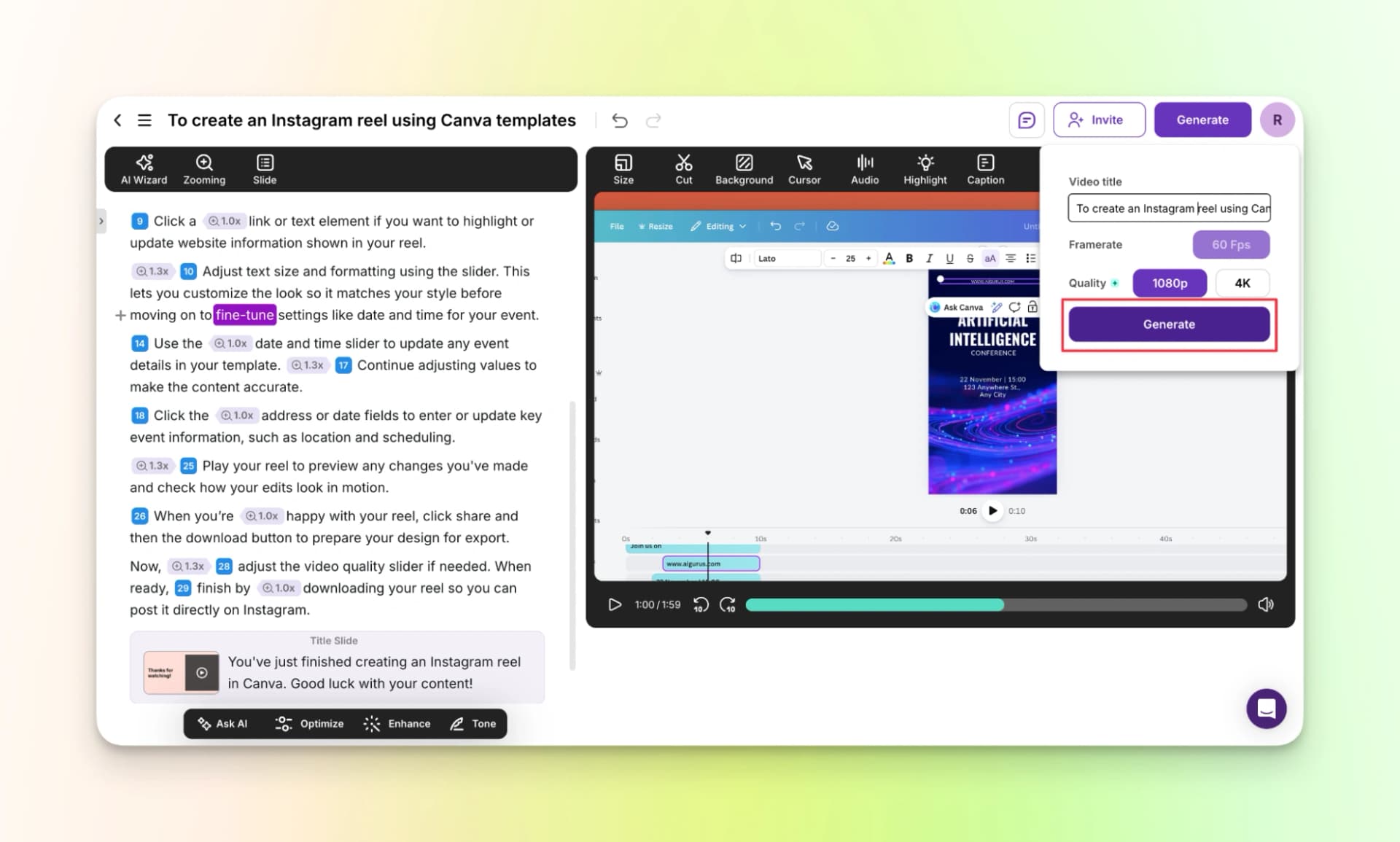
Here’s the finished video:
Pricing
Tutorial.ai offers a 15-day free trial, so you can try creating training videos before choosing a paid plan.
The paid plans mainly depend on the number of users or seats you need.
- Free Trial: 15 days
- Solo: $29 per seat
- Growth: $89 per seat
- Enterprise: Available on demand
5. Guidde
The next training video software you can try is Guidde. Like Trupeer, it helps you turn screen recordings into short how-to videos for tutorials, product walkthroughs, and internal training.
Along with the video, Guidde can also create a step-by-step document with screenshots, which you can use for help guides, documentation, or knowledge bases.
Like Trupeer and Trainn, it alos requires a chrome extension. So, here’s how you can use the tool.
How to use the tool:
Step 1: First, download the Chrome extension
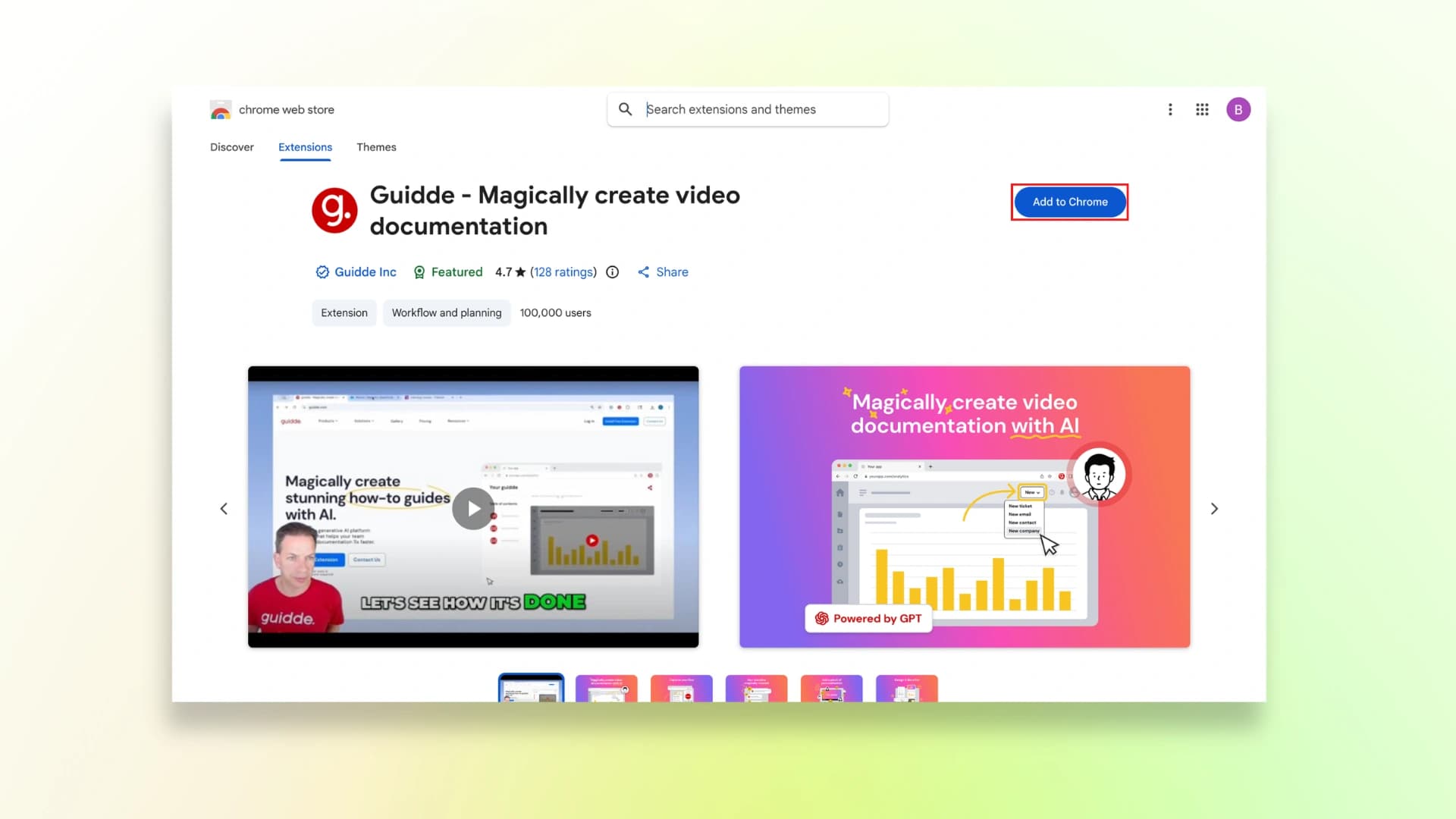
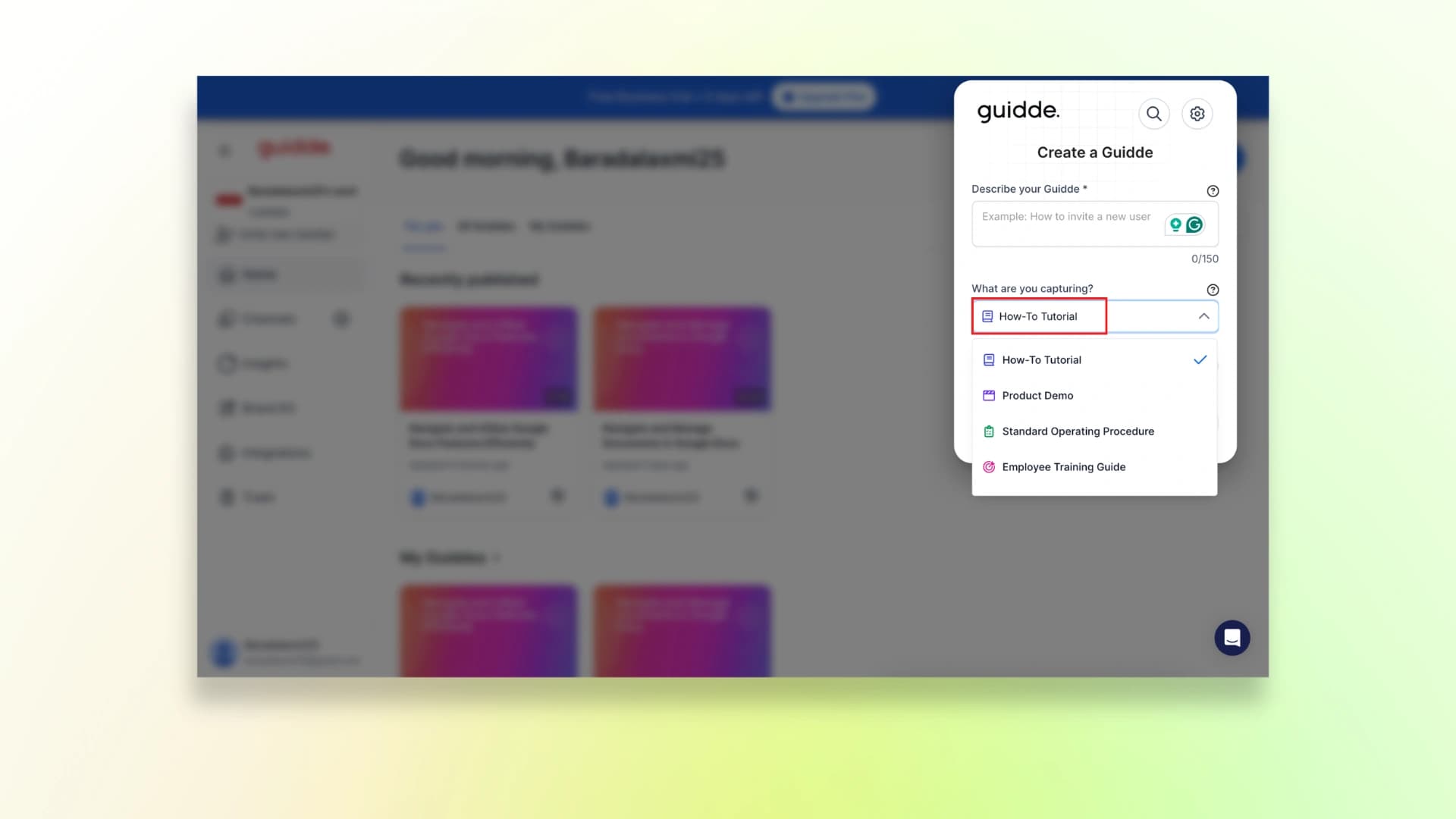
Step 2: After adding the extension to chrome, fill in these details, choose the type of video you will record and start recording your screen.
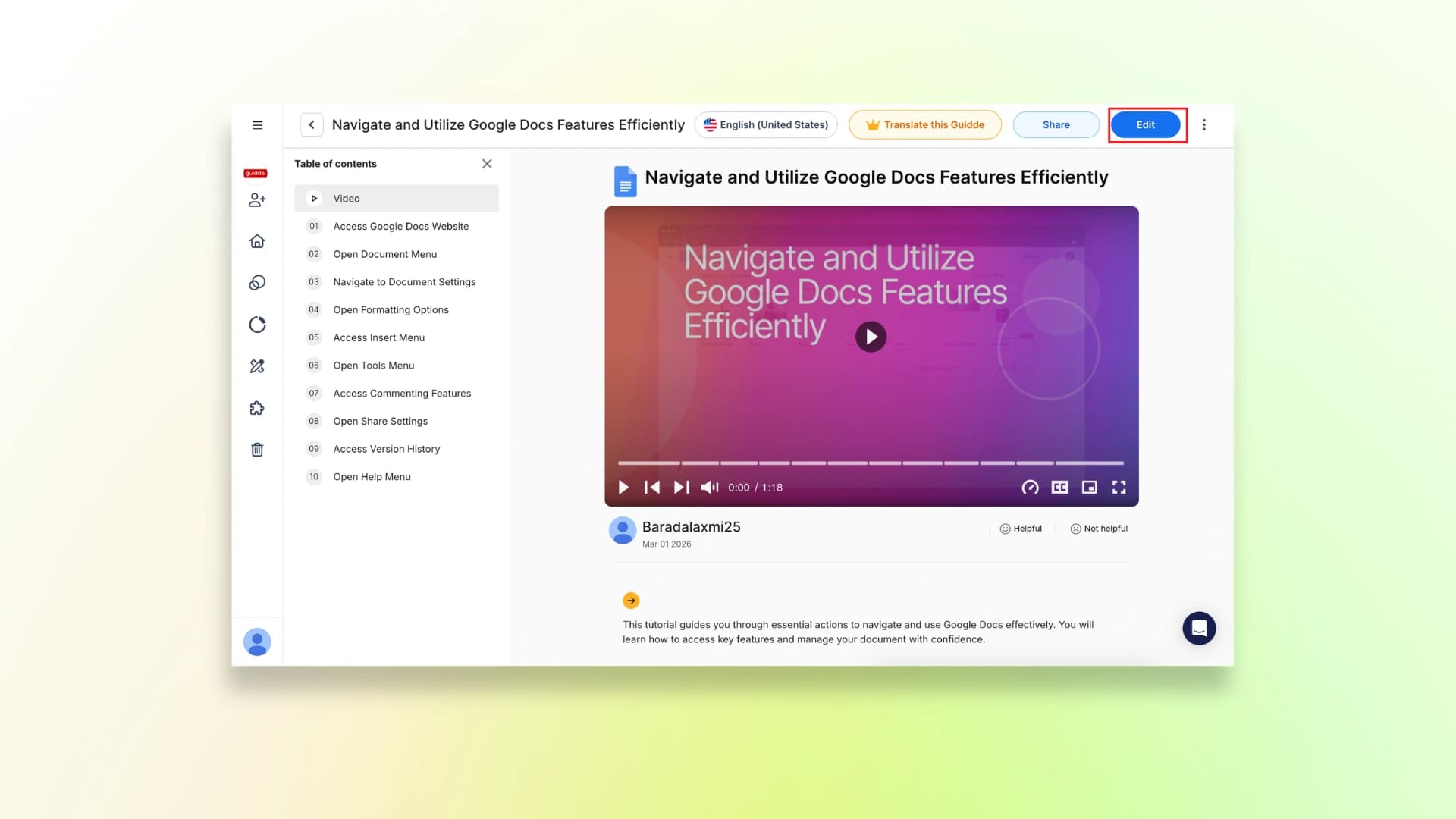
Step 3: Once the screen recording is done, just preview the video and then click Edit.
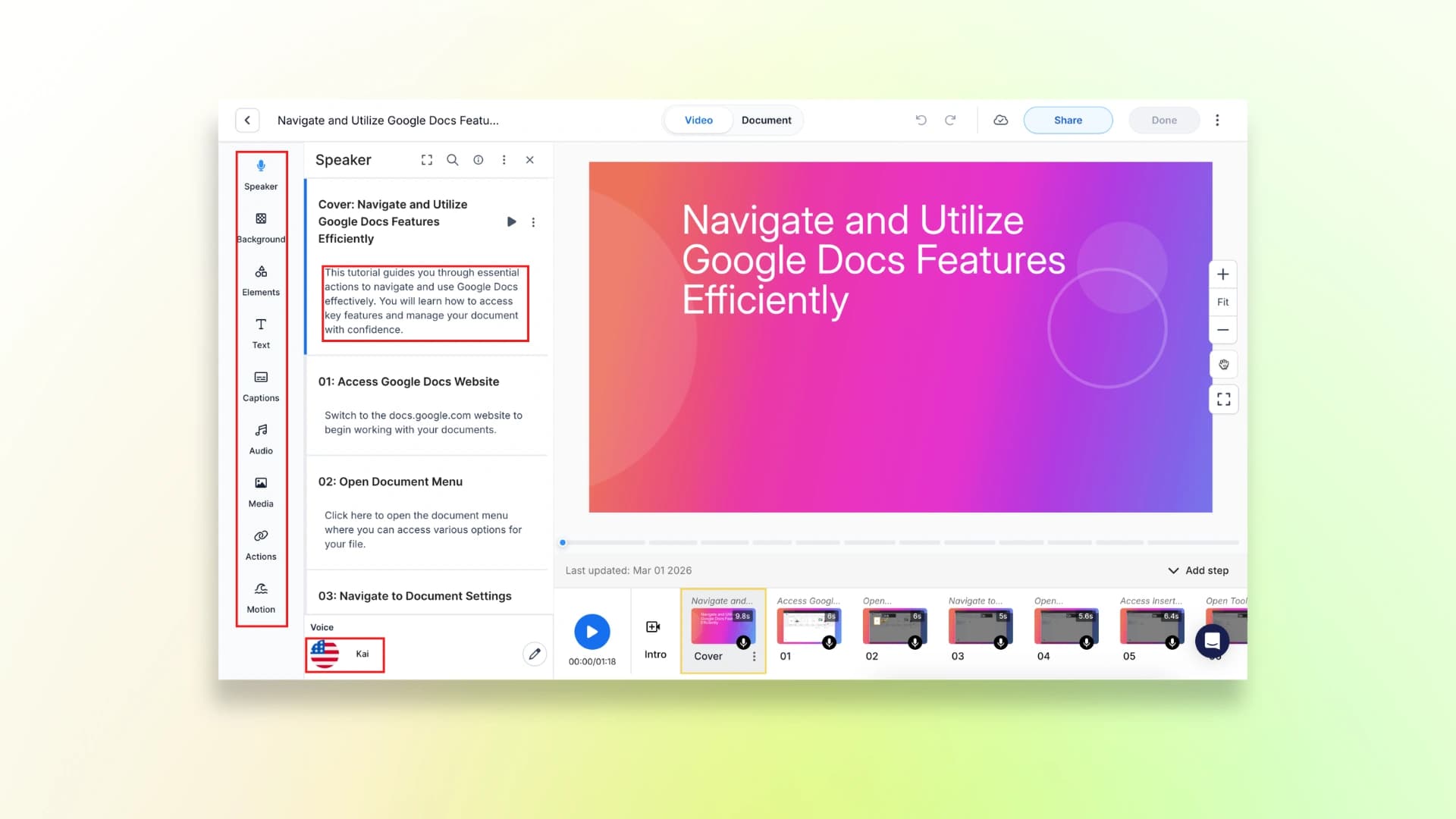
Step 4: Here you can check and edit the script lines, change the voiceover, add elements, captions etc., according to your choice.
Guiddee also provides a full documentation of your video along with the screenshots that you can use for other purposes.
Step 5: Once you’ve edited the video click on share and export it in the medium that you want.
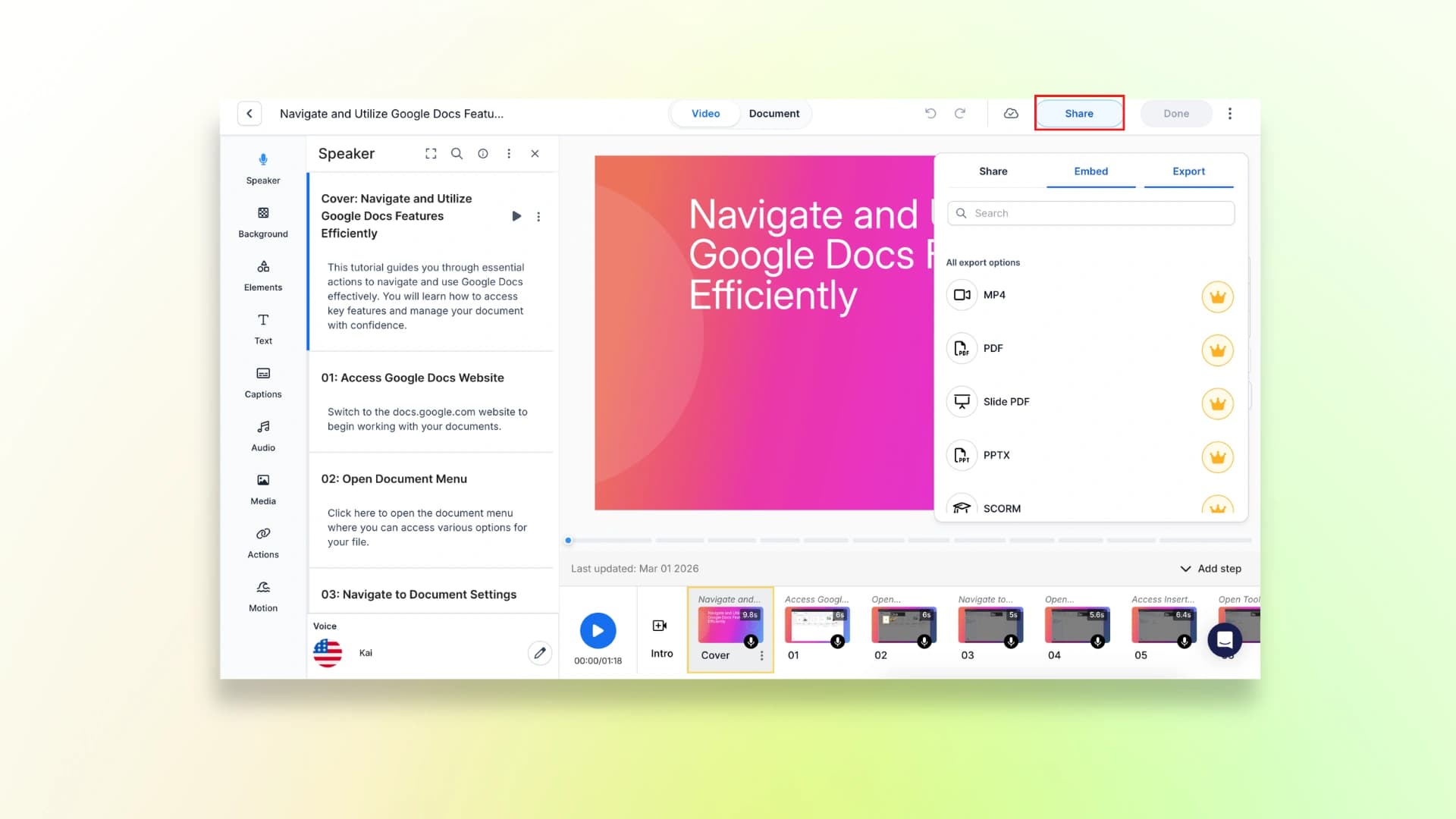
So, this is how you can create your training video using Guidde. Now, lets look at the pricing plans.
And here’s the finished video:
Pricing
Guidde offers a few pricing plans depending on how many features and creators you need:
- Free: $0 per creator/month
- Pro: $18 per creator/month
- Business: $39 per creator/month (7-day trial available)
- Enterprise: Custom pricing (contact sales)
6. Clueso
Next is Clueso, and this tool helps you create training videos using different types of content.
You can record your screen, upload an existing video, or even use a slide deck to turn it into a structured training tutorial.
Clueso also offers helpful features for teams.
For example, its auto-update feature helps update your videos and documentation when something changes.
You can also use video templates to create training videos faster, and invite your team members to collaborate while building tutorials or product training content.
How to use the tool:
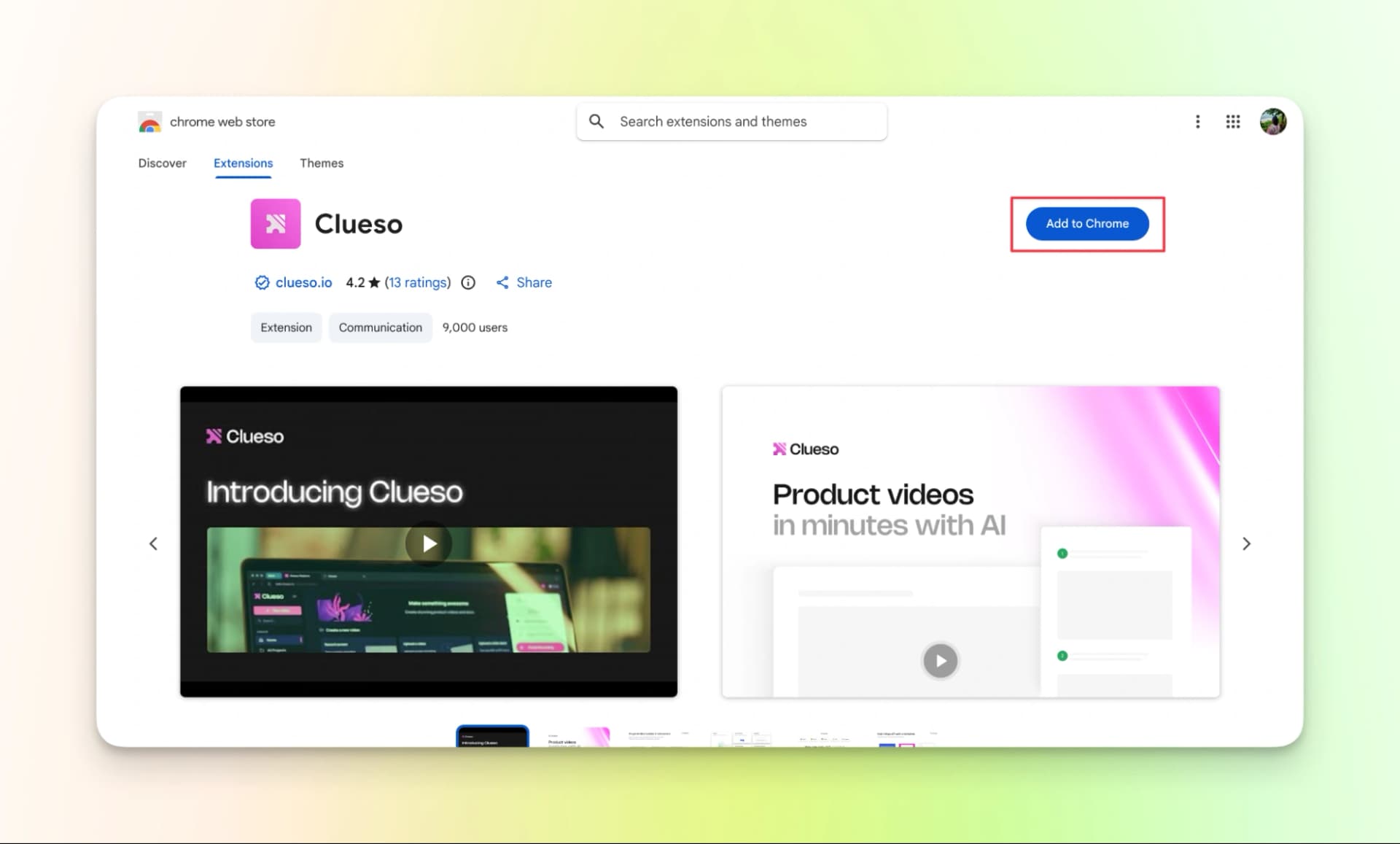
Step 1: Download the Chrome extension.
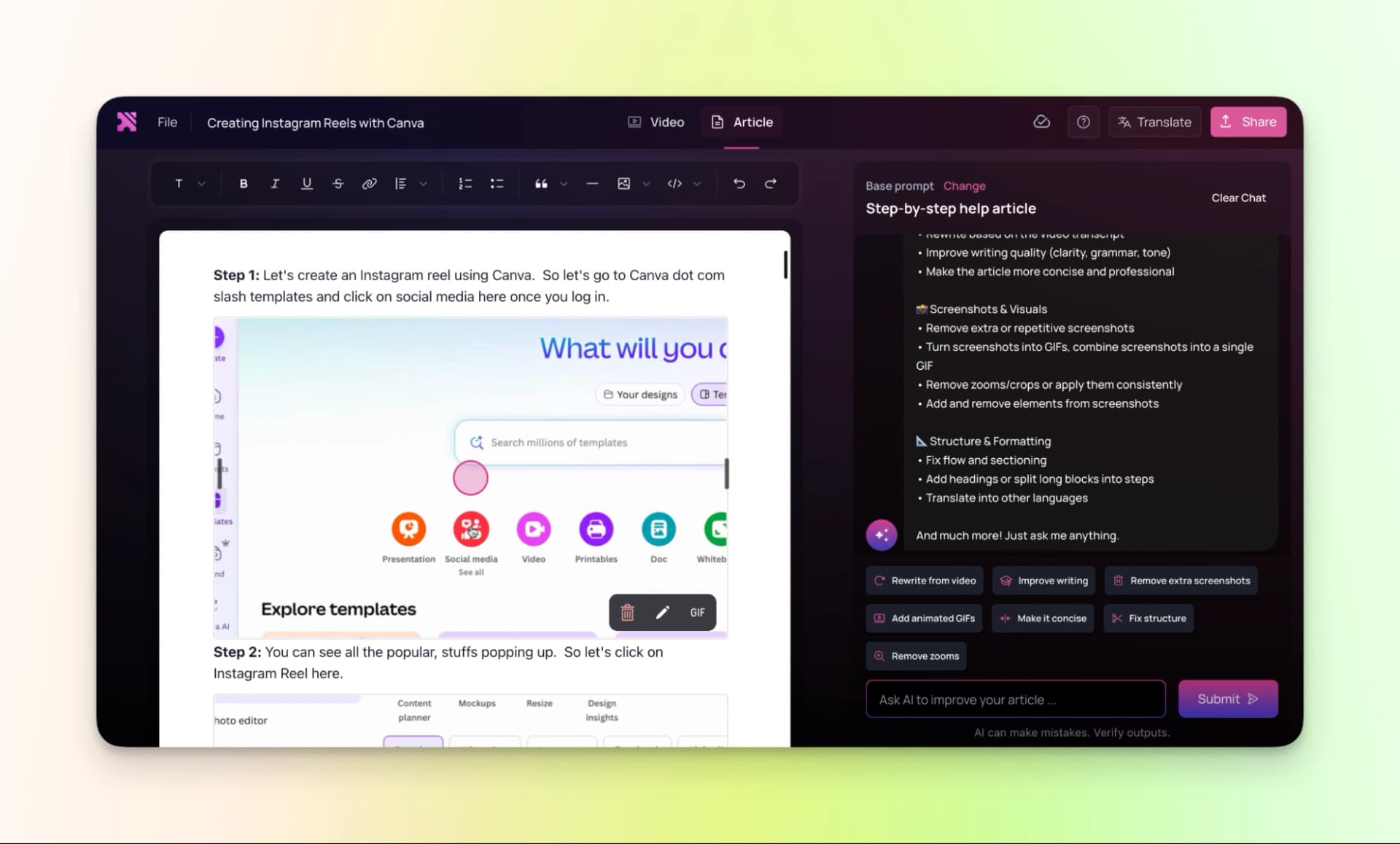
Step 2: Once your recording is complete, you’ll see a preview of the video along with an auto-generated article created from your recording.
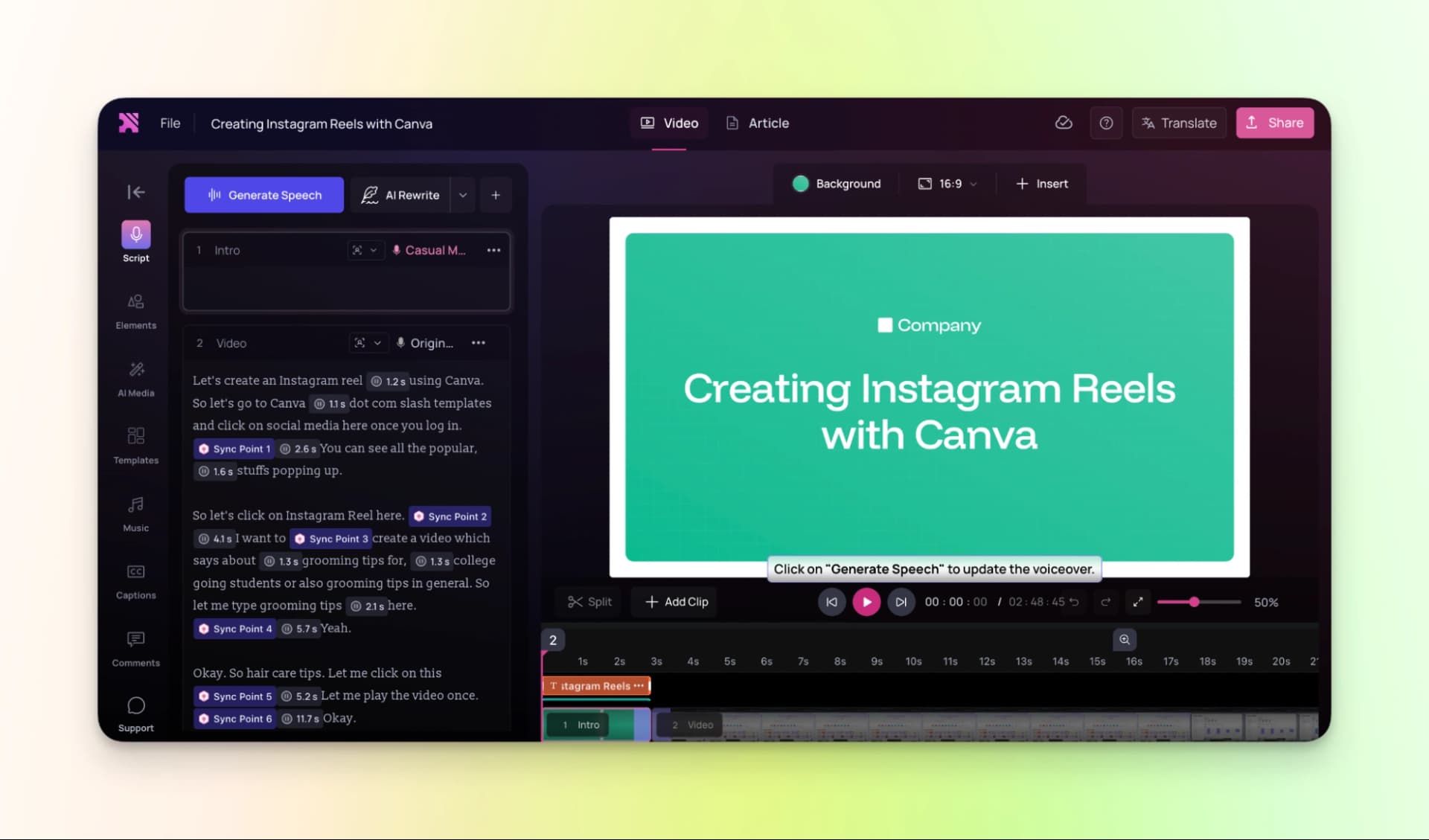
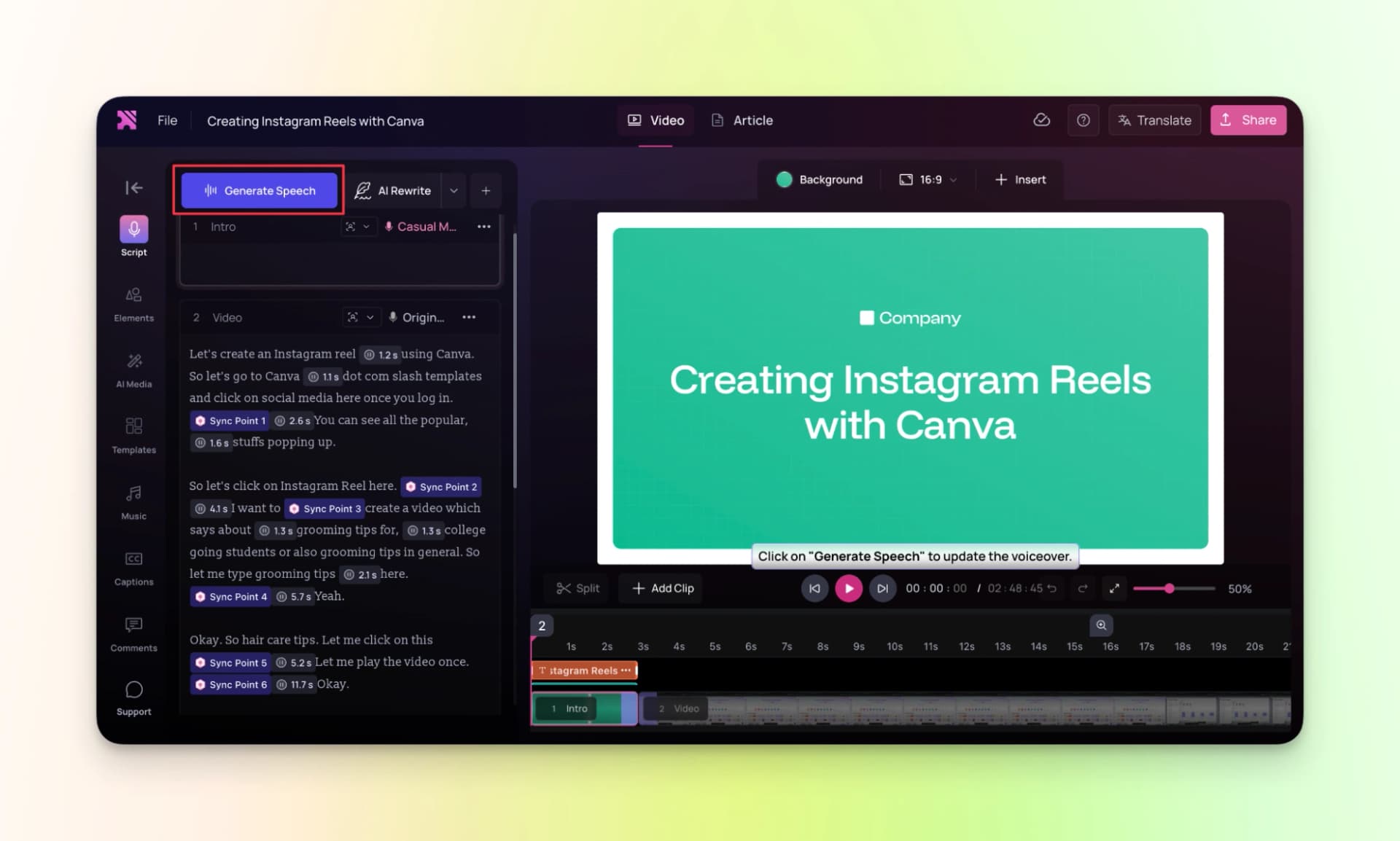
Step 3: Next, generate the AI voiceover based on the script.
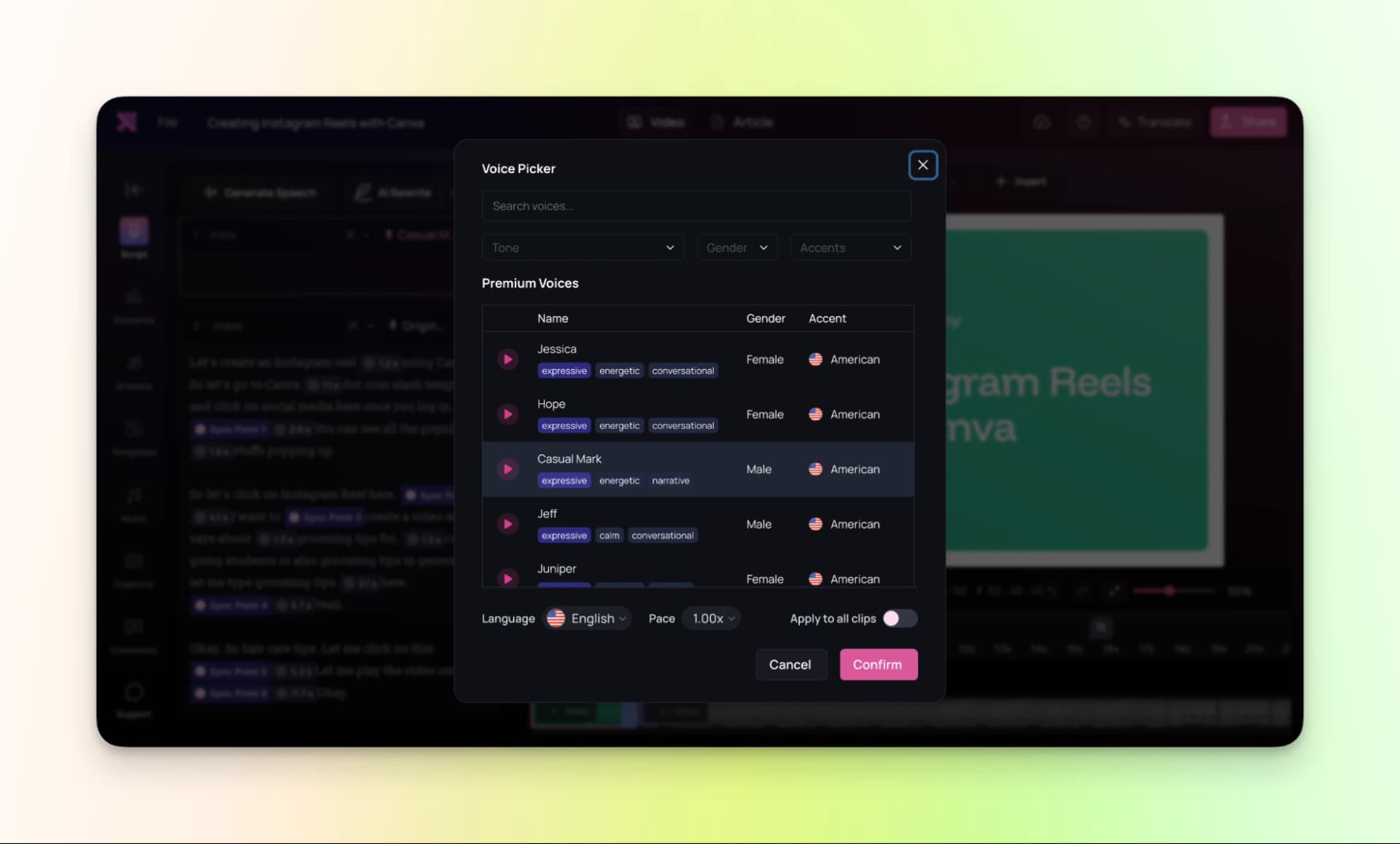
Step 4: Finally, export the video.
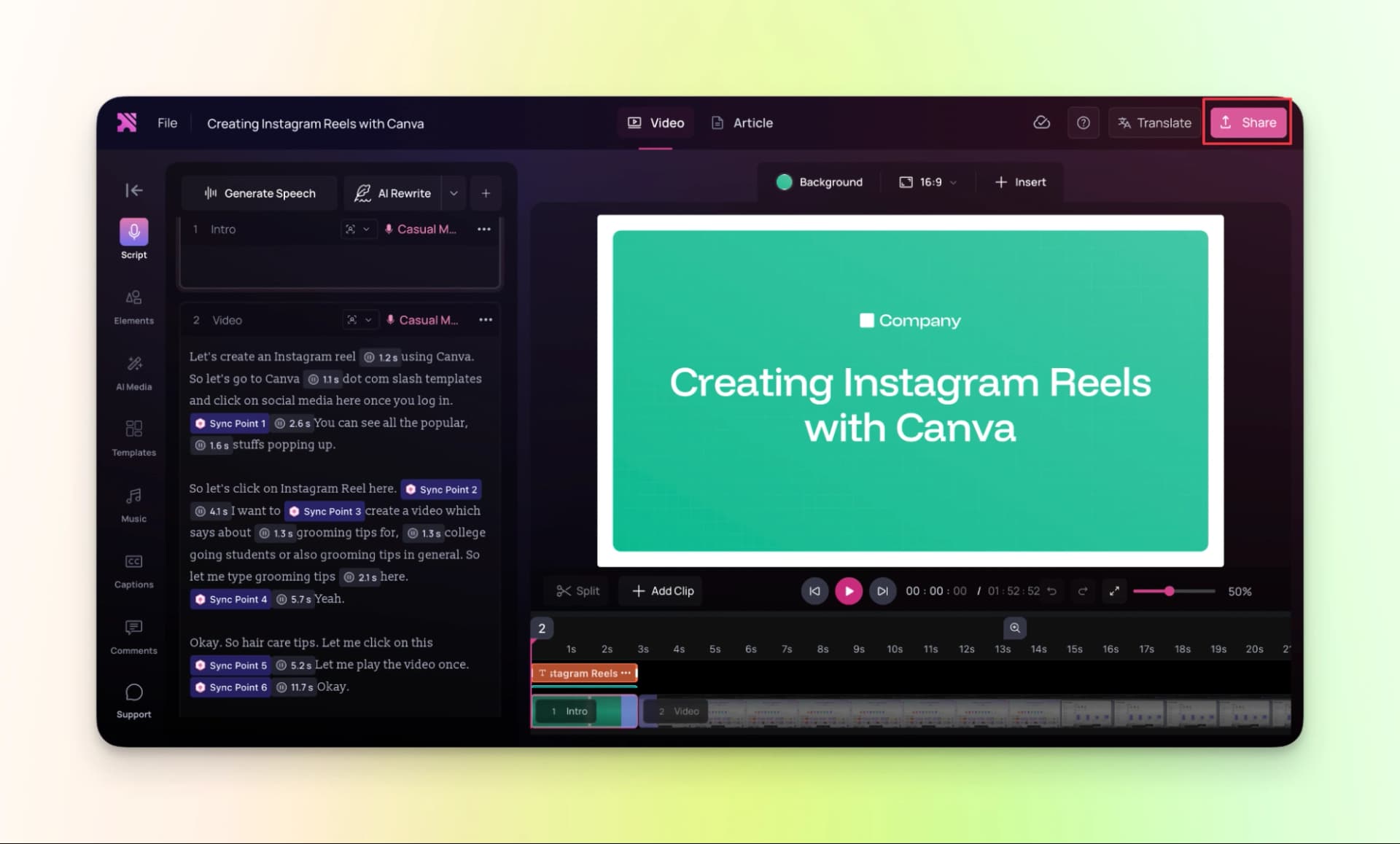
You can also translate the video into other languages. Videos created on the free plan will include a watermark.
Here’s the finished video:
Pricing
Clueso offers a free trial so you can explore the platform before going for paid plan.
If you need more features and higher usage limits, you can upgrade to one of the following plans:
- Free Trial: $0 (7 days)
- Starter: $150/month
- Growth: $250/month
- Enterprise: Available on demand
7. WowTo.ai
WowTo.ai helps you create training and tutorial videos from screen recordings.
To start, you need to install the Chrome extension, after which you can record your screen and turn it into a proper video.
You can also add an AI avatar and voiceovers to your videos.
But it is a bit time-consuming and not so smooth for editing as compared to other tools.
Now, let's see how you can create a training video using this tool.
How to use the tool:
Step 1: Download the Chrome extension
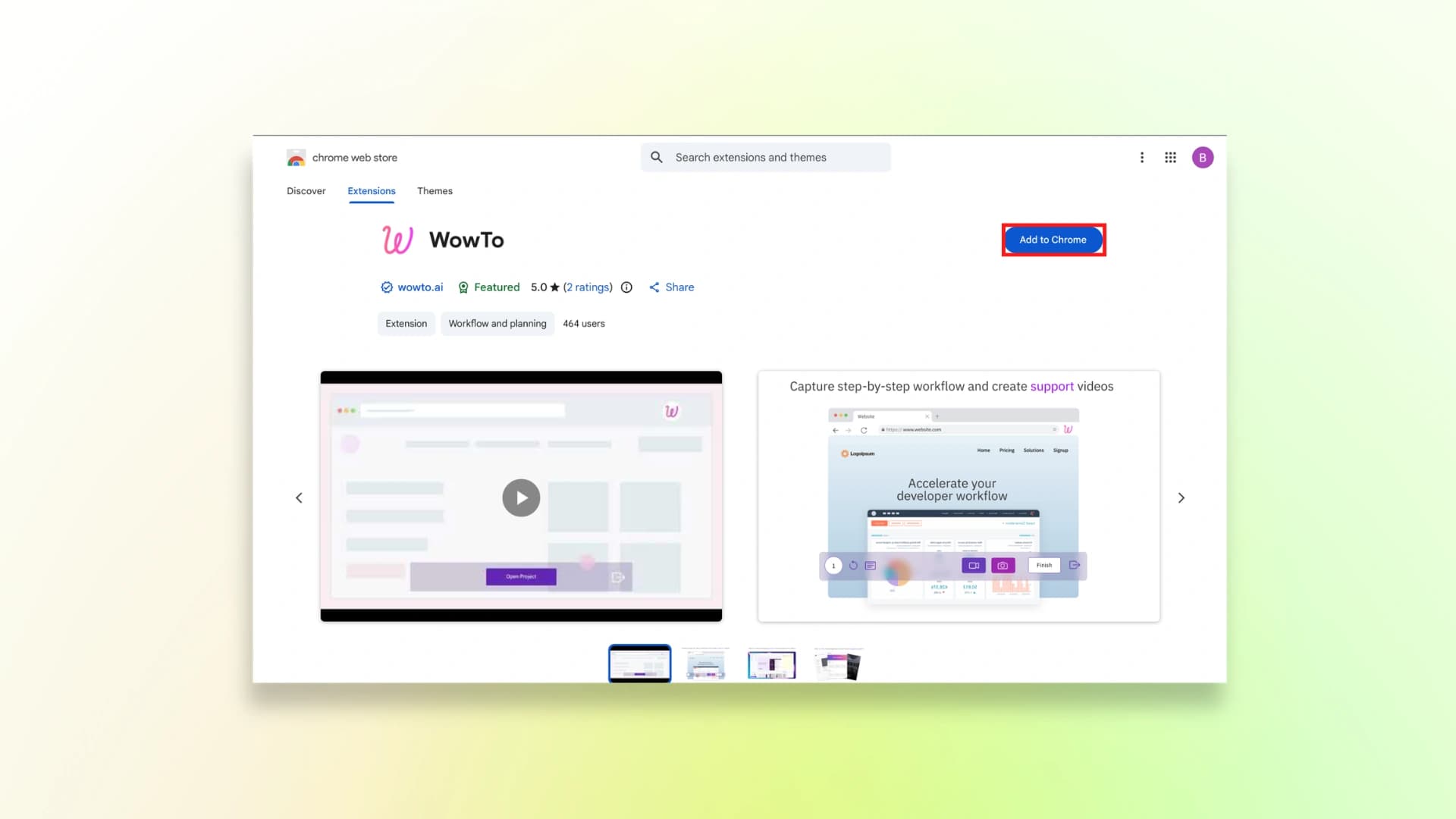
Step 2: Record your screen
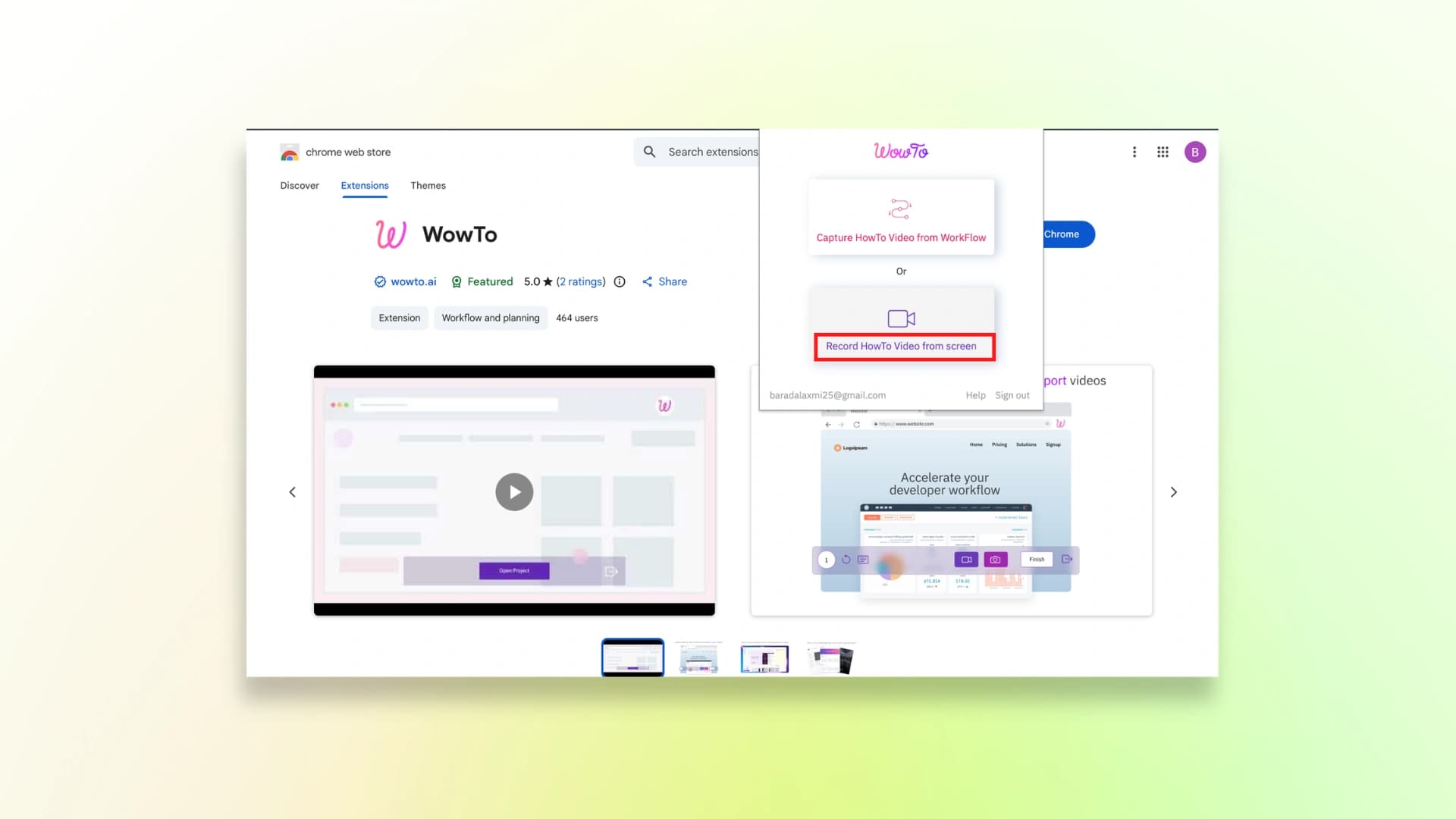
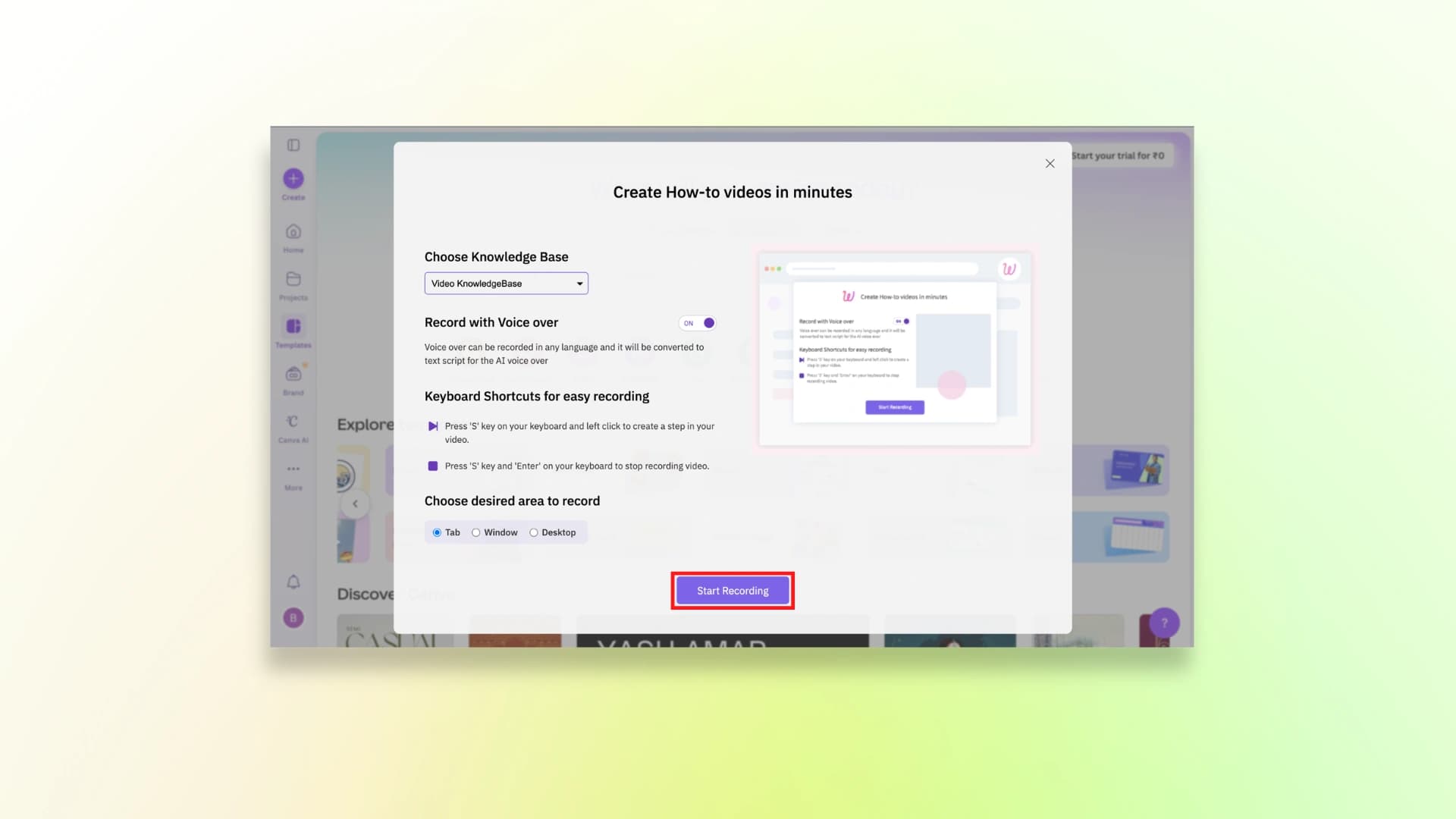
Step 3: After recording the video, give a name to the video and click Create.
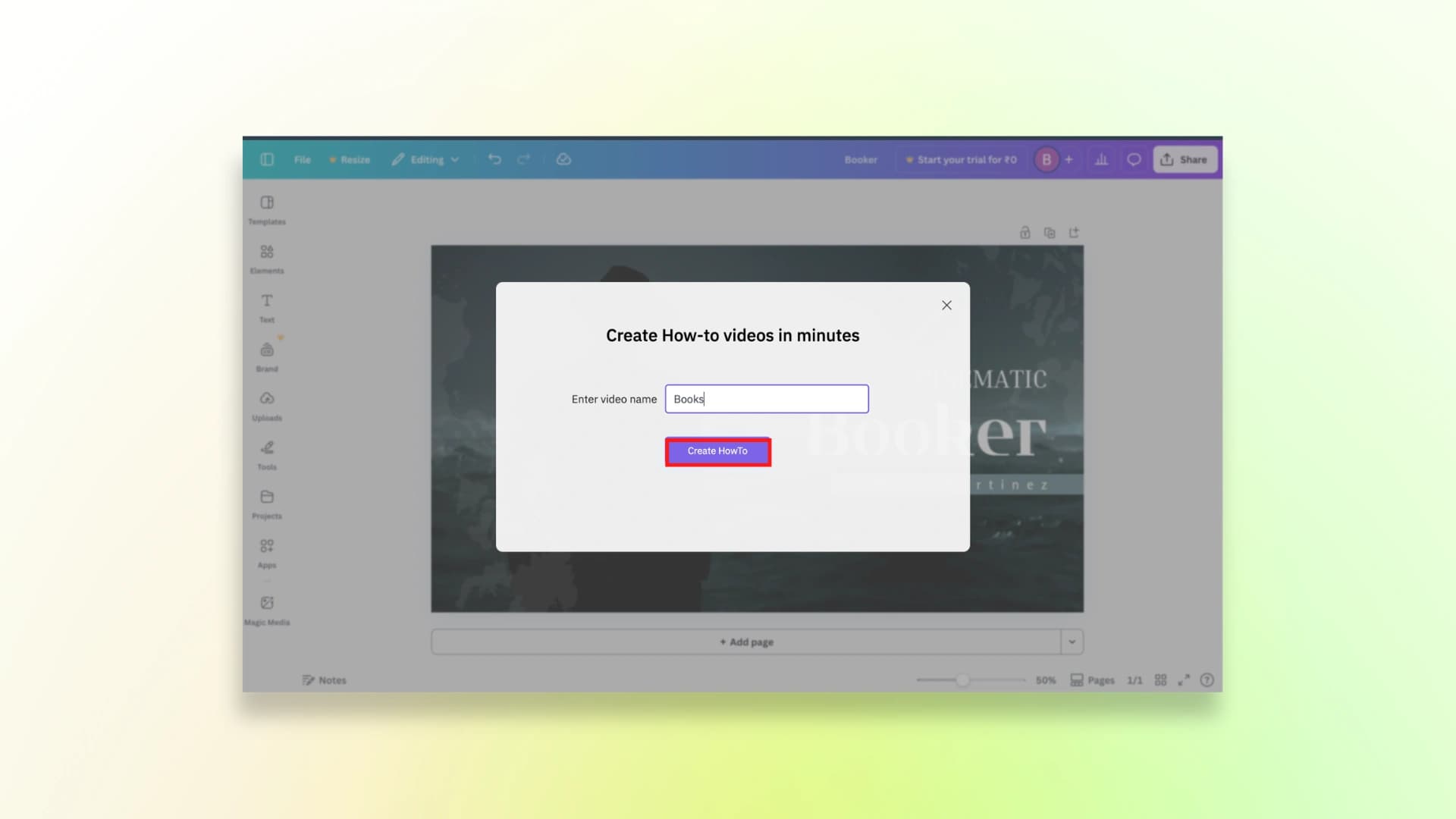
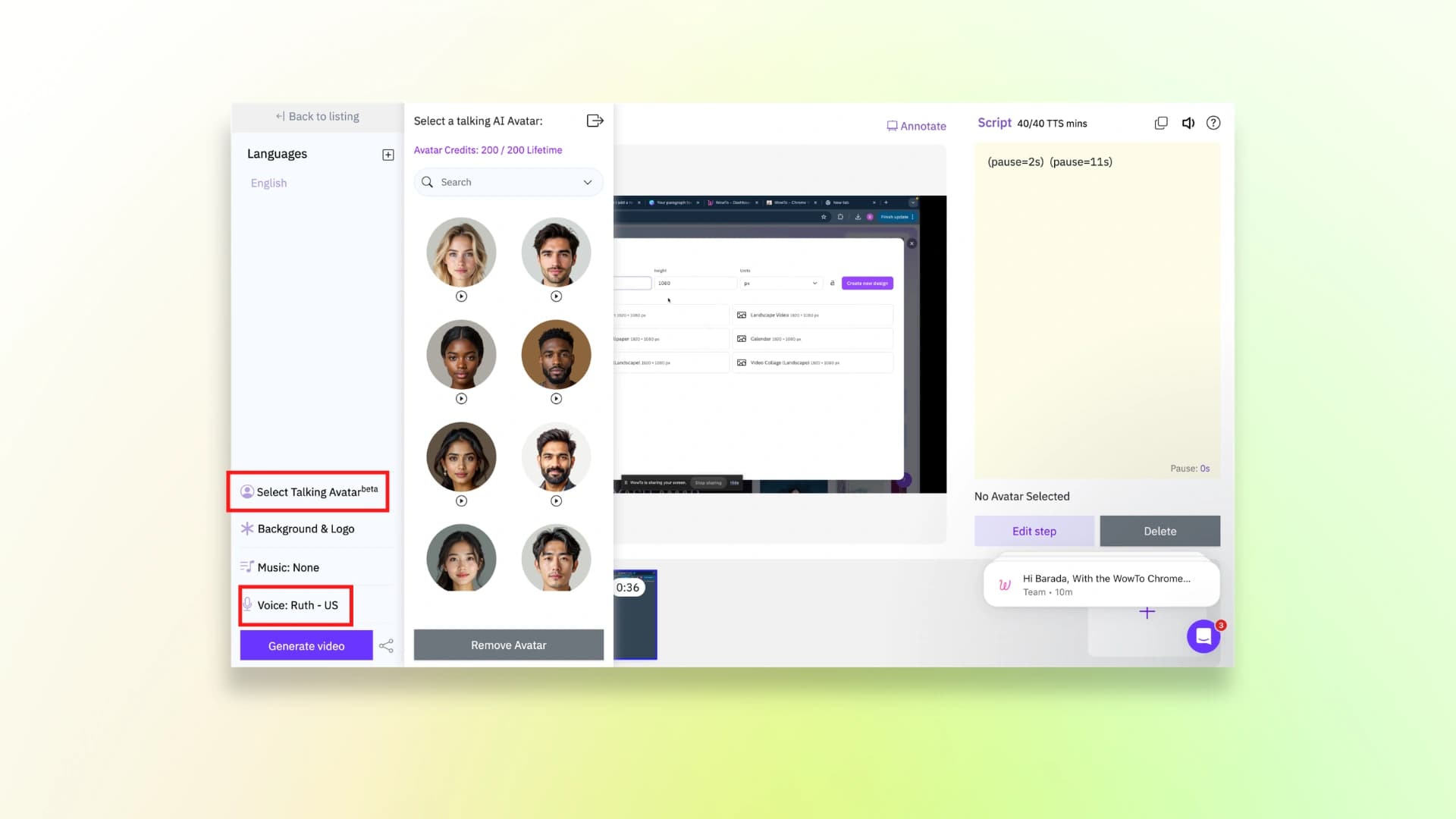
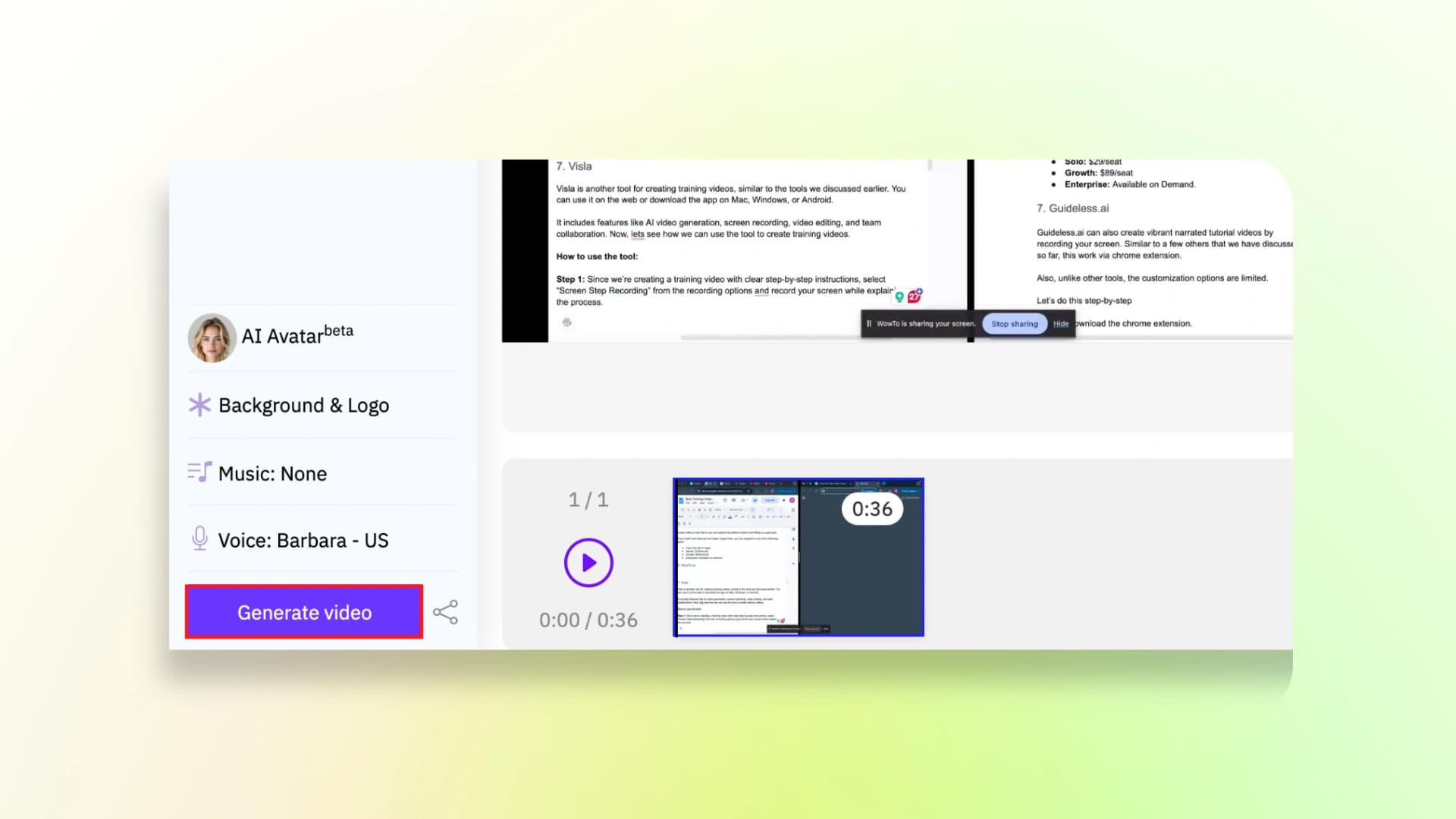
Step 4: Choose the talking avatar that you want and the voice for the video.
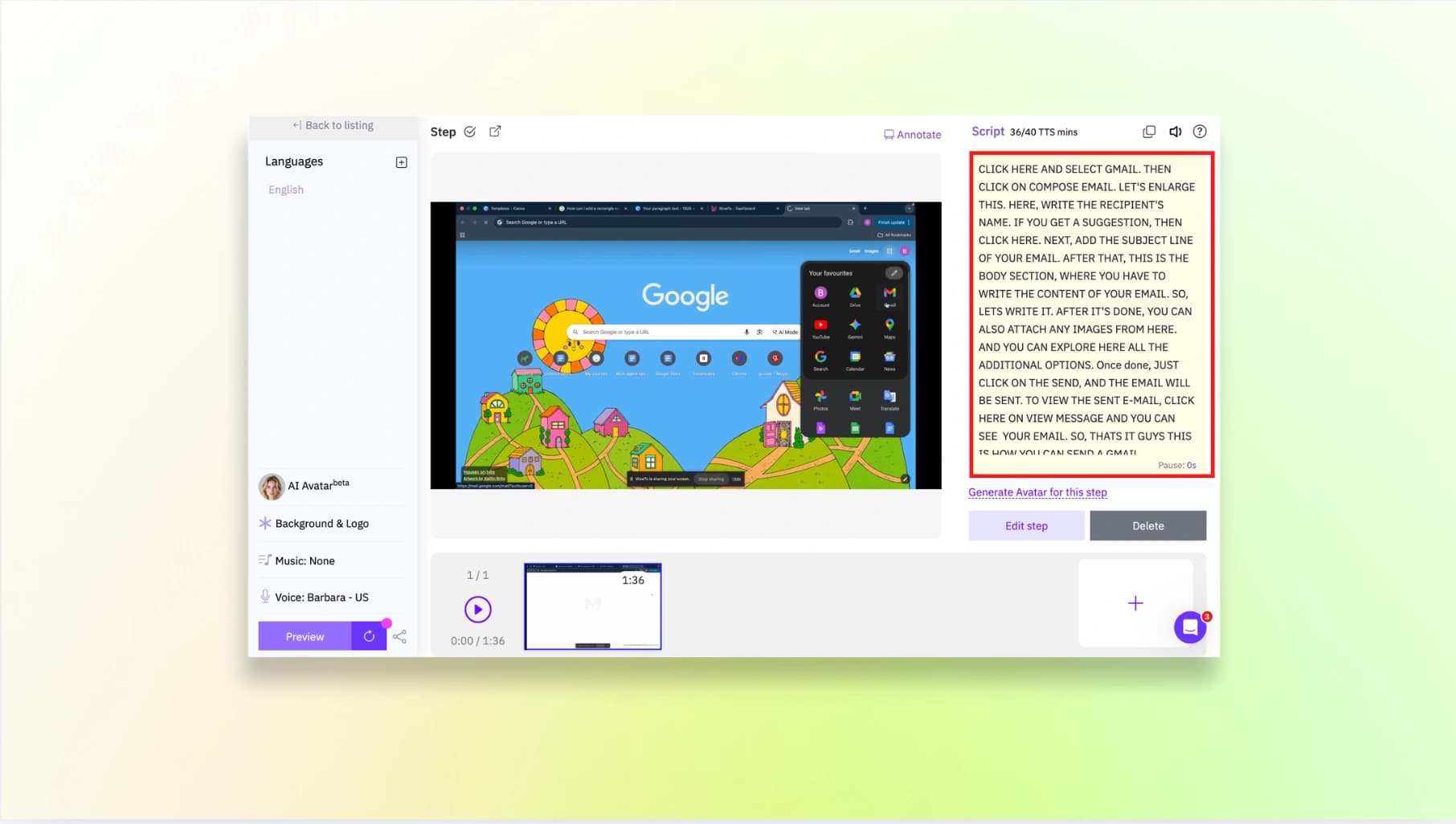
After that, add the lines on the right side so that the audio will be generated for it.
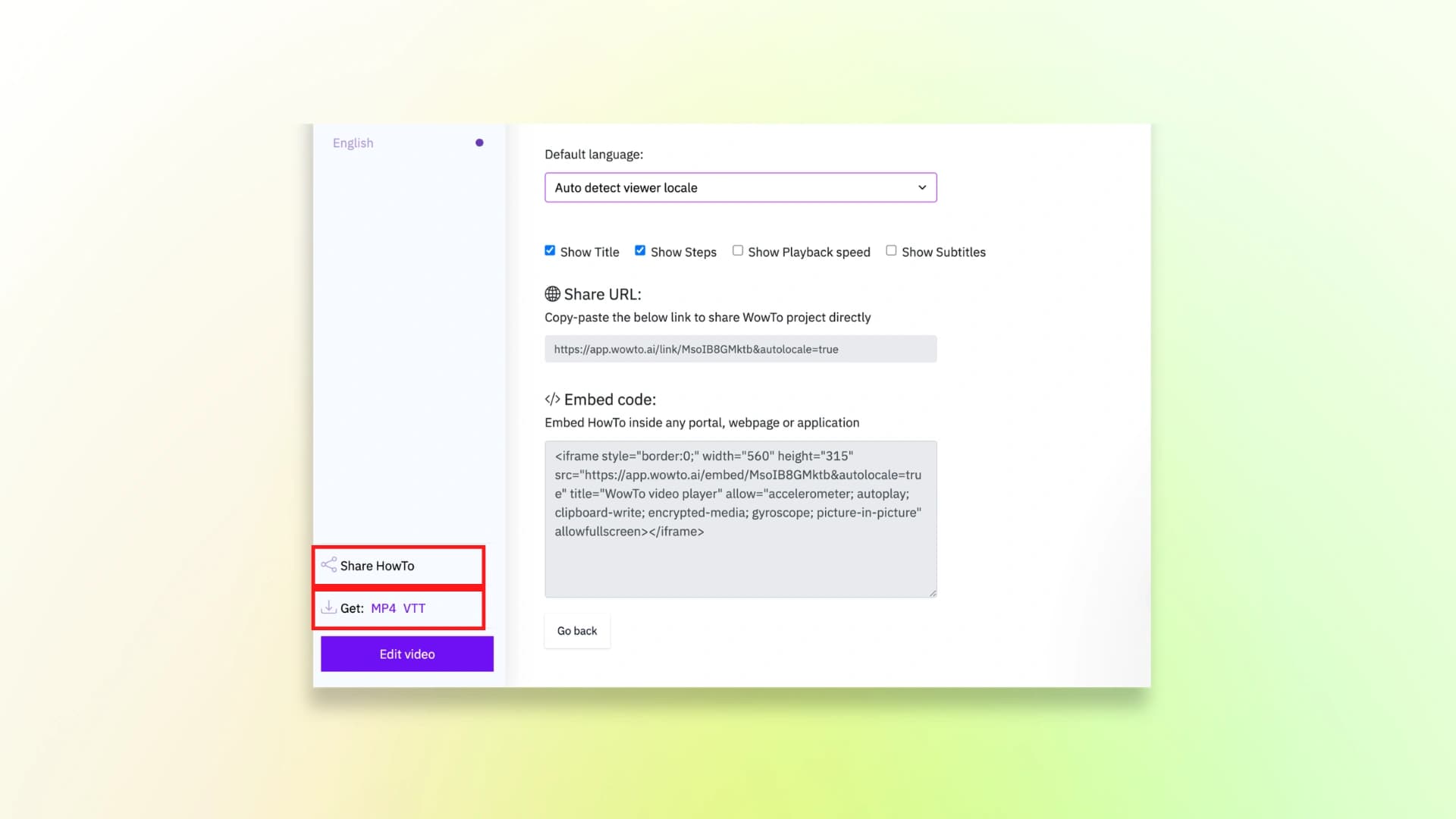
Step 5: Then click on generate video and then share the video.
And here’s the finished video:
Pricing
WowTo.ai offers a free plan to help you explore the platform and create a few training videos. If you need more projects and features, you can upgrade to the paid plans.
- Free: $0
- Plus: $25/month (or $250/year)
- Business: $45/month (or $450/year)
8. Visla
Visla is another tool for creating training videos, similar to the tools we discussed earlier.
It’s got everything you need: AI video tools, screen recording, editing, etc.
Just use it on your browser or get the app for Mac, Windows, or Android.
How to use the tool:
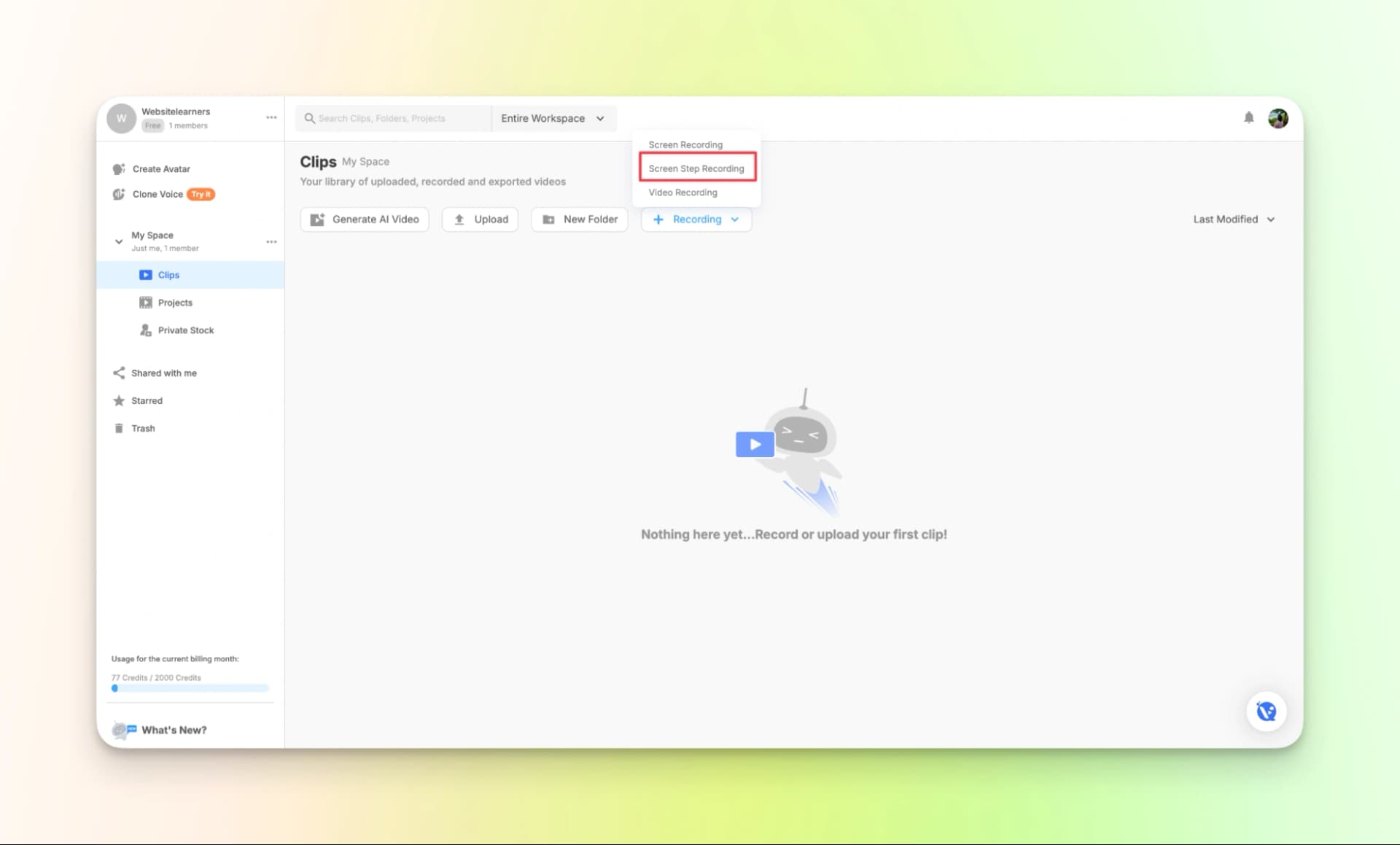
Step 1: Since we’re creating a training video with clear step-by-step instructions, select “Screen Step Recording” from the recording options and record your screen while explaining the process.
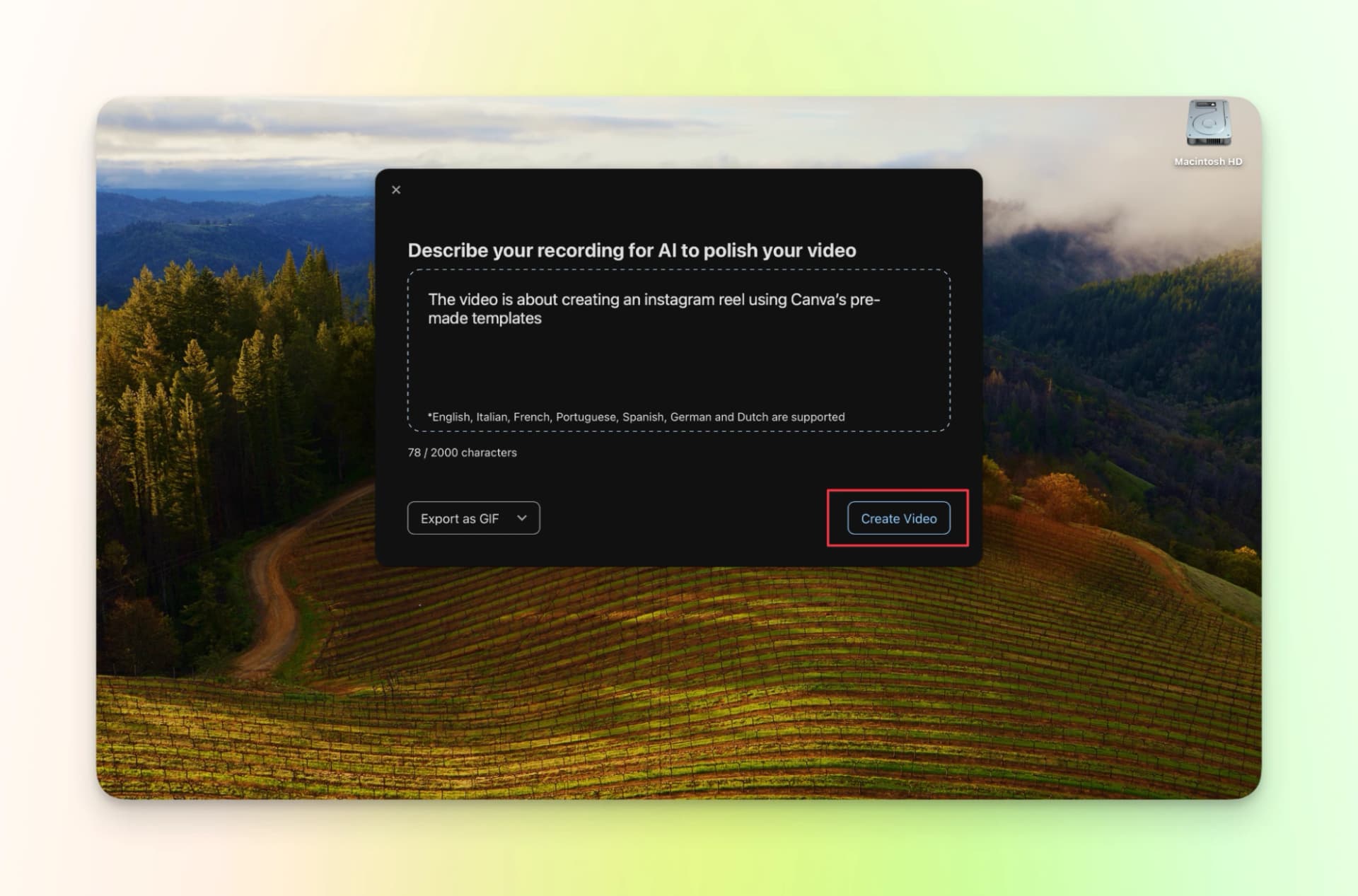
Step 2: Describe your video
Step 3: Provide more information about your project. This will help the tool to understand better.
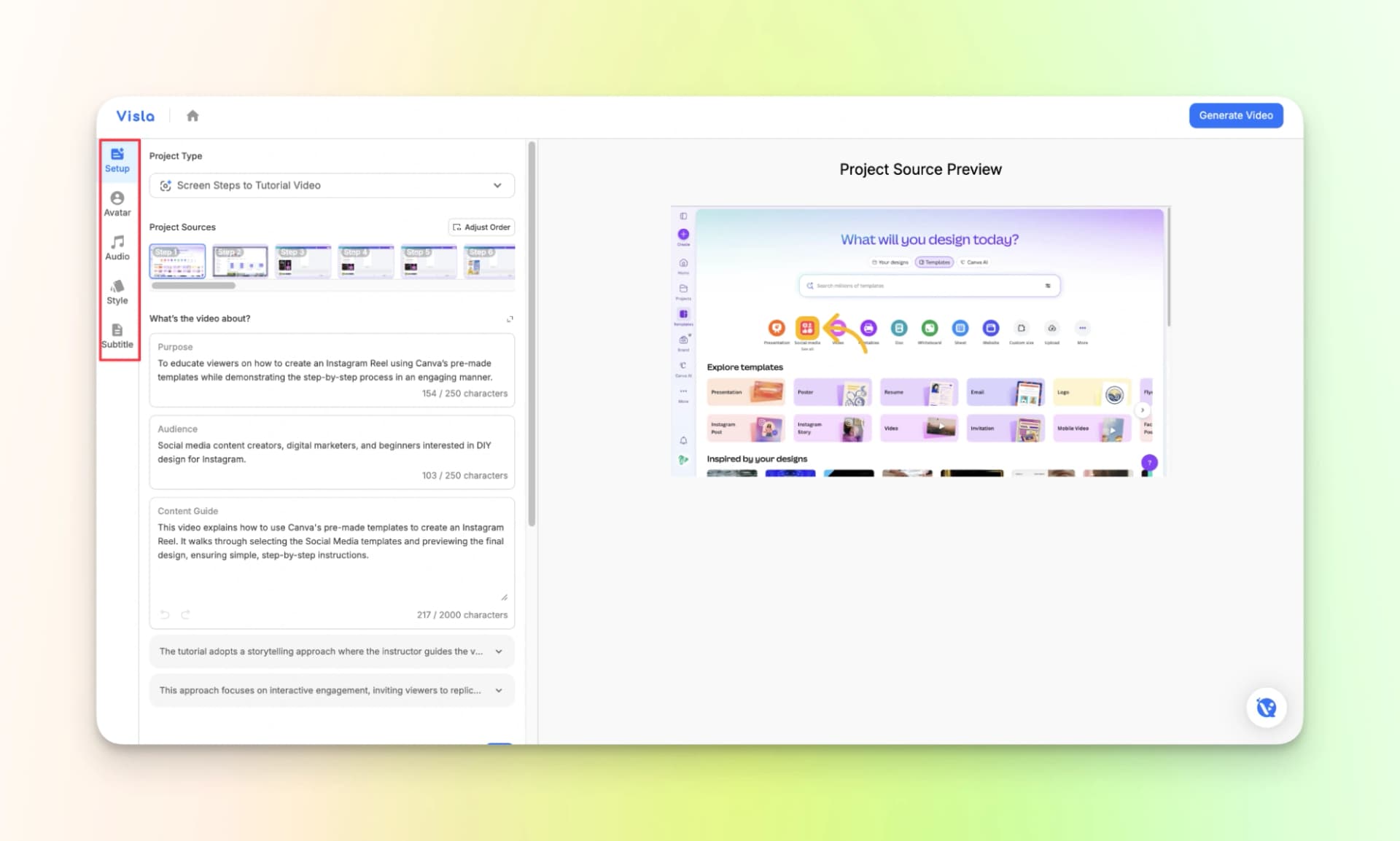
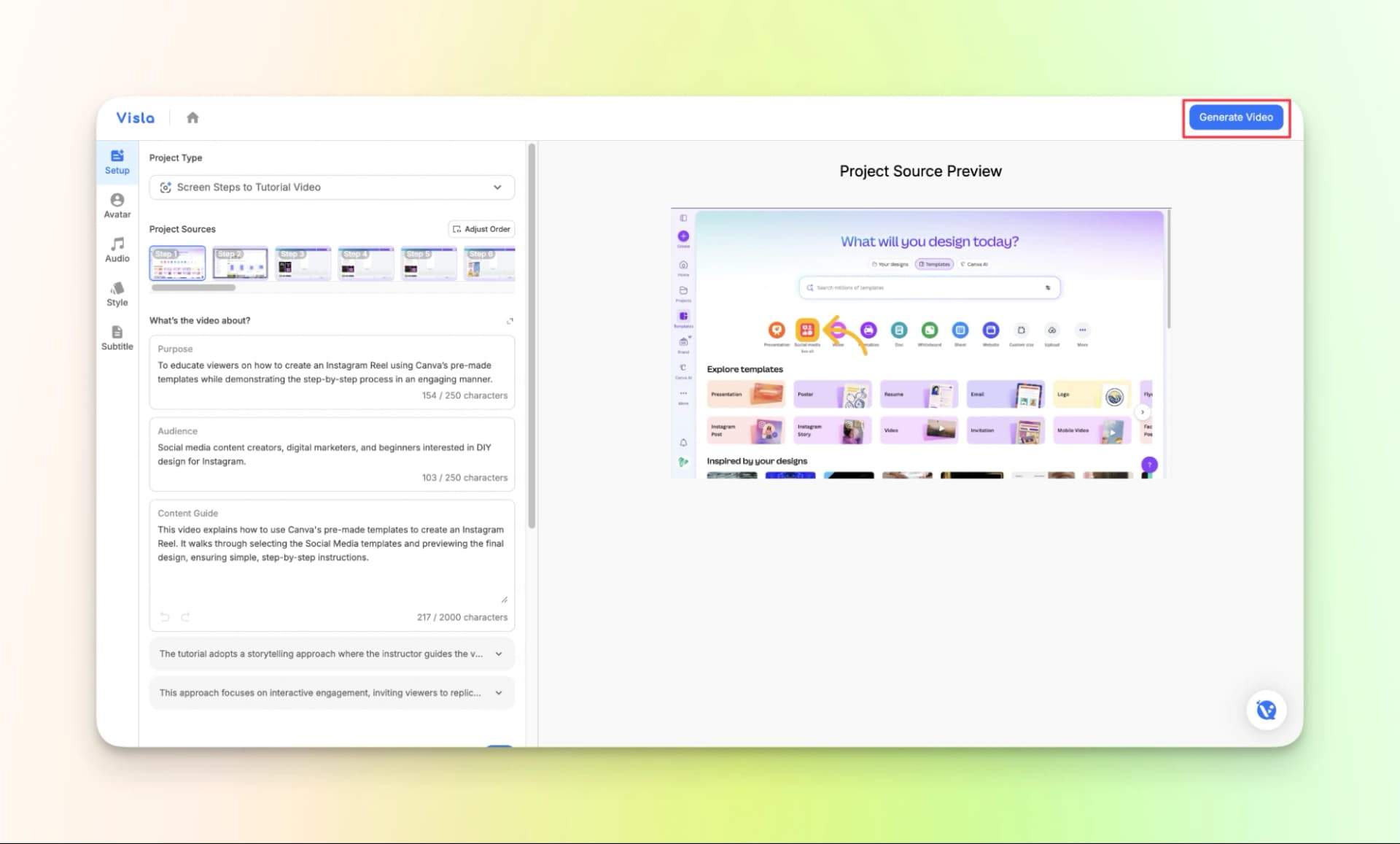
Step 4: Generate video once the setup is complete. You can also clone your voice if needed to add a personal touch.
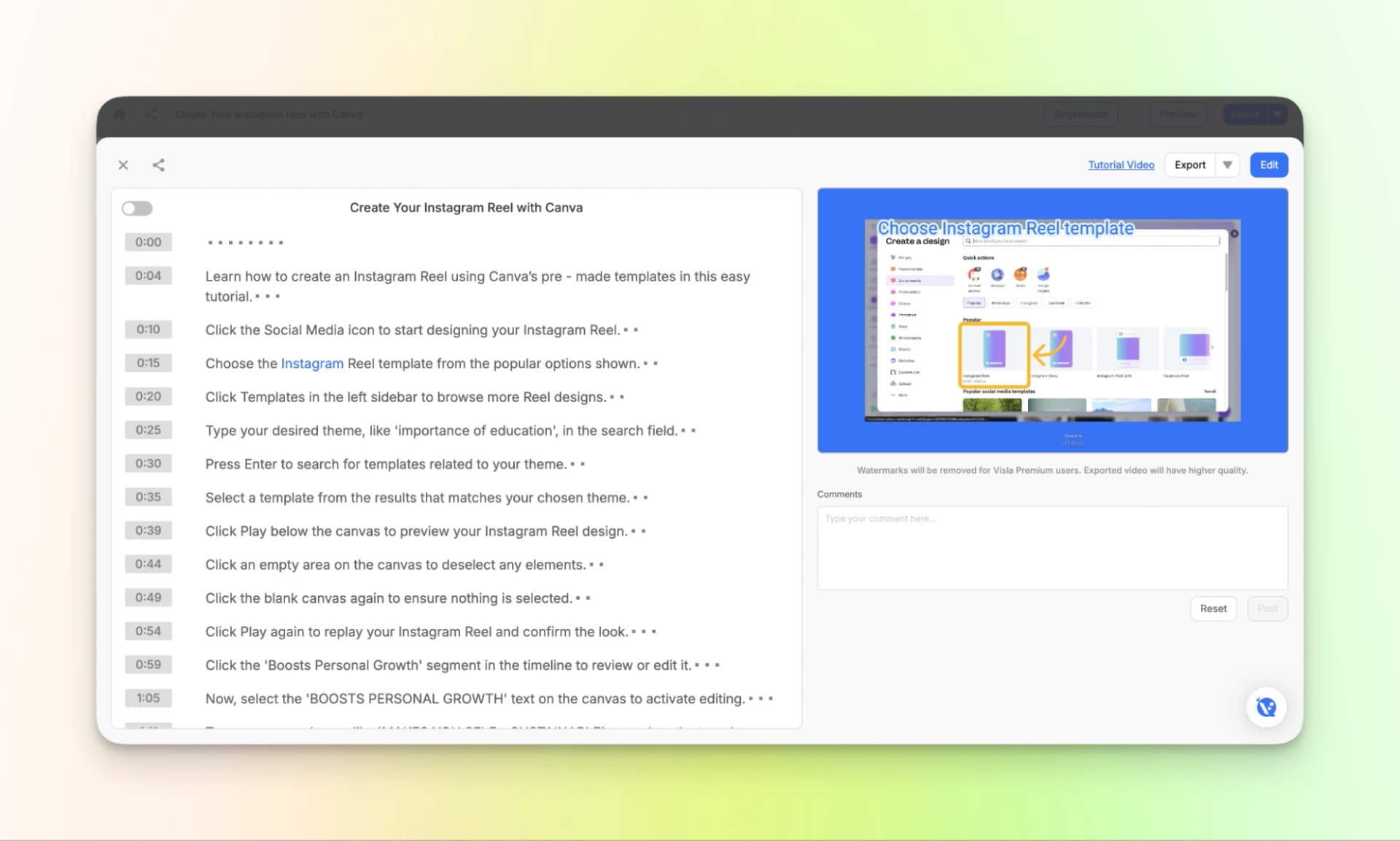
Step 5: Review AI-generated tutorial video
Step 6: Review the tutorial video
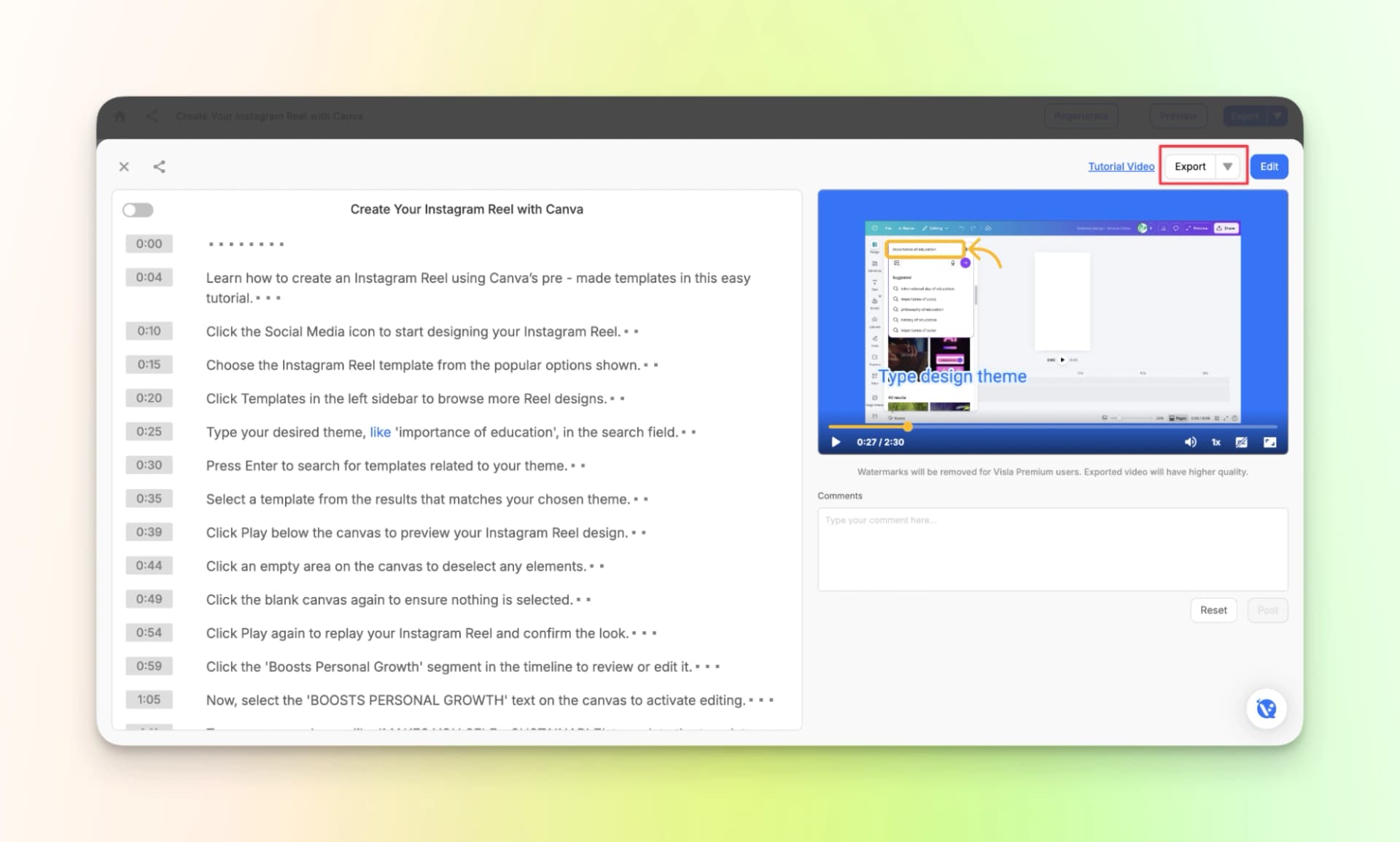
Step 7: Download the training video or share it with your team to collect feedback.
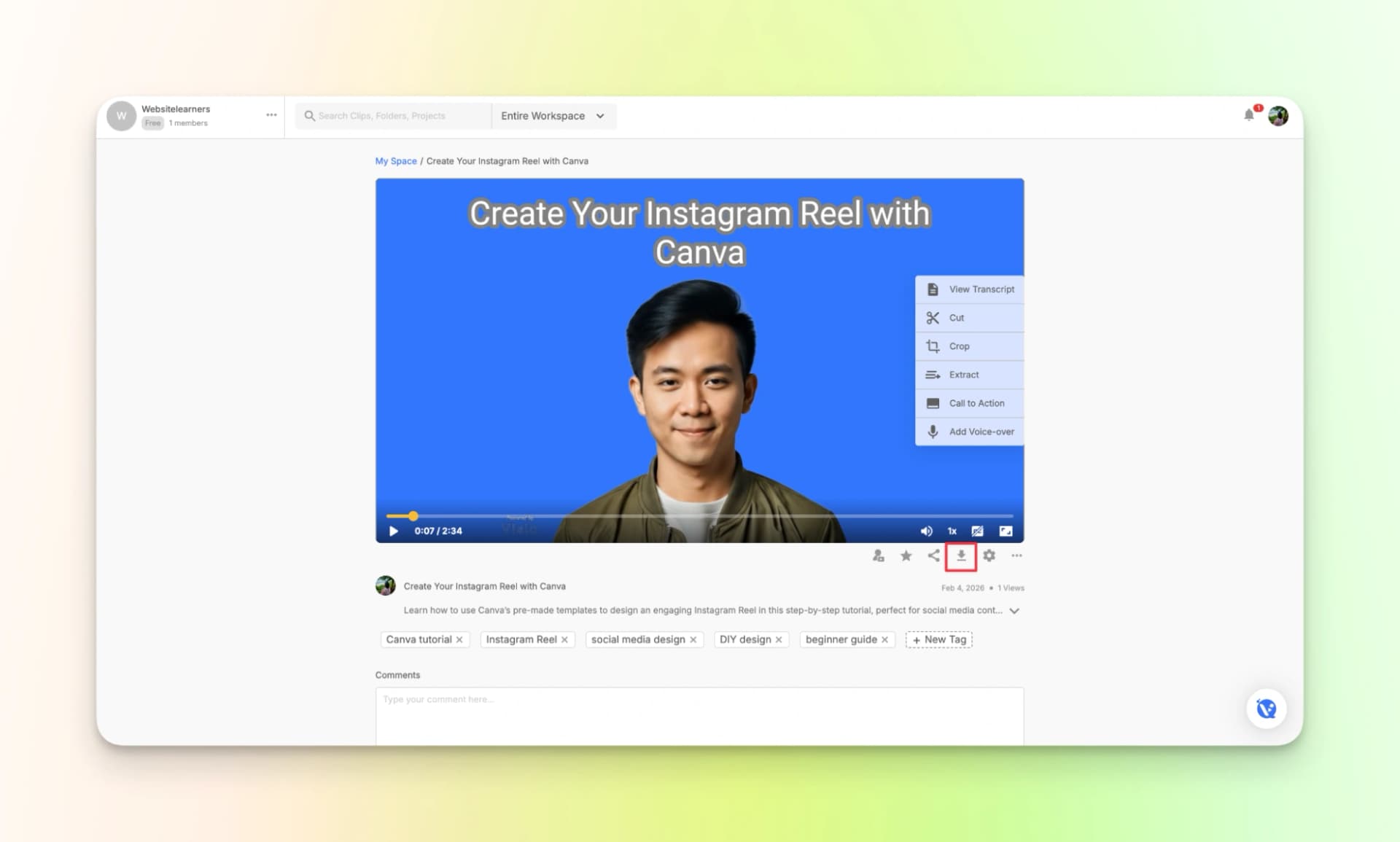
Here’s the finished tutorial:
Pricing
Visla offers a free plan that lets you try creating training videos using credits.
If you need more features and higher limits for creating tutorials or team training content, you can upgrade to the paid plans.
- Free Plan: 2000 credits for creating and testing training videos
- Pro: Starting from $18/month
- Business: Starting from $59/month
- Enterprise: Available on demand for larger teams and organizations
9. Clevera.ai
Clevera.ai is your go-to for making quick training videos and tutorials just by recording your screen.
To get started, you have to just download the app from their website.
The cool part is it doesn’t just do video. It can also make handy guides with screenshots and clear steps.
How to use the tool:
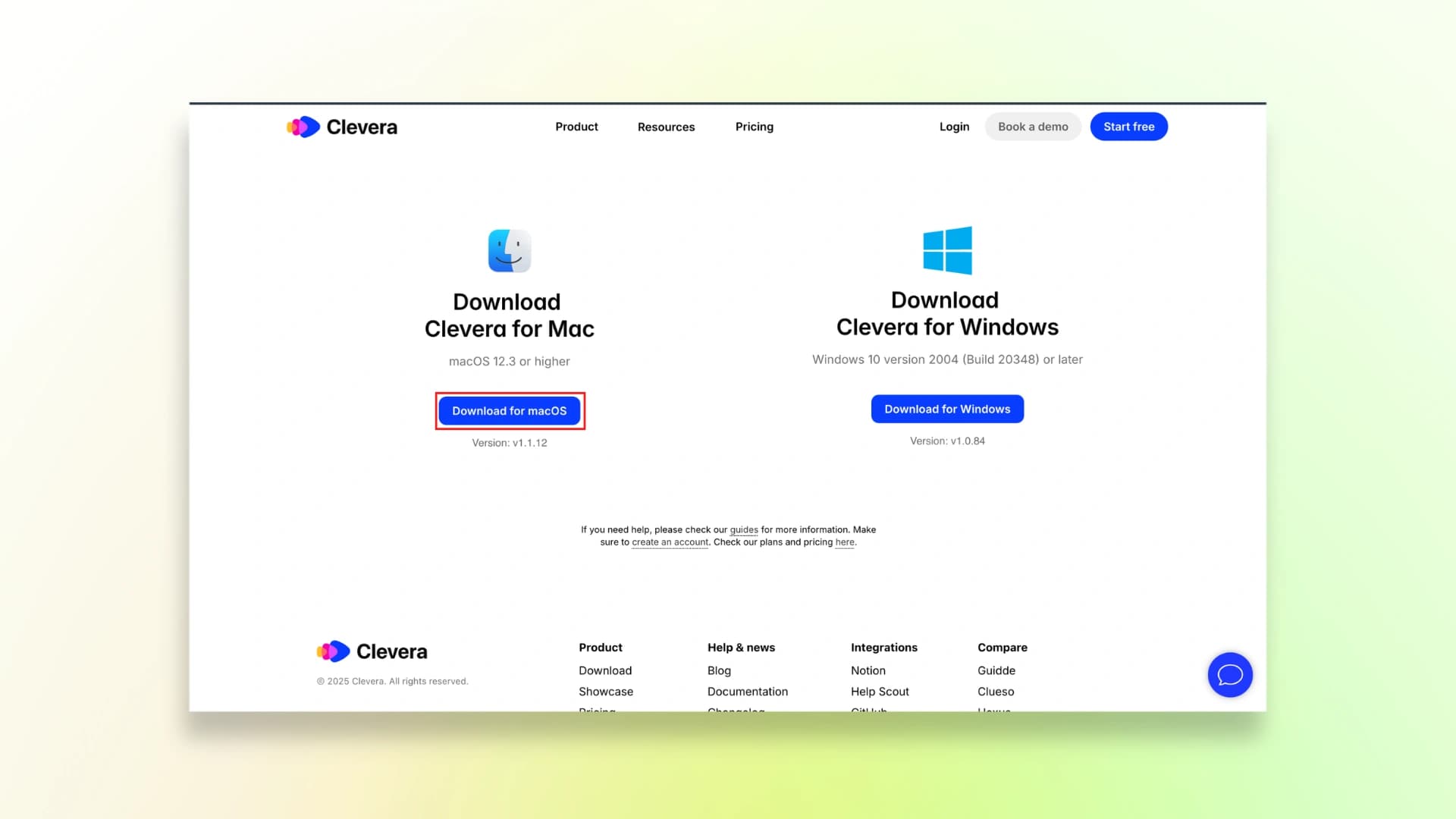
Step 1: Download the app for Mac or Windows from the website
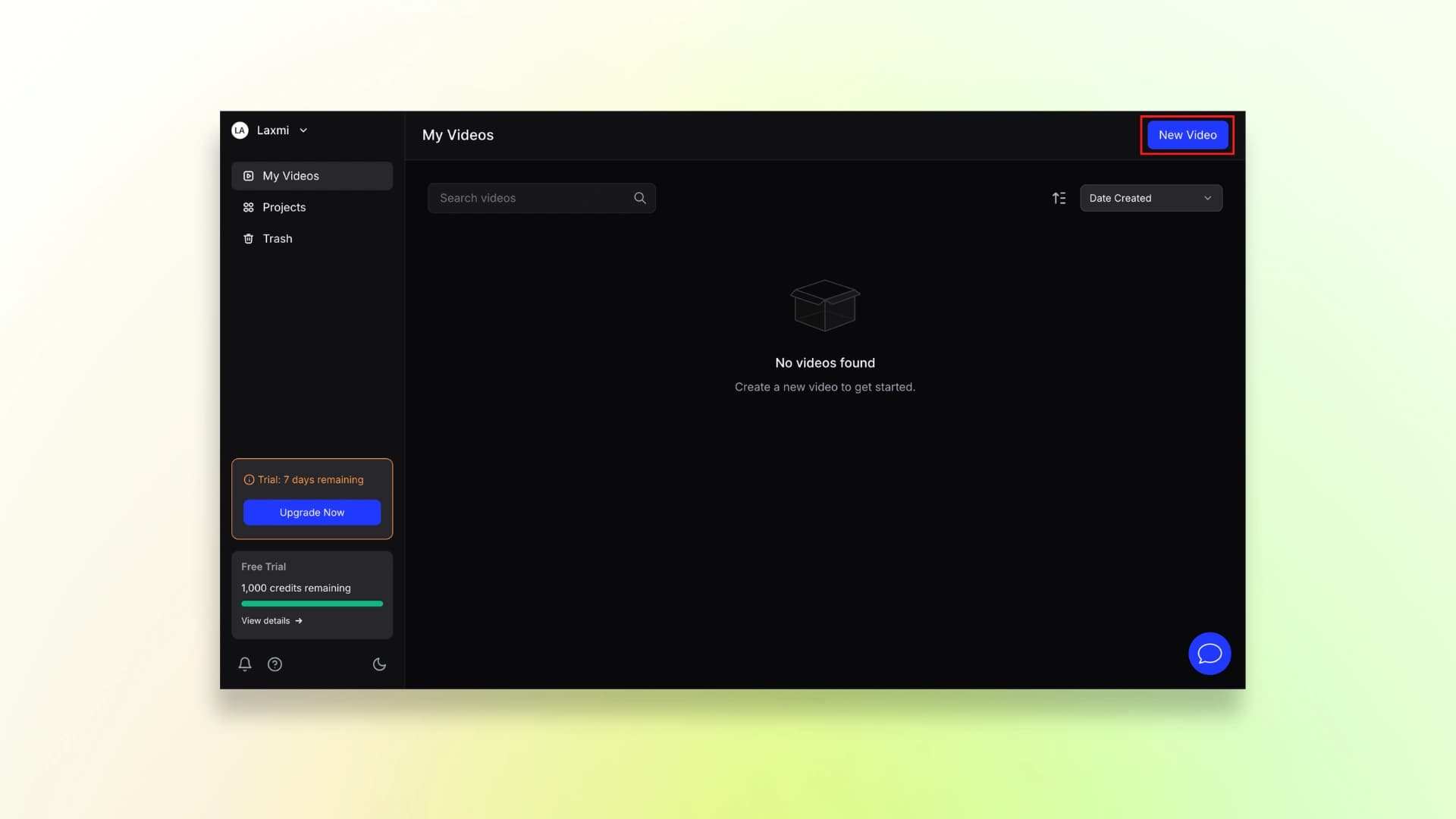
Step 2: Open the app, hit New Video, and start recording.
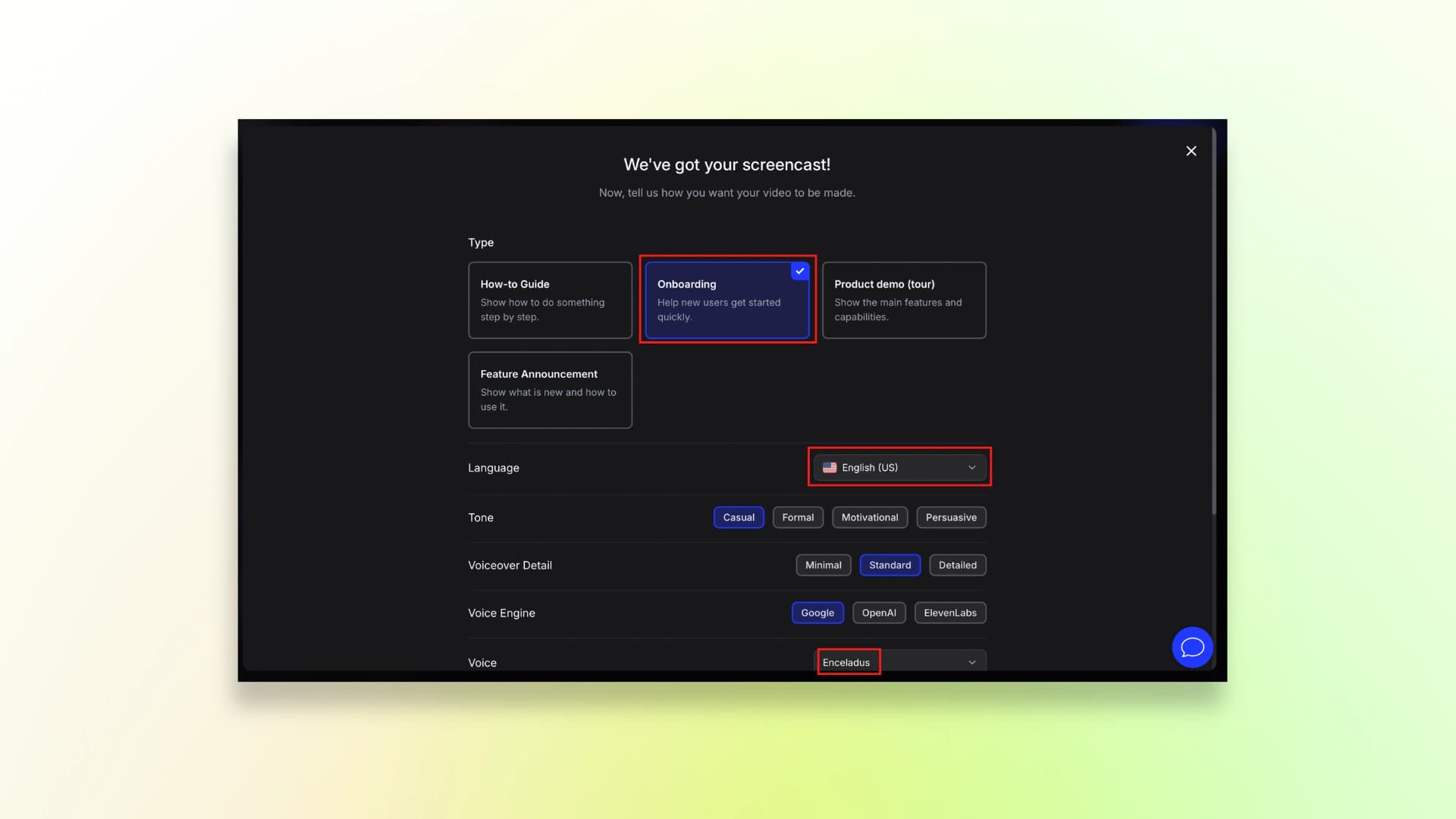
Step 3: Pick your style, grab a voice and language you like, and tap Create Video.
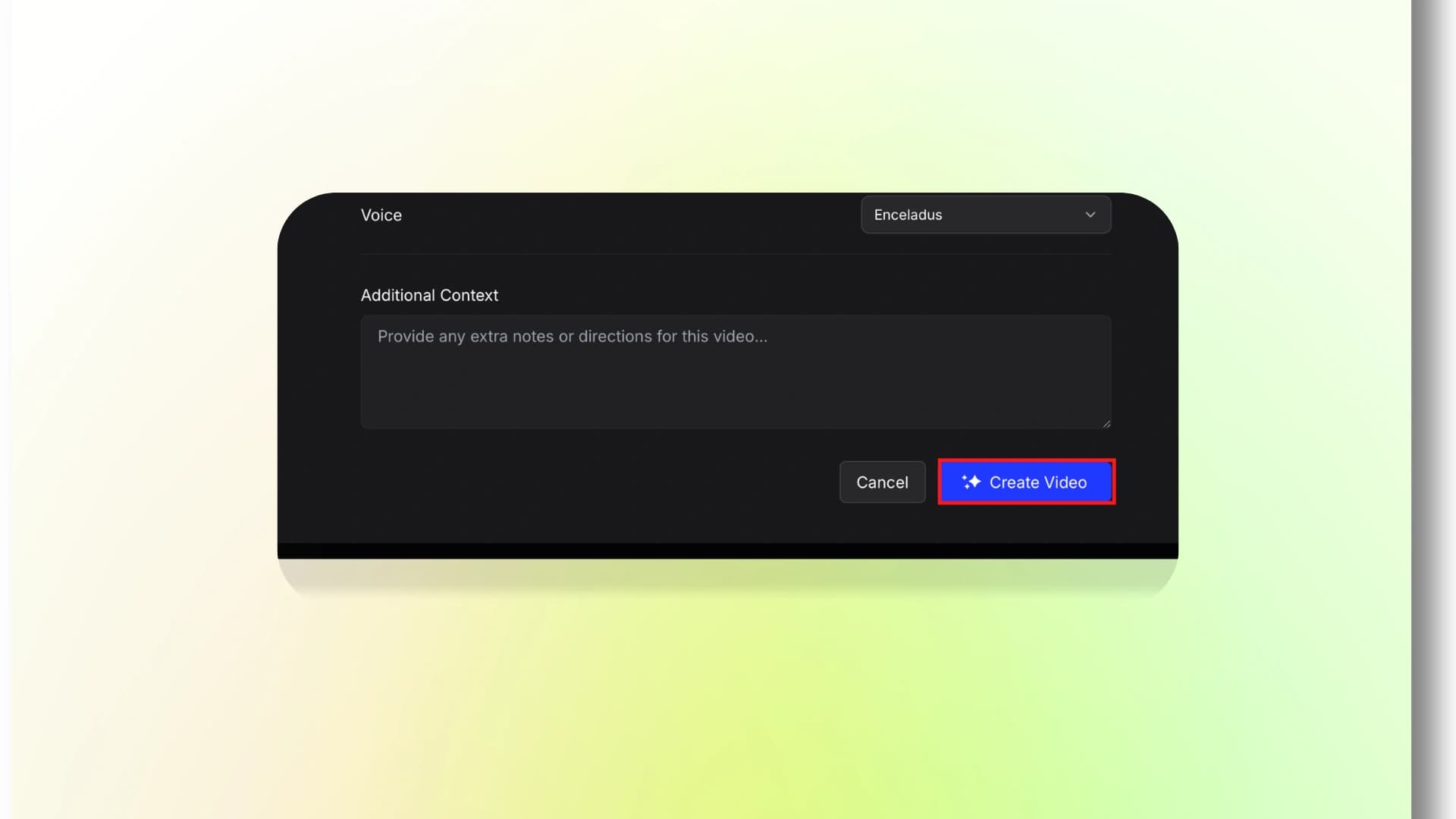
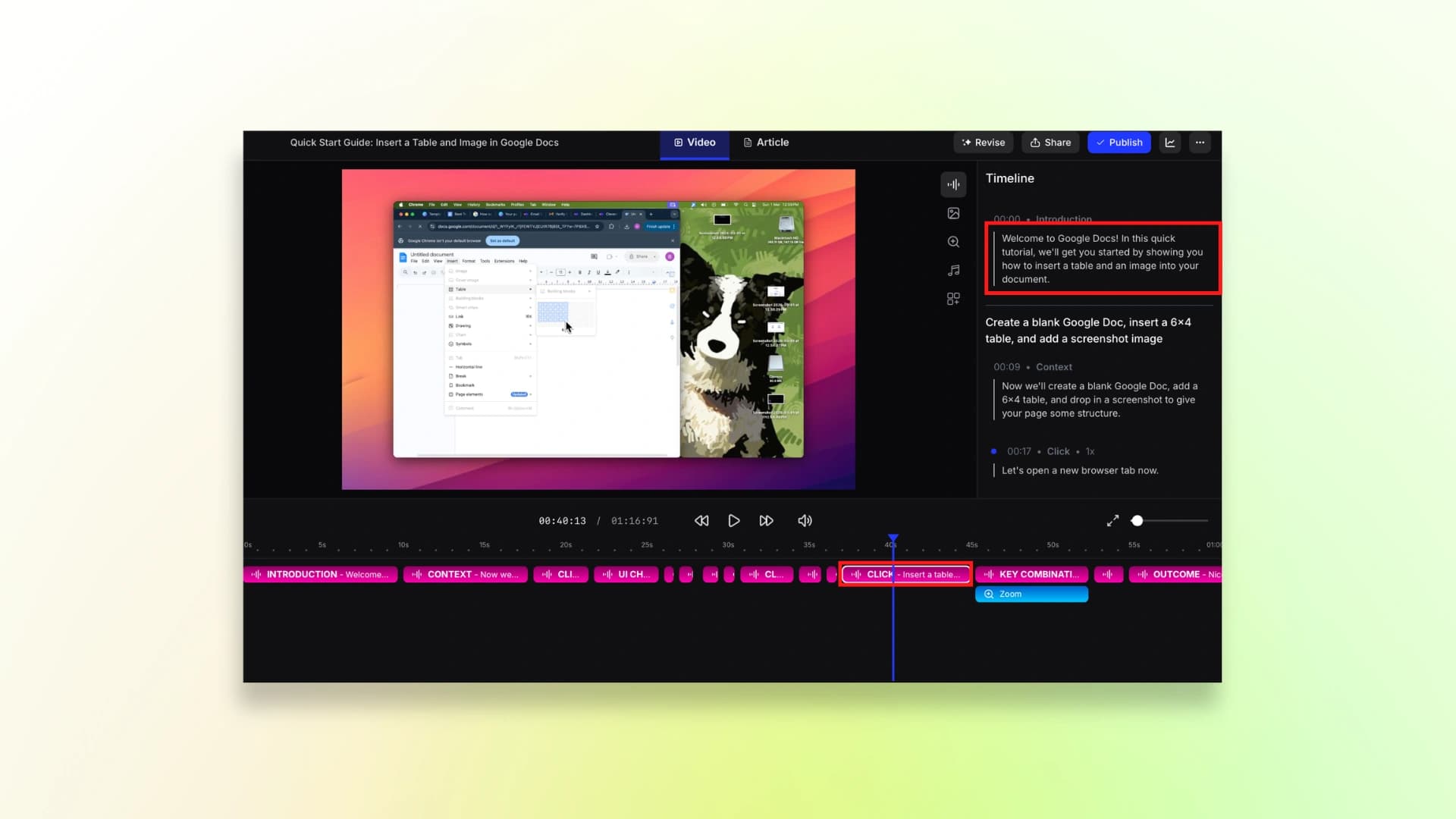
Step 4: Give it a quick watch. If anything looks off, just fix it up.
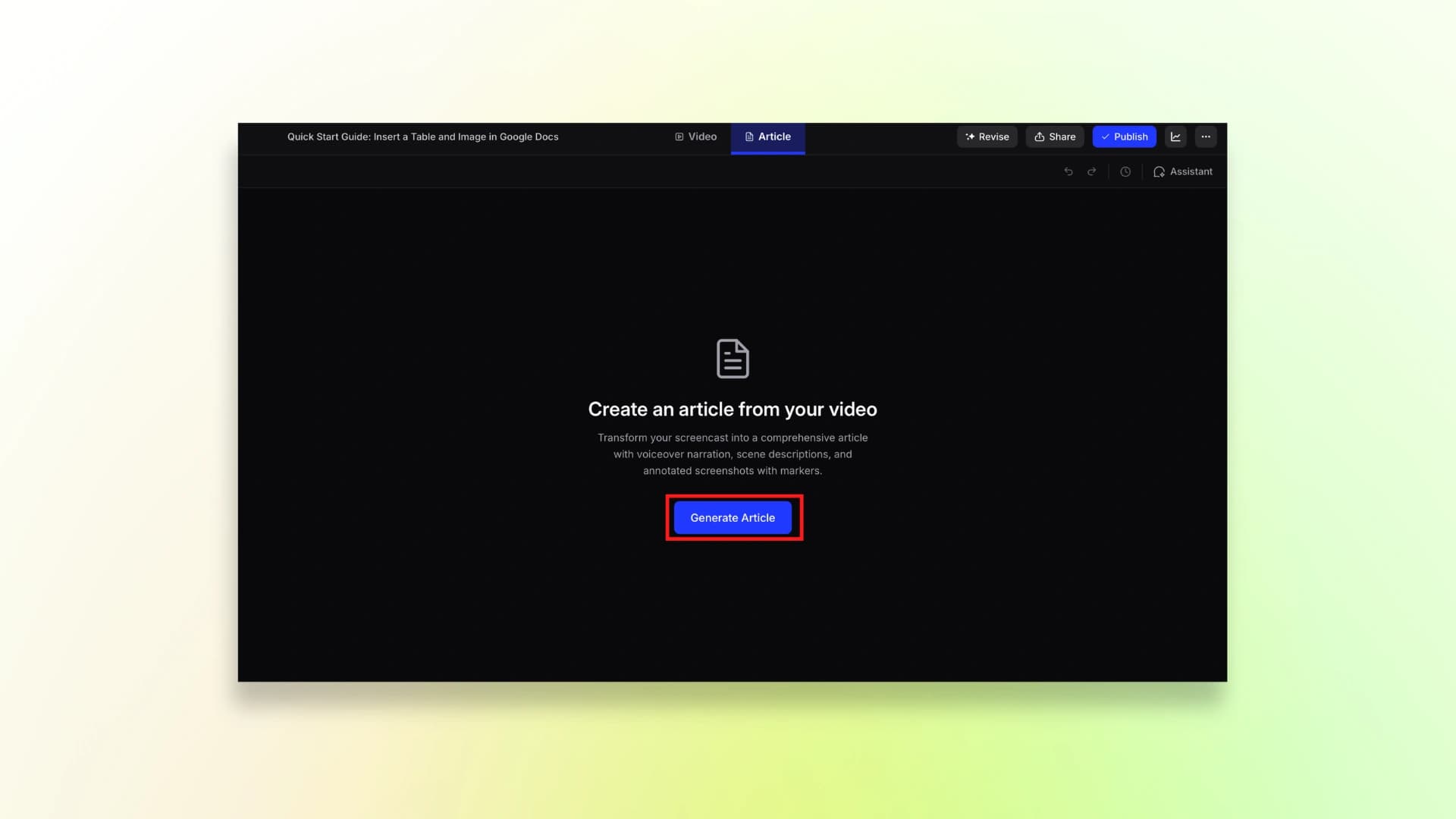
By the way: You can also turn the video into a blog post if you need a written version.
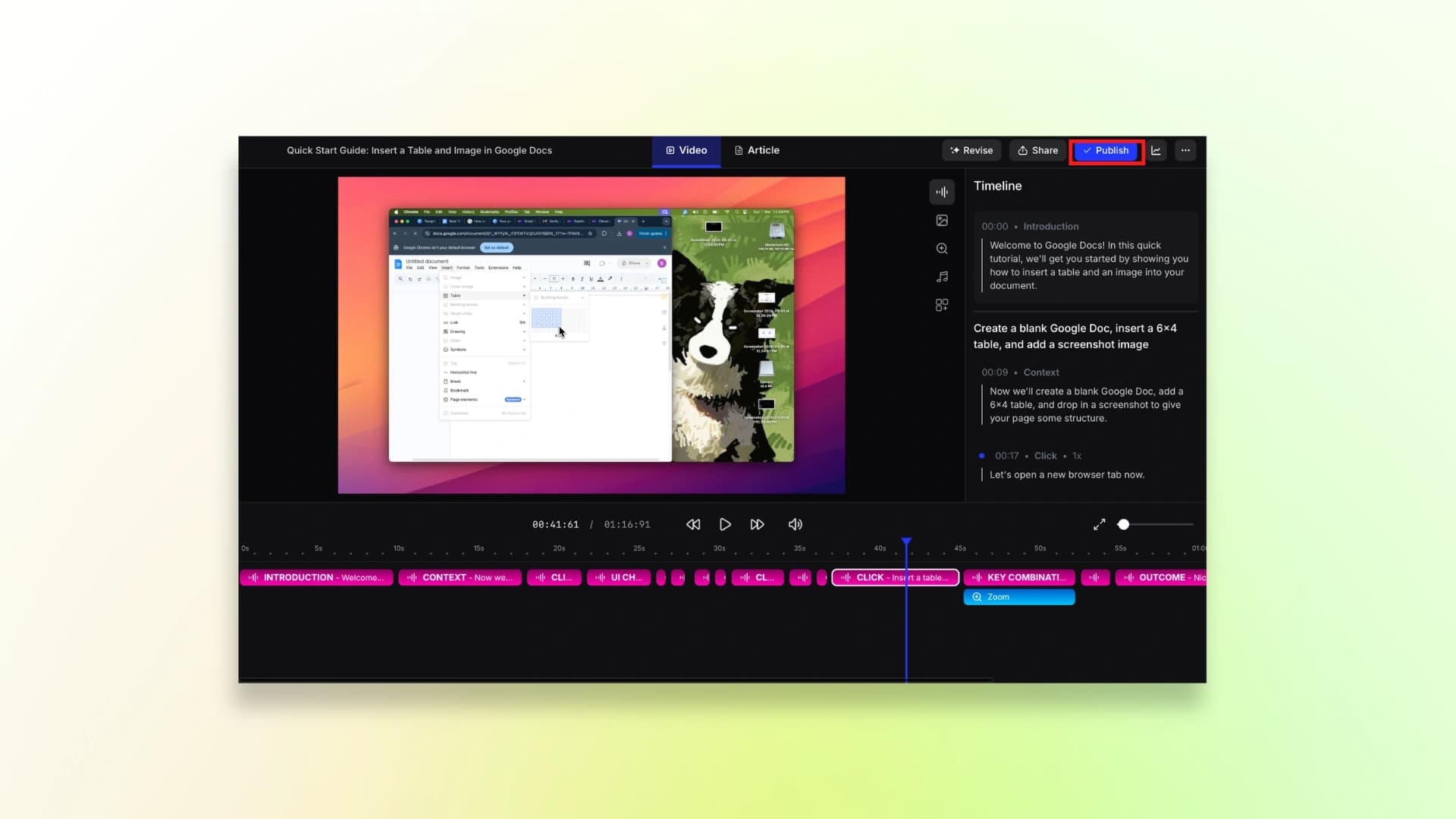
Step 5: Happy with it? Hit Publish and download your video.
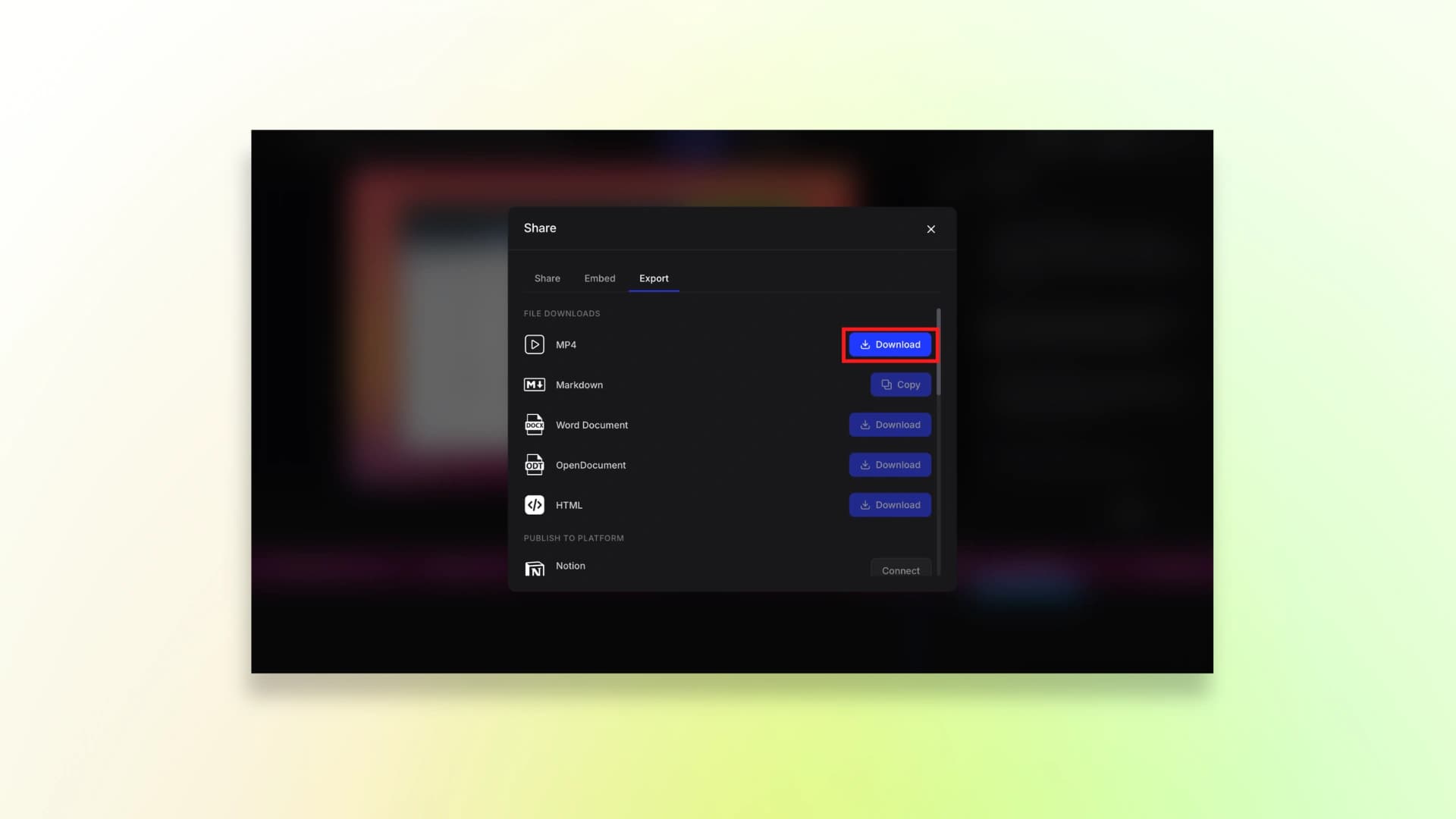
So, this is how you can generate a training video using Clevera.
Here’s the finished video:
If you’re just starting and unsure how to structure your content, here’s a step-by-step guide on how to make a tutorial video from scratch.
Pricing
Clevera.ai offers different plans depending on how many training videos you want to create and the size of your team.
- Solo: $99/month
- Growth: $299/month
- Scale: $599/month
Each plan includes a certain number of credits for creating and exporting training videos.
10. Synthesia
Synthesia is widely used for creating training videos with AI avatars. Like tools such as Trupeer, Trainn, and Guidde, you need to install the extension first.
After that, you can record your screen to create step-by-step training tutorials.
But unlike other tools, you have to speak along with the recording.
You can also create videos in other ways. For example, you can simply type your script, upload slides, or use templates to generate a training video.
I’m going to show you can record your screen and create a training video using Synthesia.
How to use the tool:
Step 1: Download the Chrome Extension.
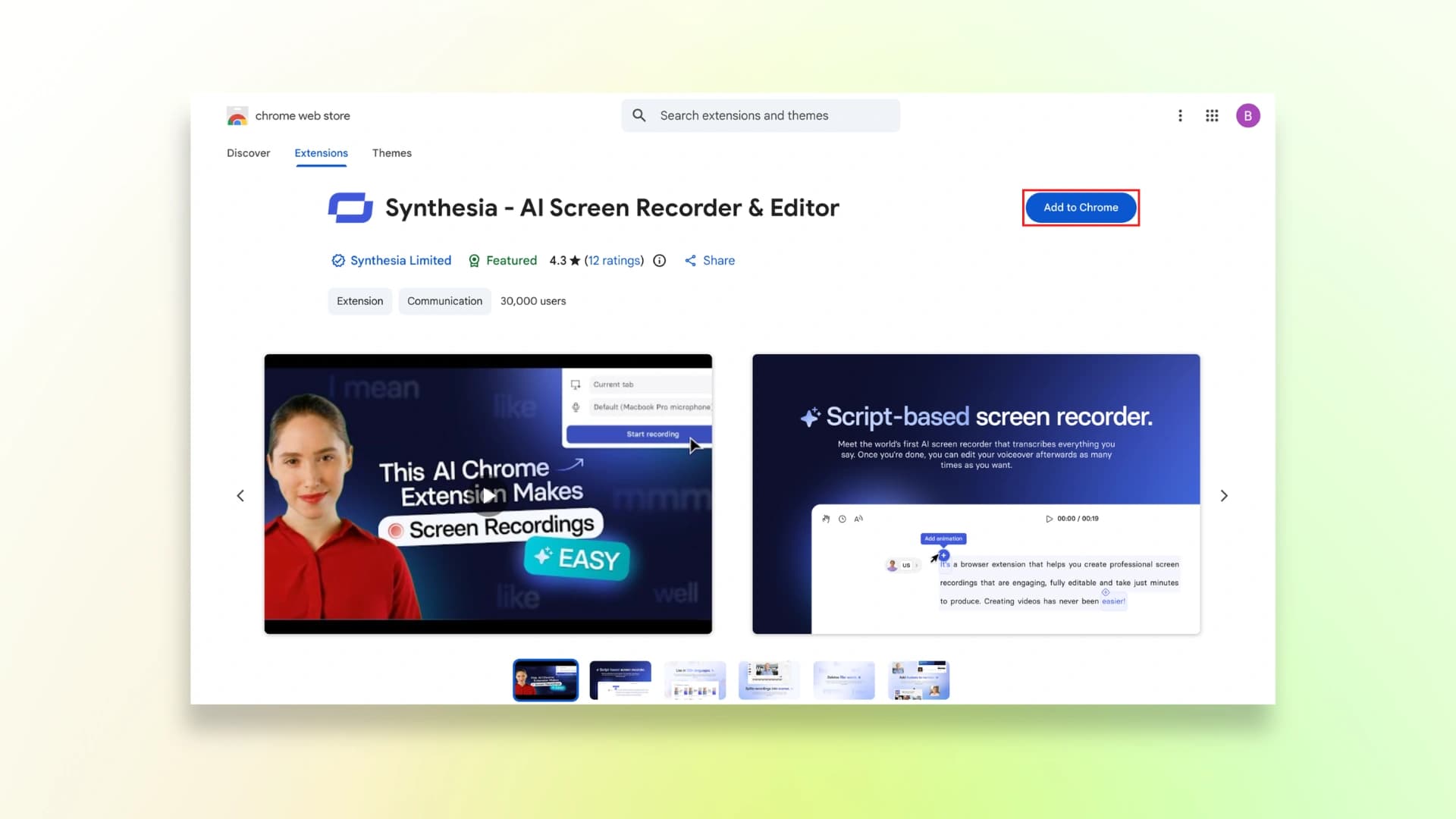
Step 2: Record your screen and speak out the steps for the AI to understand.
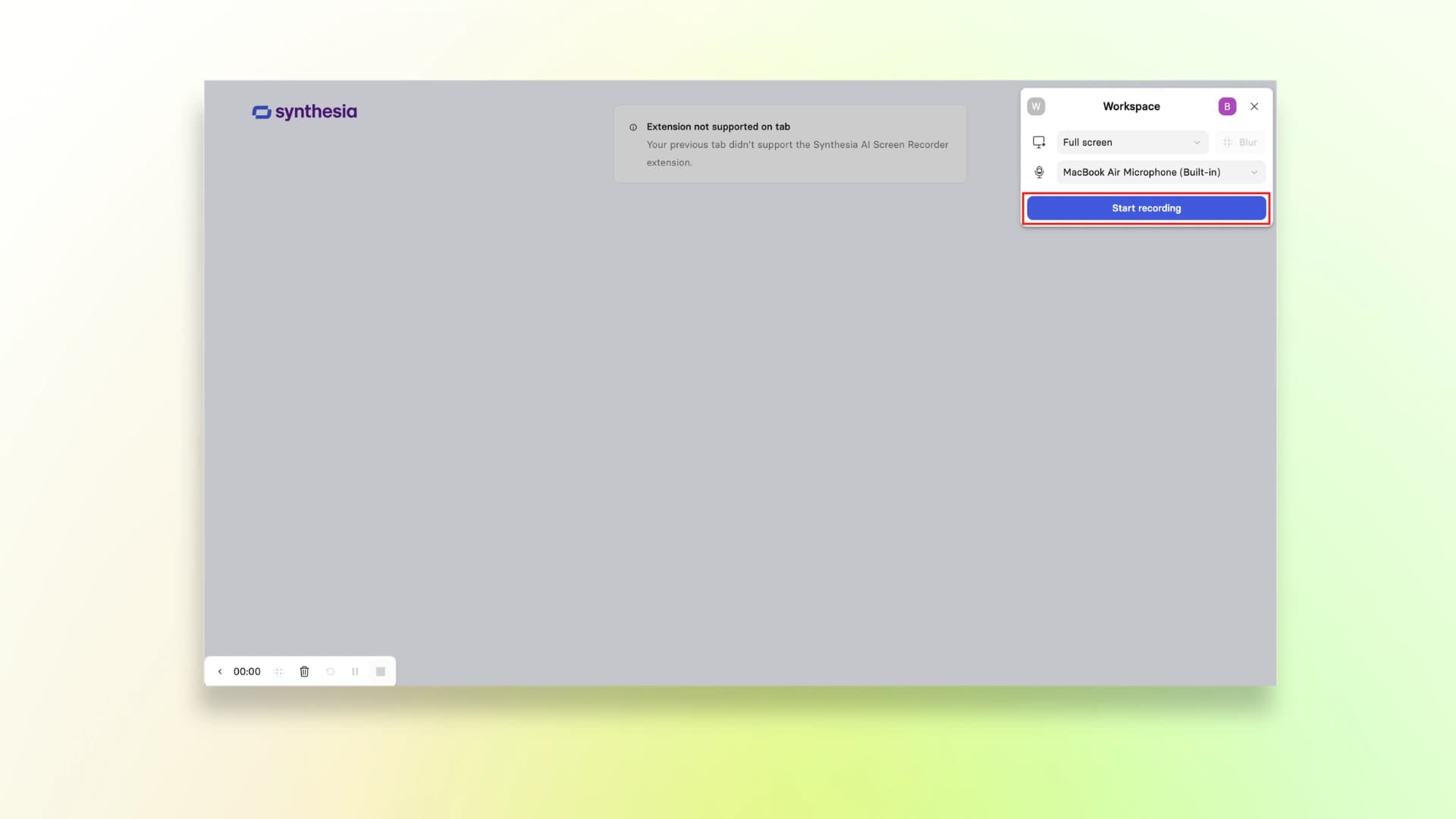
Step 3: Choose your AI Avatar and edit the video according to your choice.
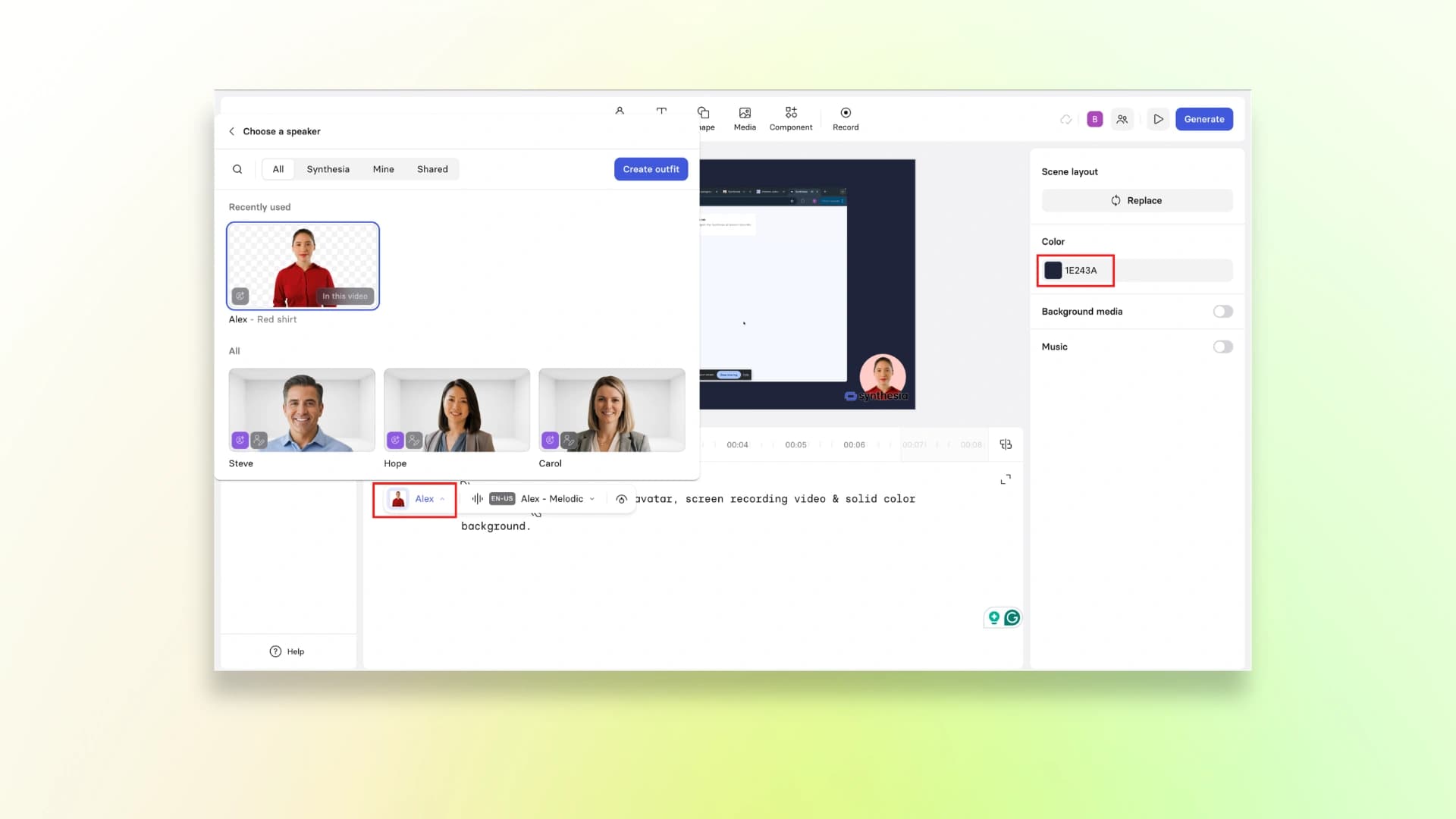
Step 4: Generate the video
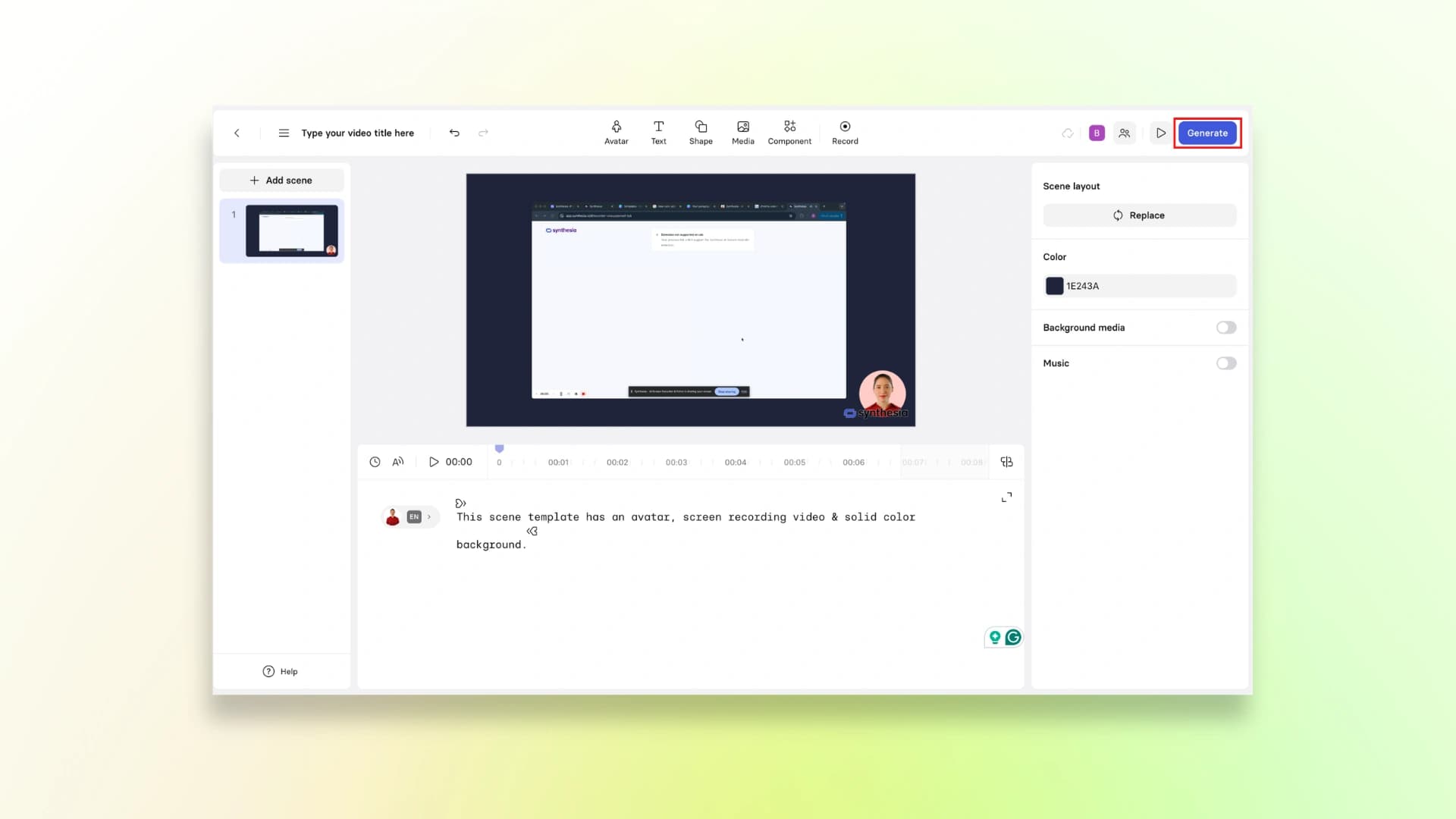
Step 5: After generating the video, download your training video.
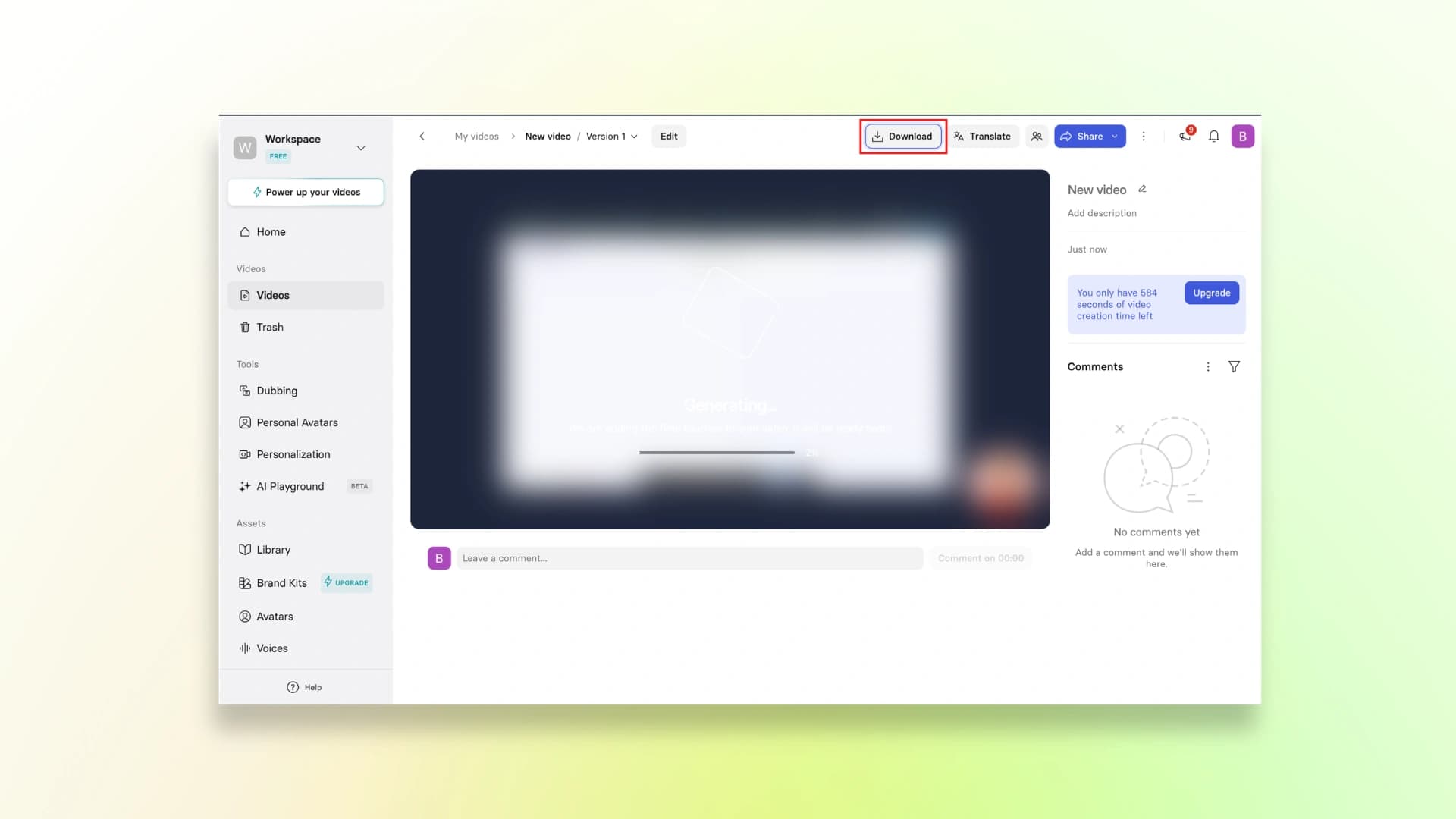
And this is how you can generate your training video with an AI avatar using Syntesia.
The free version will have the watermark. To remove it, you can check the pricing
and get an upgraded plan.
Here’s the finished video:
Pricing
Synthesia offers a free plan to experiment with AI avatar videos.You can upgrade to one of the paid plans.
- Basic: Free (includes about 10 minutes of video per month)
- Starter: ₹1,499/month
- Creator: ₹4,649/month
- Enterprise: Custom pricing (for teams and large organizations)
Choosing the Right Training Video Tool for Your Workflow
All the tools we discussed can help you create training videos faster, but the best software for training videos depends on your workflow. Some tools are better for quick screen recordings, while others focus on AI avatars or documentation.
If you want the fastest setup, VideoMule and Guidde are great options. For free trials, VideoMule (7 days, card required), Trupeer, and Tutorial.ai are good starting points.
Tools like Synthesia and WowTo.ai are useful if you need more voice options or avatar-led training videos — though VideoMule now covers AI avatars too, including digital twins trained from your own footage that present around your screen recording, plus translation into 70+ languages.
If your goal is to create training videos quickly without dealing with voice recording or complex editing, VideoMule is one of the easiest tools to start with. You can record your screen silently, and the tool helps turn it into a complete training video.
Pick the tool that fits your workflow and stick with it. If speed and consistency matter the most, VideoMule can help you build a simple and repeatable training video process.
FAQs About Training Video Software
1. How long does it take to create a training video with AI?
With AI tools, creating a training video is much faster than traditional methods. In many cases, a simple training video can be created in 20–60 minutes, depending on the tool and how much editing you do.
2. Can I create training videos without showing my face?
Yes. Most tools let you create videos using screen recordings, AI voiceovers, or AI avatars, so you don’t need to appear on camera.
3. Are AI voiceovers good enough for professional training?
Yes. Modern AI voices sound natural and are widely used for training videos, tutorials, and onboarding content.
4. Can I translate my training videos into other languages?
Yes. Many tools allow you to translate voiceovers and captions into multiple languages, which is useful for global teams.
5. Do I need video editing skills to use these tools?
No. Most training video tools are beginner-friendly. You usually just record your screen, review the content, and export the video.
6. Can I edit AI-generated scripts before creating the video?
Yes. Most platforms allow you to review and edit the script before generating the final training video.
7. What's the best free training video software with AI voiceovers?
Some good low-risk options include VideoMule, Trupeer, and Tutorial.ai, which all offer free trials.
8. How much does training video software cost?
Pricing ranges from free plans to $20–$50 per month, while enterprise tools can cost more depending on features and team size.
9. Can I use AI training videos for customer-facing content?
Yes. AI training videos are often used for product tutorials, onboarding guides, and customer support videos.
Keep reading
AI Training Videos
Turn silent screen recordings into narrated training videos — AI script, voiceover and captions.