How to Make a Tutorial Video on YouTube Using AI (Without Recording Your Voice)
Record your screen and create tutorial videos with AI voiceover in minutes for free — No mic, expensive software or even a quiet room needed.
If you’ve ever thought about making a YouTube tutorial, you’ve probably opened your laptop, stared at the screen, and then stopped. Not because you don’t know the topic, but because the process feels confusing.
Do you record your voice? What if there’s noise around you? What software do people even use?
Here’s the simple version.
You can make a tutorial video by just recording your screen. You do not have to speak. You do not have to worry about sound quality. You do not have to learn video editing.
In this guide, I’ll show you how to make a YouTube tutorial using AI, step by step, from a beginner’s point of view, using VideoMule.
If you want a simpler way to do this without overthinking the setup, you can start here: VideoMule
What Makes a Good YouTube Tutorial?
You usually search for a tutorial only when something is not working, right?
A good tutorial video should:
- Solve one clear task
- Move step by step
- Show actions slowly
- Use simple language
- Match narration with what is on screen
You do not need to show your face. Many creators run a faceless YouTube tutorial channel and still build a loyal audience. Viewers care more about clarity than personality.
This is where AI voice works well. It keeps the pace steady. It removes filler words. It explains actions clearly without distraction.
Step by Step: How to Make a Tutorial Video on YouTube Using AI
This process shows exactly how to make a YouTube tutorial with AI, even if you have never created a video before.
By the end, you will not be searching for the best AI tools for YouTube videos because VideoMule covers everything beginners need.
Step 1: Open the Dashboard
After setting up the organization, you enter the dashboard. This is where all the work happens.
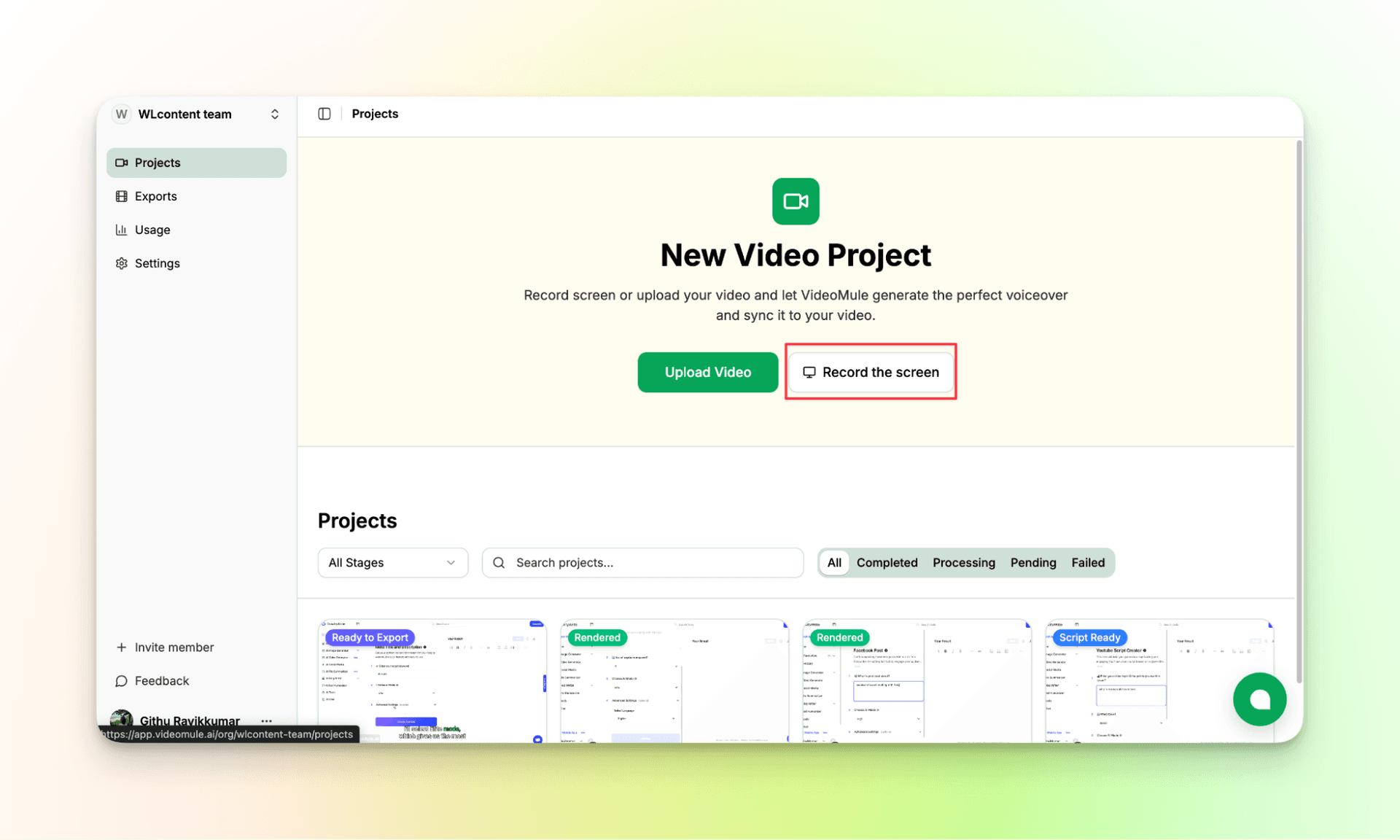
You do not have to switch between different apps.
You can create a tutorial video in two ways:
- Record your screen directly
- Upload a screen-recorded video
For this guide, we will record the screen directly using VideoMule.
You can choose to record the screen with or without audio.
Step 2: Record Your Screen Inside VideoMule
Now you record what you want to teach.
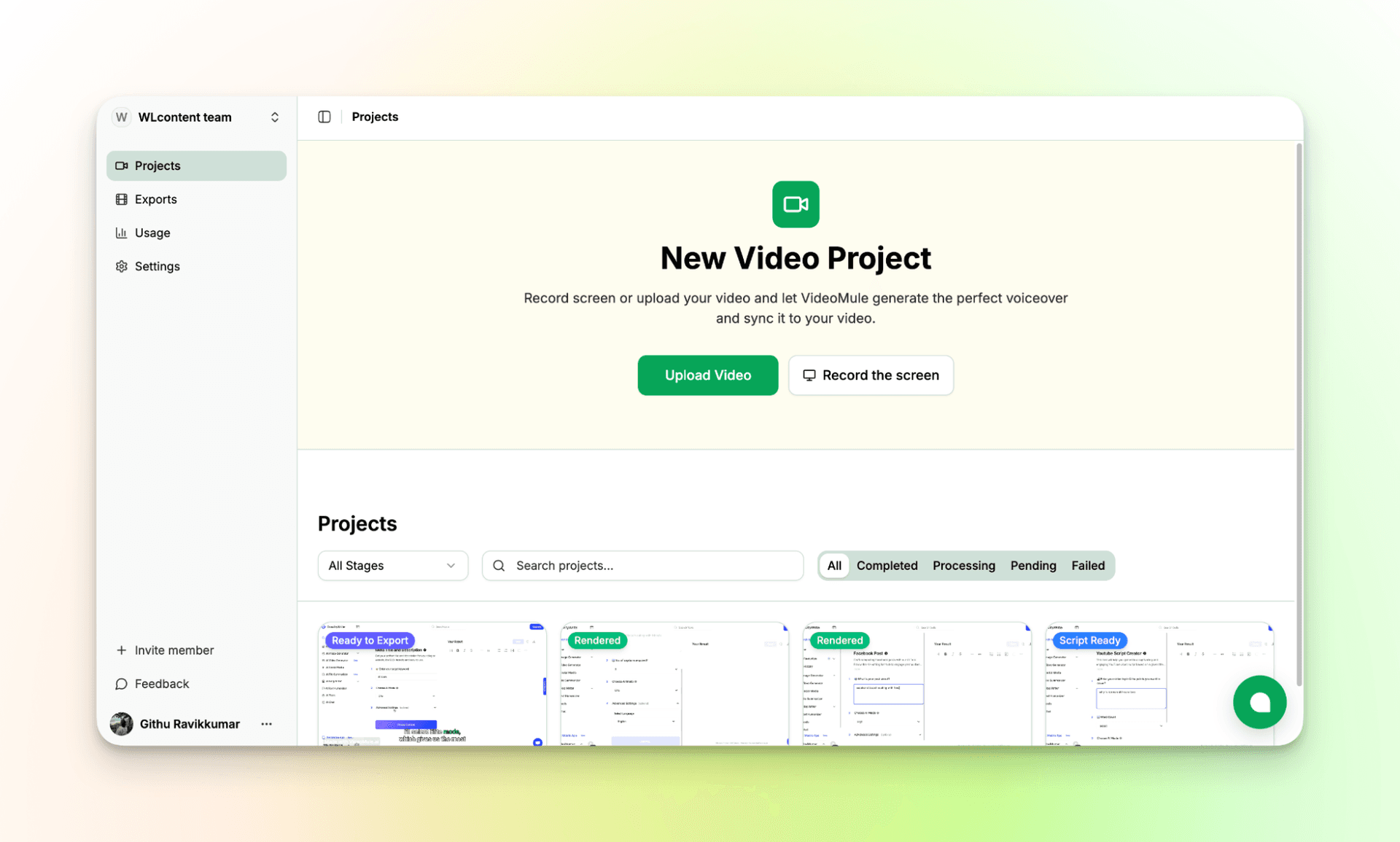
You can record your screen directly inside VideoMule. If you already have a screen recording, you can upload it instead. Screen recording works on Chrome and other Chromium-based browsers like Brave.
While recording, focus on clarity:
- Move your mouse slowly
- Pause before clicking
- Keep the screen clean
- Avoid rushing
You do not need to speak while recording. You can stay silent the entire time. This makes recording easy even in noisy places.
If you want to guide the AI better, you can add your own voice. This helps the AI understand your intent, but it is optional.
Once the recording is done, VideoMule fetches it automatically and lets you preview it.

Step 3: Customize Your AI Tutorial Video
This step focuses on basic setup.
You can:
- Name your video
- Choose the output language
- Select an AI voice
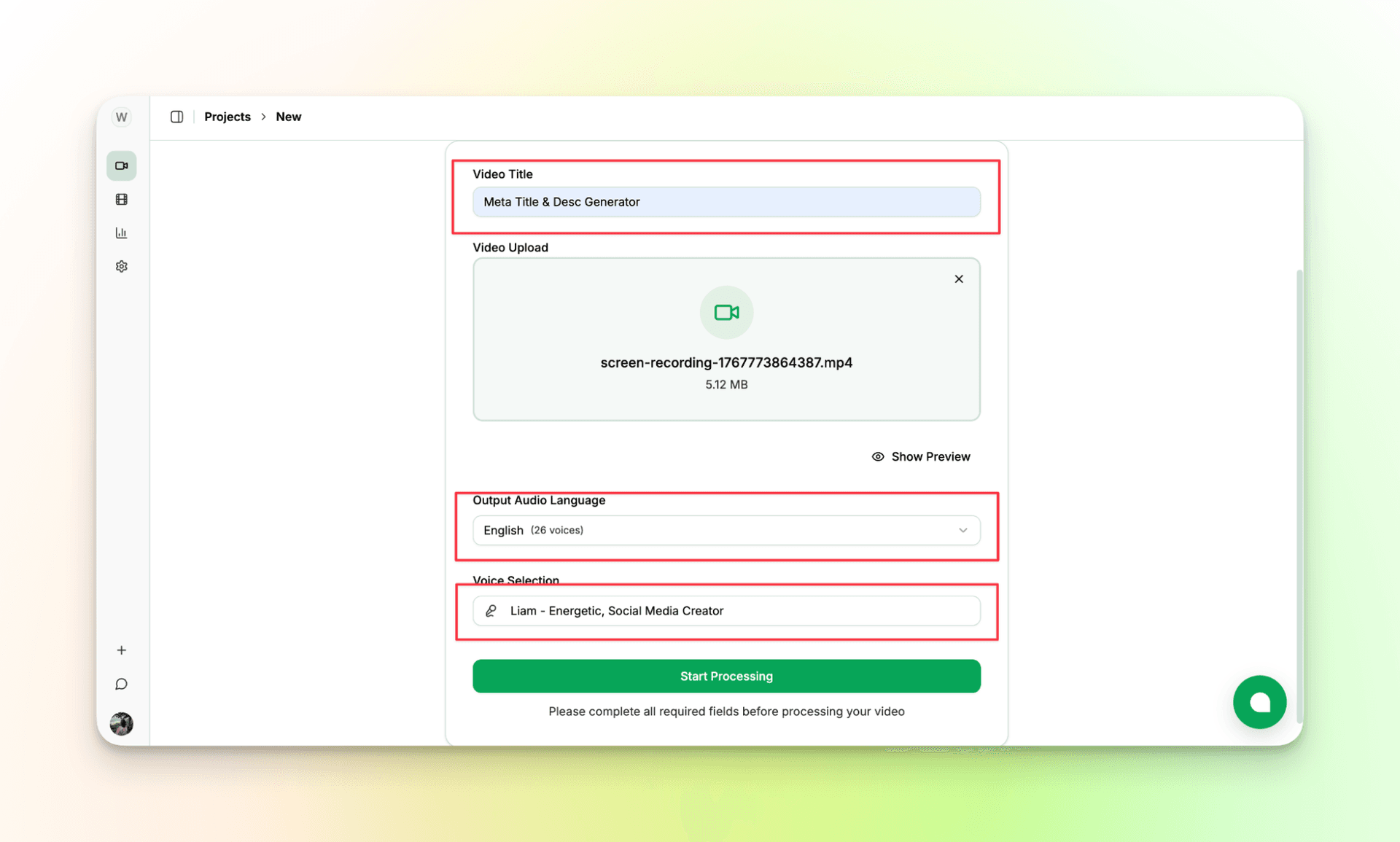
VideoMule offers professional, human-like AI voices based on gender and accent. Pick one that sounds clear and natural.
You do not need an instructor-style voice. You do not need confidence training. The AI voice explains what is happening on screen.
This answers a common beginner question about how to add AI voiceover to a YouTube video without recording your own voice.
Step 4: Let VideoMule Analyze the Recording
Once the recording is ready, VideoMule analyzes it.
This takes a few minutes.
The AI looks at:
- What you clicked
- Which menus you opened
- How you moved through the interface

The tool studies your actions, not just the visuals. This helps it explain steps clearly later.
Step 5: AI Writes the Tutorial Script
After analysis, VideoMule creates a step-by-step script.
The script explains what happens on screen using simple language and follows your actions in order.
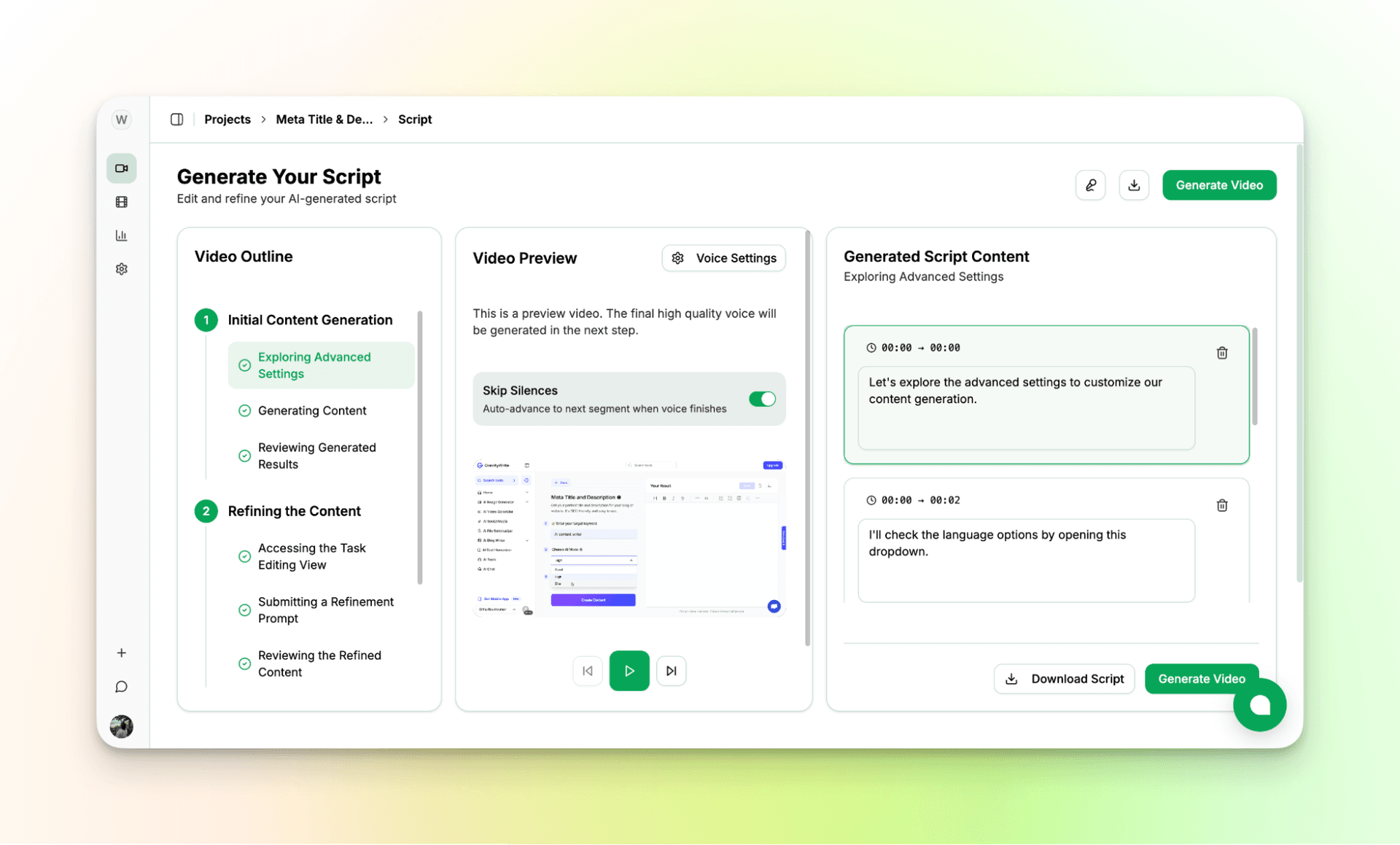
You can:
- Review the script
- Edit small sections
- Remove unnecessary lines
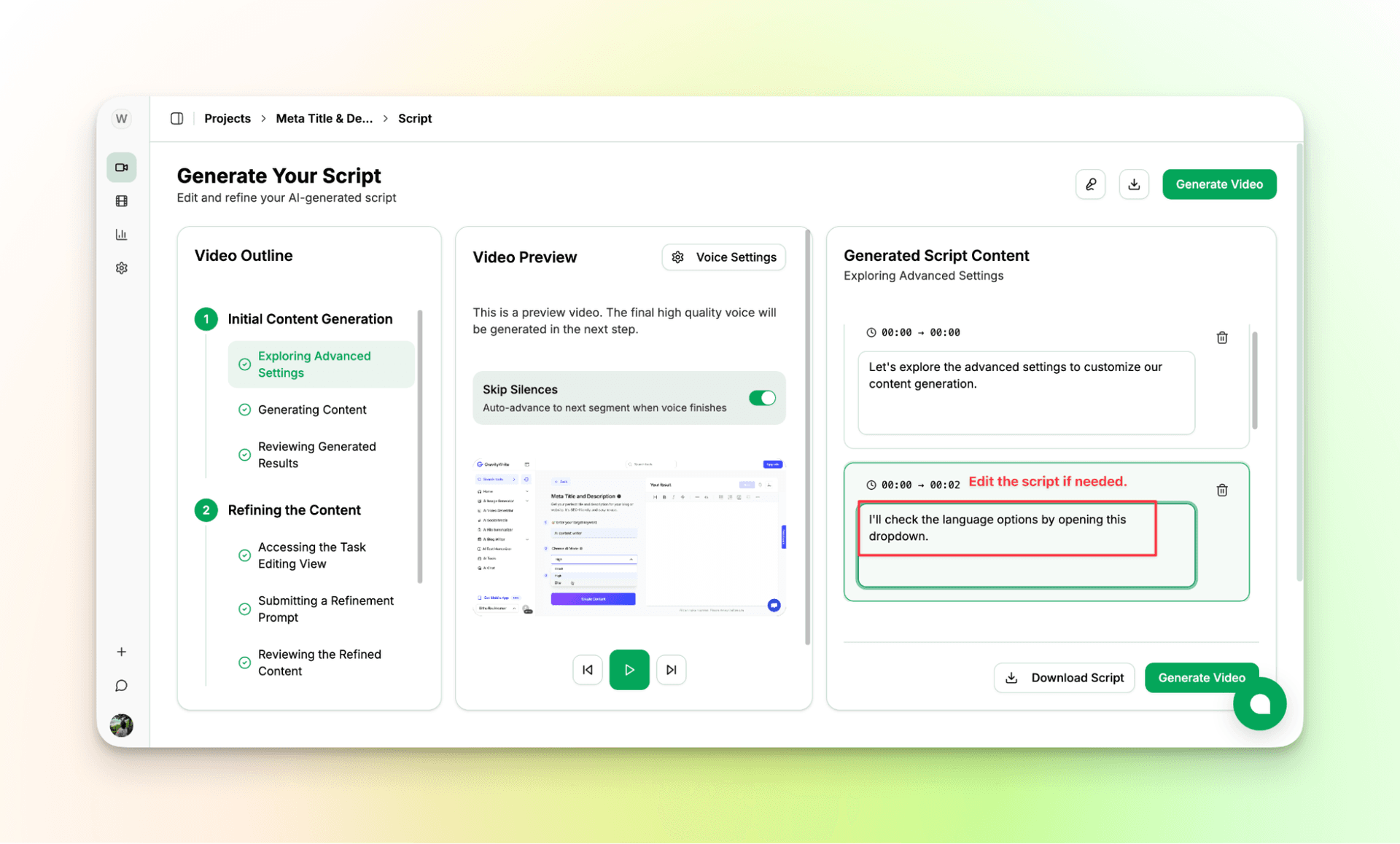
The tool also skips silent parts automatically. You can download the script for later use if needed.
This removes the stress of writing a script from scratch.
Step 6: Automatic Sync and Editing
If you wonder how to edit tutorial videos for YouTube without complex software, this is the key step.
VideoMule:
- Reads the script using AI voice
- Syncs voice, video, and captions
- Adjusts pacing so everything matches
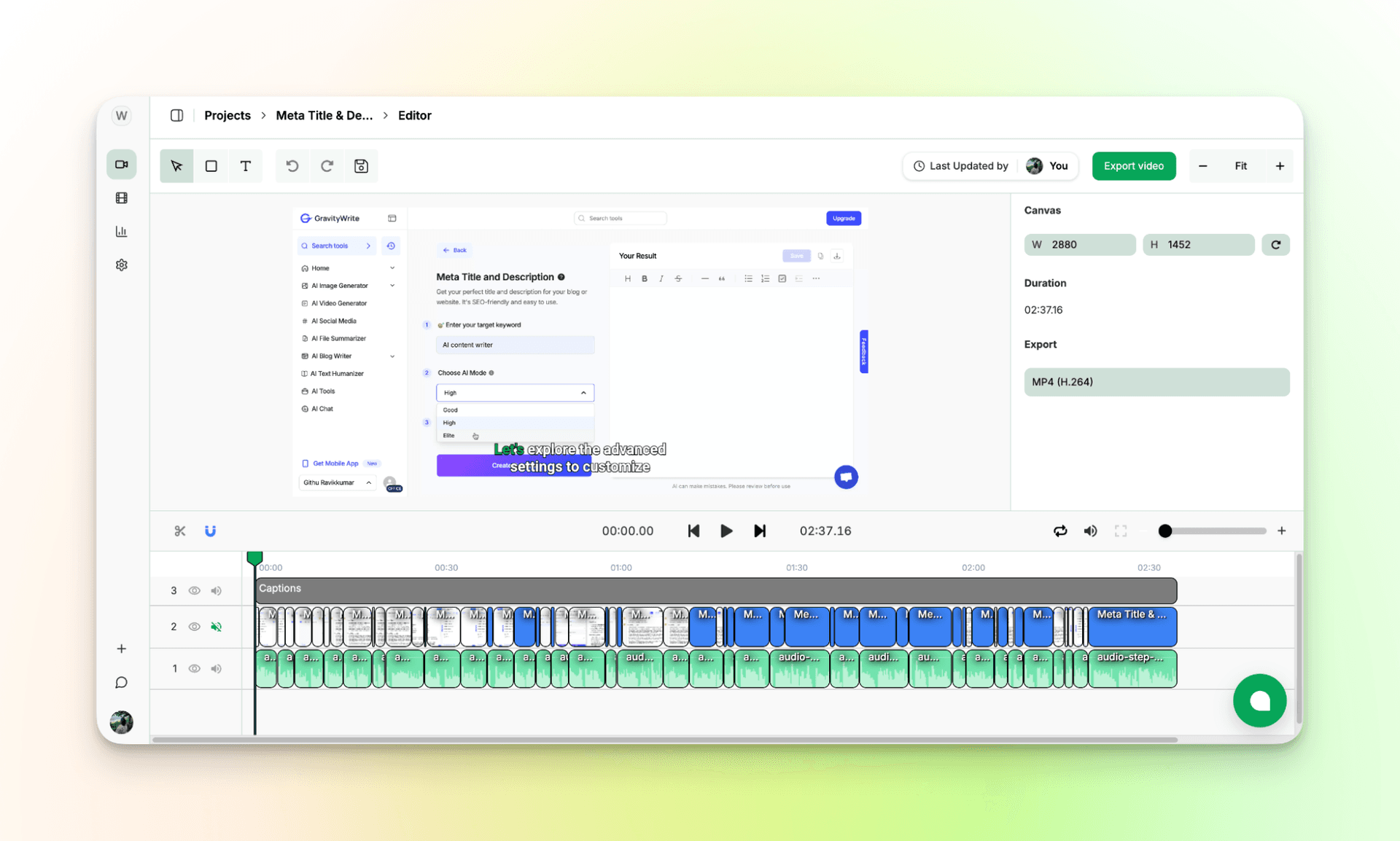
You see an editor-style view, but you do not need editing skills. You are not cutting clips or managing timelines.
Play the video once and check sync. You can make small edits to subtitles or crop the video if needed.
Step 7: Preview and Export the Final Video
Before exporting, watch the video once.
If everything looks right, export it in high quality.
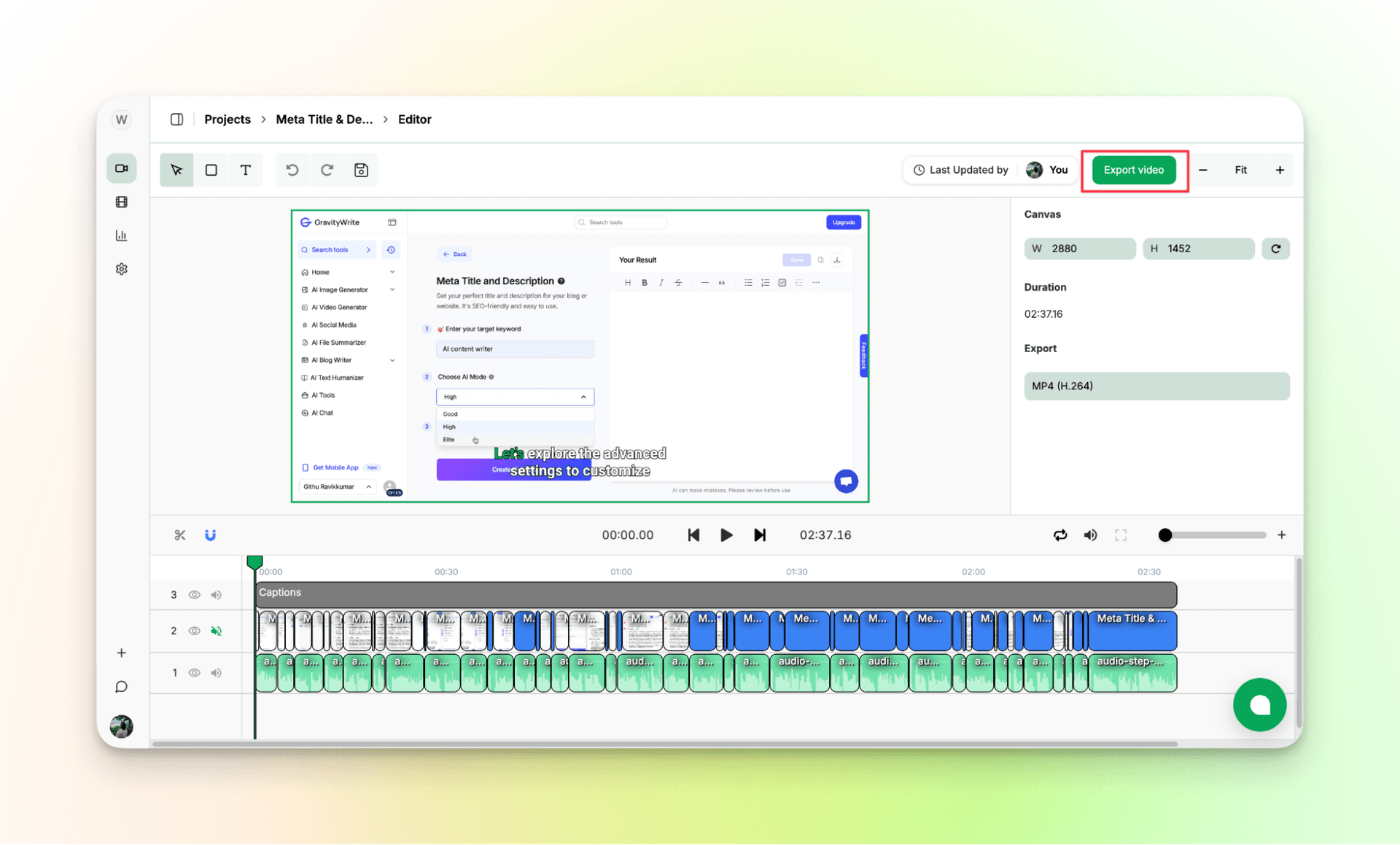
All paid plans export watermark-free videos.
At this point, you have a finished, social-ready tutorial video.
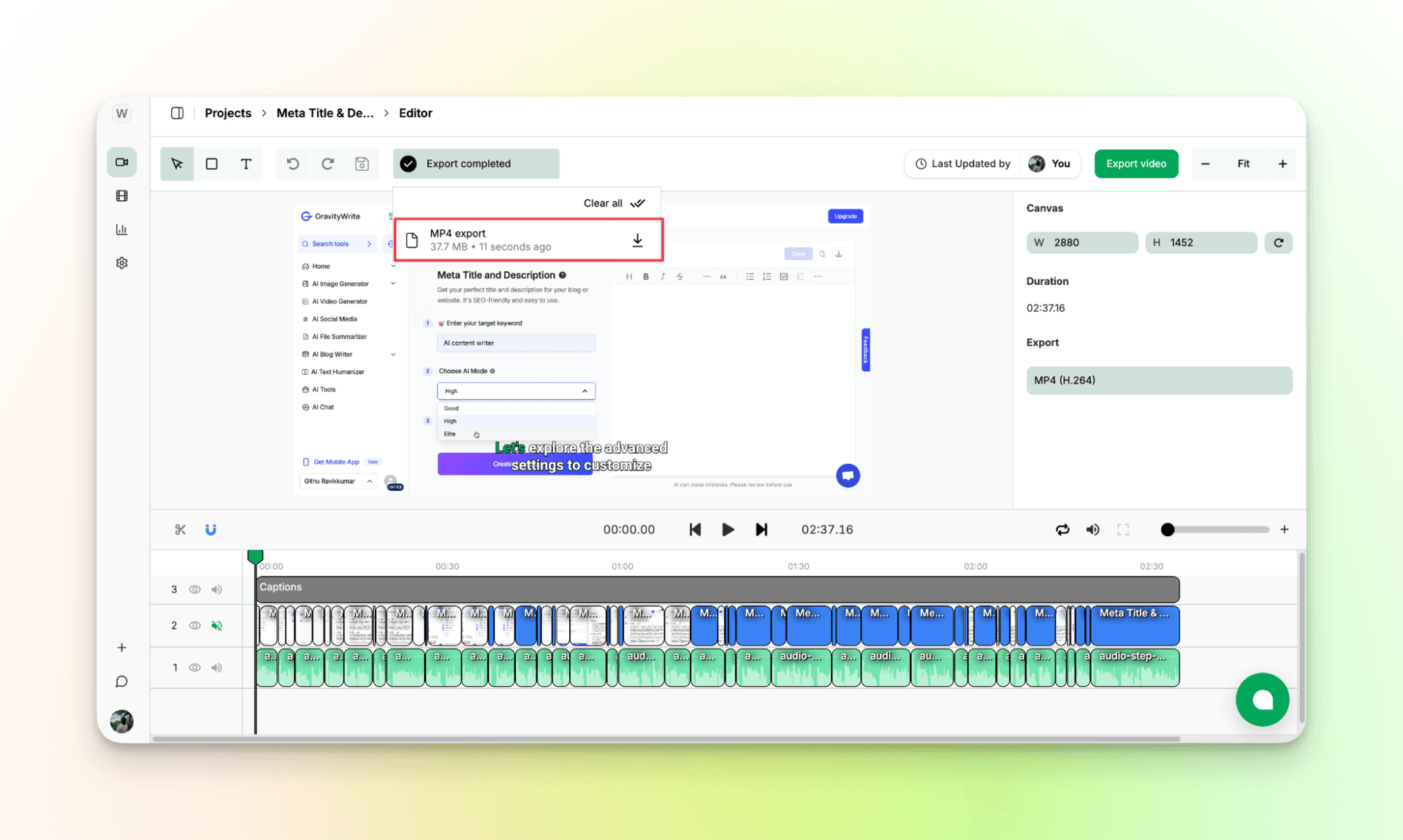
If you want one tool for recording, scripting, voiceover, and editing, this is where VideoMule saves the most time: VideoMule
For a full walkthrough, watch the YouTube video:
Advanced: Scale with AI Without Burning Out
After a few tutorials, a new challenge appears. How do you keep going without repeating work?
VideoMule helps with this.
Multi-language tutorials
Translate the script, generate a new AI voice, and reuse the same screen recording. This helps you reach new regions with little effort.
Updating tutorials
When software changes, re-record only the changed part. Update the script, regenerate the voice, and export again.
Reusable assets
Screen recordings and scripts become assets. AI handles narration and syncing so you focus on teaching.
Common Mistakes Beginners Make
Most mistakes come from overthinking.
Using robotic AI voices
Choose calm, neutral voices that explain clearly. Avoid stiff tones.
Long intros
Show the solution early. Keep intros short.
Low-resolution recordings
If text is hard to read, viewers leave. Record in clear resolution.
One long video
Split long tutorials into smaller videos that solve one task.
Using AI without checking clarity
AI should improve clarity. Always review the script and sync.
Before publishing, ask yourself:
- Does this video solve one clear problem?
- Is it beginner-friendly?
- Does the voice sound natural?
You Don’t Need a Perfect Setup to Start
If you wait for the perfect setup, you may never start.
Many people think tutorials are hard to make. After creating hundreds of tutorials with VideoMule, I can say they are not.
You do not need:
- A microphone
- A quiet room
- Editing skills
Record one small walkthrough. Let AI write the script. Let AI handle voice and sync.
Your first video does not need to be perfect. You just need the right tool and a small push.
Try VideoMule for free and see how much easier your workflow becomes.
If you want a beginner-friendly way to create tutorial, demo, and educational videos, you can start here: VideoMule
FAQs on How to Make a Tutorial Video on YouTube Using AI
1. Can beginners create tutorials without recording their voice?
Yes. You can record your screen silently and let AI generate the narration. No mic needed.
2. Is AI voice allowed on YouTube?
Yes. AI voiceovers are allowed if the content is original and helpful.
3. Will viewers trust AI voice tutorials?
Most viewers care about clarity and usefulness. If steps are clear, they will watch.
4. How long should a YouTube tutorial be?
Short and focused works best. Many strong tutorials are between 3 and 10 minutes.
5. Can I run a faceless YouTube tutorial channel?
Yes. Screen recordings with AI voice work very well.
6. Do I need editing experience to use VideoMule?
No. VideoMule handles syncing, captions, and pacing automatically.
7. What if the software changes later?
You can re-record only the changed part and update the video.
8. Is VideoMule only for YouTube?
No. You can also create demo, training, and educational videos for other platforms.
Keep reading
AI Tutorial Video Maker
Turn one screen recording into a step-by-step tutorial with an AI script and voiceover.