How to Make a Tutorial Video with Realistic AI Voiceover?
Learn how to make a tutorial video with a realistic AI voiceover. Record your screen silently and automatically sync audio with VideoMule for FREE.
How to Make a Tutorial Video with Realistic AI Voiceover
Creating a tutorial video used to take hours. You had to write a script, record voiceovers, fix mistakes, and sync audio with your screen recording.
If you are still following that workflow, it no longer makes sense.
Today, you can record your screen silently and let AI handle the voice and editing. This guide shows how to make a tutorial video with automatic AI voiceover and editing using VideoMule.
Simply record your screen, upload it, add a realistic AI voice, and publish an engaging tutorial with hard-coded subtitles. You never touch a microphone or complex video editing software.
If you want to follow along and try it yourself, sign up for FREE here: VideoMule.
How to Make a Tutorial Video: Step-by-Step Instructions
Here is the fastest way to create a professional tutorial video using VideoMule. This workflow turns a raw screen recording into a finished tutorial with voiceover in a few simple steps.
Step 1: Navigate to the Homepage
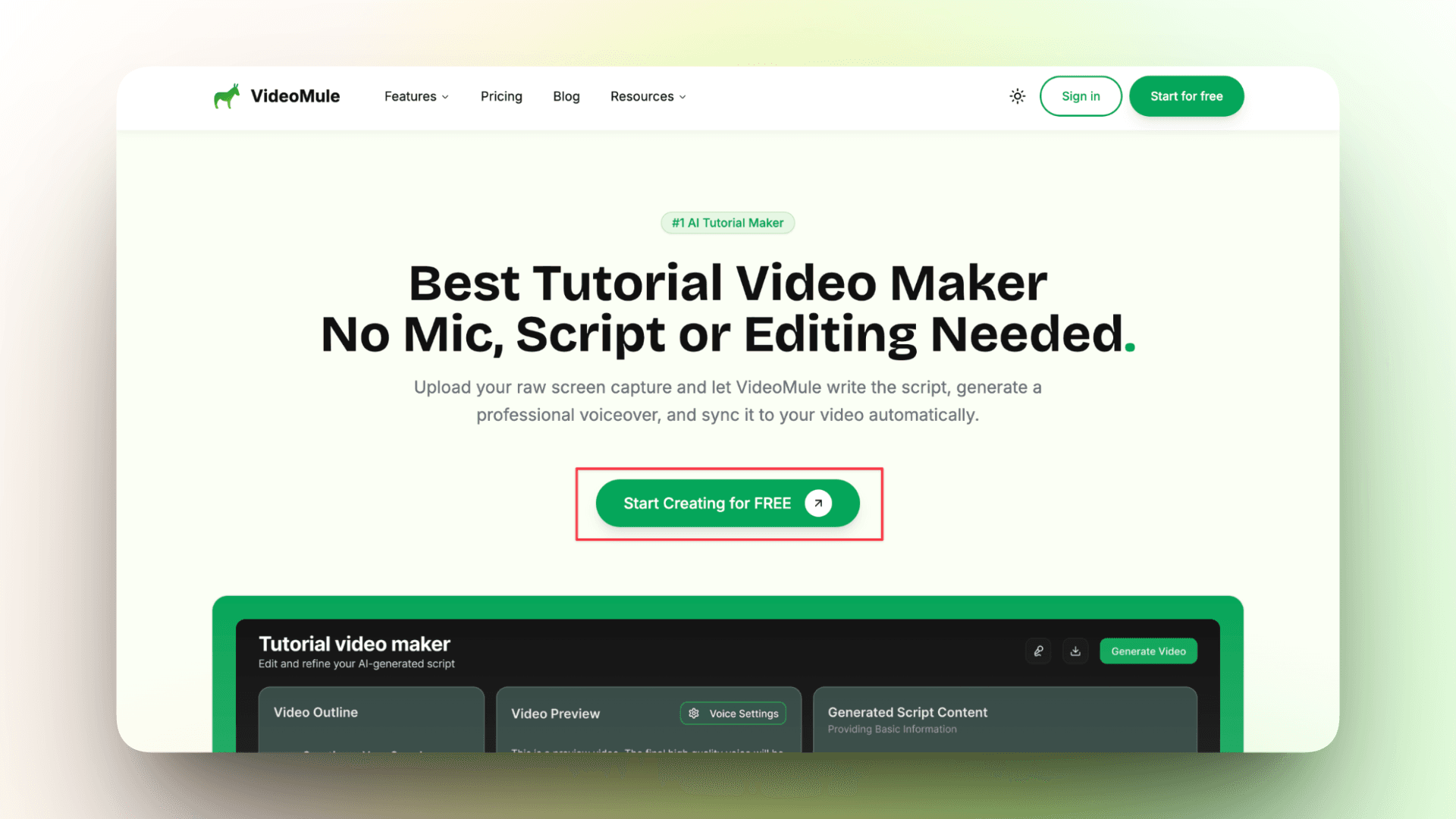
Go to the VideoMule homepage and click Start Creating for FREE to create training videos with AI at no cost.
Step 2: Create Your Organization
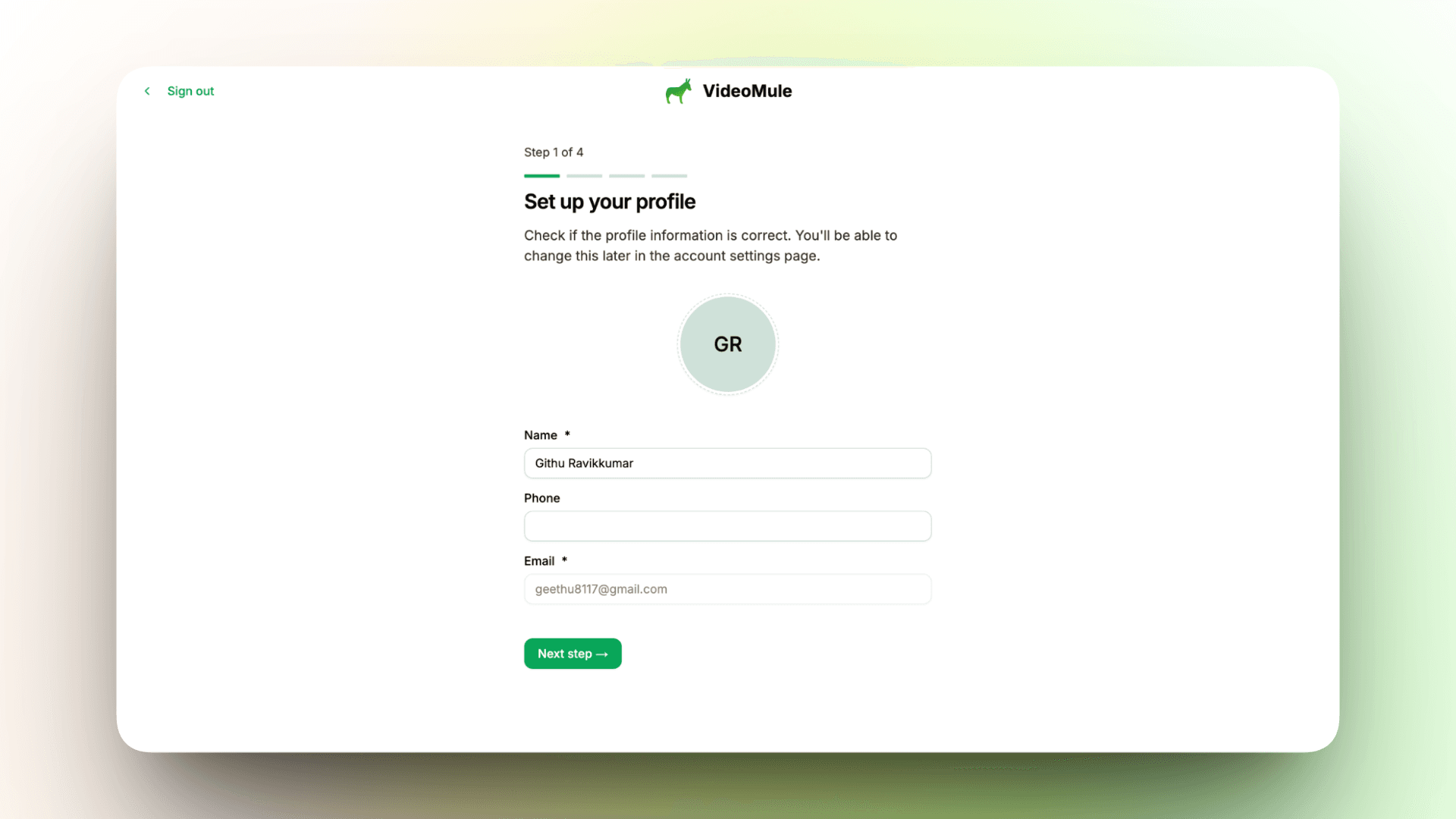
This is a required step. It helps you organize projects, videos, and assets in one place.
Step 3: Launch the Dashboard
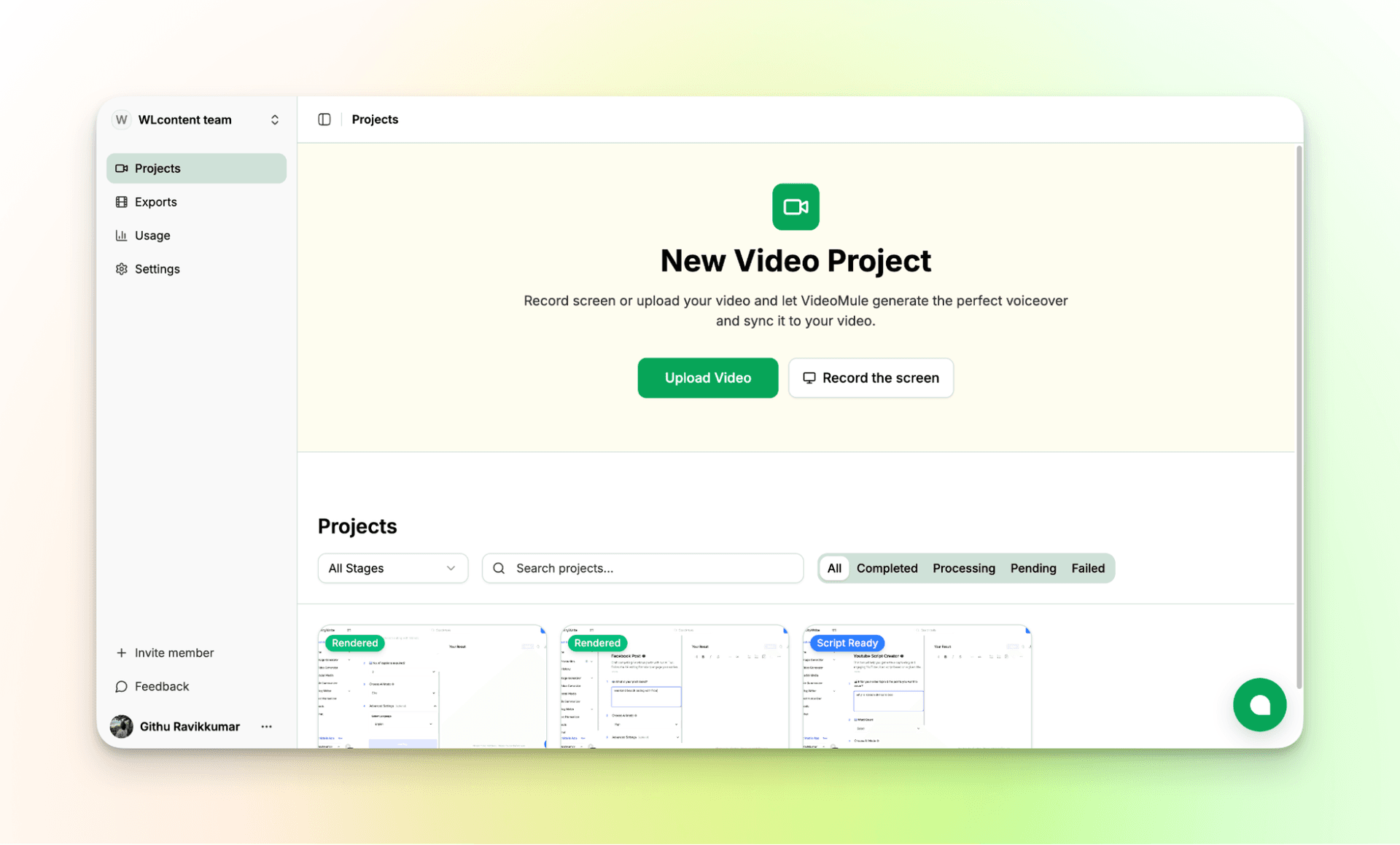
You are now inside the dashboard and ready to create a tutorial video with an AI voiceover.
Step 4: Import Your Screen Capture
VideoMule supports MP4, MOV, and AVI files up to 500 MB. You can rename the video for easy reference.
Tip: Keep mouse movements smooth and avoid unnecessary actions. The AI tracks these movements to understand your workflow.
Step 5: Customize Your Video
Choose from over 30 supported languages. Select a professional AI voice that fits your audience and topic.
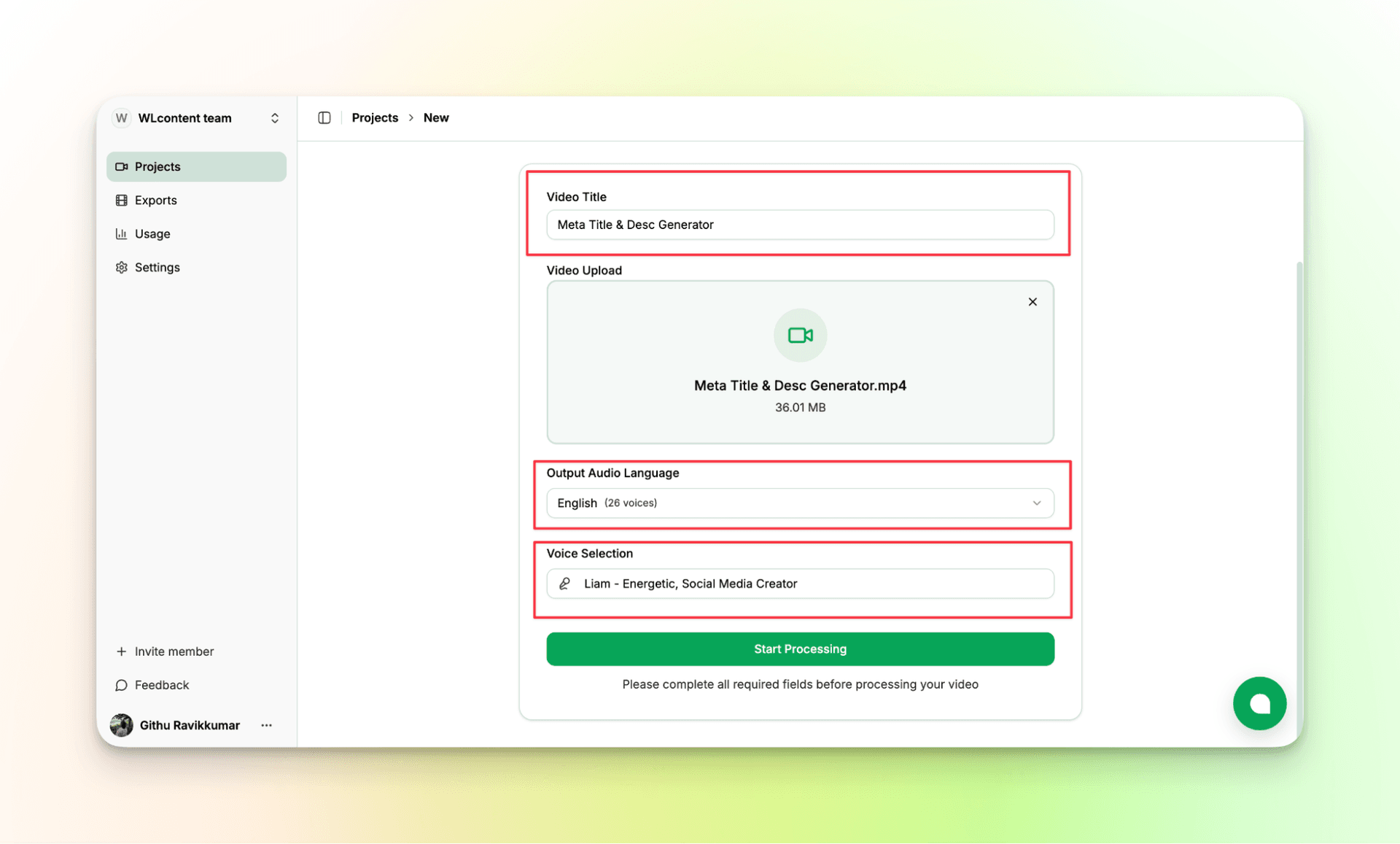
Step 6: Let VideoMule Analyze Your Video
The tool takes a few minutes to analyze your screen recording and actions.
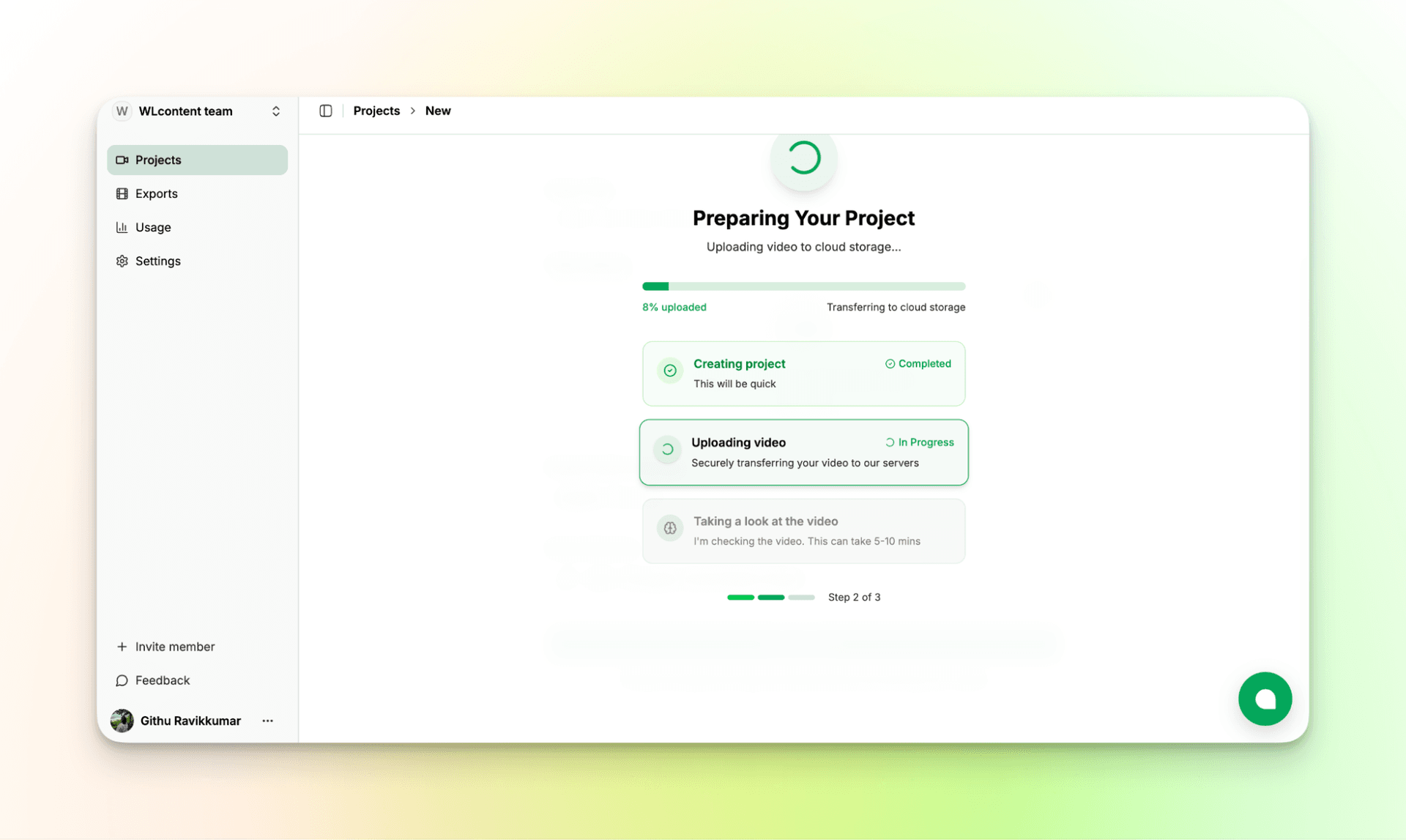
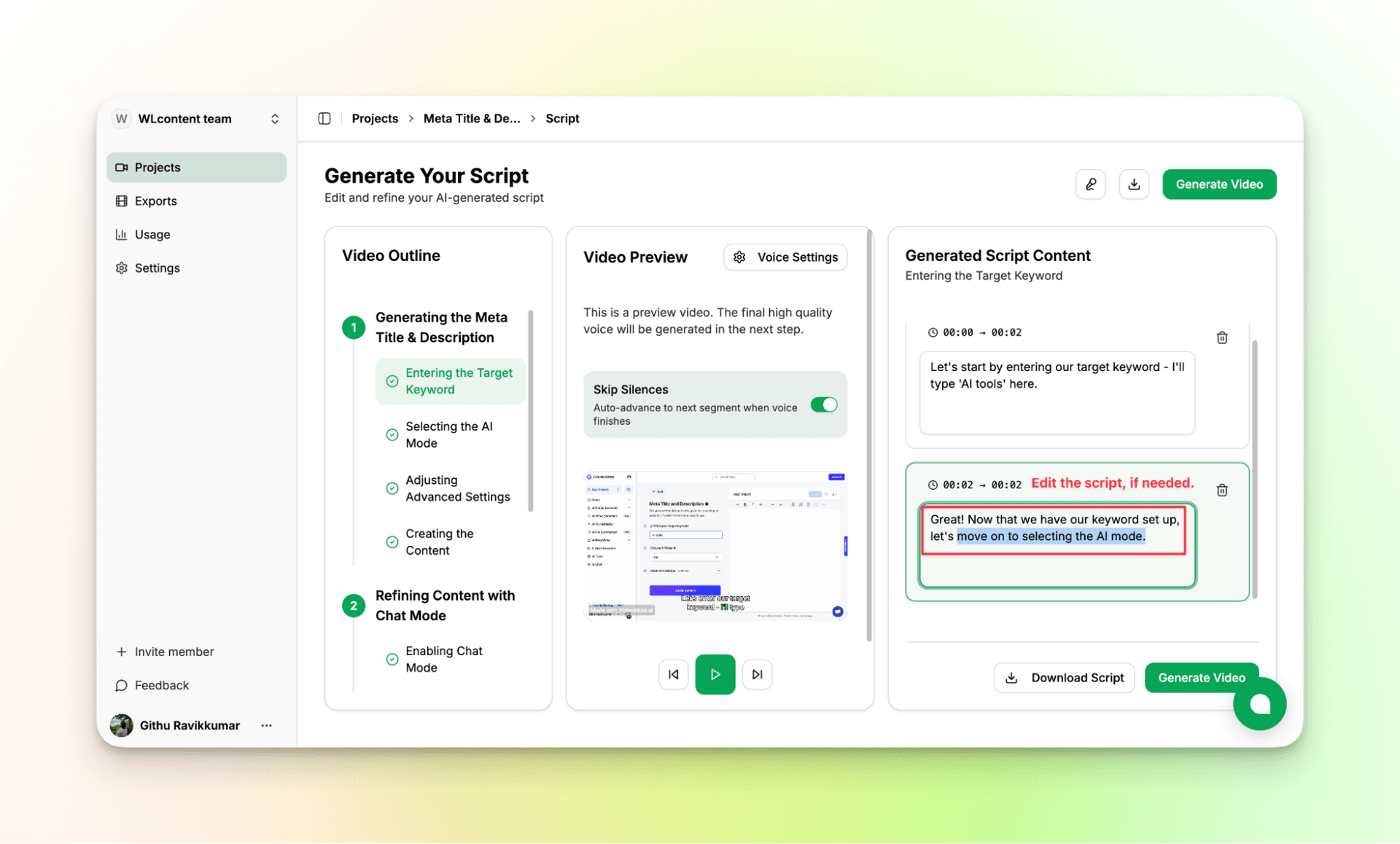
Step 7: AI Writes the Tutorial Script
The AI detects buttons, menus, and navigation paths. It then writes a clear, step-by-step tutorial script.
You can edit the script, export it, or enable skip-silence for better pacing.
When ready, click Generate Video to create the AI voiceover.
A preview of the video is generated after processing.
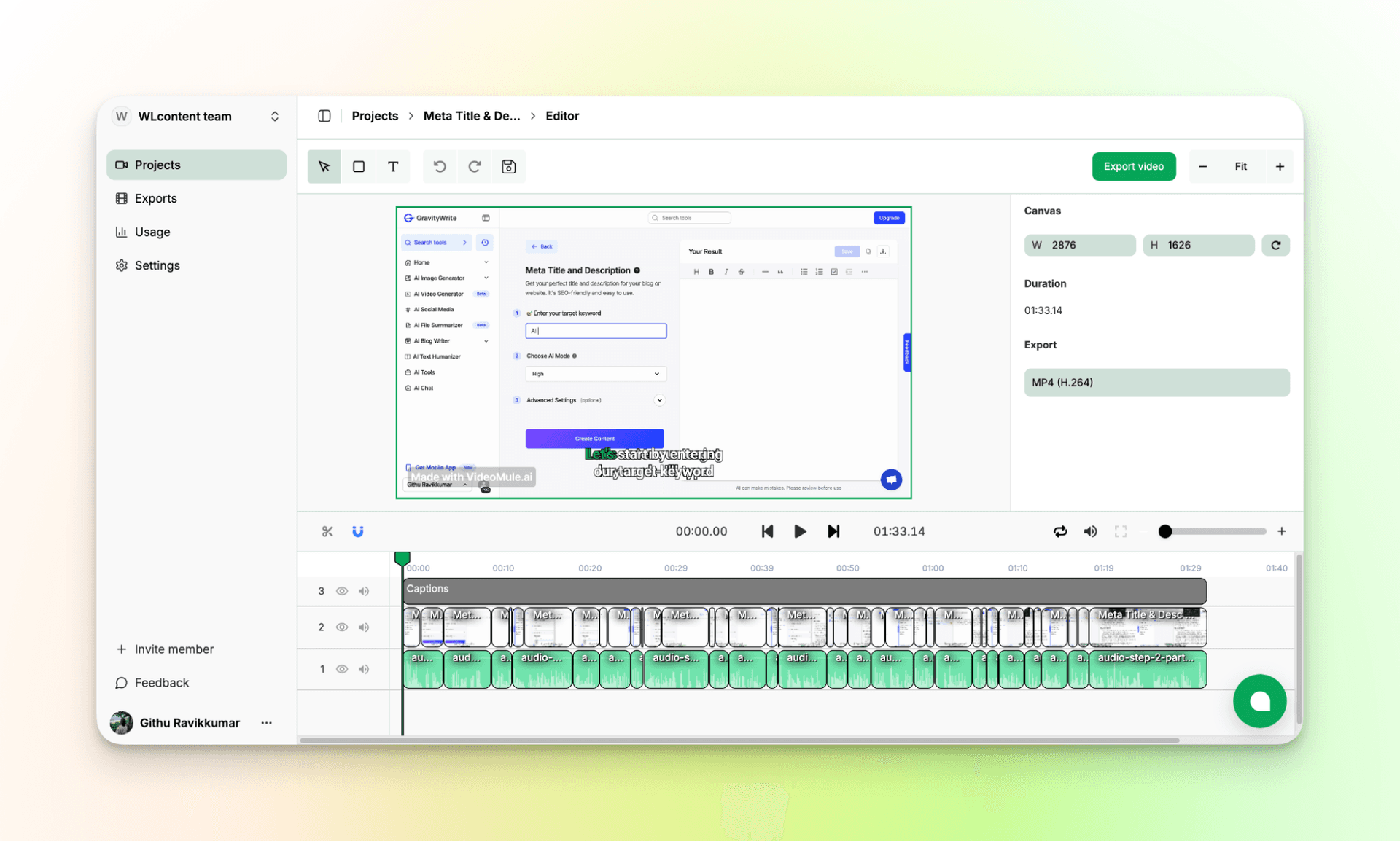
Step 8: Edit the AI-Generated Tutorial Video
You do not need to manually match audio with visuals.
The multi-track editor automatically syncs video, voice, and captions. It pauses or speeds up narration to match on-screen actions.
This makes AI-generated training videos easy to update later without breaking accuracy.
Step 9: Export the AI Voiceover Video
Preview the final result. Check captions and pacing.
After rendering, export your tutorial video in high quality.
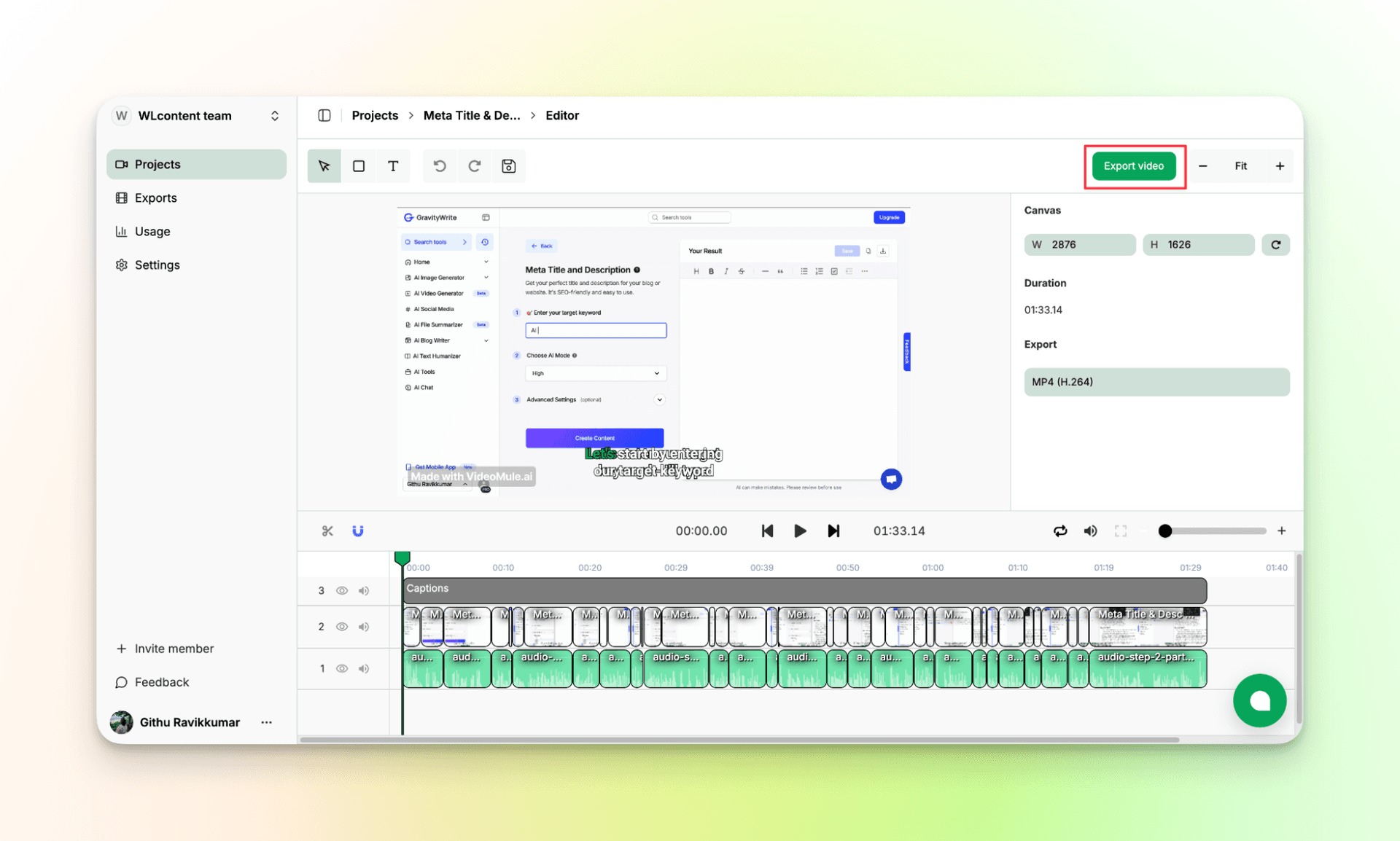
You now have a ready-to-publish video without using a microphone.
Your 7-day free trial includes 2 videos (up to 3 minutes each), 10 minutes of AI voice-over, 1 translation, and 1 watermarked export; watermark-free exports unlock on a paid plan. All paid plans (starting at $29 per month for Creator) export watermark-free videos.
Expert Tip 💡
Once confident, reuse one screen recording to create multiple videos.
You can change the output language and generate tutorials for different regions without re-recording the screen. This makes localization fast and simple.
For a full walkthrough, watch the YouTube video:
What Makes a Good Tutorial Video?
People click tutorials to solve a problem fast. They want clarity, not long stories.
Focus on these three essentials:
- Clear visuals: Smooth mouse movements and a clean desktop.
- Simple audio: Explain why you do something, not every click.
- Good timing: The voice should stop when the action stops.
Why Does Voice Matter?
Bad audio drives viewers away faster than bad visuals.
AI voiceovers remove background noise, mic issues, and vocal fatigue.
The key is realism. If the voice sounds robotic, viewers leave.
Always choose natural voices with proper pacing.
Why Use AI Tools for Tutorials?
AI workflows save time and effort. Here is how they compare:
| Aspect | Without VideoMule | With VideoMule |
|---|---|---|
| Speed | Slow re-recording | Instant voice generation |
| Updates | Full re-record | Edit text or clip |
| Languages | Expensive | One-click language switch |
| Quality | Inconsistent | Clear and stable audio |
Common Mistakes with AI Voiceovers
Creators often make these errors:
- Robotic voices: Flat tones reduce retention.
- Poor syncing: Voice must match screen actions.
- Too much info: Keep each clip focused.
How VideoMule Helps
It auto-syncs audio and visuals, allows voice regeneration, and removes manual timeline editing.
Create Tutorial Videos in Minutes, Not Days!
Traditional tutorials need many tools and hours of work.
VideoMule handles recording, script writing, voiceover, syncing, and subtitles in one place.
You do not need editing skills, a quiet room, or expensive equipment.
Record your screen, upload it, and let AI finish the job.
Make your first tutorial video for free with VideoMule.
FAQs on How to Make a Tutorial Video
1. Can AI voiceovers work without annoying viewers?
Yes. Natural voices with good pacing work well. Robotic voices do not.
2. Is AI voice better than my own voice?
For tutorials, yes. AI is consistent and easy to update later.
3. What is the best free screen recording tool?
VideoMule offers an all-in-one workflow with recording and voiceover.
4. How long should a tutorial video be?
As long as needed to solve the problem. Most perform best between 3 and 8 minutes.
5. Do I record voice or screen first?
With AI tools, record the screen first. The AI handles script and voice timing.
6. How do I sync AI voiceover to my screen?
Manual syncing is hard. VideoMule syncs automatically by analyzing actions.
7. Can I make tutorials without showing my face?
Yes. Screen-only tutorials are standard for software training.
8. How do I translate tutorials into other languages?
Translate the script and regenerate the AI voice in another language.
9. How do I update tutorials when software changes?
Record only the changed section and update the script. The AI regenerates the voice for that part.
Keep reading
AI Tutorial Video Maker
Turn one screen recording into a step-by-step tutorial with an AI script and voiceover.