How to Create Training Videos with AI (Step-by-Step Guide)
Learn how to create training videos with AI using this step-by-step guide. Discover the best tools, AI voiceovers, and tips to create professional training content faster.
Nowadays, many companies use training videos to teach employees and explain work processes. As this way, everyone learns the same thing without repeating the same sessions again and again.
But learning how to create training videos is not easy. You usually have to write a script, record a voiceover, edit the video, and match the audio with the visuals.
The good news is that AI has made this much faster. What once took 75 to 100 hours can now be done in under 12 hours, saving a lot of time.
With a tool like VideoMule, you can quickly generate scripts, create natural voiceovers, add subtitles, and sync everything automatically.
In this blog, we’ll show you the easiest way to create professional training videos using AI.
Why Create Training Videos?
These days, training videos have become a common way to train employees, teams, and even customers.That’s why many businesses are learning how to create training videos for their work.
Instead of doing the same live session again and again, they use one clear video because it saves time, reduces cost, and can be shared easily.
Videos also help people learn better. While people remember only about 10% from text, they can retain up to 83% through visuals.
That’s why training videos are now in high demand across every industry.
Types of Training Videos
Training videos come in many formats, each designed for a specific purpose. Some are meant for new employees, some for customers, and others for teaching a particular skill or process. With AI training video creation, these formats are now easier to produce than ever.
Here are the most common types of training videos used today:
1. Screen Recording Training Videos
This is the most common type for teaching software or work steps,especially for employee onboarding videos AI training.
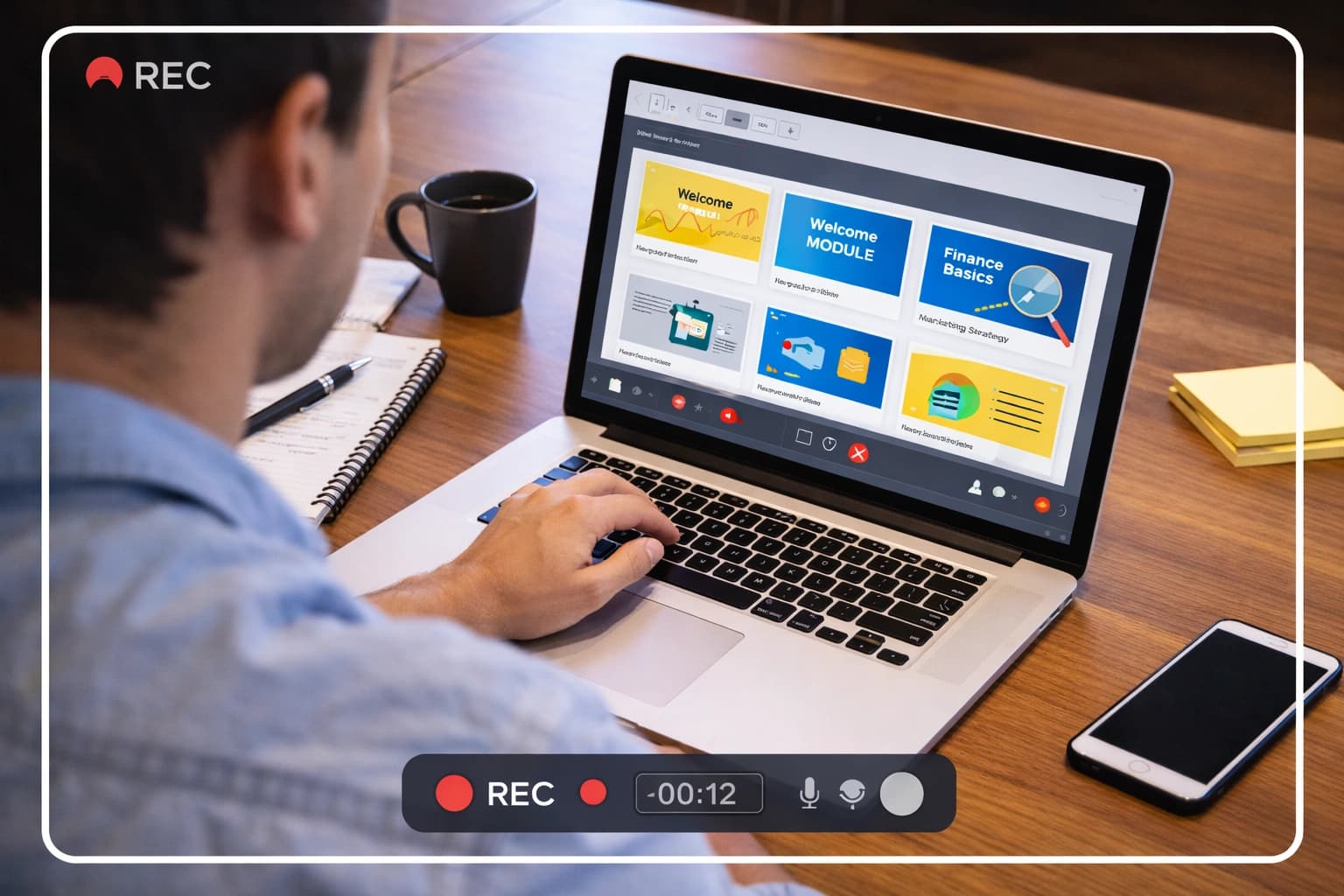
You record your screen while explaining the process. Tools like OBS, QuickTime, or VideoMule make this easy. After uploading, VideoMule can add a script, voiceover, and subtitles.
2. Presenter-Style (Talking Head) Videos
These videos show a person speaking directly to the audience. They are useful for soft skills, leadership, or company culture training.

If you don’t want to be on camera, tools like Synthesia can create digital presenters, and VideoMule will offer this soon.
3. Animated Training Videos
Sometimes, you need to explain topics that can’t be shown on a real screen, like safety rules or compliance. In that case, animated videos are a great choice.

You can use tools like Vyond and Animaker to create them easily.
4. Screencast + Presenter (Picture-in-Picture)
This format combines a screen recording with a small presenter video in the corner.
It’s useful for software demos where you want to guide viewers through the interface while still adding a personal explanation.
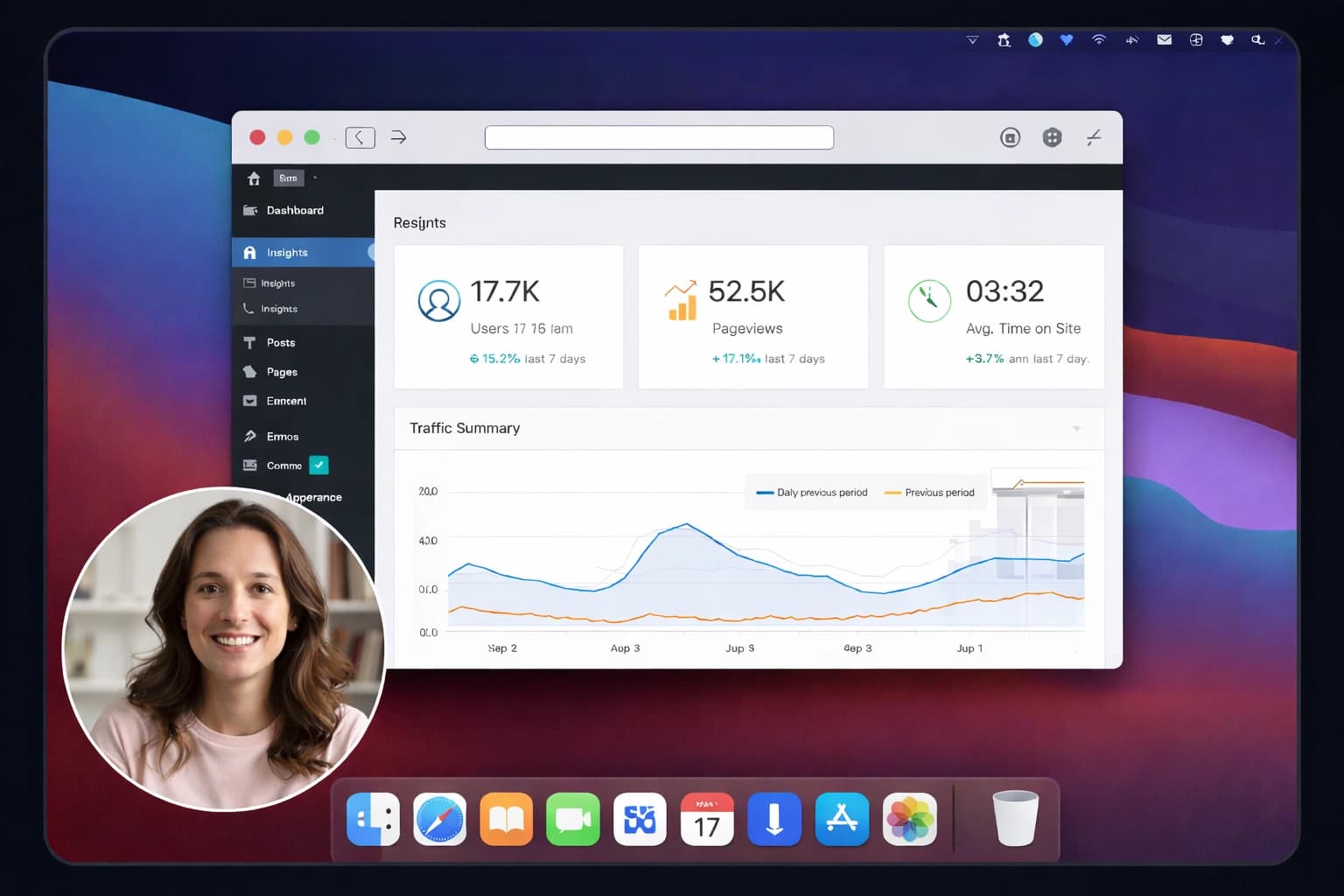
Platforms like Loom and Camtasia support this style. This format is also commonly used for product walkthroughs, and here’s a detailed guide on how to make a product demo video.
5. AI-Assisted Training Videos
If you want to create training videos quickly, this option is becoming very popular. Tools like VideoMule can turn your screen recording into a complete video with voice and subtitles.
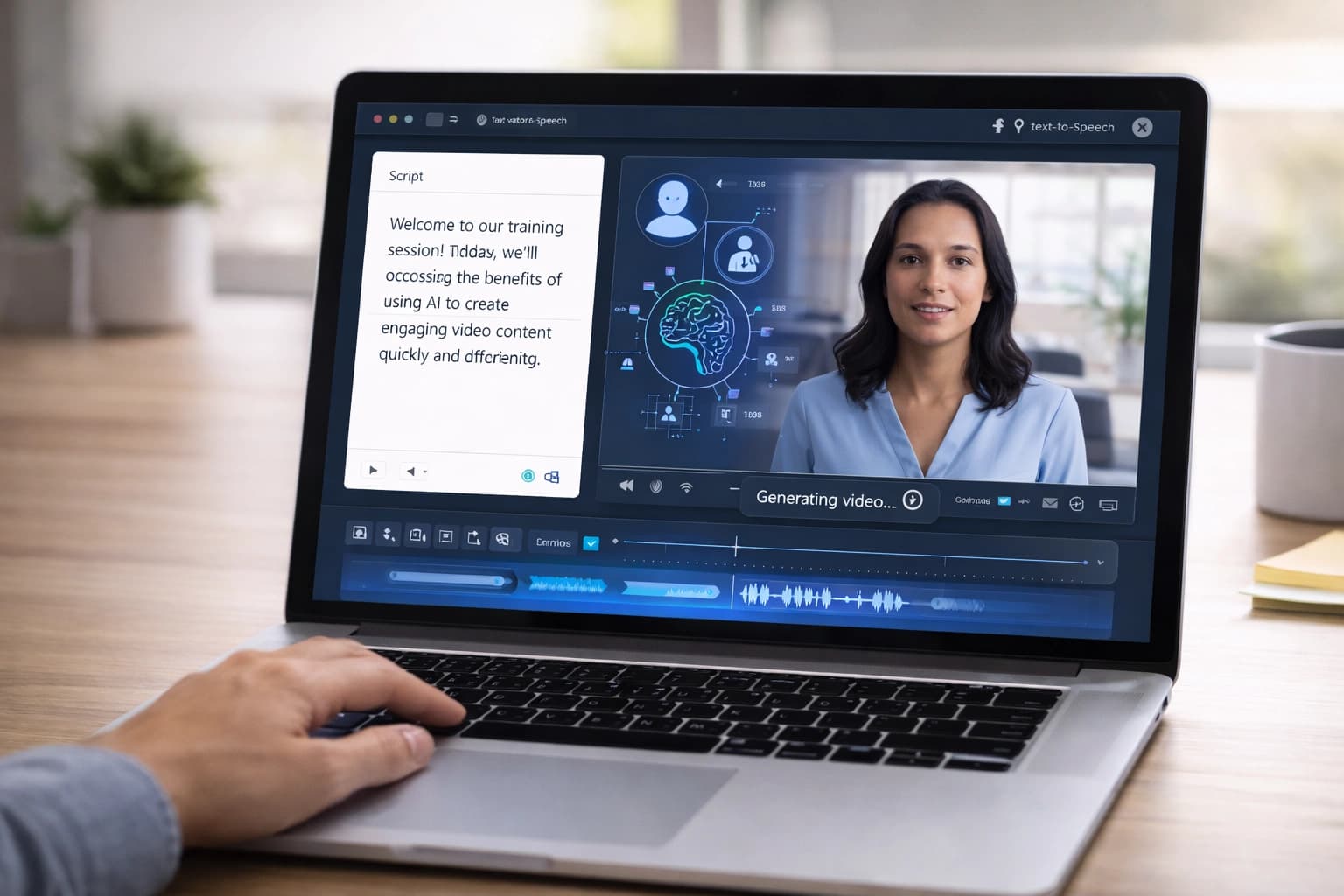
It’s especially helpful when you need videos fast, want to update them often, or create them in different languages.
Traditional vs AI: Time Comparison
Now let’s see how much time you can save.
Making training videos the traditional way takes hours because scripting, voice, editing, captions, and syncing are all done manually. That’s why one video can take 5 to 7 hours.
With VideoMule, you can create training videos with AI, so that the same video can be ready in just 45 to 60 minutes. And 10 videos can drop from 50–70 hours to only 7–10 hours.
The table below shows this time comparison clearly.
| Step in Workflow | Traditional Method (Manual) | With VideoMule (AI-Powered) | Time Saved |
|---|---|---|---|
| Plan & Outline Content | 1–2 hours | Auto-generated from recording | 1–2 hours |
| Script Writing | 2–3 hours | AI script in 5–10 minutes | 2+ hours |
| Voiceover Recording | 1–2 hours | AI voice in under 1 minute | 1–2 hours |
| Editing & Syncing Audio | 3–4 hours | Auto-synced instantly | 3–4 hours |
| Adding Captions | 45–60 minutes | Generated automatically | 1 hour |
| Export + Final Review | 30–45 minutes | 10–15 minutes | 20–30 min |
Step-by-Step: Creating AI Training Videos
Here is the fastest way to create professional training videos using VideoMule.
Step 1: Go to Videomule’s Website
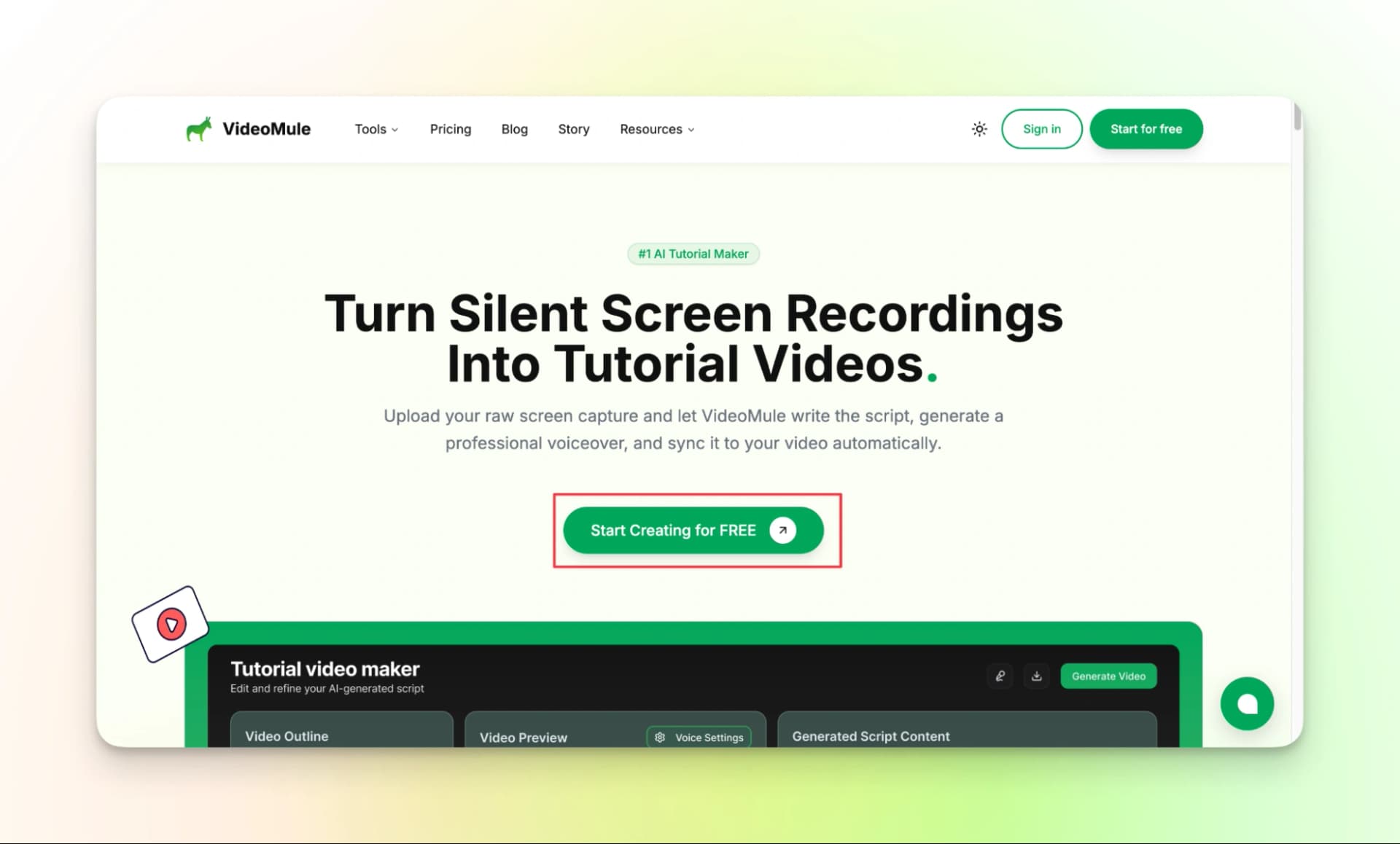
To get started, go to the VideoMule website and click on “Start Creating for Free.” This gives you instant access to the platform so you can begin creating training videos right away.
Step 2: Create Your Account
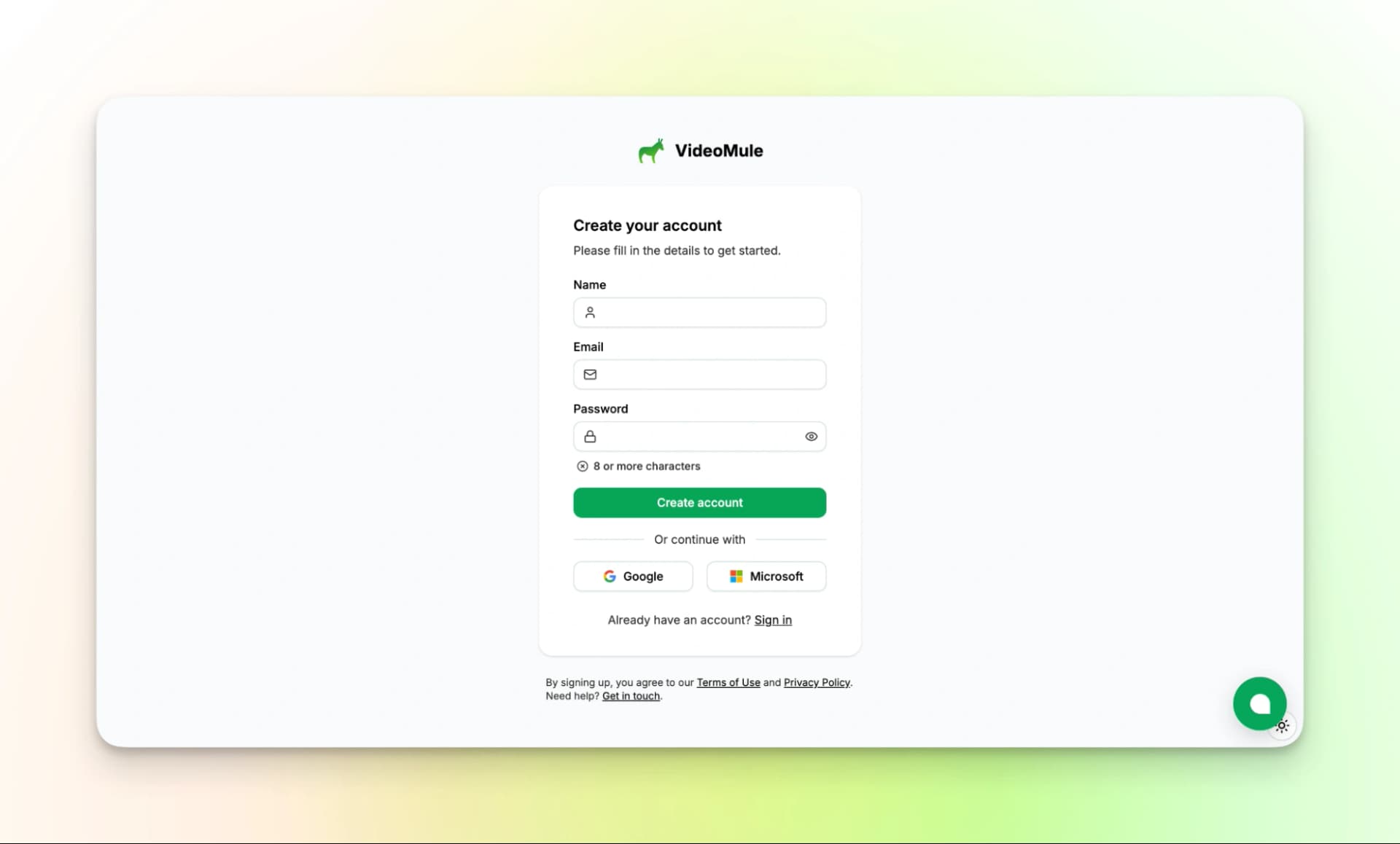
Next, sign up by entering your details. You can also use your Google or Microsoft account to create an account faster and get started in just a few seconds.
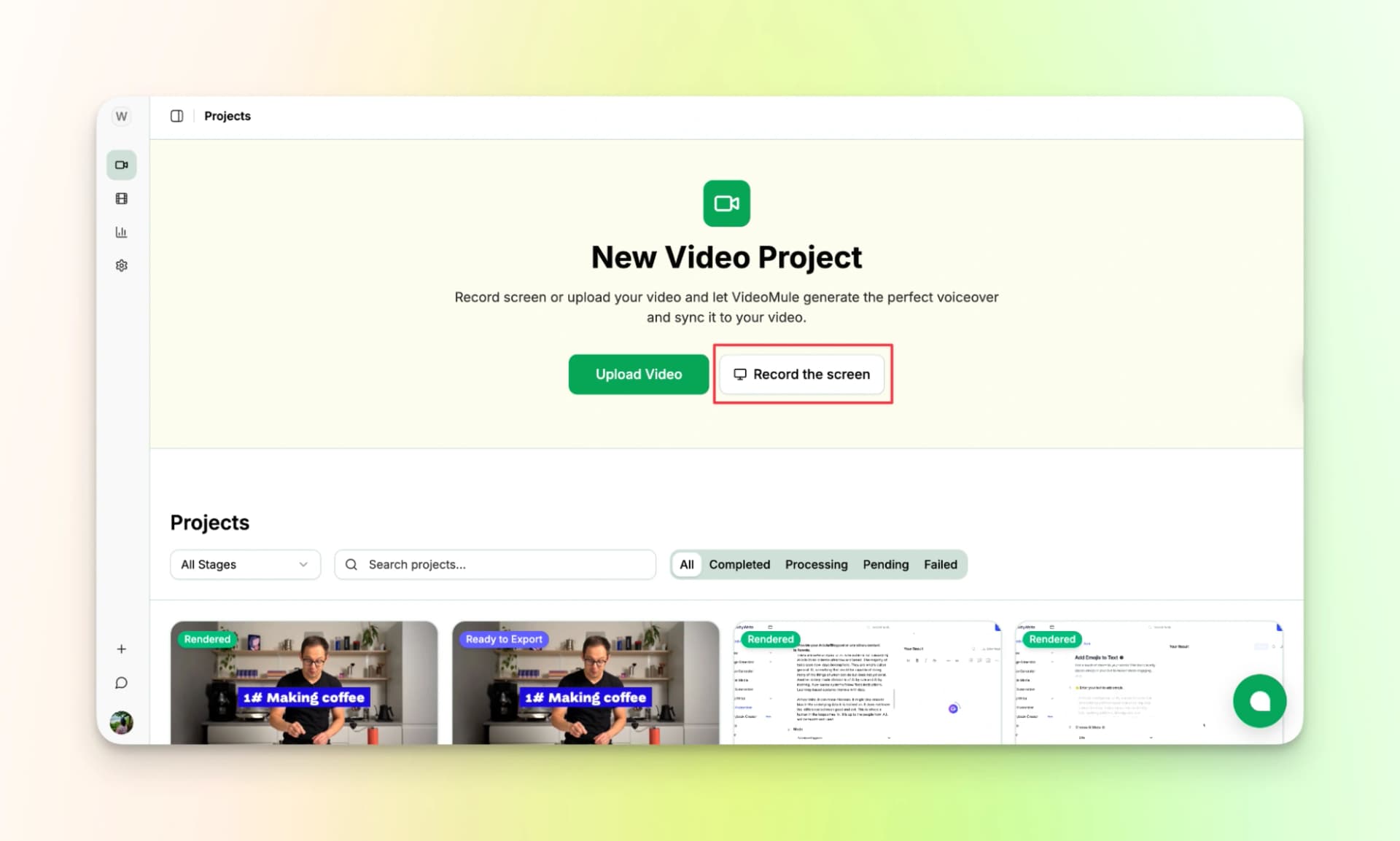
Step 3: Start Recording Your Screen or Upload a Screen Recording
The first step is to capture the training process you want to explain.
You can either record directly using VideoMule’s built-in screen recorder or upload an existing screen recording you already have.
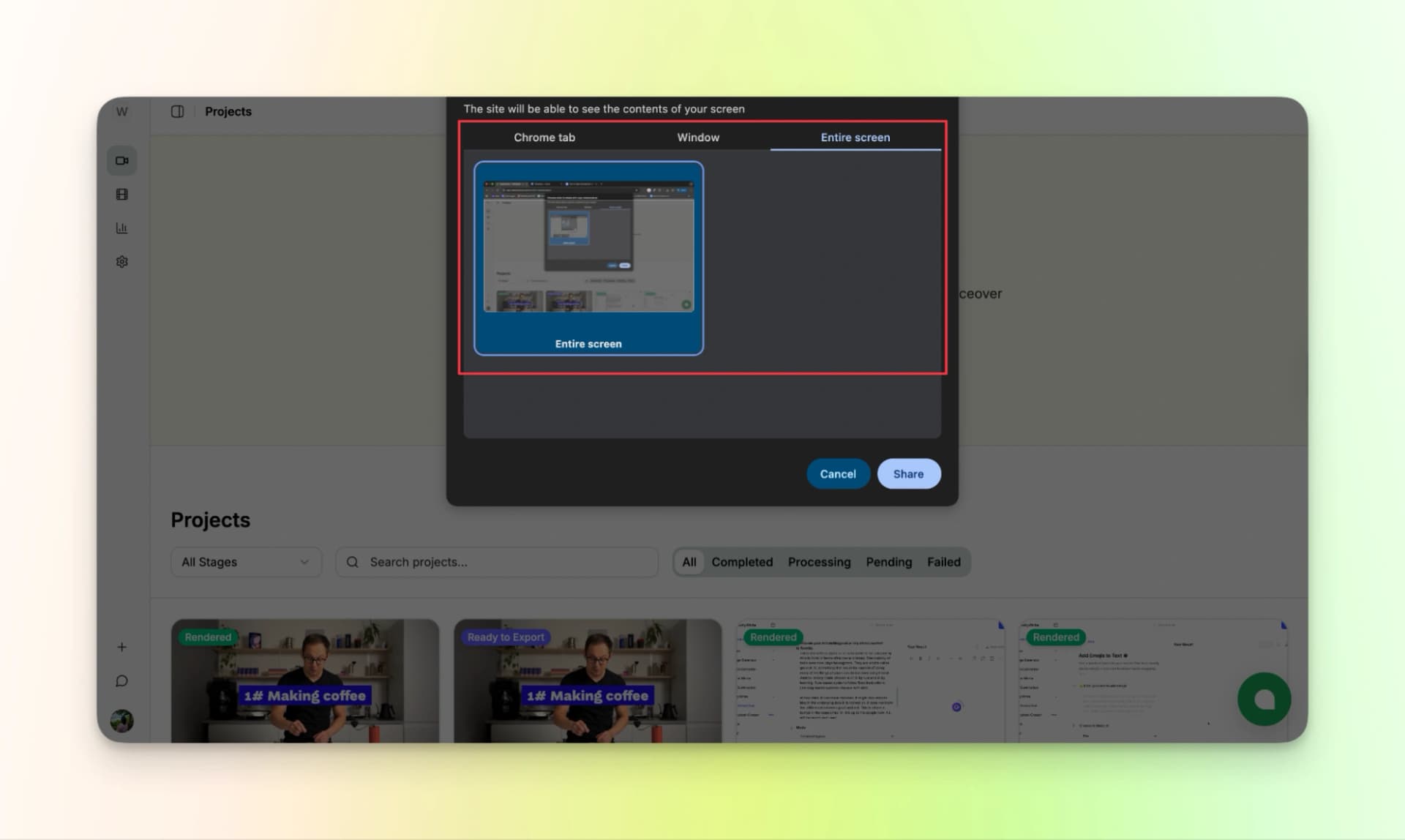
While recording, you can choose to share a browser tab, a specific window, or your entire screen. If you’ll be switching between multiple tabs or tools, sharing the full screen is usually the best option.
Just make sure your recording is longer than 15 seconds; shorter videos won’t be accepted by the platform.
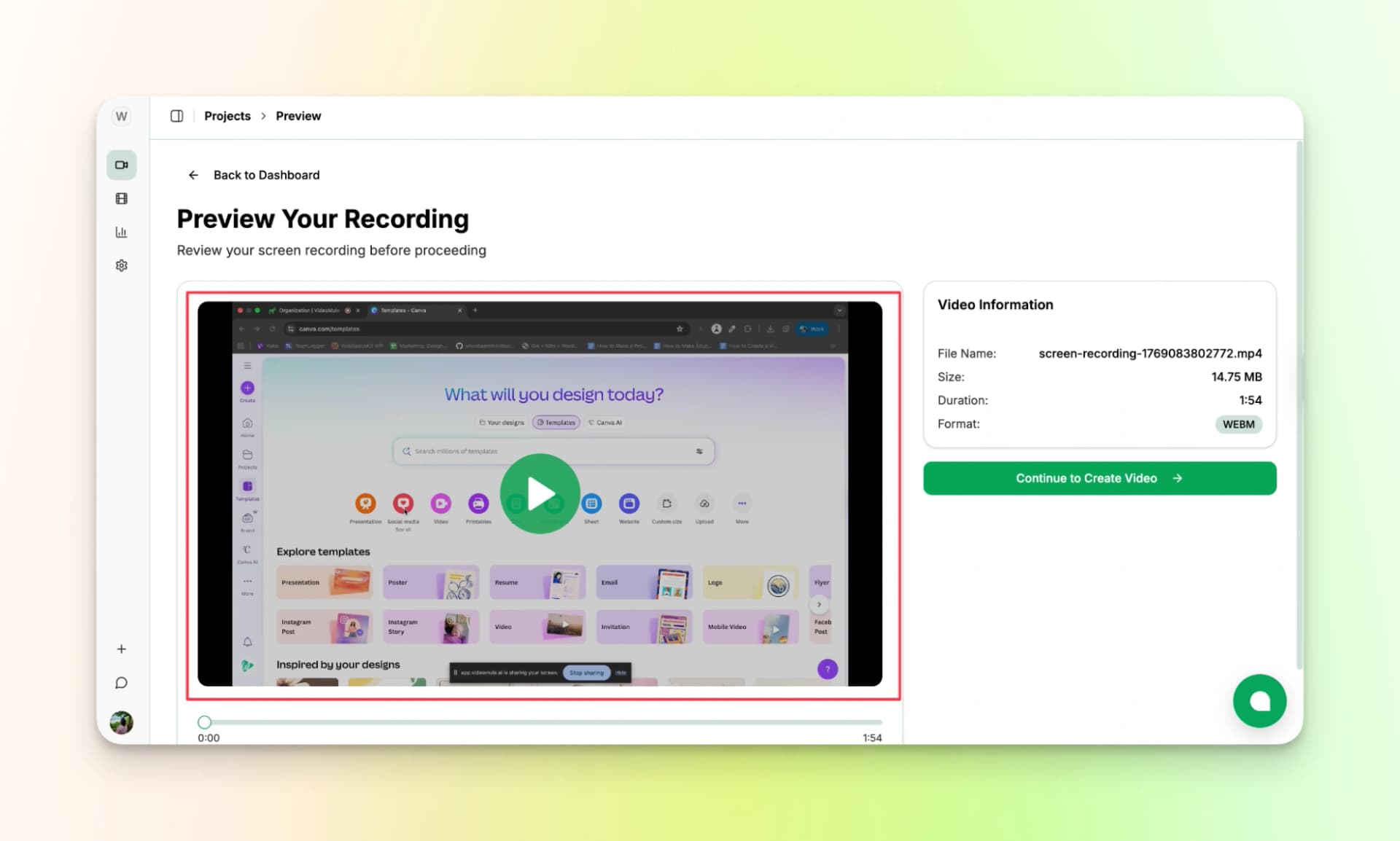
Step 2: Preview the Screen Recording
Once you stop recording, your video will be fetched automatically inside VideoMule.
Preview it once to make sure everything looks clear. If you notice anything off, like missed steps or unclear clicks, don’t hesitate to redo it.
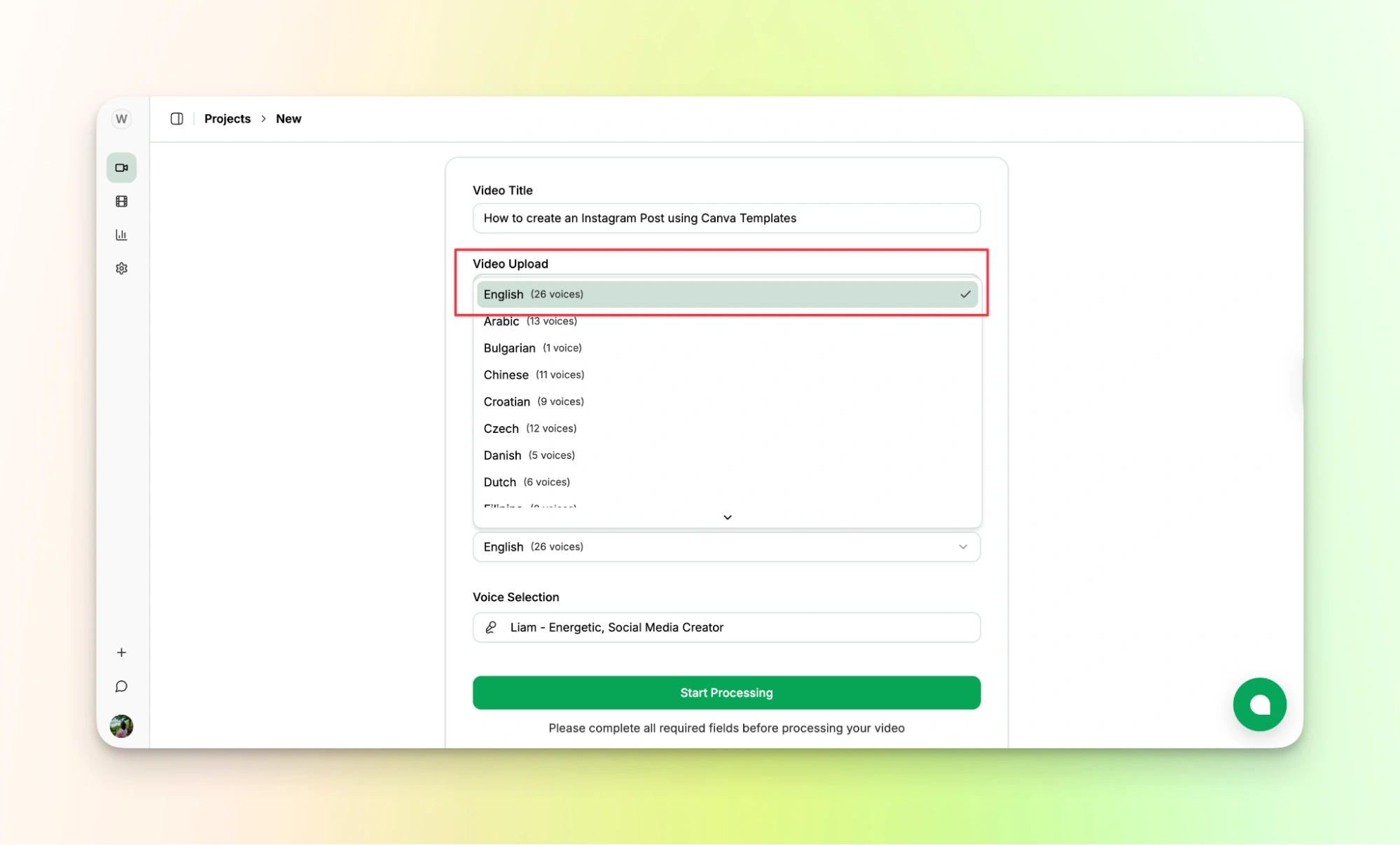
Step 3: Choose the Output Language and AI Voice
Next, customize how your training video will sound.
VideoMule allows you to choose from multiple output languages, making it easy to create content for teams across different regions.
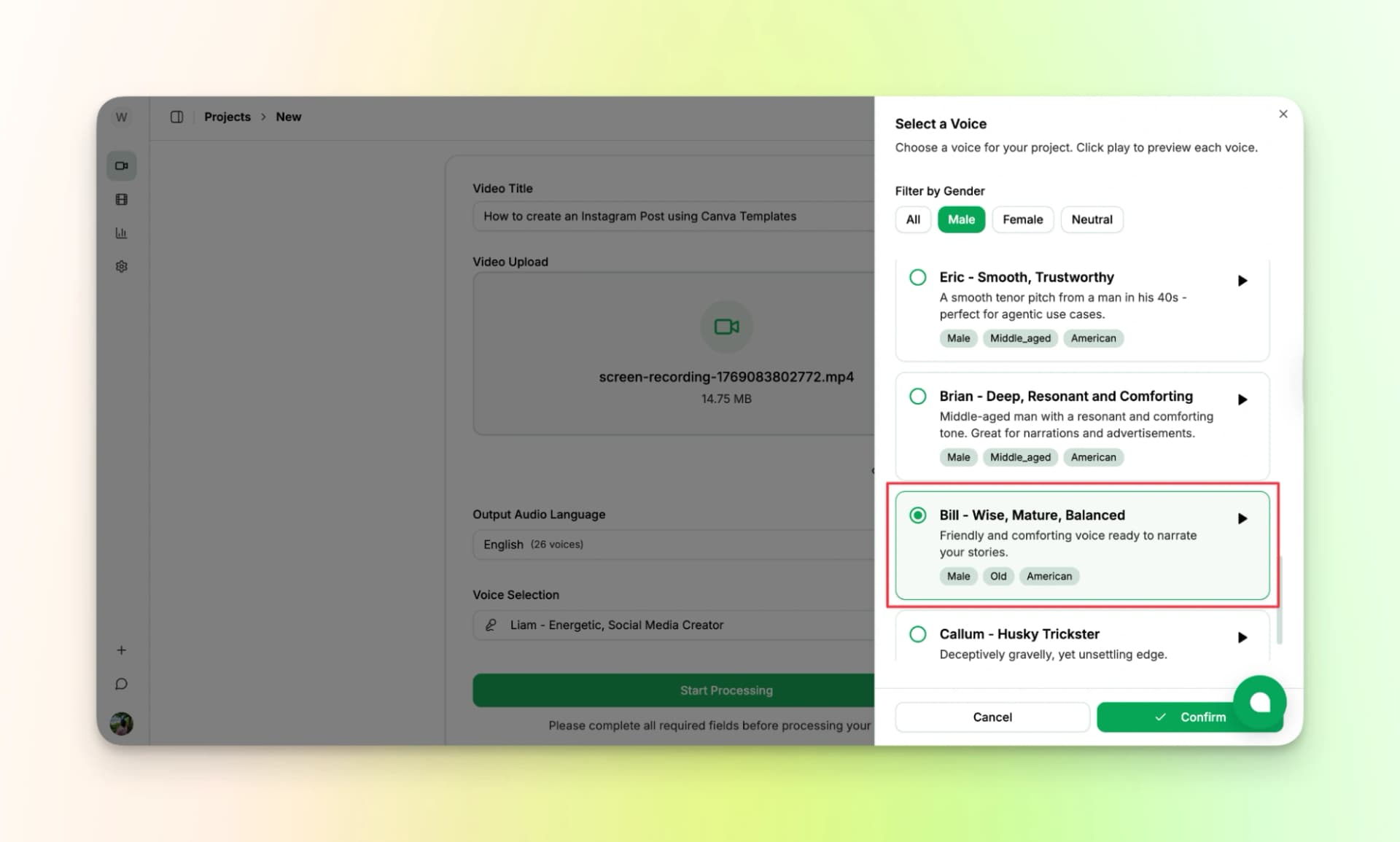
You can also select from a wide range of AI voices, curated by gender and tone, so the narration feels professional and natural.
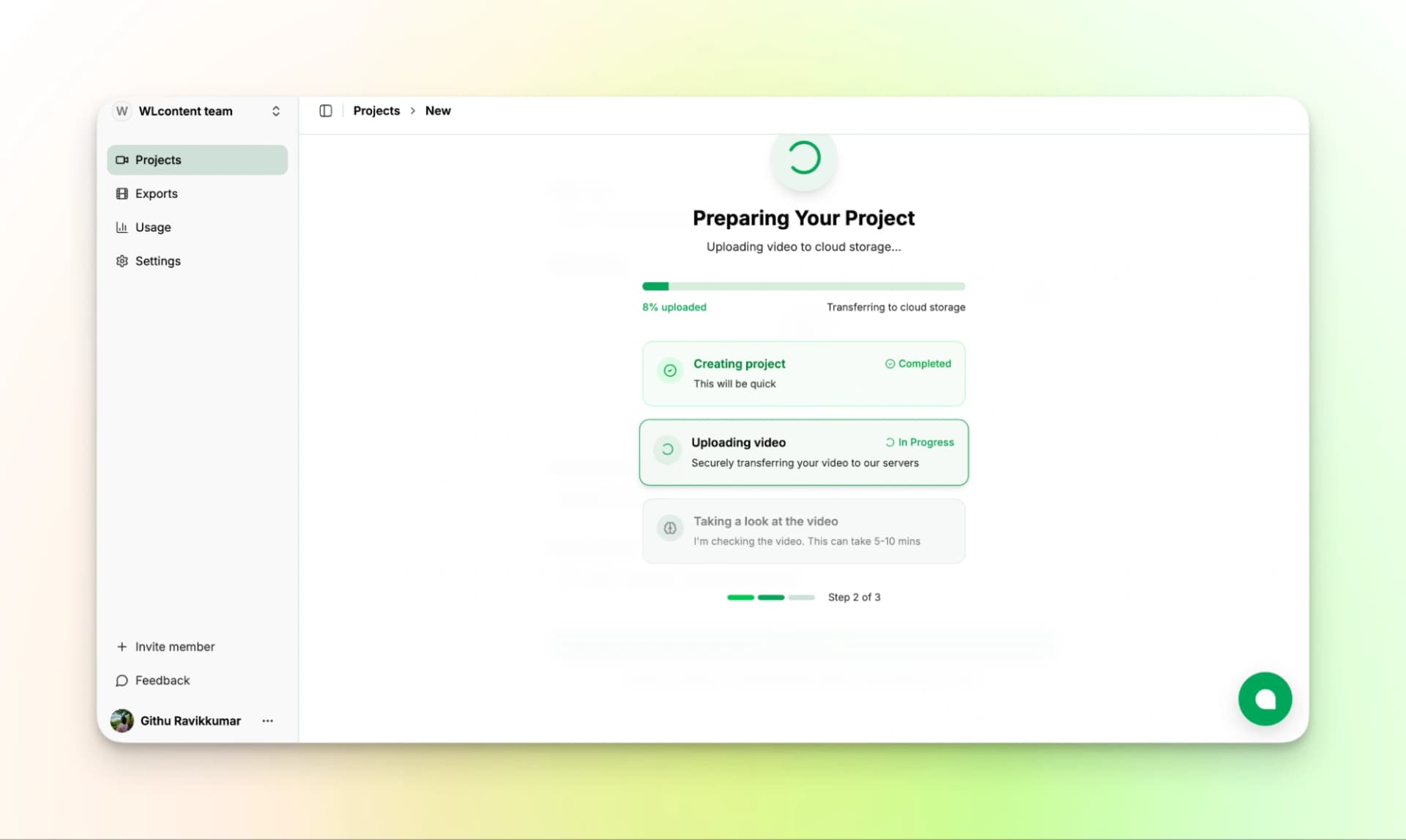
Step 4: Let VideoMule Analyze Your Video
Once your settings are selected, VideoMule will begin processing your recording.
The tutorial video maker takes a few minutes to analyze your video and understand your on-screen actions, clicks, and workflow.
This step happens automatically, no manual editing required.
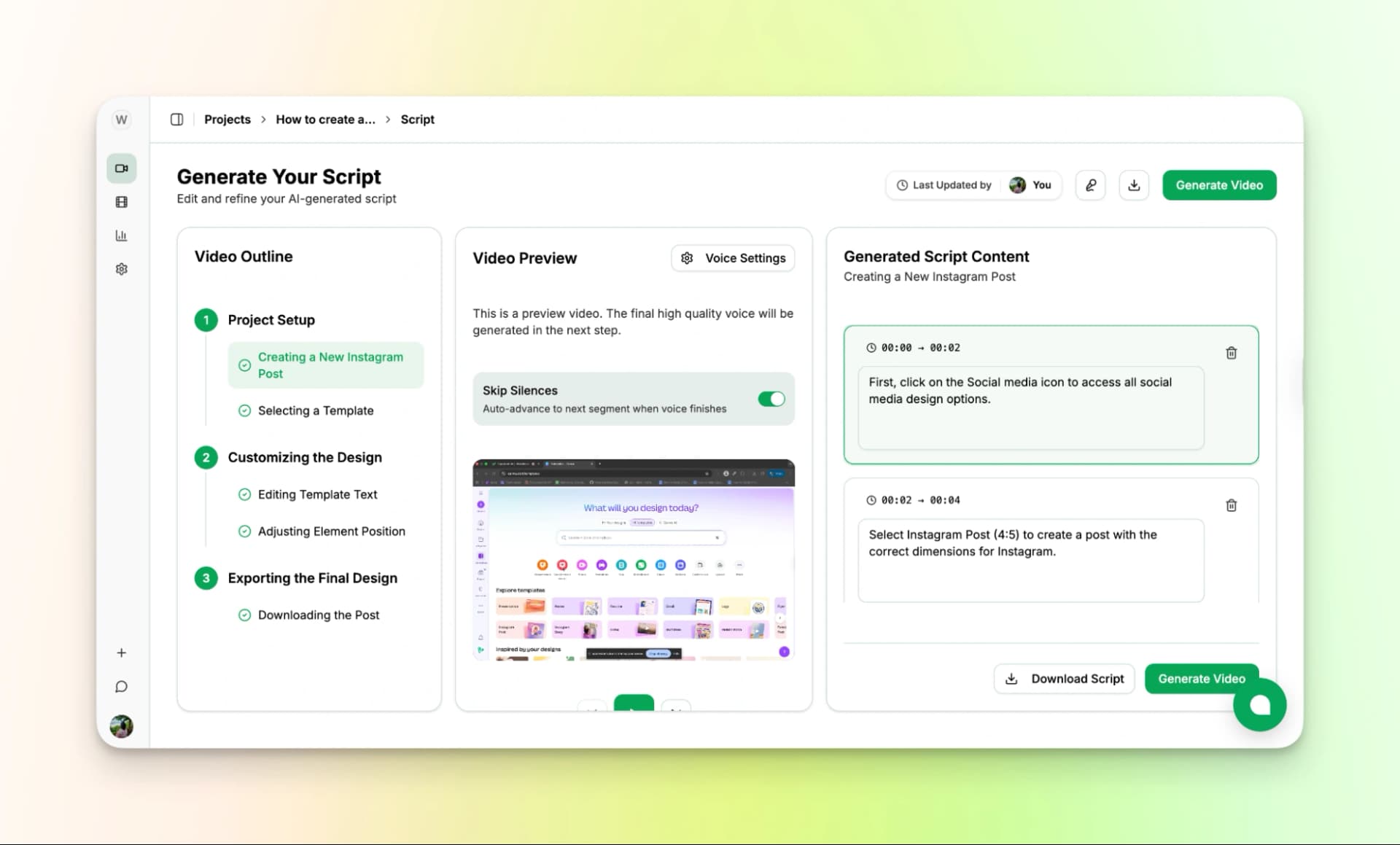
Step 5: Review the AI-Generated Script
After VideoMule finishes analyzing your video, you’ll see an AI-generated script written based on your exact screen actions.
Review it once and check for any discrepancies. If you find anything you’d like to adjust, you can easily edit the script directly.
Once it looks good, you can also download the script for later use.
Step 6: Generate the Complete Training Video
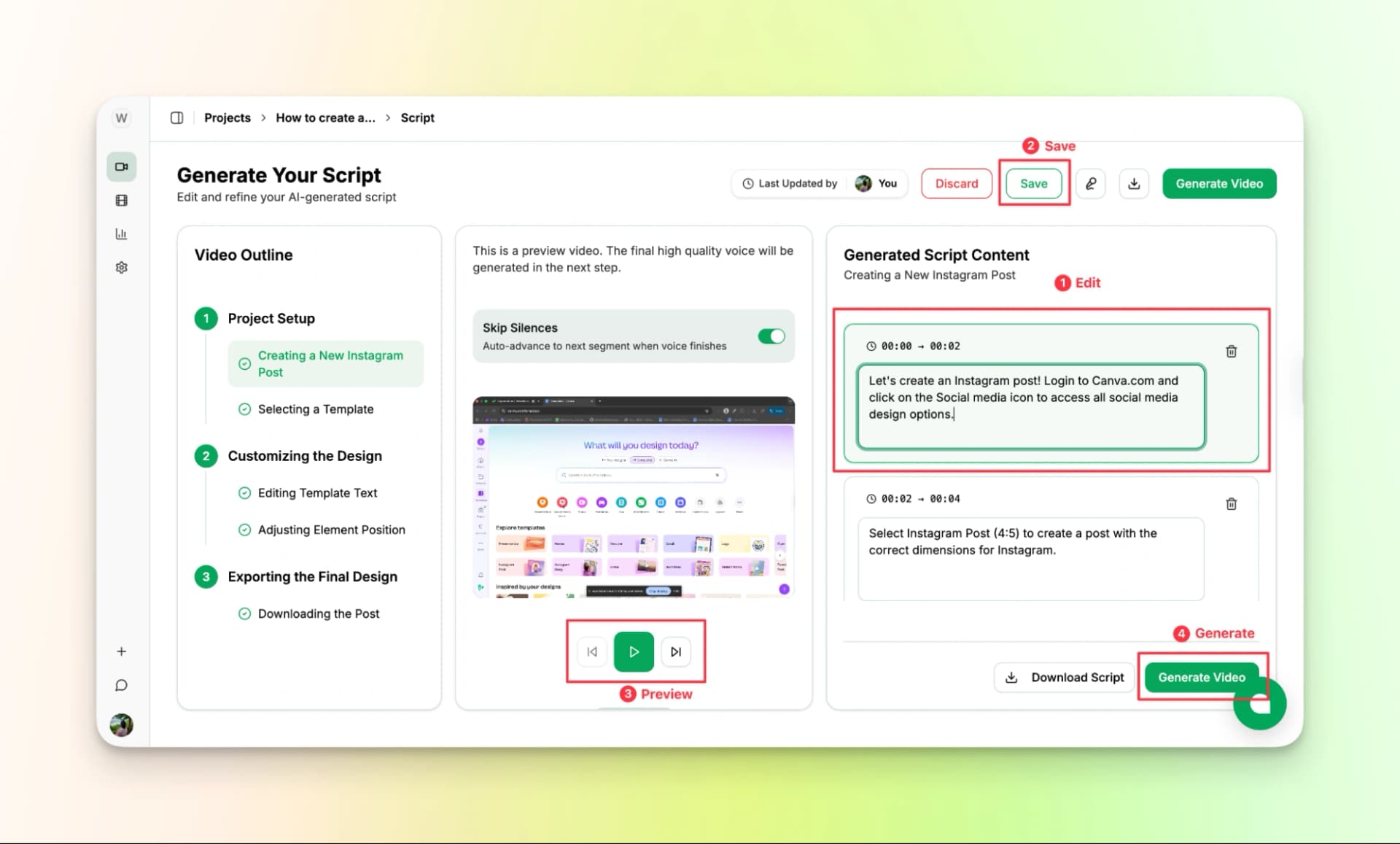
Next, simply click on “Generate Video,” and VideoMule will prepare and process the audio to create the AI voiceover. This usually takes just a minute or two.
Once done, VideoMule will automatically sync the narration with your screen recording, generate captions, and align everything perfectly.
Step 7: Review the Final Video
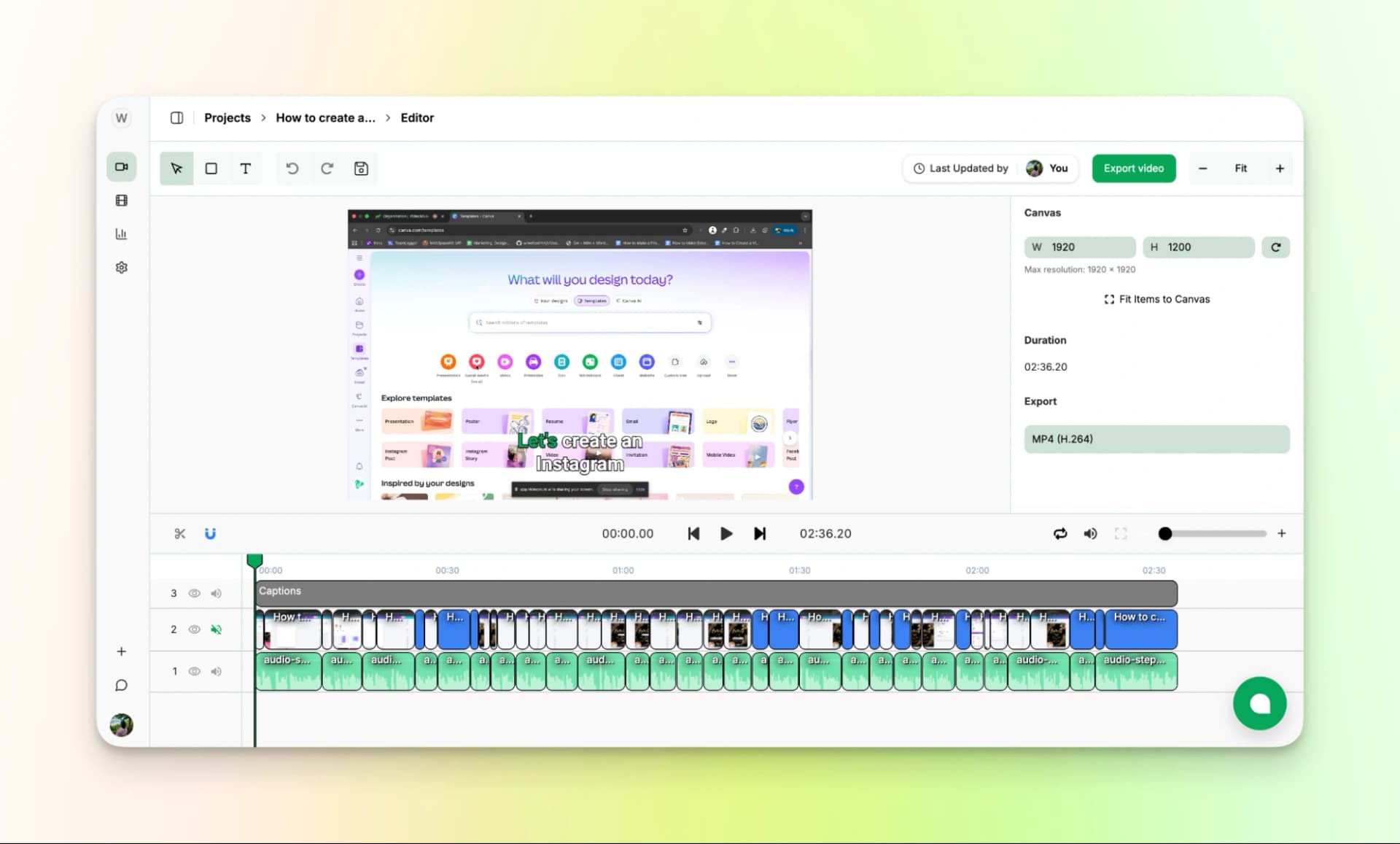
Once your video is generated, preview it once.
Here’s the cool part. You don’t need any editing experience. VideoMule automatically syncs the voiceover, generates captions, and delivers a complete training video in one go.
If needed, you can quickly edit the script and regenerate the voiceover in seconds.
Step 8: Export the Video
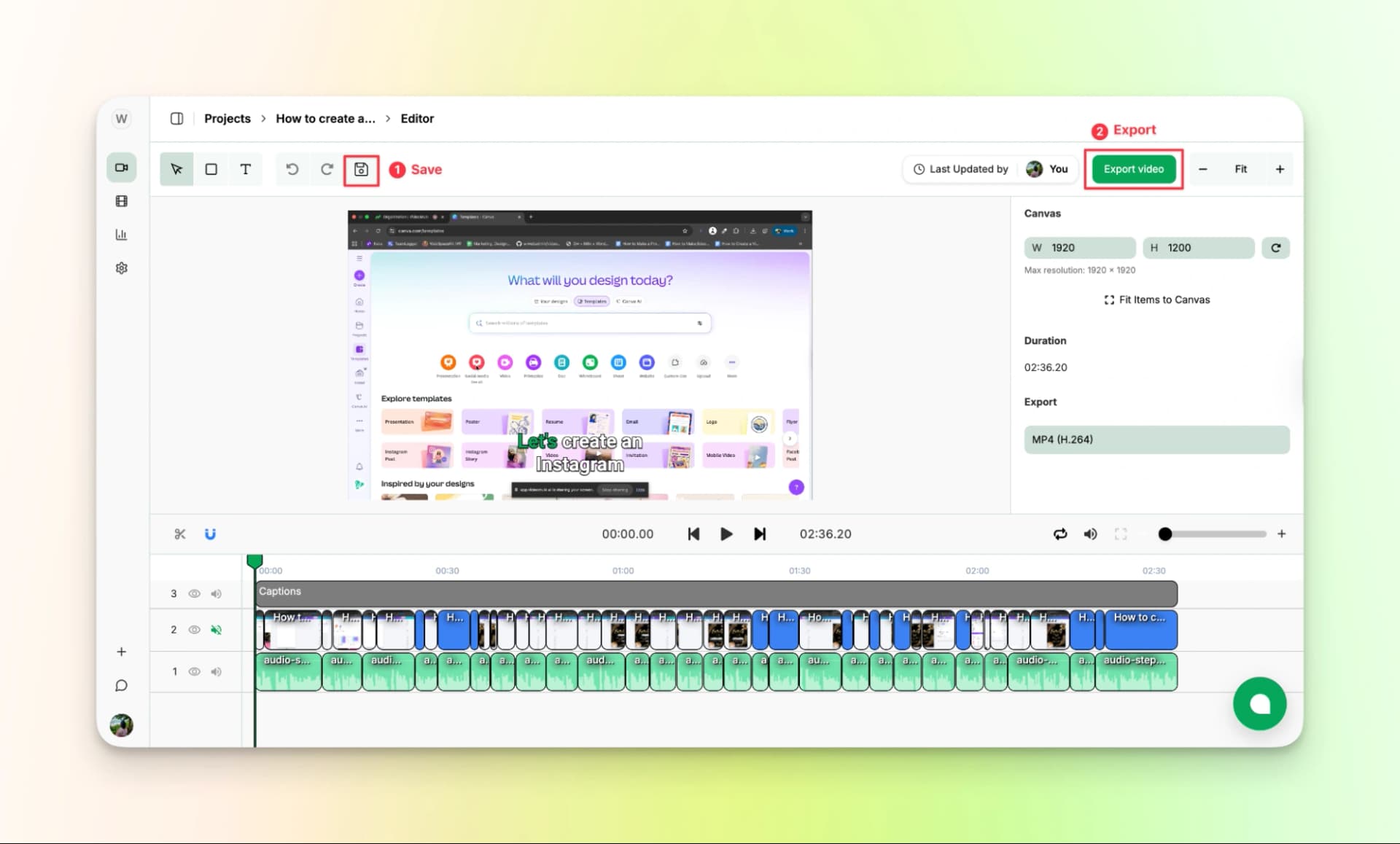
Once your video is ready, save it and click Export Video.
Your AI-powered training video will be downloaded instantly and will be ready to share with employees, upload into an LMS, or use for onboarding.
Your 7-day free trial includes 2 videos (up to 3 minutes each) and 10 minutes of AI voice-over to create and edit your training videos.
The trial also includes 1 watermarked export — watermark-free exports unlock on paid plans (starting at $29/mo for Creator).
If you’d like a detailed video demonstration, you can check out our YouTube Video here:
Top AI Tools for Training Video Creation
To create training videos faster, the right tool can help a lot.
The table below lists some of the best training video tools available today.
| Tool | Best for | AI Script support | AI Voiceover Support |
|---|---|---|---|
| VideoMule | Turning screen recordings into complete training videos | Auto-generates scripts from screen actions | 100+ natural voices with auto-sync |
| Synthesia | AI avatar presenter videos for corporate training | Script-based video creation | Avatar voice narration |
| Trupeer AI | Step-by-step software and product tutorials | Workflow-based narration generation | Built-in AI voiceover |
| Guidde | Internal training documentation and quick guides | Auto-creates structured steps | AI voice and captions included |
| Trainn | Customer onboarding and SaaS training videos | Auto titles and tutorial steps | Supports AI voiceovers |
| Vyond | Animated training for compliance and concepts | AI-assisted scripting tools | Voiceover support |
| Loom AI | Fast screen + webcam training videos | AI summaries and titles | Limited voiceover features |
Training Video Best Practices
Creating a training video is not just about finishing it quickly. What matters most is that learners can understand it clearly and follow along easily.
Here are a few best practices you can follow:
- Keep videos short (2–10 minutes). If the topic is long, split it into smaller lessons instead of one heavy video.
- Hook viewers in the first 10 seconds. Quickly explain what they will learn and why it matters.
- Use clear, conversational language. Speak like you’re guiding a new teammate, not reading a formal script.
- Show real examples on screen. Visual demonstrations help learners understand faster than long explanations.
- Focus on one concept per video. Avoid overloading a single tutorial with too many steps or ideas.
- Include captions and checkpoints. Captions improve accessibility and help viewers follow along more easily, and AI tools like VideoMule can add subtitles automatically to training videos.
- Maintain consistency and update regularly. Keep the same tone and style across videos, and refresh content whenever processes change.
If you're building more structured learning content, you may also find this guide helpful on how to make educational videos.
Common Mistakes When Creating Training Videos
Creators often make these errors:
- Overstuffing: Long videos can easily tire learners and reduce attention.
- Poor audio quality: If the sound isn’t clear, people quickly lose focus. Using AI voiceover for training videos can help you get clean and easy-to-follow audio.
- No outline: Videos without a clear structure often feel confusing.
- Not thinking like a new employee: Steps may seem obvious to you, but beginners may not have the same context.
- Missing subtitles: Subtitles make it much easier for everyone to follow along.
- Only testing on desktop: Training videos should work smoothly on phones, computers, and inside an LMS.
How VideoMule Helps
VideoMule removes the hardest parts of training video creation. It auto generates the script, adds a clear AI voiceover for training videos, syncs narration with your screen, and includes captions automatically. So your videos stay professional, structured, and easy to follow.
Measuring Success
Producing a training video is only the first step. What matters even more is checking whether employees are actually learning from it.
After you release the video, you can monitor a few simple metrics:
- Are employees watching until the end? If many stop halfway, the video may be too long or unclear.
- Where do they drop off? If people exit at the same point, that section might need improvement.
- Did they understand the key message? Quiz or test results can show whether the content was too easy or too difficult.
- What do learners think? Asking a few quick questions can provide valuable feedback and help you improve future videos.
Conclusion
Training videos are much easier to make today. With VideoMule, you can upload a screen recording, and it creates the script, adds a natural voice, and matches everything automatically.
This is very helpful when you need to make many training videos quickly, update them often, or create them in different languages.
Traditional videos are still useful when you want a personal touch and have more time or budget.
Using this approach can reduce training costs, help teams learn faster, and save experts from repeating the same sessions again and again.
Start with 1 or 2 simple videos first, see the results, and then create more. Your first professional training video is just one screen recording away.
Pick one tutorial to create, upload it to VideoMule, and generate your first AI-voiced video.
It’s a workflow you can repeat every time.
FAQs on How to create a training video
1. How much does it cost to create training videos?
It depends on your approach. Traditional videos can get expensive because of editing, voiceovers, and production time. AI tools can lower the cost a lot, and platforms like VideoMule even let you start for free.
2. Do I need expensive equipment to make training videos?
No. Most training videos only need a clear screen recording and good visuals. You don’t need a studio setup, and AI tools can handle voiceovers and captions if needed.
3. How long does it take to create a training video?
A traditional workflow can take 5–7 hours per video. With AI, you can often finish in under an hour since scripting, narration, and syncing are automated.
4. Can AI really create professional-quality training videos?
Yes, if the tool is good. AI can generate clear narration, subtitles, and smooth pacing. VideoMule is designed for training content, so the output feels like a real professional tutorial, not a robotic slideshow.
5. What if I don't like how the AI voice sounds?
Then you change it. Most AI platforms offer multiple voices. For example, VideoMule lets you regenerate the voiceover until it sounds natural and fits your audience. You’re not stuck with one option.
6. How do I create training videos in multiple languages?
AI makes this much easier. You can translate the script and generate a new voiceover without re-recording the screen. Tools like VideoMule support multilingual output for global teams.
7. What's the ideal length for a training video?
Keep it short and focused. Most effective training videos are between 2 and 10 minutes, covering one clear topic at a time.
8. How do I update training videos when content changes?
Instead of re-recording everything, AI workflows let you update just the script or a small section and regenerate the voiceover quickly.
9. Can I use AI for compliance training videos?
Yes. Compliance training is actually a great use case for AI because the content needs to stay consistent and updated. Just make sure the information is accurate and approved before publishing.
10. What format should training videos be in for my LMS?
MP4 is the most widely supported format. Most AI tools, including VideoMule, export videos that can be uploaded directly into an LMS.
Keep reading
AI Training Videos
Turn silent screen recordings into narrated training videos — AI script, voiceover and captions.