How to Make a Product Demo Video in 8 Steps (For FREE)?
Learn how to make a product demo video using AI in just 8 simple steps. No mic, no expensive software, and no BS!
If someone is checking out your product, the first thing they want to see is a video of the tool working. That’s why product demo videos matter.
So, if you’re wondering “how to make a product demo” that turns heads, this blog is going to be the ultimate answer.
The problem is creating a good product demo video. It requires pro editing skills, expensive software or equipment, and someone confident enough to narrate every time.
You don’t need a studio setup or a perfect voice. You can record your screen once (or upload a video of any screen recording), walk through the product naturally, and let AI handle the rest. Your focus can stay on showing the product alone.
In this guide, I’ll show you how to make a product demo video step by step, even if you are new to everything.
You can try this approach for free. Try now: VideoMule.
What Makes a Good Software Demo Video?
A good product demo video should be simple, clear, easy to follow. And show the product in action without distractions.
Here’s what you should keep in mind.
Clear screen
Show only what’s needed. Avoid clutter, pop-ups, or tiny text that makes viewers strain.
Slow and steady pacing
Move at a speed that feels comfortable for everyone. Pause before clicks. Let each step stay on screen for a few seconds
One problem at a time
Each demo should focus on one goal. Remember, short videos work better than long videos.
Clear narration
The voice should explain what’s happening and why it matters.
Consistent structure
When demos follow a similar flow, they feel easier to trust and easier to watch.
Before you move on, do a quick check:
- Is the screen easy to read?
- Does each step flow naturally?
- Would a user understand your tool by watching this video?
If yes, your product demo video is going to be actually helpful.
Common Product Demo Types and Where to Use Them
Before actually getting into the ‘how-to’ let me tell you a little about the common product demo types. These numbers can vary based on your project needs.
| Demo Type | Ideal Length | Best Place to Use |
|---|---|---|
| Landing page demo | 60–90 seconds | Homepage or main landing page |
| Feature walkthrough | 1–3 minutes | Pricing page or feature pages |
| Onboarding micro-demo | 30–60 seconds | Onboarding emails or in-app messages |
| Sales follow-up demo | Varies by use case | Sales emails or follow-up sequences |
| Prototype demo | Flexible | Figma links or staged environments |
In general, feature walkthrough videos are supposed to be a bit longer, page demo videos can be under a minute, prototype videos can be a bit flexible and can be added wherever needed.
How to Make a Product Demo Video in 8 Steps?
Here's how to make a product demo video quickly and effectively. Remember, you do not need a mic, expensive tools or even a quiet room to begin with. Your surroundings can be noisy as heck yet you can create agency-grade product demo videos.
Also you can create your first product demo video for free. Create an account for free and follow along with me:
Step 1: Visit Our Website
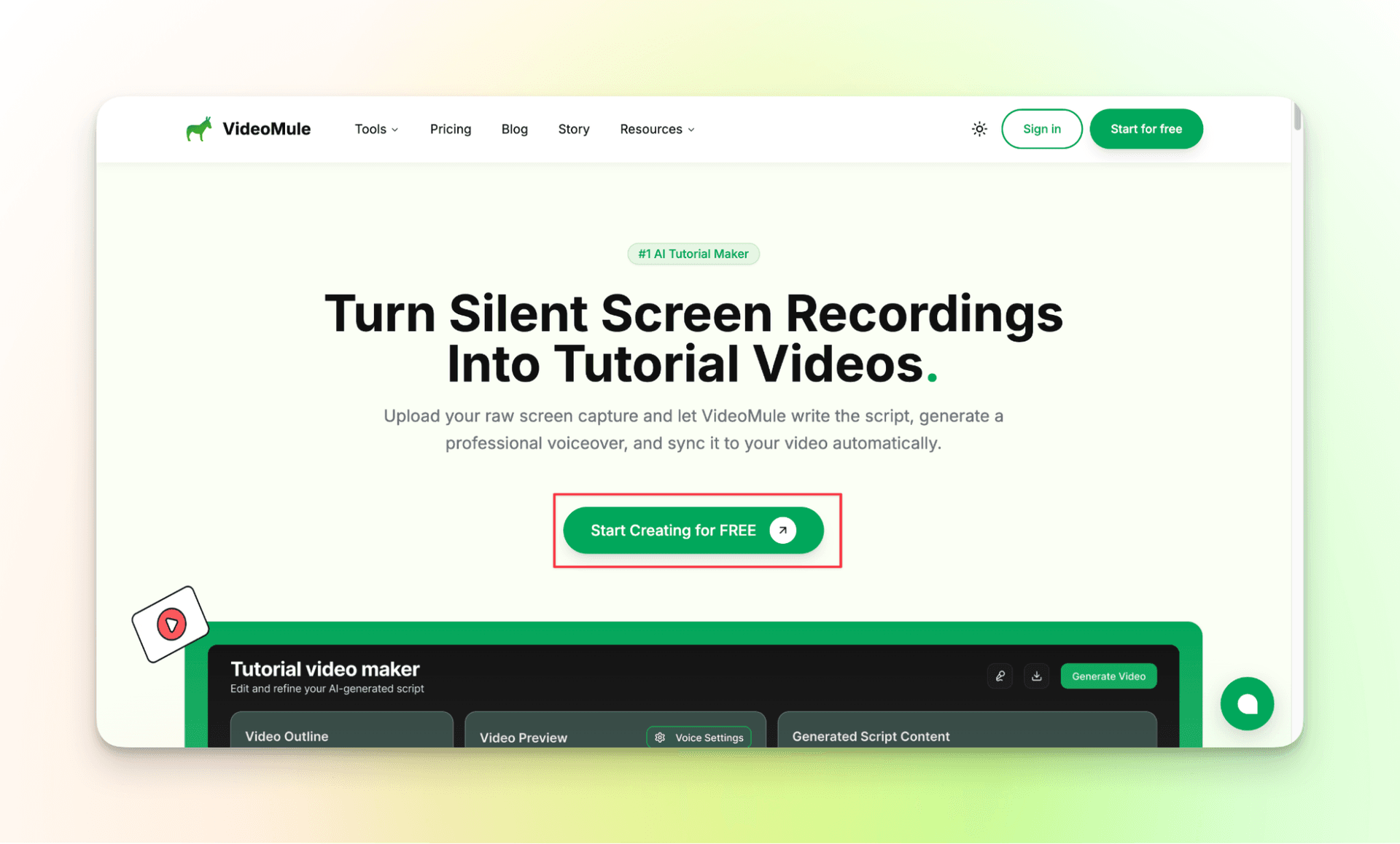
Begin by visiting videomule’s website, click on “Start Creating for FREE.” You will be able to create your account in the next step.
Step 2: Create Your Account
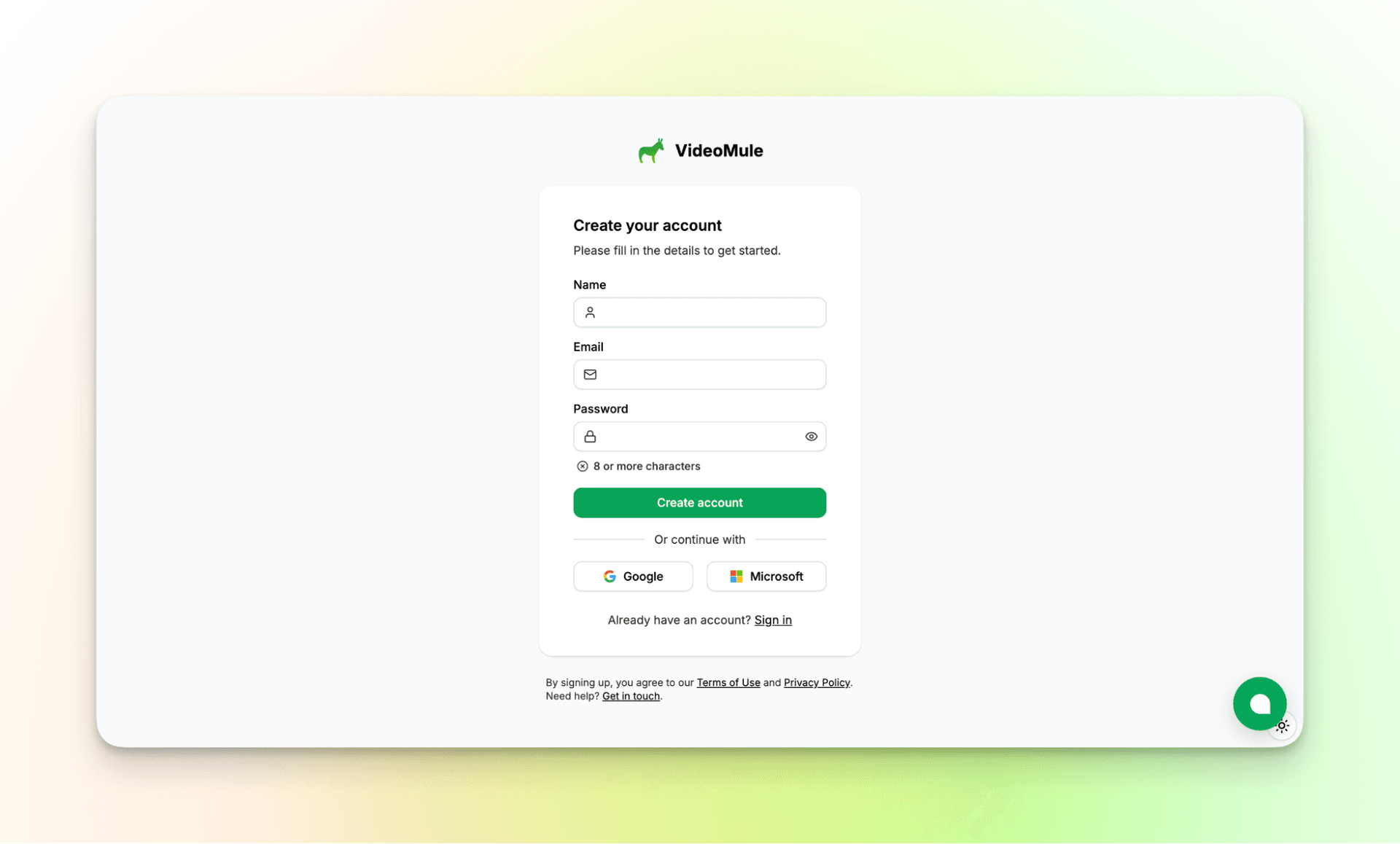
You can provide your details or use your Google or Microsoft account to create an account.
Step 3: Record Your Screen or Upload Your Screen Recording
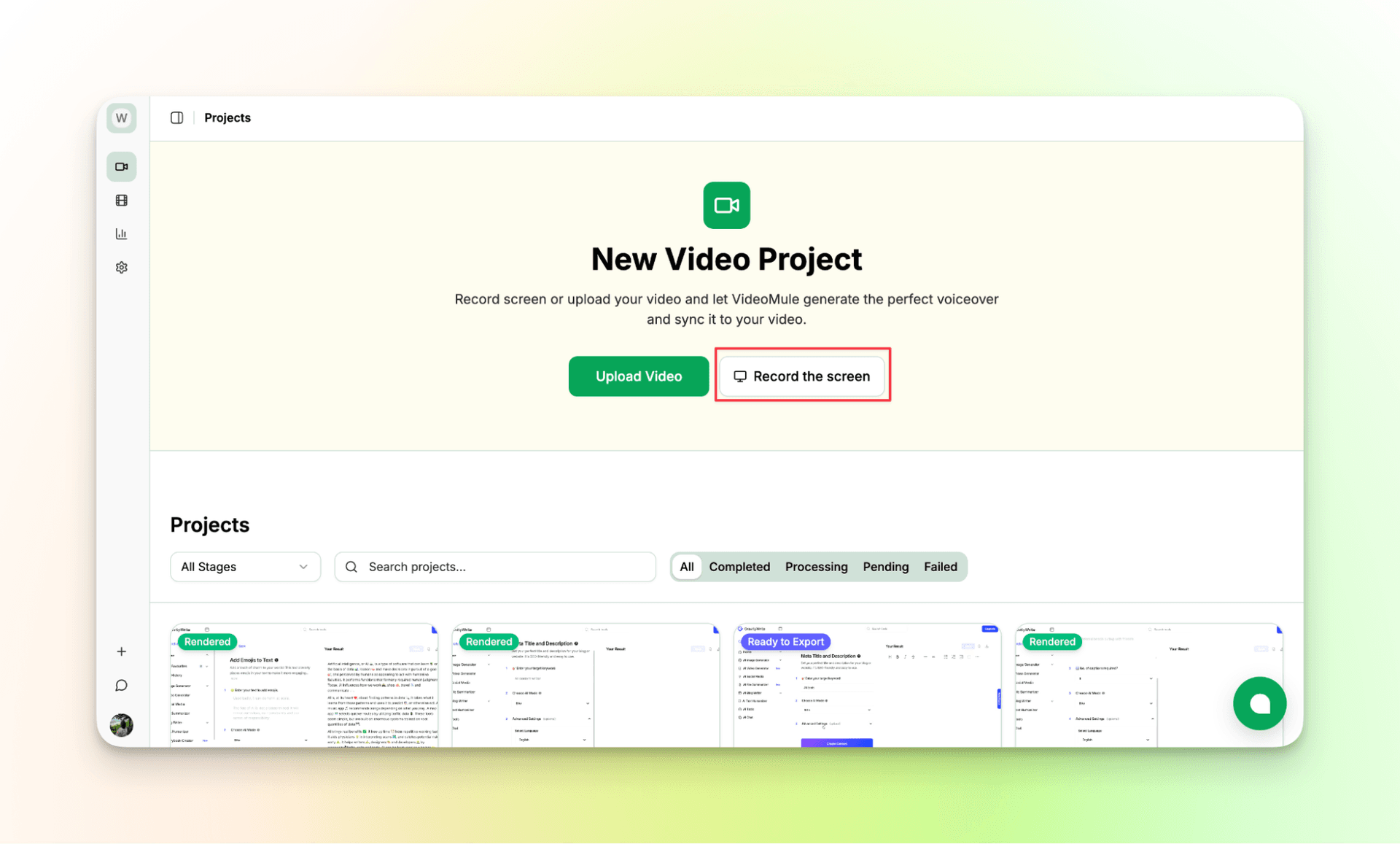
The first step begins with recording your screen. Though you can upload a recording and then let our AI do the rest, I recommend you to record your screen using the tool itself. It will let our tool produce accurate product demo videos.
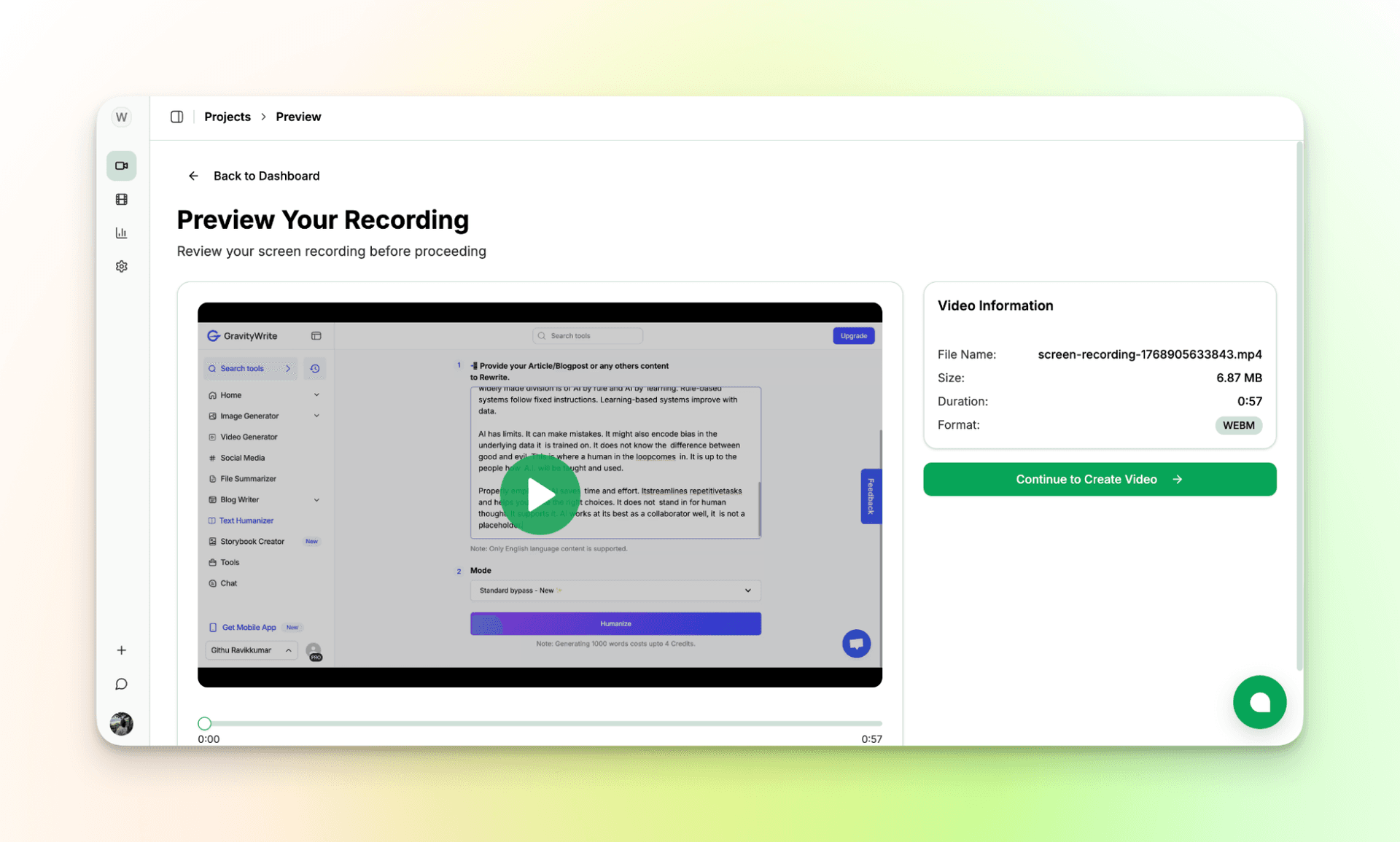
Step 4: Preview Your Screen Recording
Once you’ve recorded your screen, check it once to check everything is recorded correctly. If not, redo it. Remember, your screen recorded video is the foundation.
NOTE: You can alternatively upload the recorded video and create other types of videos for cooking, yoga, education, etc.,
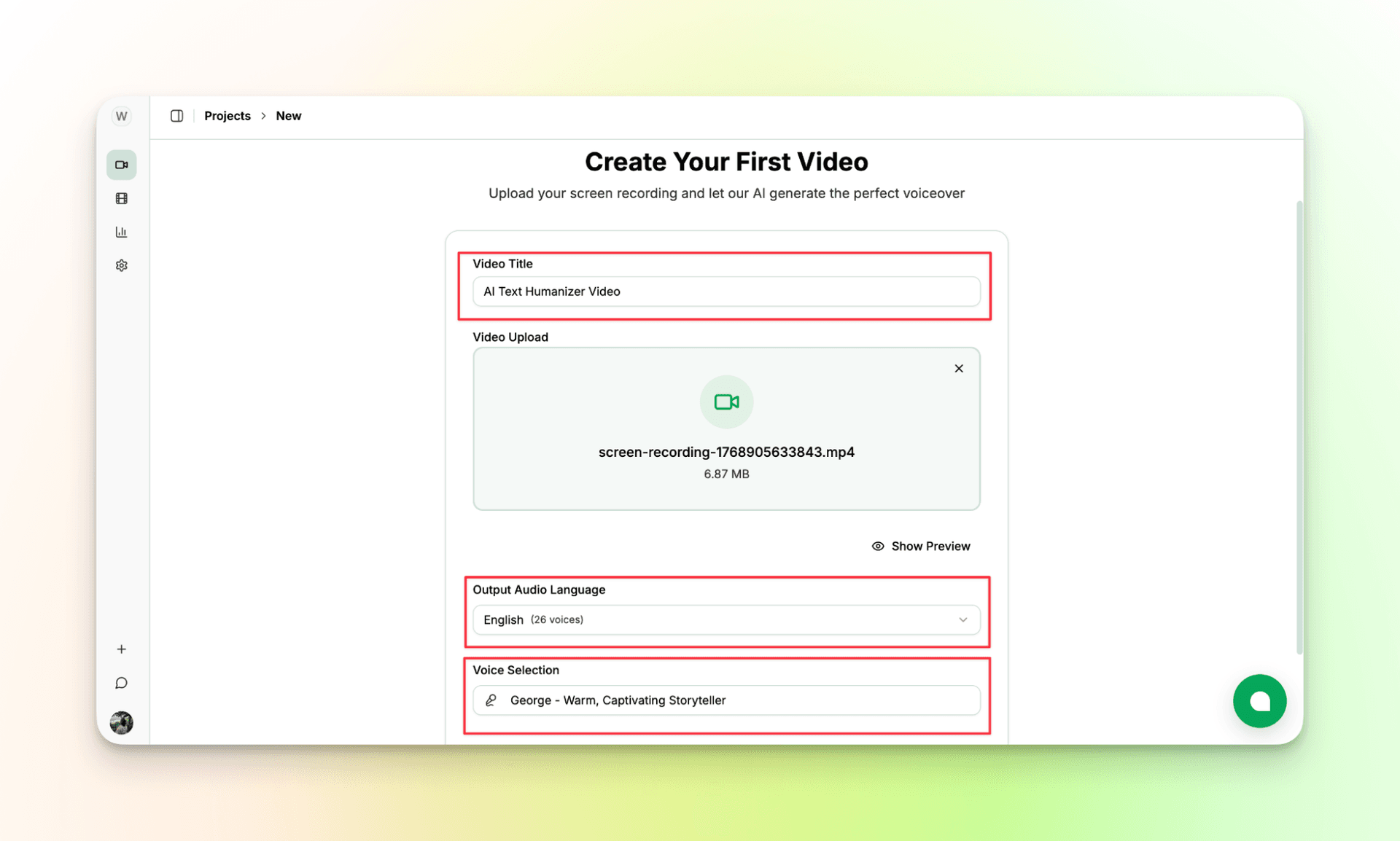
Step 5: Customize the Video
Feel free to name the video and ensure it is somewhat related to it. Also, change the output audio language and AI narrator voice.
Don’t worry, you can change a few of these settings later in the process.
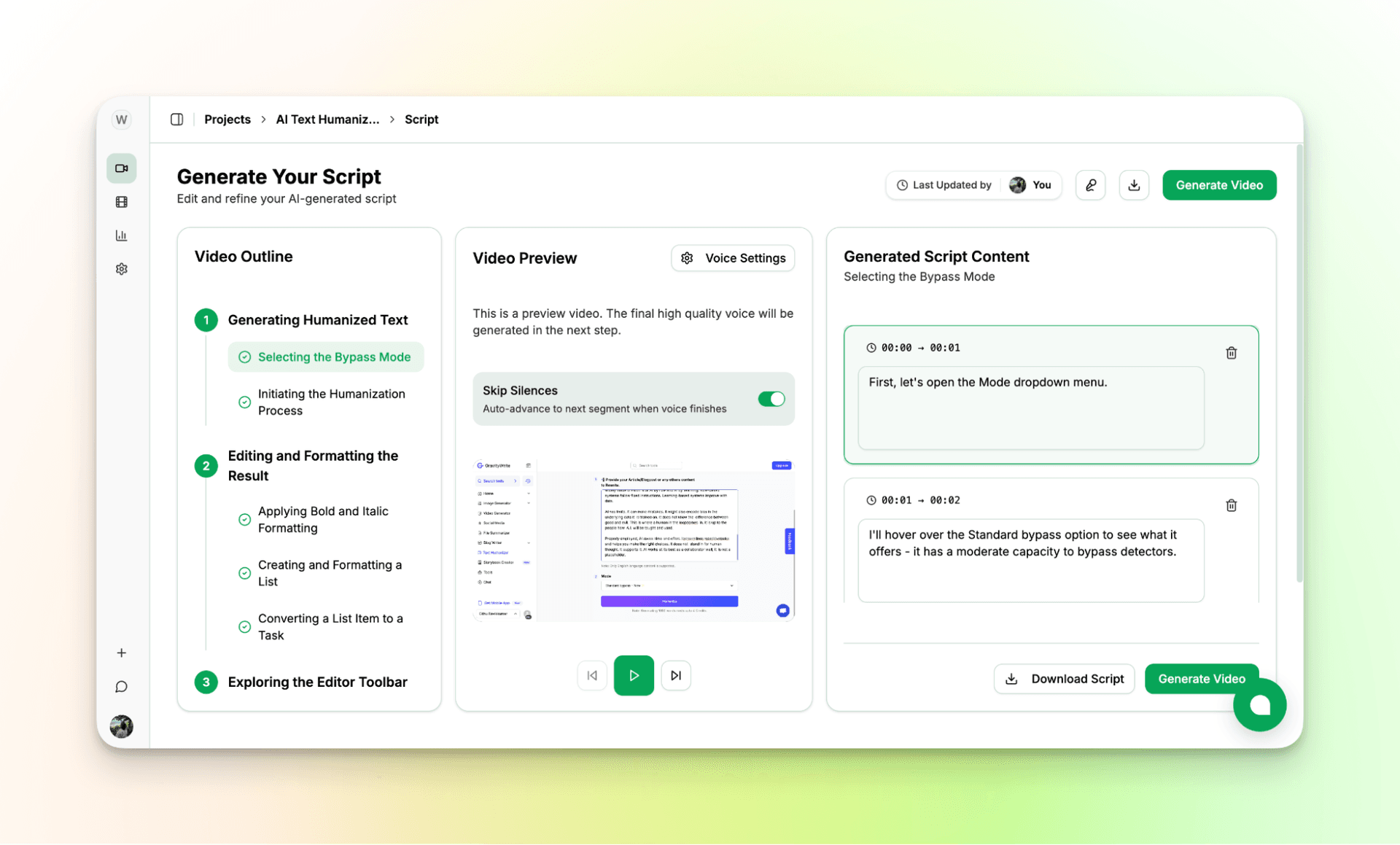
Step 6: Review Product Demo Video Script
Once VideoMule is done processing your video, you see the script written as per your actions in the screen recording.
Take your time to review it and check if the tool has missed something.
If so, modify the script as shown below. You can also download the script and repurpose it later.
Once you click on “Generate video,” the tool will process the AI voiceover for video as per the edited script.
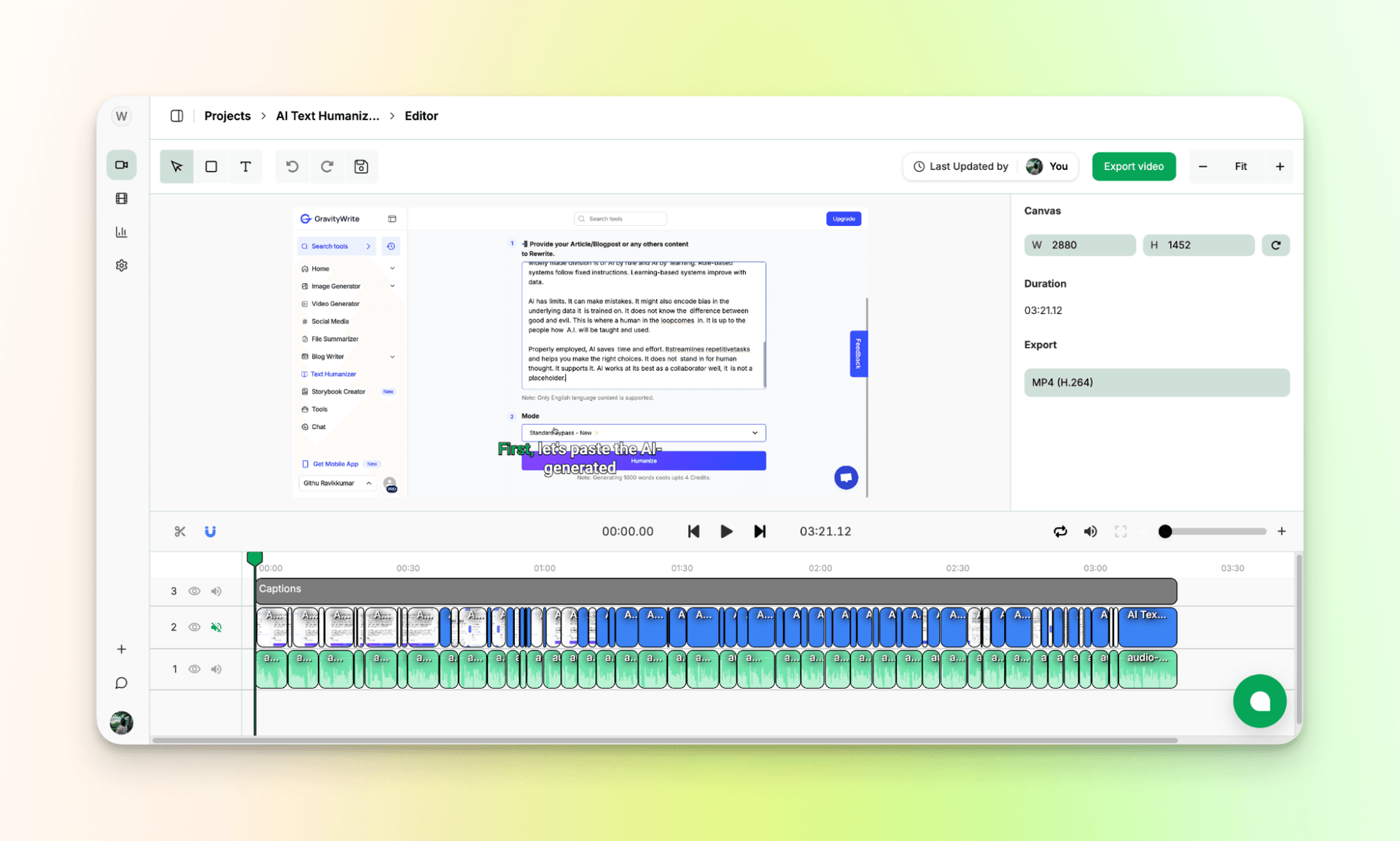
Step 7: Review the AI Product Demo Video
The tool will narrate the script, add captions and sync the audio with screen recorded video and provide you with one single video.
Here, you can trim the video here and there and check if everything is perfect.
Step 8: Export the Product Demo Video
Save the video and click on “Export Video” and your product demo video will be downloaded automatically. All paid plans export watermark-free videos.
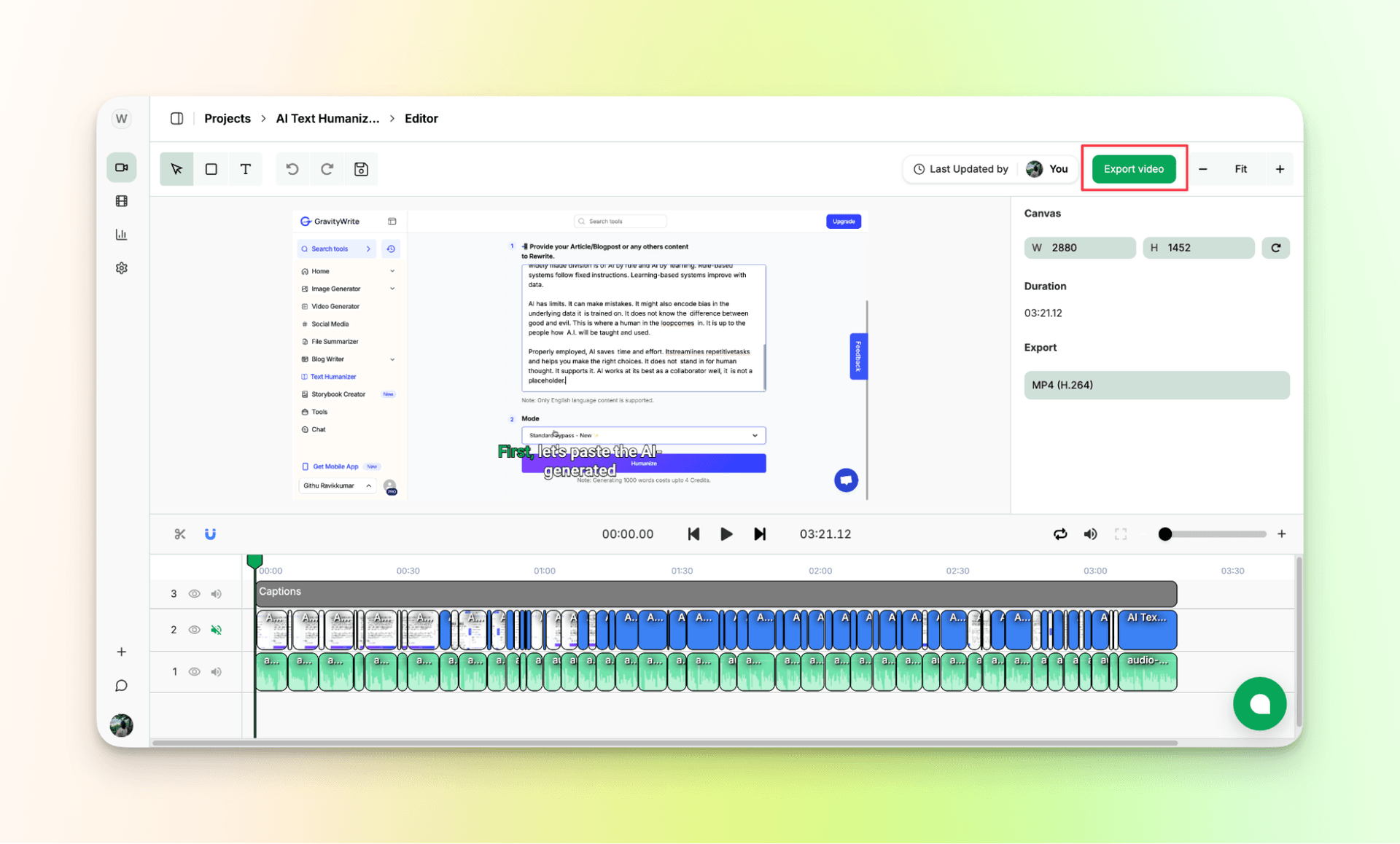
This is how your product demo video looks. You had nothing to do except recording your screen and letting AI handle the rest.
Input: Screen Recording
Output: A Detailed product Demo Video That Actually Teaches
For all my visual learners, here’s a quick video walkthrough of the entire process:
Common Mistakes To Avoid while Making a Product Demo Video
Not Knowing Who You're Talking To
Before you hit record, figure out who will watch this video. A demo for software developers needs different information than one for business owners. If you try to please everyone, you'll connect with no one. Pick your audience and speak directly to their needs.
Talking About Features Instead of Solutions
Nobody cares that your app has a dashboard with 47 widgets. They care about saving time or making more money. Show how your product fixes real problems. Instead of listing what it does, show what people can achieve with it.
Bad Sound Quality
People will watch a video with okay visuals, but they'll leave immediately if the audio is terrible. You don't need expensive equipment, just a decent microphone and a quiet room. Clear sound makes you look professional and keeps people watching.
Making Videos Too Long
Your demo should be two to three minutes maximum. Nobody has time to watch a 15-minute walkthrough of every single button. Focus on what matters most and cut everything else. If you have more to show, make separate videos.
No Script or Practice
Even if you know your product inside out, you need a script. Without one, you'll ramble, repeat yourself, and forget important points. Write down what you want to say, practice it until it sounds natural, then record. This saves time and creates better videos.
Boring First Ten Seconds
If your video starts slow, people will click away before seeing anything good. Don't begin with your company history or a long introduction. Jump right into the problem you solve or show something interesting happening. Hook people fast or lose them forever.
Cluttered Screen and Messy Demo Environment
Close all those extra browser tabs. Turn off notifications. Use realistic data instead of "Test User" and "example@email.com" everywhere. A clean, organized demo environment looks professional and helps viewers focus on what you're showing them.
No Clear Next Step
You showed them something great, now what? Tell viewers exactly what to do next. Sign up for a free trial, book a demo call, download a guide. Whatever it is, make it obvious and easy. Don't leave people wondering how to get started.
Fixing these basics makes your demos easier to watch and more effective without extra effort.
Turn Your Screen Recording Into a Product Demo Video!
Remember, a good product demo has one goal in general: tries to explain a product.
When your users see a clear and calm product demo video, it builds trust and makes them want to perform an action.
But creating one requires editing skills, expensive tools, or a confident narrator if you go with the traditional way.
But with Videomule, you can just record your screen and let AI handle the narration, captions, and timing keeps the focus on showing how the product actually works.
If you want a straightforward way to create clean, professional product demo videos without overcomplicating things, start here for free: Videomule.
Sometimes, the best demos come from the simplest workflows.
FAQs on How to Make a Product Demo Video
1. How do you write a product demo video script with timing?
The easiest way is to let the script follow what happens on screen. Each action should have a short explanation that matches its timing, not a long sentence that runs ahead of the visuals.
2. Can AI write a product demo video script?
Yes. AI can watch a screen recording, understand the actions, and generate a step-by-step script. You only need to review and make small wording changes if needed.
3. Should I record the voiceover live or add it later?
Adding voiceovers later is usually better. It avoids re-takes, background noise, and timing issues. You can focus on showing the product clearly first.
4. How do I make AI voiceovers sound natural?
Keep the script simple and avoid long sentences. Make sure the pacing matches what’s happening on screen and choose a calm, clear voice.
5. How do I add captions and why do they matter?
Captions should be added automatically alongside the voiceover. They matter because many people watch demos without sound and captions improve clarity.
6. What’s the best way to record a software demo without re-takes?
Move slowly, pause before clicks, and follow a clear flow. If one part goes wrong, re-record just that section instead of starting over.
Keep reading
Product Demo Video Maker
Turn a product recording into a polished demo with auto-zoom, AI script and voiceover.