8 Best Video Tutorial Software for Beginners (FREE Tools)
Lets compare the 8 best video tutorial software options for beginners in this blog. Find Start creating voiceover videos for FREE today.
You know your product inside out. But the moment you want to create a product tutorial video you back off.
Why? Because the process feels messy.
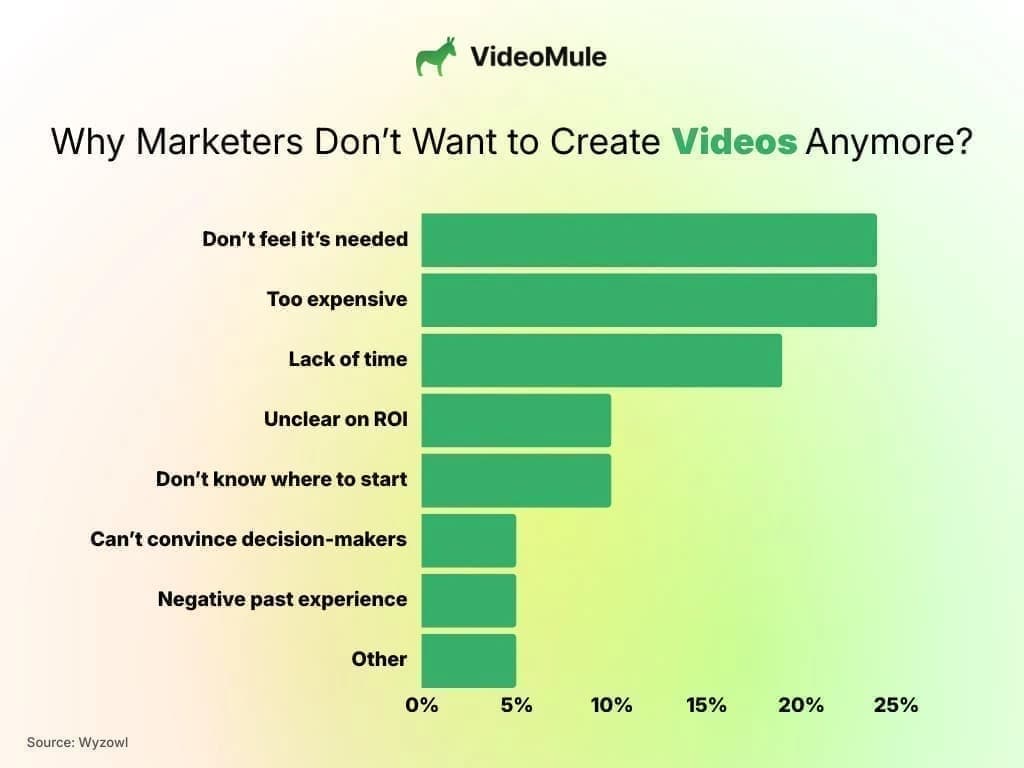
In fact, I was surprised to see the results from Wyzowl’s research. Even in the year 2026, where smart AI tools exists, marketers still say no to creating video for reasons like:
- Too expensive
- Don't know where to start
- Lack of time
- Negative past experiences
If you think like them, after reading this blog, I bet you are going to love creating videos.
Because, I'm going to share the best video tutorial software that actually works. All these tools are free to start, which means you can try them before making a purchase.
In case if you are looking for a free tool that gives you more for your money, try Videomule
Let’s dive in!
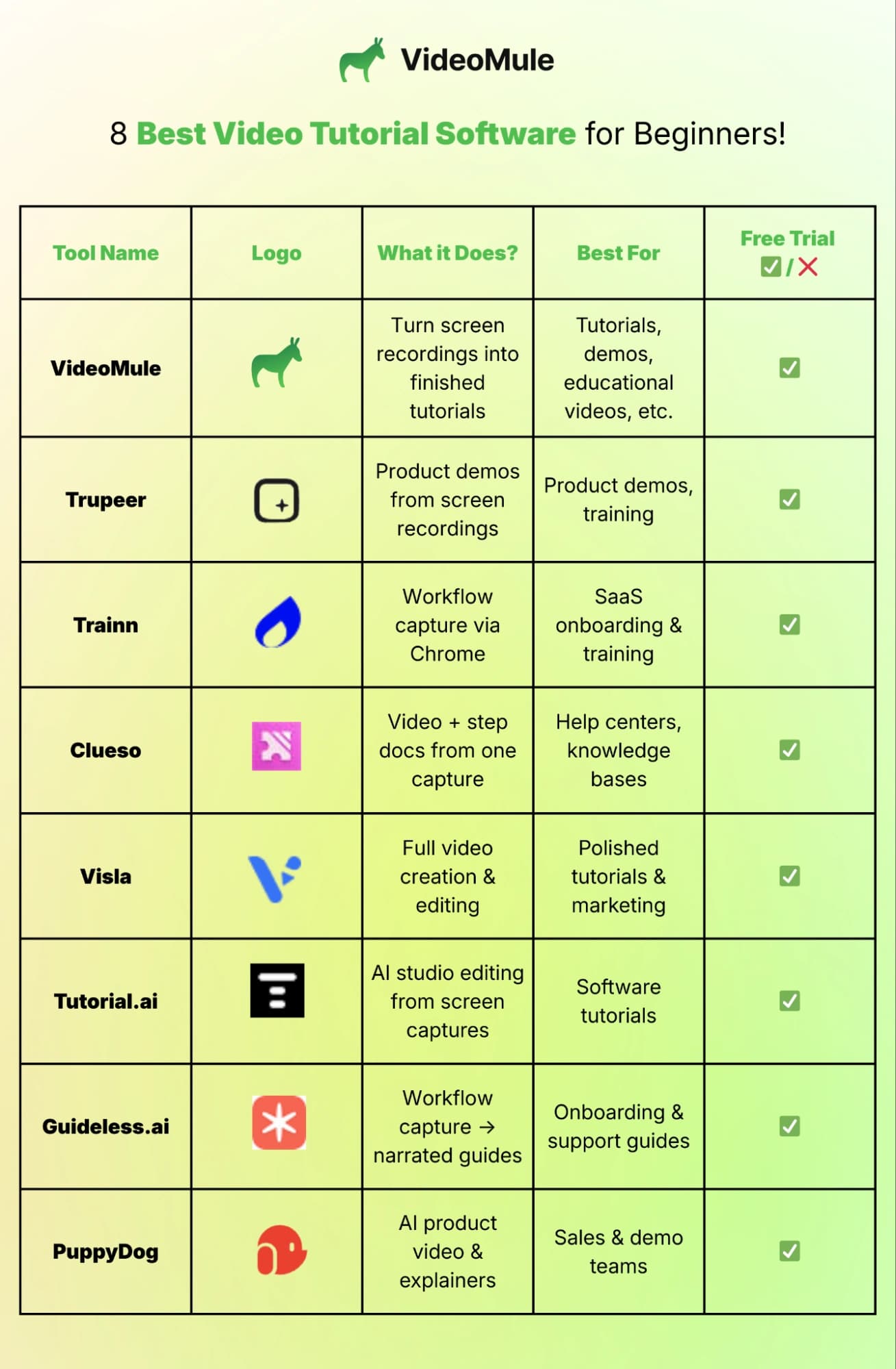
8 Best Video Tutorial Software for Beginners: A Quick Comparison
Before we get into the individual review of the best software for creating tutorial videos
Here is a sneak peek of the best software to make tutorial videos.
1. VideoMule
Best for: Product demo videos, software tutorials, training videos, educational videos, onboarding videos, internal documentation videos, faceless tutorial videos, AI narrated videos suitable for yoga, cooking and more.
About the tool:
Videomule is an AI tutorial maker that lets you create detailed tutorial videos or narrated AI videos using nothing but your screen recording. No need for mics, or expensive softwares or tools. You can use professional AI voices to perfectly narrate everything. Soon, you will be able to clone your own voice and use them instead of AI voices.
Simply record your screen for more than 15 seconds or upload your screen recording and let our AI handle the script, subtitles, narration and even editing.
You just need to check and make some minor adjustments and export the finished video in minutes.
How to use the tool:
So, here is how to make a tutorial video using AI. If you’re new to this, this quick guide on how to make a tutorial video by recording your screen will help you understand the basics faster.
It is simple, quick, easy and efficient making it one of the best software for creating tutorial videos for beginners.
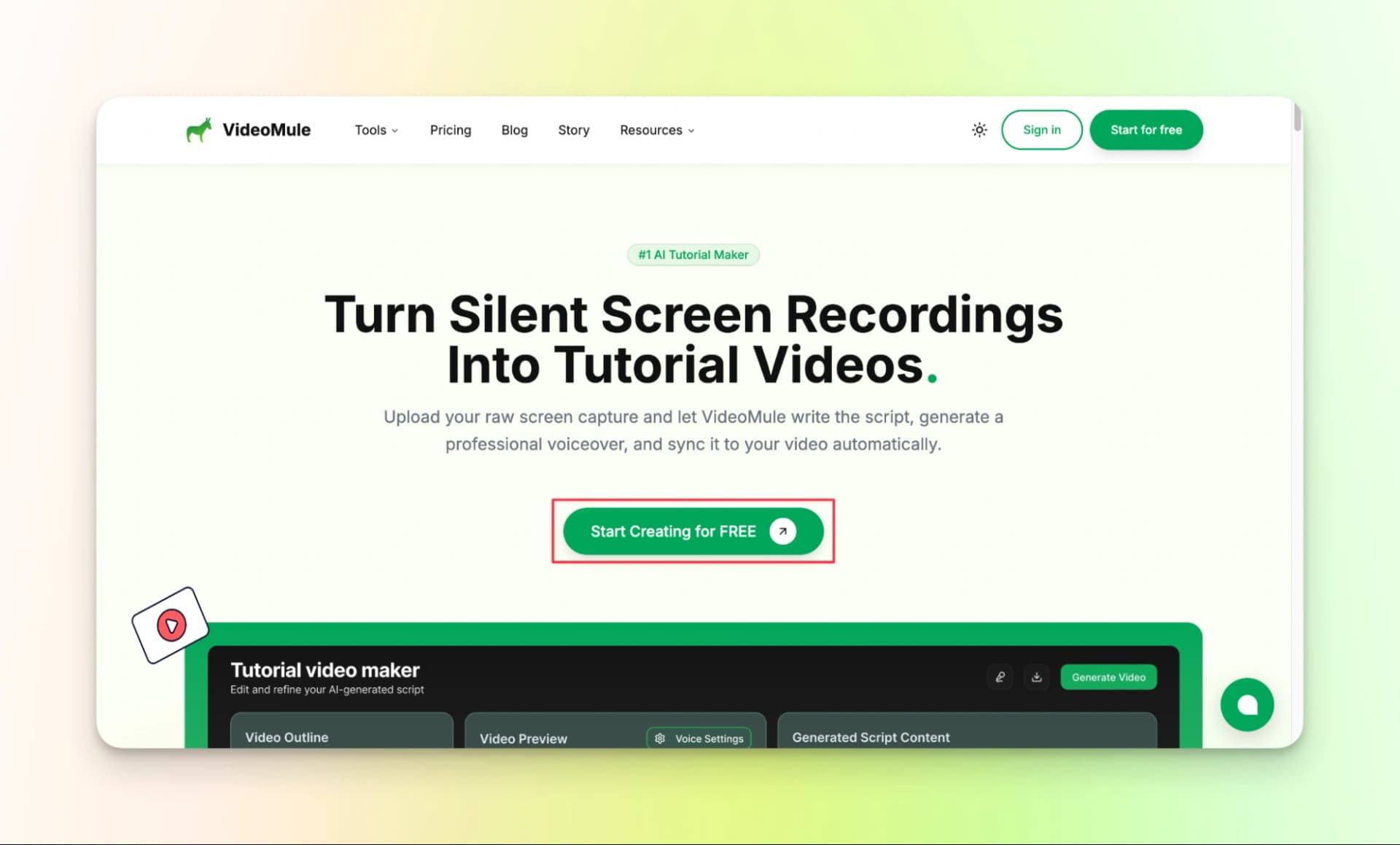
Step 1: Go to the VideoMule homepage and click Start Creating for FREE
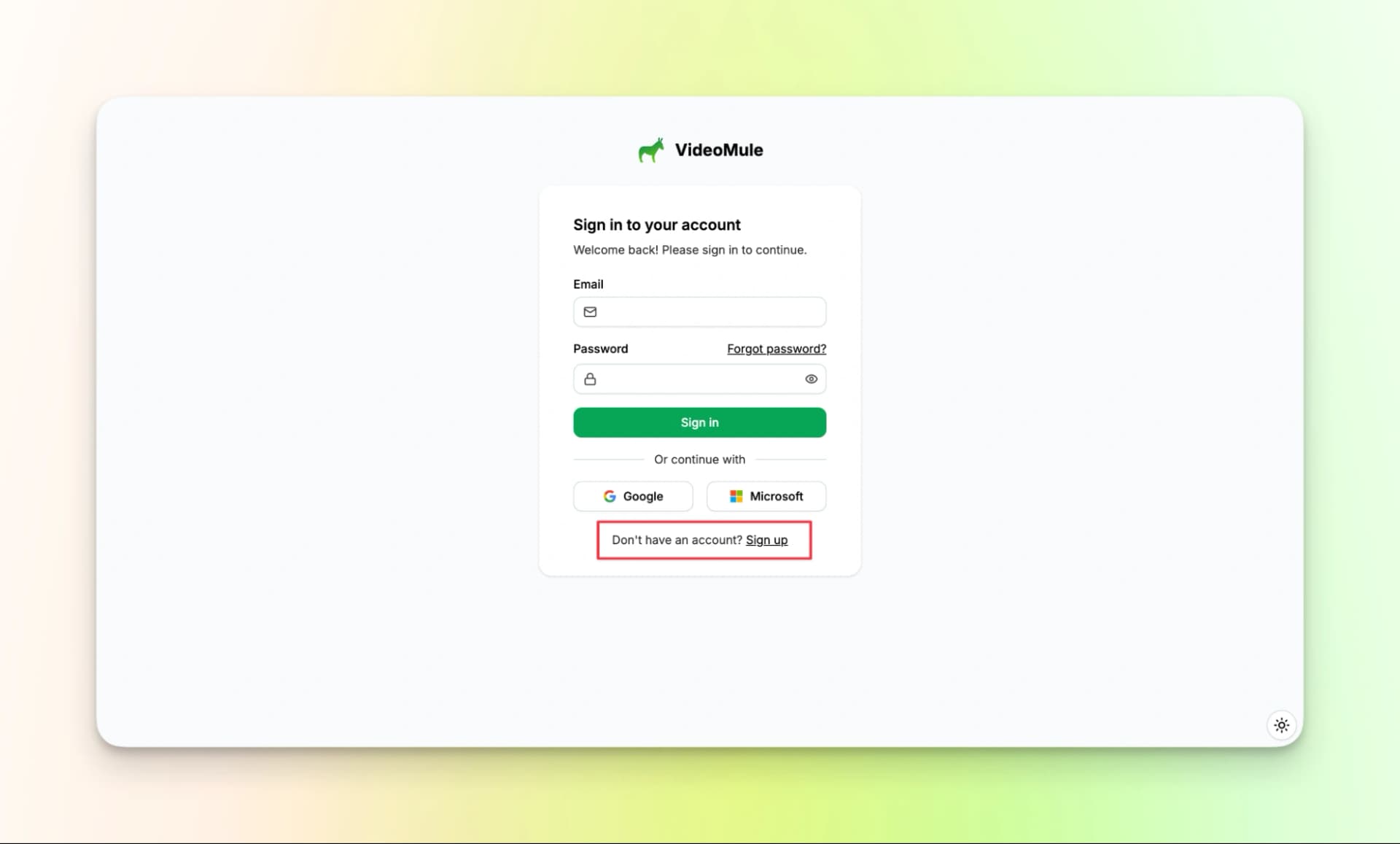
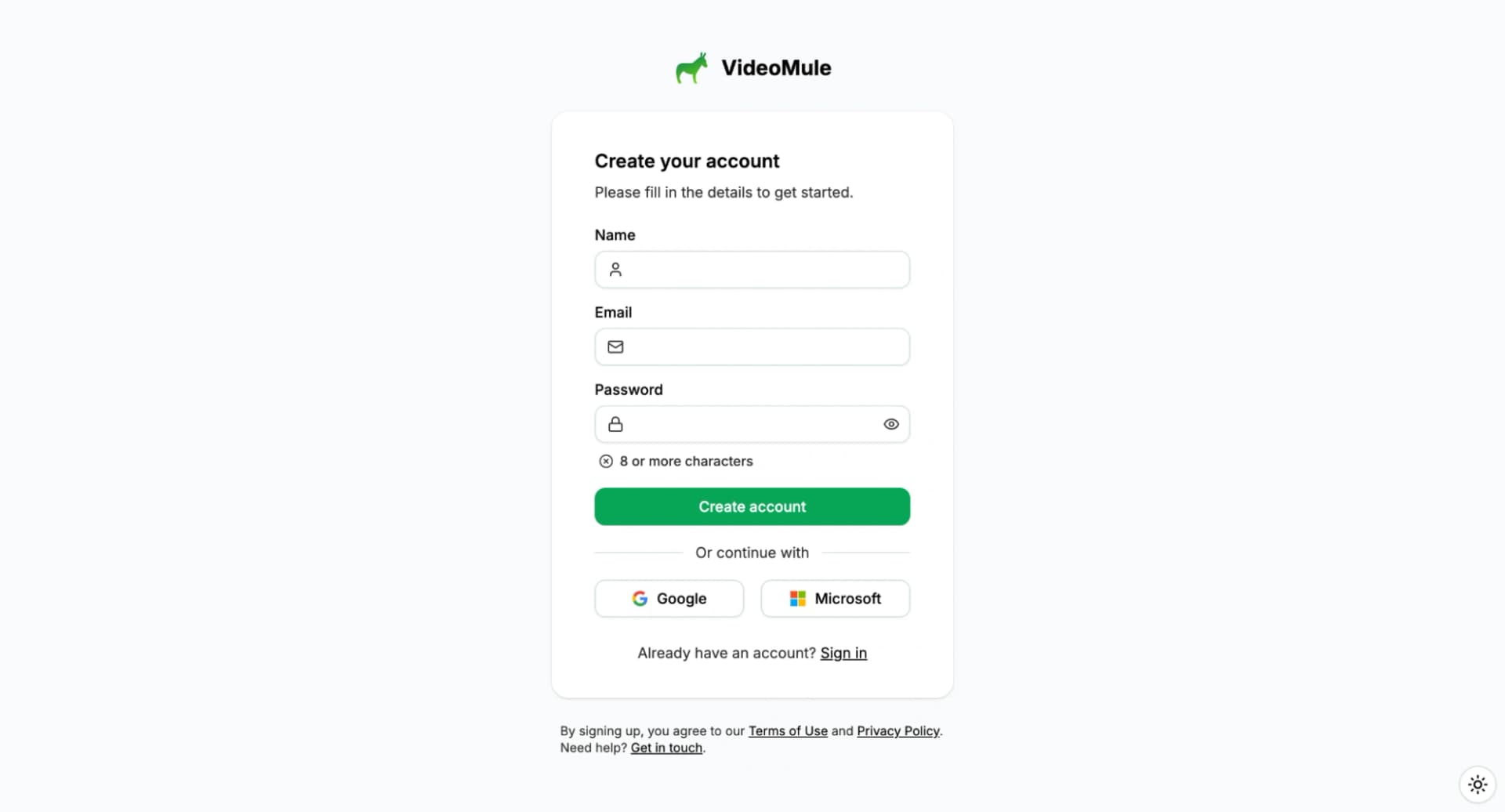
Step 2: Create an account or sign in using Google or Microsoft
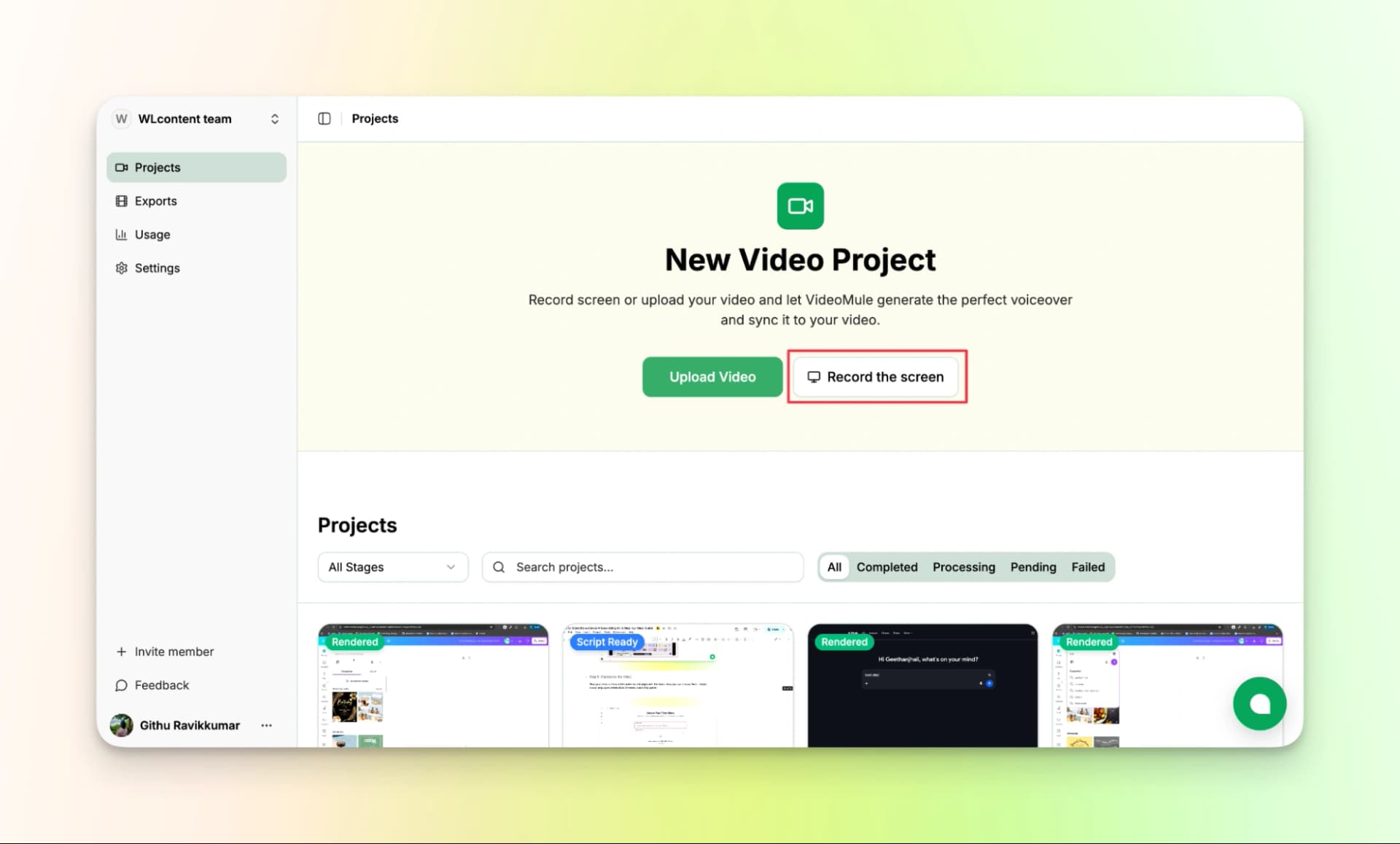
Step 3: Record your screen inside the tool or upload a screen recording
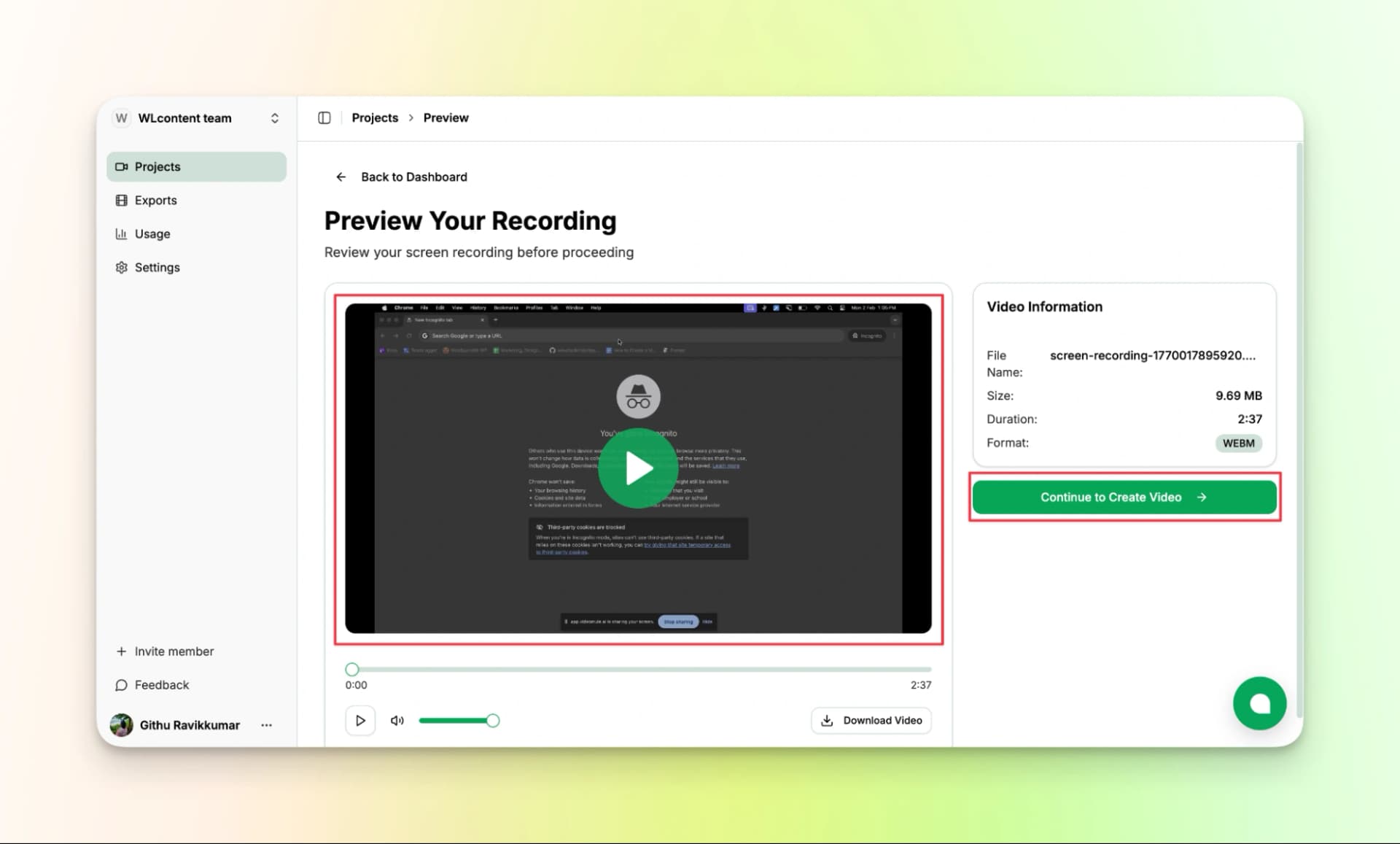
Step 4: Preview the recording and confirm it looks right.
Step 5: Name the video and choose the output language and AI voice
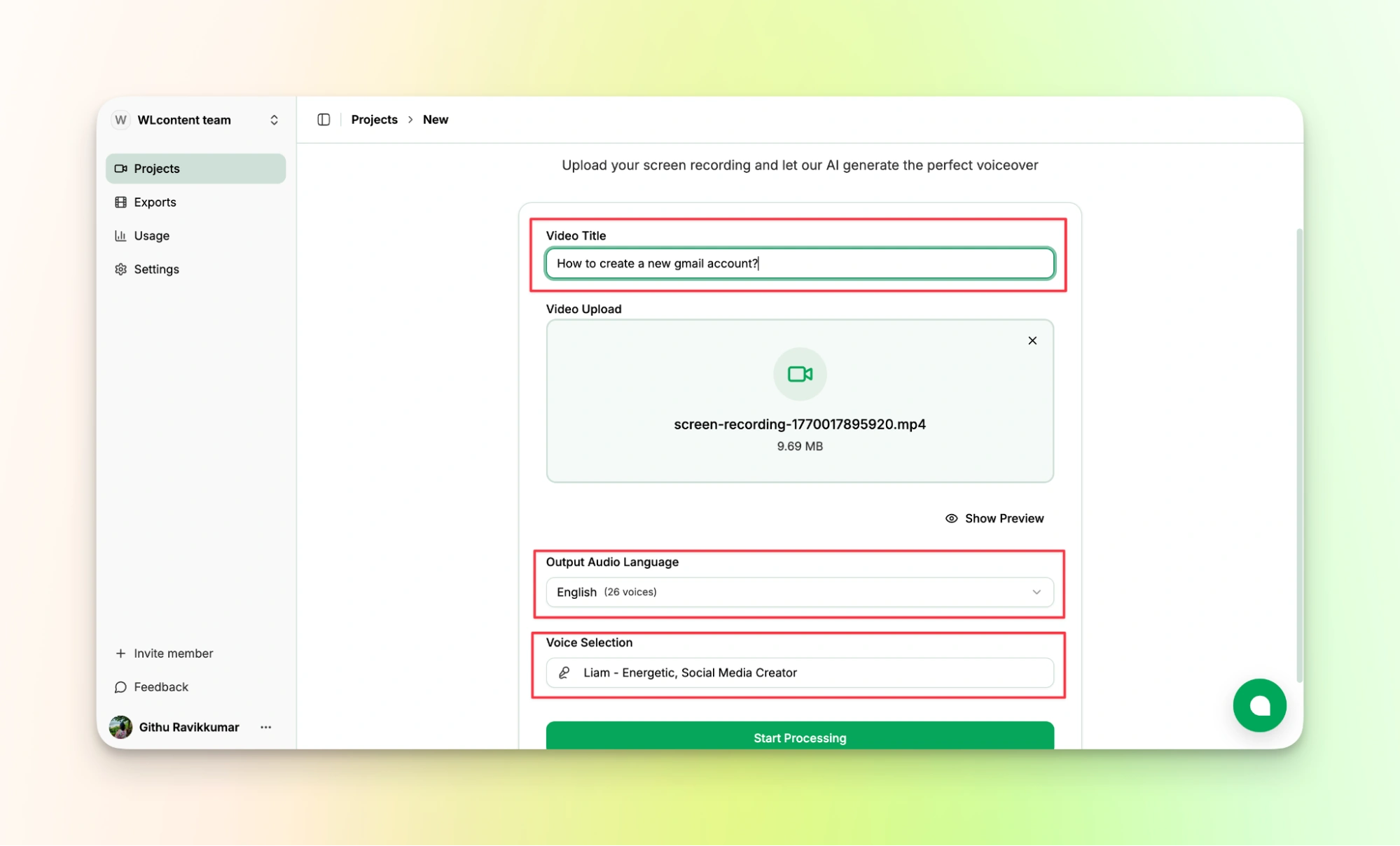
Step 6: Let the tool analyze the recording and generate a script
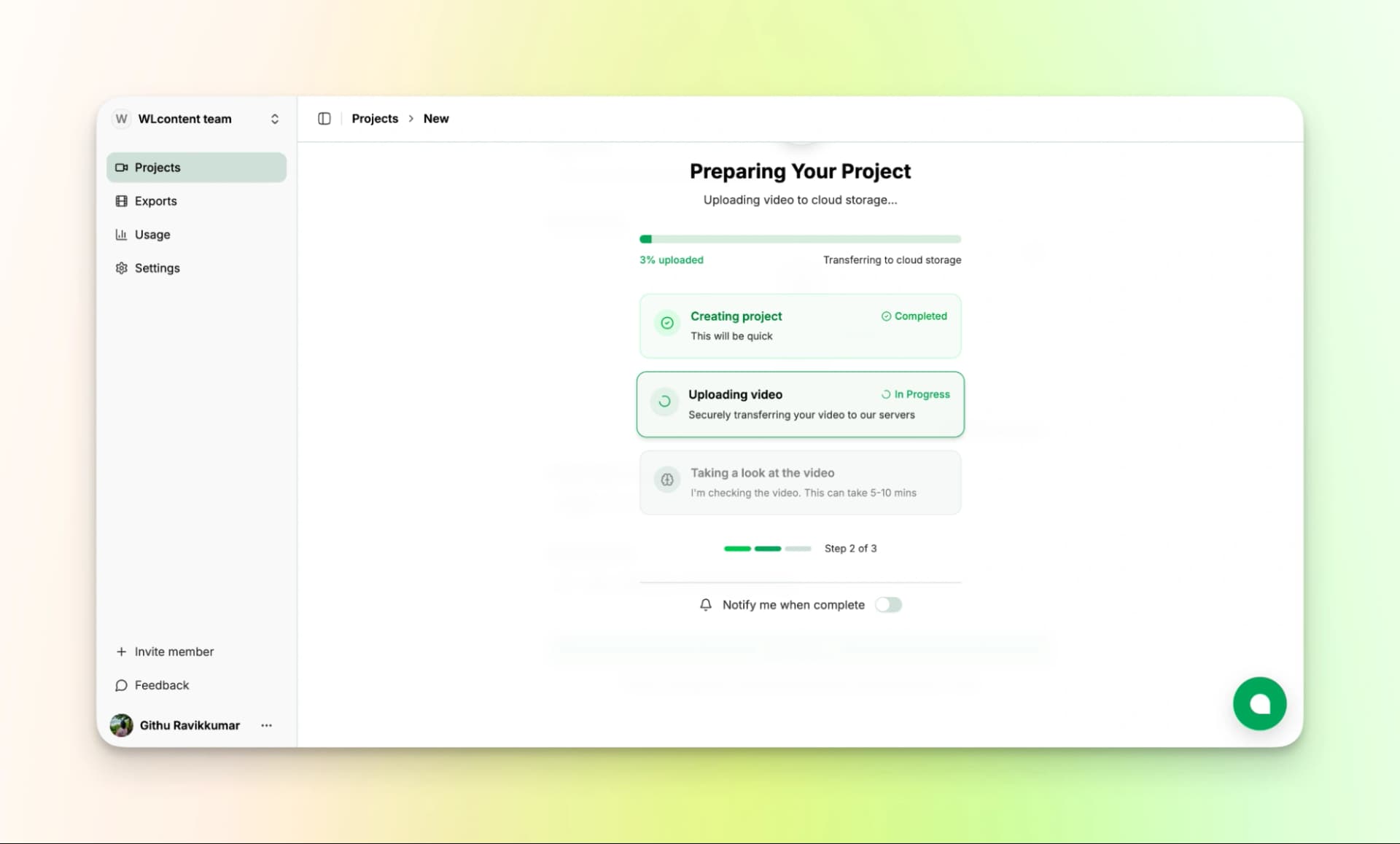
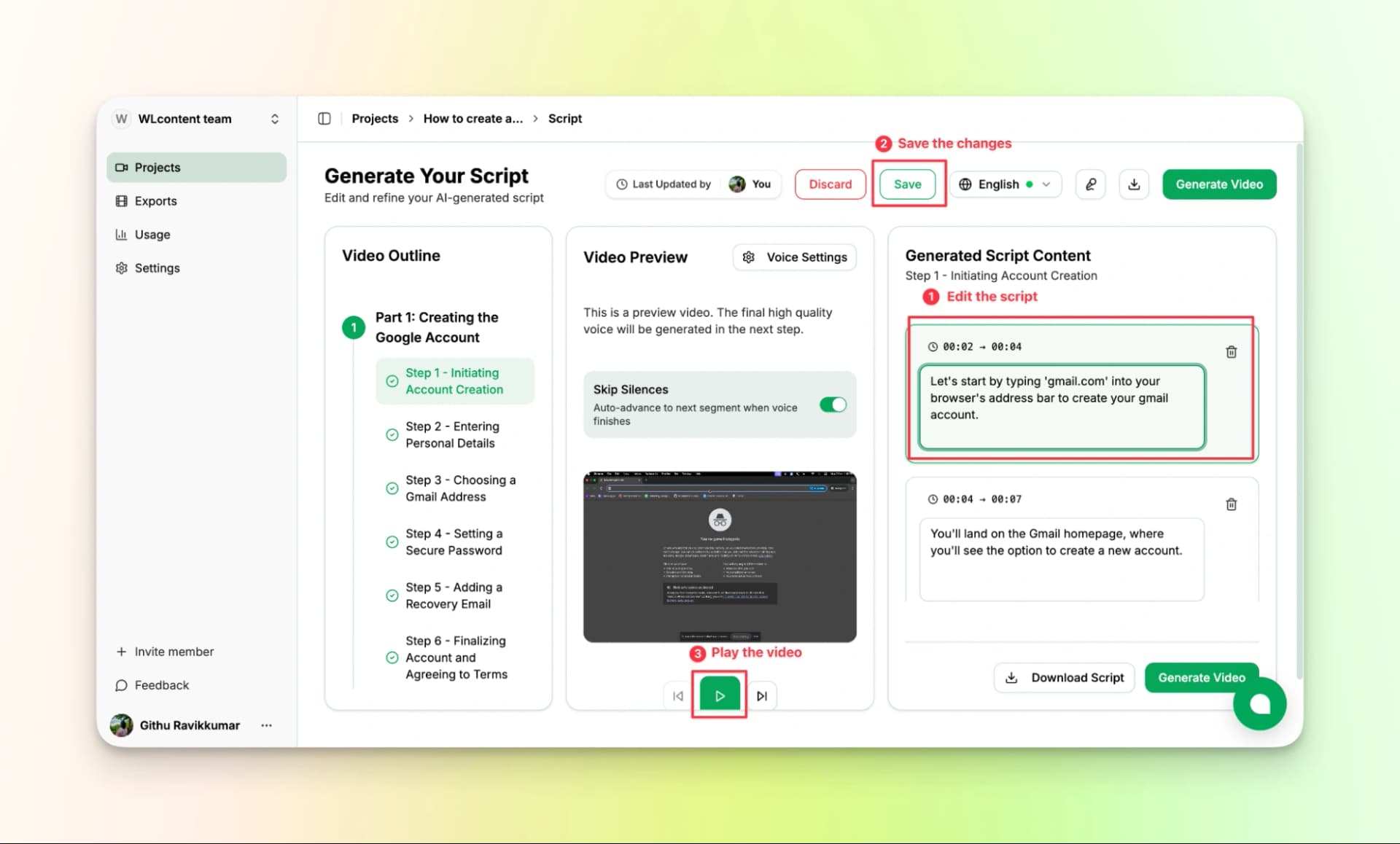
Step 7: Review or edit the script if needed as shown below.
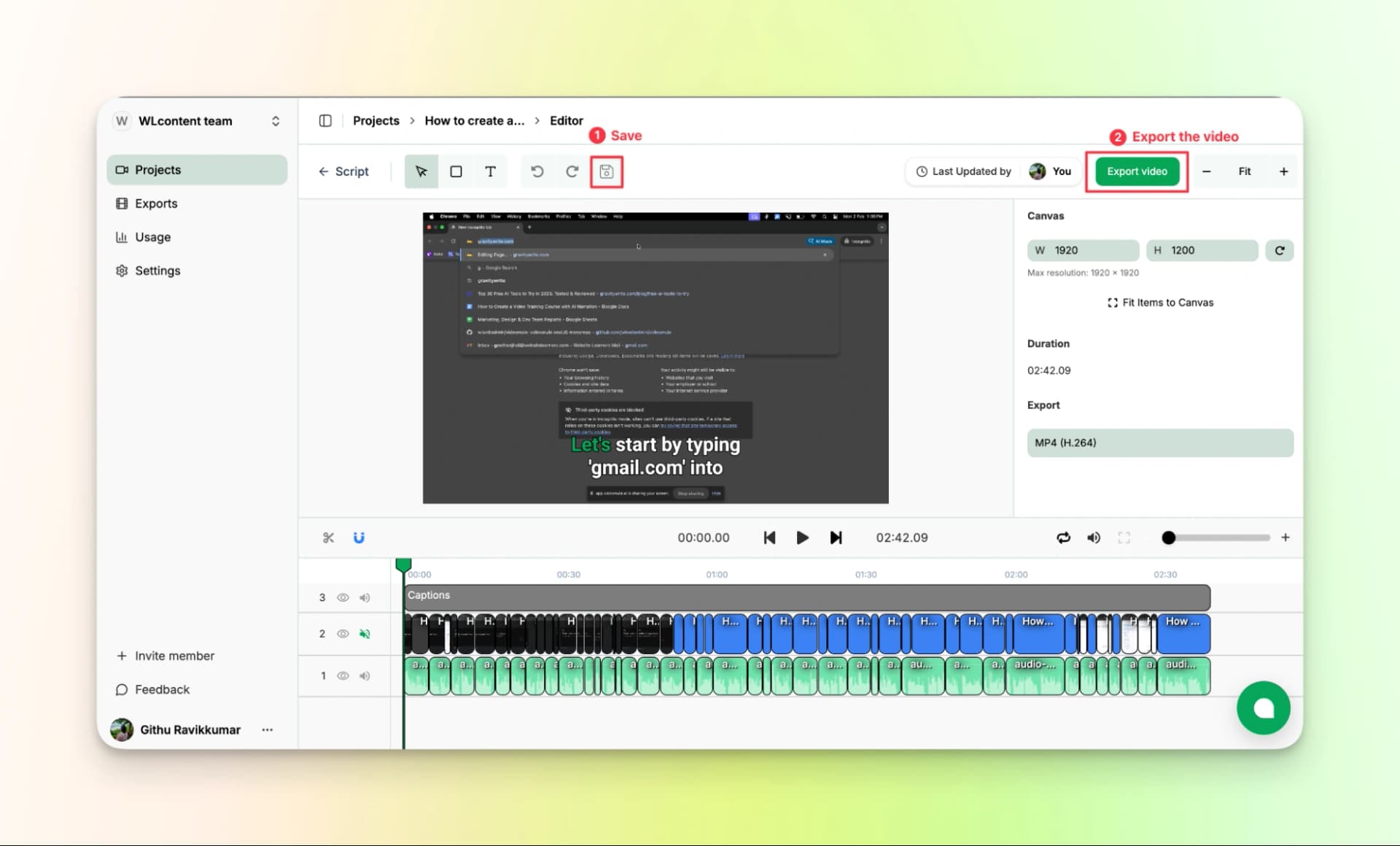
Step 8: Wait for the tool to generate the video with AI voiceover and captions. Once done, review the final video and export it.
If you want an all-in-one tool to create tutorial videos without any effort, videomule is the best
Here is the finished video:
Pricing:
Though the free trial is enough to test the tool, the paid plans give you more. Check out the Pricing
- Creator: $29.00/month
- Team: $69.00/month
- Agency: $199.00/month
Want to know more about creating tutorial videos using Videomule? Check out these blogs:
2. Trupeer.ai
Trupeer also lets you create the best software tutorial videos just like Videomule however there are a lot of key differences.
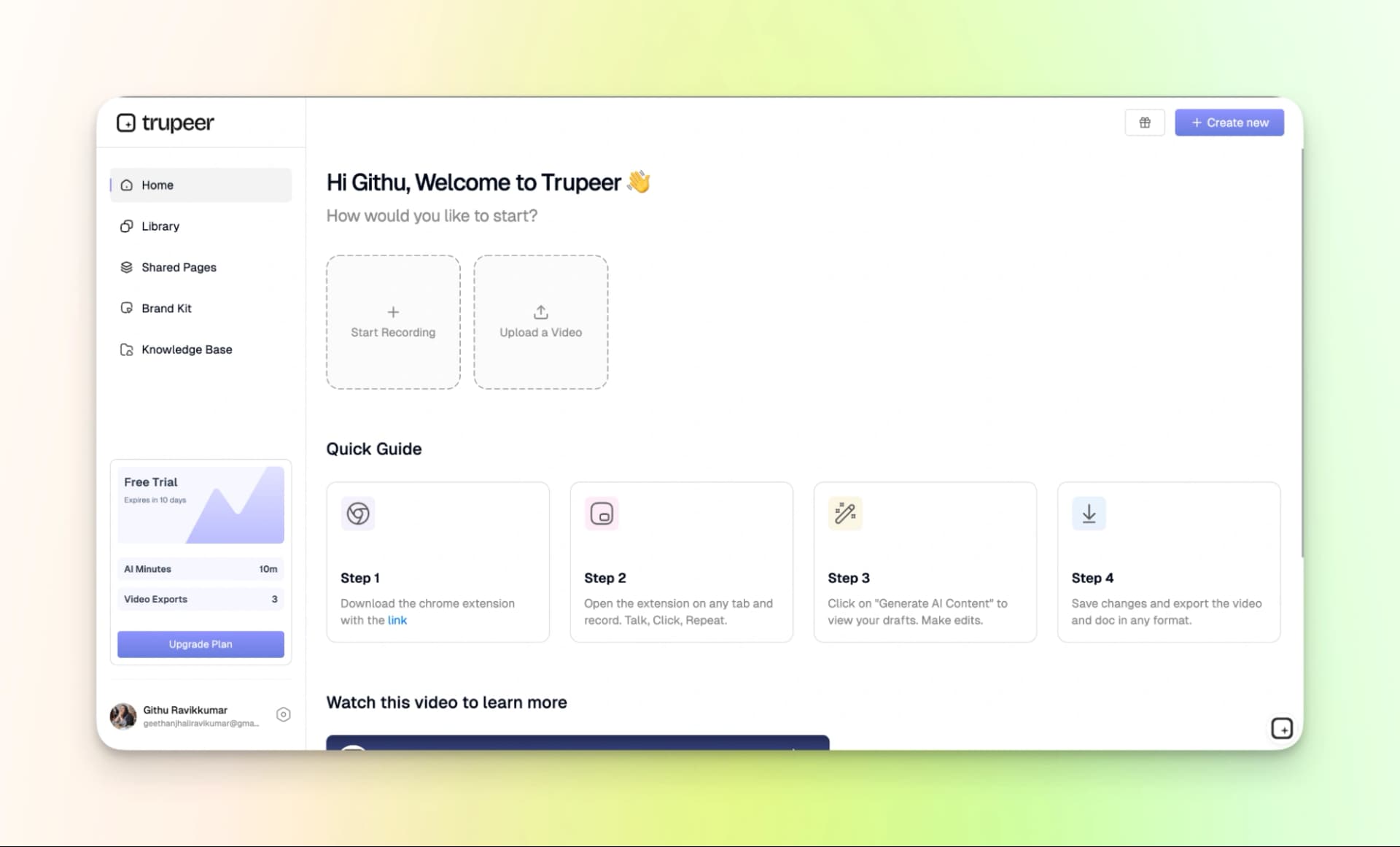
Videomule lets you record in silence, but Trupeer.ai requires that you speak while recording. This will help the tool to understand the context better. However, you get to customize the video better.
Here is how it goes:
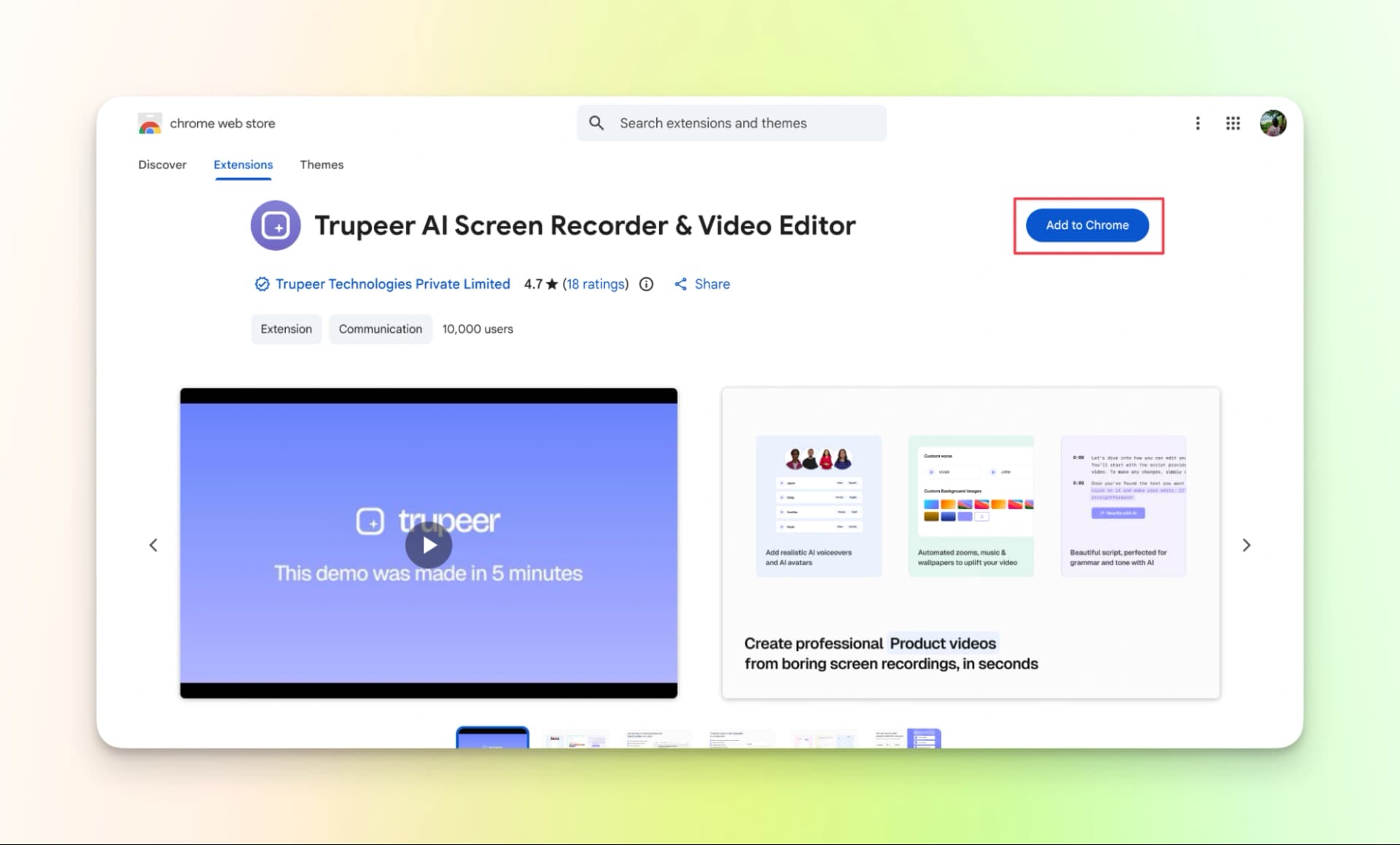
Step 1: Download the chrome extension with the link
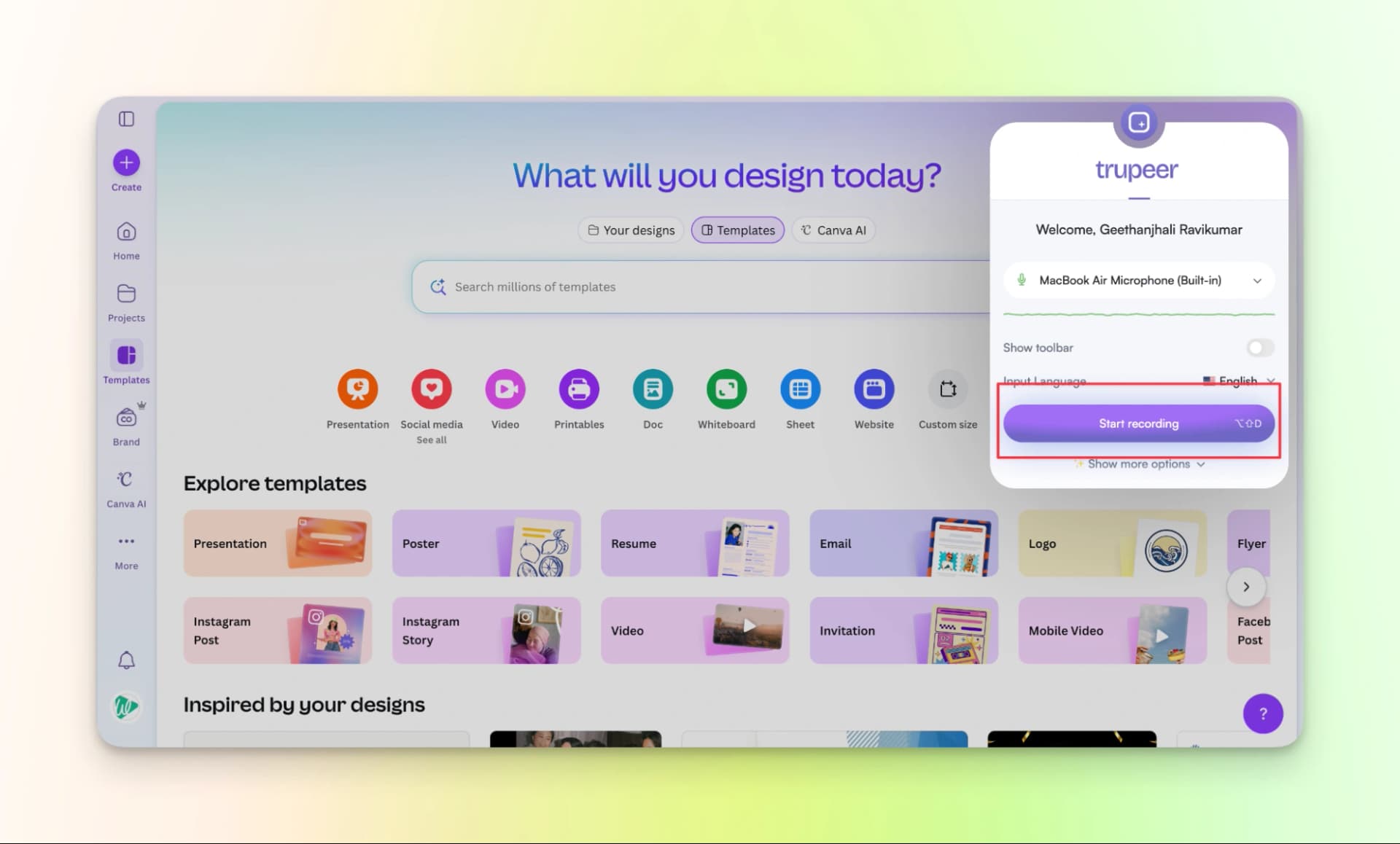
Step 2: Open the extension on any tab and record. Don’t forget to speak while recording, you don’t have to speak like a professional narrator. Just explain the process like how you’re talking to a friend.
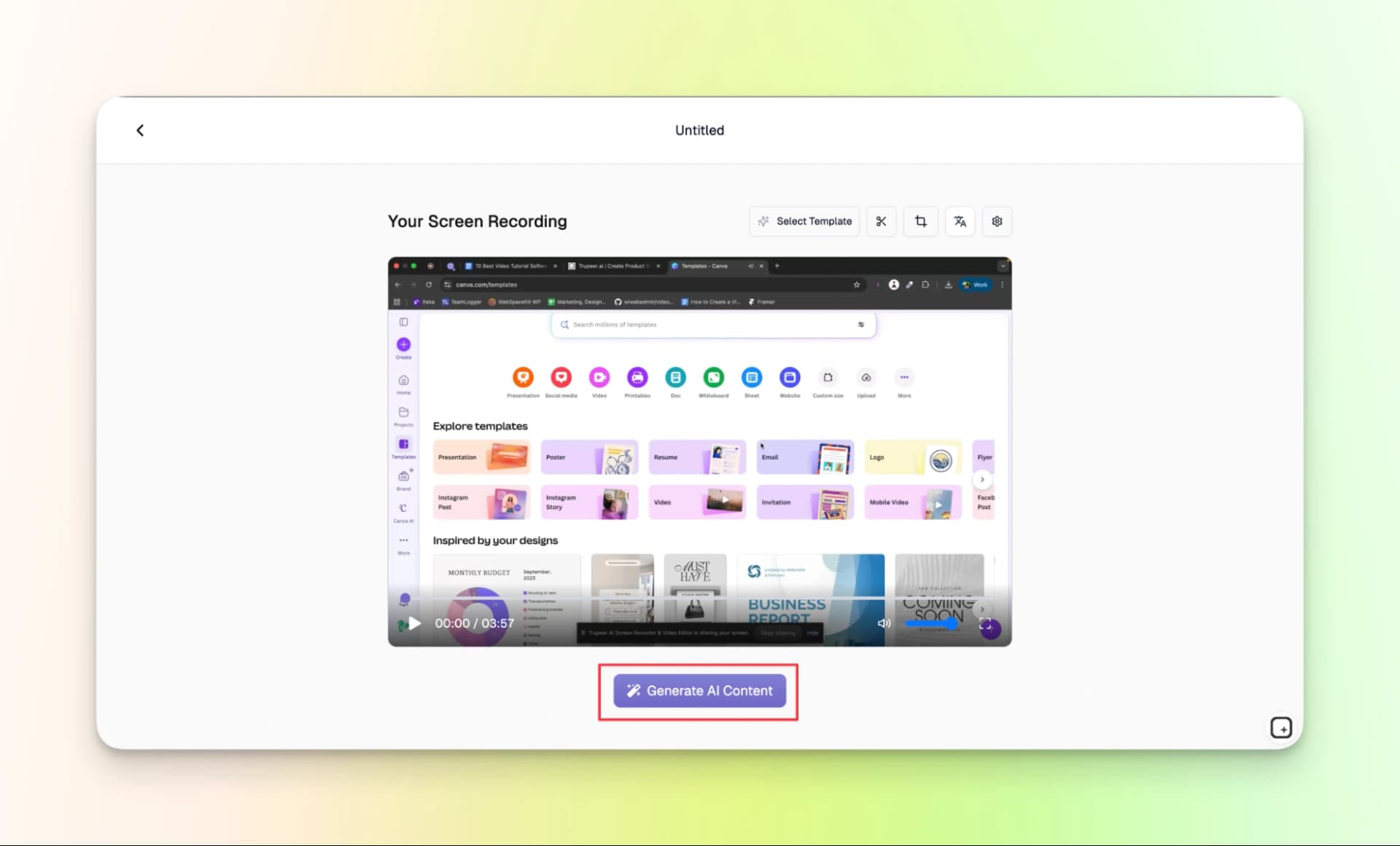
Step 3: Once you're done recording, you can see the preview of the recording. If everything looks perfect, click on generate AI content and allow the tool to process the recording.
Step 4: You can edit the script, choose the AI voice, music, visuals effects and AI avatar. Adding an AI avatar will make your video more entertaining.
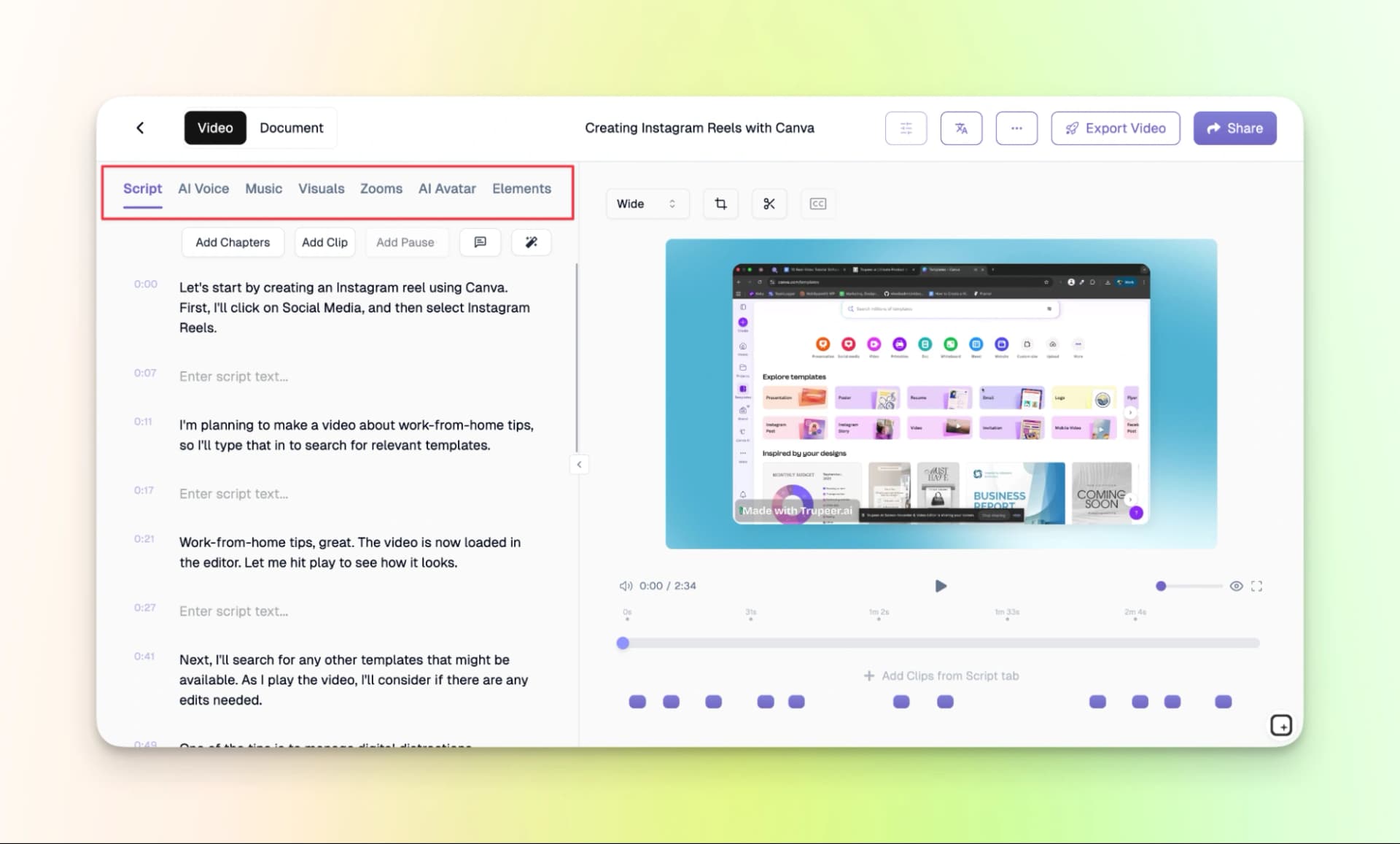
A document is also generated with the proper screenshots and step-by-step instructions. You can use that for your blogs, YouTube videos and more.
Step 5: Export the video and doc. Remember, the videos will have a watermark if you’re using a free plan. The free gives you 10 AI minutes and 3 video exports.
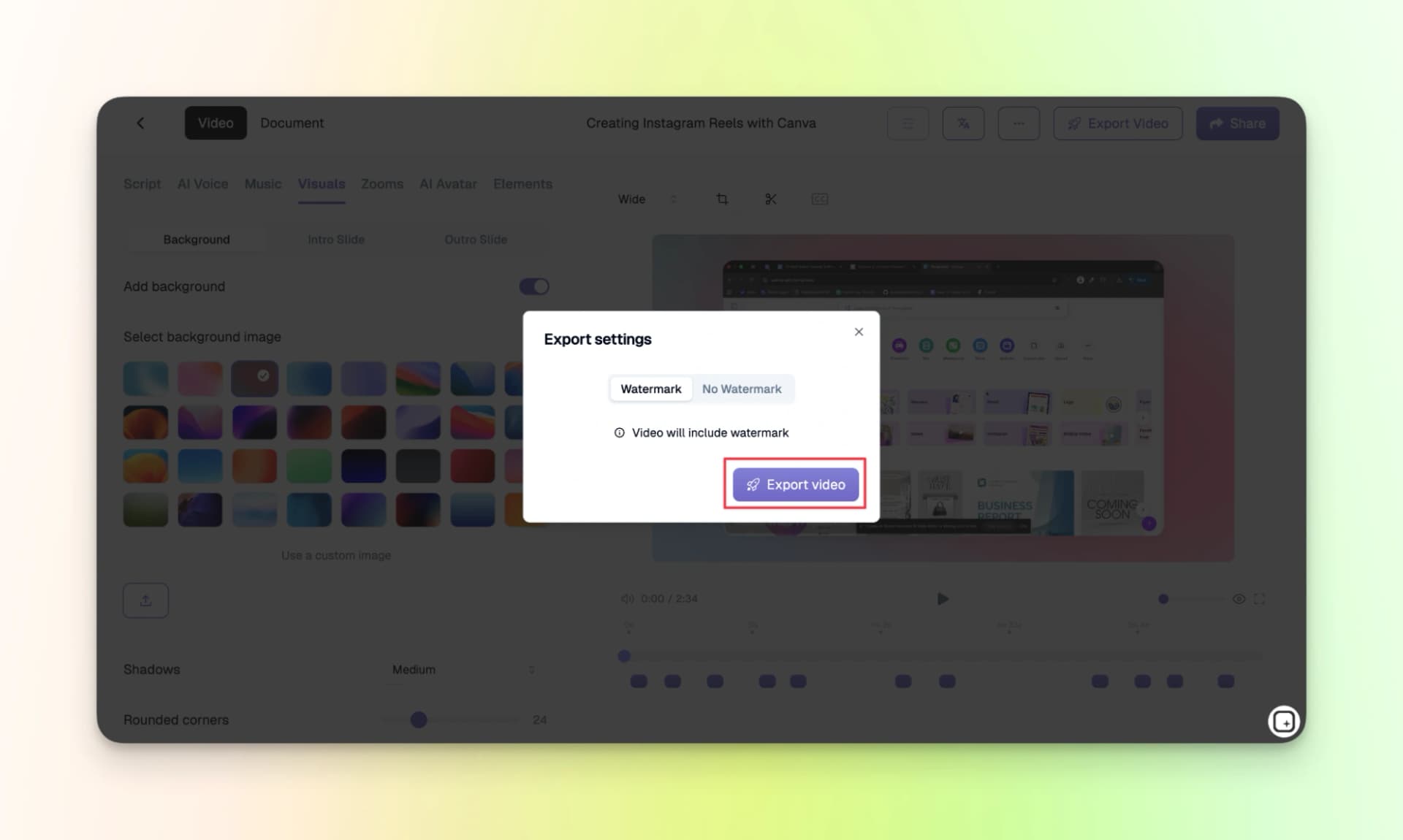
Here is the finished video:
Pricing:
Though the free plan is enough to test the tool, the paid plan gives you more
- Free: $0 (For 10 days)
- Pro: $49 Per month
- Scale; $249 Per month
- Enterprise: AOD (Available on demand)
3. Trainn
Trainn is also one of the best software to create video tutorials. Just like Trupeer, you should also download a chrome extension to use this tool.
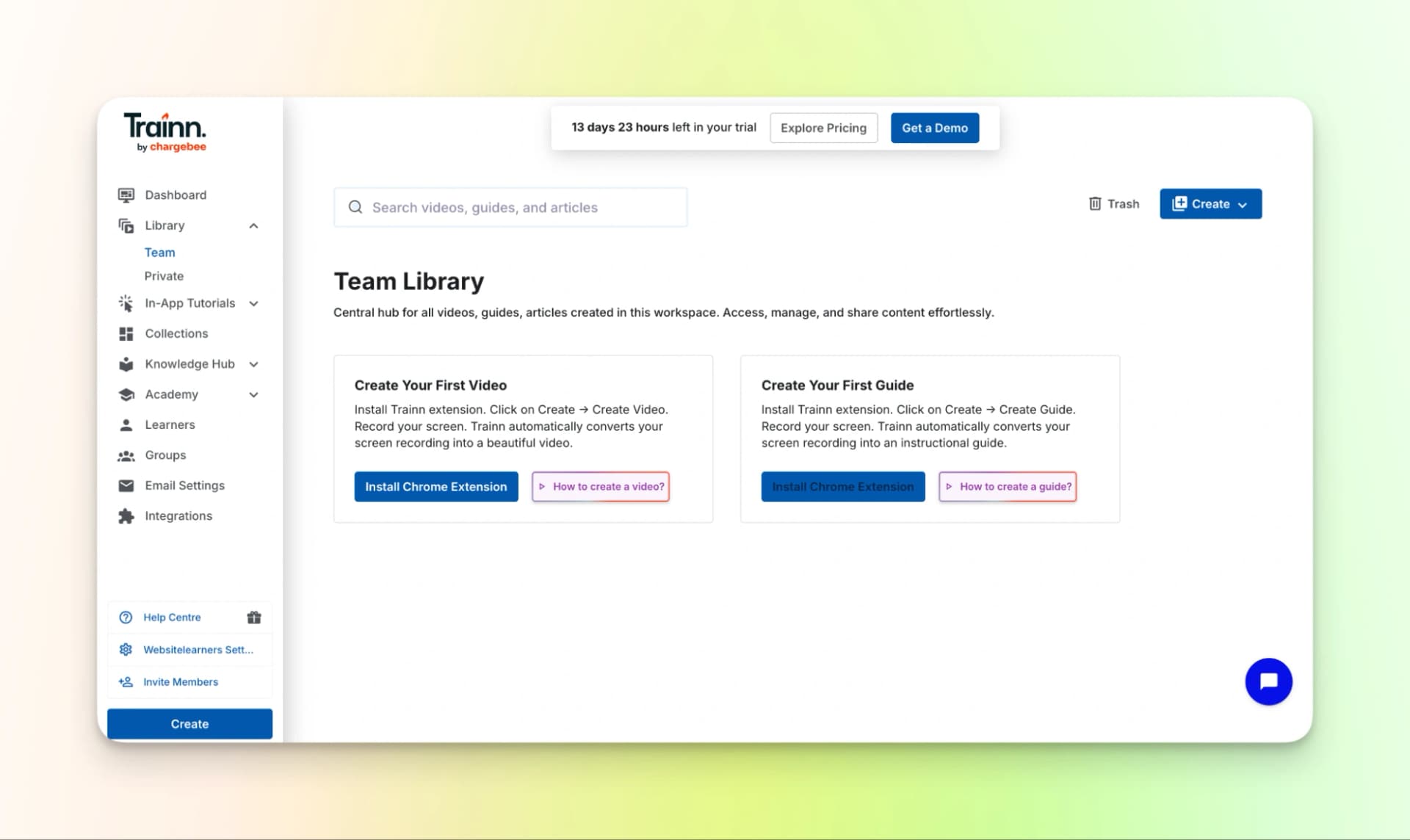
Without any further ado, let me show how to create video tutorials using Trainn.
Step 1: Download the chrome extension.
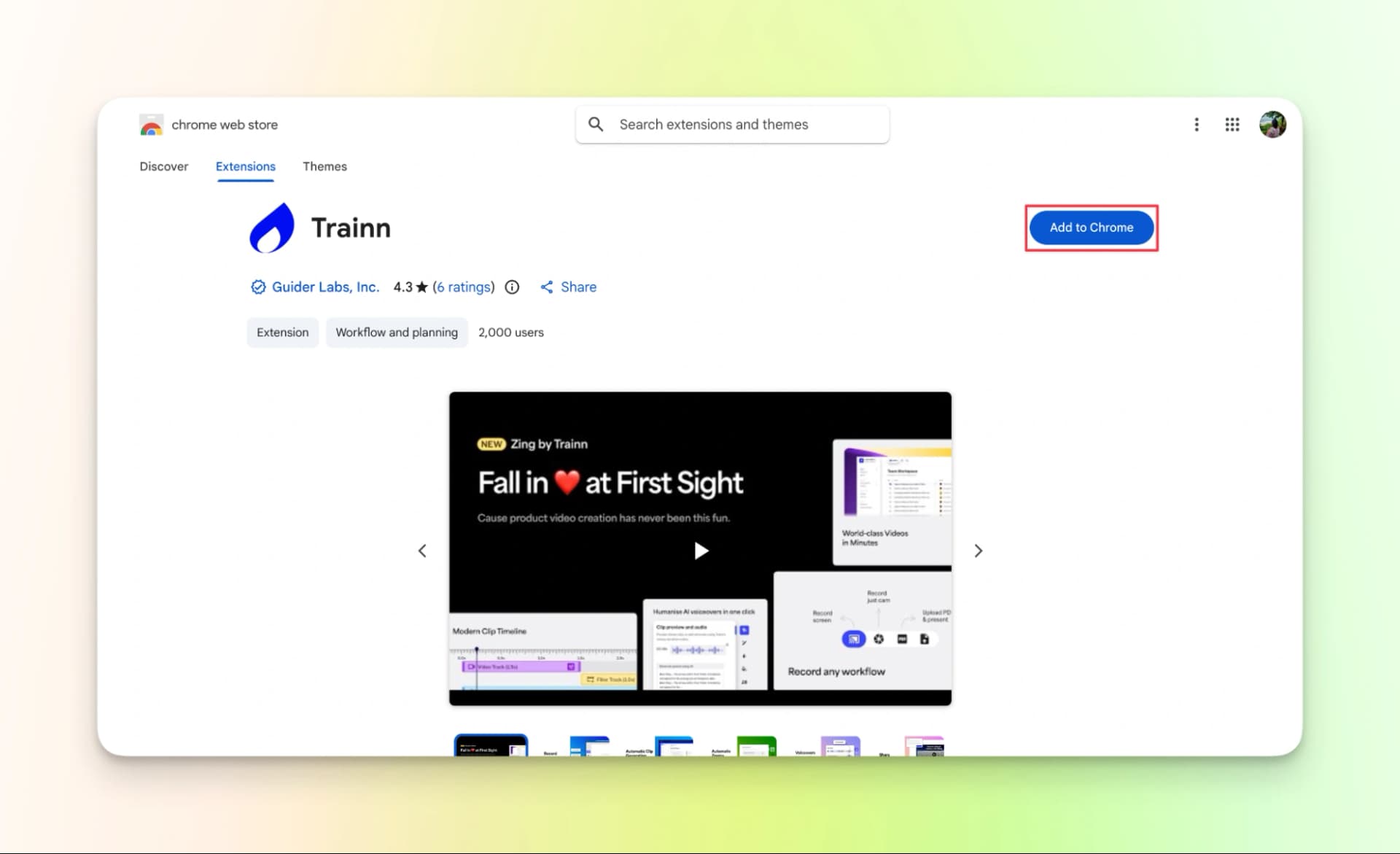
Once you’ve downloaded the extension, click on it and get started.
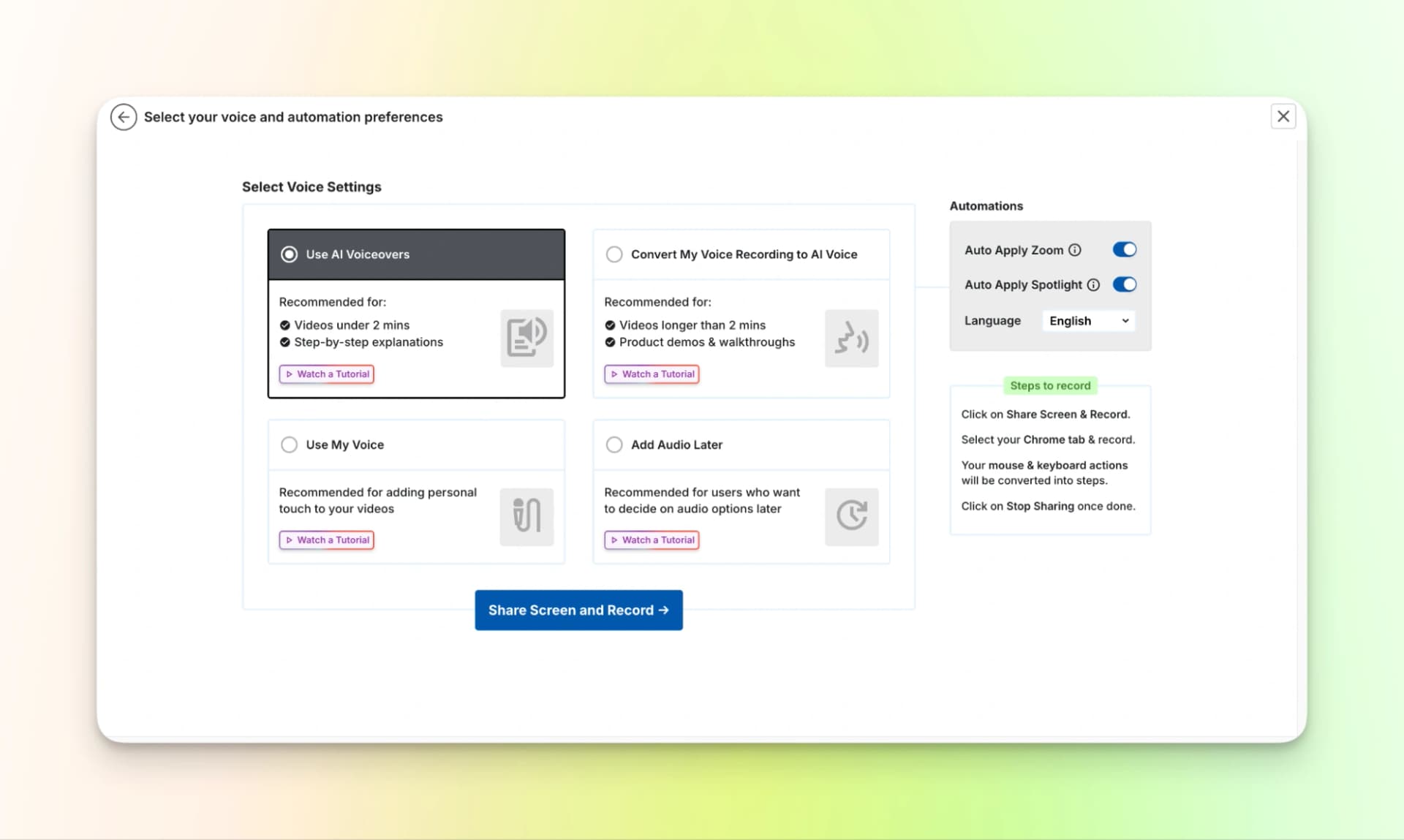
Step 2: Choose voice and automation preference.
You can use AI voiceover, use your voice, convert your voice recording into AI voice or add audio later. To keep it simple, let me use AI voiceover.
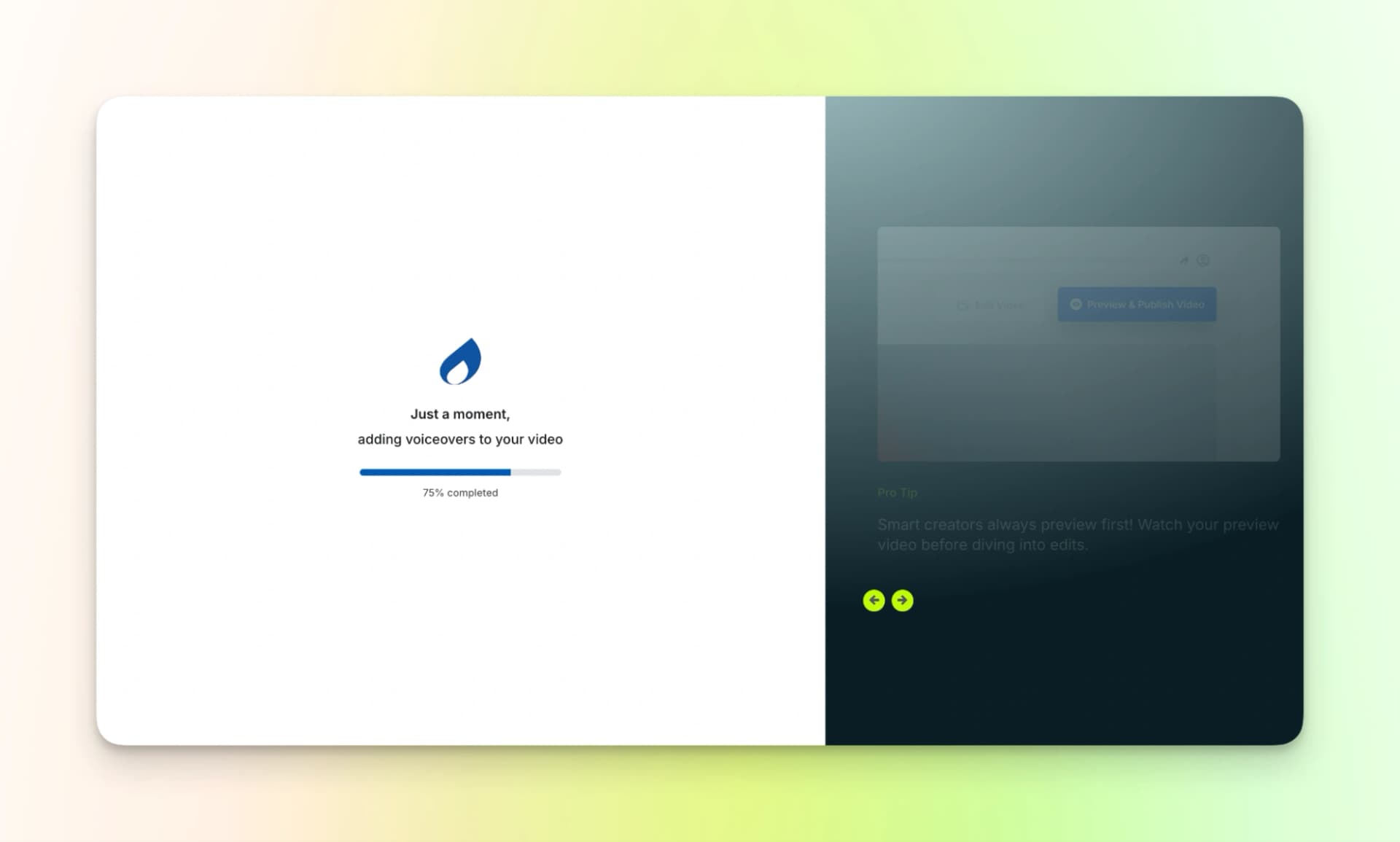
Once you finish recording your screen, wait for a few minutes for the tool to process.
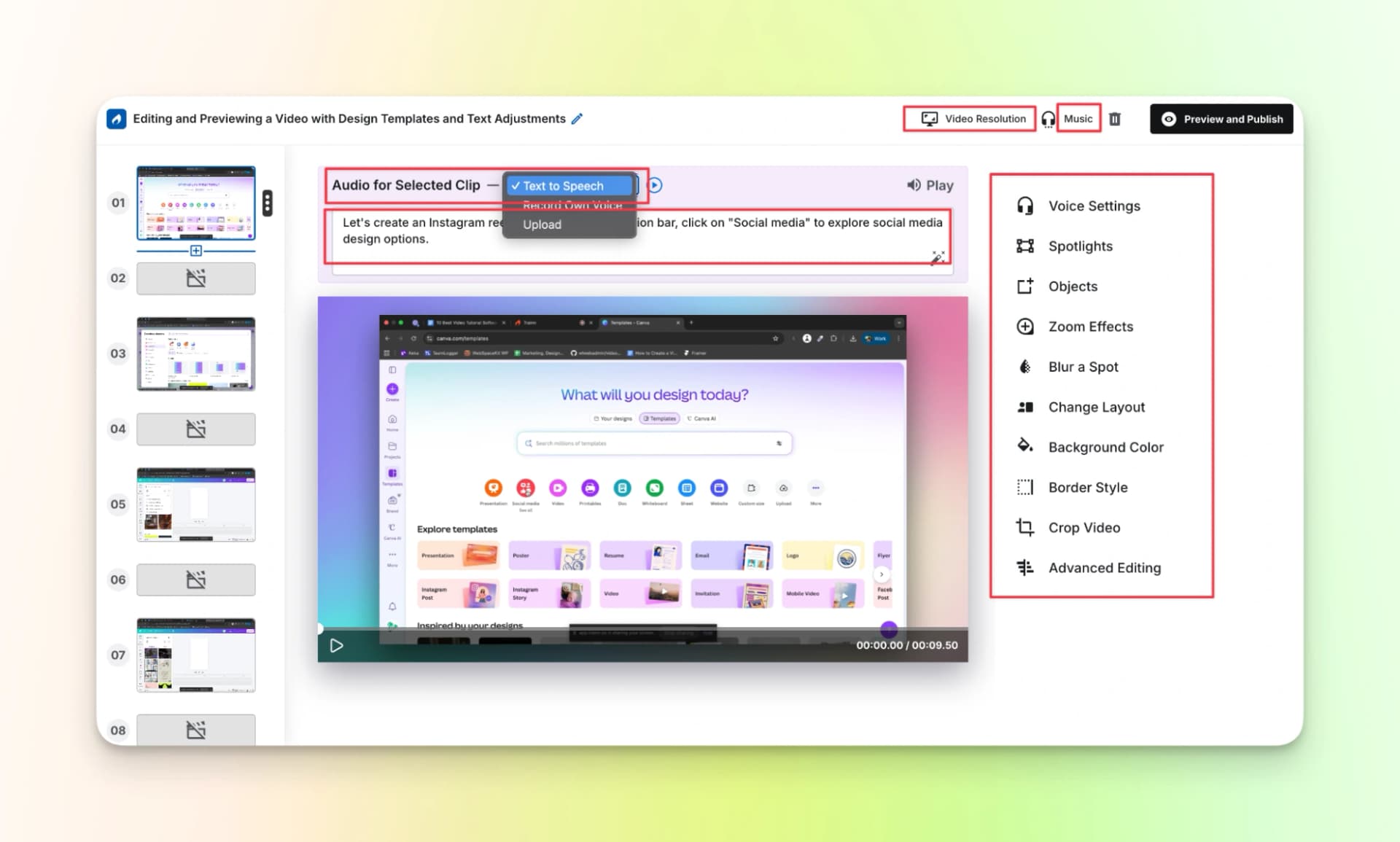
Step 3: Edit the video
As you can see, the customization options are good as you can add or edit anything you want at any point of time.
Step 4: Preview the video
Check the video once to check if everything is okay. If not, edit the video again.
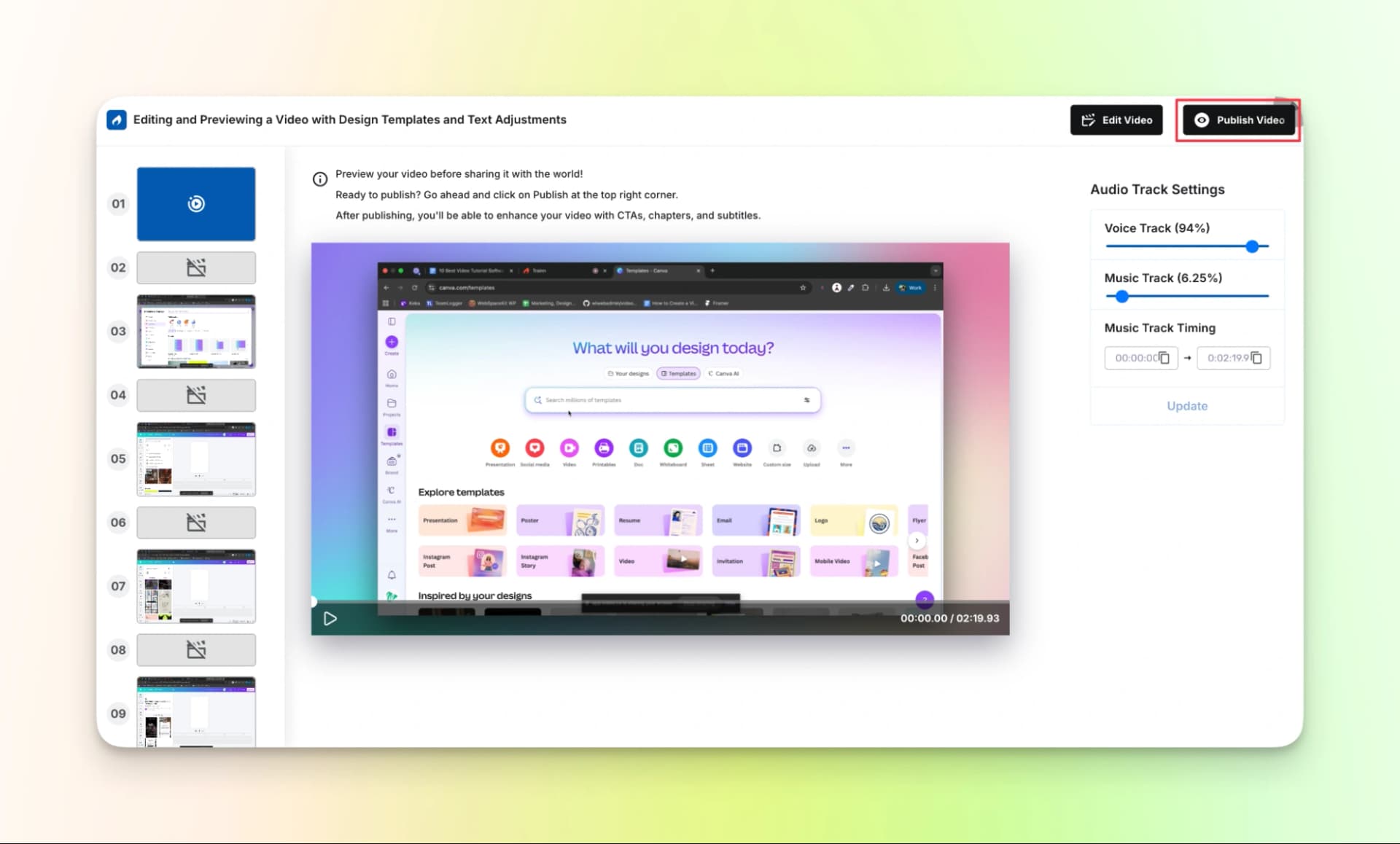
Step 5: At last, your video is ready. Check it one last time, if everything is okay, copy the share link. If you find anything that needs to be corrected, edit the video, do the process all over again and then copy the link.
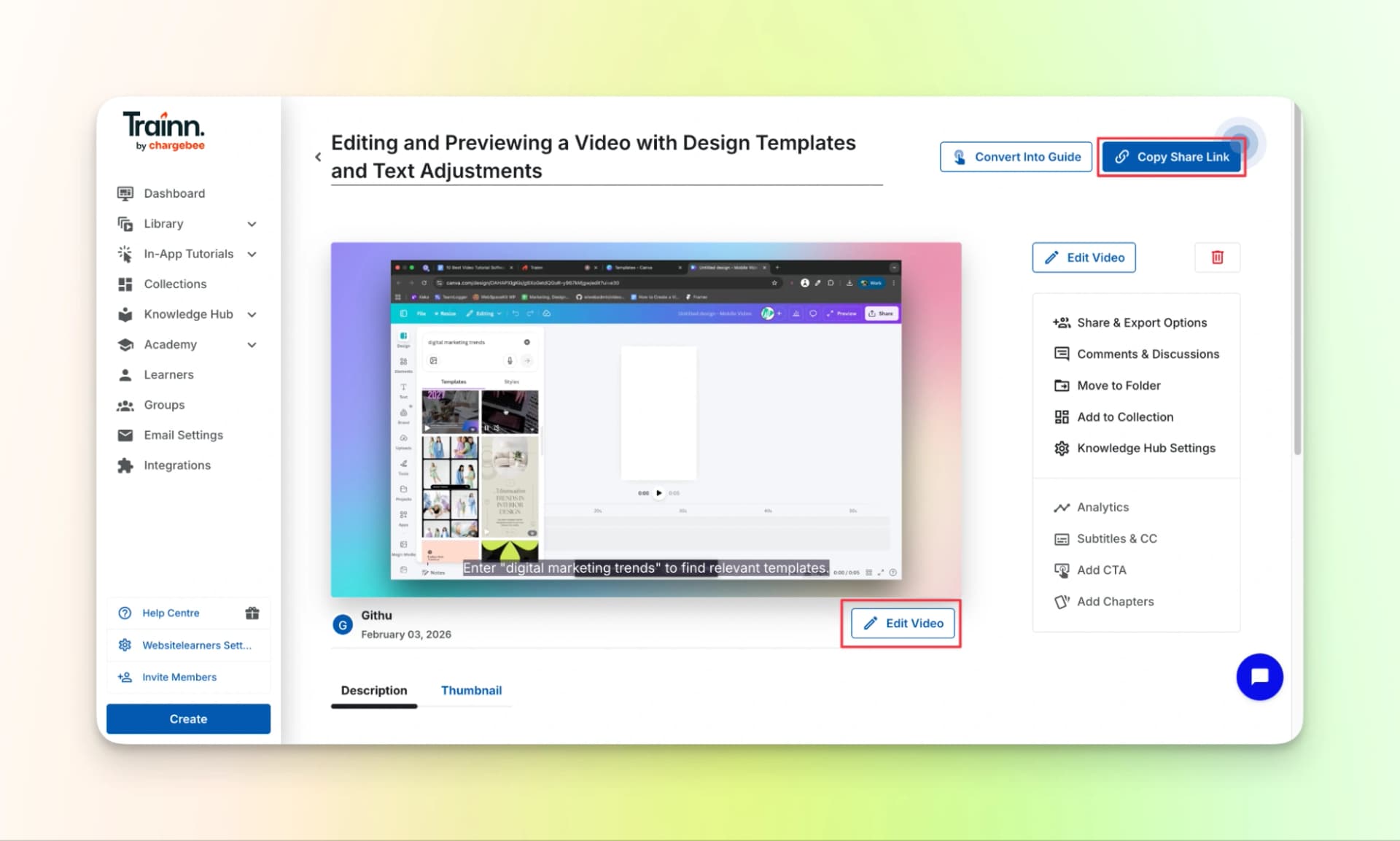
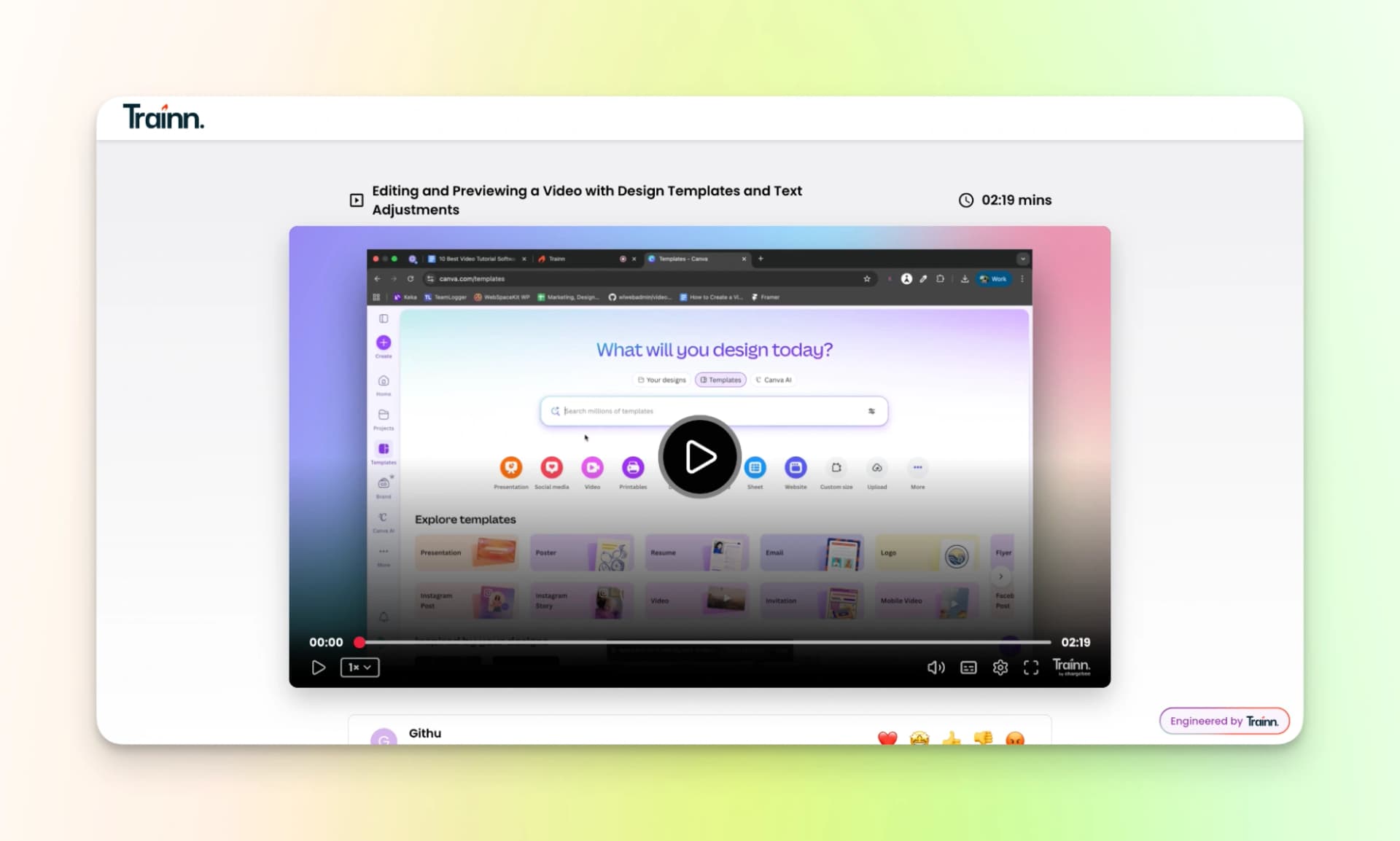
So here is the final video:
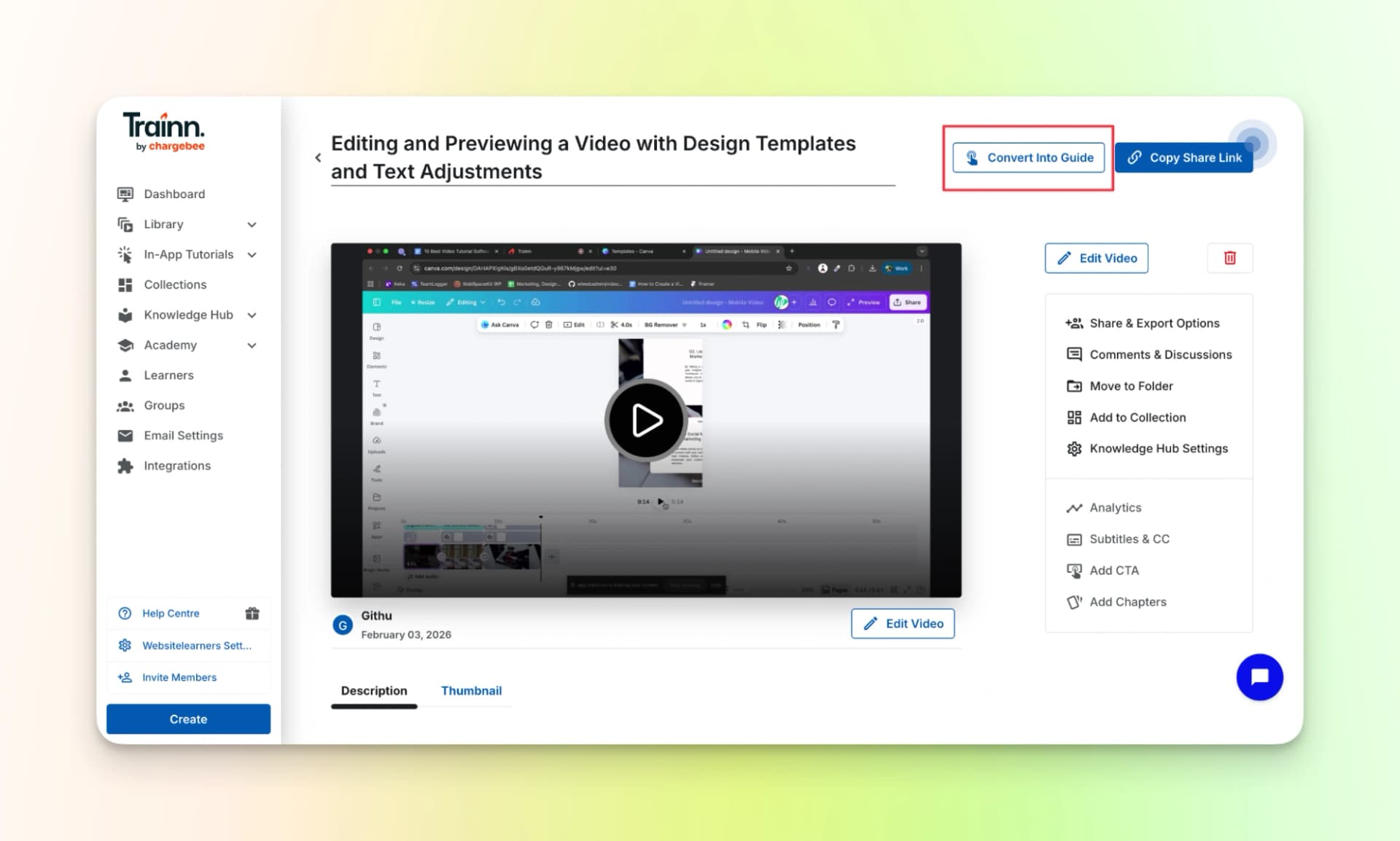
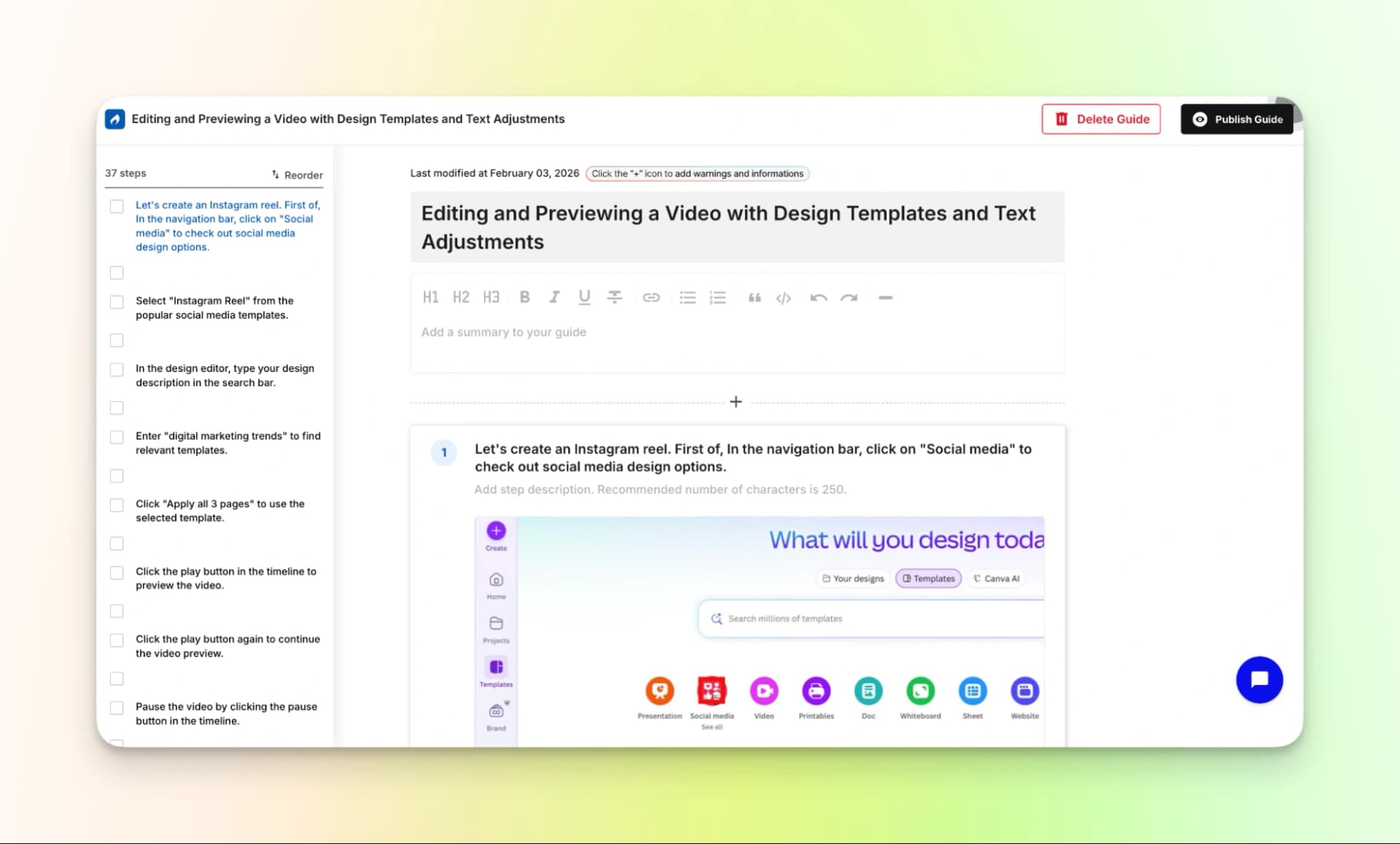
You can also convert the video into a step-by-step guide with the screenshots. You can repurpose it later.
Here is the finished video:
Pricing:
The plans are expensive for most. Here is a quick summary:
- Launch: $2,400/year (You get a 14-day free trial)
- Scale: $10,000/year
- Enterprise: $39,900/year
4. Clueso
Needless to say, Clueso can also create best software tutorial videos by recording a video, uploading a video or a slide deck.
It also comes with features such as:
- Auto update - To update your docs and videos when something changes
- Video templates - To create videos using pre-made templates.
- Teams - Invite your team members to work with you.
Here’s how the process works:
Step 1: Download the chrome extension.
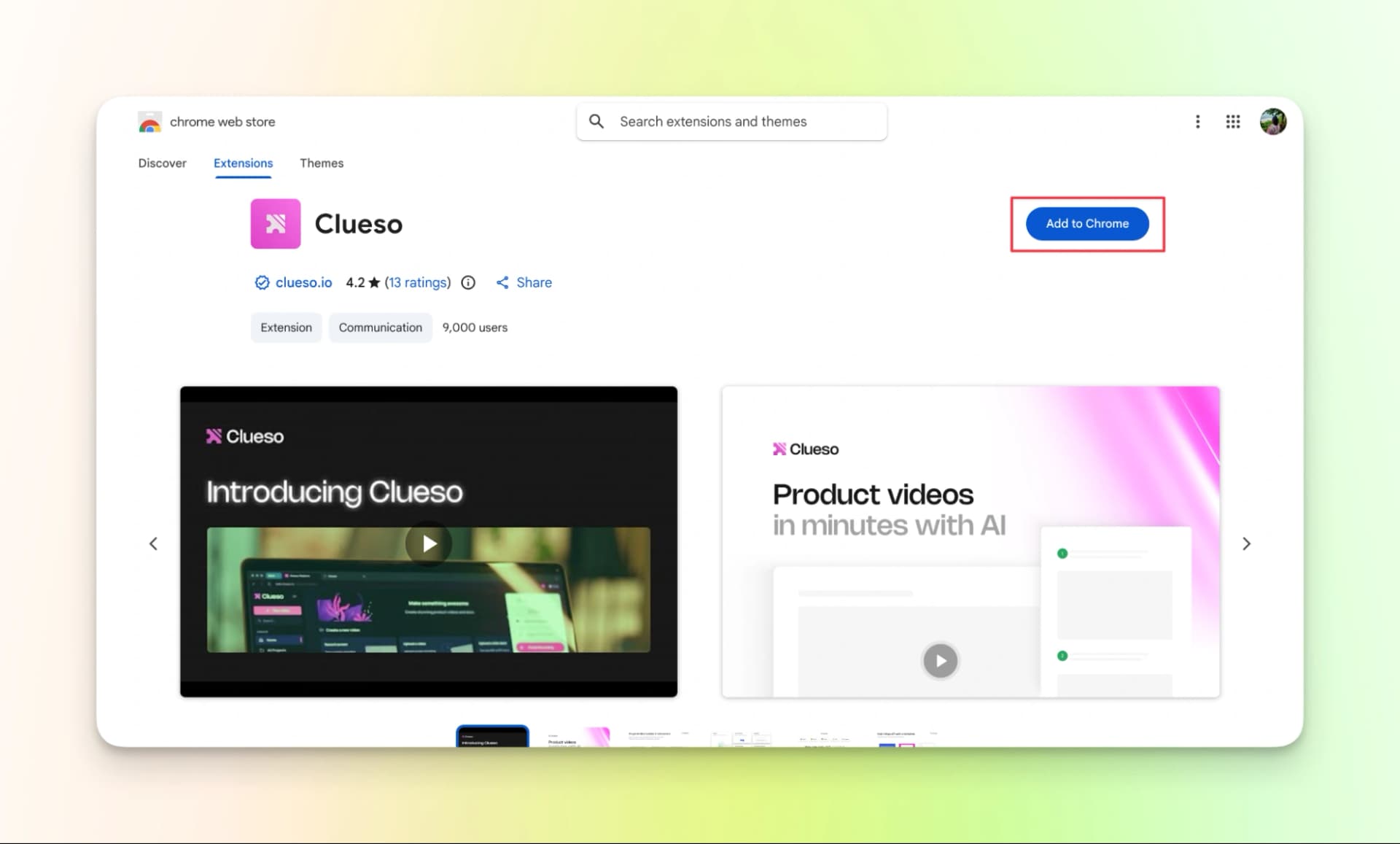
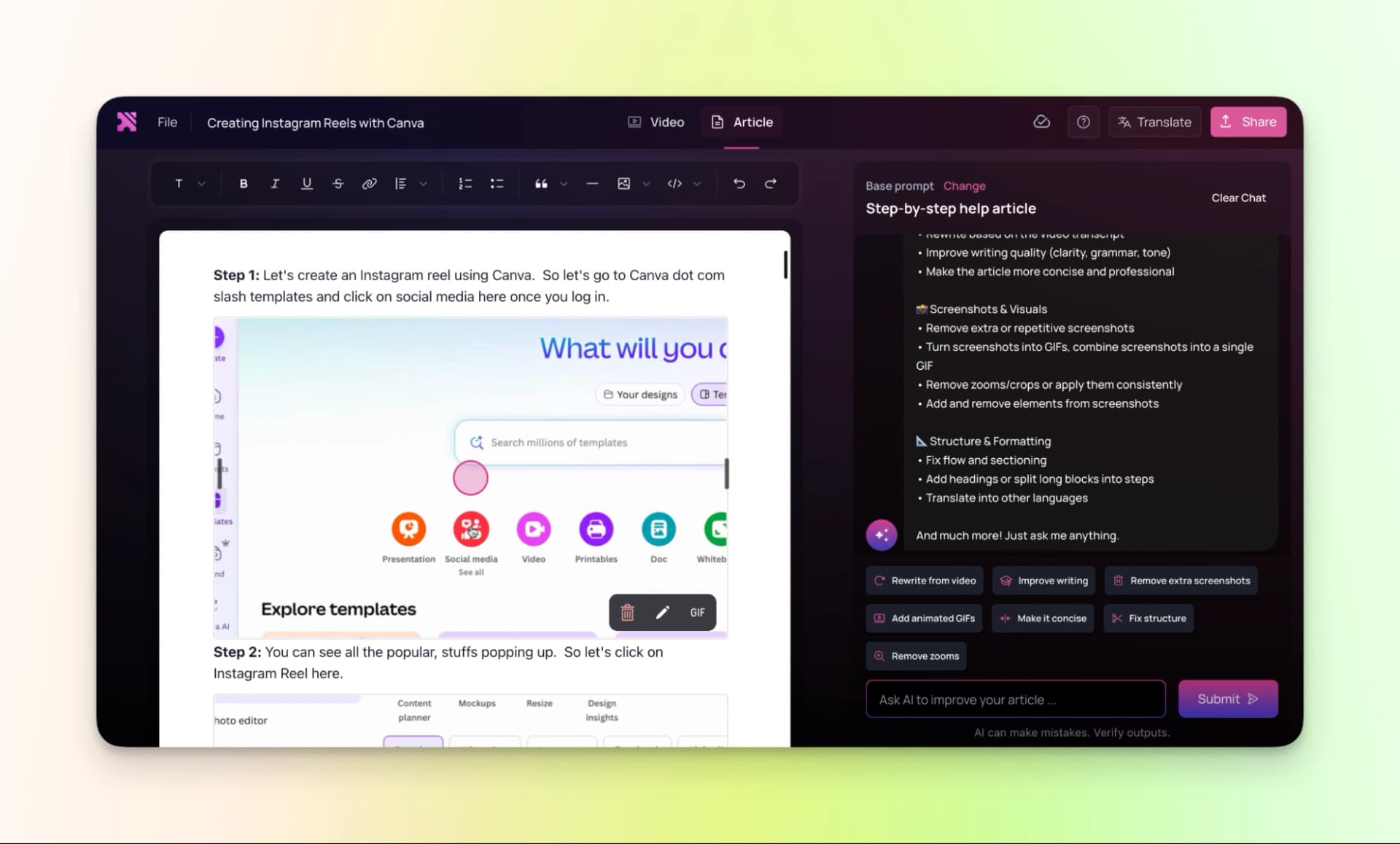
Step 2: Once you finish recording your video, the preview of your recorded video and the auto-generated article that was generated will appear for your review.
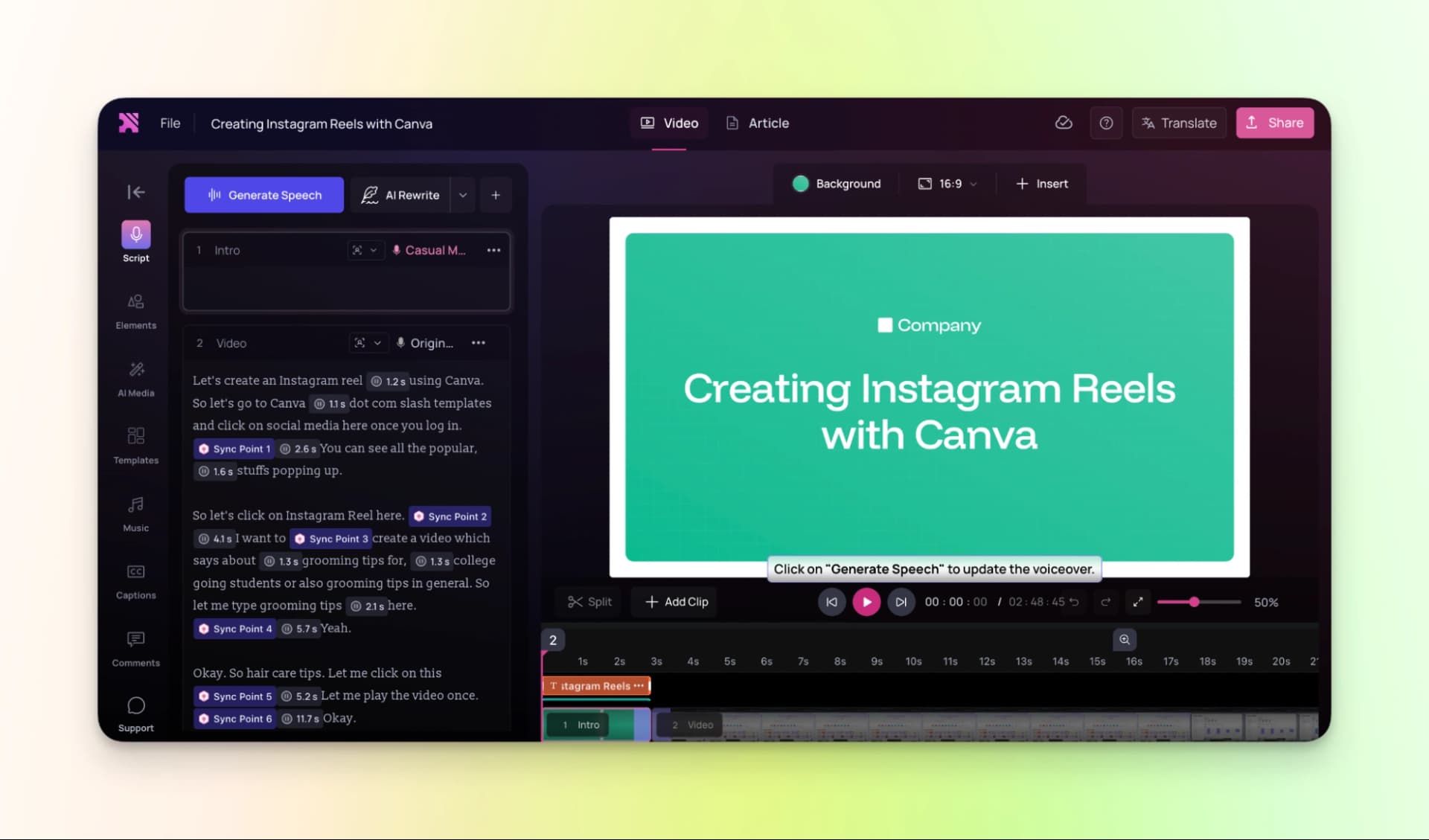
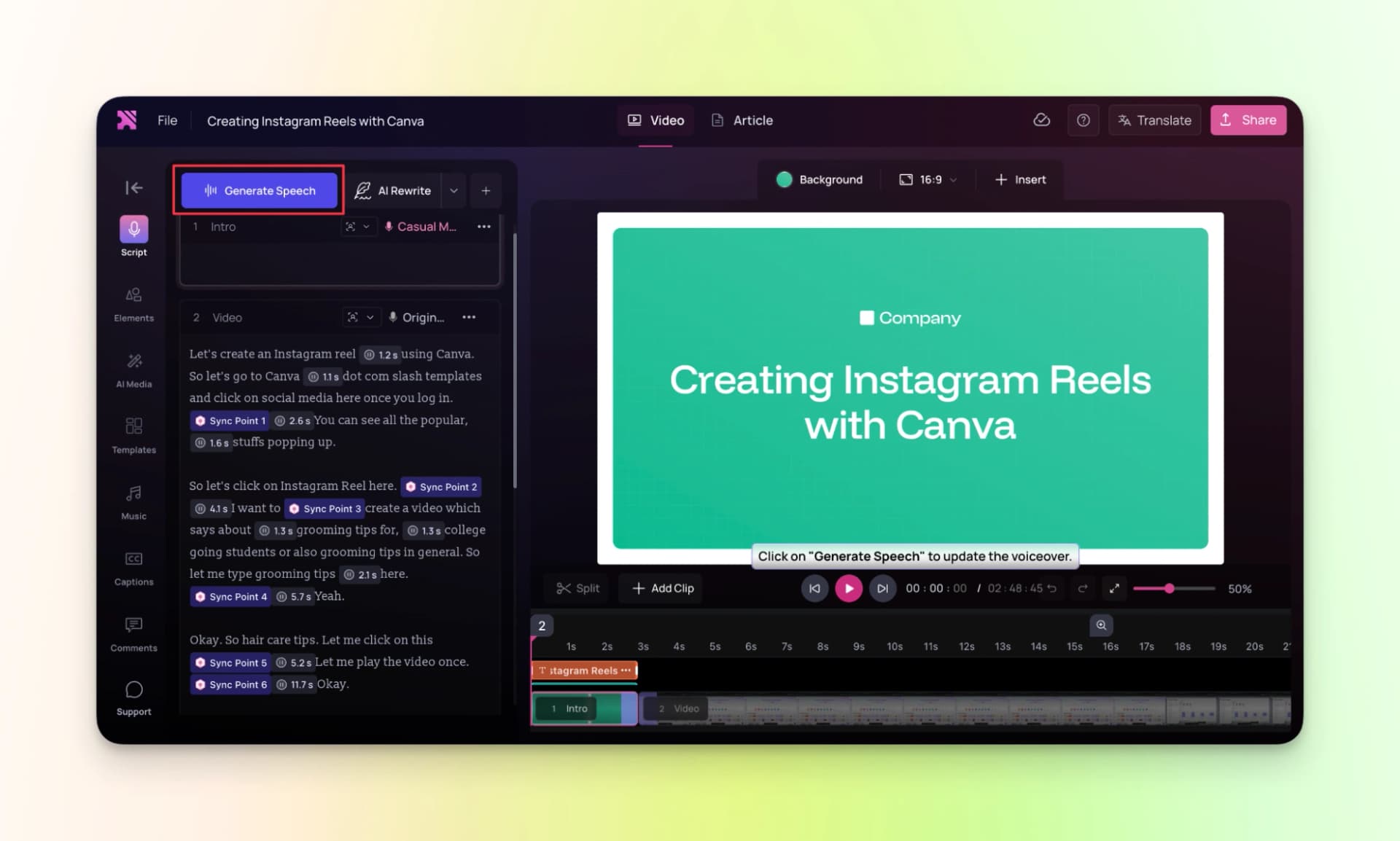
Step 3: Let me generate the AI voiceover based on the script.
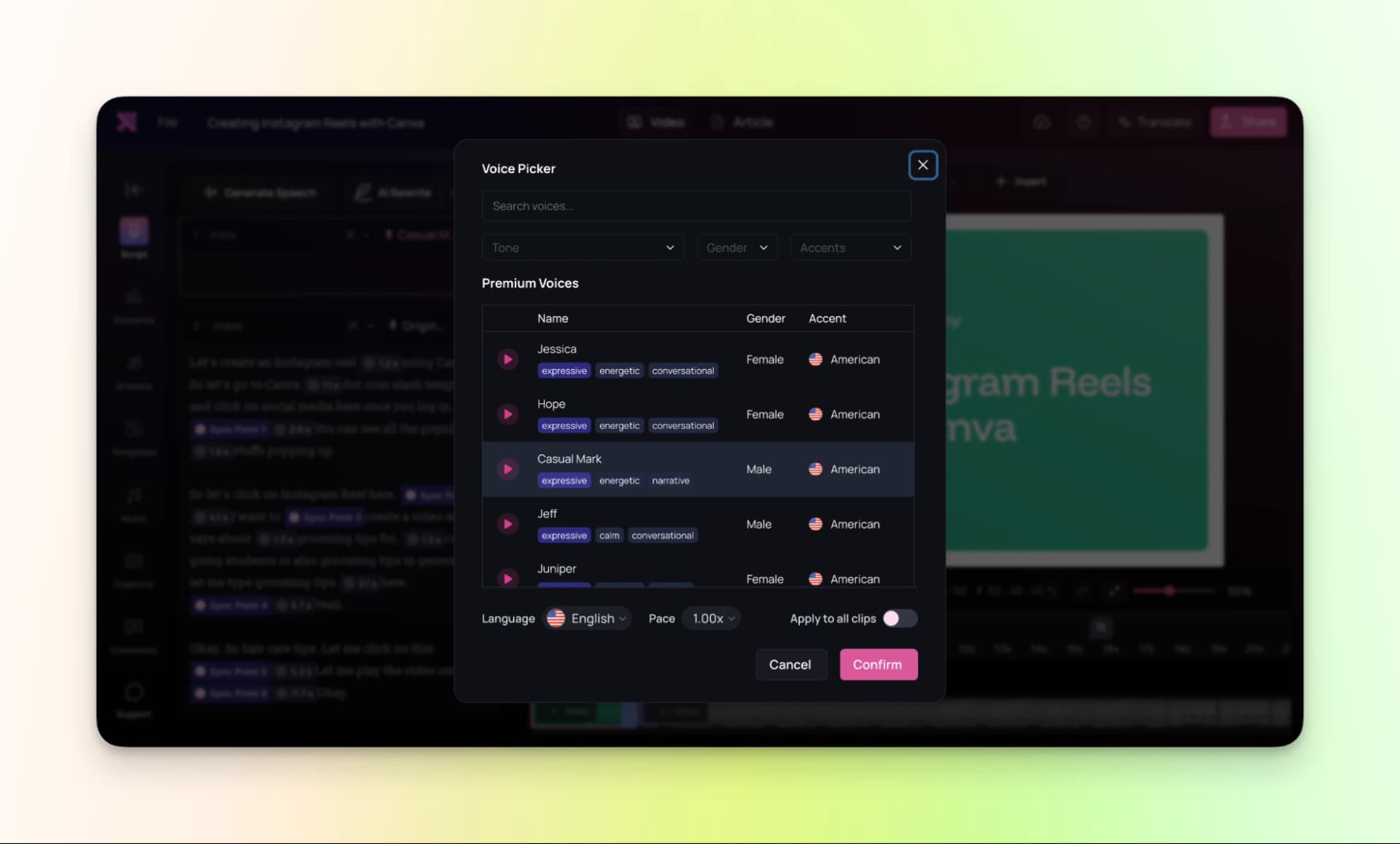
Step 4: Export the video
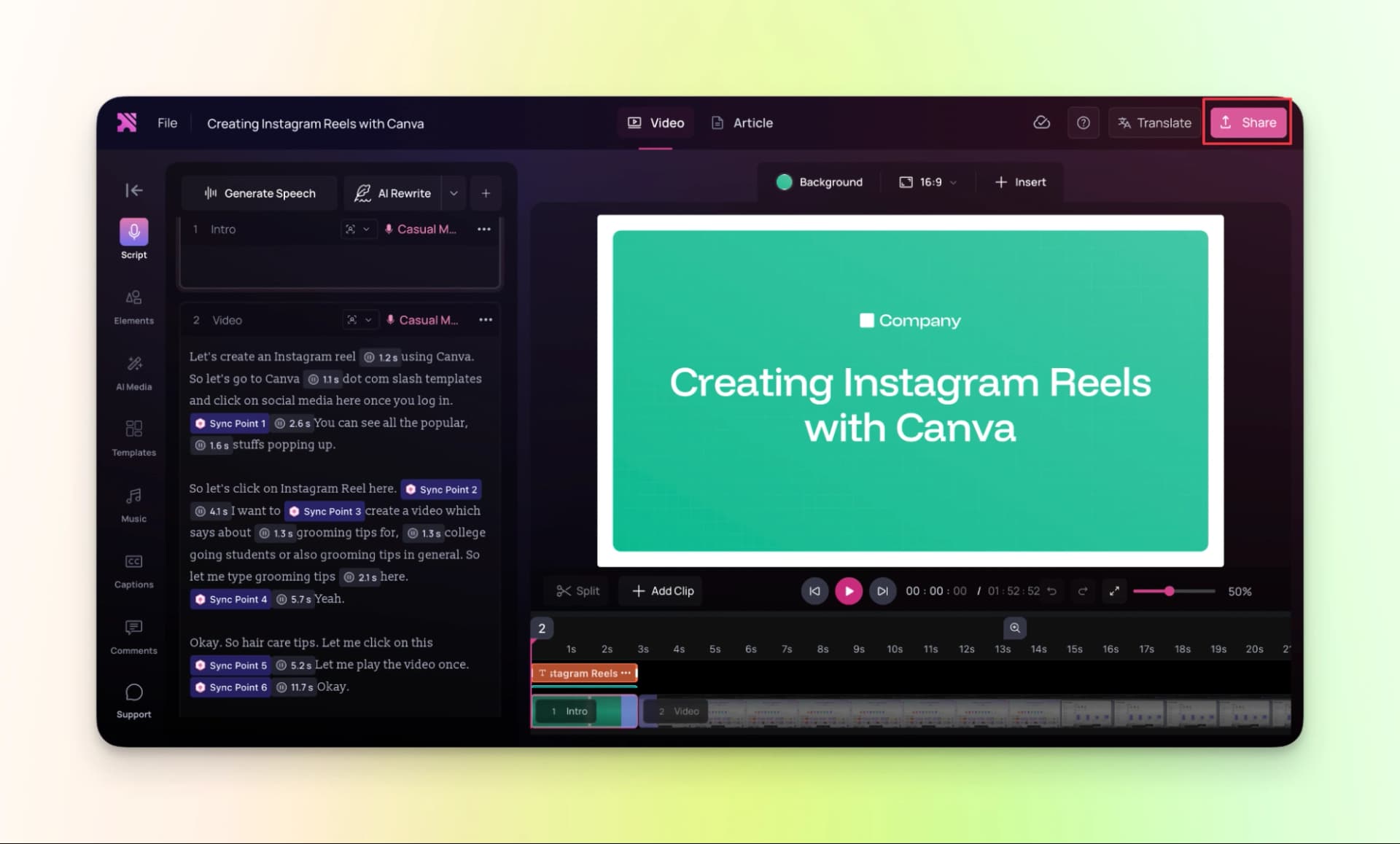
You can also translate the video in other languages and the videos will come with a watermark if you’re on a free plan.
So, here is the finished video
Pricing:
- Free trial: $0 (For 7 Days)
- Starter: $150 /month
- Growth: $250/month
- Enterprise: Available on Demand
5. Visla
Visla is very much similar to the tools that we have discussed so far. Except that you can download the application on your mac, windows or your android phone. But to keep it simple, I chose to use the web version itself.
It comes with features like AI video generator, AI video editor, recording and collaboration. For the sake of this blog, let me explain why this is the best software to create video tutorials.
Here’s the process explained in detail:
Step 1: As I'm going to create a tutorial video which requires step-by-step explanation, let's click on “Screen step recording” from the recording dropdown.
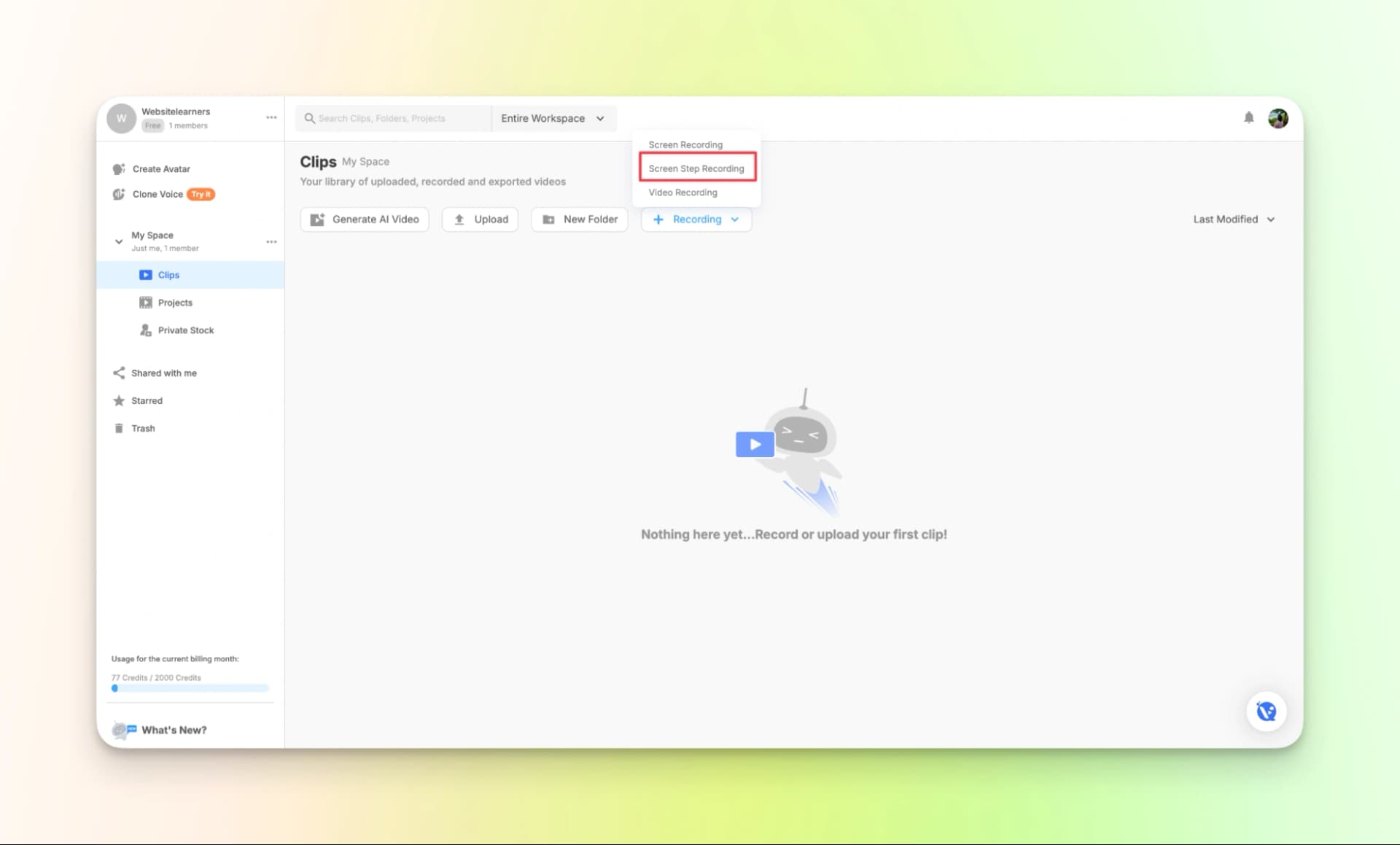
Continue to record your screen like usual.
Step 2: Describe your video
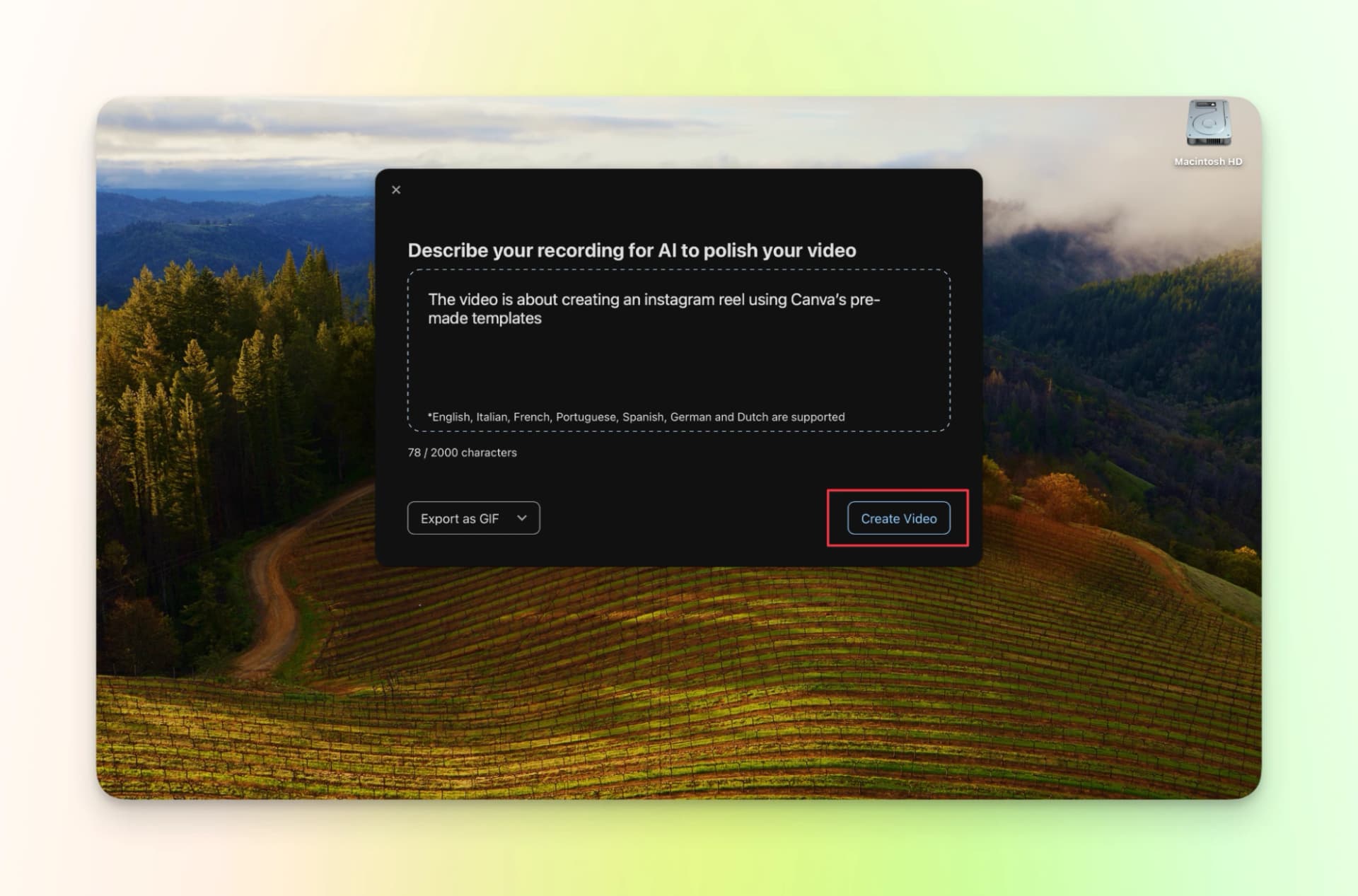
Step 3: Provide more information about your project. This will help the tool to understand better.
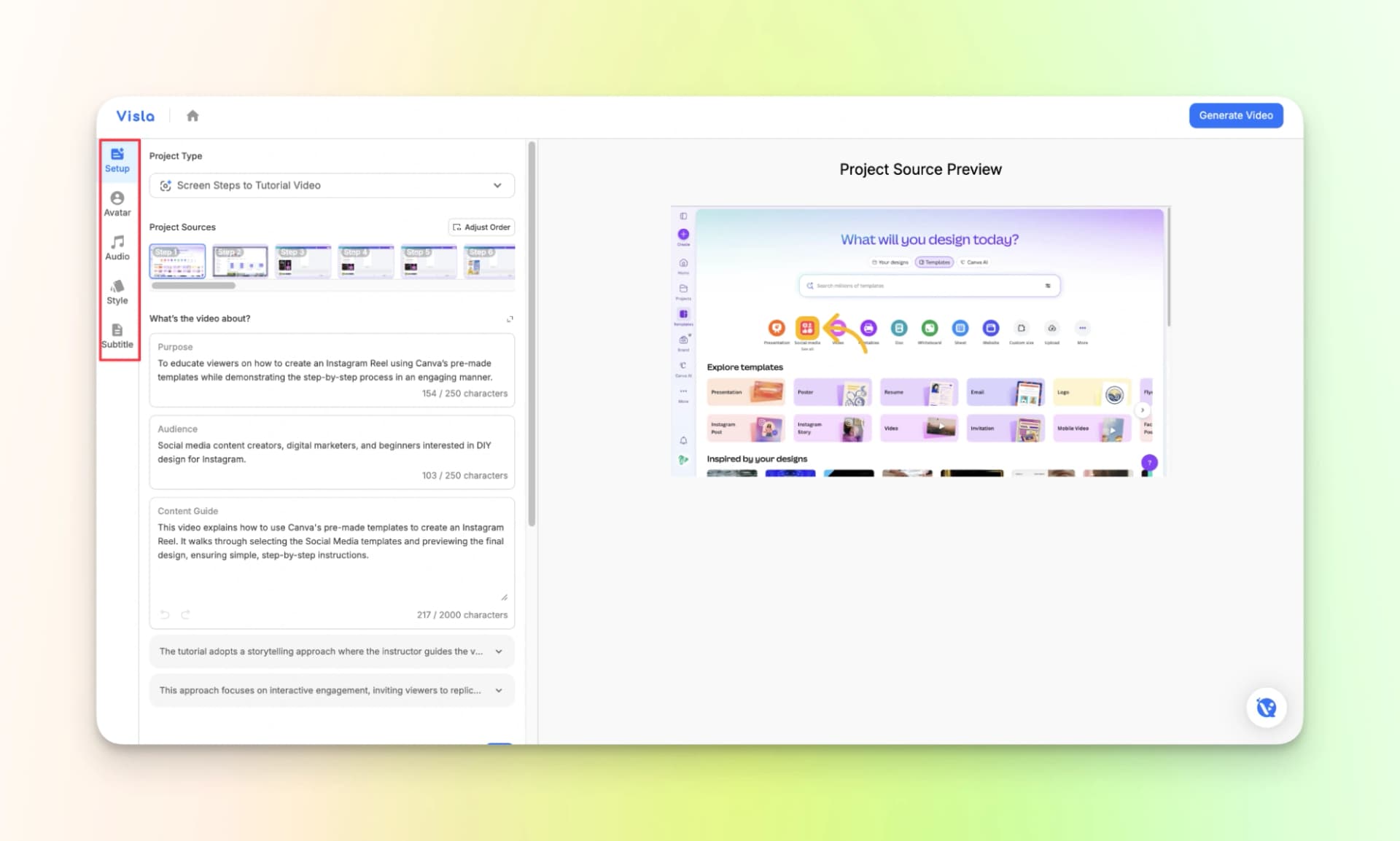
Step 4: Generate video once the setup is complete. You can also clone your voice if needed to add a personal touch.
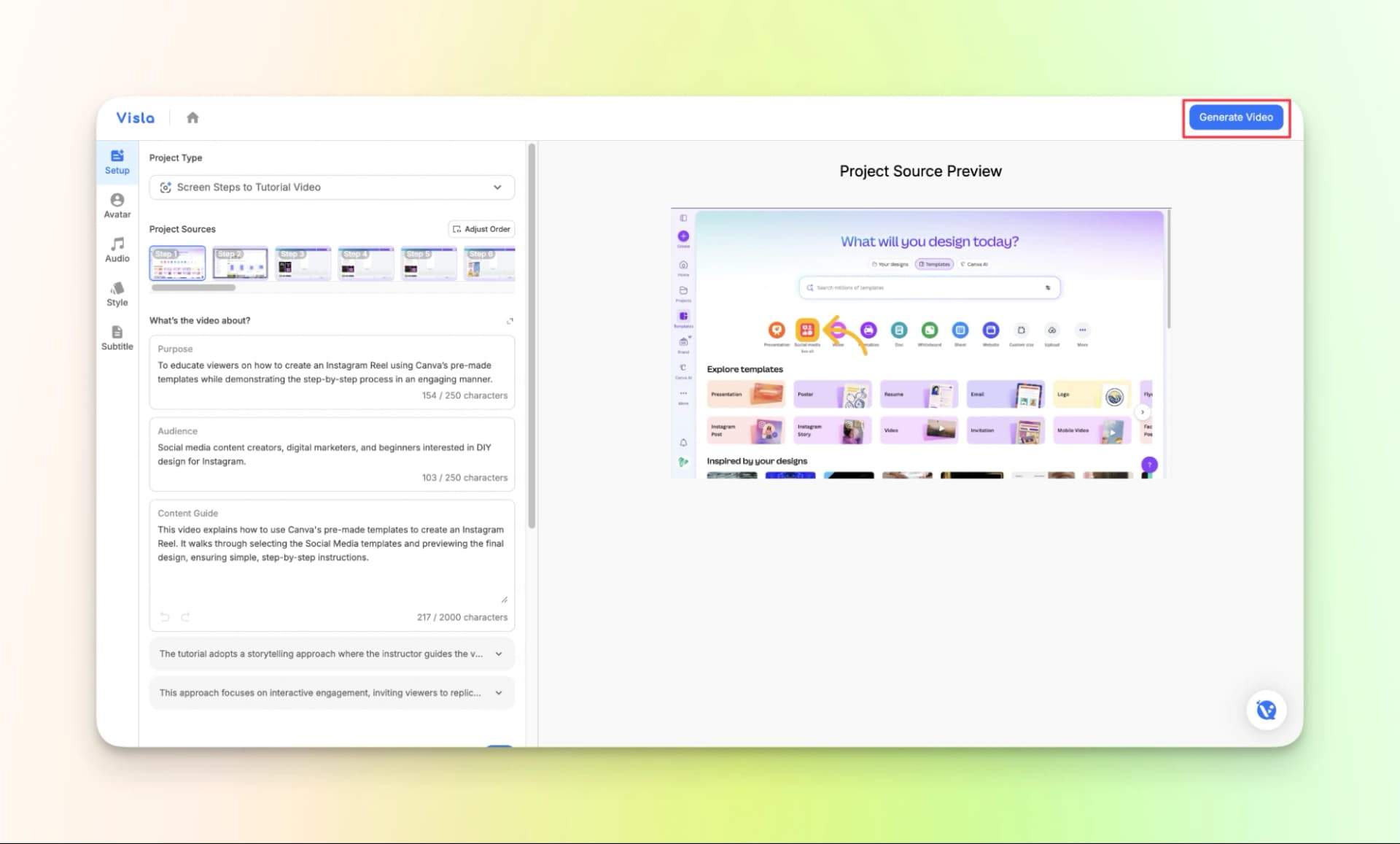
Step 5: Review AI-generated tutorial video
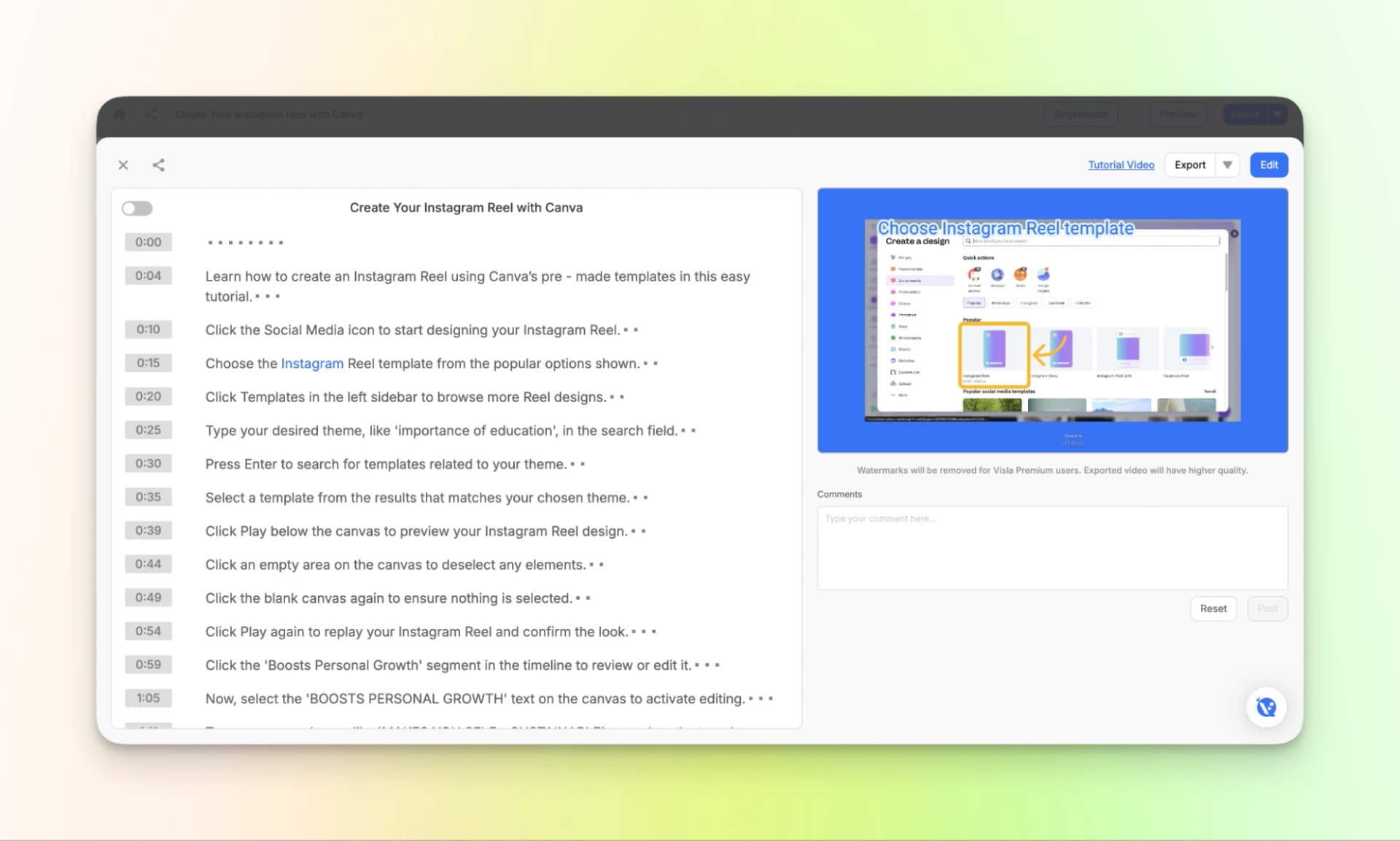
Step 6: Review the tutorial video
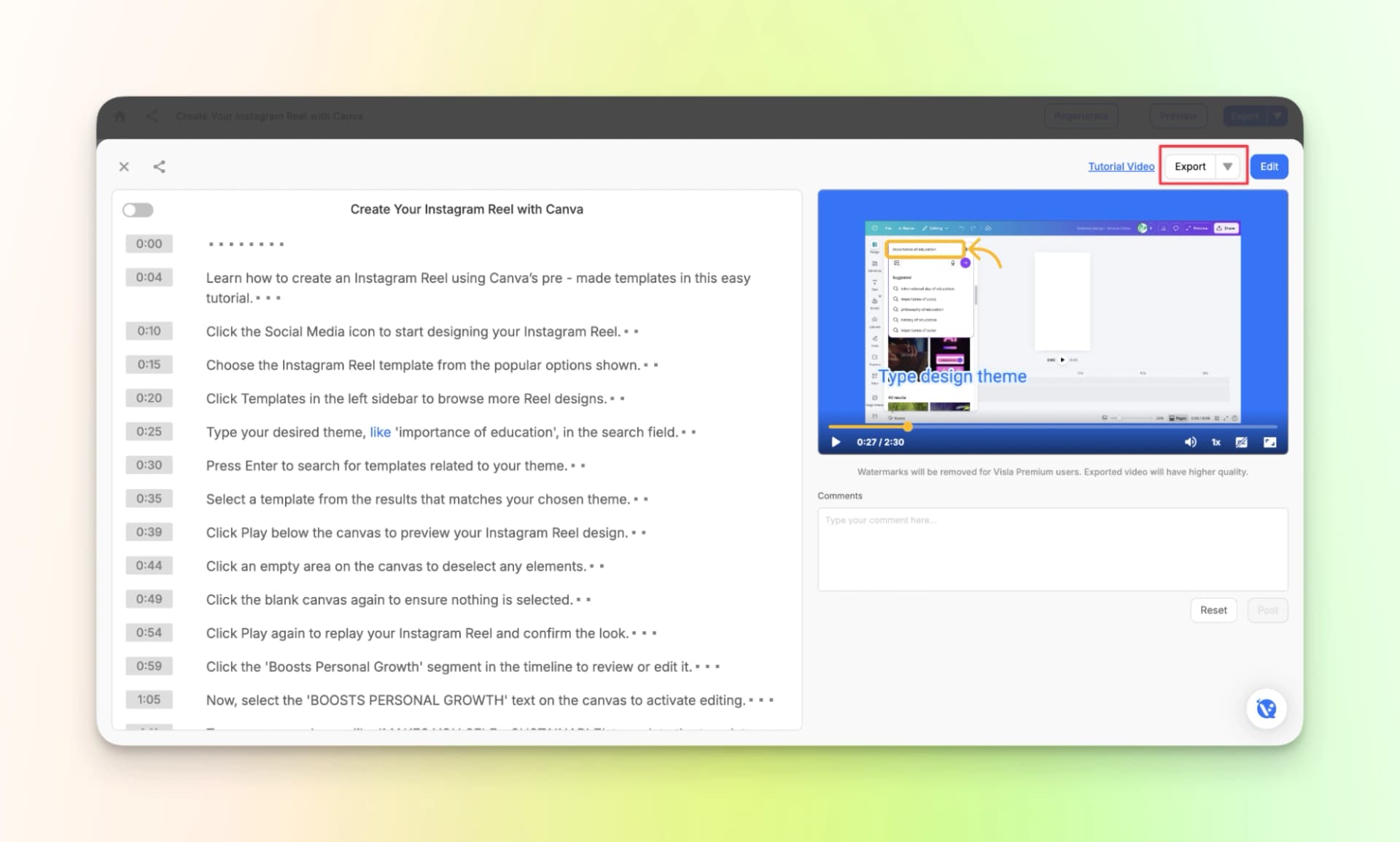
Step 7: You can download the tutorial video or get comments from your team right way
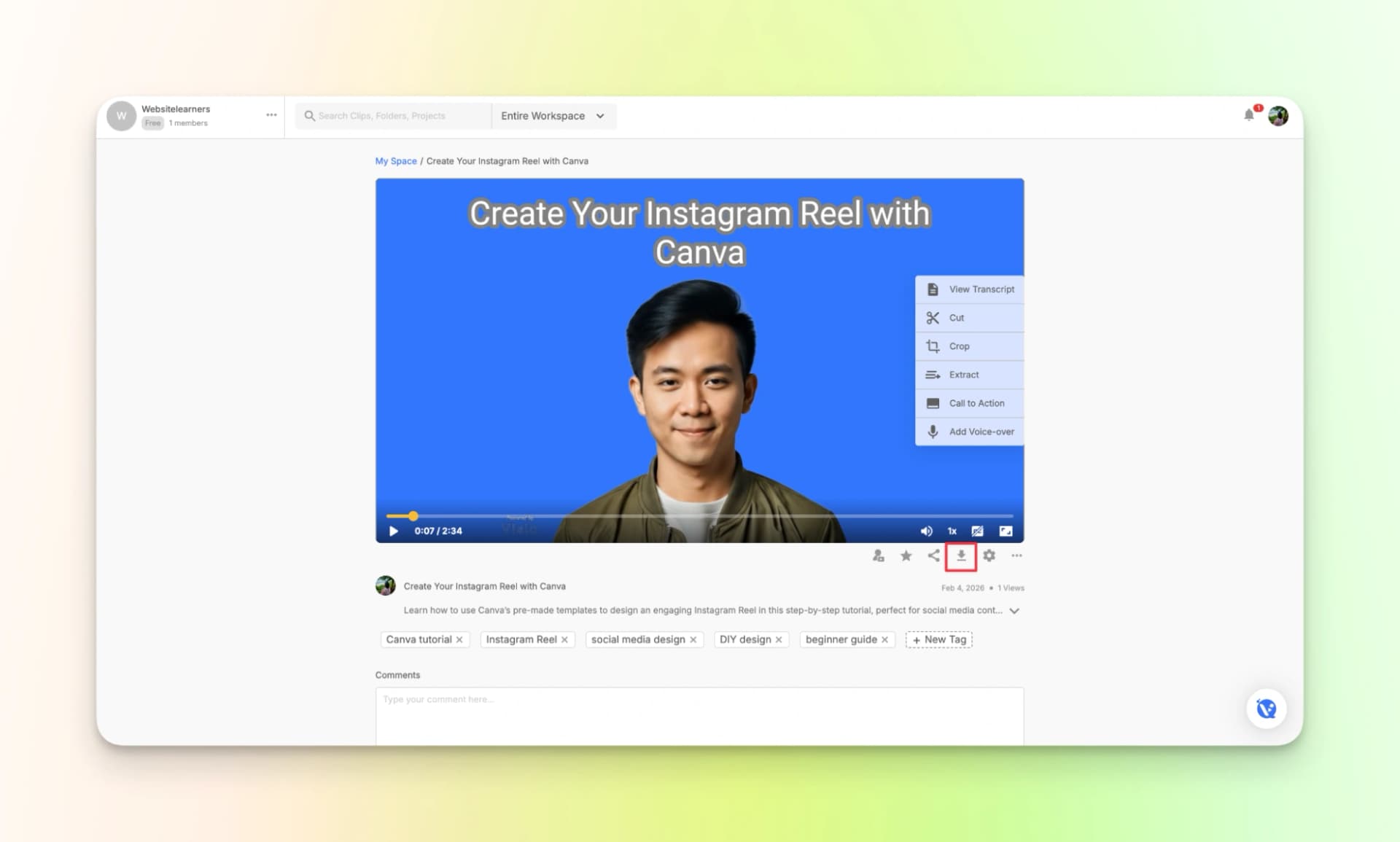
That’s how you create a tutorial video using Visla.
Here’s the finished tutorial:
Pricing:
- Free plan: 2000 credits.
- Pro: Starting from $18 Per month
- Business: Starting from $59 Per month
- Enterprise: Available on Demand
6. Tutorial.ai
Tutorial.ai is one of my personal favourites. It is good for creating stunning tutorial videos. Just like the above-mentioned tool, the tool requires you to download the app.
So, let me go ahead and do that. So the first step begins with that.
Step 1: Download the tool.
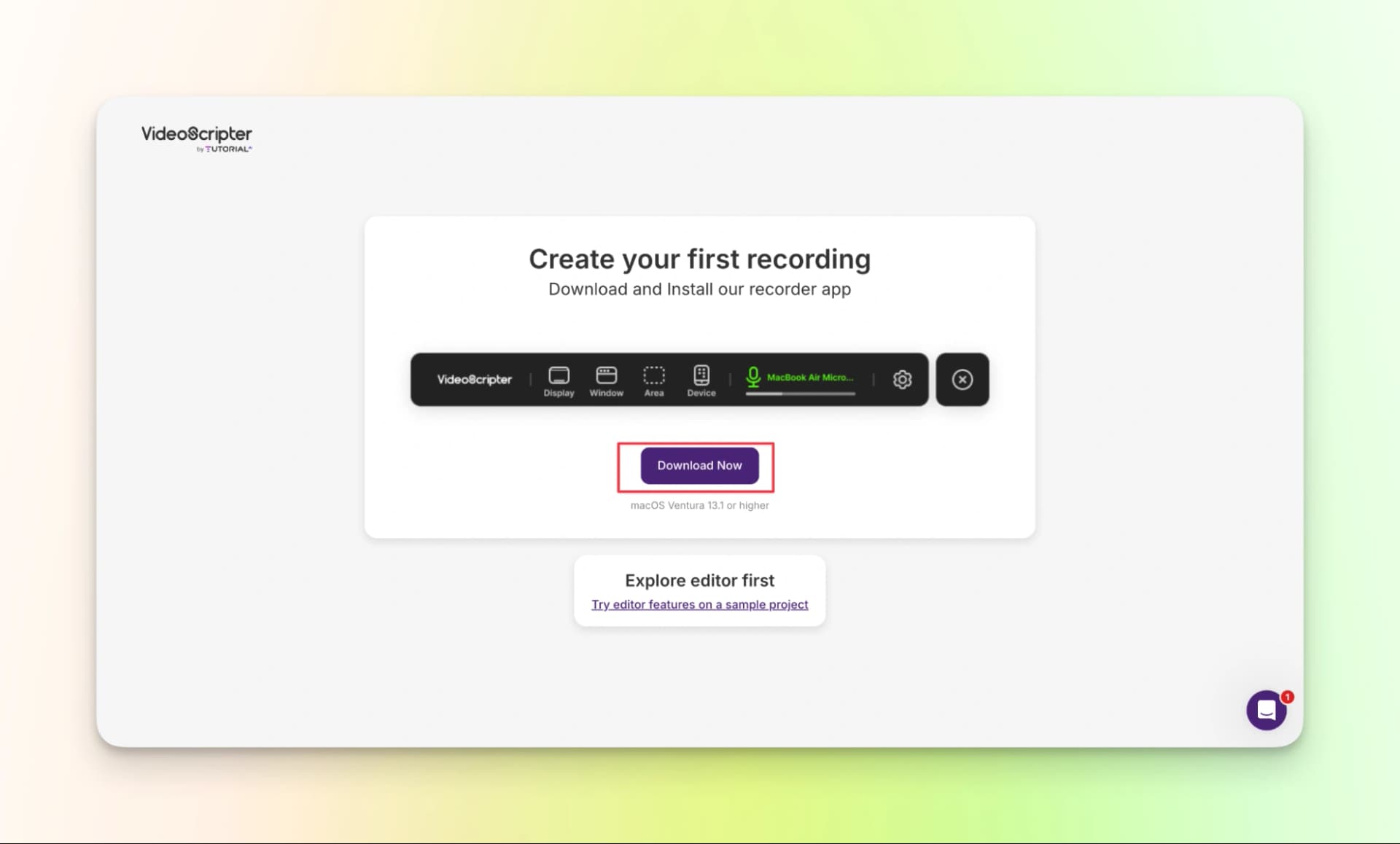
Step 2: Once you download and configure, the screen recording options will appear likewise.
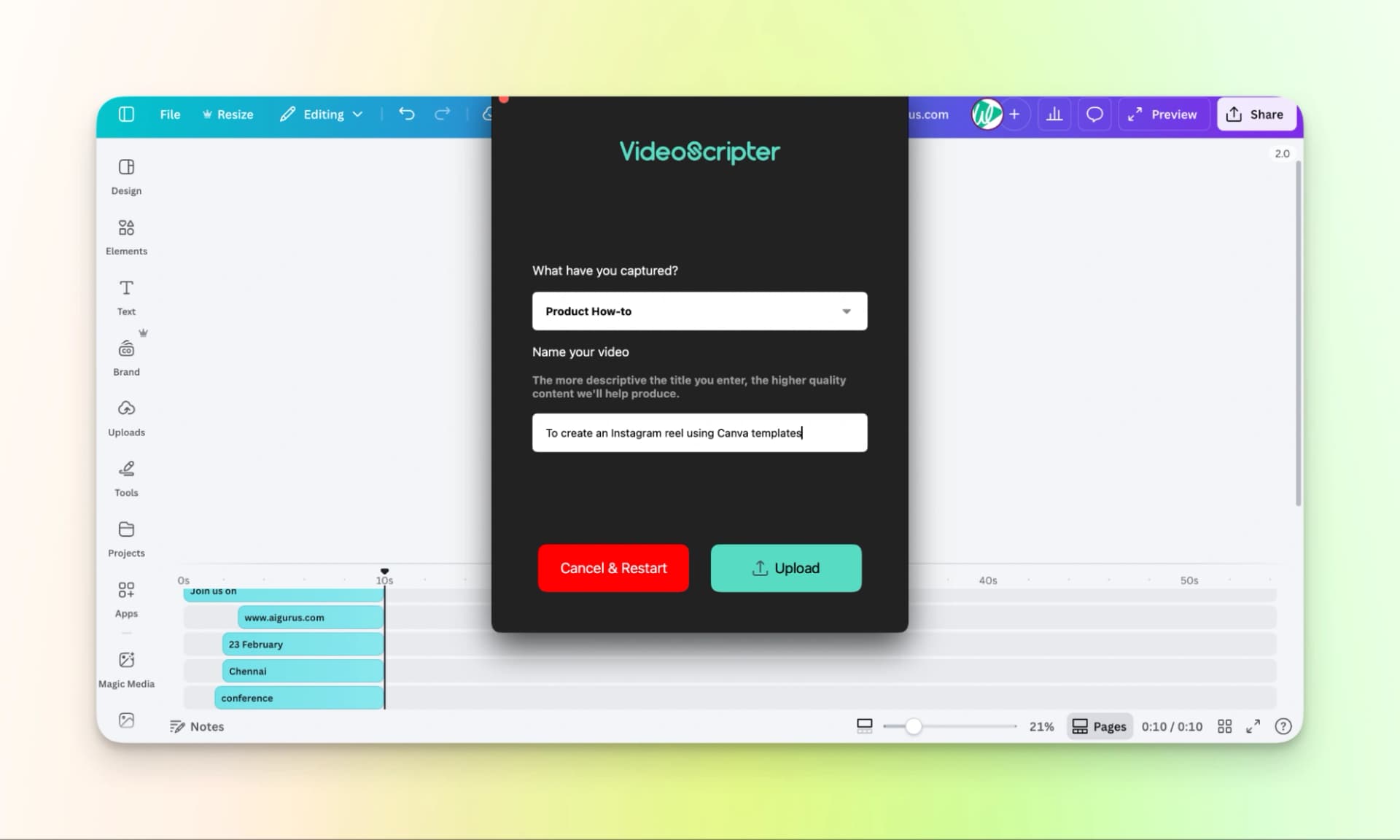
Step 3: Start the recording. Once done, provide more information about the video.
Step 4: Review the AI-generated tutorial video.
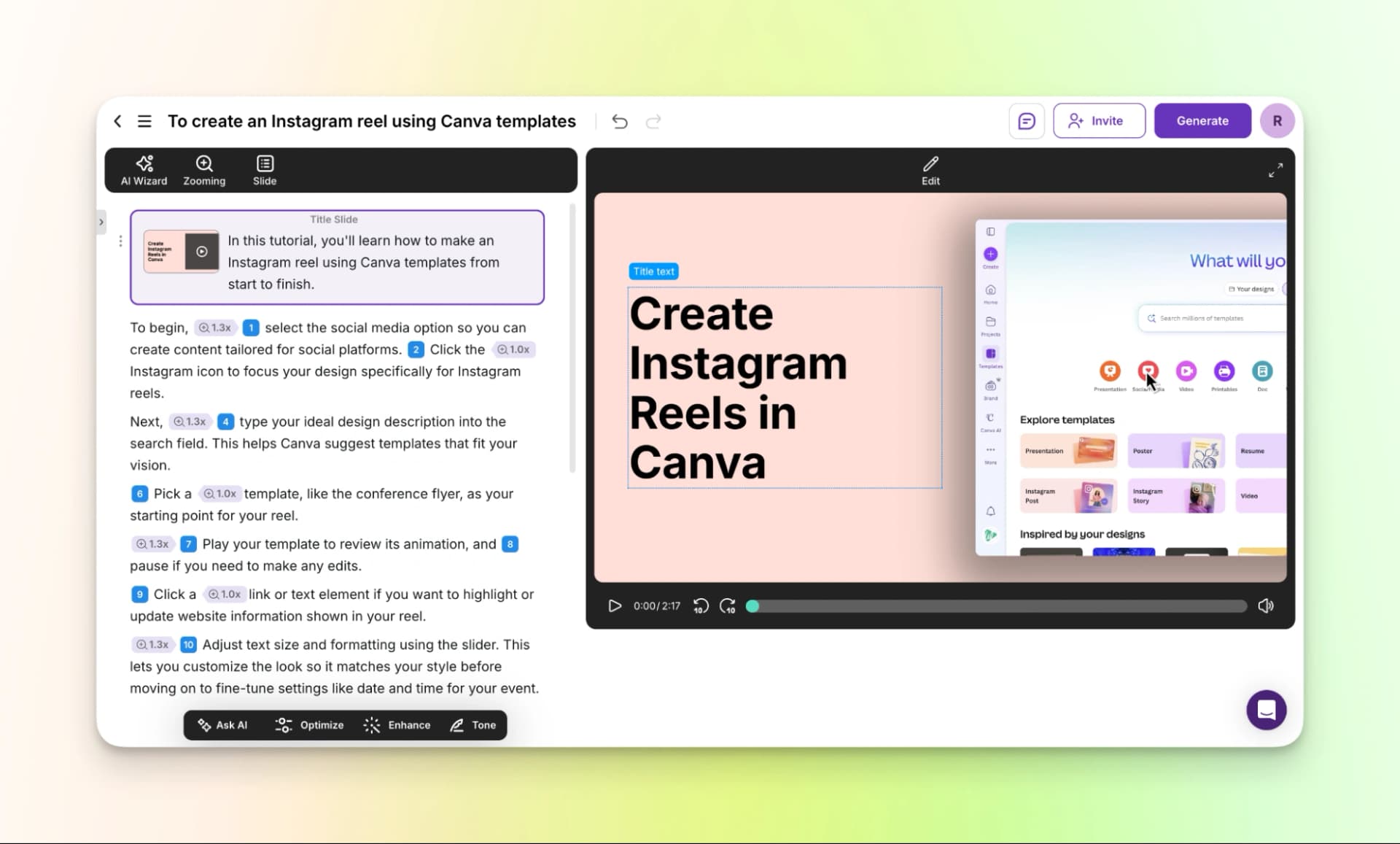
Step 5: Generate the video.
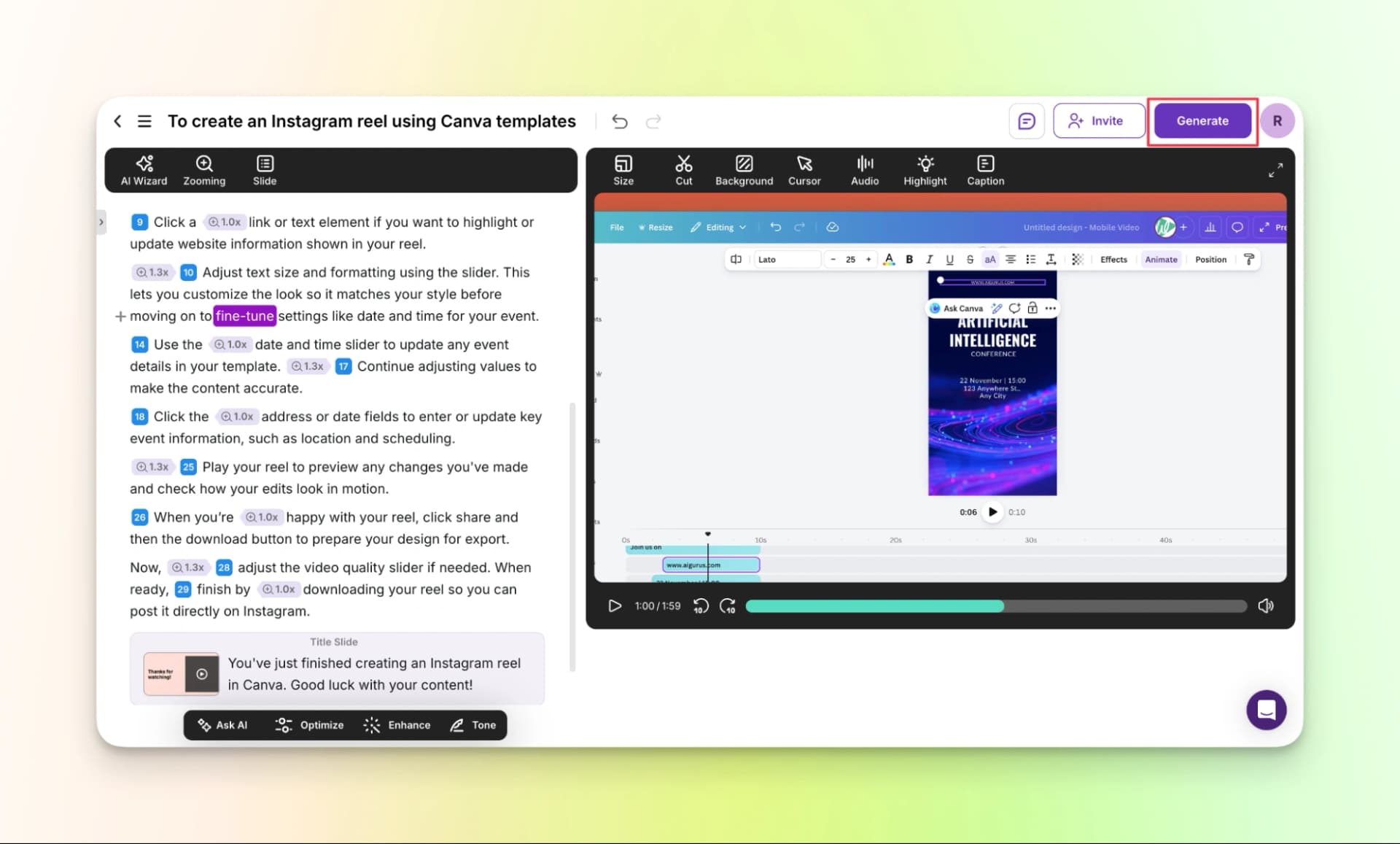
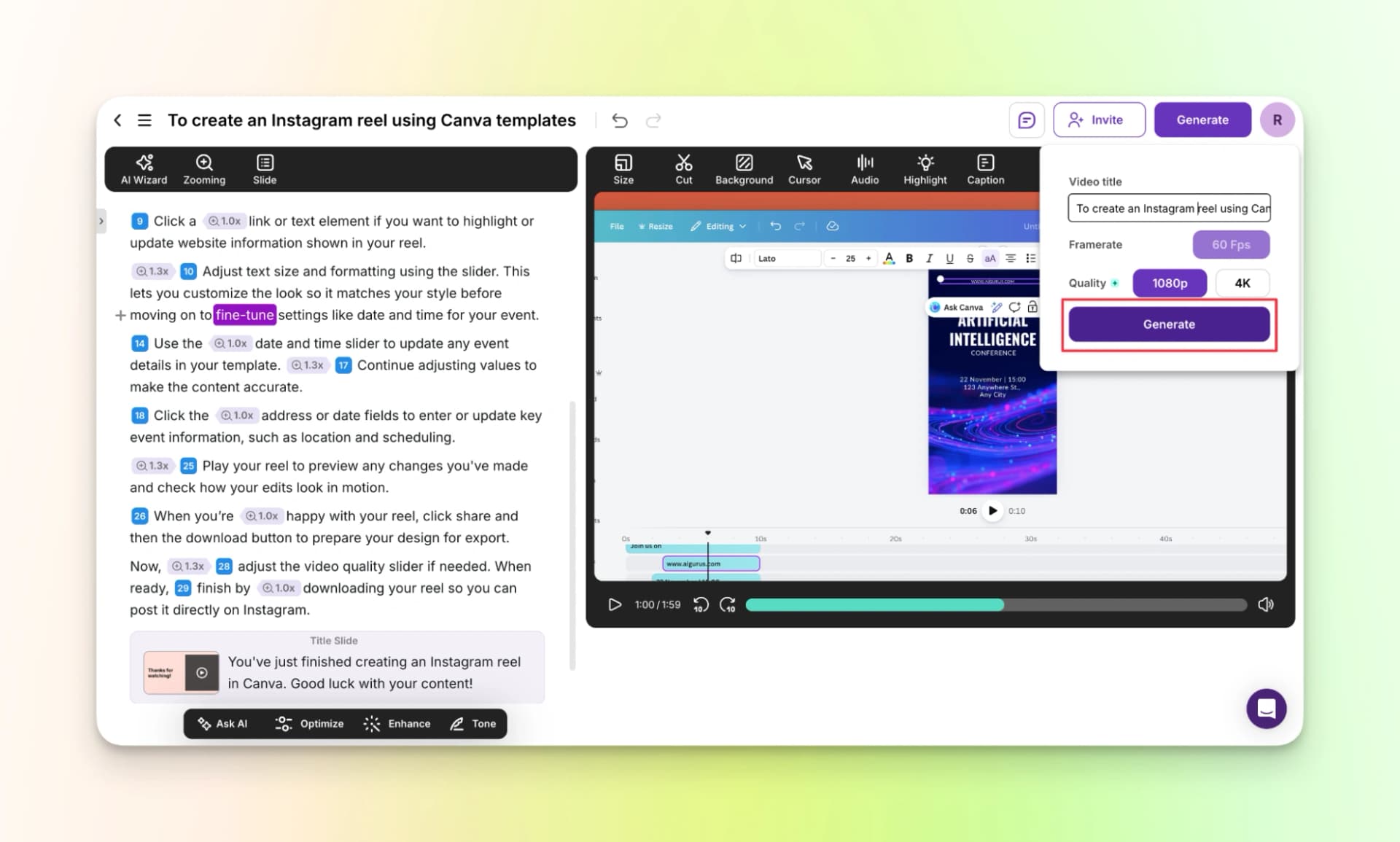
And here you go, you’ve created a tutorial video by just recording your screen.
Here’s the finished video:
Pricing:
- Free plan: 15 days trial.
- Solo: $29/seat
- Growth: $89/seat
- Enterprise: Available on Demand.
7. Guideless.ai
Guideless.ai can also create vibrant narrated tutorial videos by recording your screen. Similar to a few others that we have discussed so far, this work via chrome extension.
Also, unlike other tools, the customization options are limited.
Let’s do this step-by-step
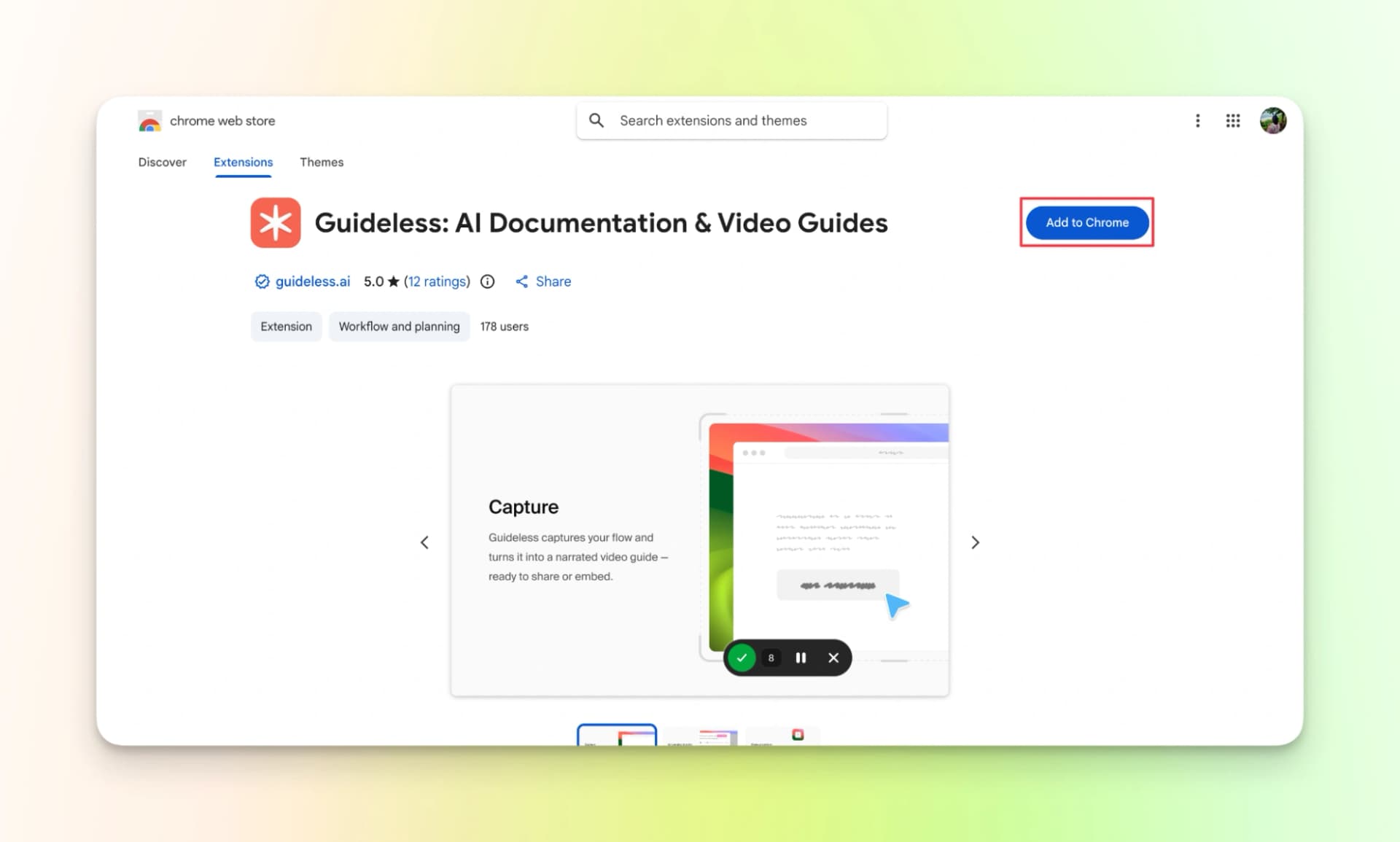
Step 1: Download the chrome extension.
Step 2: Choose the tab you want to record and start recording as usual.
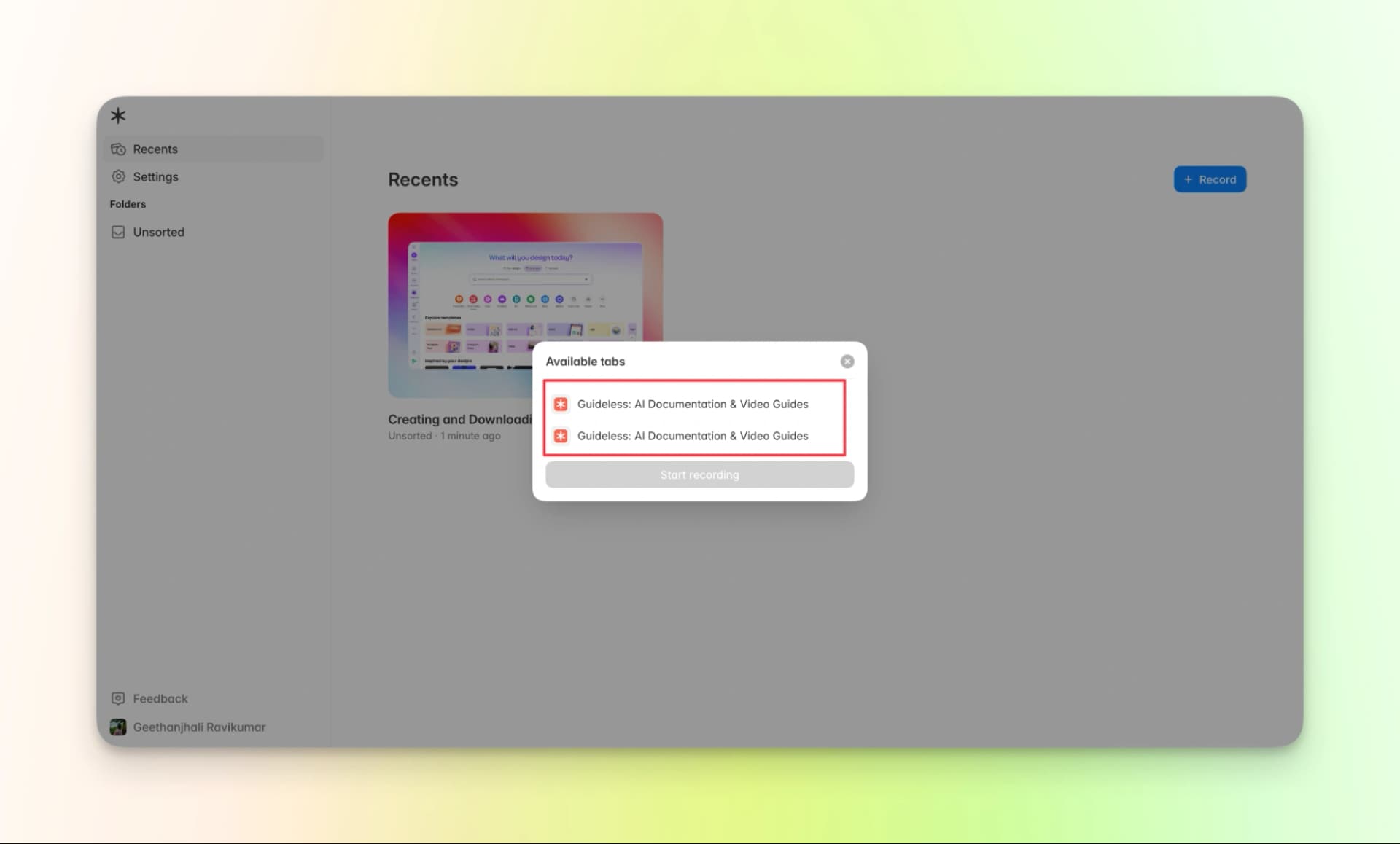
Move your cursor very slowly. Record your screen with clarity and have a clear idea of what you are about to do.
Step 3: Review the AI tutorial video. Based on your cursor actions, the tool has written a detailed script and also created a video with visual elements.
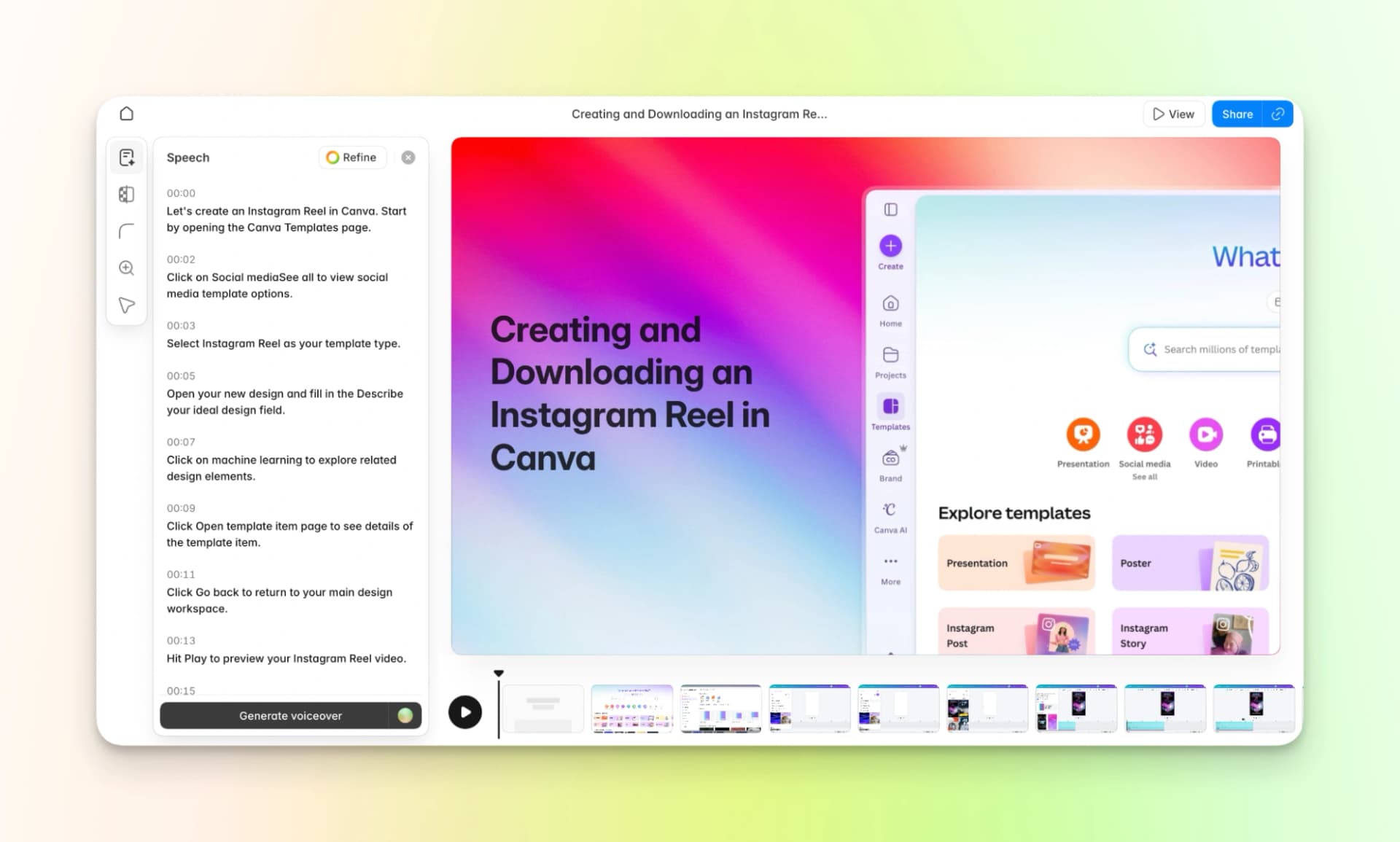
Step 4: Generate AI voiceover. (this feature is available only for paid users)
However, you cannot modify the AI voice as per your needs. If you edit the script and click on “generate voiceover” again, the voiceover is generated again. After one final check, export the video
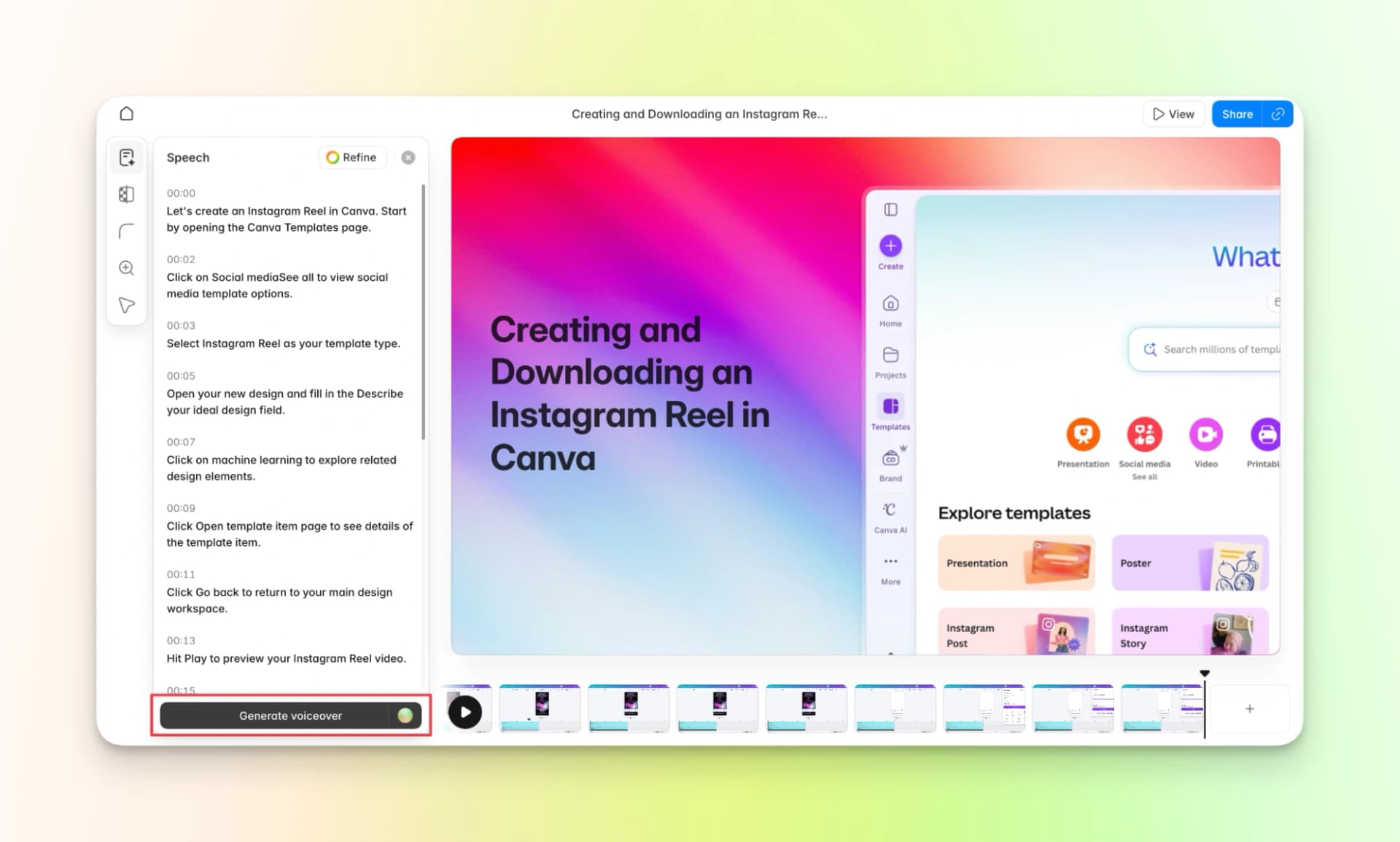
Step 5: Export the video.
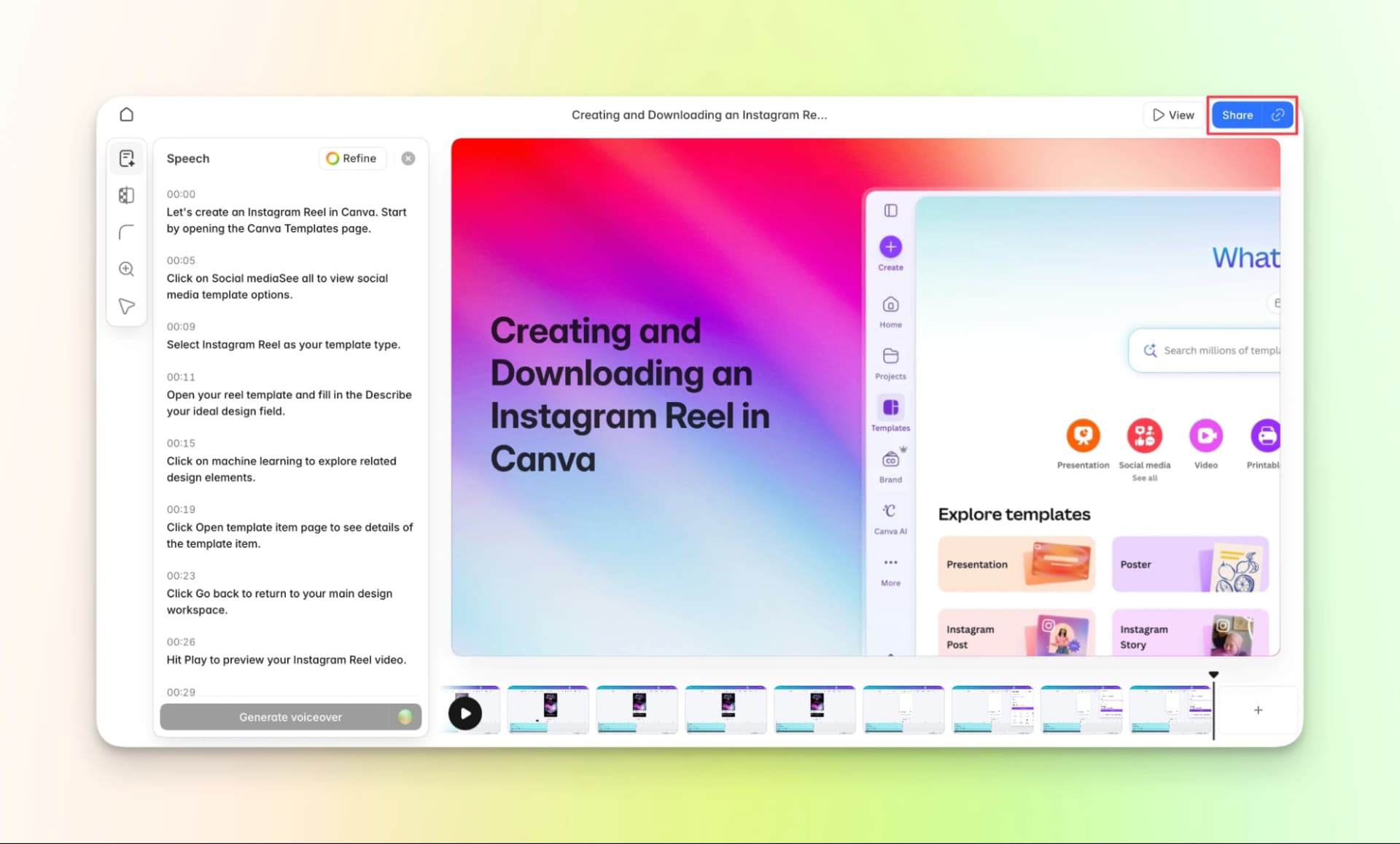
You might have to sign up to their 7-day pro plan trial to export the video.
And just like that, your video is ready to share to the world. 🎊
Here’s the finished video:
Pricing:
- Free trial: $0 (For 7 Days)
- Pro: $39 /month
- Growth: $64/ month per editor
8.PuppyDog
PuppyDog is one of the best software for creating tutorial videos that works by downloading the chrome extension.
It also comes with helpful features like:
- Dashboard: An intuitive window that shows metrics about your AI tutorial vidoes.
- Playlists: To organize the videos you create.
- Persona-based videos: Add or create personas to create right demos for everyone.
- Personalized videos: Create curated videos by integrating with your CRM.
Now, let's get into the actual how-to
Step 1: Download the chrome extension
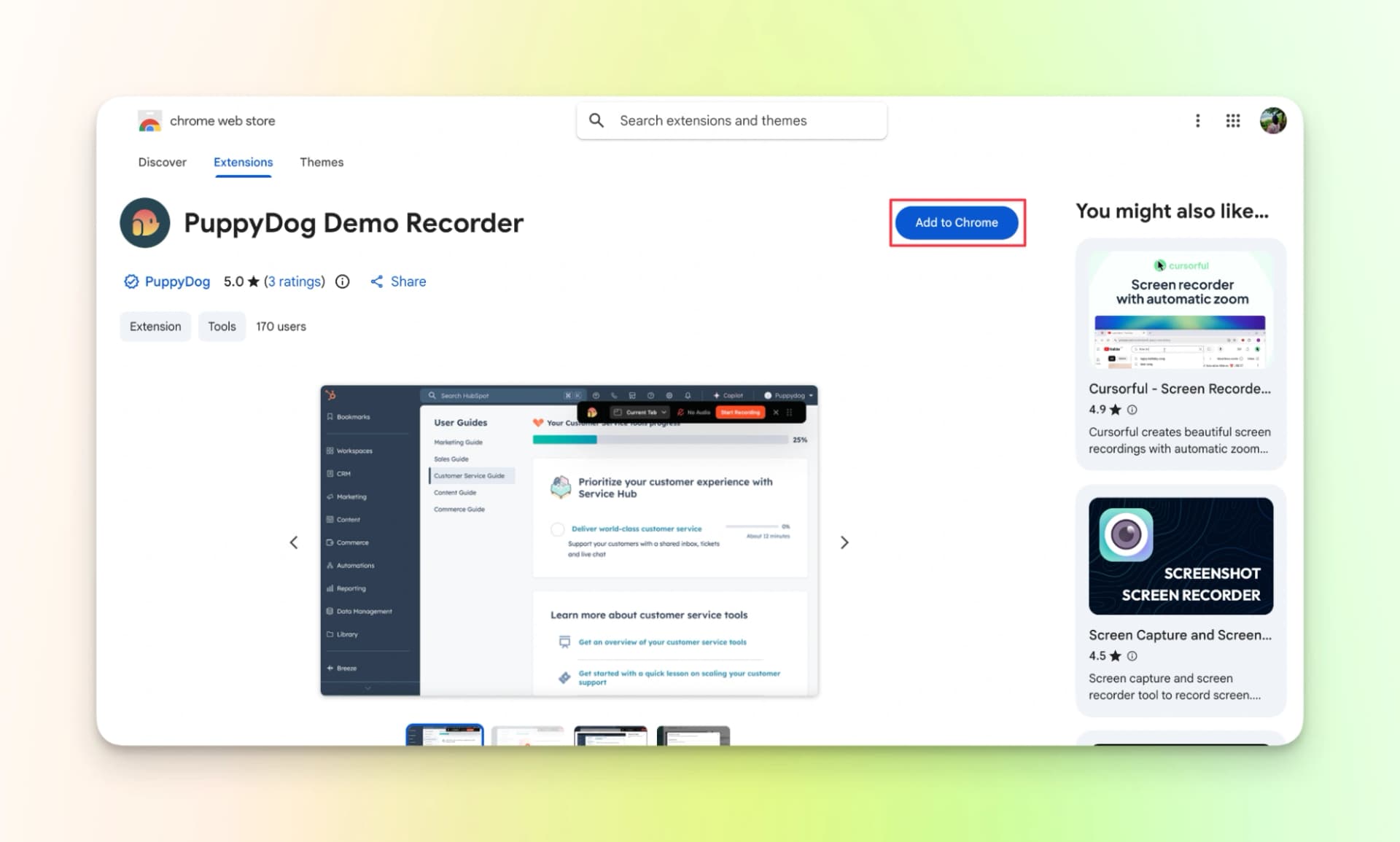
Step 2: Click on the extension, go to the tab that you want to record and record the screen.
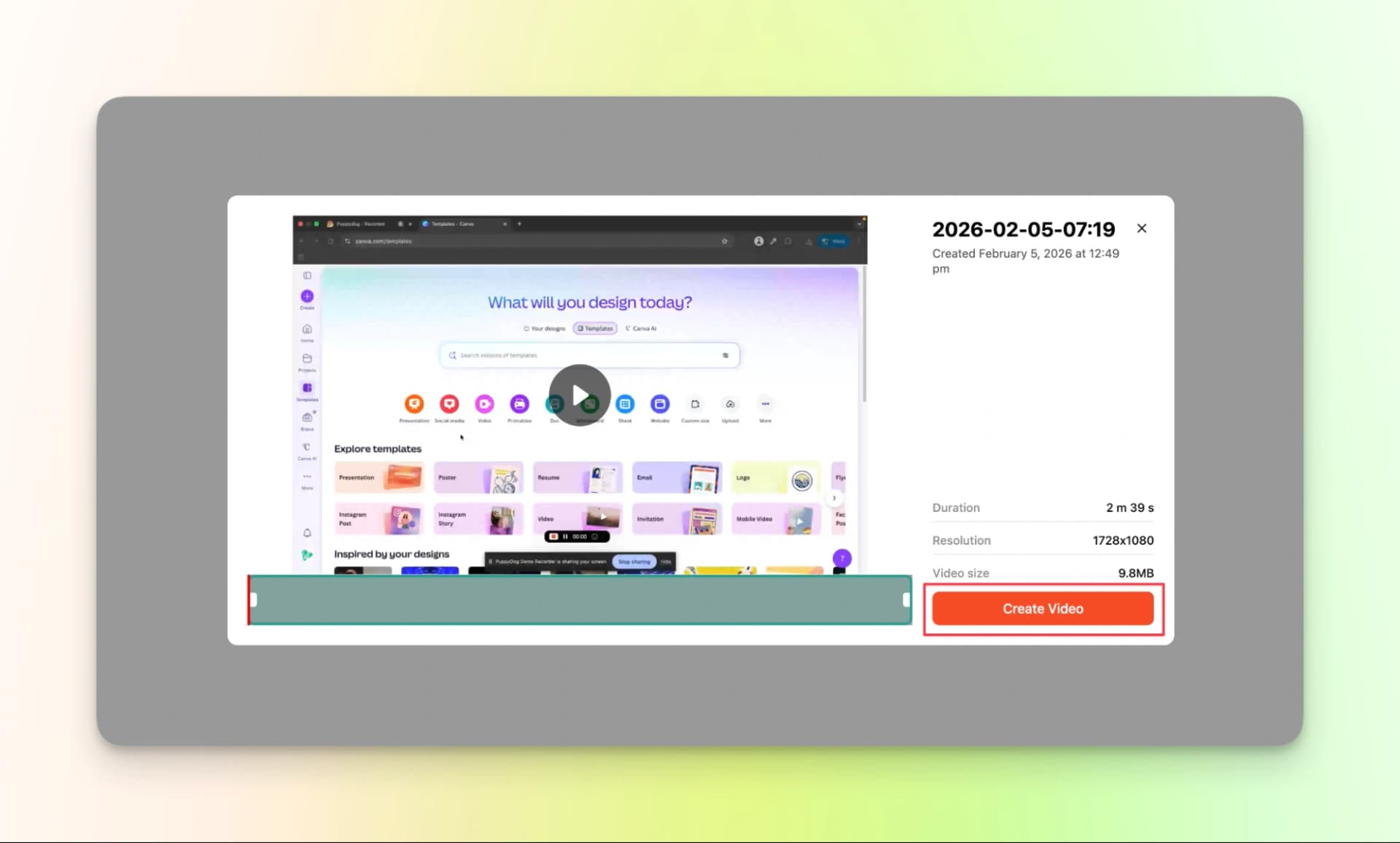
Once you finish recording, the preview of the video will appear immediately. Play the video once and click on create video.
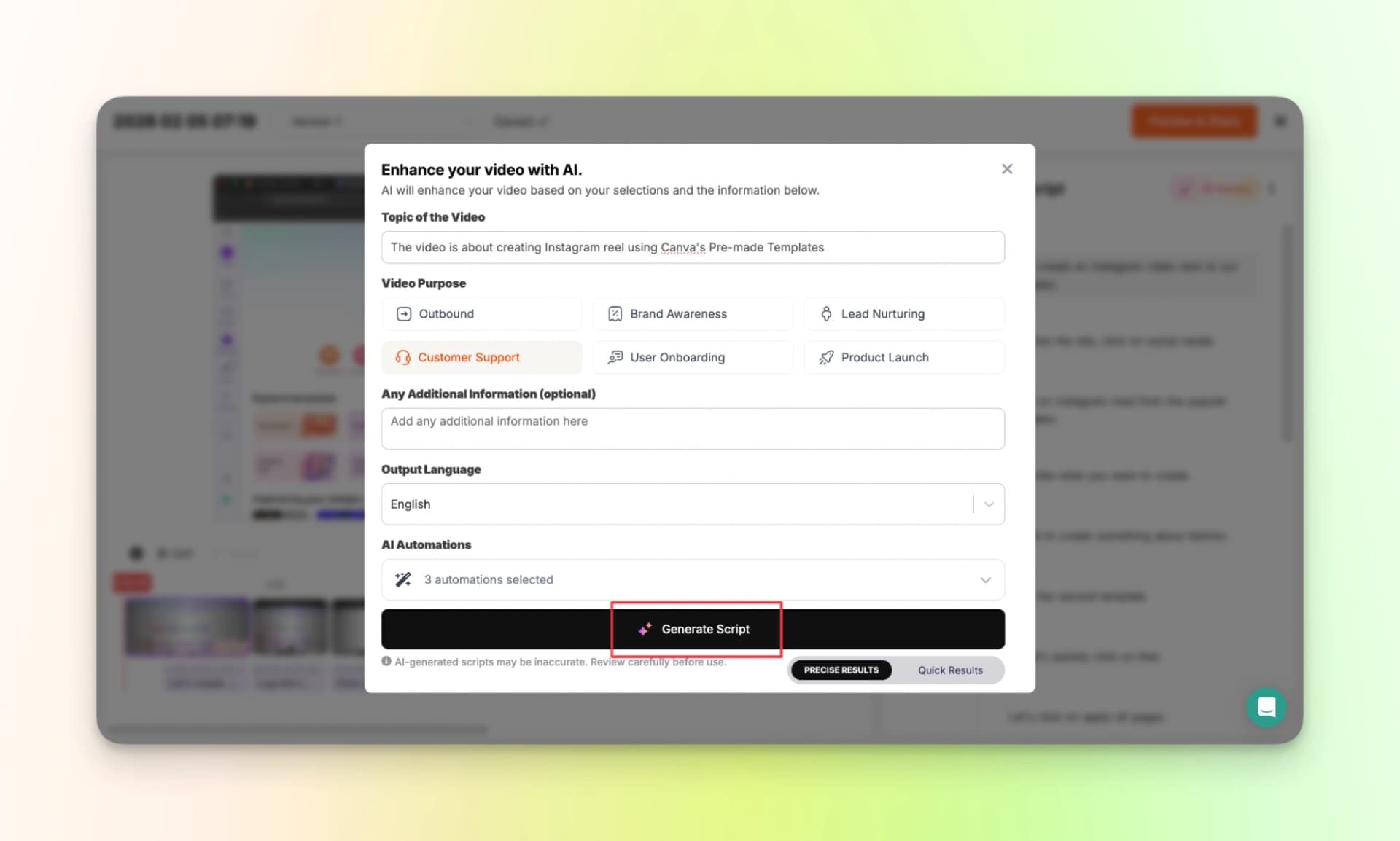
Step 3: Provide more info.
This information will be used to create a more detailed video.
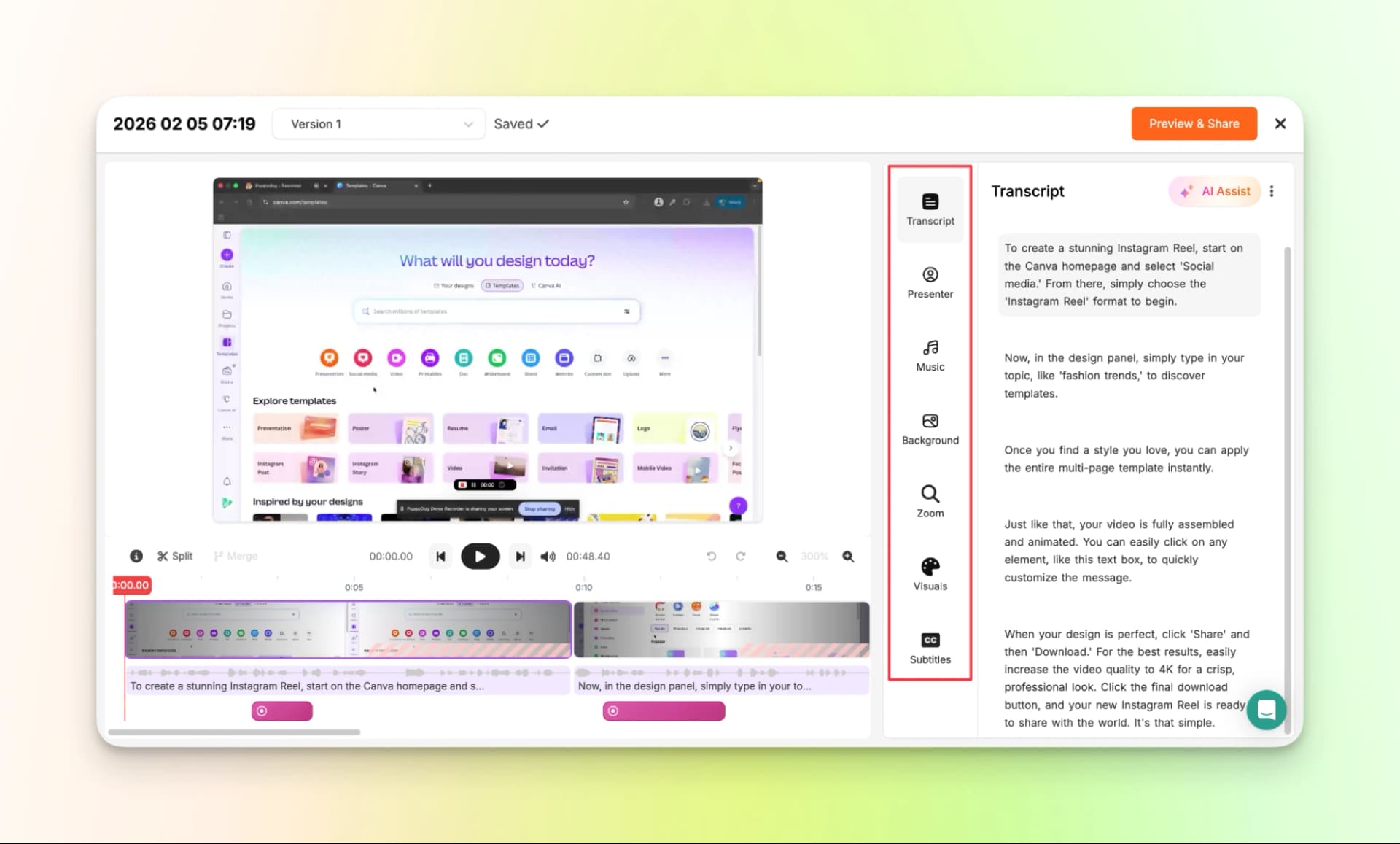
Step 4: Customize the video.
Review the video, edit the script and make sure everything is perfect.
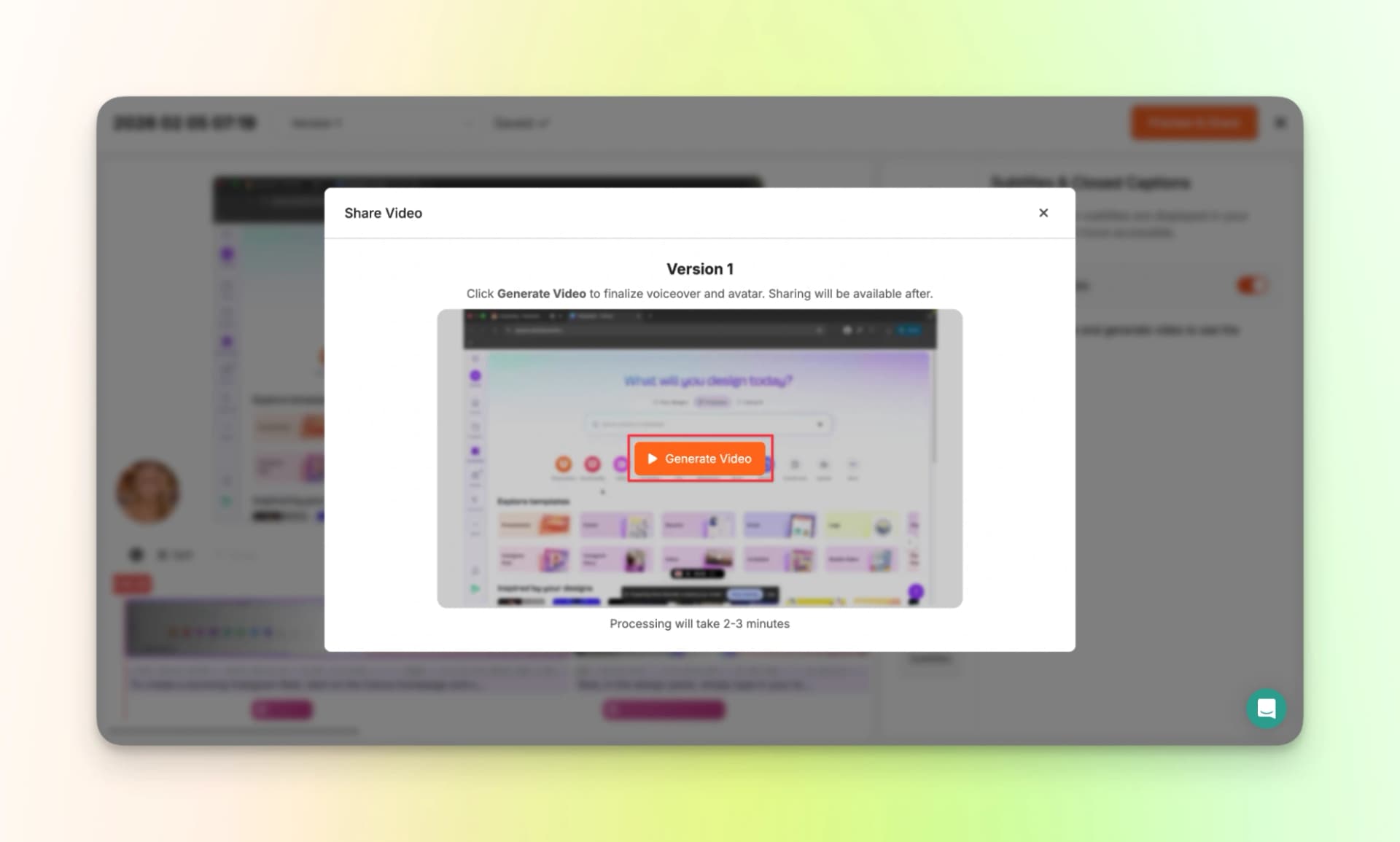
Step 5: Generate your video.
Step 6: Download the video.
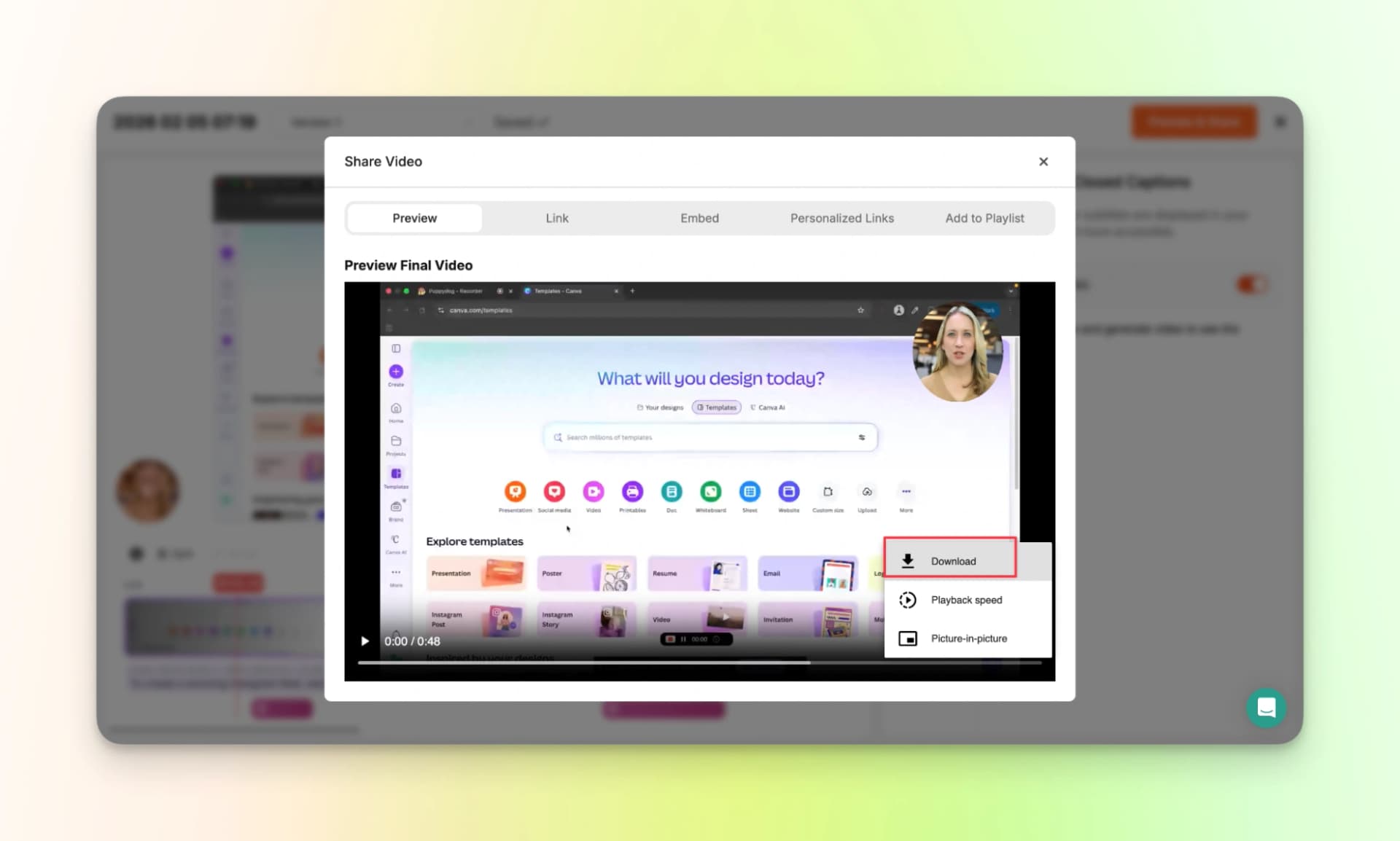
And just like that, you have created a tutorial video with AI avatar and visual effects in less than 10 minutes.
Here’s the finished tutorial video:
Pricing:
- Free trial: $0 (For 7 Days)
- Pro: $99/mo
- Scale: Available on Demand
- Enterprise: Custom
Creating Tutorial Videos Doesn’t Have to Be Hard!
Creating detailed and narrated tutorial videos all comes down to choosing the right tool for you. There are alot of options available in the market as AI improves everyday.
Keep these factors in mind and decide for yourself:
- How easy to use the tool
- How the tool performs
- AI features
- Last but least, how much does it costs
However, Videomule is one of the cheapest, effective and feature-rich tools that I have tried. There are many exciting features in the roadmap
And you can start with a 7-day free trial, so you can try the tool to your heart’s content and then commit to the paid plans starting at $29/mo.
Don’t wait anymore. Join thousands who are already creating using Videomule.
Get started right away: VideoMule.
FAQs on The Best Video Tutorial Software for Beginners
1. What's the best free SaaS demo video maker?
If you’re just getting started, VideoMule is one of the best free SaaS demo video makers out there. You simply record your screen, and the AI takes care of the script, voiceover, subtitles, and editing. It’s perfect if you don’t want to overthink video creation.
2. Do I need video editing experience to create demo videos?
No, you don’t need any video editing experience at all. These tools are built for beginners and handle most of the hard work for you. All you do is record your screen, review the output, and export the video.
3. How long should a product demo video be?
A good product demo video should be around 2 to 5 minutes. This gives you enough time to explain the core features clearly without losing the viewer’s attention. Shorter is usually better.
4. Can I add a professional voiceover without recording my voice?
Yes, most of these tools let you add professional AI voiceovers without using a mic. The AI automatically narrates your video based on the actions on your screen. This makes creating tutorials much faster and easier.
5. What's better: screen recording or animated demos?
For most beginners, screen recording works better than animated demos. It’s quicker to create, easier to update, and feels more real to the viewer. Animated demos usually take more time and effort.
6. How much does professional demo video software cost?
Professional demo video software can cost anywhere from free to $20–$50 per month. Enterprise-level tools are much more expensive and often unnecessary for beginners. Starting small is usually the smarter move.
7. Can these tools work on both Windows and Mac?
Yes, most of the tools mentioned in this blog work on both Windows and Mac. Many of them run directly in the browser or use a Chrome extension, so setup is quick and simple.
8. How do I translate my demo videos?
Some tools allow you to translate your demo videos by changing the output language. The AI regenerates the script, voiceover, and subtitles automatically. This makes reaching a global audience much easier.
Keep reading
AI Tutorial Video Maker
Turn one screen recording into a step-by-step tutorial with an AI script and voiceover.