How to Make Educational Videos with AI Step-by-Step? (For FREE)
Learn how to make educational videos with AI. No mic, no expensive software tools. Just hit record and let Videomule do the rest.
Ever tried to create a video that teaches something but gave up halfway? This is common when people try to learn how to make educational videos.
Creating educational videos often is a pain. Script writing, voice recording, editing takes time and energy. That’s why many don’t even start.
This is where tools like Videomule make things easier. You record your screen, focus on teaching, and let AI handle the narration and captions. No mic. No editing skills. No stress.
In this blog, I’ll show you how to make educational videos with AI in a simple, step-by-step way using VideoMule.
şSimplify educational video making for free here: VideoMule.
Here’s a quick video walkthrough:
What Makes a Good Educational Video?
Before we get into the steps, it helps to know what actually makes an educational video useful.
A good educational video is not about fancy visuals or long explanations. It is about clarity.
Here are a few educational video tips that you can use to create your next video:
-
Clear screen
Only show what is needed. No clutter. No distractions. -
Simple flow
One idea at a time. One step after another. -
Easy pace
Don’t rush. Give people time to see what’s happening. -
Clear explanation
Explain what you are doing and why it matters. -
Short and focused
Short videos work better than long ones.
When these basics are right, people understand faster and stay longer.
Now that you know what matters, let’s look at how to make educational videos step by step using VideoMule.
Types of Educational Videos
Not all educational videos are the same. Some formats work better with AI and some don't. So, if you want to use AI to create educational videos, choosing the right type makes creation easier and keeps the video clear.
Here are the most common types of educational videos that work well with AI.
-
Screen tutorials
These are the easiest and most effective for AI. For example, VideoMule lets you record your screen and show the steps while AI handles narration and captions. -
Talking head videos
These usually show a person speaking to the camera. With AI, this can be done using avatars instead of recording yourself. -
Animated explainer videos
These explain ideas using animations. AI can turn text into simple animated visuals, but they take more planning. -
Whiteboard videos
These show ideas being drawn step by step. AI can generate the drawings while explaining the concept. -
Mixed media videos
These combine screen recordings with an AI presenter or visuals. They work well when you want both explanation and demonstration.
For most beginners, I recommend Videomule. It makes AI educational video creation simple, clear, and easy to create with AI.
Traditional vs AI Video Creation: A Reality Check
Creating educational videos the traditional way takes a lot of time.
With traditional video creation, one video can easily take 5 to 7 hours. You plan the script, record your voice, fix audio issues, edit clips, add captions, and then redo parts when something goes wrong.
AI changes that process.
With AI, the same educational video can be created in under 10 minutes.
With Videomule, you record your screen once and let AI handle the narration, captions, and syncing. That’s more than 85% time saved.
Here’s what AI removes from the process:
- No microphone setup
- No camera
- No audio cleanup
- No manual captioning
Here is a catch: AI works best for clear explanations and step-by-step teaching. It’s not ideal for emotional storytelling or personal speeches.
| Aspect | Traditional Video Creation | Videomule |
|---|---|---|
| Time per video | 5–7 hours | 30–45 minutes |
| Setup needed | Mic, camera, editing software | Just a screen recording |
| Audio work | Manual recording and cleanup | AI voiceover, auto-synced |
| Captions | Added manually | Generated automatically |
| Updates | Hours of rework | Minutes to regenerate |
| Skill required | Recording and editing skills | Basic screen recording |
| Scalability | Hard to scale | Easy to repeat |
| Best use case | Emotional storytelling | Clear educational content |
For educational videos, clarity usually matters more than emotion. That’s why VideoMule fits so well here.
Next, I’ll walk you through how to make educational videos step by step using VideoMule.
Step-by-Step: Creating Educational Videos with AI
Here is how to make educational videos the easy way. By the end of this section, you will be able to create educational videos using AI in under 10 minutes. Let's dive in!
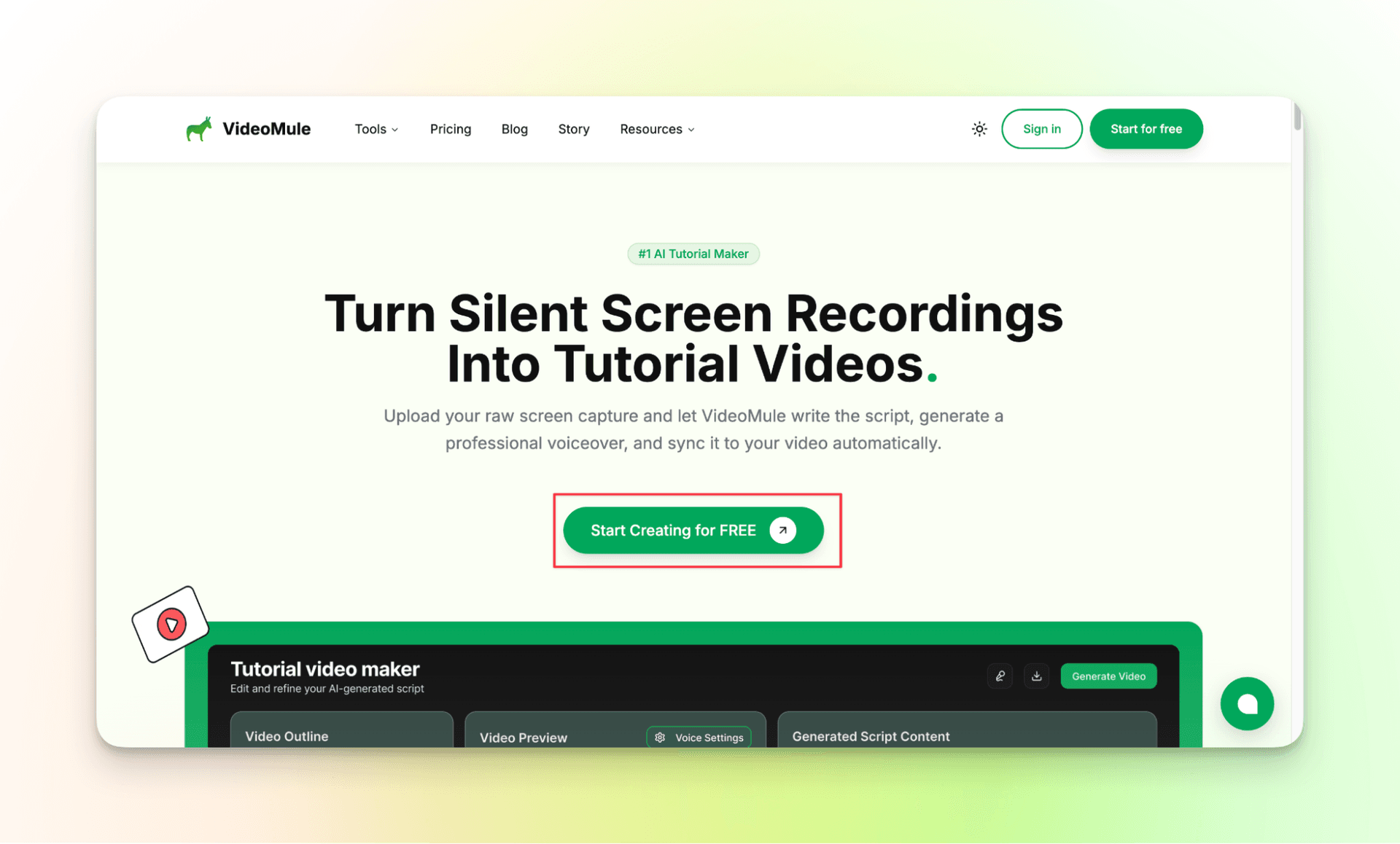
Step 1: Go to Videomule’s Website
Visit videomule’s website, click on “Start Creating for FREE.” You will get access to Videomule for free.
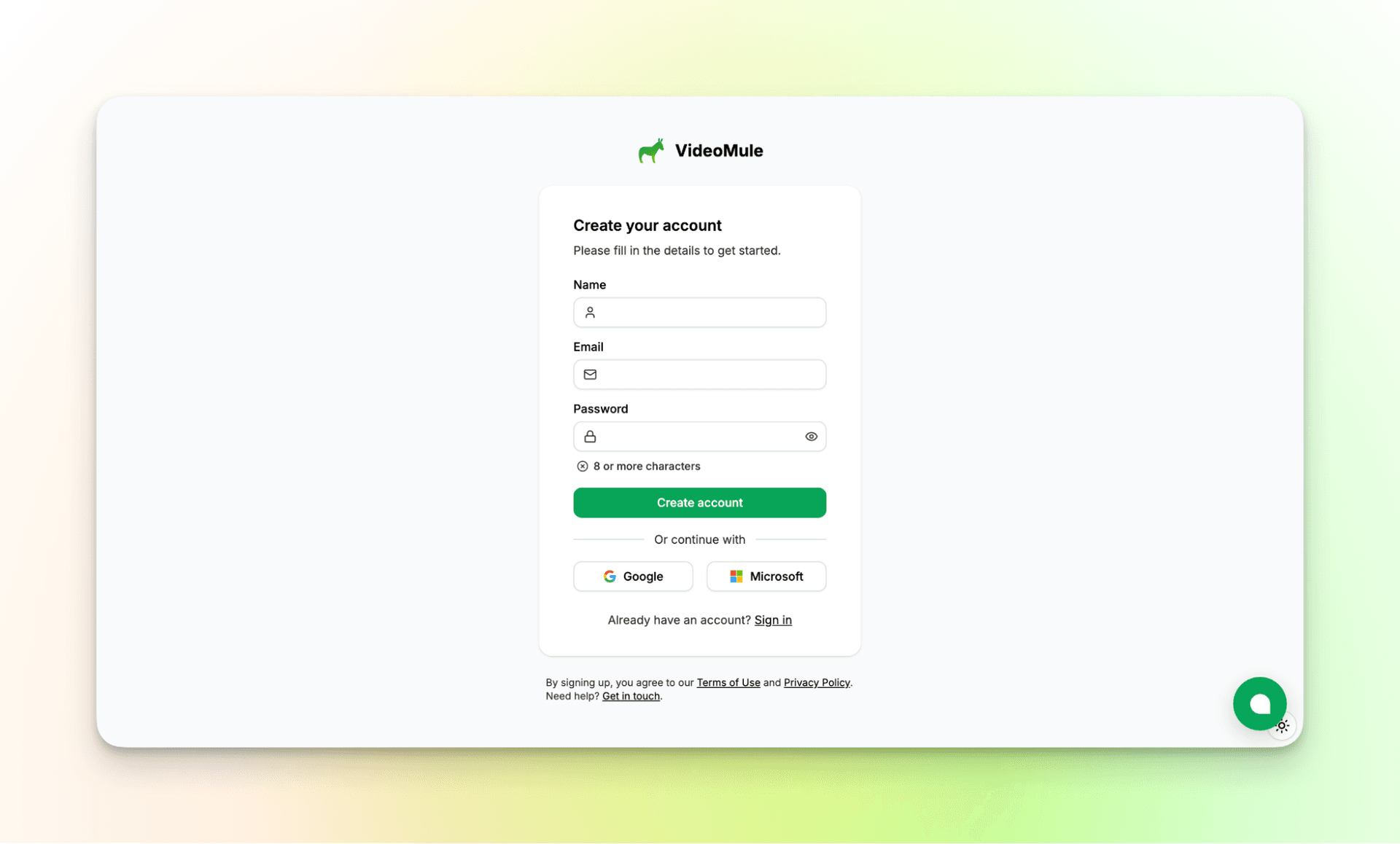
Step 2: Create Your Account
Provide your information or make use of your Google or Microsoft account to simplify the process.
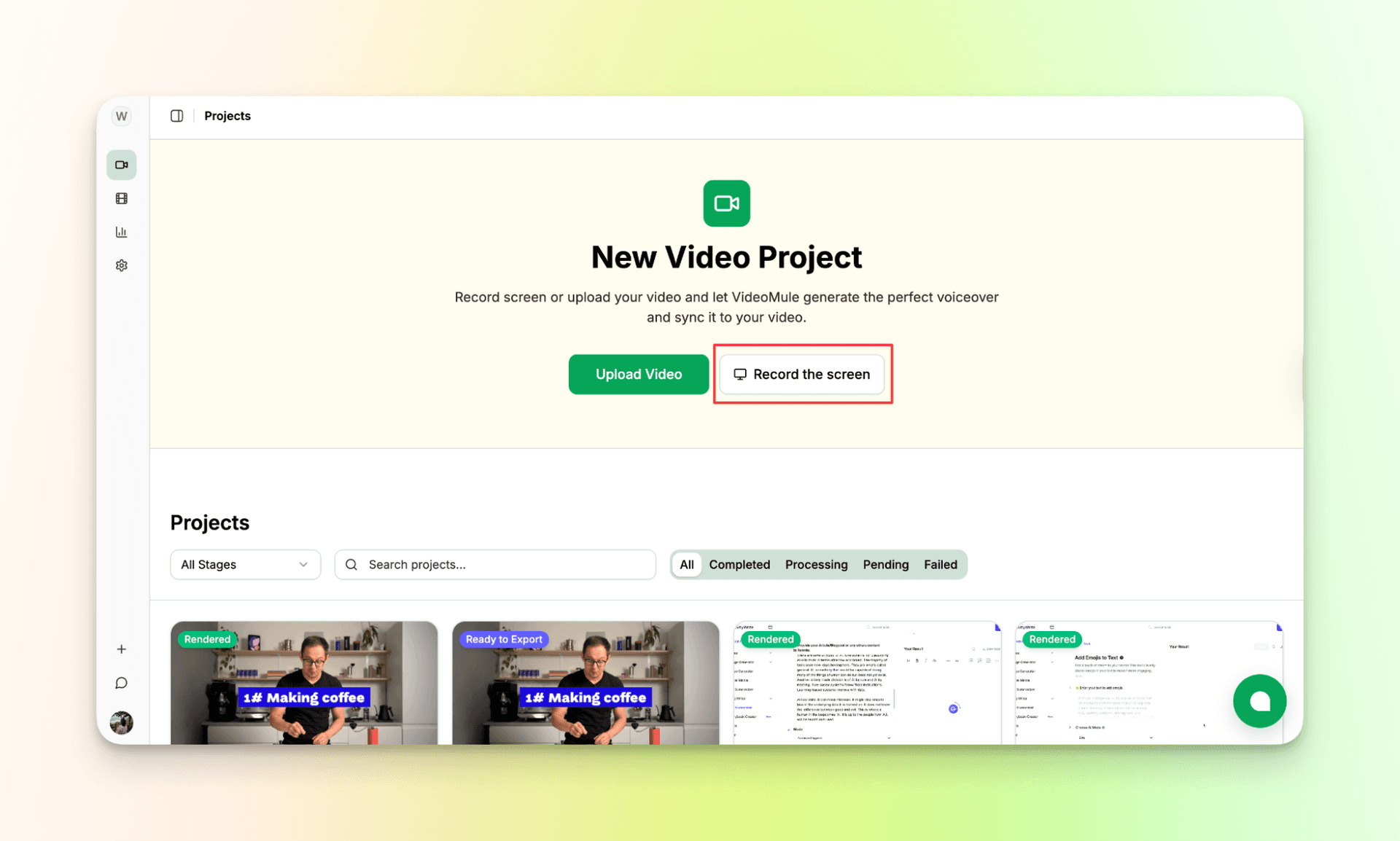
Step 3: Record Your Screen or Upload Recorded Video
The first step begins with recording your screen or by uploading a recorded video. It not only works for educational videos but also for videos on Yoga, cooking or anything that needs to be created as an AI voiceover video.
Step 4: Record the Screen
For the sake of this blog, let me create an educational video on how to create an instagram post using Canva.
While recording your screen, you can choose to share a tab, a window or an entire screen. As I will be sharing multiple tabs, let me share my entire screen.
Just make sure that the video is more than 15 seconds. If not, the video will not be accepted.
You can narrate educational videos in your own cloned voice: clone it in ElevenLabs, connect your account to VideoMule, and every video can sound like you — without recording anything.
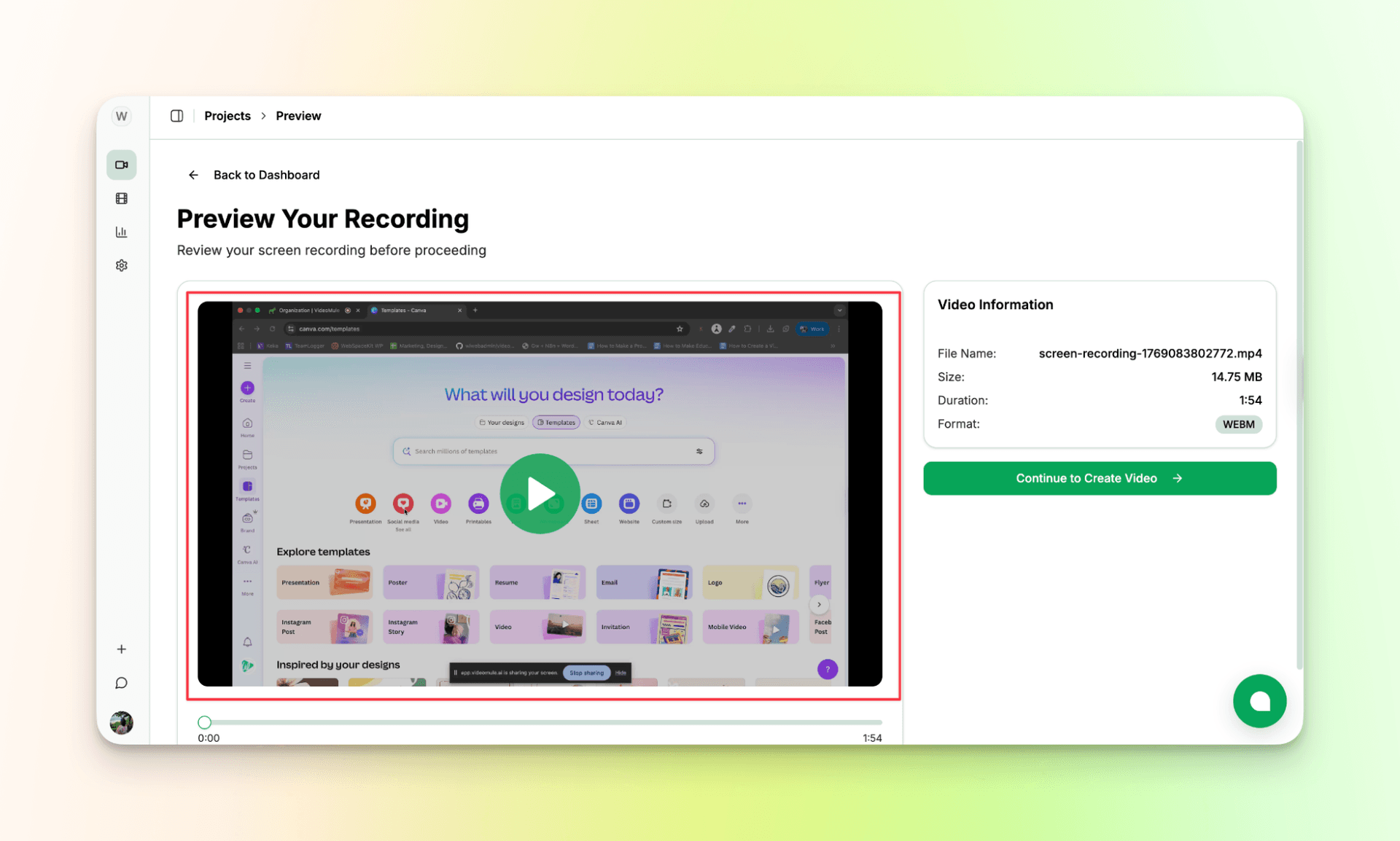
Step 5: Preview Screen Recording
Once you’ve stopped recording your screen, the recorded video will be fetched automatically.
Check it once. If you find anything off, don’t hesitate to redo it. Because your screen-recorded video is the foundation for everything that follows.
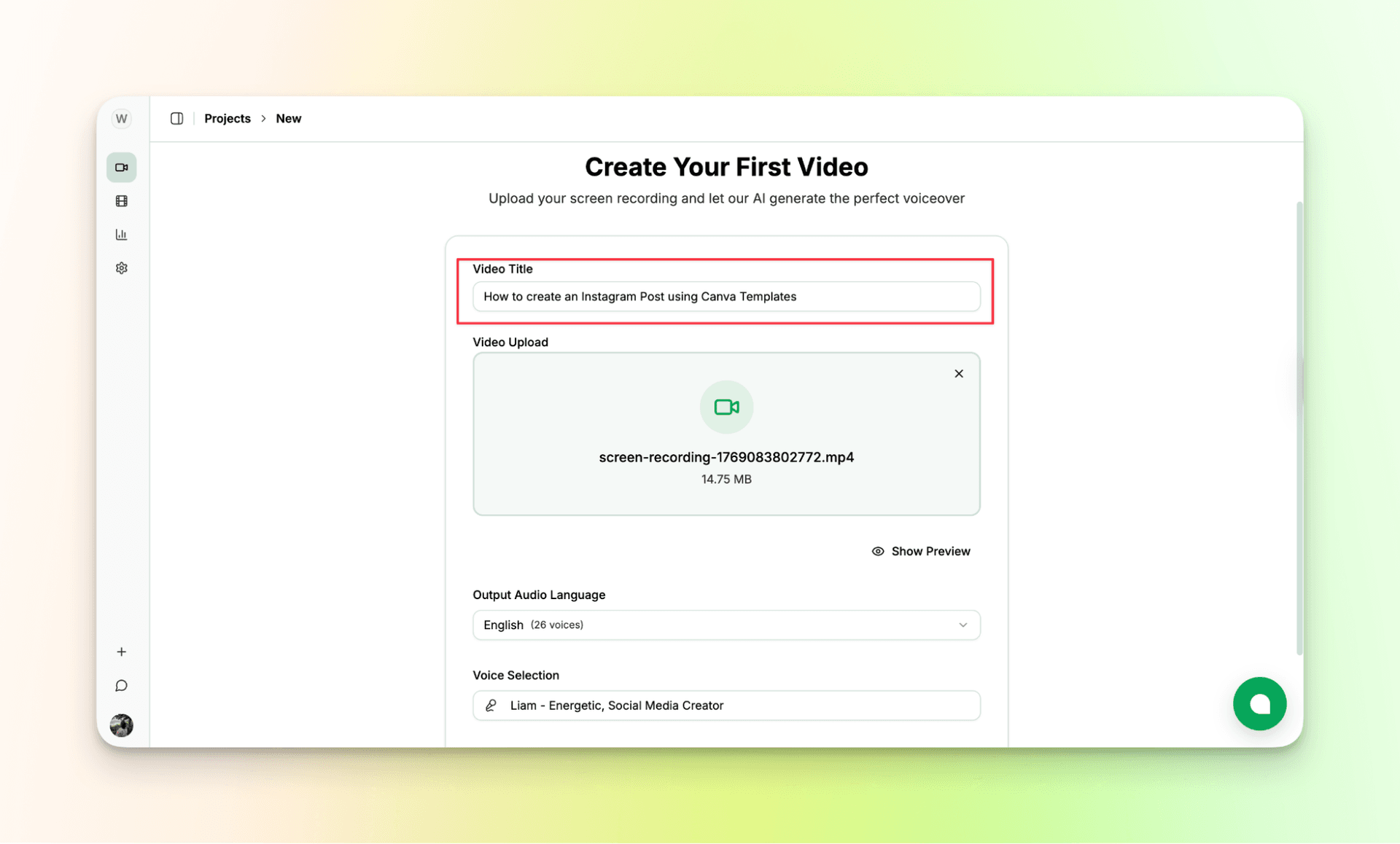
Step 6: Customize the Video
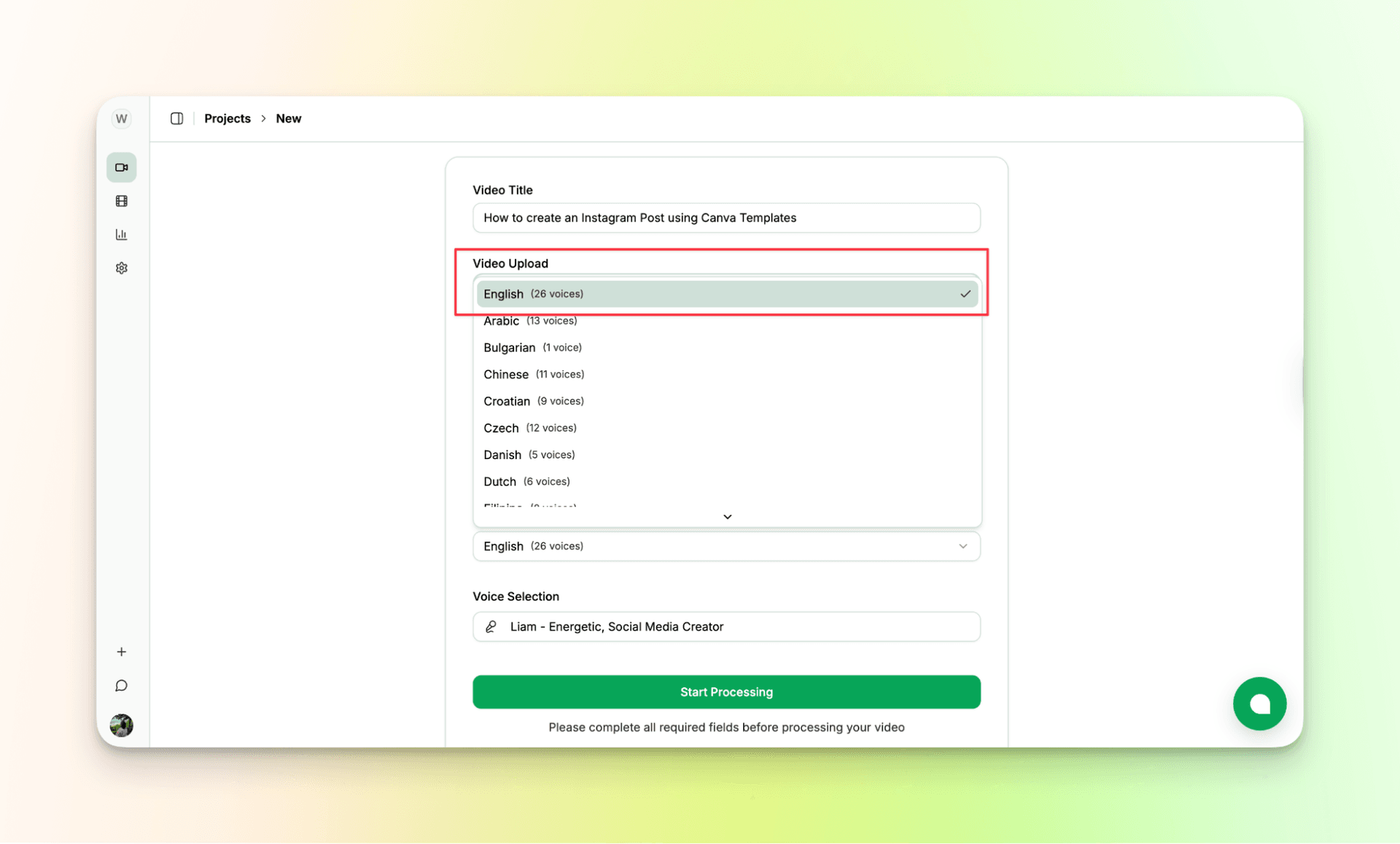
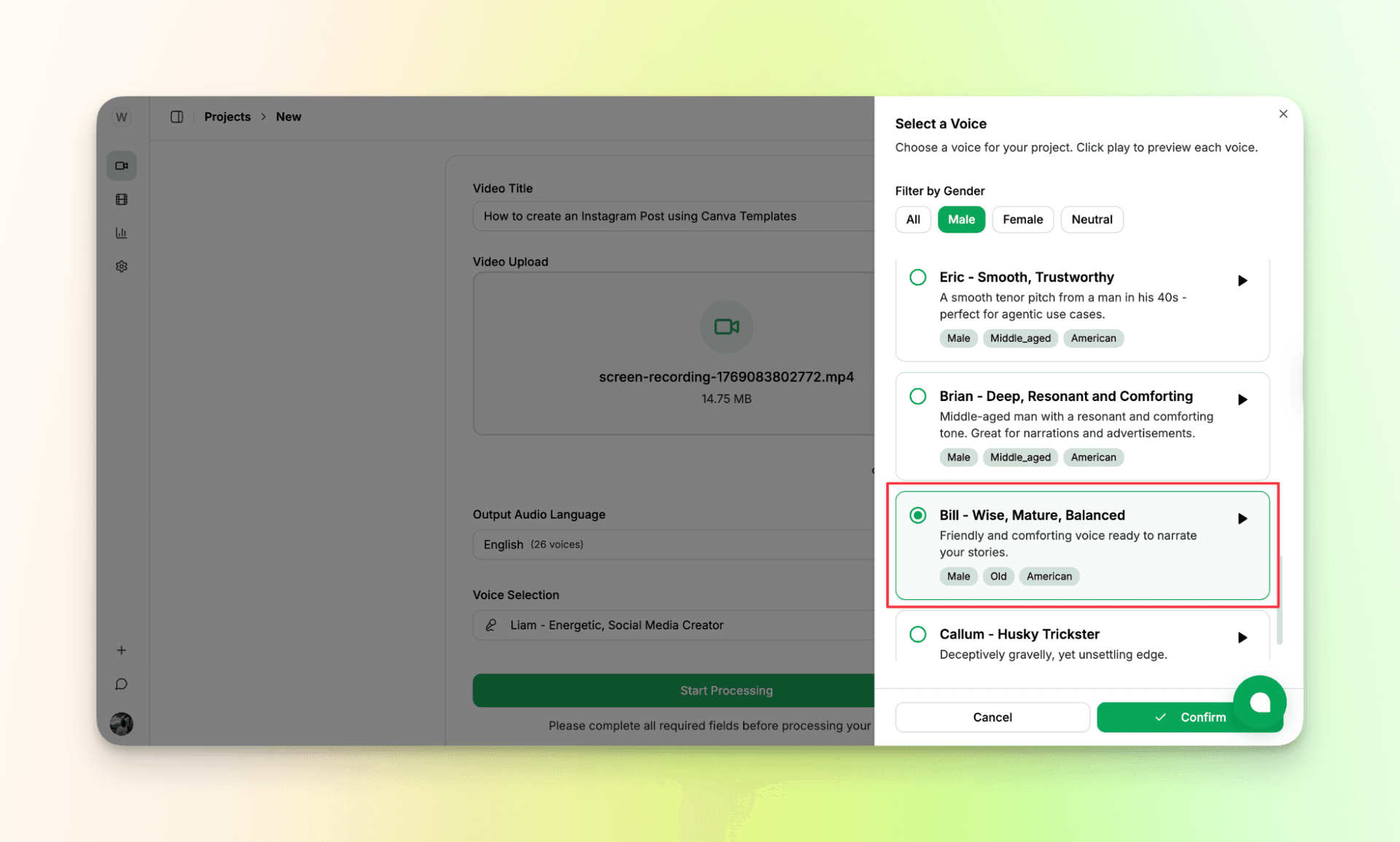
Give your video a relevant title and ensure it aligns with the video. Also, you can choose from multiple output languages and AI voices curated by gender.
Step 7: Review & Edit the AI Educational Video Script
Once VideoMule is done processing your video, you will see the AI-generated script written as per your actions in the screen recording.
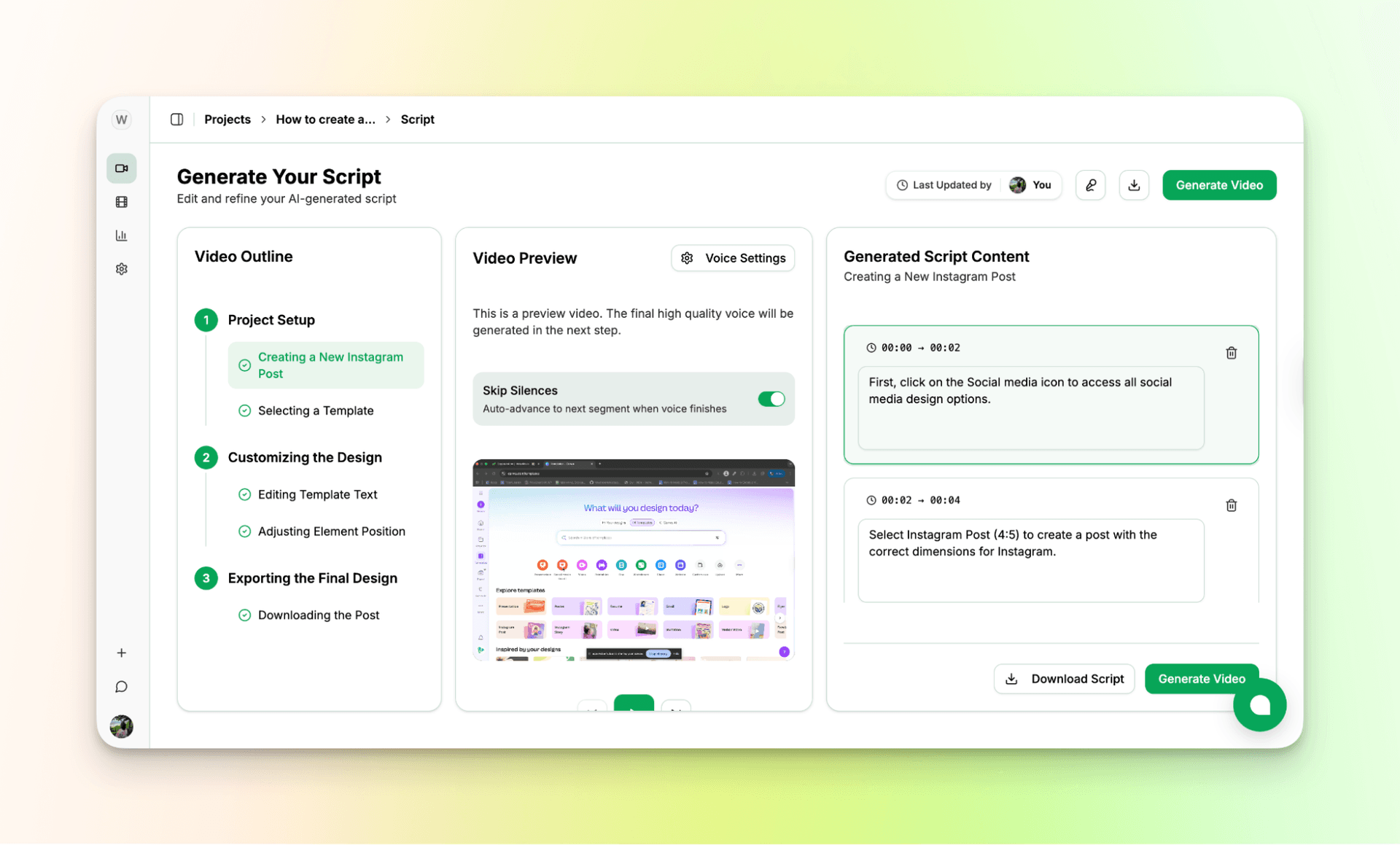
Review it once and check for discrepancies. If you find any, modify the script as shown below:
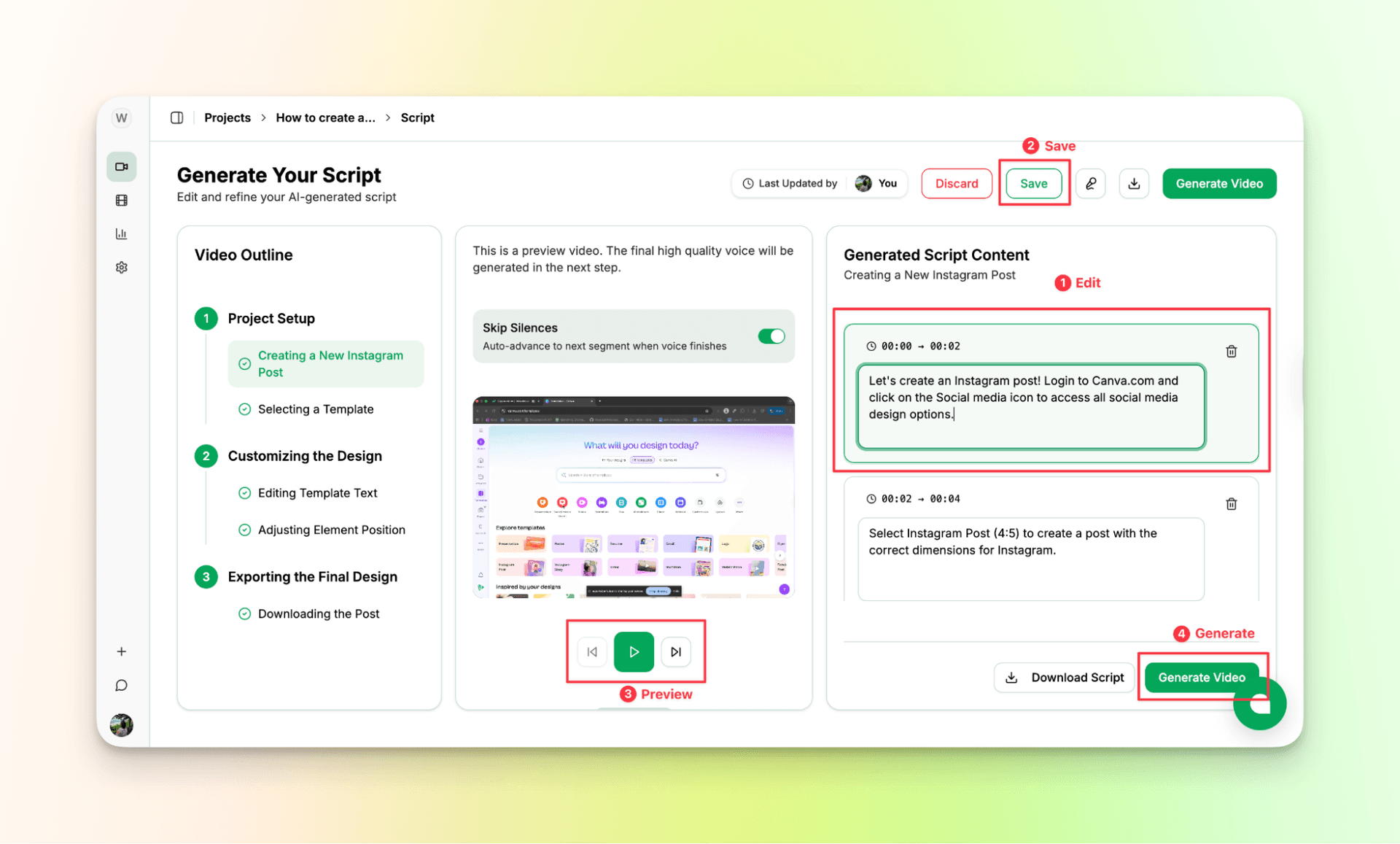
Once done, feel free to download it for later use.
Click on “Generate video,” and Videomule will prepare and process the audio and generate the voiceover. This process takes just a minute or two.
Step 8: Review the AI-generated Educational Video
Here comes the cool part, there is no need for prior video editing experience. The tool will sync the voiceover audio, generate the captions and sync everything and will present it to you as a single video.
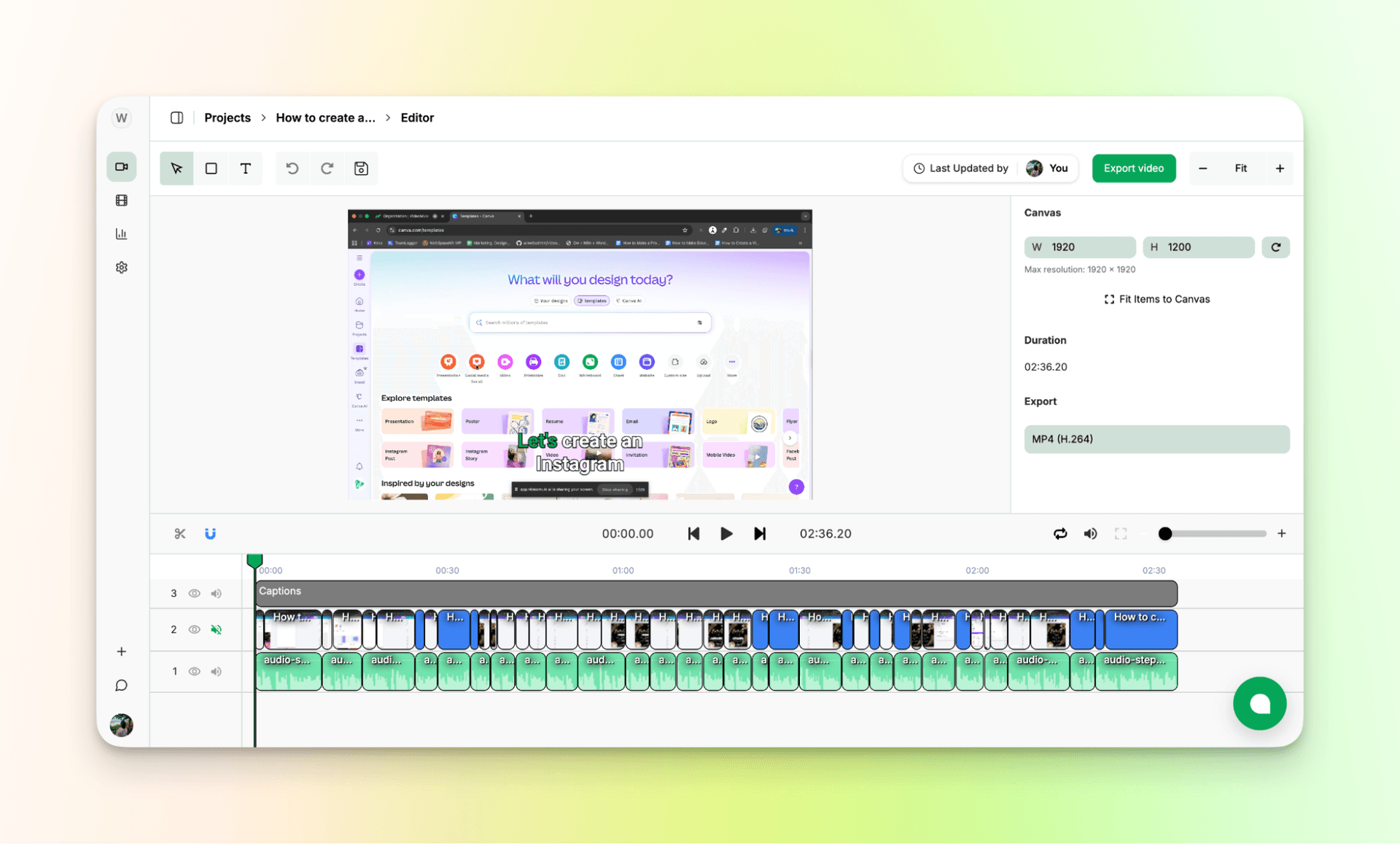
Check the video and trim the parts of the video you don’t need.
Step 9: Export the Educational Video
Save the video, click “Export Video,” and your AI educational video will be downloaded automatically.
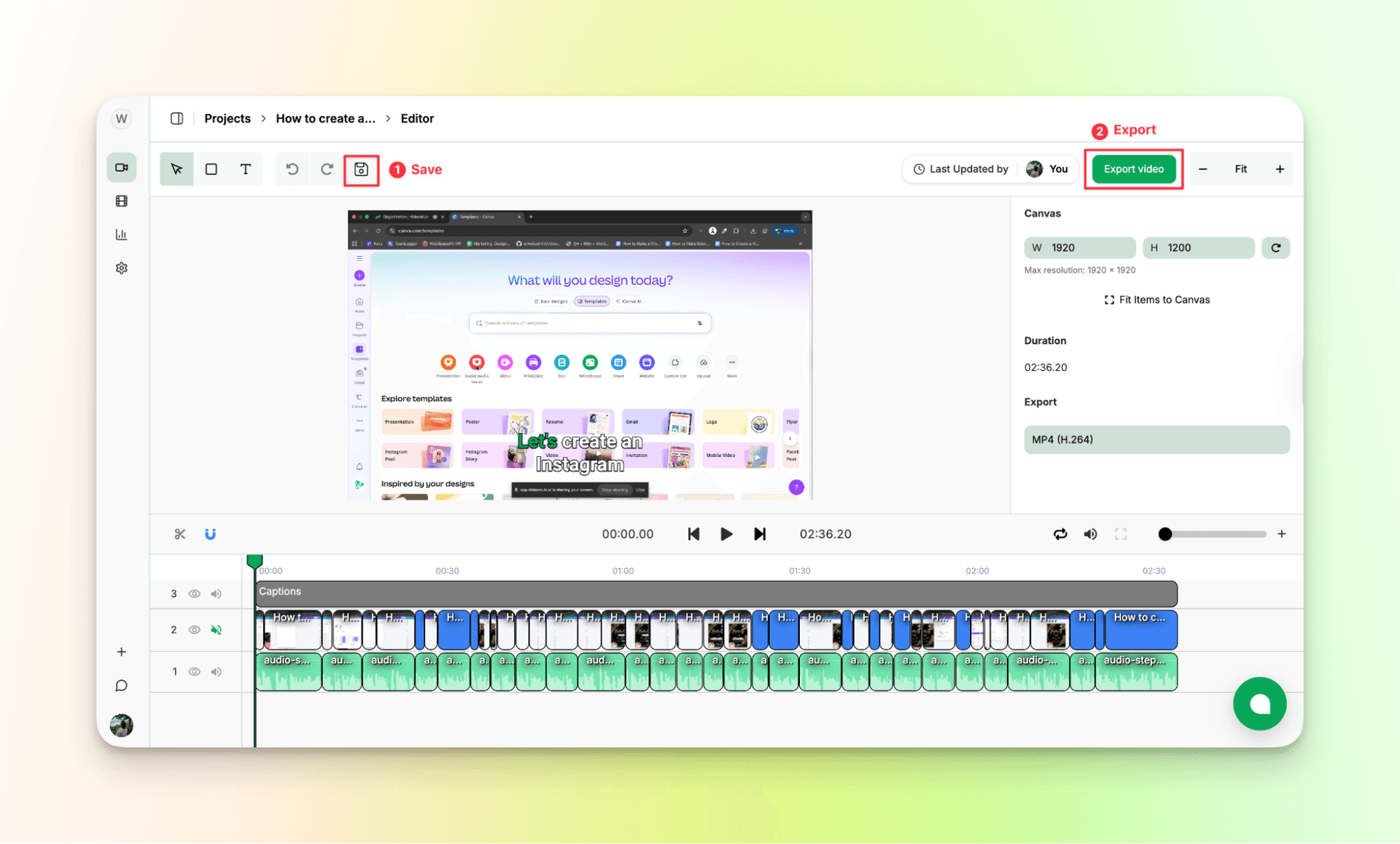
Bravo, Bravo! You have successfully an engaging educational video using AI without a mic or any fancy tools or equipment.
So, here is a quick before and after of the educational video created using Videomule.
Input: A plain screen recording showing the process of creating an Instagram Post Using Canva
Output: An Educational Video created using Videomule with AI voiceover and captions that explains the process clearly.
Best Practices That Matter
If you don't want your audience to get annoyed and click away, it is better to keep your educational video crisp and clear. Here are a few practices that will be handy for you:
-
Keep videos under 10 minutes
Short videos feel lighter. If something takes longer to explain, break it into smaller parts instead of stretching one video. -
Hook viewers in the first 5 seconds
Tell them what they’ll learn right away. A clear start keeps people from clicking away. -
Use conversational language
Talk like you would to a friend. Simple words work better than formal explanations. -
Show, don’t tell
If you can show it on the screen, do that. Seeing the step is often clearer than hearing it explained. -
Add pauses, exercises, or quick questions
Give people a moment to think or try things themselves. It helps learning sink in. -
Always include captions
Many people watch without sound. Captions also make videos easier to follow. -
Create videos so updates are easy
Things change. Short, focused videos are much easier to fix later.
These small choices help people stay engaged and actually learn.
Mistakes To Avoid While Making Educational Videos
Let's be honest, even if you are careful there are high chances that you make silly mistakes that can ruin your whole video. So, here are some mistakes that you should stay away from:
-
Not Checking Your Facts:
Information that sounds right can still be totally wrong. Look up anything important before you put it in your video to make sure it's actually true. -
Reading Like a Robot:
Nobody wants to listen to someone just reading off a page. Talk like you're explaining something to a friend, not giving a boring speech. -
Teaching the Wrong Level:
If you make it too simple, people get bored. If you make it too hard, they get lost. Know who's watching and teach for them. -
Ignoring Bad Visuals:
Pictures or clips that don't match what you're saying just confuse people. Watch your whole video and swap out anything that looks off or doesn't help. -
Publishing Your First video:
Your first version always has problems you don't notice right away. Cut the slow bits, fix what's wrong, and clean it up before anyone sees it. -
Using Fancy Words:
Trying to sound smart with big words just makes people tune out. Talk the way normal people talk and everyone will get it better. -
Only Explaining Theory:
When you just explain ideas without real examples, nobody remembers it. Show how it works in actual life so it sticks in their heads. -
Going On Too Long:
People click away when videos feel like they'll never end. Pick one thing to teach and wrap it up while they're still interested. -
Bad Pacing:
Explaining the hard stuff without any gap confuses everyone. Dragging out the easy stuff bores them. Speed up and slow down where it makes sense. -
Never Testing It Out:
You miss stuff because you already know what you meant to say. Get someone else to watch first and tell you what didn't make sense.
Measuring Success
Once your educational videos are out there, the next question is simple. Are they actually helping people learn?
You don’t need complicated metrics. A few signals tell you almost everything.
-
Completion rate
If around 70% or more of viewers finish the video, that says that your video is working. Lower numbers usually mean the video is too long or unclear. -
Watch time and drop-offs
Check where people stop watching. If many leave at the same point, that section likely needs better pacing or explanation. -
Engagement and quiz scores
If you include exercises or quizzes, look at how people perform. Poor scores often point to confusing steps. -
Rewatch behavior
When viewers rewind or rewatch parts, it shows interest. It might also mean areas that need clearer visuals. -
Use analytics to improve
Analytics help you fix small issues and make each video better than the last.
You don’t need perfect numbers. You just need enough insight to keep improving.
Make Educational Videos Without Any Hassle!
Creating visually appealing educational videos that actually teach is difficult. You need to record voiceover using a mic and also need expensive softwares and a quiet environment to record and edit videos.
But let’s be honest, not everyone has access to them.
Videomule creates educational videos using AI without having to record anything. With it, you can create 10× more educational videos in the language of your choice faster and cheaper. You simply have to record your screen of you teaching what you teach or upload the screen recorded video and that's it you would’ve just simplified educational video production.
So, don’t wait more, sign up and create your educational video for free: VideoMule.
FAQs on Creating Educational Videos with AI
1. How much does it cost to create educational videos?
With VideoMule, you can start creating educational videos for free. You don’t need to spend money on recording tools, voiceovers, or editing software. Your 7-day free trial includes 1 watermarked export, and watermark-free videos are included on all paid plans.
2. Do I need expensive equipment to make educational videos?
No, you don’t need any special equipment. VideoMule works in your browser, so there’s no need for a microphone, camera, or studio. A simple screen recording is enough.
3. How long does it take to create an educational video?
Once you’re familiar with the process, a short educational video can be created in about 30 to 45 minutes. This includes recording, narration, captions, and exporting the video.
4. Can AI-generated voiceovers sound professional and natural?
Yes, VideoMule offers clear and natural-sounding AI voices. As long as your screen recording is clear and the pacing is right, the narration sounds professional.
5. I don't like how my voice sounds. Is AI voiceover the solution?
Yes, that’s exactly where AI voiceover helps. With VideoMule, you don’t have to record your own voice at all. You can stay silent and let the AI narrate the video.
6. Can I create educational videos in multiple languages?
Yes, you can. VideoMule lets you use the same screen recording and generate videos in different languages by changing the output language.
7. What's the ideal length for an educational video?
Most educational videos work best when they are under 10 minutes. Short videos are easier to watch, understand, and update when needed.
8. How do I update educational videos when content changes?
With VideoMule, updates are simple. You can change the script or re-record a small part and regenerate the video without starting from scratch.
9. Can AI create professional-quality videos for compliance training?
Yes, VideoMule works well for compliance training videos. It keeps explanations consistent and makes updates easy when rules or processes change.
10. What video format should I export for LMS (Learning Management Systems)?
VideoMule exports videos in MP4 format. This format works smoothly with most learning management systems and devices.
Keep reading
AI Educational Video Maker
Turn slides and screen recordings into narrated lesson videos with an AI script and voiceover.