How to Create a Video Training Course with AI Narration (For FREE)
Learn how to create a video training course with AI narration for free. No mic, no editing, no quiet room or costly tools required.

Have you ever wondered how to create a video training course that teaches everything in the right order without repeating yourself? If so, this blog is for you.
A video training course breaks a larger topic into smaller lessons, so learners can move step by step and also know the upcoming lessons.
The hard part is creating the course. Writing lesson scripts, recording voiceovers, keeping the tone consistent, and updating videos when something changes takes time.
This is where AI narration helps.
You record your screen once. AI writes the explanation, adds a consistent voice, and turns it into a training course.
Try it free here: VideoMule.
Step-by-Step: How to Create a Video Training Course with AI Narration?
This section shows how to create a video training course by recording your screen and letting AI explain what’s happening.
You can use this to create employee training videos or make videos for online courses without recording your own voice.
Here’s the best part: You don’t need scripts, microphones, or editing software. You just need to know what you want to show on your screen.
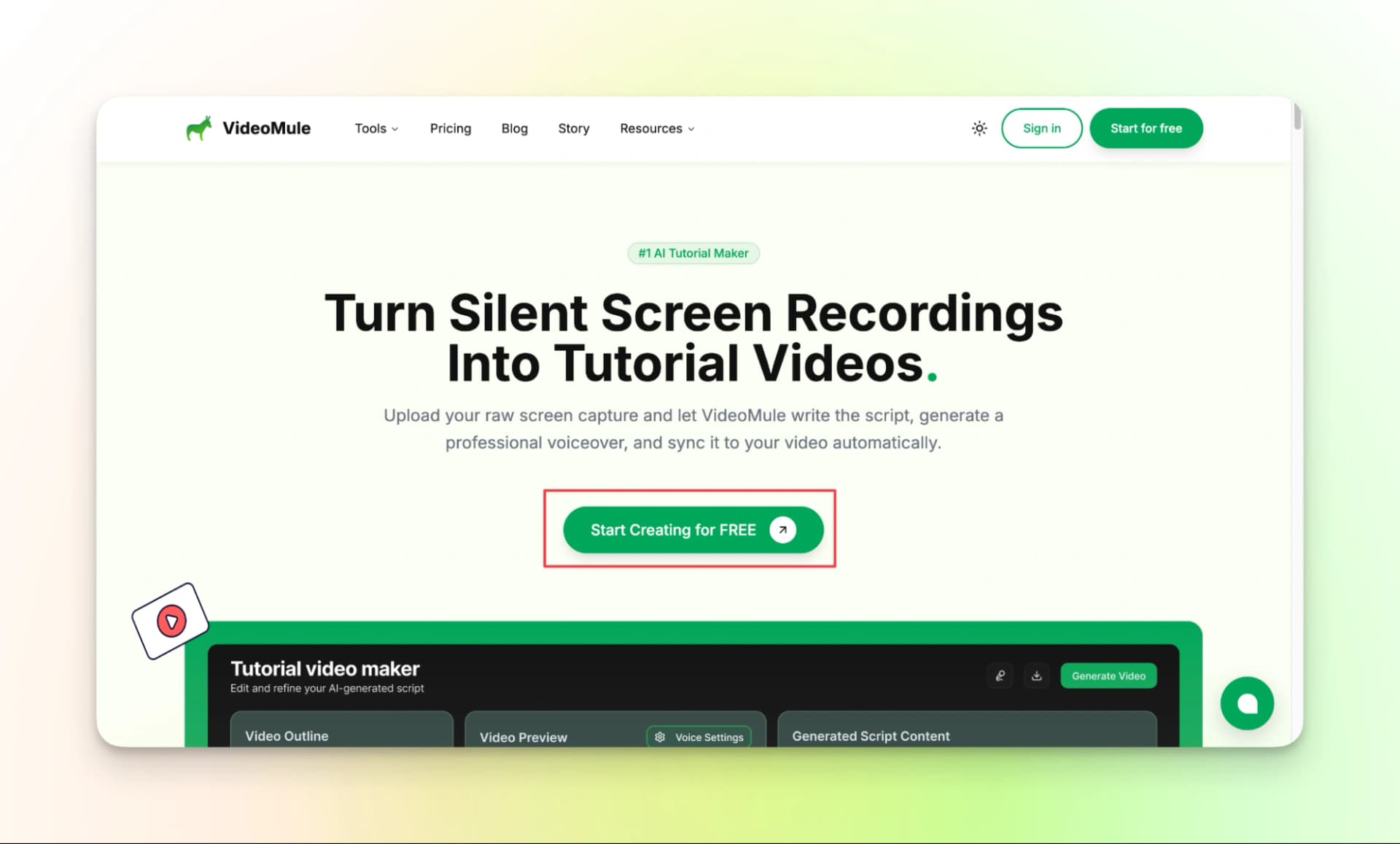
Step 1: Visit VideoMule’s Website
It all begins on our homepage. Navigate to VideoMule and click on “Get Started for FREE.”
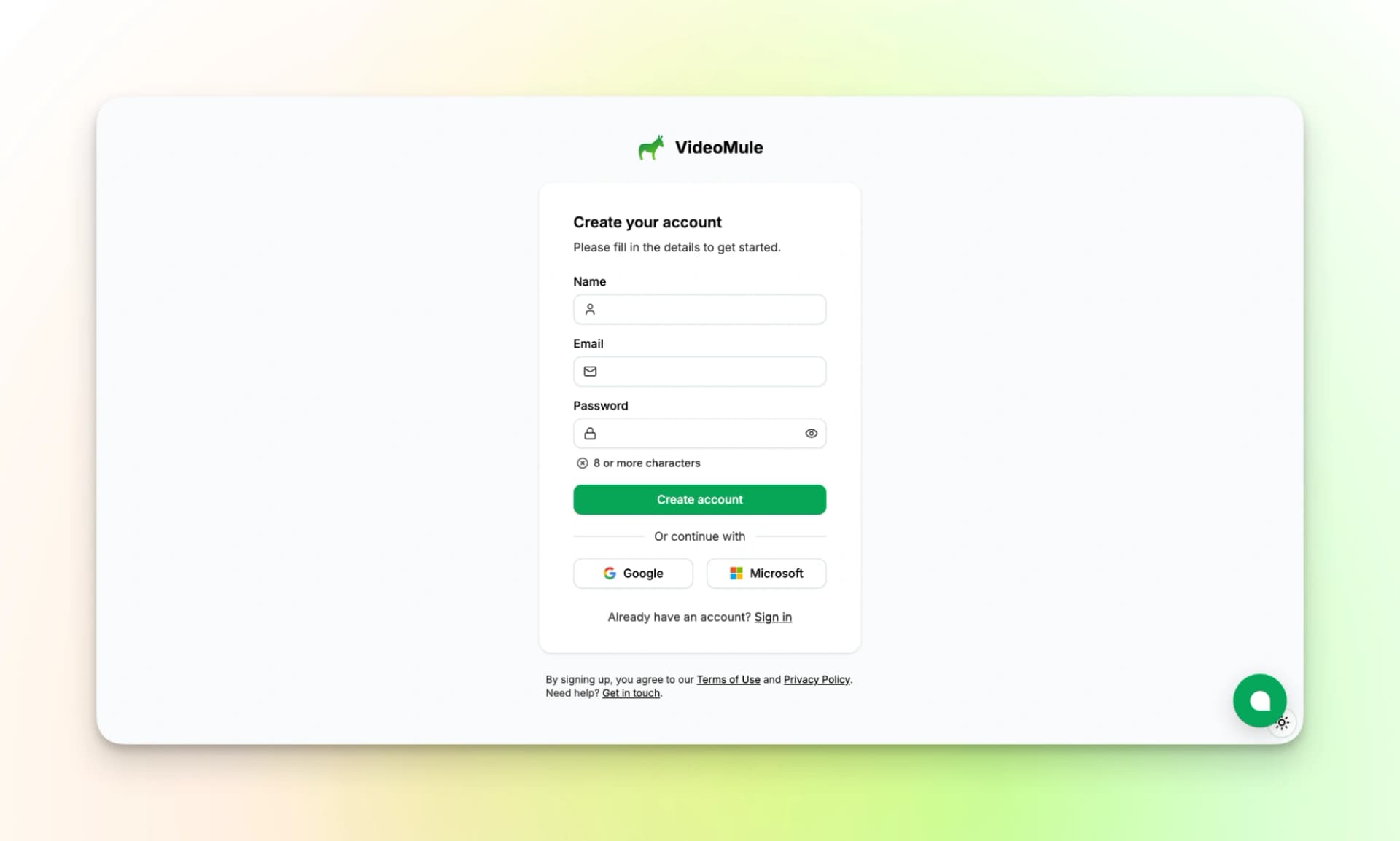
Step 2: Create Your Account
Fill in the form or use your google account to sign up.
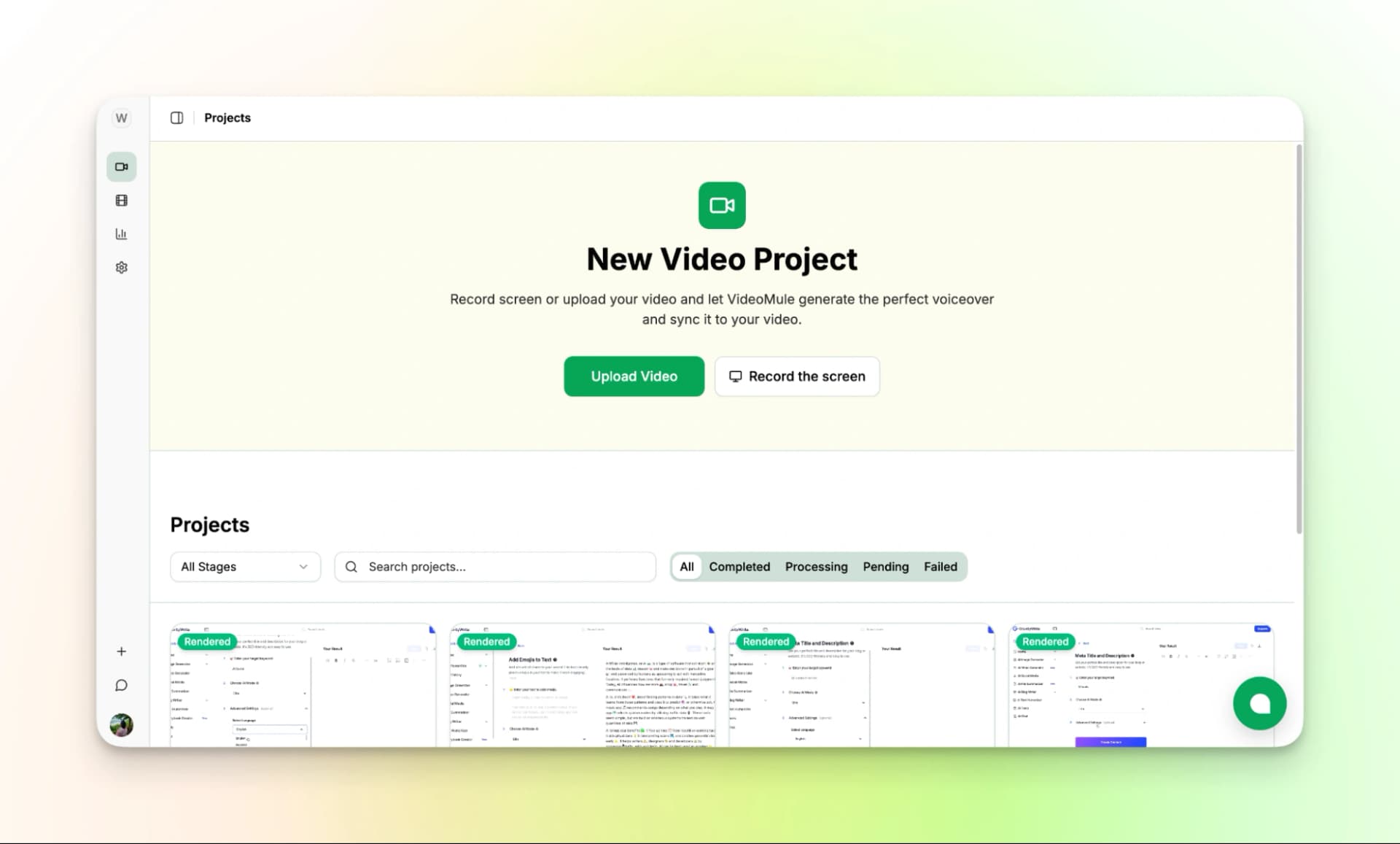
Step 3: Launch your Dashboard
Once you’ve logged in, you’ll be welcomed by our intuitive dashboard.
Step 4: Record What You Want to Show on Your Screen
Start by recording your screen inside VideoMule.
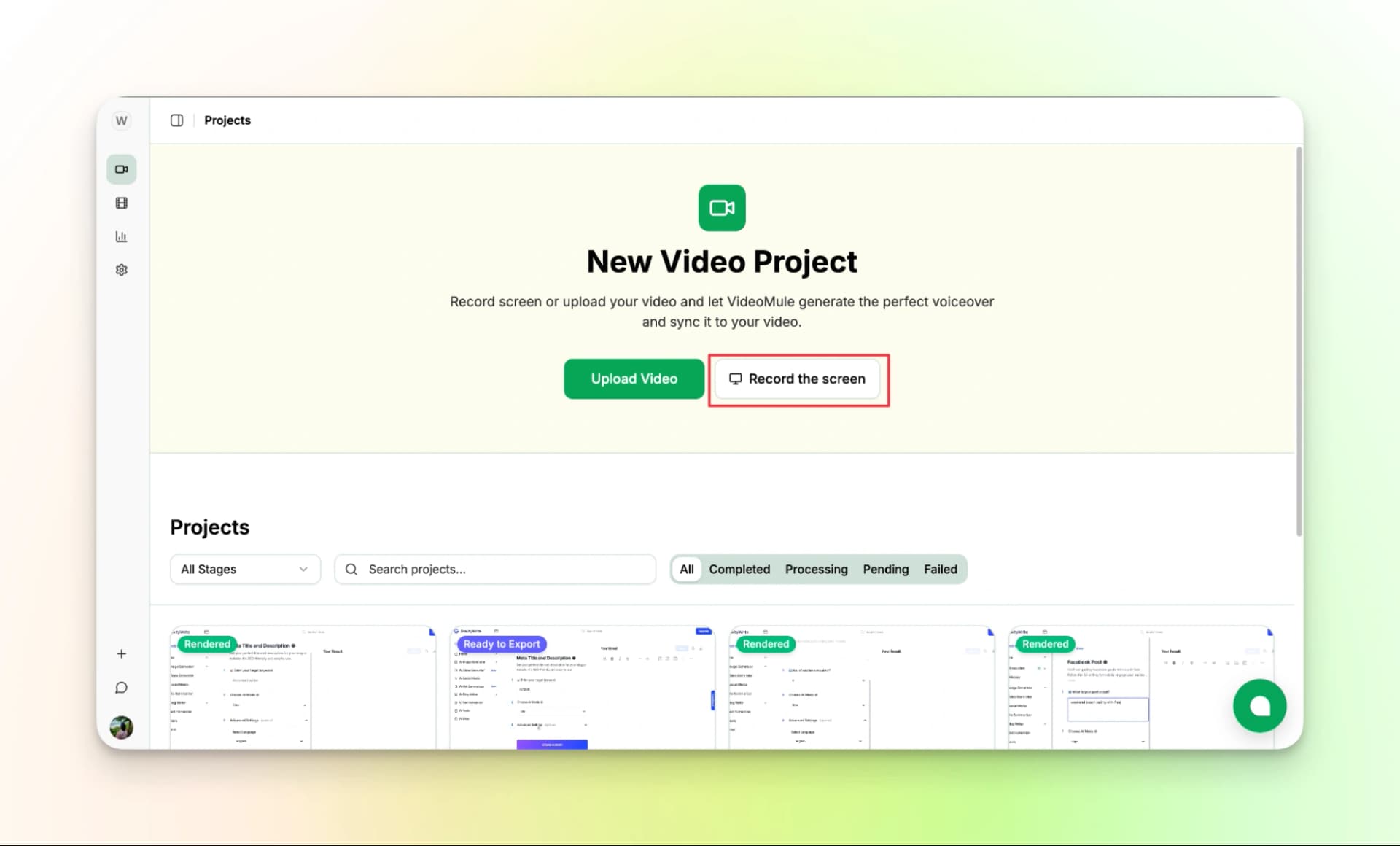
You can choose to record:
- Your full screen
- Or a specific window or browser tab
You can choose to share your screen only if you prefer, like shown below.
Once the recording starts, go through the steps you want to explain.
While recording:
- Move your mouse slowly
- Pause before clicking buttons
- Follow the steps in order
- Don’t rush
You don’t have to speak while recording. You can stay silent the entire time. The AI will explain and narrate it for you later.
If you want to use your own voice in the future, the voice cloning feature will be available soon. For now, silent recording works just fine.
When you’re done, stop the recording.
Step 5: Review the Screen Recording
After you stop recording, VideoMule loads the video automatically.
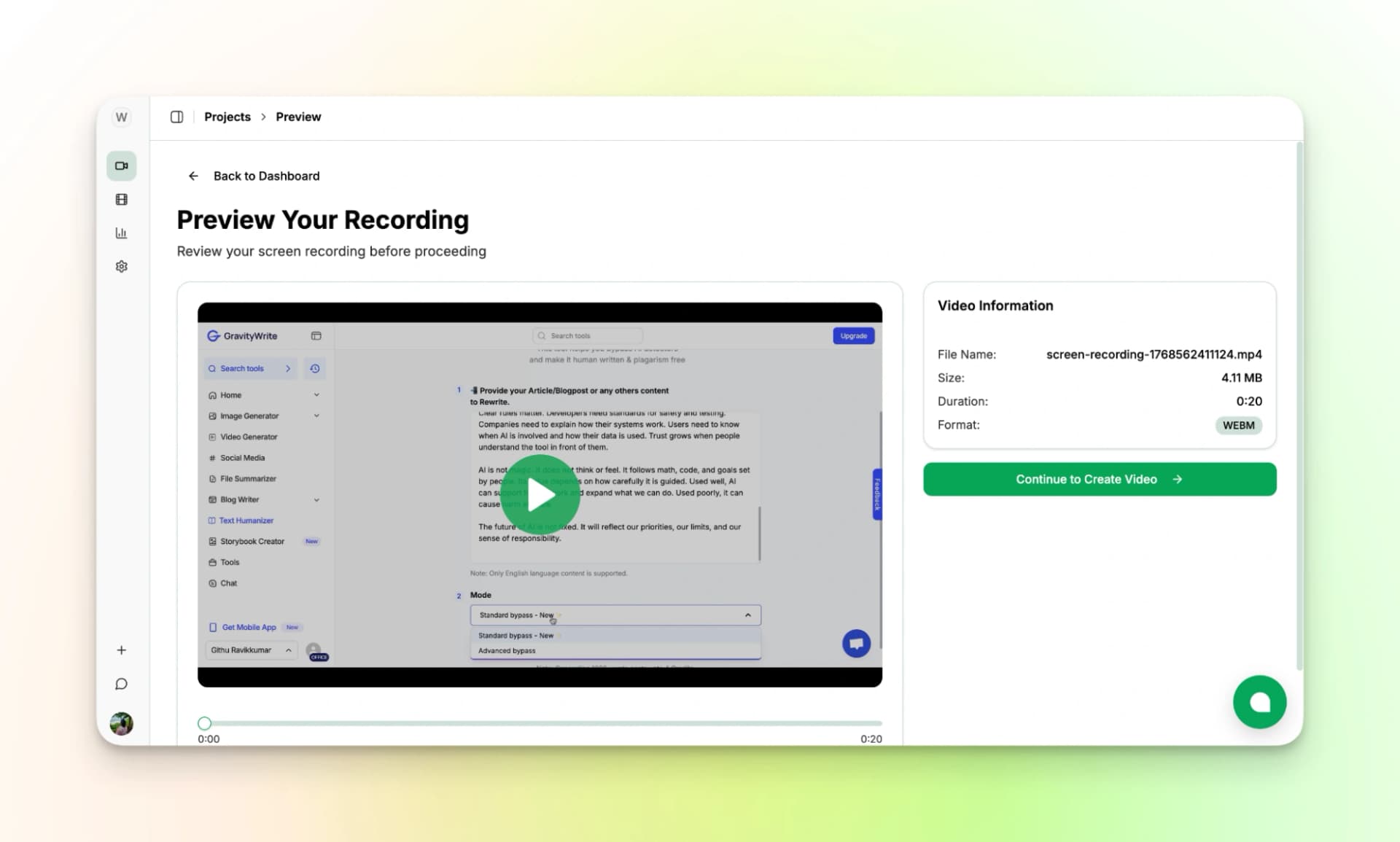
You’ll see a preview of what you just recorded.
Take a moment to check:
- Did everything record properly?
- Is the screen clear and easy to read?
- Did you miss any step?
If something looks wrong, you can record again. If it looks good, move ahead.
Step 6: Name the Lesson and Choose Language & Voice
Now you’ll give the lesson a name.
This helps you keep track of videos as your course grows.
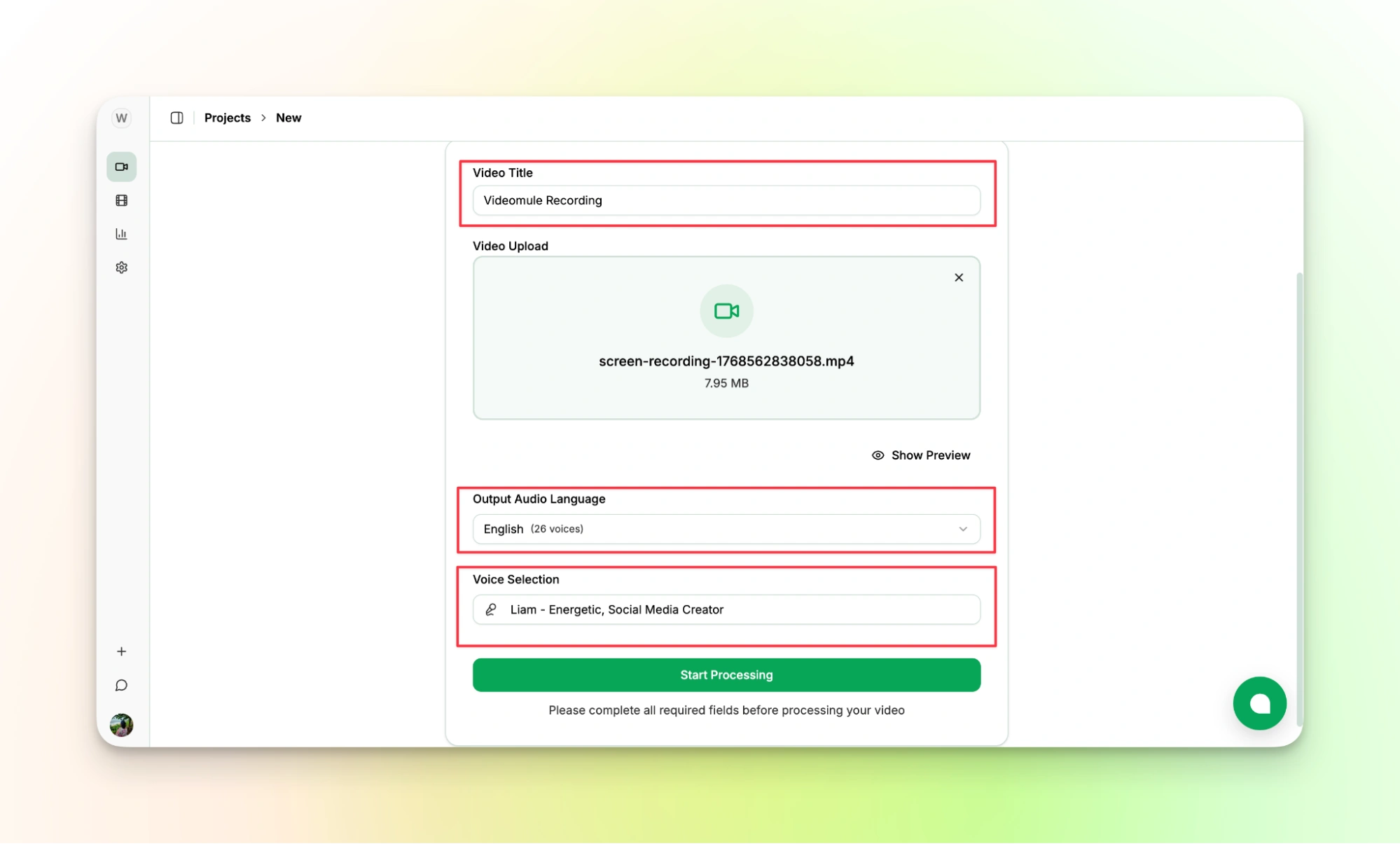
Next, choose:
- The language for the explanation
- The AI voice you want to use
Using the same voice across lessons helps the course sound consistent. This is where AI voiceover for course videos is useful when you don’t want to record narration yourself.
Step 7: Let VideoMule Understand the Recording
Once everything is set, VideoMule starts working on the screen recording.
The AI looks at:
- What you clicked
- Where you moved on the screen
- How one step followed another
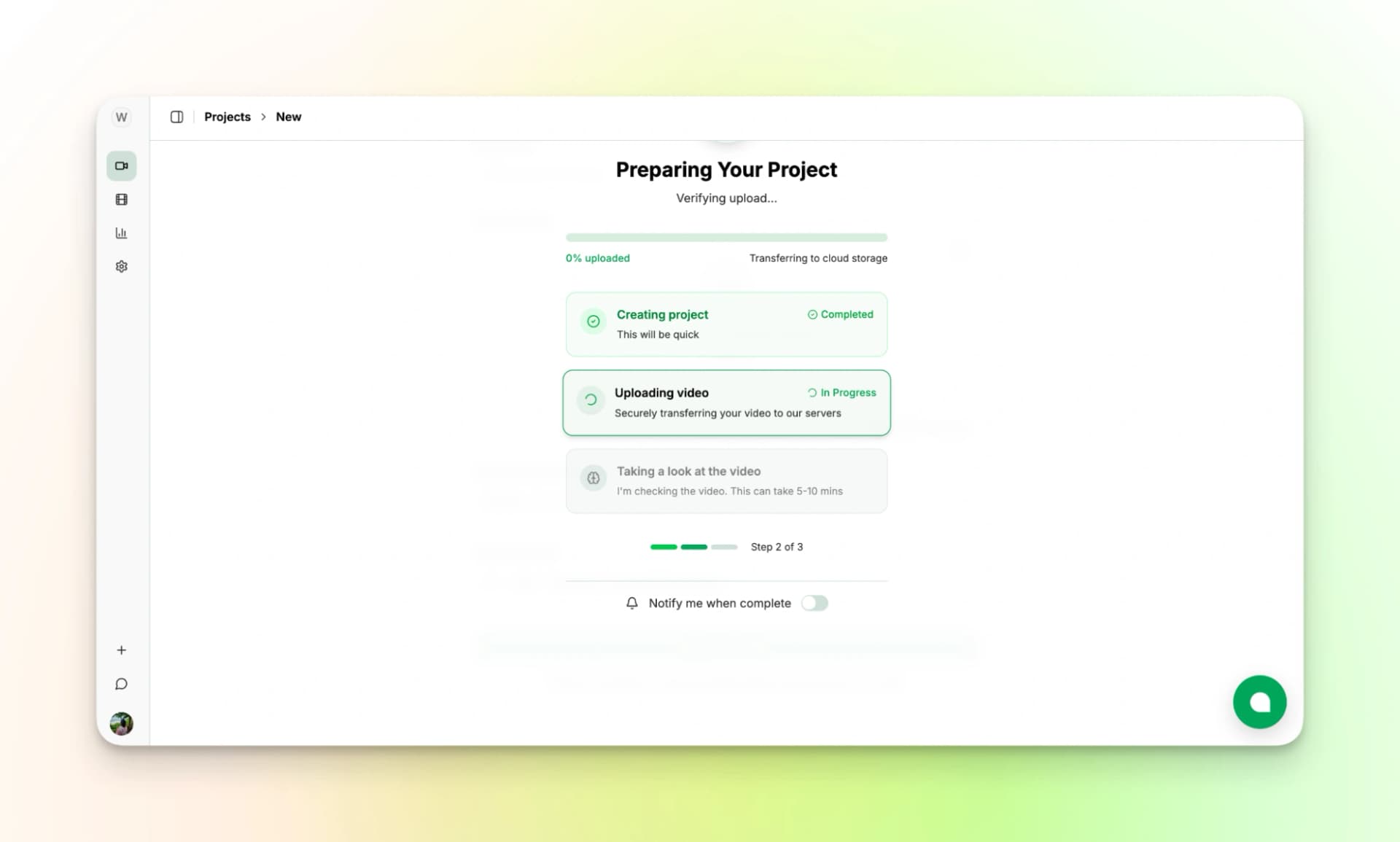
This helps the explanation match exactly what learners see.
This step takes a few minutes. You don’t need to do anything while it runs.
Step 8: Review the Script Written by AI
After that, VideoMule shows you a written script.
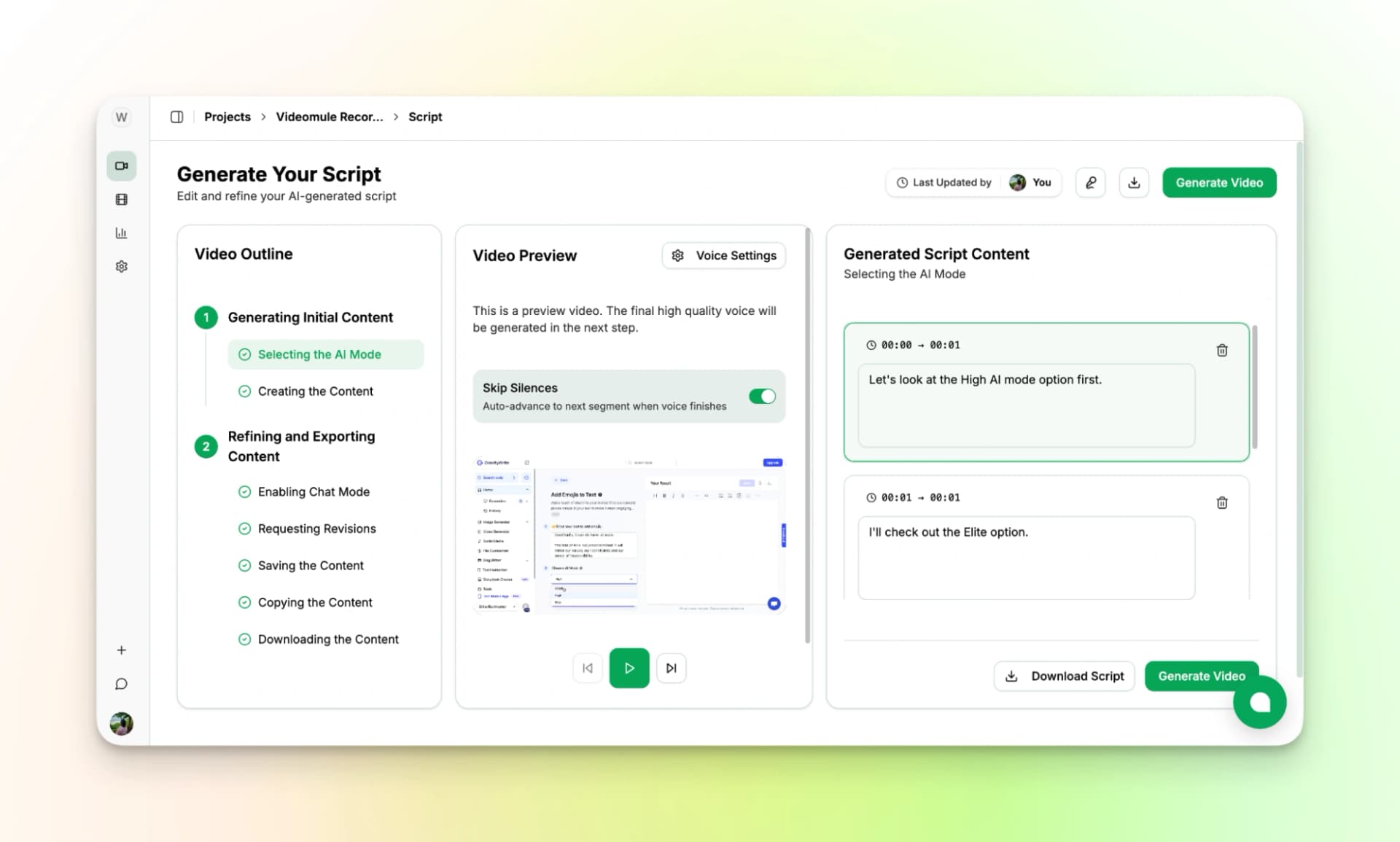
The script explains what’s happening on screen, step by step, in simple words.
Read through it once.
You can:
- Change wording if needed
- Remove lines you don’t want
- Download it for later
Let me edit this line:
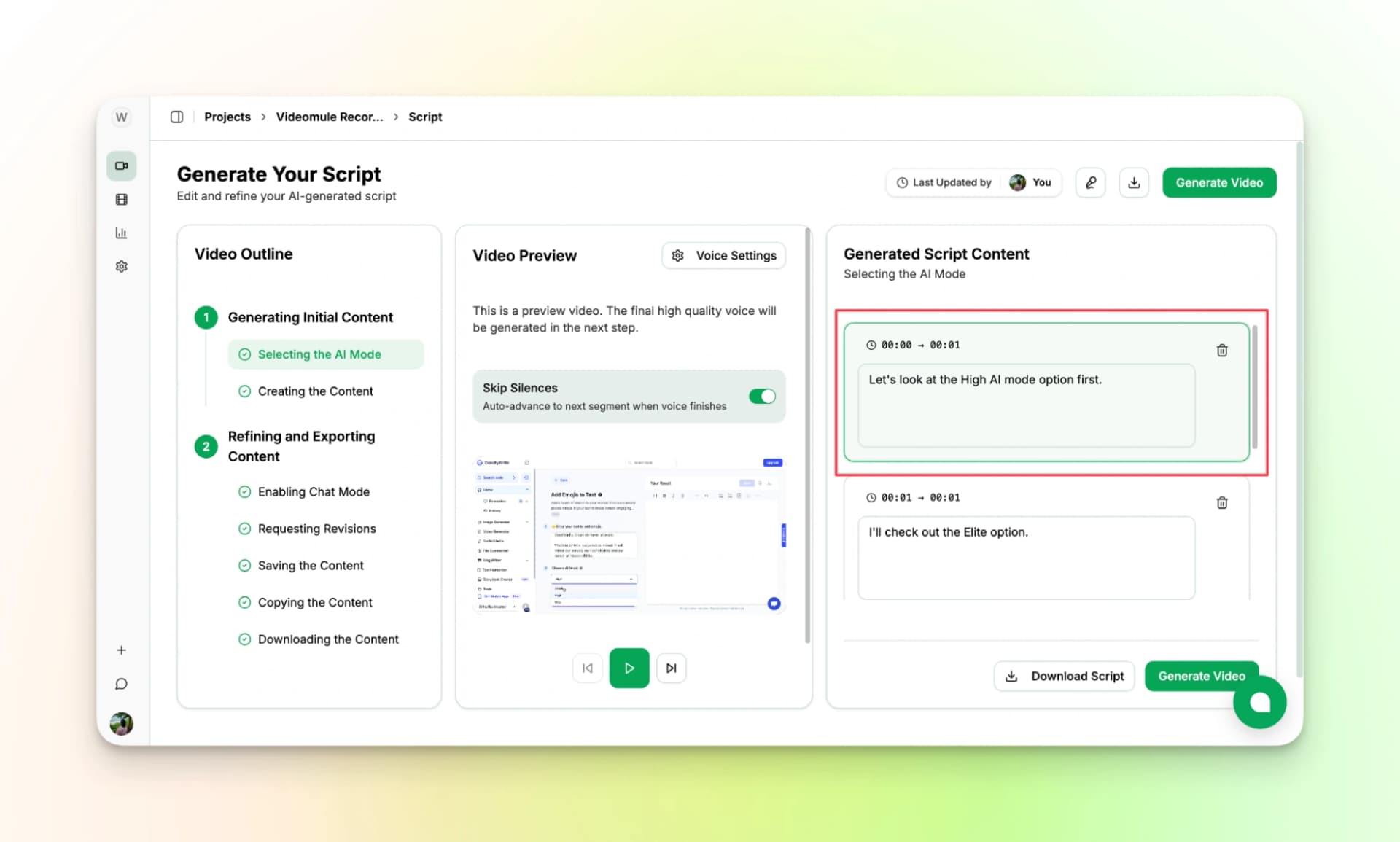
As you save your changes, the AI narration will be modified as well.
You can also modify the voice settings here as well.
You are not writing the entire script. You are checking it and tweaking it as needed. You can reuse this script as a simple training video script template for other lessons.
Step 9: Generate the Training Video
Once you’re happy with the script, move on.
VideoMule:
- Reads the script using the selected voice
- Matches the voice with the screen recording
- Adds subtitles automatically
Subtitles are added on their own, so you don’t have to think about captions or timing.
Step 10: Review the Final Lesson
Watch the video from start to finish.
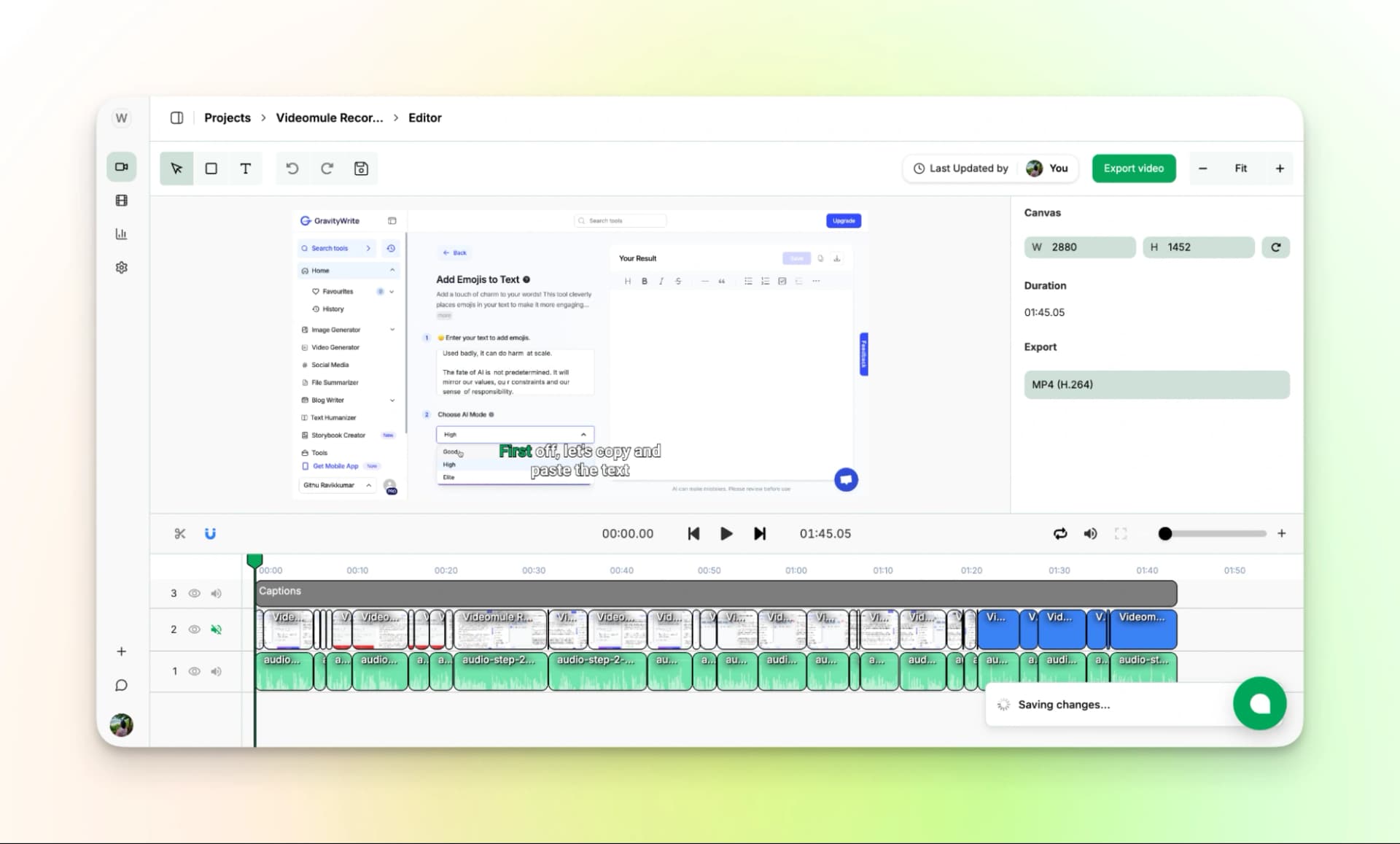
Check:
- Does the voice explain what’s on screen?
- Are the captions easy to read?
- Does the speed feel comfortable?
You can make small changes if needed, like fixing subtitles or trimming the screen.
Step 11: Export the Lesson
When everything looks right, export the video.
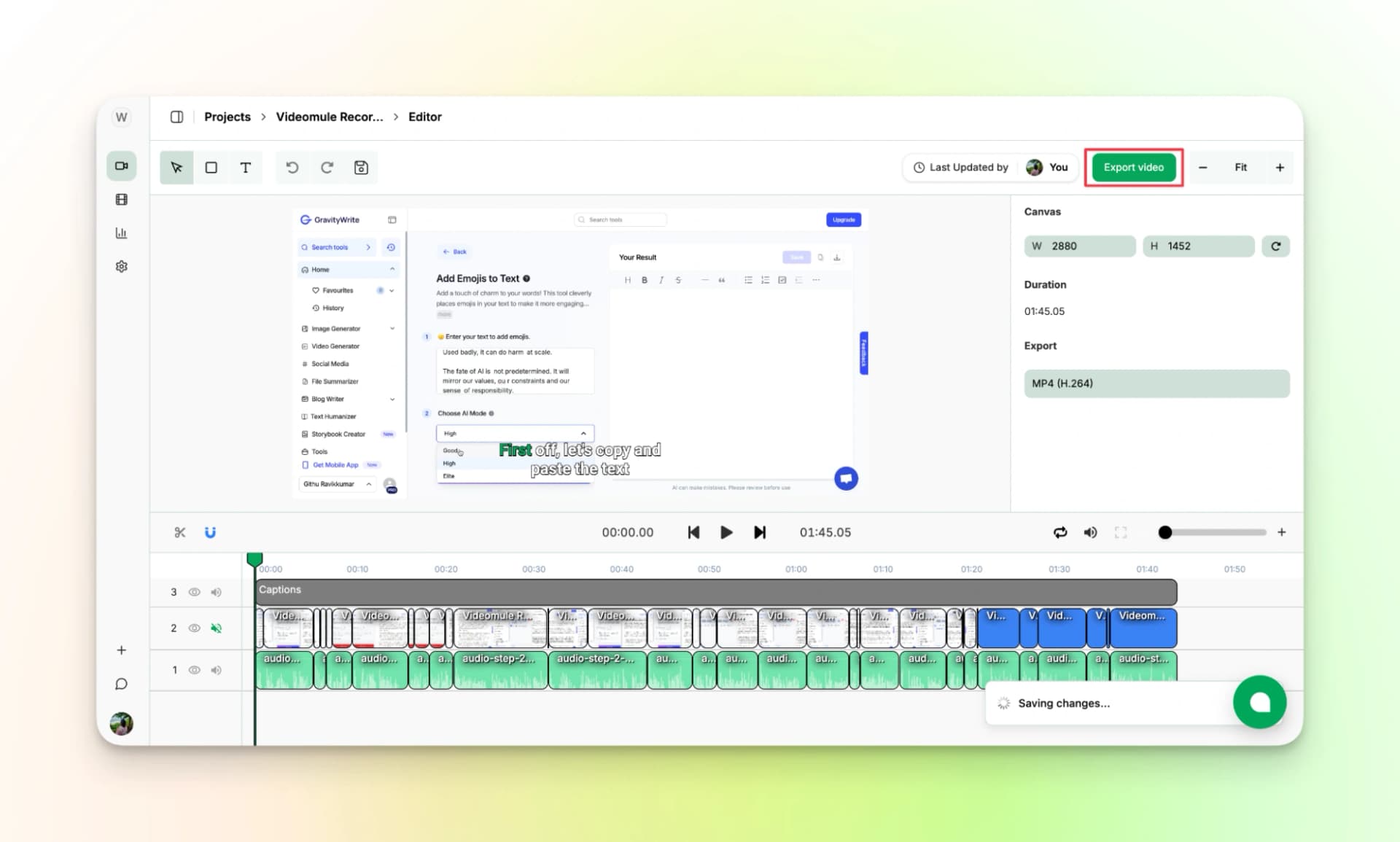
The lesson is created in high quality and ready to use. All paid plans export watermark-free videos.
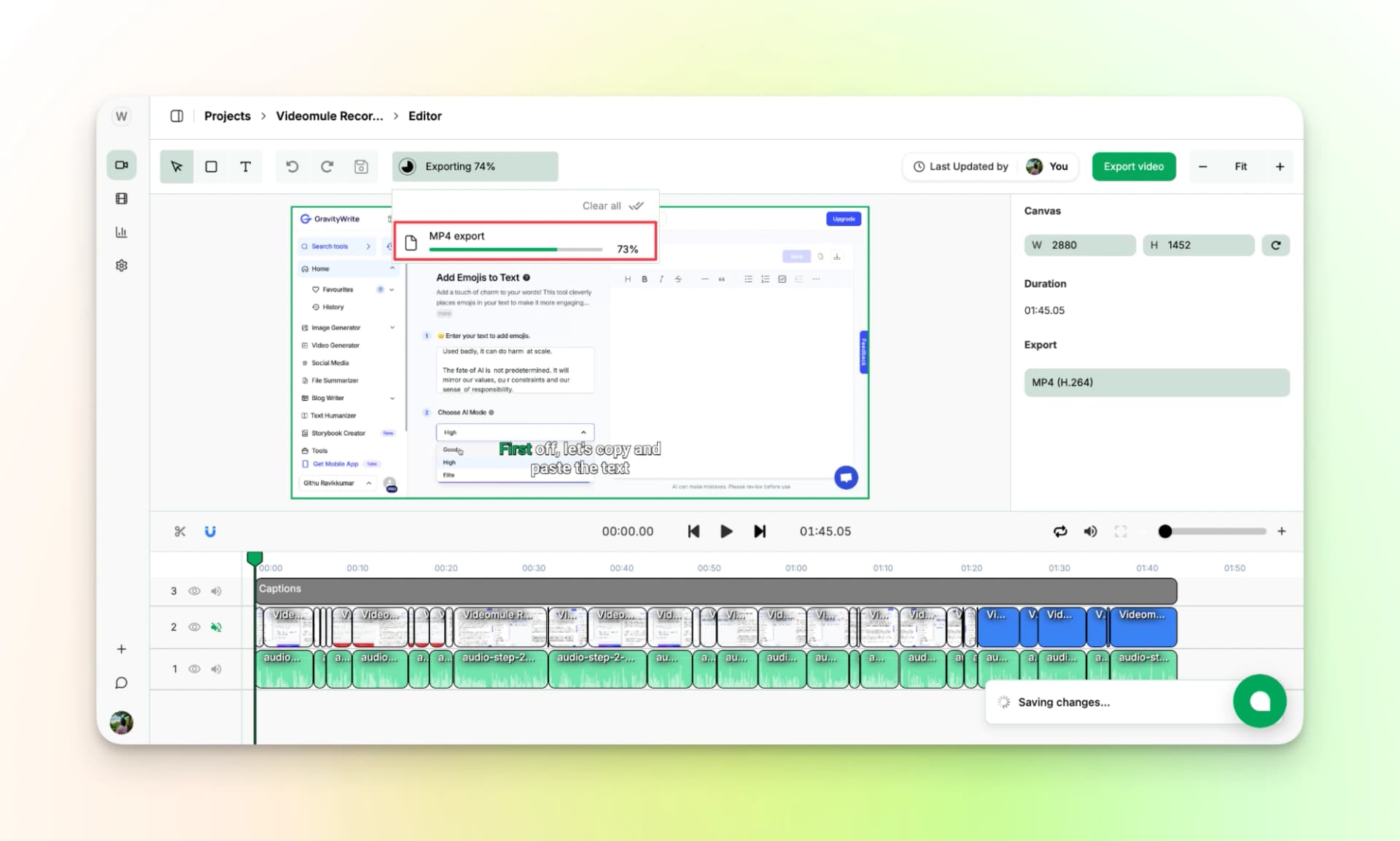
Repeat this process for each lesson, and your video training course comes together one video at a time.
Creating Training Video Courses Made Easier!
Creating a video training course does not need to feel hard or overwhelming if you choose the right tool.
Writing scripts, recording your voice, fixing mistakes, and updating old videos often slows everything down.
When you record your screen and let AI handle the narration and captions, you remove most of that extra work. You focus only on showing the steps clearly. Each lesson stays simple. If something changes later, you can update just that part instead of starting over.
You don’t need to plan the entire course upfront. Start with one lesson. Build the next when you’re ready. Over time, the course grows without becoming stressful.
If you want an easy way to create a video training course with AI narration, you can try VideoMule for free here: VideoMule
FAQs on How to Make a Tutorial Video by Recording Your Screen
1. How do I add AI narration to my training video?
You record your screen first. The AI then watches the recording, writes the explanation, and narrates it using the voice you choose. You only review and adjust if needed.
2. Can I create a video course by just recording my screen?
Yes. You only need to show the steps on your screen. The AI handles the script, narration, and captions, so you don’t have to speak or edit manually.
3. What’s the easiest way to script and voice a training video?
The easiest way is to let AI generate the script from your screen recording. You don’t start with a blank page or record your voice. You just review what the AI writes.
4. Is professional equipment needed for good training videos?
No. You don’t need a microphone, camera, or studio setup. A clear screen recording is enough to create a professional-looking training video.
5. How long does it take to make a video training course?
It depends on the number of lessons. One lesson can be created in minutes once you’re familiar with the process. Courses are built gradually, one video at a time.
6. Can I create a full course without recording my own voice?
Yes. You can stay silent while recording and use AI narration for every lesson. This keeps the voice consistent across the entire course.
7. How do I make AI narration sound natural?
Keep lessons focused and avoid rushing on screen. Review the script once, adjust pacing if needed, and choose a voice that sounds clear and calm.
Keep reading
AI Educational Video Maker
Turn slides and screen recordings into narrated lesson videos with an AI script and voiceover.