How to Make a Tutorial Video by Recording Your Screen with AI (For FREE)
Record your screen and create tutorial videos for free using AI. No mic, no editing, no quiet room or costly tools required.
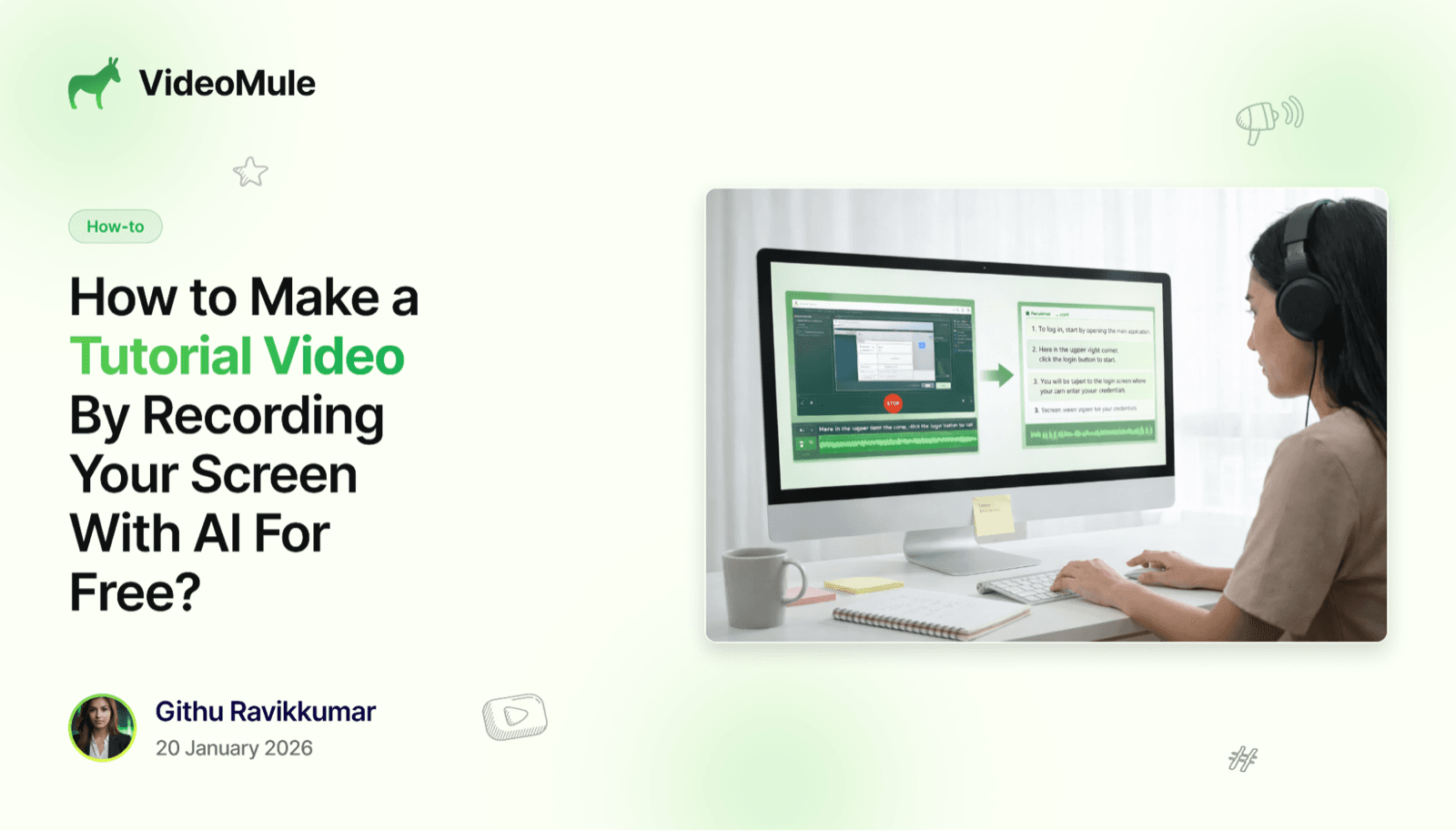
Imagine you want to create a tutorial video about a tool or how to complete a task.
You open your laptop, type something, and then get stuck.
- What do I record?
- What do I say?
- How do people even turn this into a video?
I have been there too.
That’s why this guide explains how to make a tutorial video by only recording your screen.
By the end of this blog, you will know how to create a full tutorial video without speaking, editing, or setting anything up. AI handles the rest.
This guide walks you through each step. If you want to try it yourself, you can start here: VideoMule.
What Should an Ideal Tutorial Video Look Like?
Let’s keep this simple.
When someone clicks a tutorial video, they are already frustrated. Something is not working. They do not want theory. They want help.
Keep these points in mind:
- Solve one problem, not everything
- Keep the screen clear and readable
- Move slowly so viewers can follow
- Pause when something important happens
- Match the explanation with what is on the screen
- Avoid extra talk or side stories
While explaining, always cover:
- What to click
- Where to click
- What happens after clicking
- What comes next
That’s it.
Keep the Length Short
- Short videos work better
- Break complex topics into smaller videos
If viewers finish your video and feel confident to try it themselves, you’ve done your job.
Step-by-Step: How to Make a Tutorial Video by Recording Your Screen with AI
VideoMule works as a screen recorder that also explains what’s happening, adds an AI voice, and prepares the final video.
You do not need a script. You do not need to plan your voice. Just follow the steps.
Step 1: Visit the Homepage
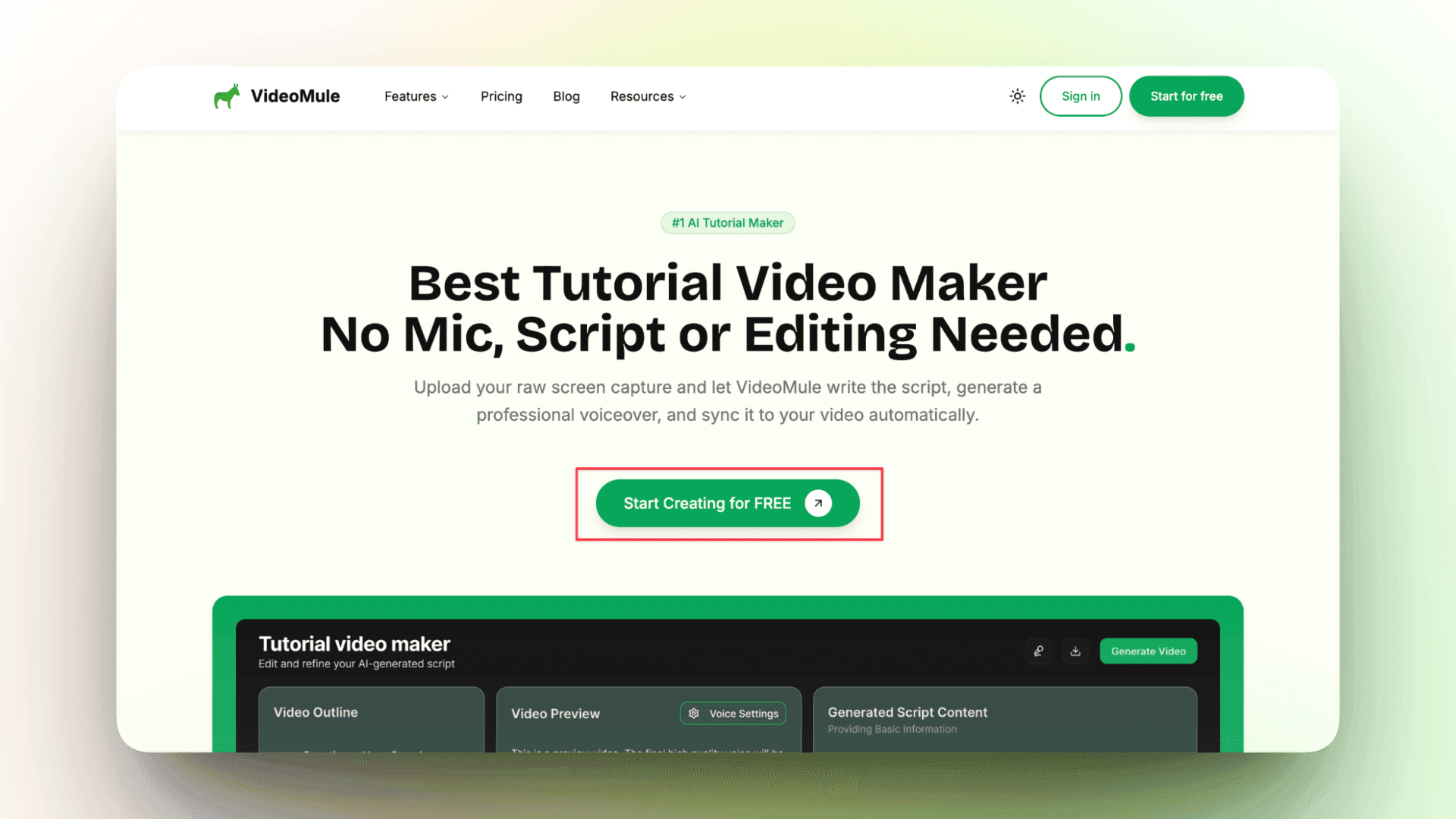
Go to the VideoMule homepage and click Start Creating for FREE.
This lets you create tutorial videos by recording your screen at no cost.
Step 2: Create Your Organization
This step is required.
It helps you manage projects, videos, and assets in one place.

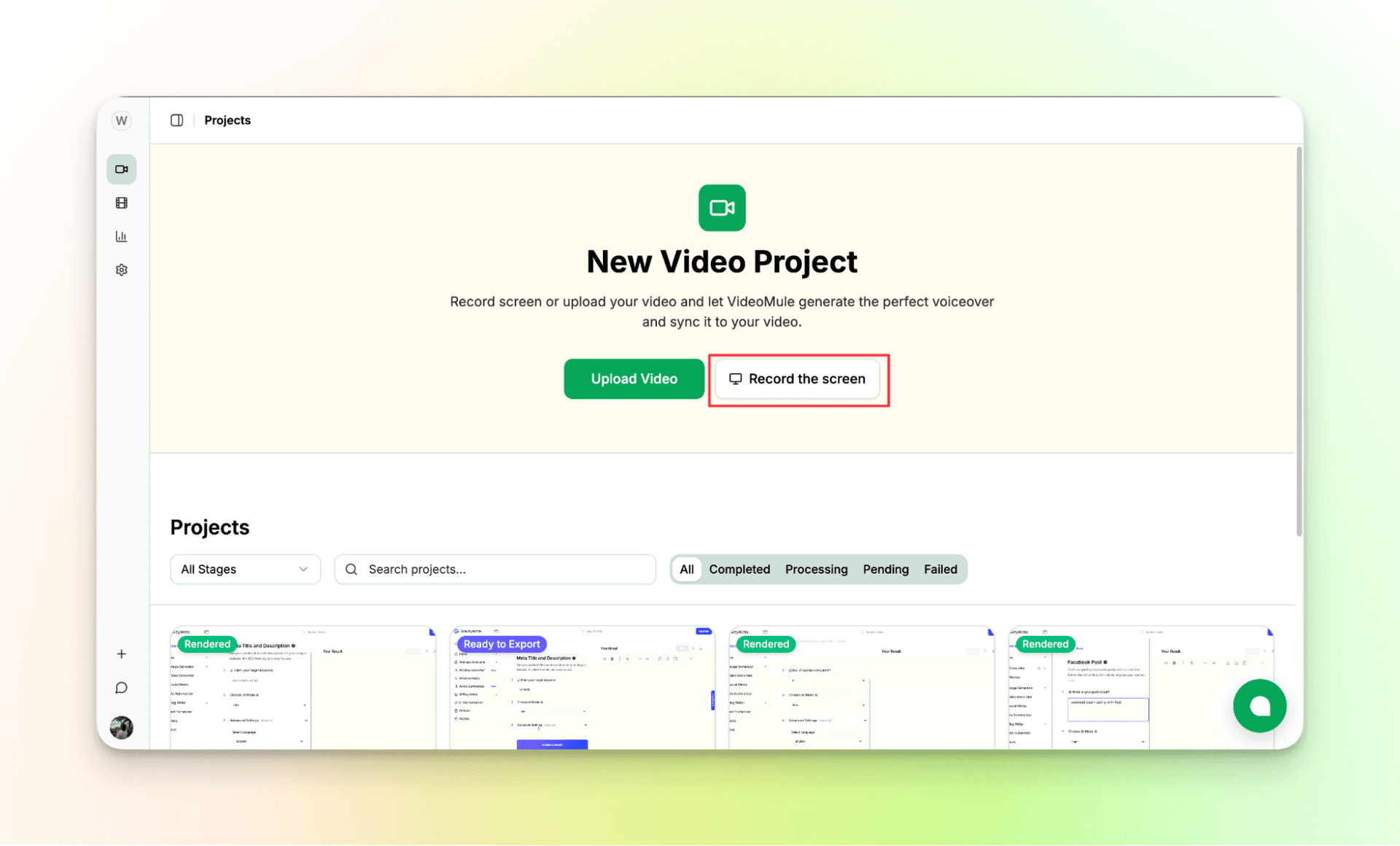
Step 3: Start Recording Your Screen
You are now inside the dashboard.
Click to start screen recording and choose what to record:
- Full screen
- A specific window or browser tab
Once recording starts, perform the task you want to explain.
While recording:
- Move the mouse slowly
- Pause before clicking
- Follow steps in order
- Do not rush
You do not need to speak. Silence is fine.
Stop the recording when you are done.
Step 4: Preview the Screen Recording
After recording stops, VideoMule fetches the video automatically.
Check the preview:

- Did everything record properly?
- Is the screen clear?
- Did you miss anything important?
If it looks good, continue. If not, record again.
Step 5: Choose the Language and AI Voice
Name your video so you can recognize it later.
Next, choose the language. This tells the AI:
- Which language to write the explanation in
- Which language the voice should speak

Once selected, the AI starts processing your video.
Step 6: Let VideoMule Analyze the Recording
Now the AI gets to work.

It analyzes:
- What you clicked
- Where you navigated
- How each step connects
This takes a few minutes. You do not need to do anything.
Step 7: Review the Script Written by AI
After analysis, you will see a written script.
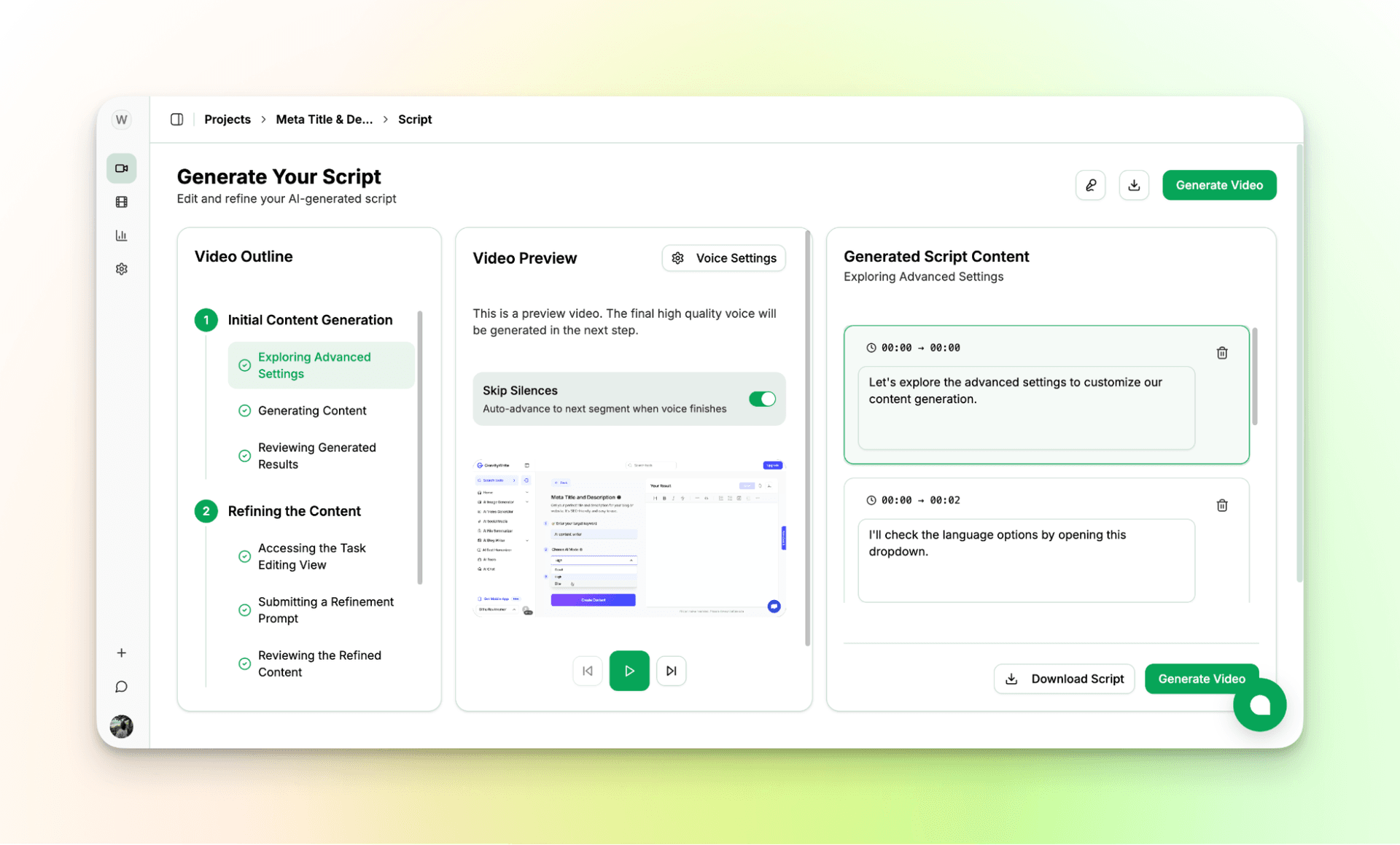
The script:
- Follows your screen actions
- Skips silent parts
- Uses clear and simple language
You can:
- Edit the wording
- Remove lines
- Download the script
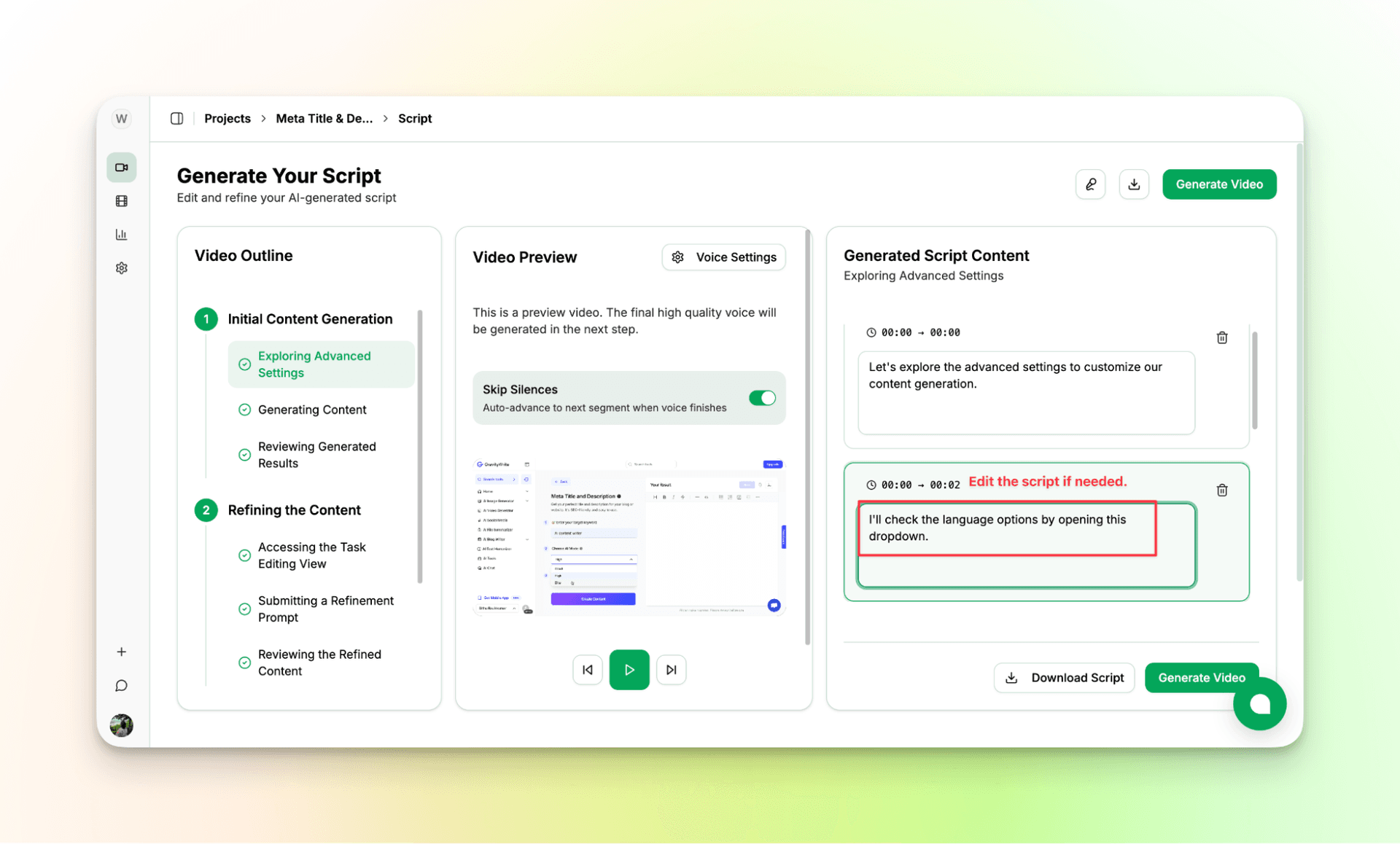
You are not writing the script. You are only reviewing it.
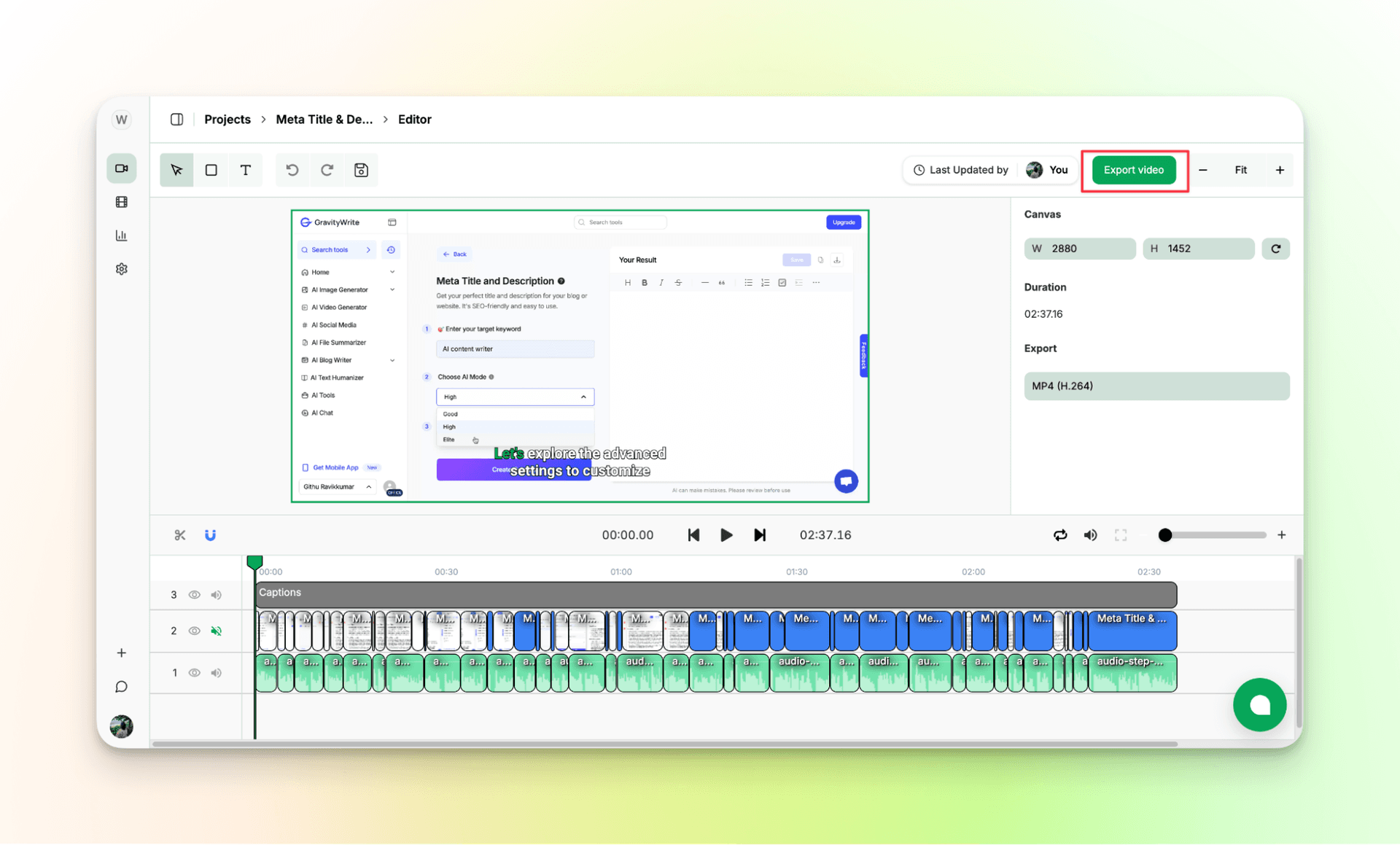
Step 8: Generate the Tutorial Video
Once the script looks good, move forward.
VideoMule will:
- Read the script using an AI voice
- Sync the voice with the screen
- Add subtitles
- Adjust timing
This happens in a simple editor view. No editing skills needed.
Step 9: Review the Final Video
Watch the video fully.
Check:
- Does the voice match the screen?
- Are subtitles readable?
- Is the pace comfortable?
You can make small trims if needed. Otherwise, leave it as is.
Step 10: Export the Video
Export the final video.
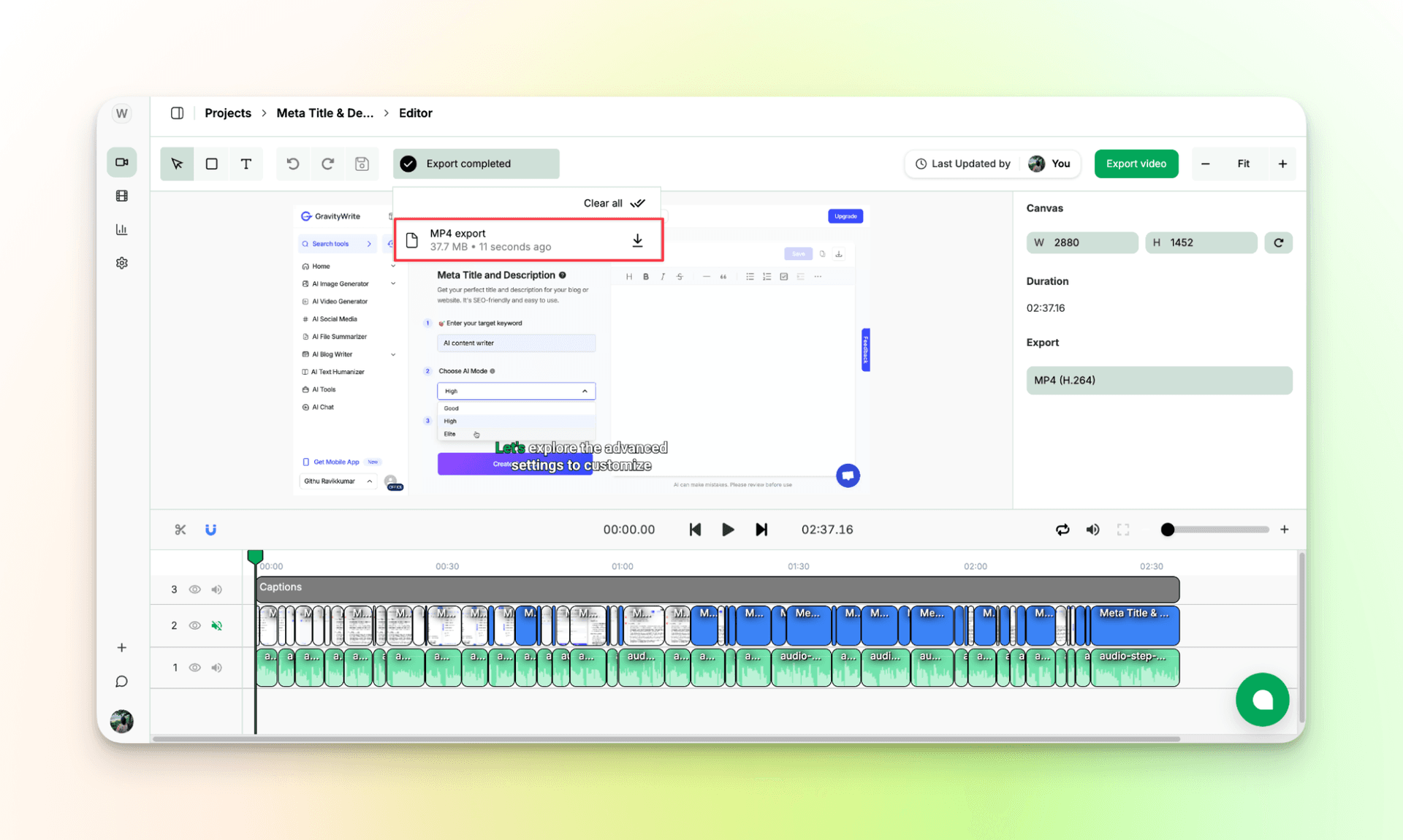
The video is generated in high quality and ready to publish.
All paid plans export watermark-free videos, so you can share them right away.
Input: Screen Recording
Output: Engaging Tutorial Video Created by VideoMule
You have now created a tutorial video by recording your screen and letting AI do the rest.
If you want to avoid juggling multiple tools and workflows, get started with VideoMule.
It works well for product demos, educational videos, and tutorials.
A Practical Tip After Creating Many Videos
Watch the final video from a user’s point of view.
Ask yourself:
- Would I click this video first?
- Would it solve my problem?
If the answer is no, your audience may feel the same. Always double-check.
Here's a detailed YouTube video on creating tutorial videos using VideoMule:
Record Once, Let VideoMule Do the Rest
Creating tutorial videos does not need to feel hard.
You do not need perfect audio.
You do not need special tools.
Just show the steps on your screen.
Recording your screen and letting AI explain it helps you focus on teaching instead of production.
You can start for free here: VideoMule.
FAQs on How to Make a Tutorial Video by Recording Your Screen
1. How do I make a tutorial video by recording my screen step by step?
Record your screen while doing the task. An AI tool then writes the explanation, adds voiceover, and creates the final video.
2. What is the easiest way to record my screen and add a voiceover?
Use a tool that handles both. Record once, and let AI create the script and voiceover.
3. Should I record my voice or my screen first?
Always record your screen first. The voice can be added later using AI.
4. Which screen recording software is best for beginners?
Choose a tool that records, explains, adds voiceover, and exports the video in one place.
5. Can I use AI voice instead of my own voice?
Yes. AI voice works well for tutorials and stays clear and consistent.
6. Will viewers accept AI voiceovers?
Most viewers care about clear steps. If the tutorial helps them, the voice does not matter much.
7. How do I keep tutorials engaging?
Focus on one task, move slowly, and skip long introductions.
8. How can I update tutorials when the UI changes?
Re-record only the changed part, update the script, regenerate the video, and export again.
Keep reading
AI Screen Recorder
Record your screen in the browser and get the script, voiceover and captions back automatically.