10 Best SaaS Product Demo Video Software Tools
Discover the best SaaS product demo video software with AI voiceover, screen recording, and easy editing to create professional demos fast.
If you work in SaaS, you probably explain your product many times every week.
You have to show features to new users, walk customers through workflows, or answer the same questions again and again.
Instead of repeating everything on calls, many teams now use product demo videos.
A simple video can show how a feature works in just a minute or two.
That’s why more teams are searching for the best SaaS product demo video software to create these videos quickly.
In many cases, the workflow looks like this:
- Record your product workflow once
- Let AI generate the script and voiceover
- Export the demo video and reuse it across your website, onboarding, and help center
Today, many tools can even turn simple recordings into a SaaS product demo video product demo with screen recording with AI voiceover, so you don’t have to spend hours editing or recording narration.
If you’re also creating onboarding or internal learning content, you can check out our guide on the best training video software to find tools designed specifically for training and tutorials.
Turn raw screen recordings into polished demos—fast. Try VideoMule
Top 10 SaaS Product Demo Video Software Tools: A quick comparison
Before we look at each tool in detail, here’s a quick comparison of some popular SaaS demo video tools that help teams create product demos faster.
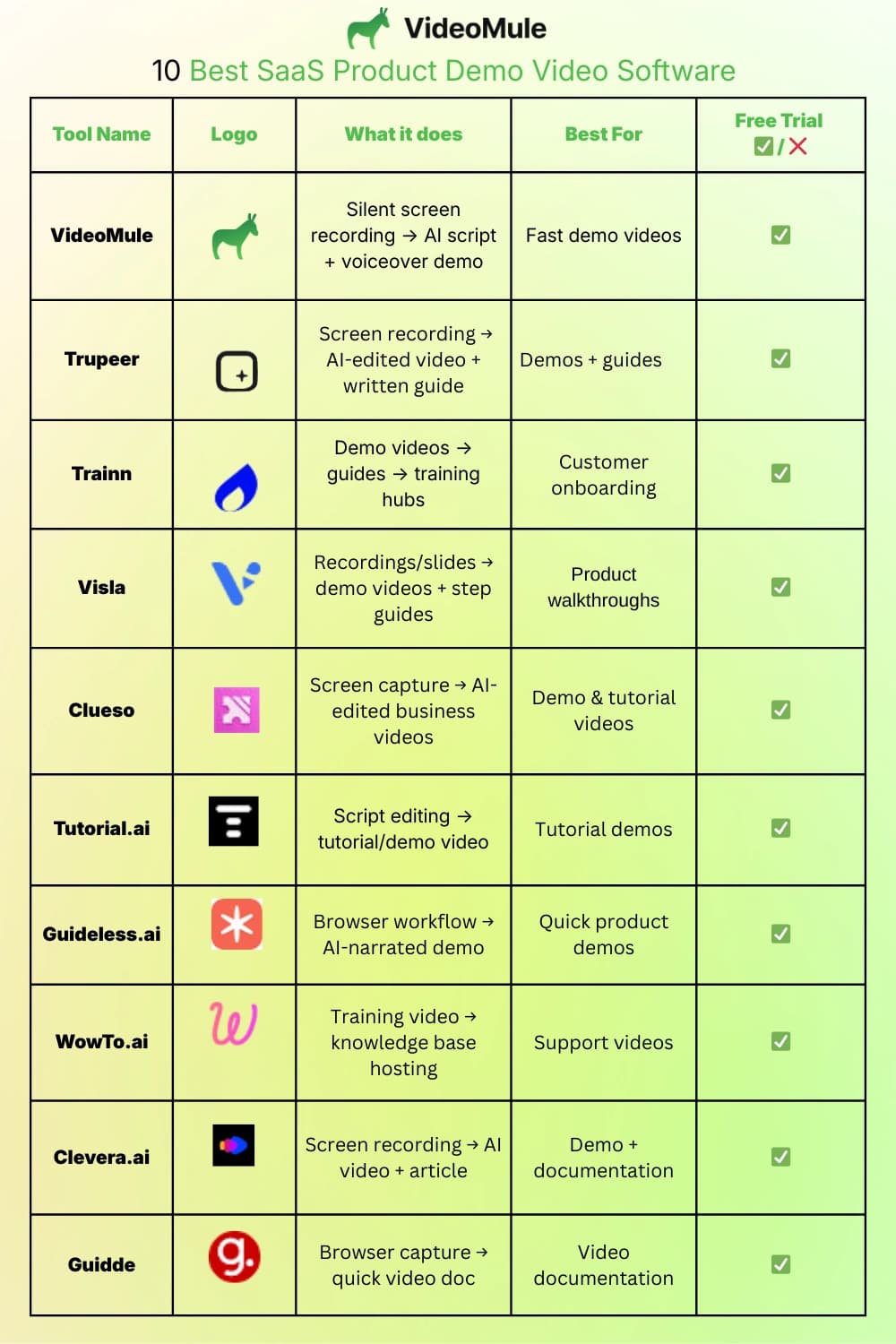
If you’re more focused on step-by-step tutorials instead of demos, you can also explore the best video tutorial software to compare tools built specifically for tutorials.
1. VideoMule
VideoMule is a simple tool that helps you turn screen recordings into clean and professional demo videos.
Here you can simply record your screen silently, and then it creates the script based on it. Then it syncs the AI voice with the actions on the screen and the the explanations of it.
You can add AI voiceovers and even custom voices to the video
Apart from product demo videos, you can also use it for:
- explaining how a feature works
- making onboarding videos for new users
- recording product demo videos for your team
Before we jump into the steps, if you’re new to this, here’s a simple guide on how to make a product demo video from scratch.
How to use Videomule:
Now lets see how you can create product demo videos.
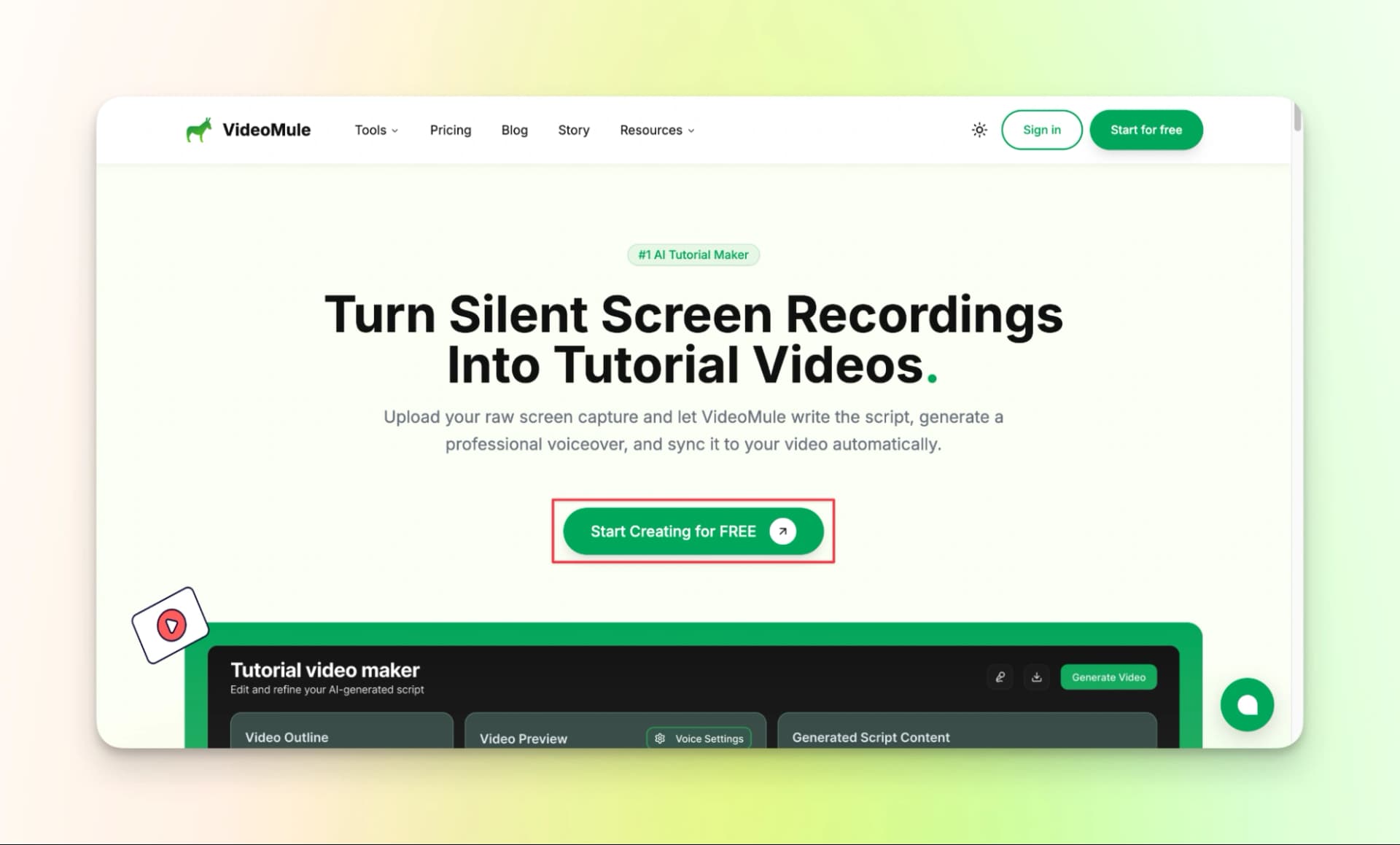
Step 1: Go to the Videomule’s page, then click Start fro Free and sign in using your google account
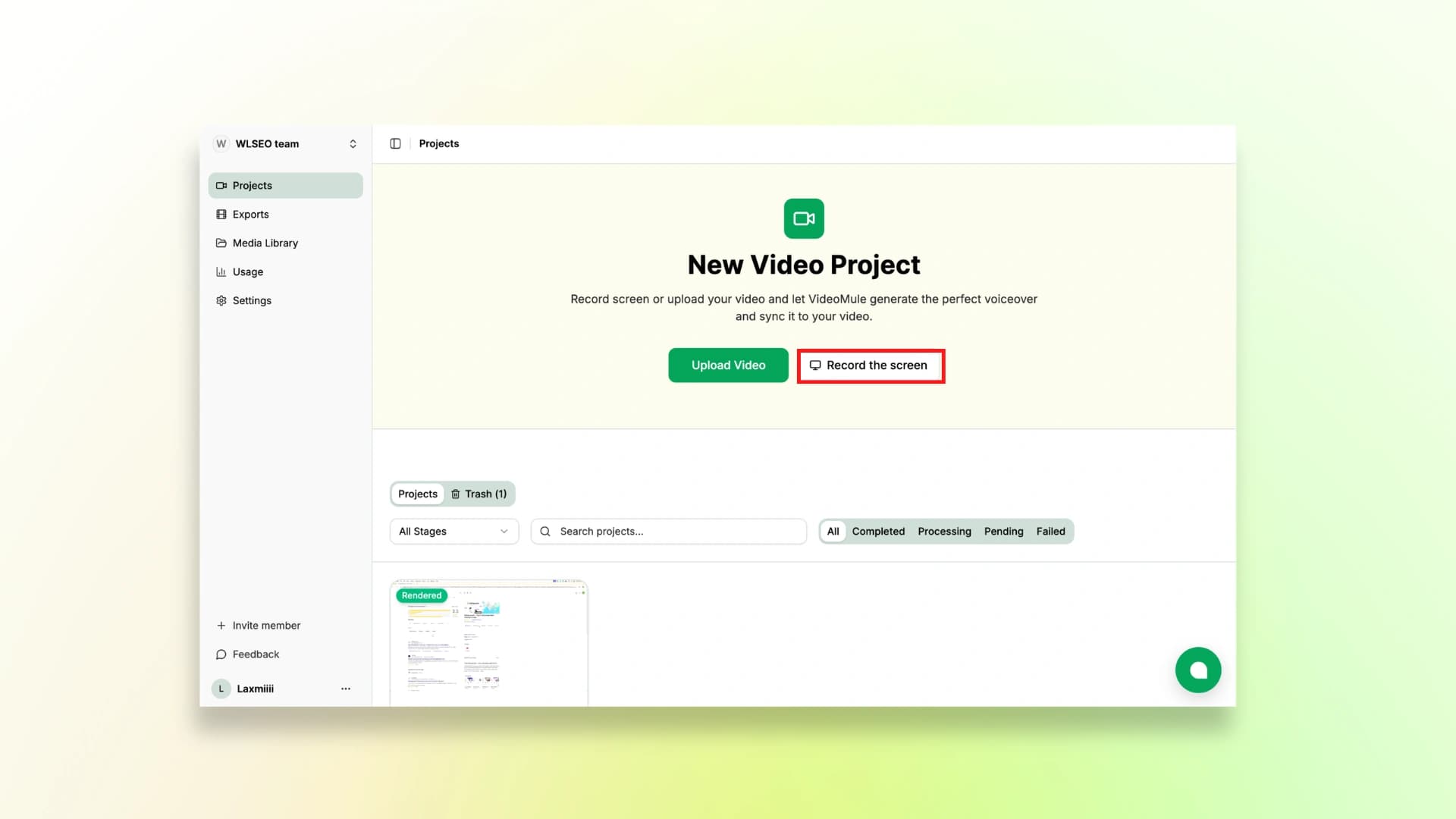
Step 2: After you sign in, click on Record screen or if you have pre recorded video, then upload it here
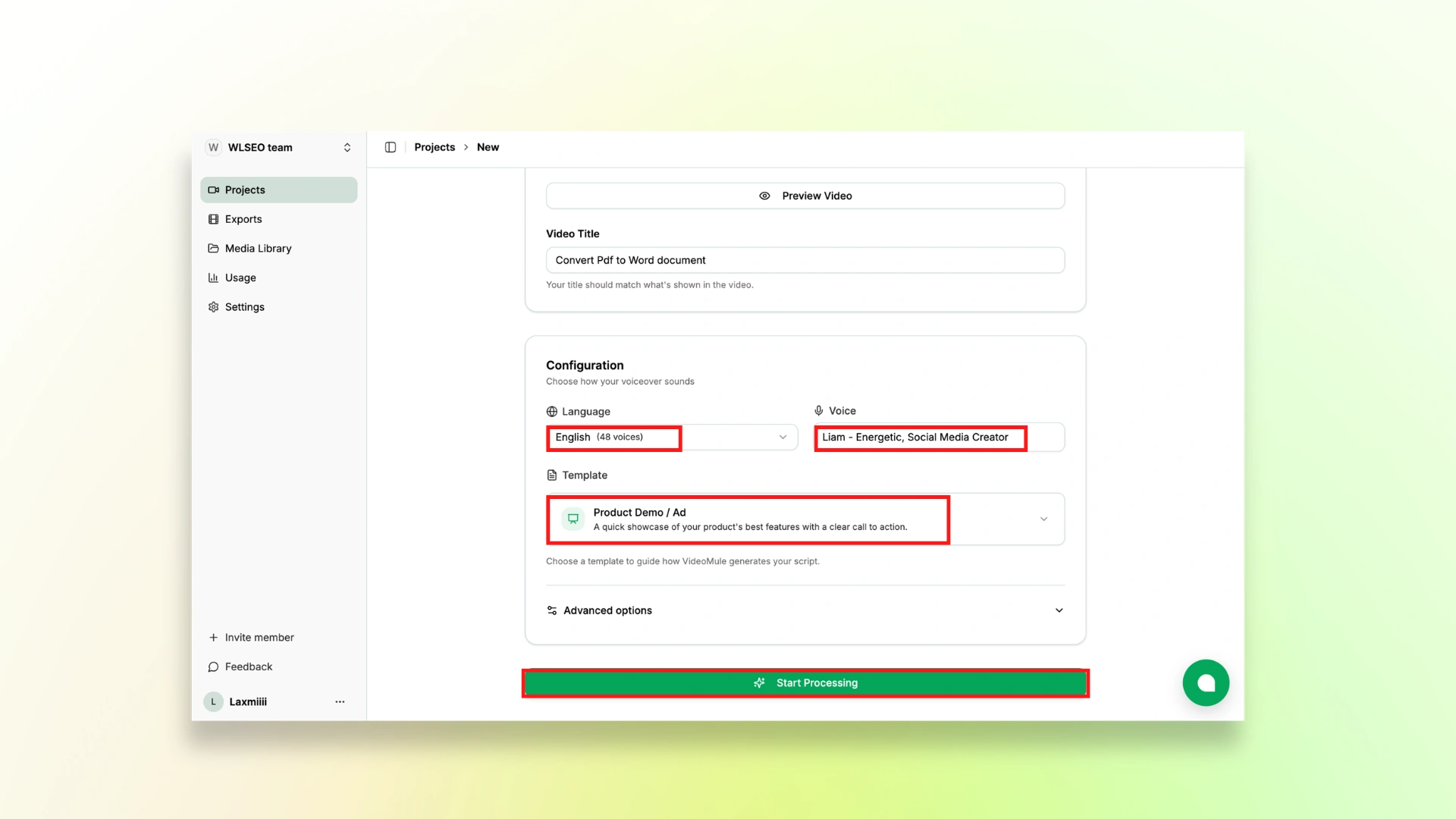
Step 3: Add the title of the video, then choose the language. There are over 48 plus languages that you can choose from.
Then choose the voice and select the template. One done, click Start Processing.
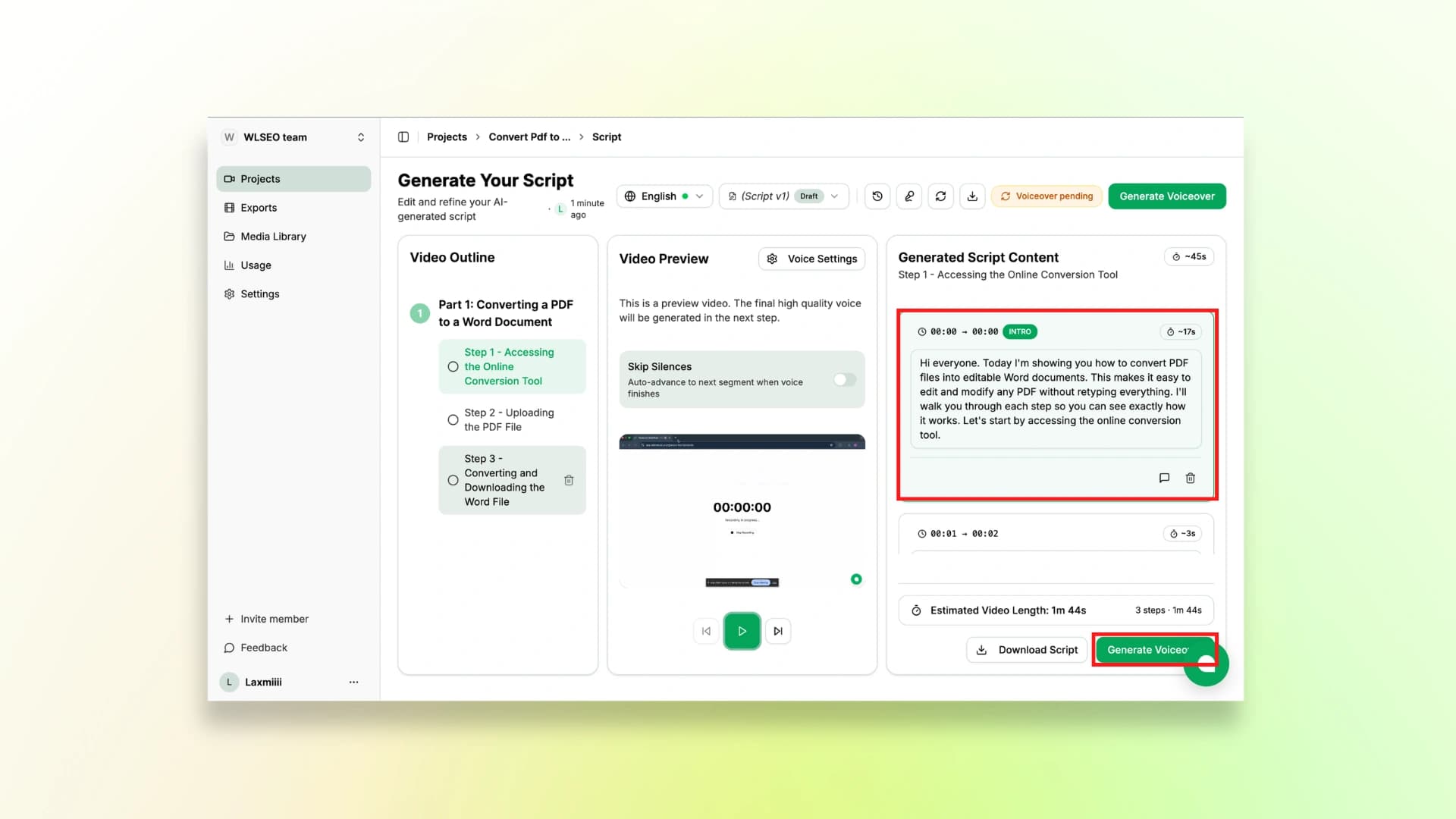
Step 4: Next you can edit the lines of your script here, and then click Generate Voiceover
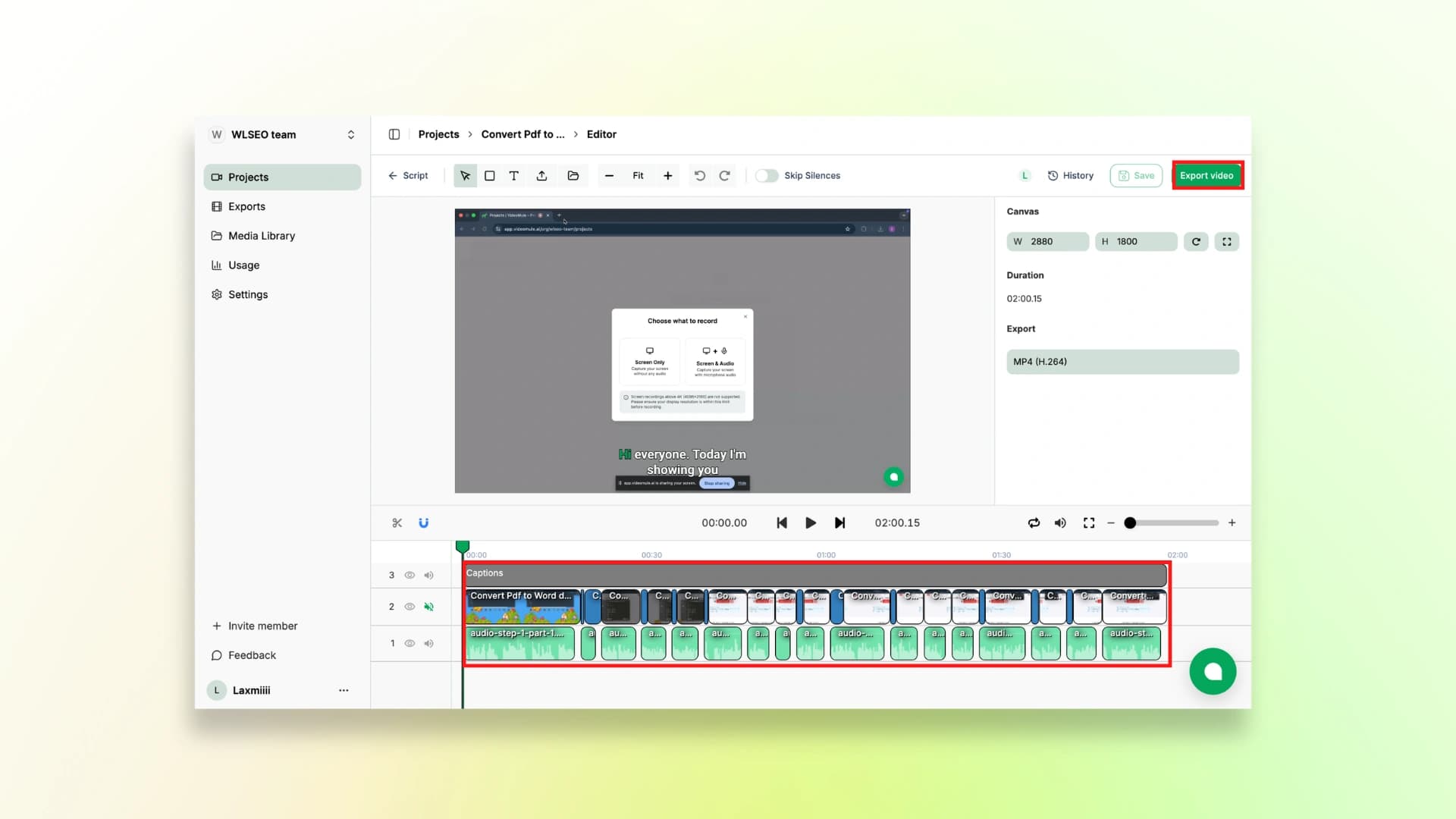
Step 5: Make your final edits here, adjust the timeline and style of captions. Once you are done just click on Export and get the product demo video.
If you want an all-in-one tool to create product demo videos without any effort, videomule is the best.
These types of videos can also be used for learning content, and here you can checkout on how to make educational videos if you want to create more structured content.
Here is the finished video:
VideoMule offers a 7-day free trial, which is enough to explore the platform and see how it works.
If you need more features and higher limits, you can upgrade to one of the paid plans based on your needs.
- Creator: $29.00/month
- Team: $69.00/month
- Agency: $199.00/month
2. Trupeer
Trupeer.ai is another helpful SaaS demo video tool for creating product demo videos, similar to VideoMule but with a slightly different workflow.
While VideoMule allows you to record your screen in silence, Trupeer usually requires you to speak while recording. And then uses AI voiceover for product demos.
Also, you need to download the chrome extension for doing the screen recordings.
One feature of Trupeer is that it can also generate written documentation along with the demo video. So along with the product demo, you also get a step-by-step guide with screenshots explaining the workflow.
How to use Trupeer:
Step 1: Download the Chrome extension with the link
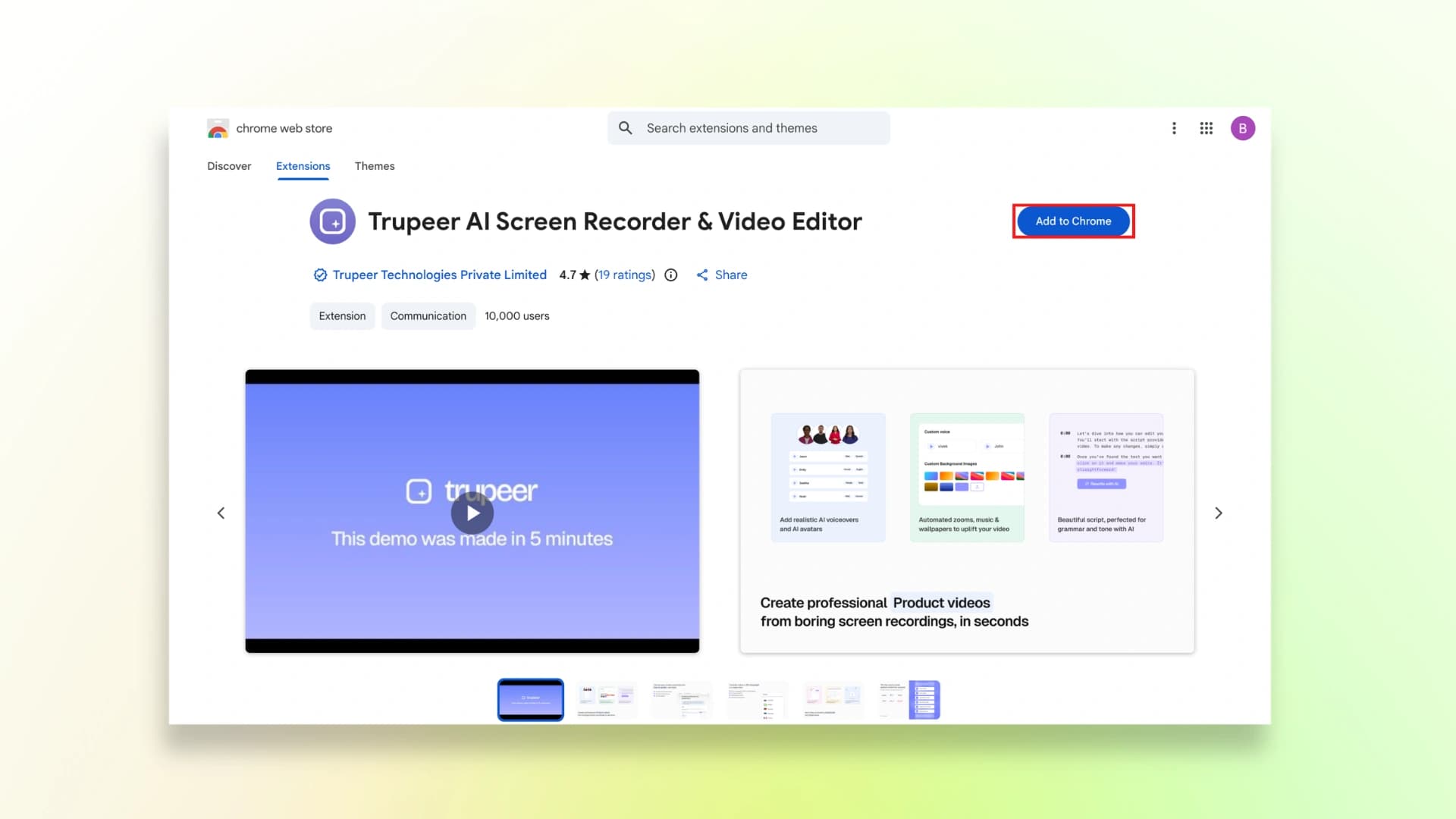
Step 2: Select the extension and then click on Start recording to record the screen. Remember that while you record, you must speak the actions.
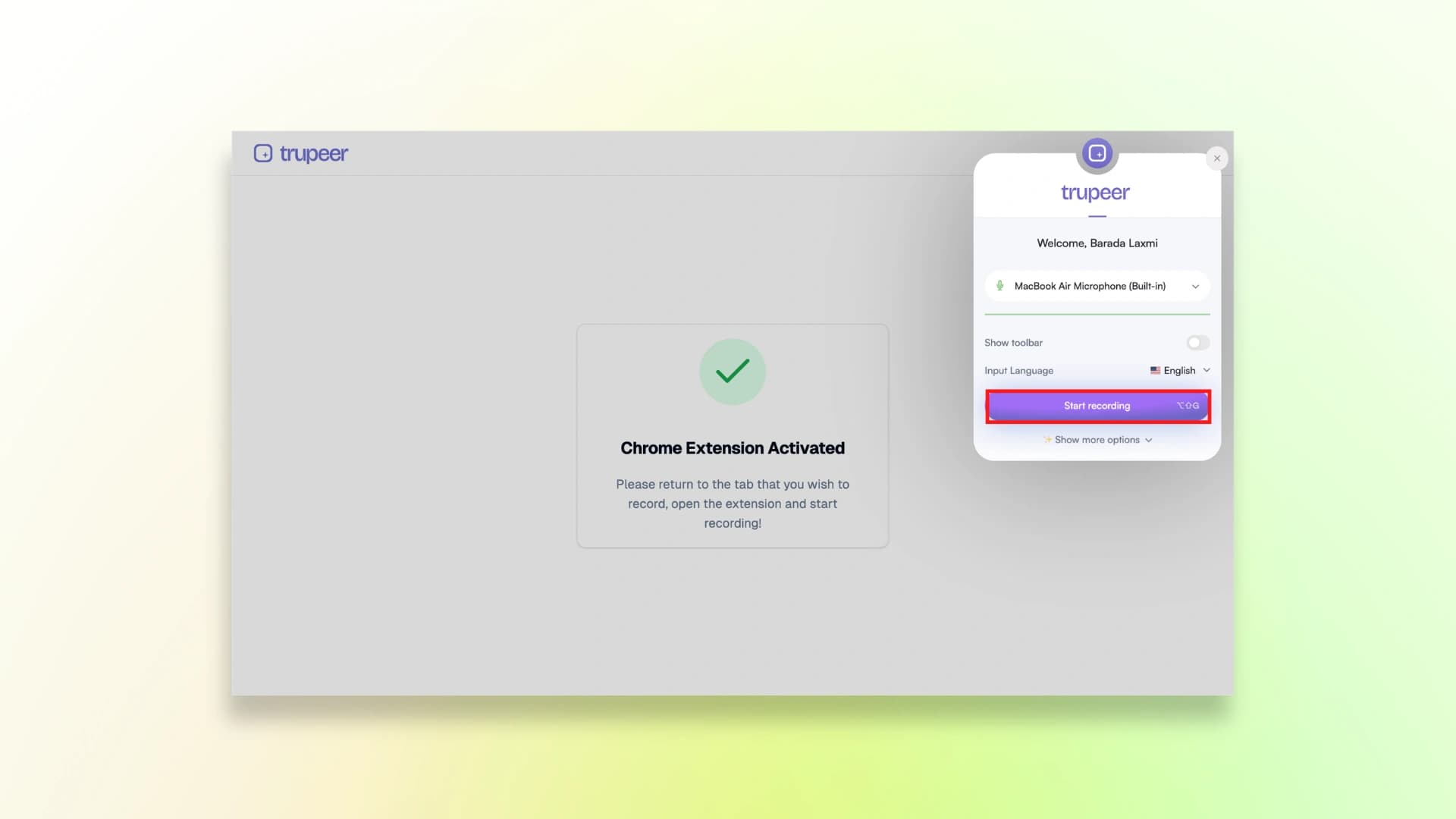
Step 3: After the screen recording is done, simple edit the video and click on Export
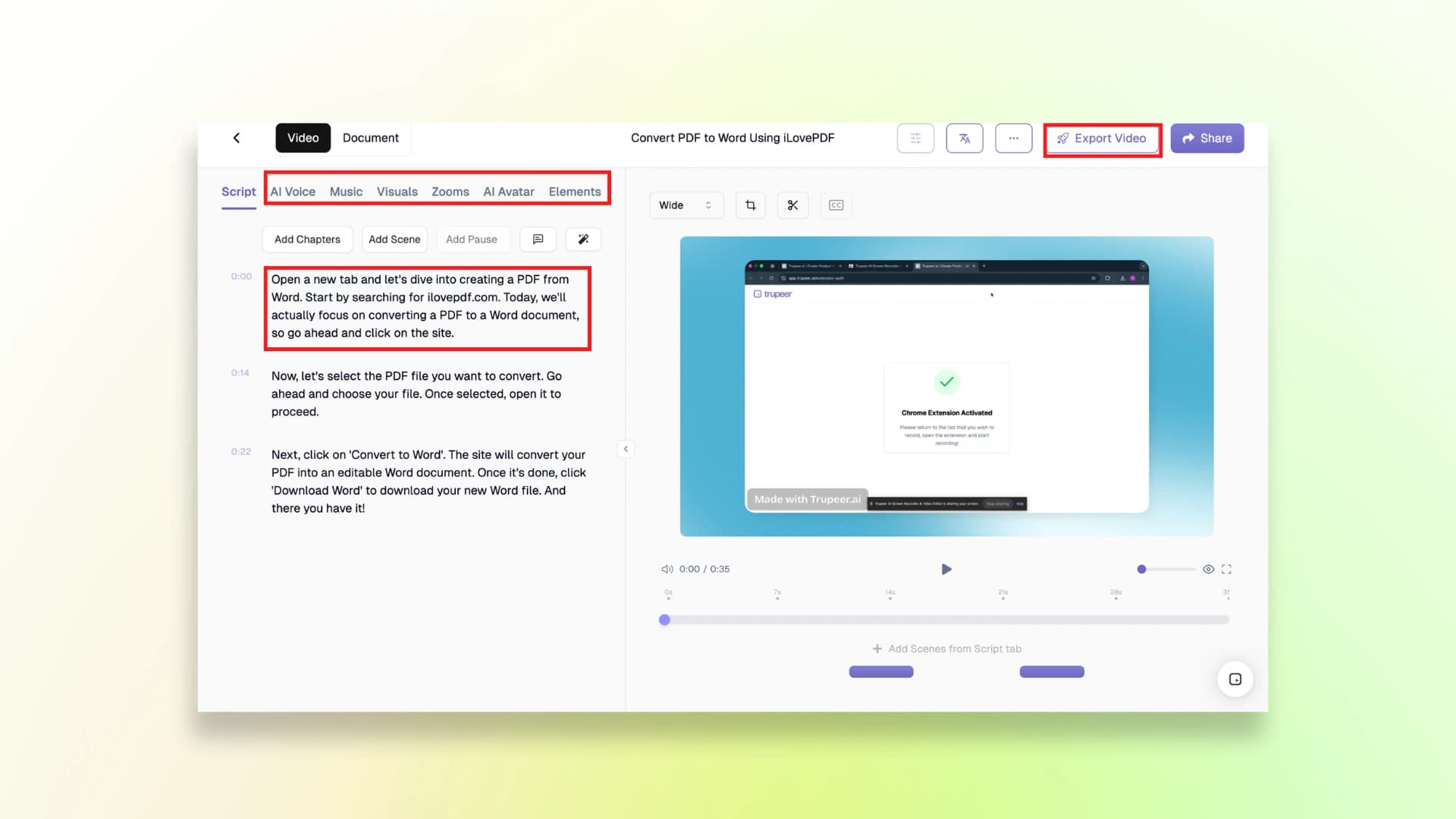
Here is the finished video:
Pricing
Trupeer offers a free plan to try the tool, while the paid plans provide more features and higher usage limits.
- Free: $0 (10 days)
- Pro: $49/month
- Scale: $249/month
- Enterprise: Available on demand (AOD)
3. Trainn
Trainn is used for creating product demo videos from screen recordings, similar to VideoMule and Trupeer.
It is mainly built for SaaS companies and product teams that want to create clear demos, onboarding videos, and product demo content.
In case you want for onboarding or internal training, you can also check out the best training video software for tools focused on training use cases.
Like Trupeer, you also need to have the chrome extension first.
How to use Trainn:
Step 1: Install the chrome Extension.
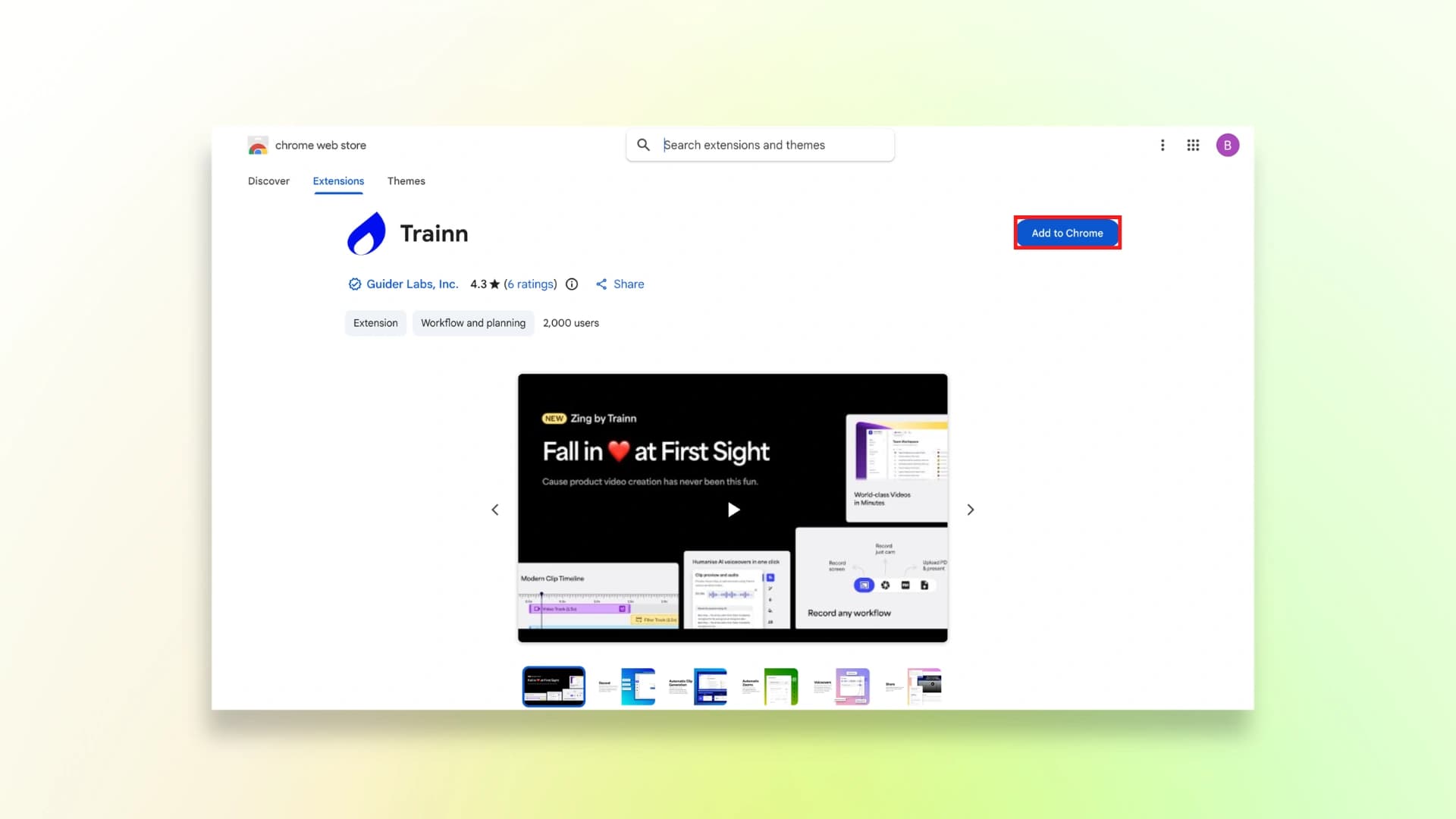
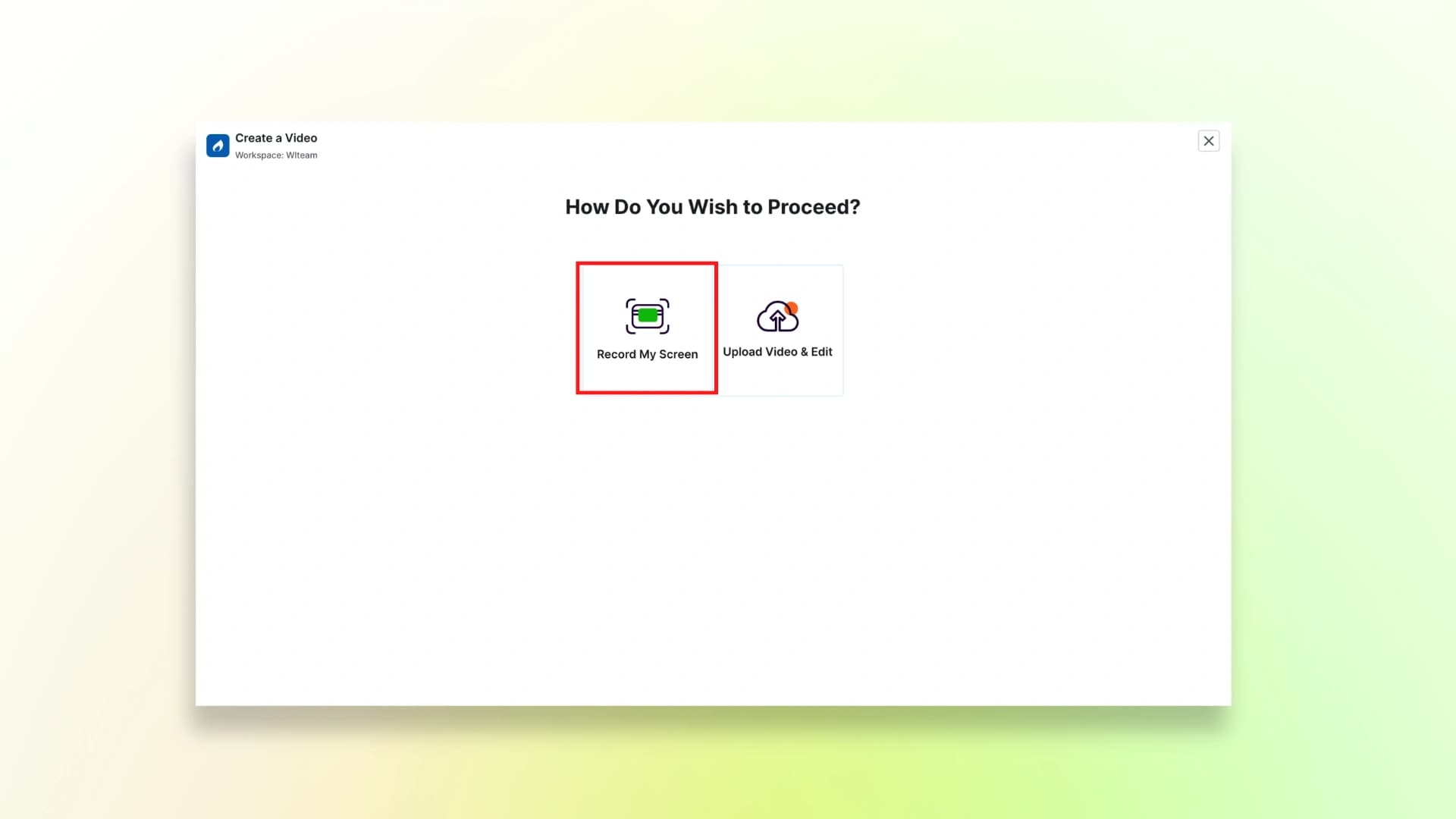
Step 2: Now click on Record my Screen
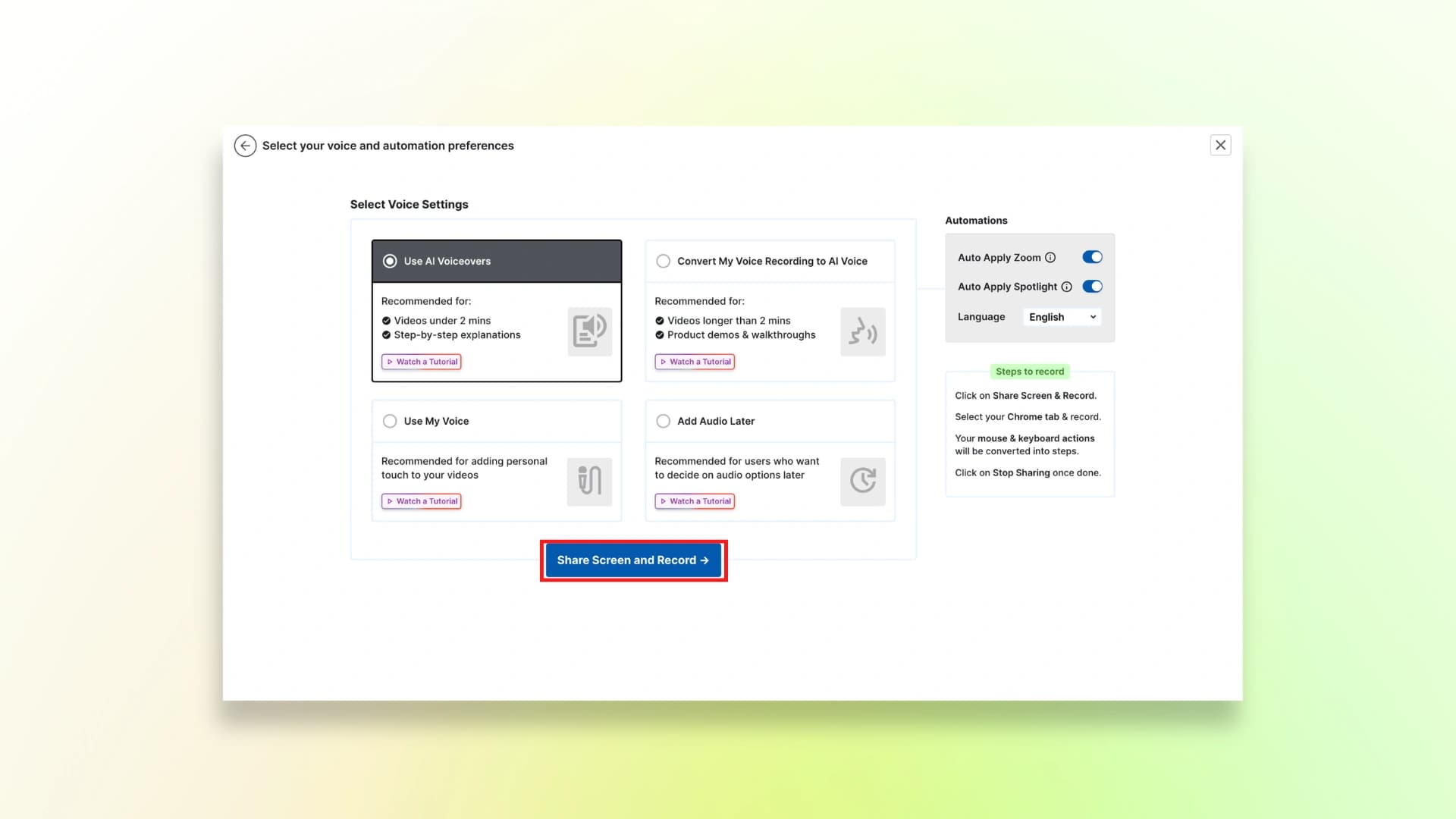
Step 3: Choose any of the voice settings, and click Share screen and Record
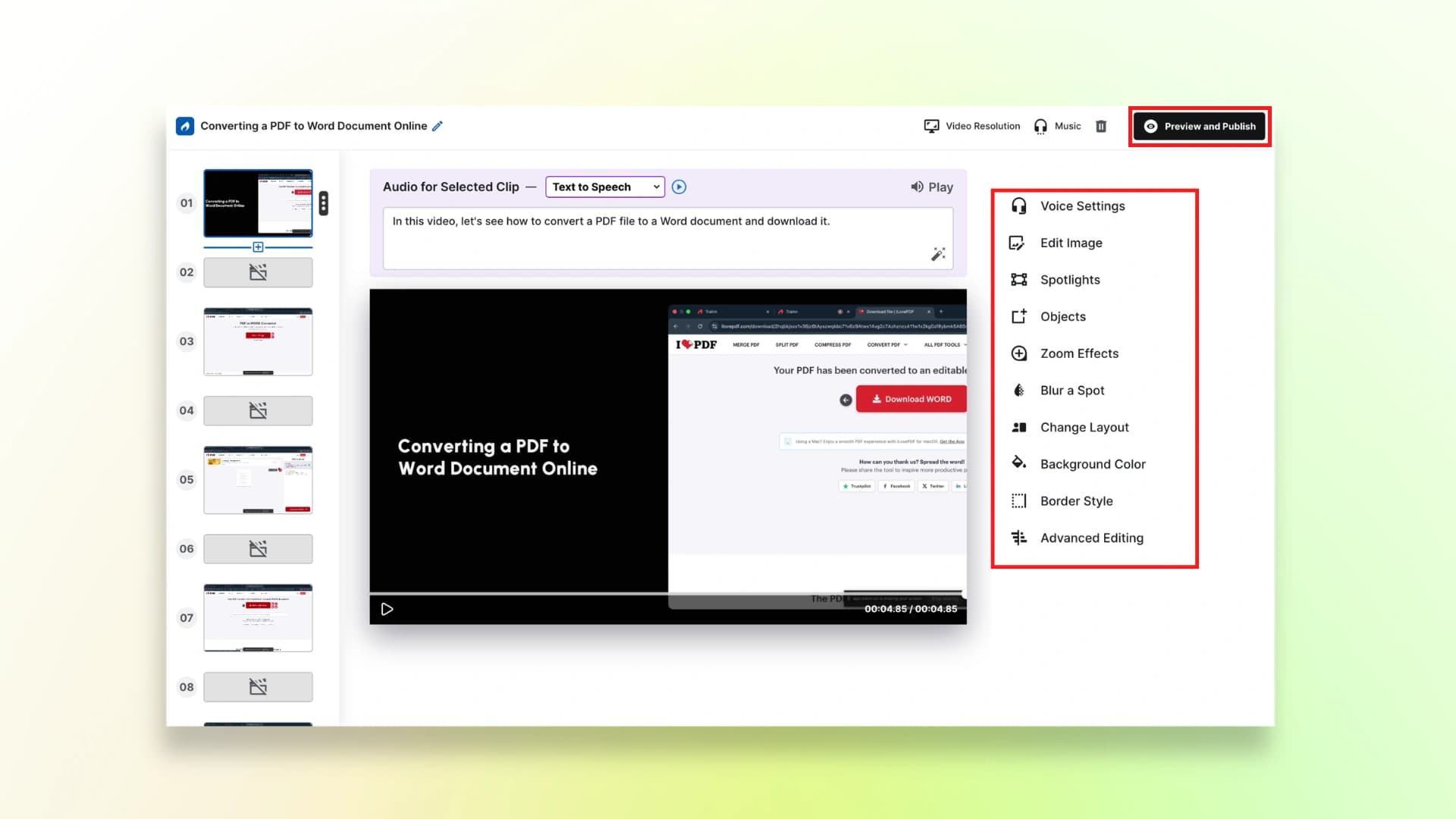
Step 4: Now, edit the video using these features, and once done click on Preview and Publish.
Step 5: Once the video is done, you can export and share your video from here.
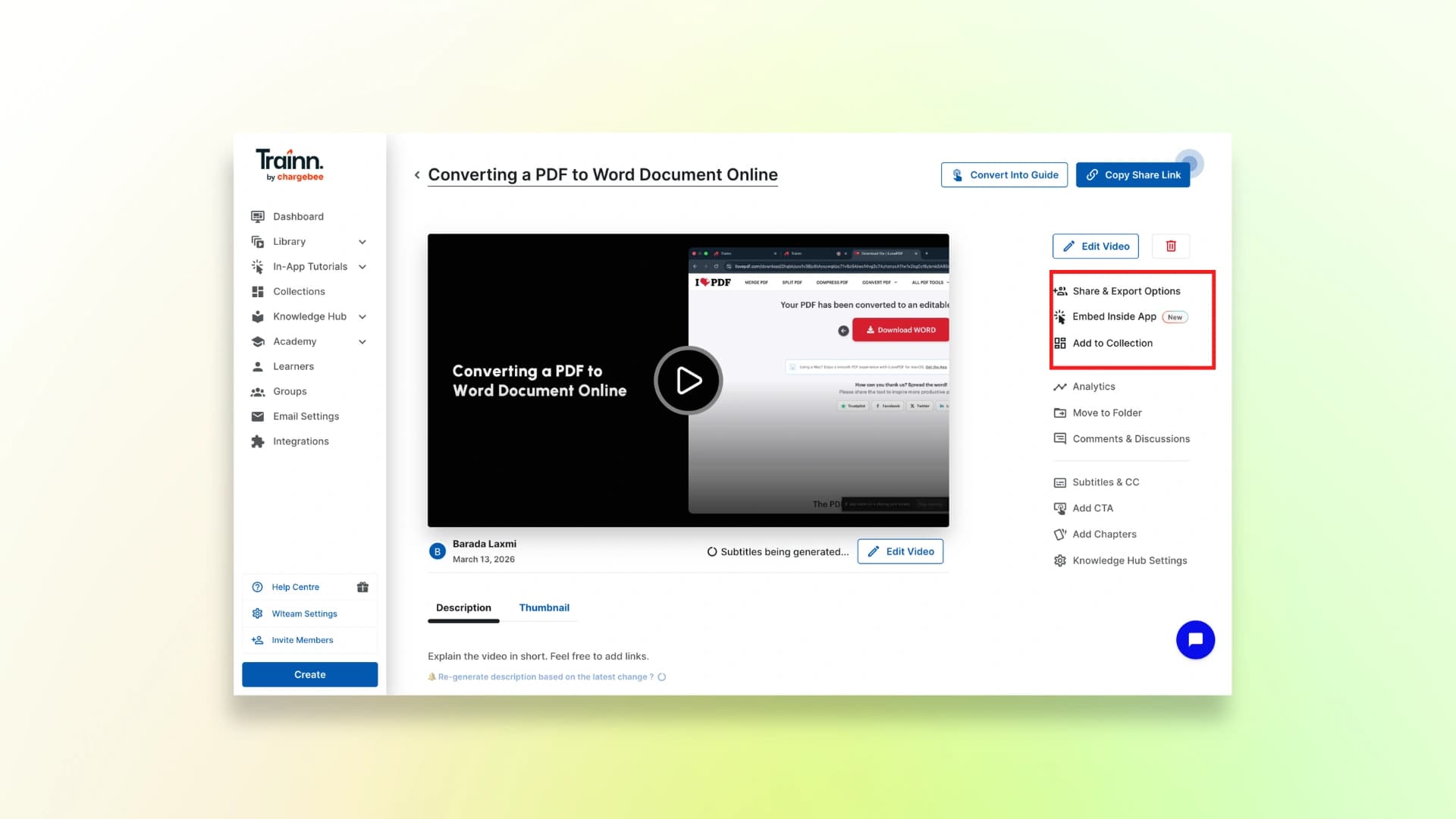
You can also turn your video into a guide with pictures.
Here is the finished video:
Pricing
Trainn is mostly designed for teams and companies, so the plans can be expensive for individual creators.
- Launch: $2,400/year (includes a 14-day free trial)
- Scale: $10,000/year
- Enterprise: $39,900/year**
4. Clueso
Clueso is a tool that helps you create product demo and product demo videos from different types of content.
You can record your screen, upload an existing video, or even turn a slide deck into a product demo.
It also offers useful features like auto-updating videos and documentation, ready-made templates, and team collaboration, making it easier to create product walkthroughs and product demo content faster.
How to use Clueso:
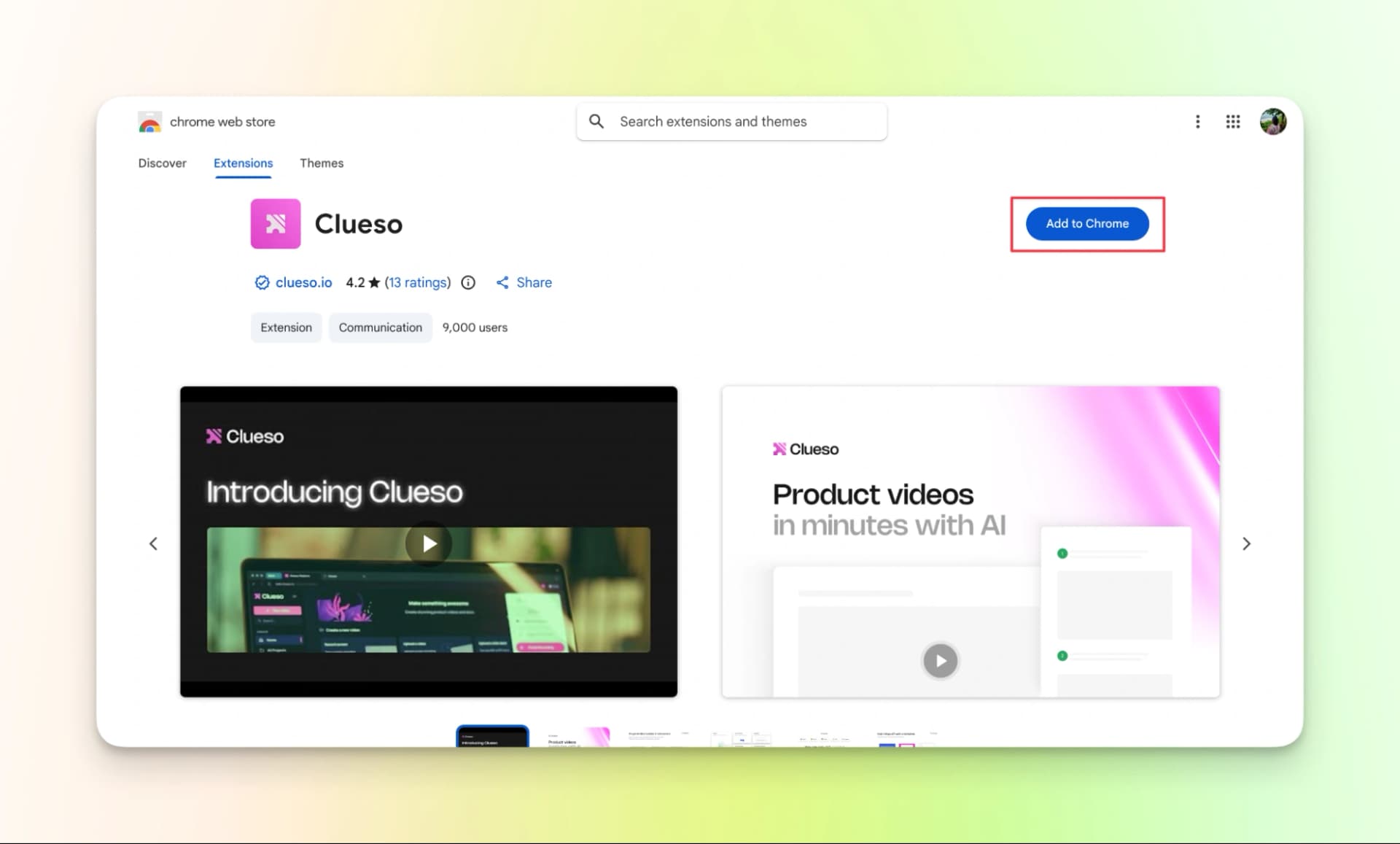
Step 1: Download the Chrome extension
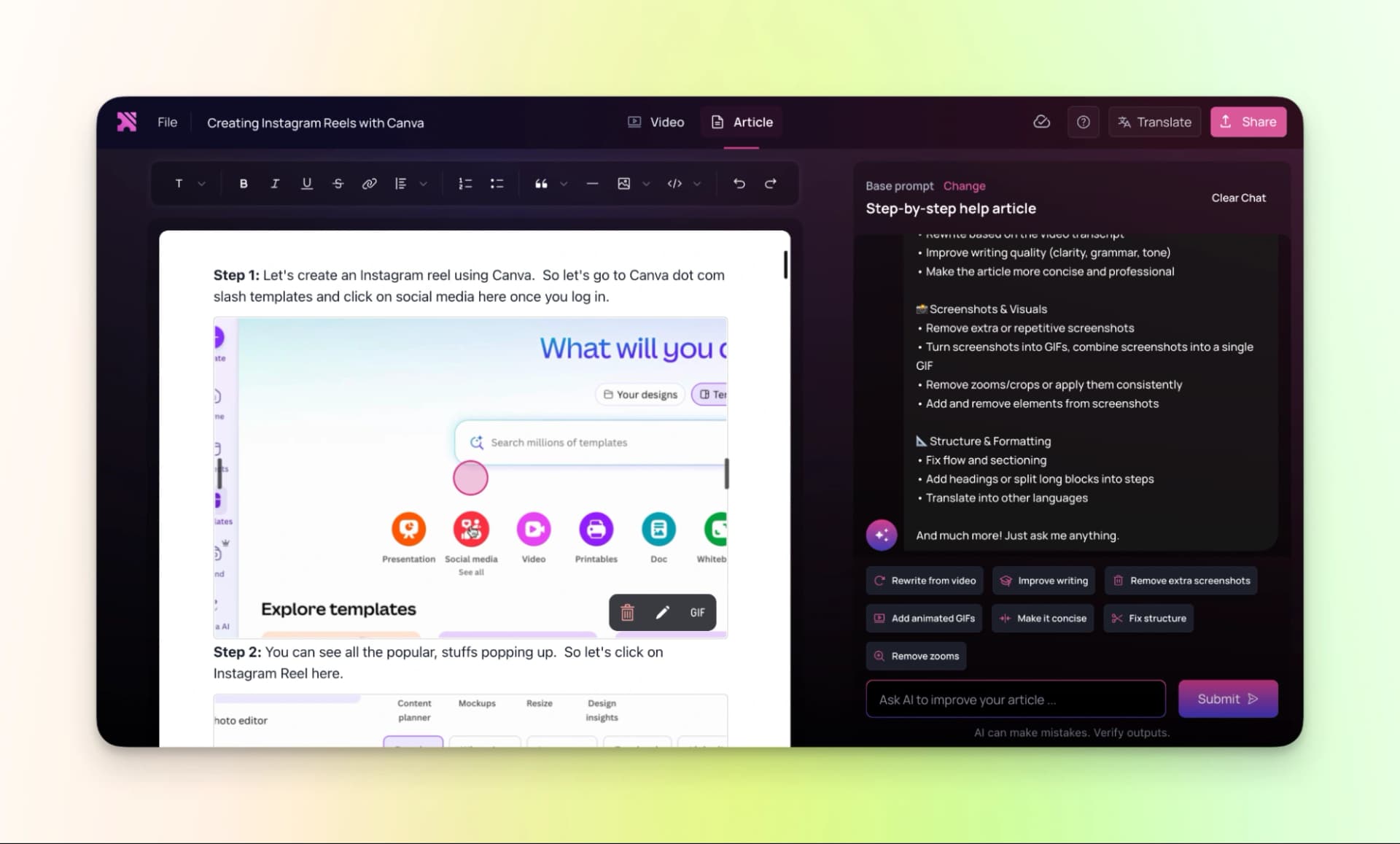
Step 2: Once your recording is complete, you’ll see a preview of the video along with an auto-generated article created from your recording.
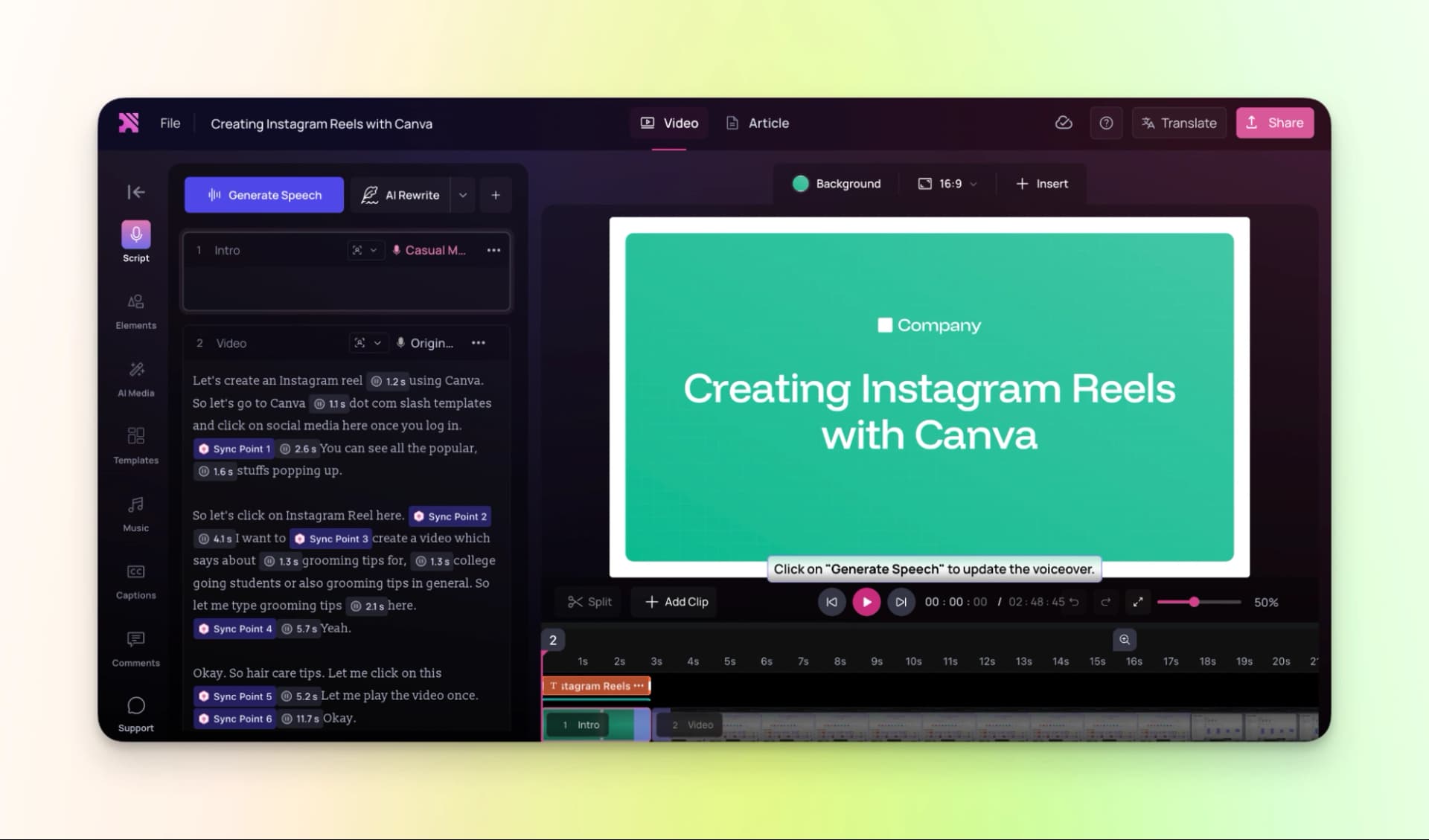
Step 3: Next, generate the AI voiceover based on the script.
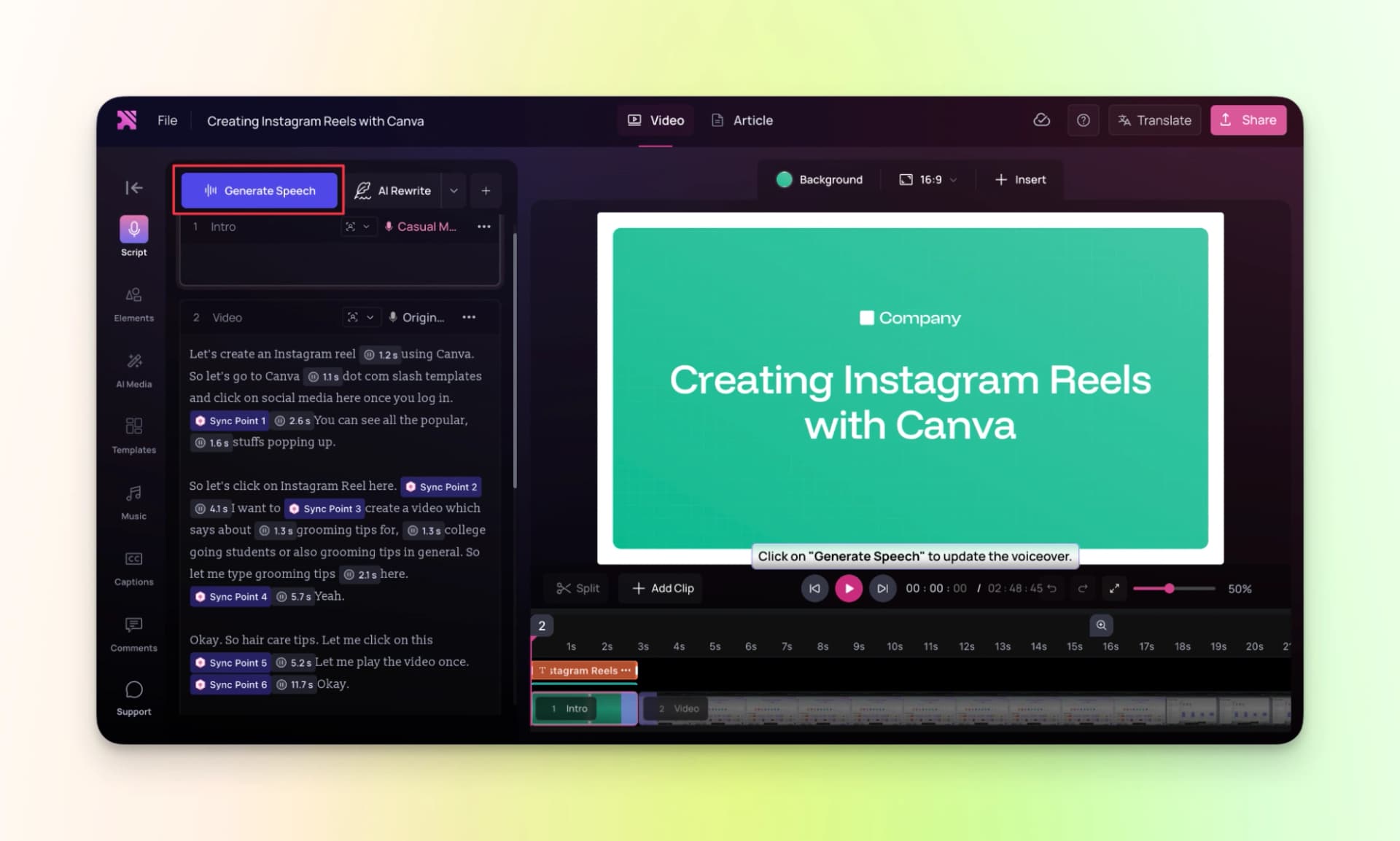
Step 4: Finally, export the video.
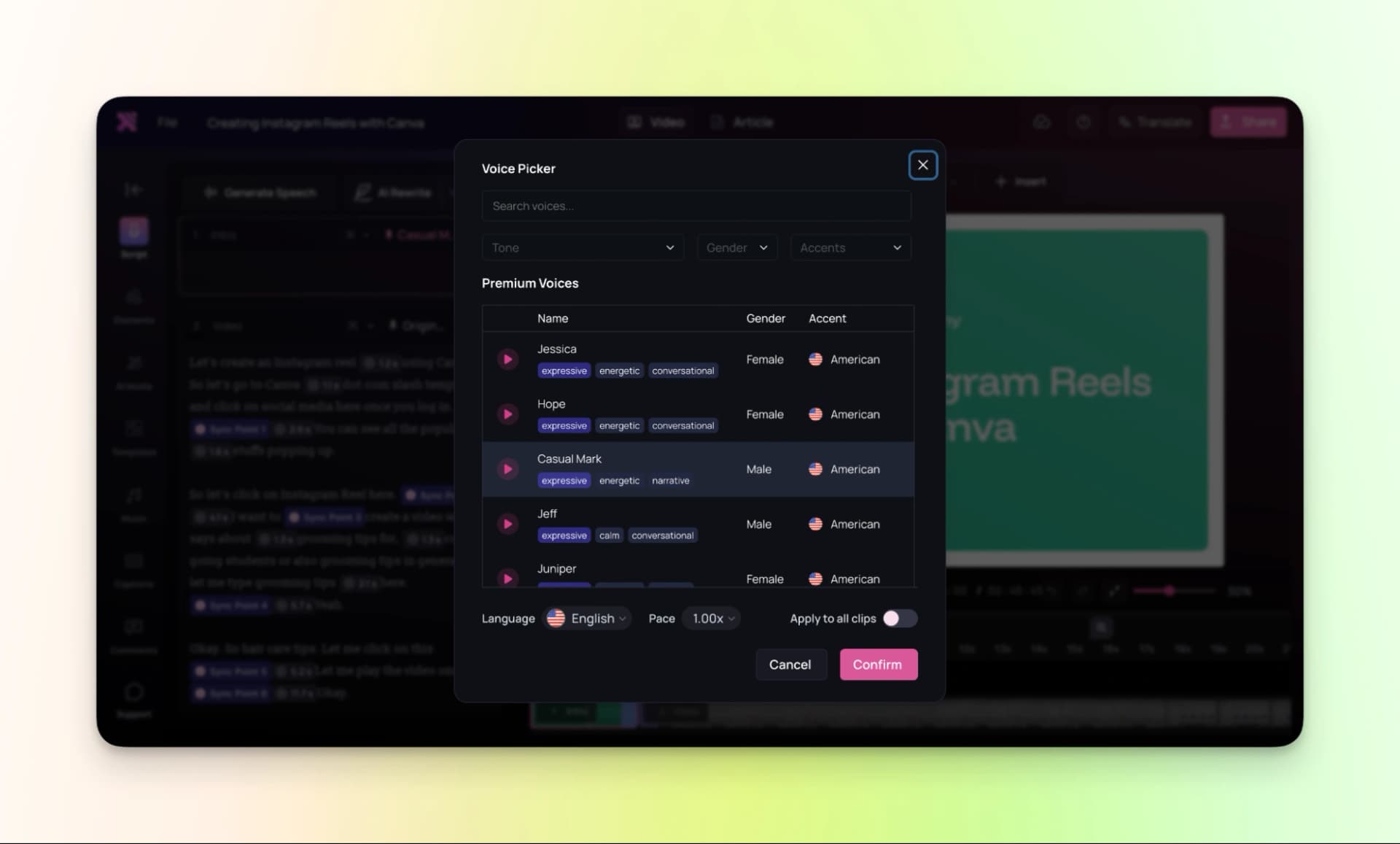
You can also translate the video into other languages. Videos created on the free plan will include a watermark.
Here is the finished video:
Pricing
Clueso offers a free trial so you can explore the platform before going for paid plan.
If you need more features and higher usage limits, you can upgrade to one of the following plans:
- Free Trial: $0 (7 days)
- Starter: $150/month
- Growth: $250/month
- Enterprise: Available on demand
5. Visla
Visla is another tool for creating product demo videos, similar to the tools we discussed earlier.
It’s got everything you need: AI video tools, screen recording, editing, etc.
Just use it on your browser or get the app for Mac, Windows, or Android.
How to use Visla:
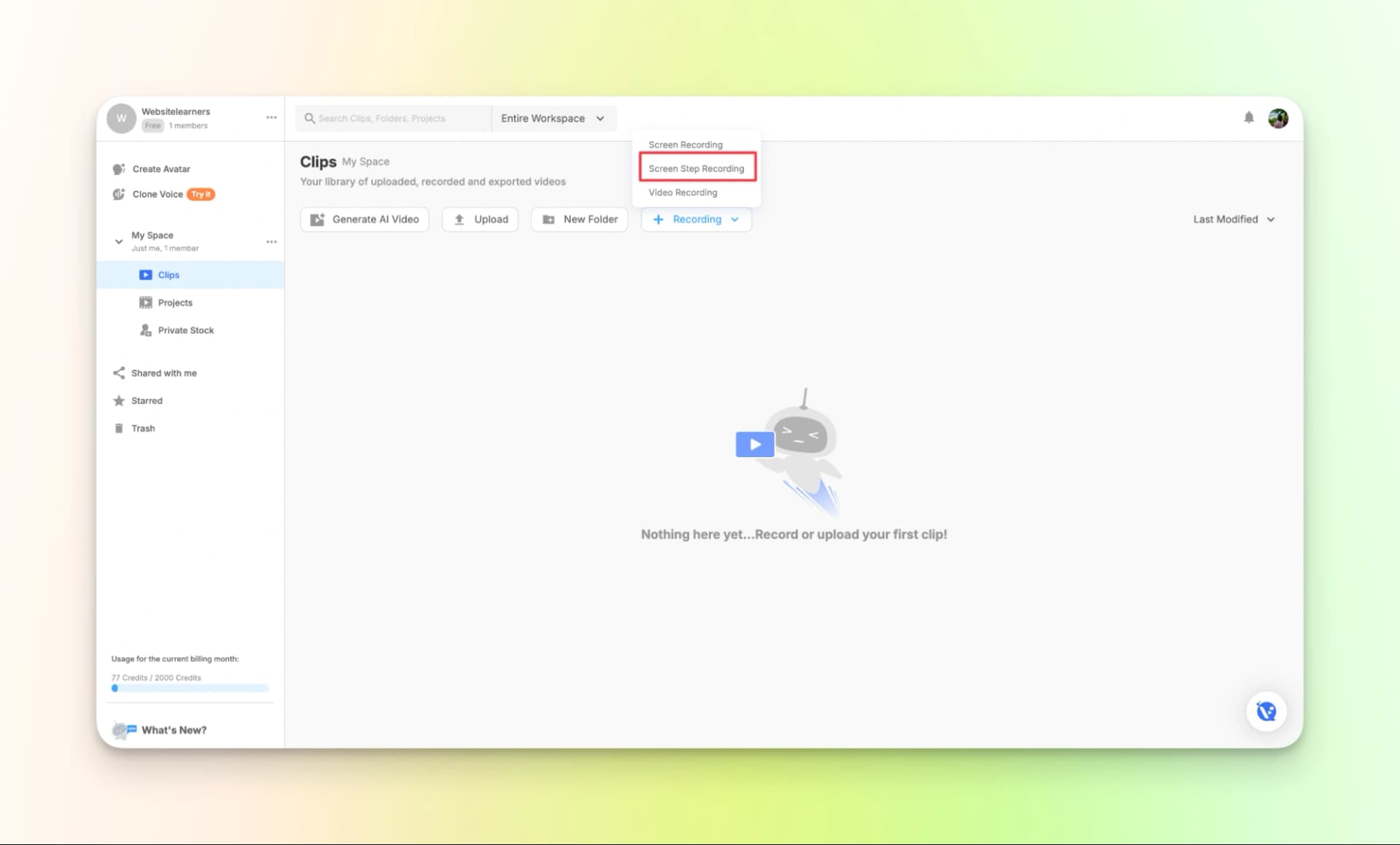
Step 1: Since we’re creating a product demo video with clear step-by-step instructions, select “Screen Step Recording” from the recording options and record your screen while explaining the process.
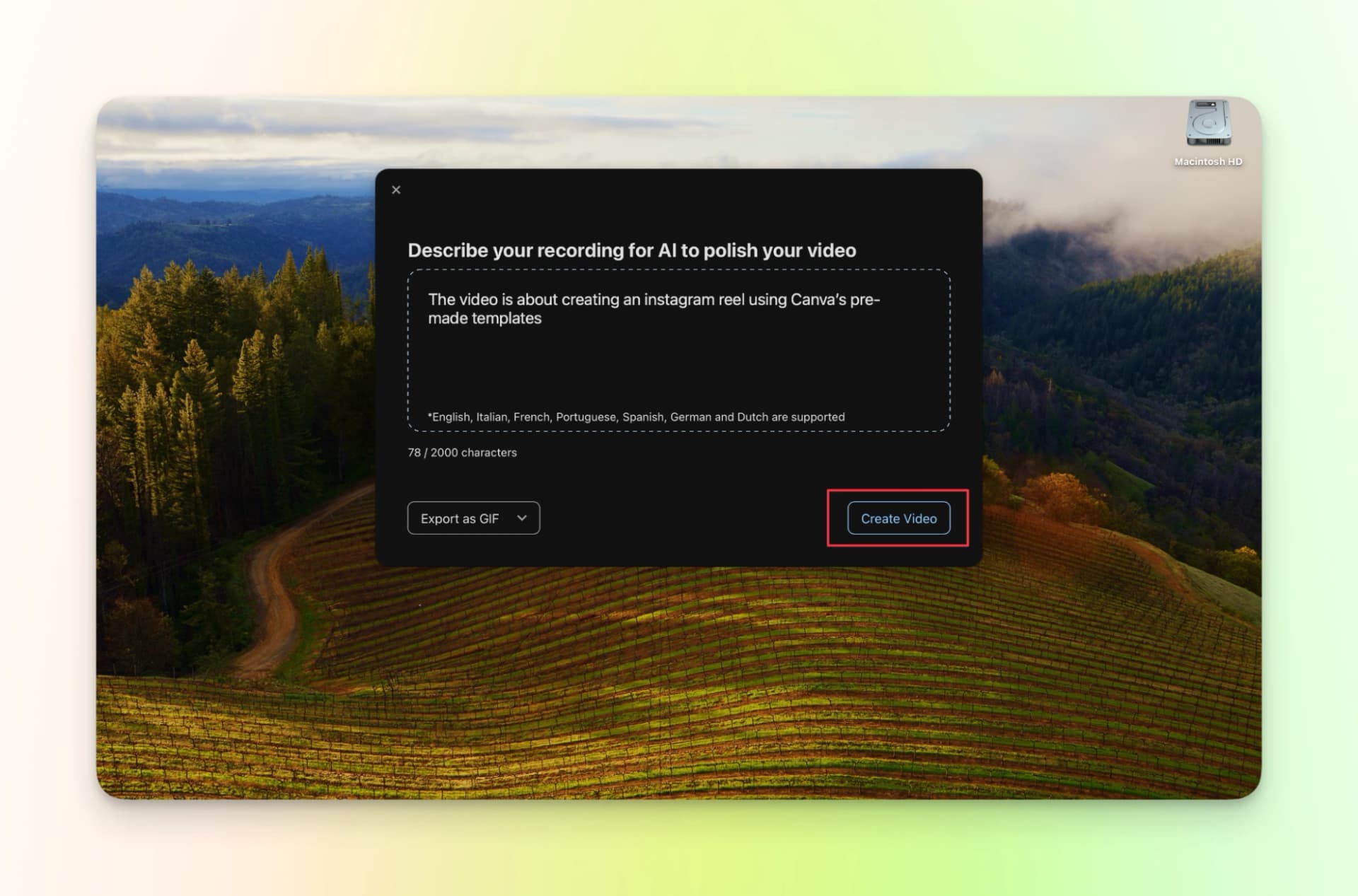
Step 2: Describe your video.
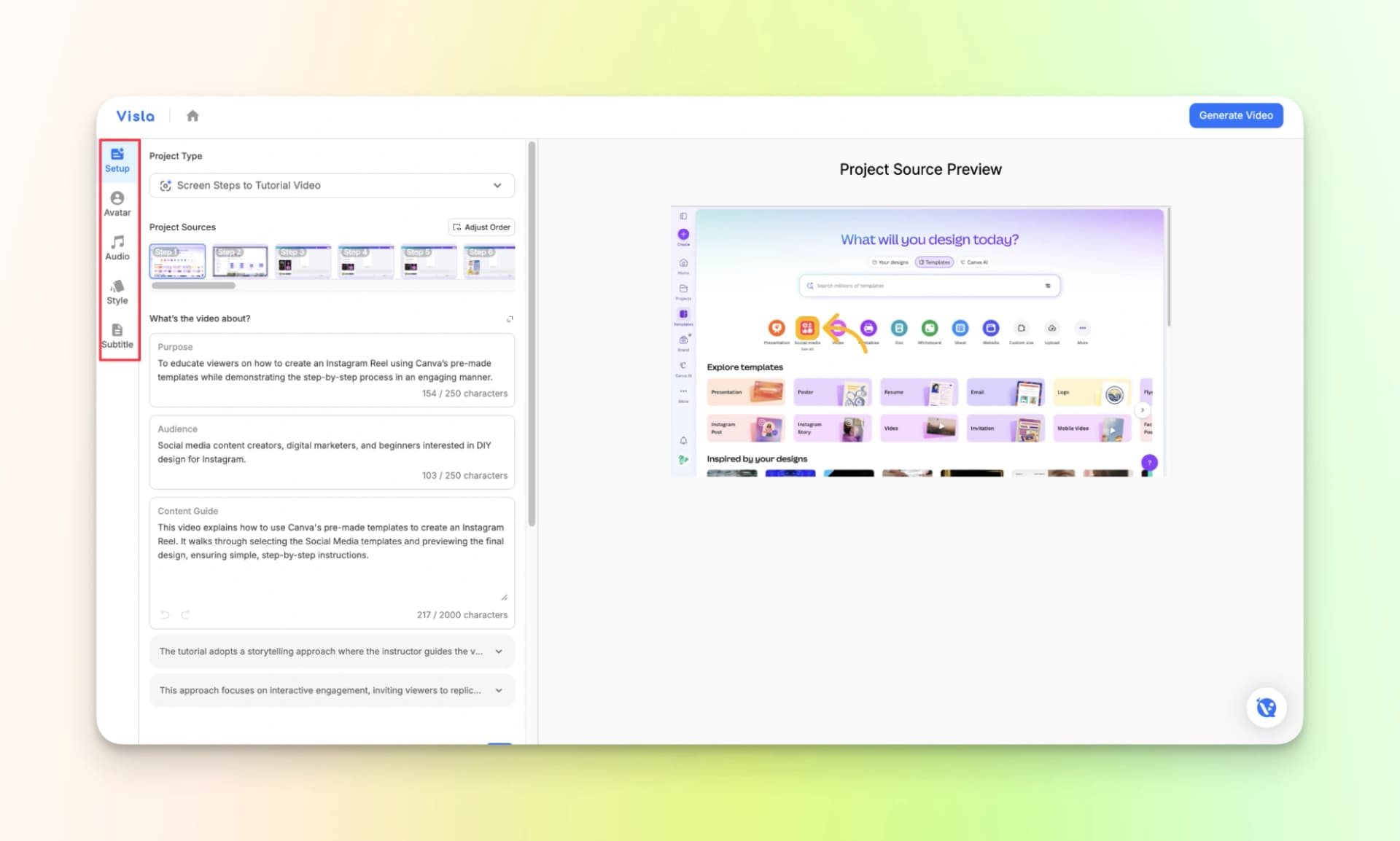
Step 3: Provide more information about your project. This will help the tool to understand better.
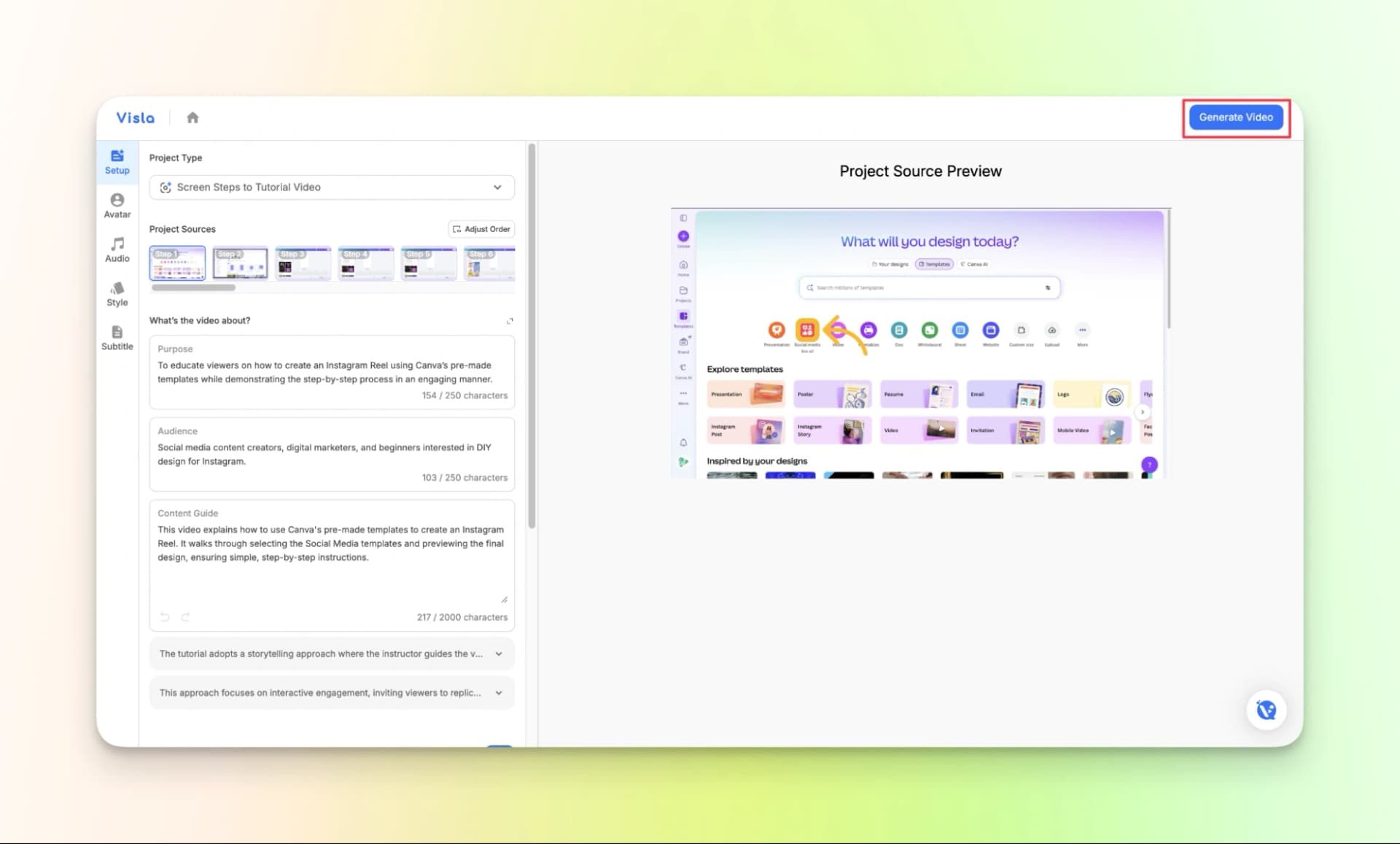
Step 4: Generate video once the setup is complete. You can also clone your voice if needed to add a personal touch.
Step 5: Review AI-generated product demo video
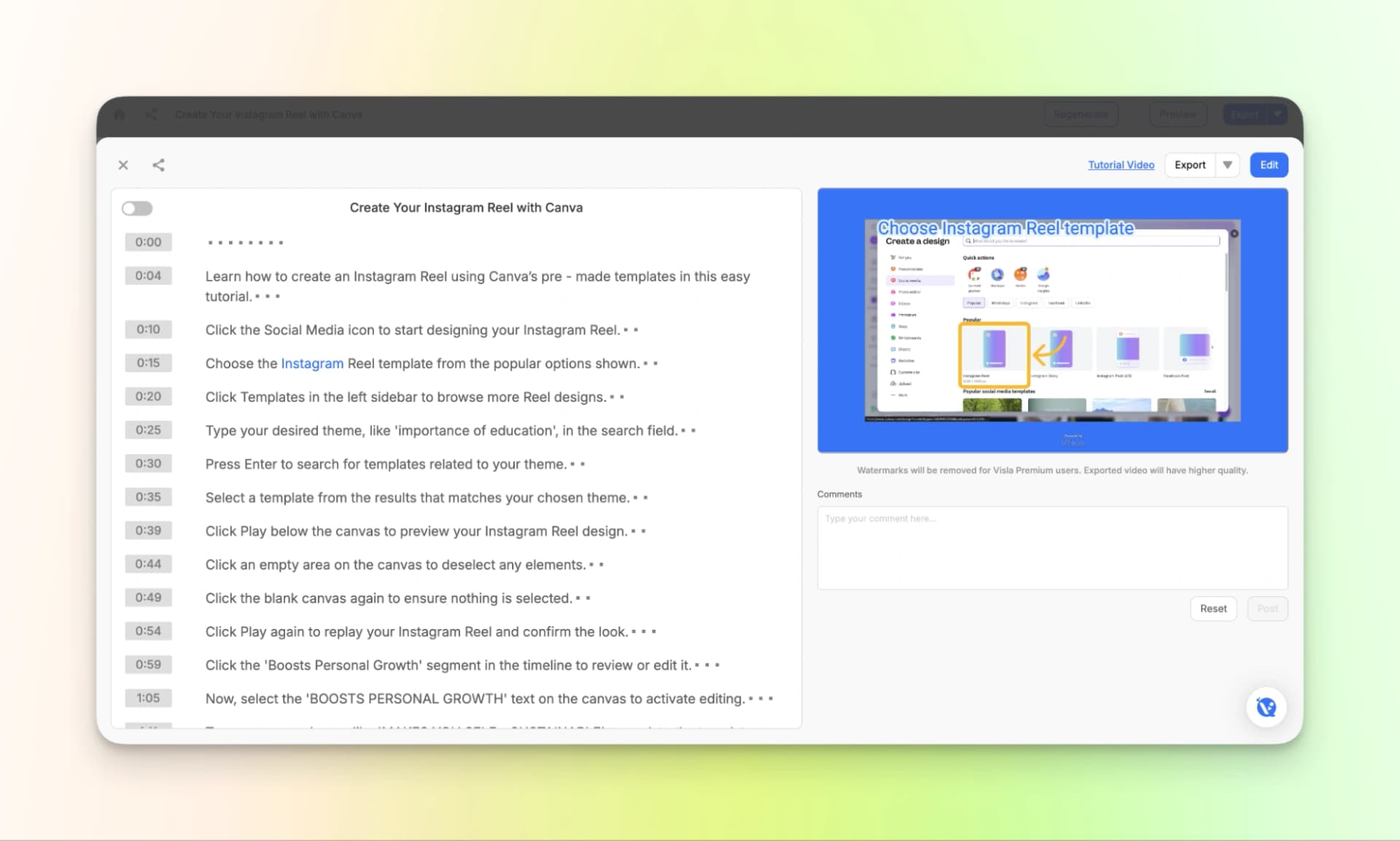
Step 6: Review the tutorial video.
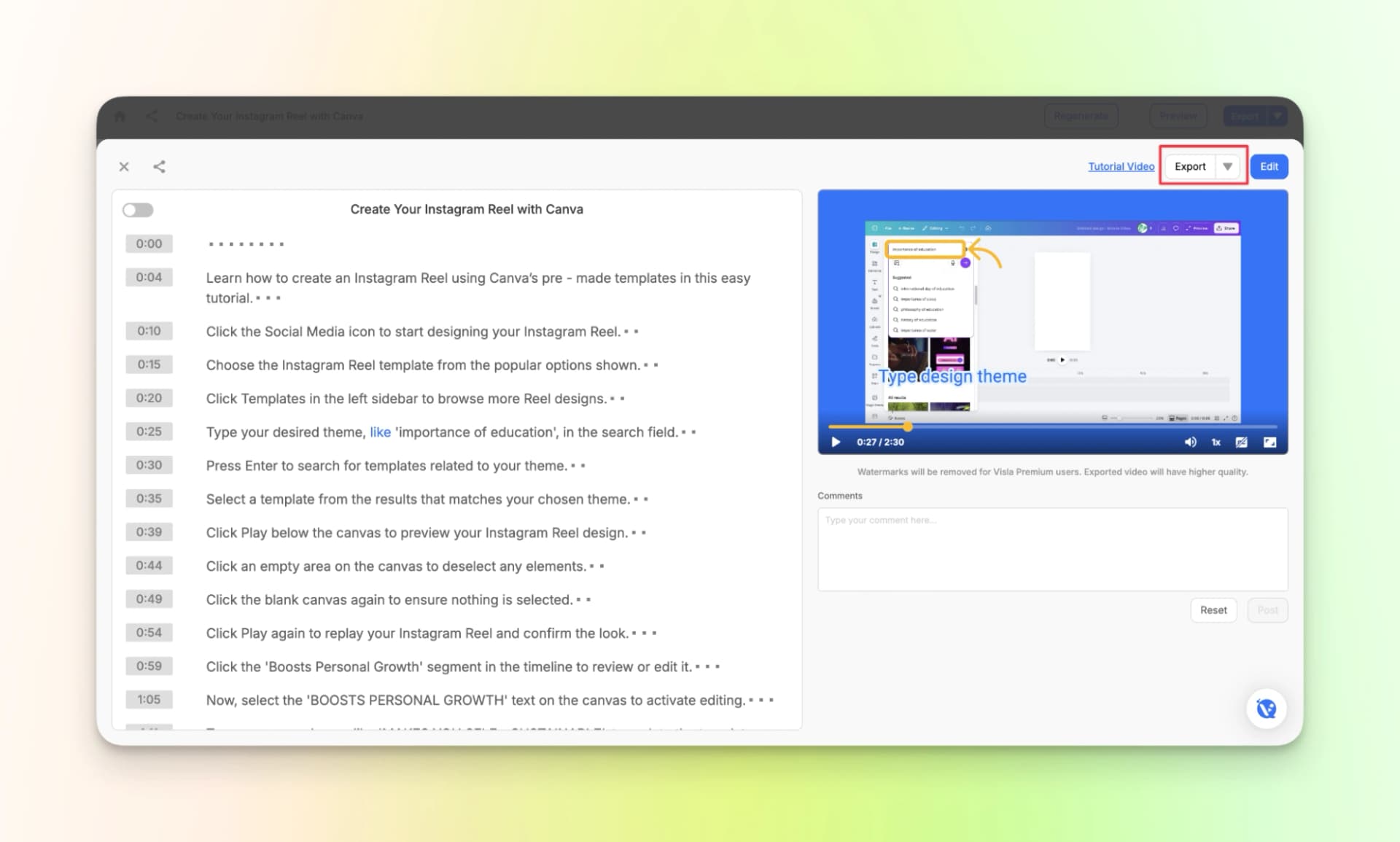
Step 7: Download the product demo video or share it with your team to collect feedback.
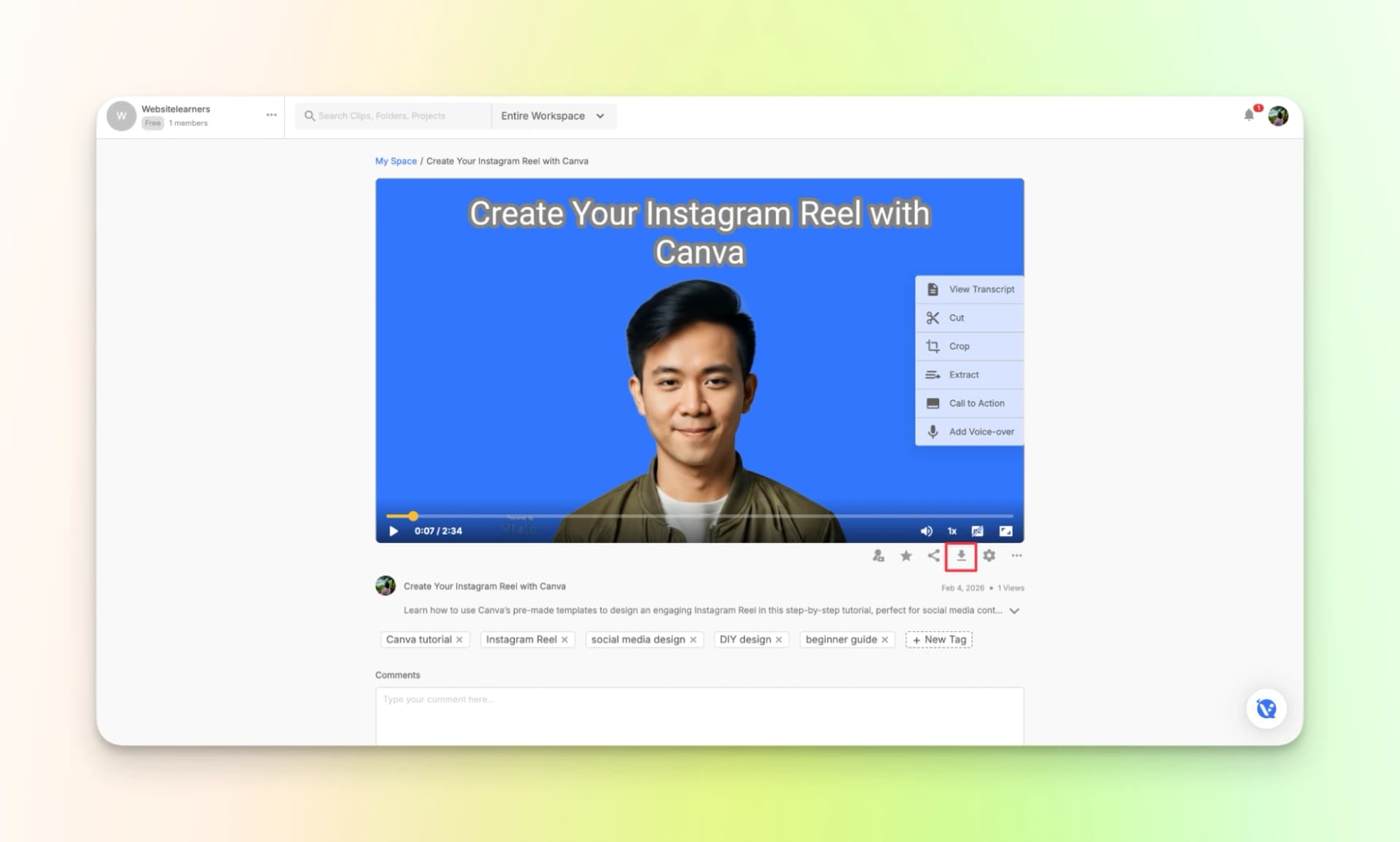
Here is the finished video:
Pricing
Visla offers a free plan that lets you try creating product demo videos using credits.
If you need more features and higher limits for creating product demos or team product demo content, you can upgrade to the paid plans.
- Free Plan: 2000 credits for creating and testing product demo videos
- Pro: Starting from $18/month
- Business: Starting from $59/month
- Enterprise: Available on demand for larger teams and organizations
6. Tutorial.ai
Tutorial.ai helps you make easy product demo videos. It’s perfect for showing people how to do things step-by-step.
Just download the app and you’re ready to turn your screen recordings into great videos.
How to use Tutorial.ai:
Step 1: Download the tool.
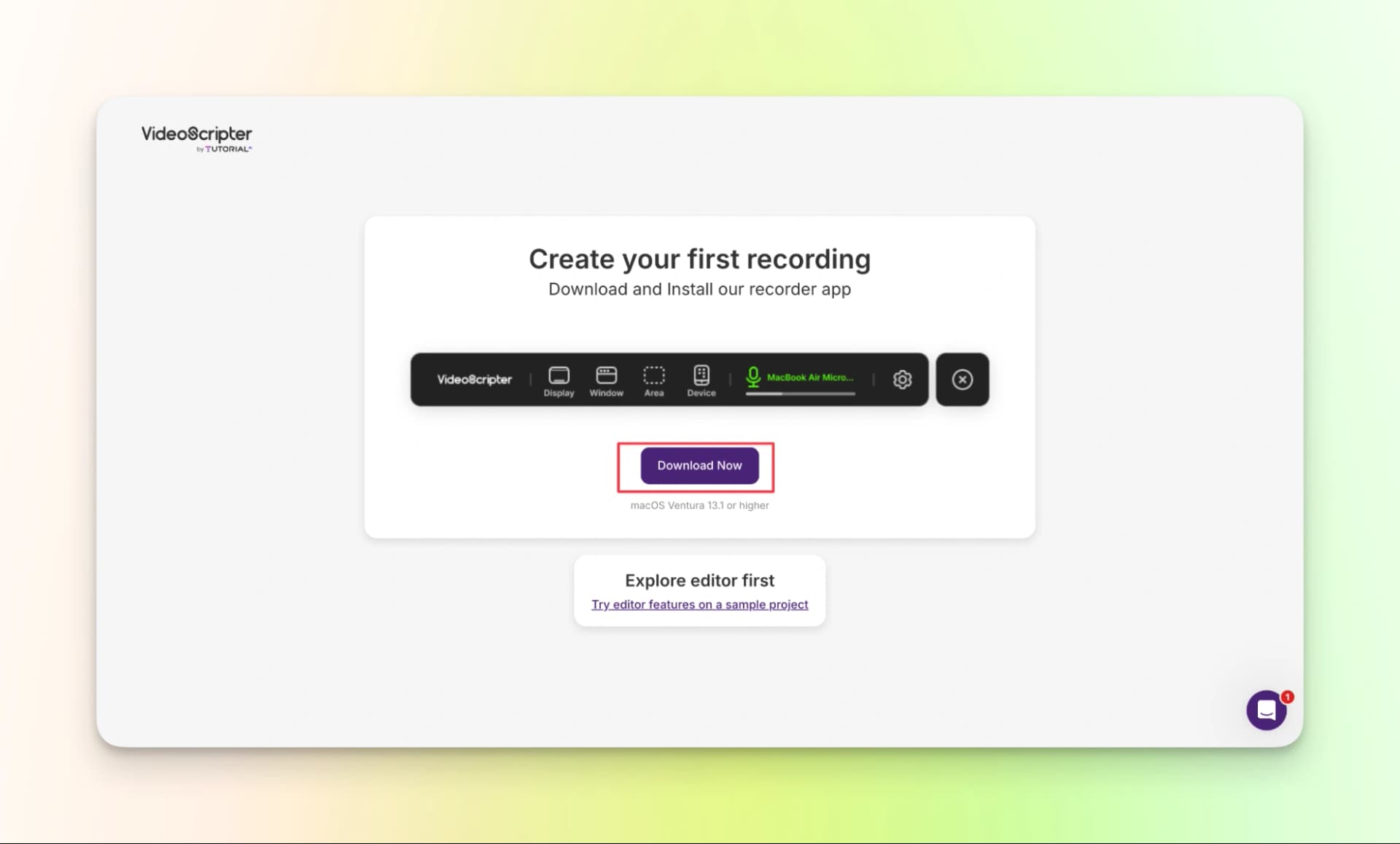
Step 2: Next, the screen recording options will appear.
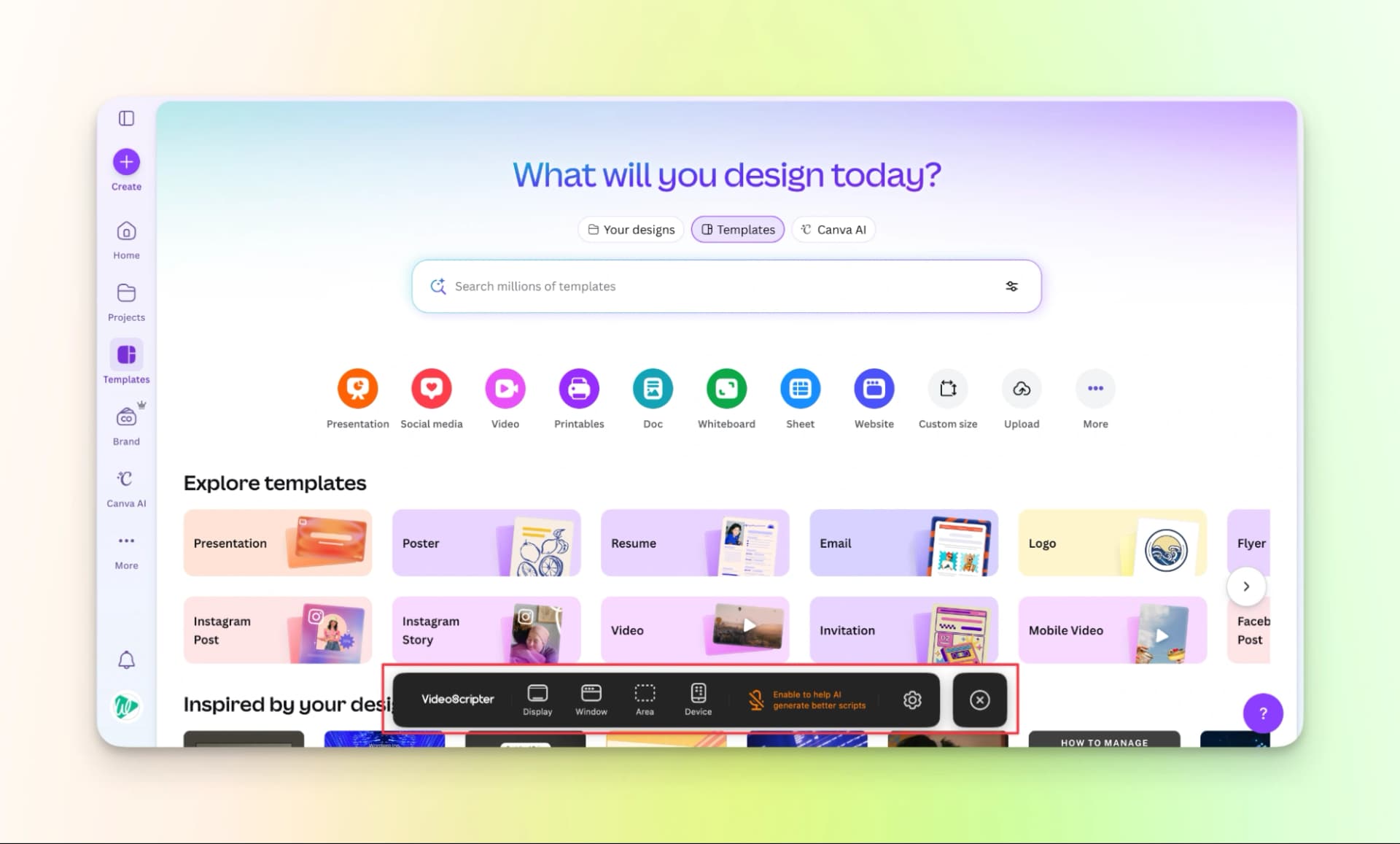
Step 3: Record your screen and add some informations about your video.
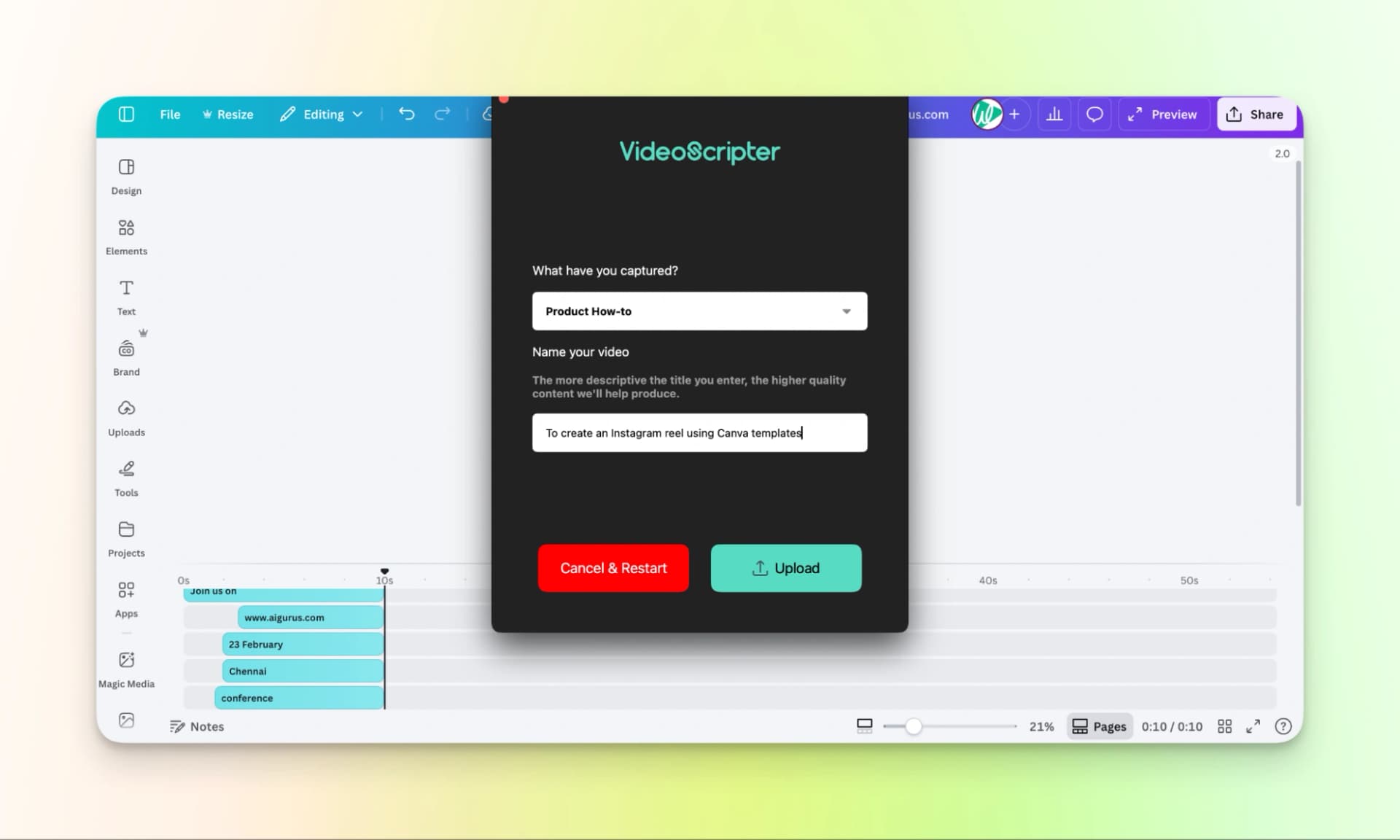
Step 4: Watch the video that is generated.
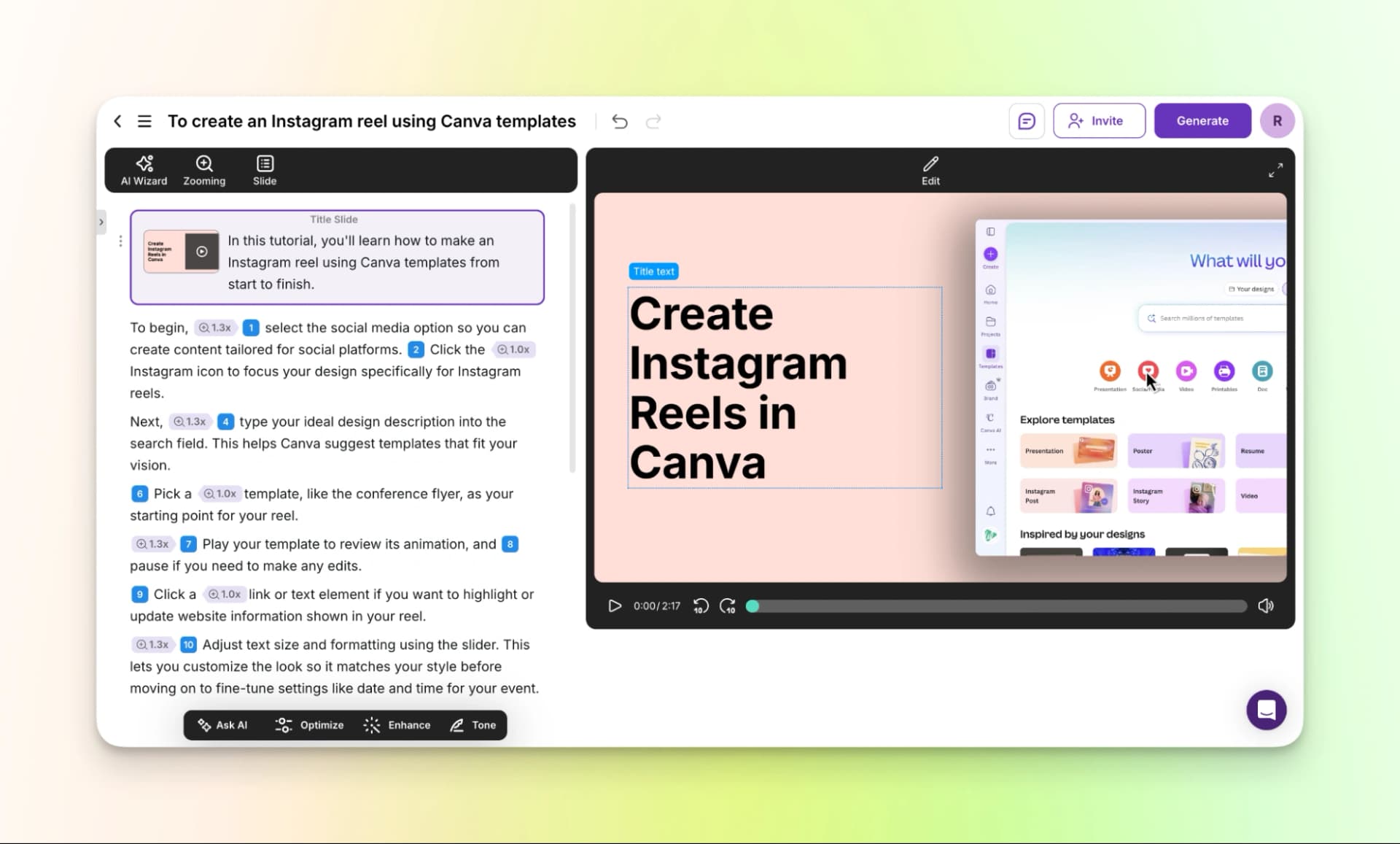
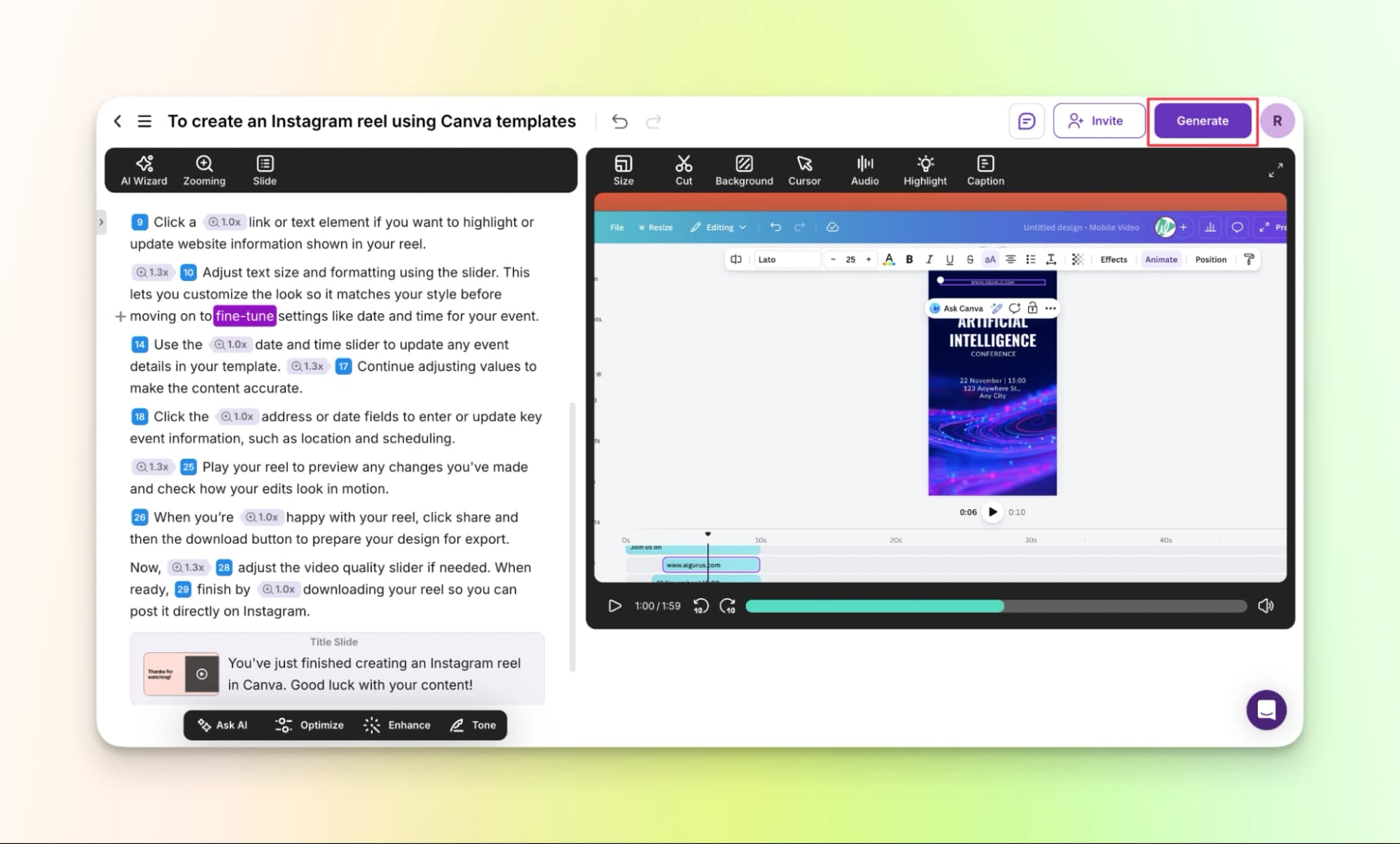
Here is the finished video:
Pricing
Tutorial.ai offers a 15-day free trial, so you can try creating product demo videos before choosing a paid plan.
The paid plans mainly depend on the number of users or seats you need.
- Free Trial: 15 days
- Solo: $29 per seat
- Growth: $89 per seat
- Enterprise: Available on demand
If you want to go deeper into step-by-step walkthroughs, you can also follow this detailed blog on how to make a tutorial video.
7. Guideless.ai
Guideless.ai can also create vibrant narrated product demo videos by recording your screen. Similar to a few others that we have discussed so far, this work via chrome extension.
Also, unlike other tools, the customization options are limited.
How to use Guideless.ai:
Step 1: Download the chrome extension.
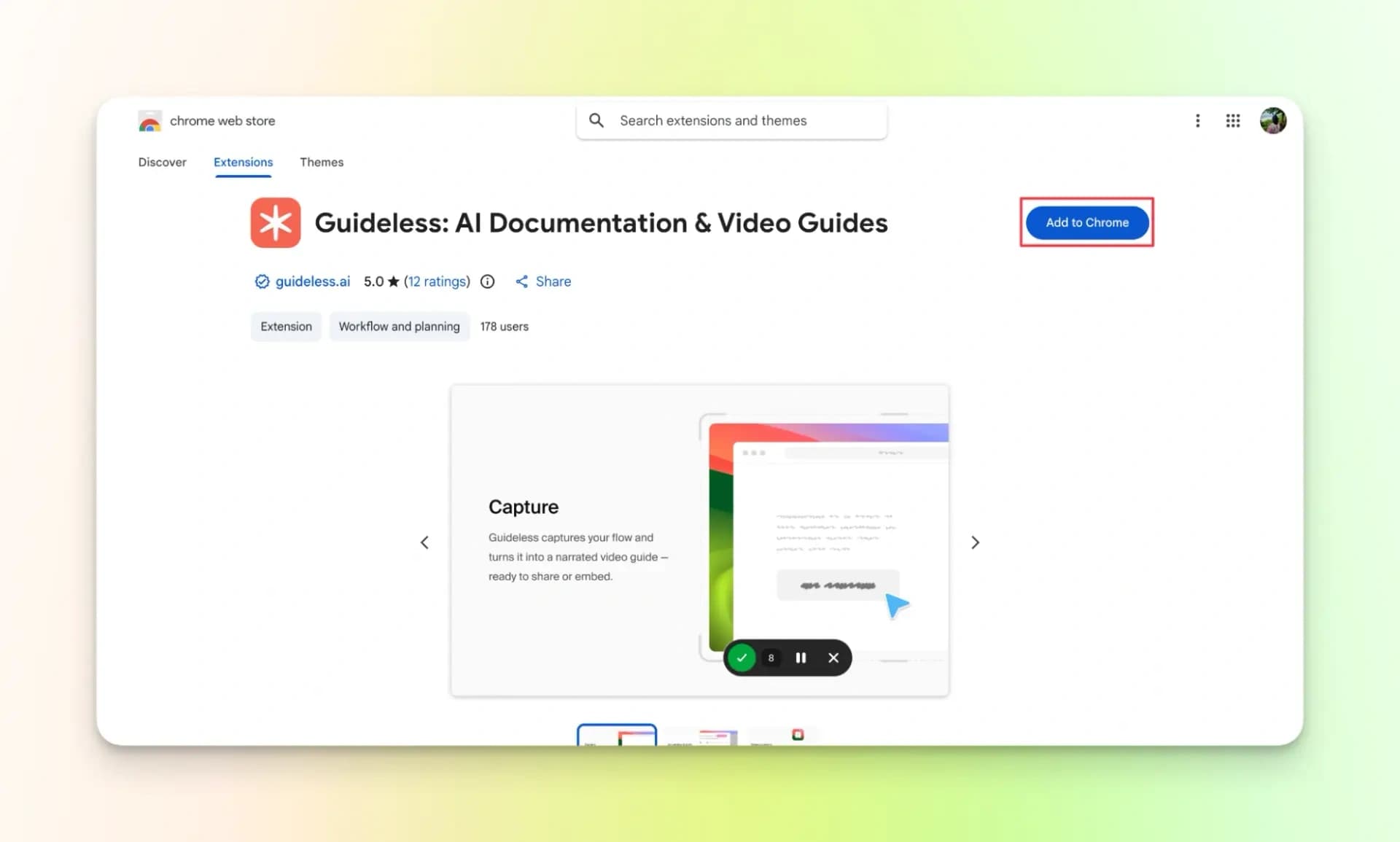
Step 2: Choose the tab you want to record and start recording as usual.
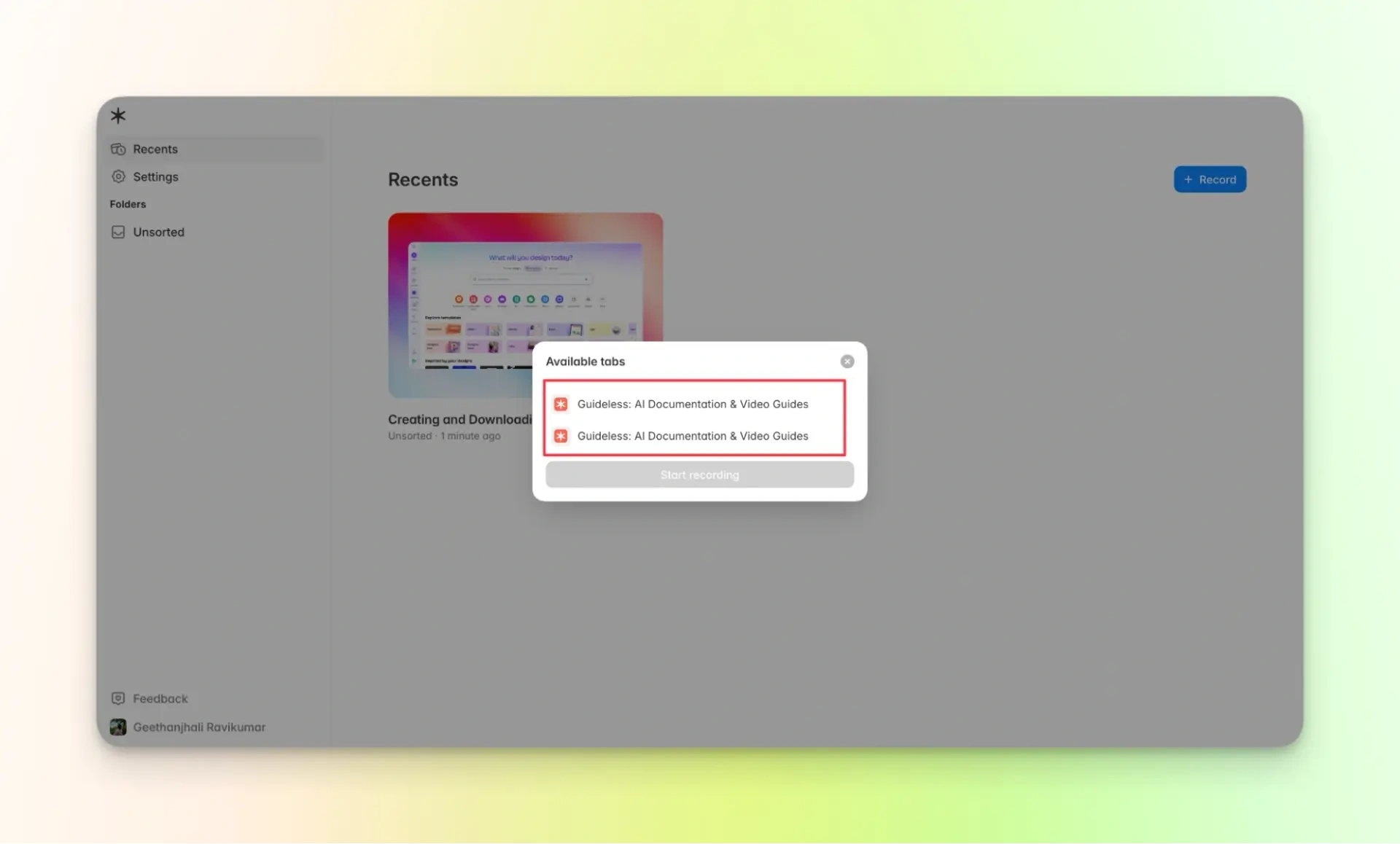
Move your cursor very slowly. Record your screen with clarity and have a clear idea of what you are about to do.
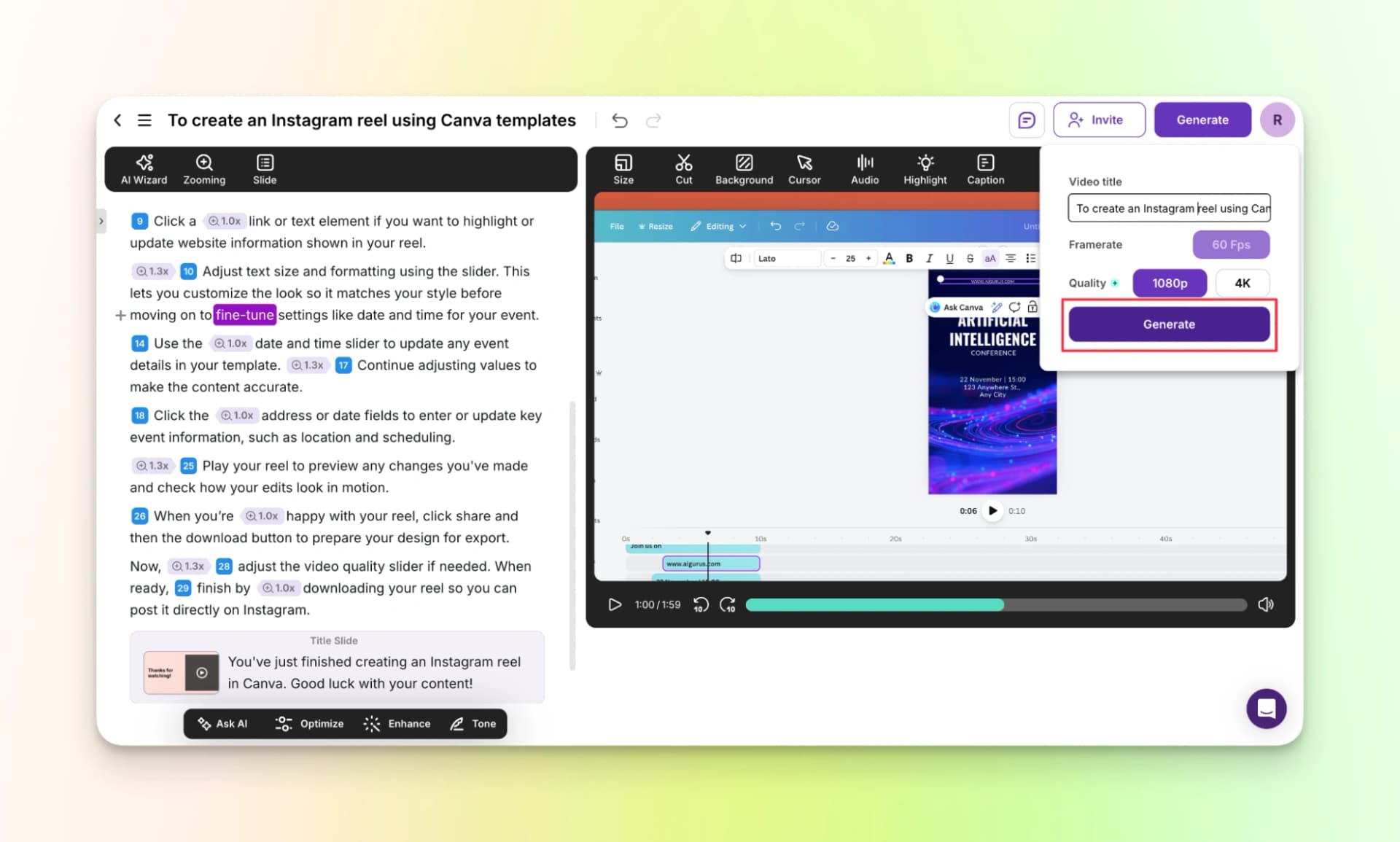
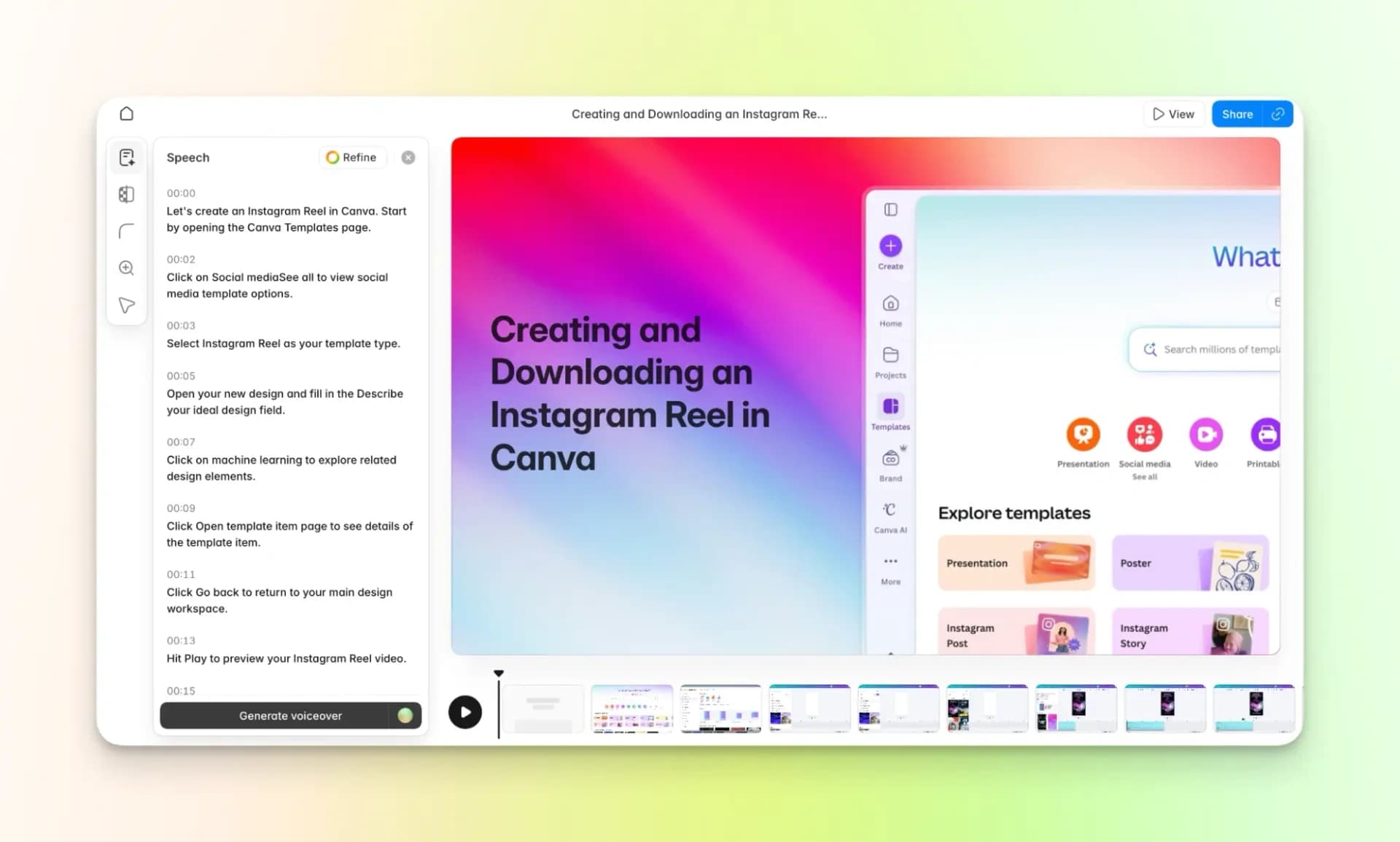
Step 3: Review the AI product video. Based on your cursor actions, the tool has written a detailed script and also created a video with visual elements.
Step 4: Generate AI voiceover. (this feature is available only for paid users)
However, you cannot modify the AI voice as per your needs. If you edit the script and click on “generate voiceover” again, the voiceover is generated again. After one final check, export the video.
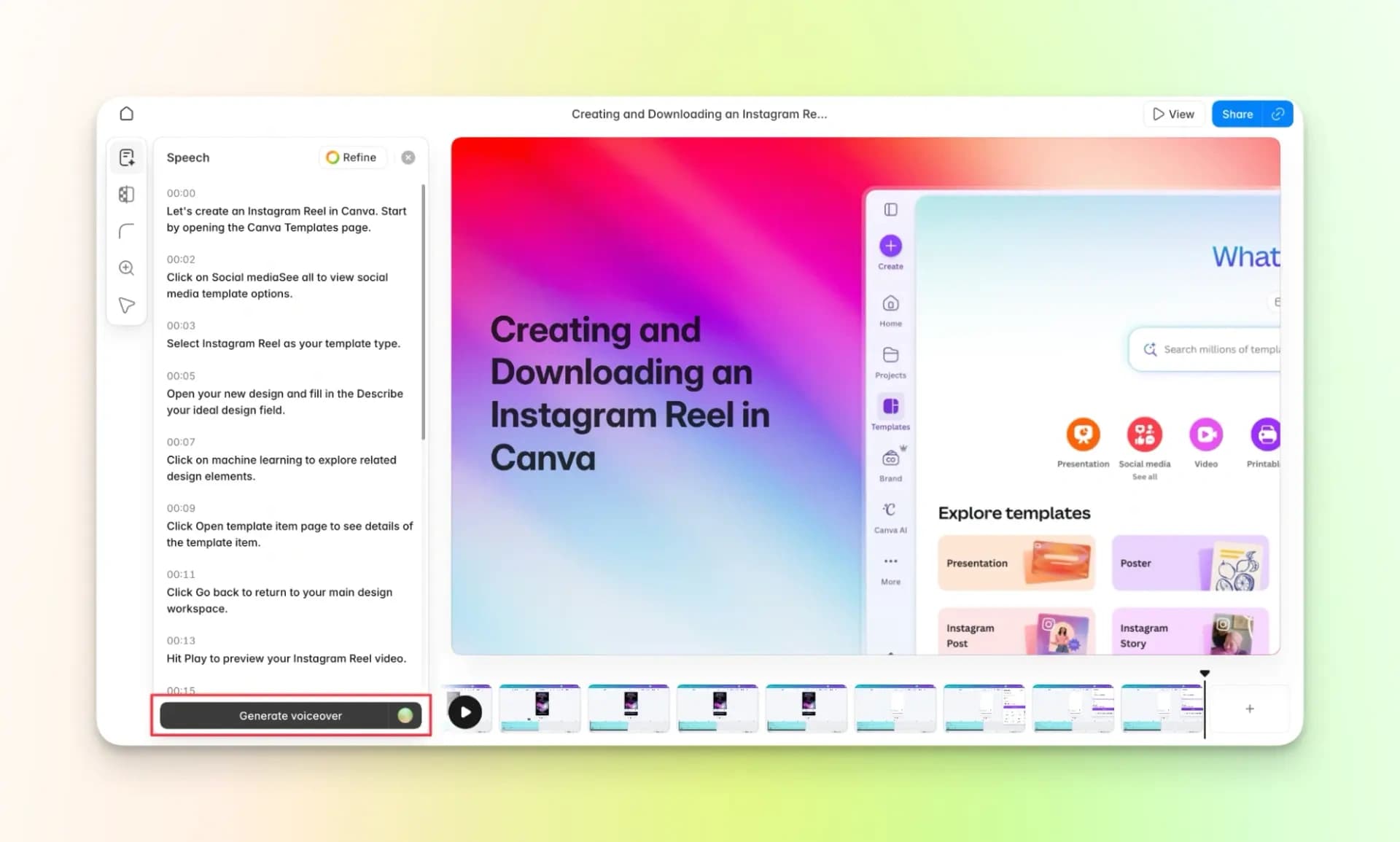
Step 5: Export the video.
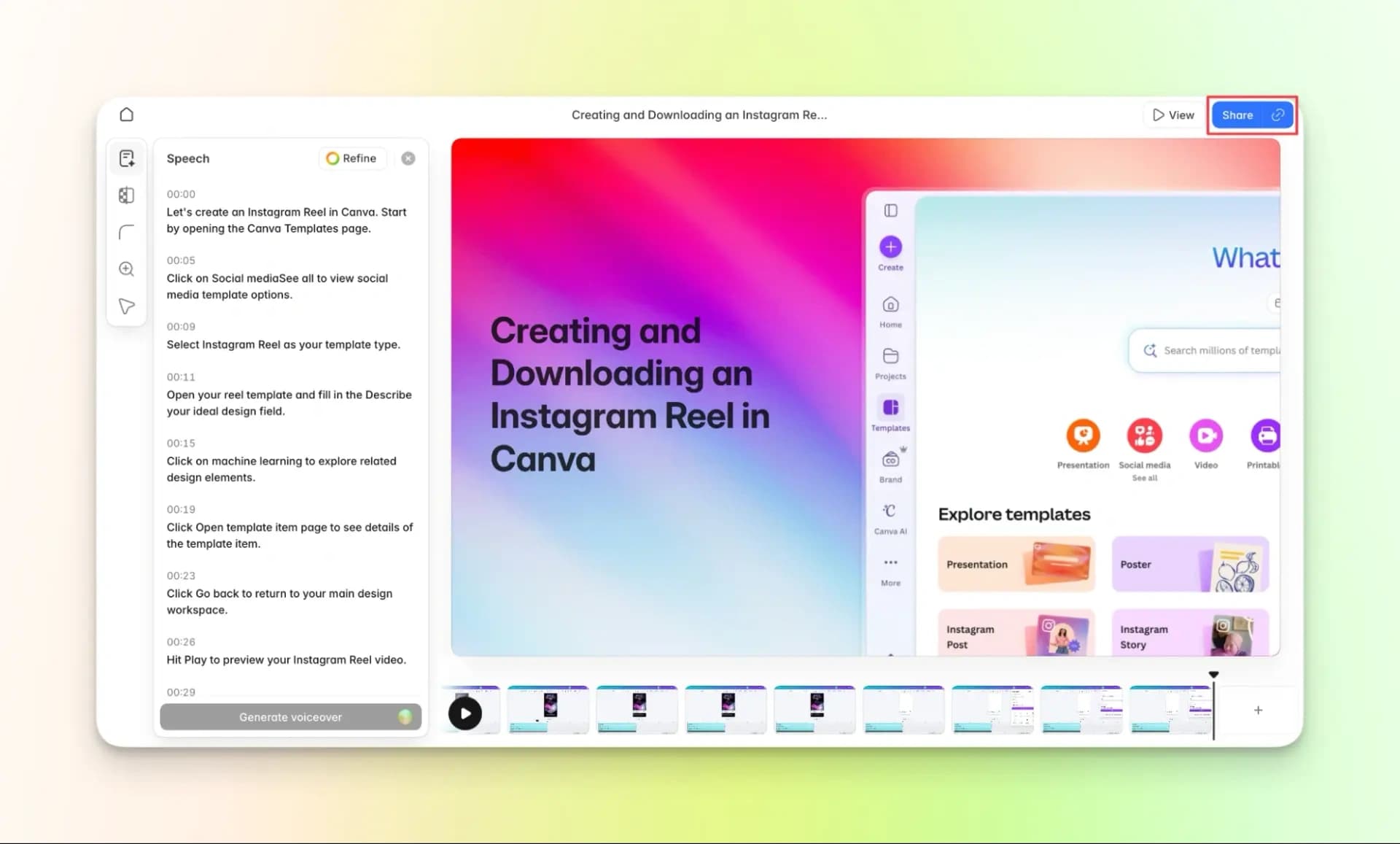
Here is the finished video:
Pricing:
- Free trial: $0 (For 7 Days)
- Pro: $39 /month
- Growth: $64/ month per editor
8. WowTo.ai
WowTo.ai helps you create product demo and product demo videos from screen recordings.
To start, you need to install the Chrome extension, after which you can record your screen and turn it into a proper video.
You can also add an AI avatar and voiceovers to your videos.
But it is a bit time-consuming and not so smooth for editing as compared to other tools.
Now, let's see how you can create a product demo video using this tool.
How to use WowTo.ai:
Step 1: Download the Chrome extension
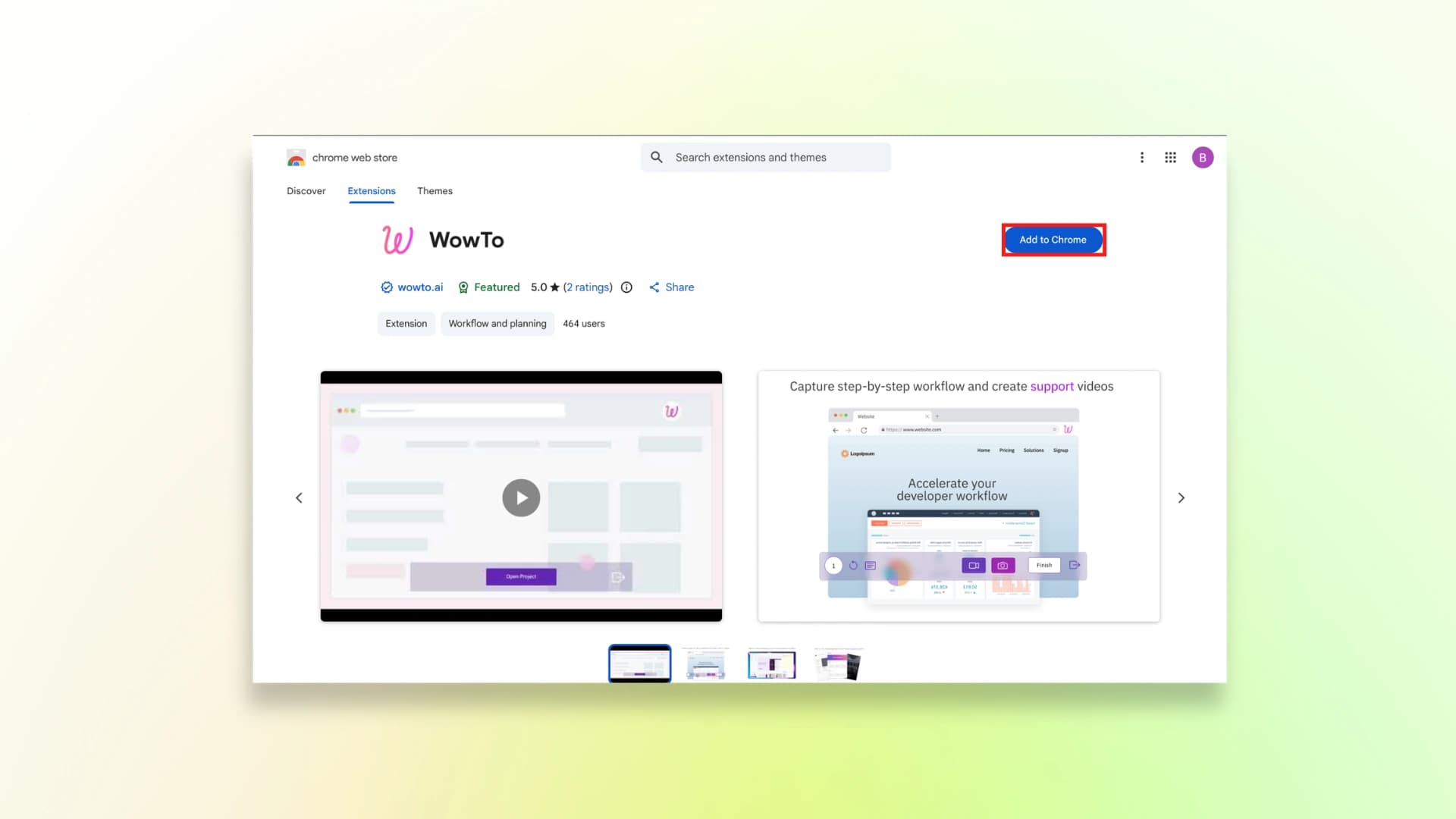
Step 2: Record your screen
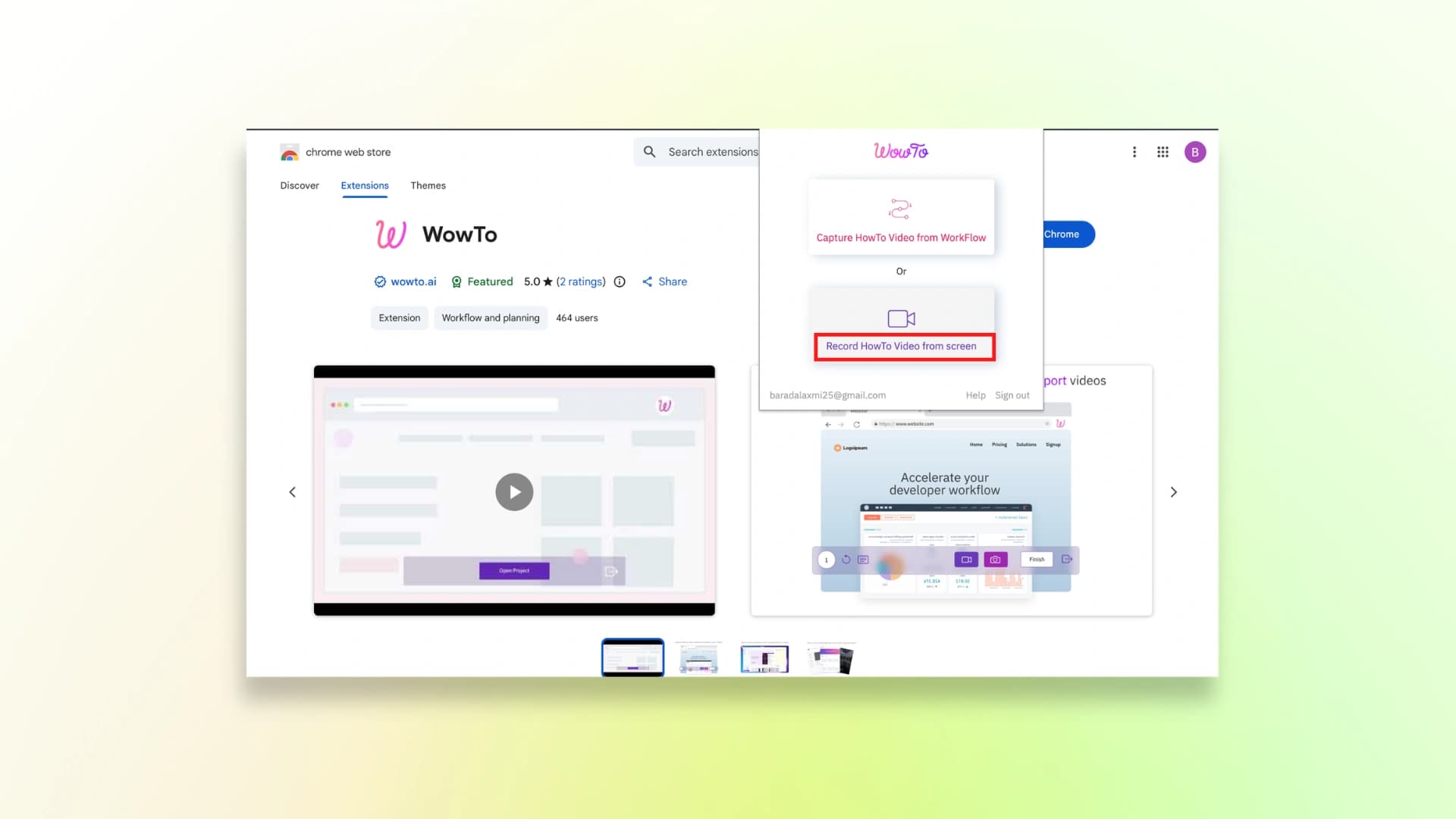
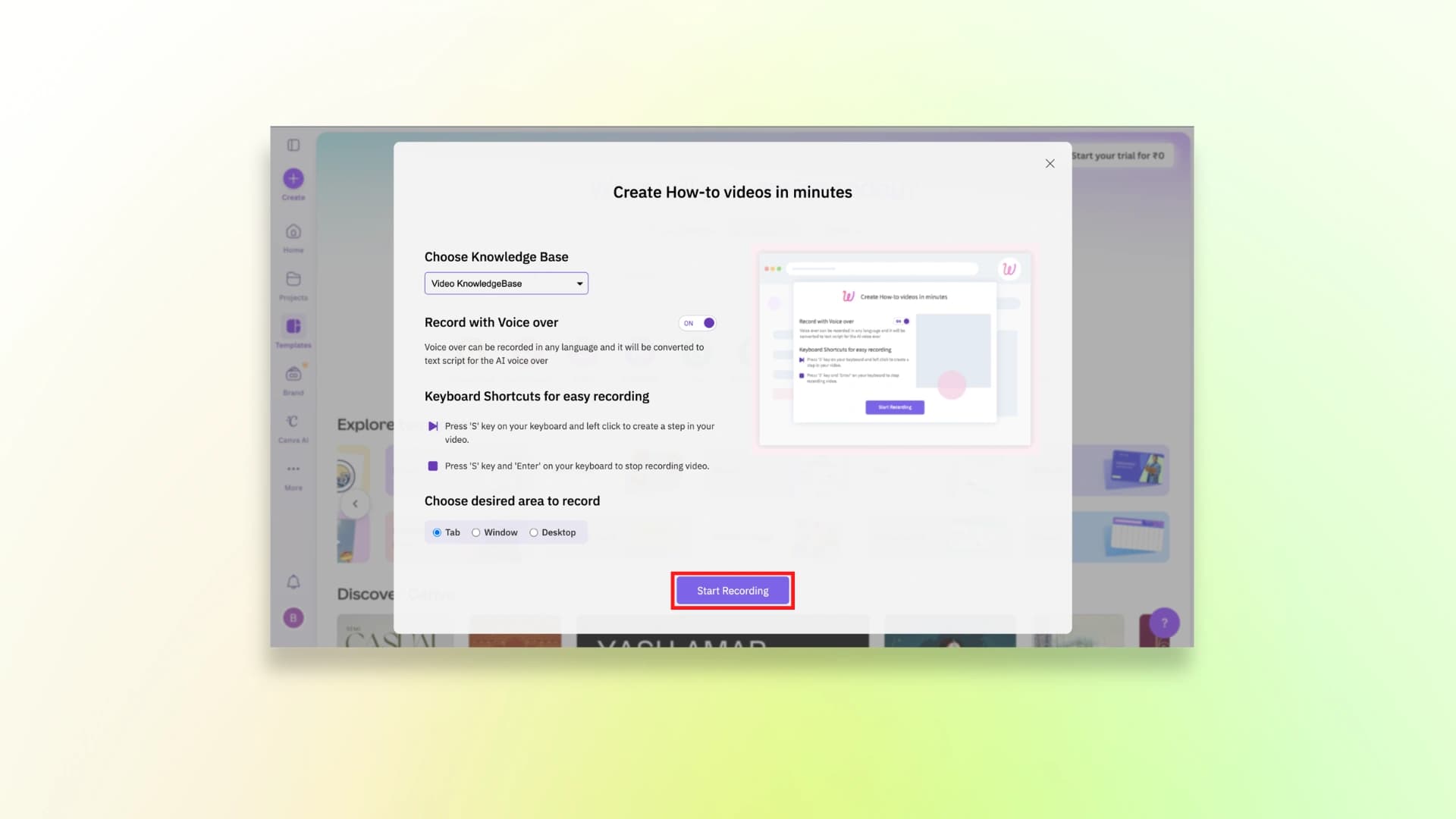
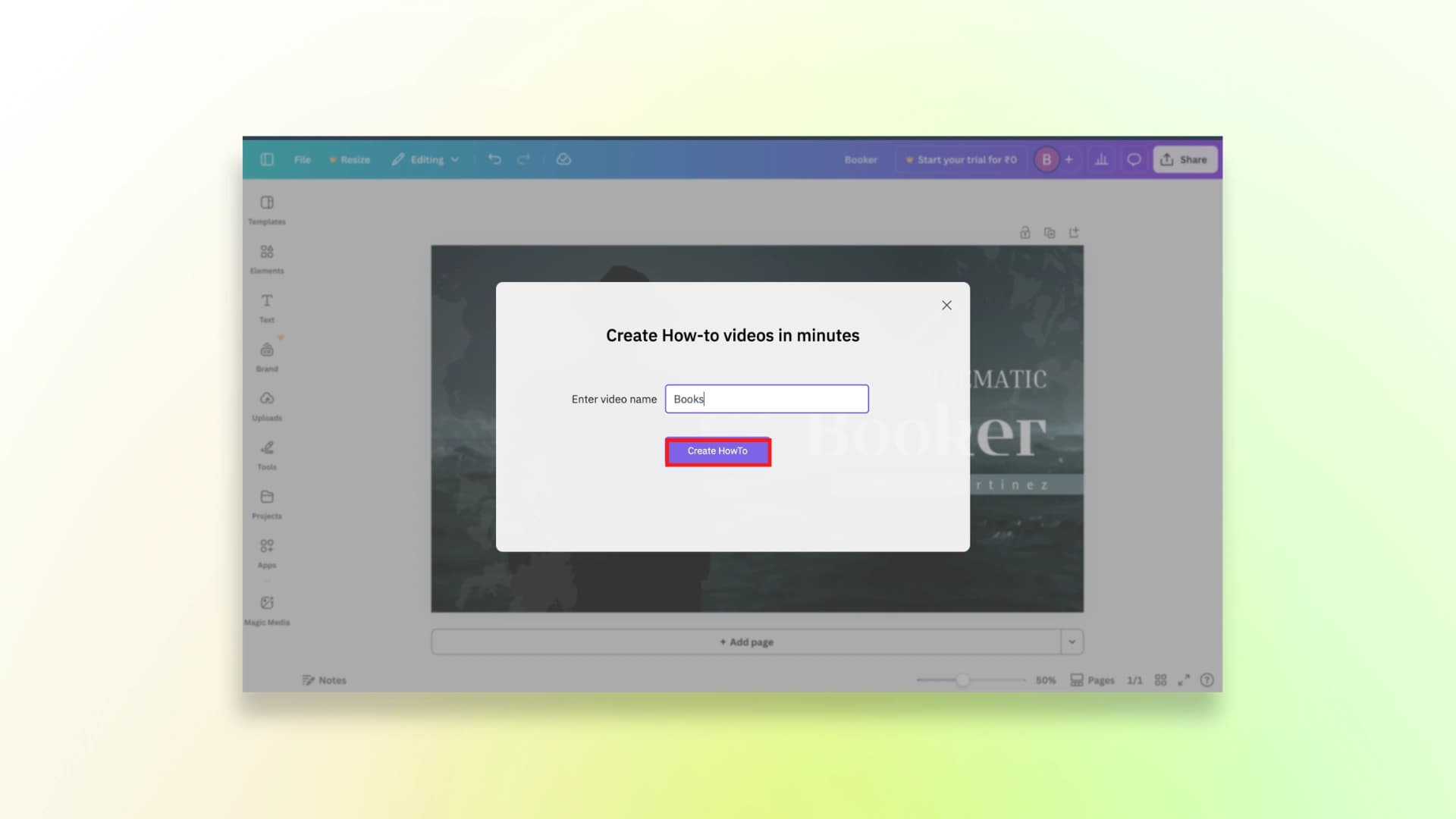
Step 3: After recording the video, give a name to the video and click Create.
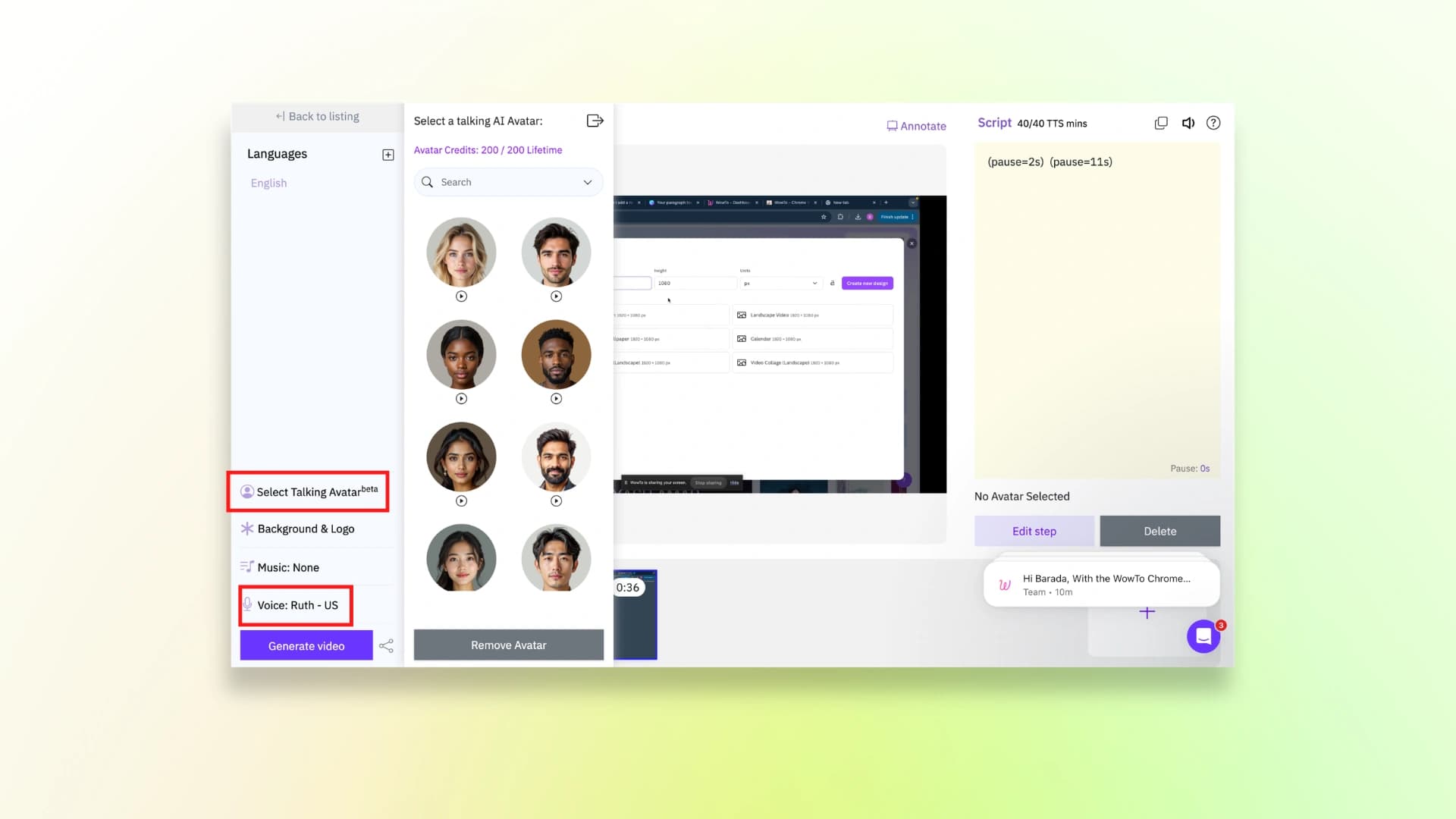
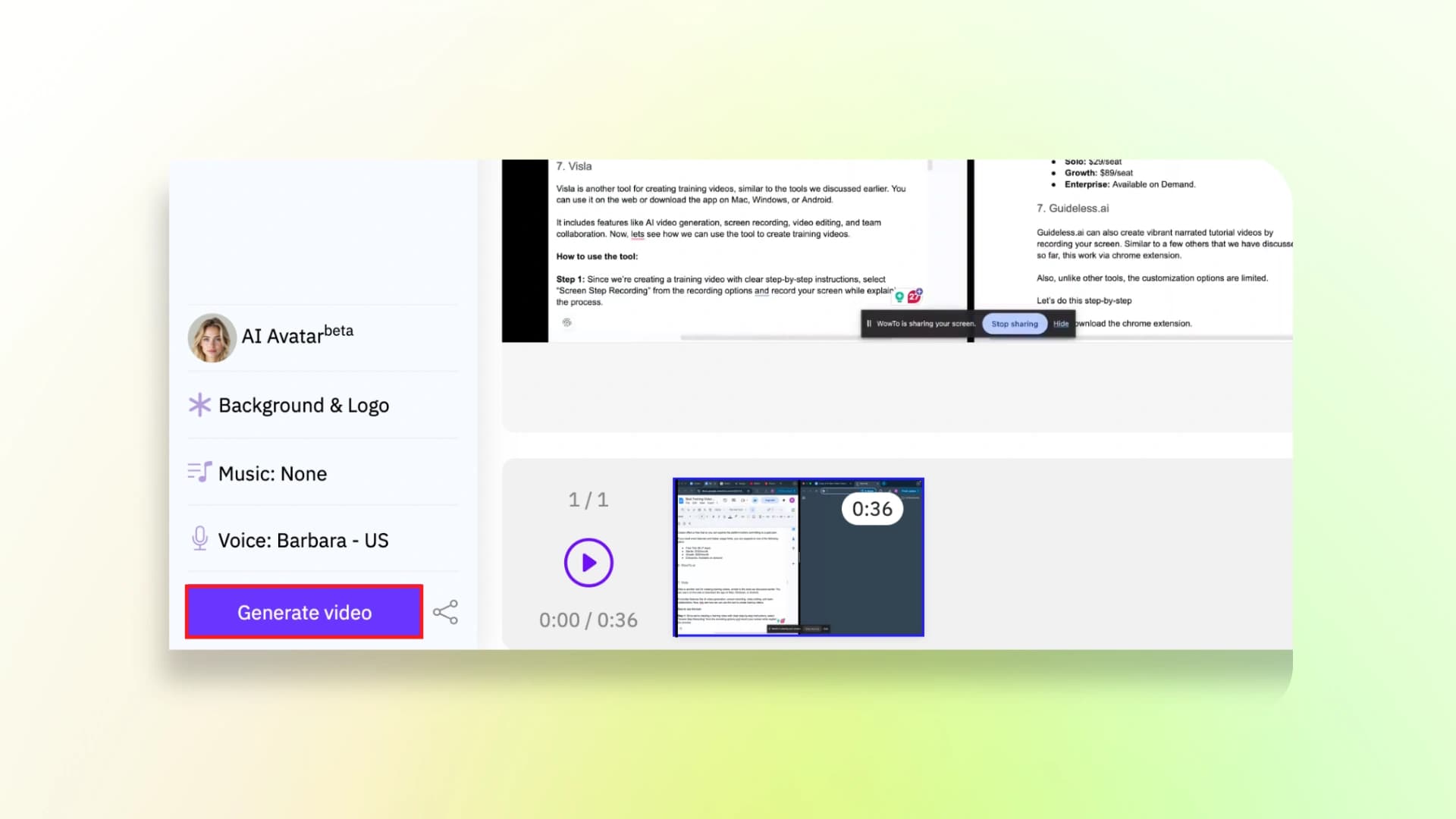
Step 4: Choose the talking avatar that you want and the voice for the video.
After that, add the lines on the right side so that the audio will be generated for it.
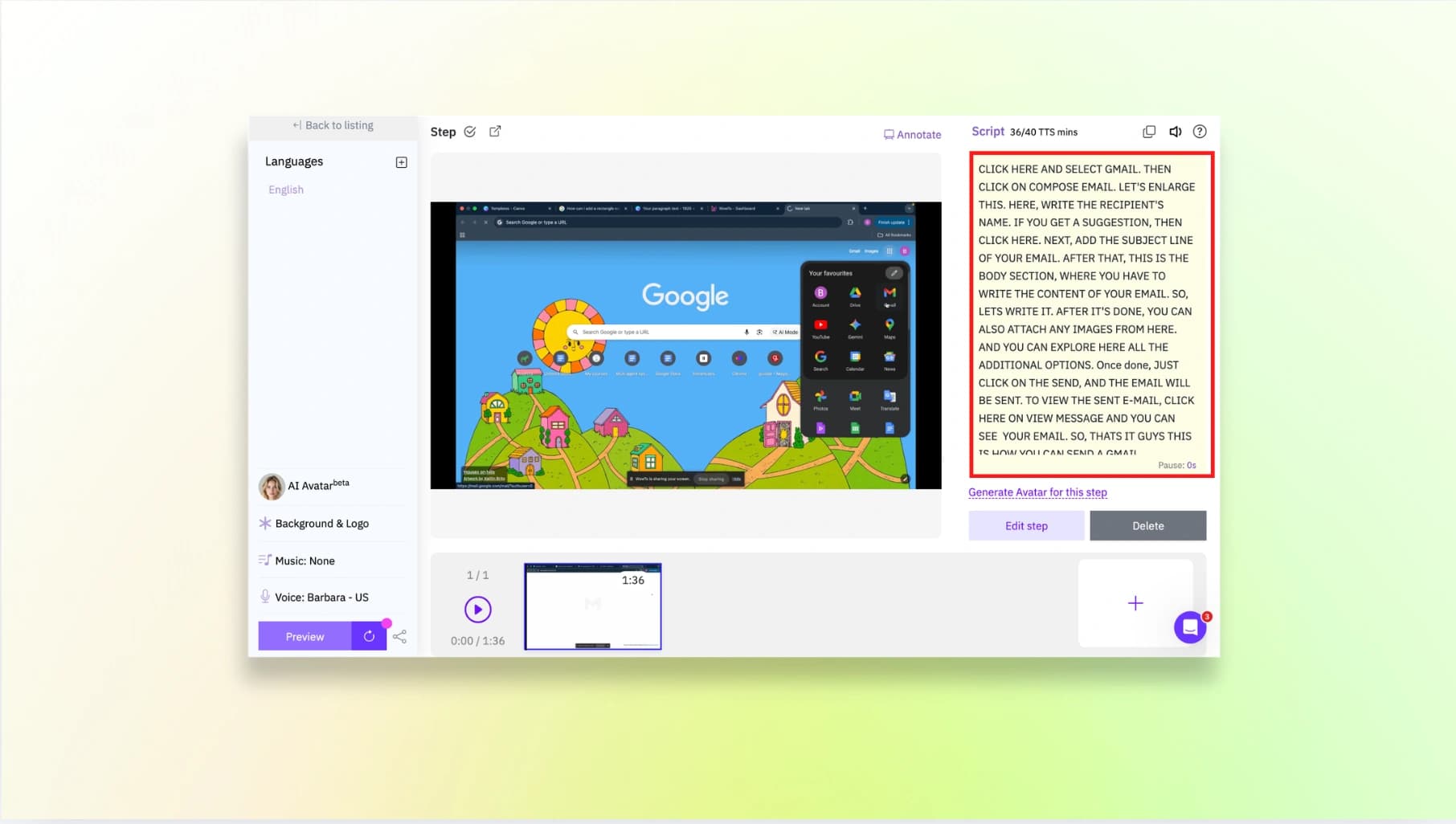
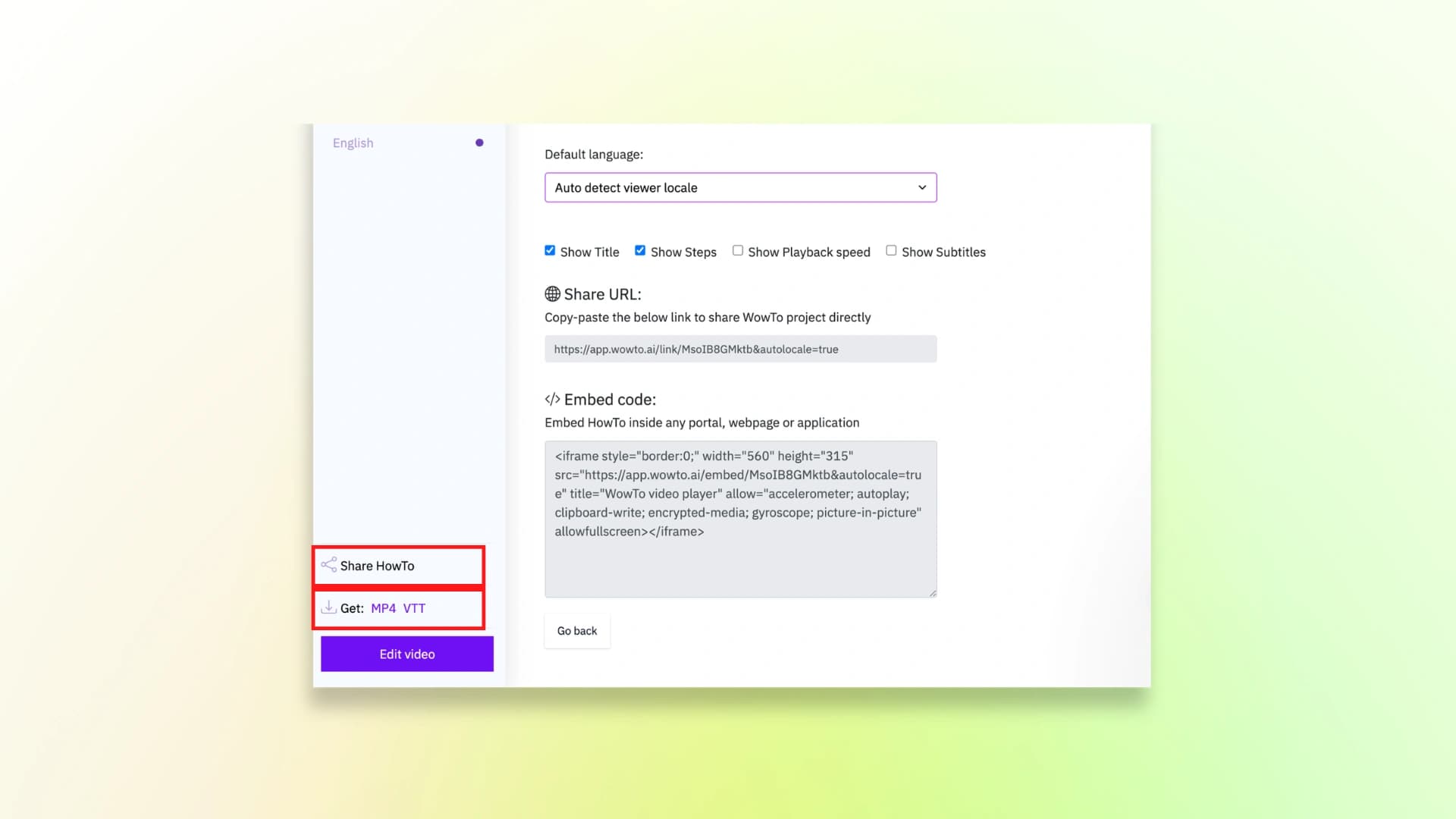
Step 5: Then click on generate video and then share the video.
Here is the finished video:
Pricing
WowTo.ai offers a free plan to help you explore the platform and create a few product demo videos. If you need more projects and features, you can upgrade to the paid plans.
- Free: $0
- Plus: $25/month (or $250/year)
- Business: $45/month (or $450/year)
9. Clevera.ai
Clevera.ai is your go-to for making quick product demo videos and product demos just by recording your screen.
To get started, you have to just download the app from their website.
The cool part is it doesn’t just do video. It can also make handy guides with screenshots and clear steps.
How to use Clevera.ai:
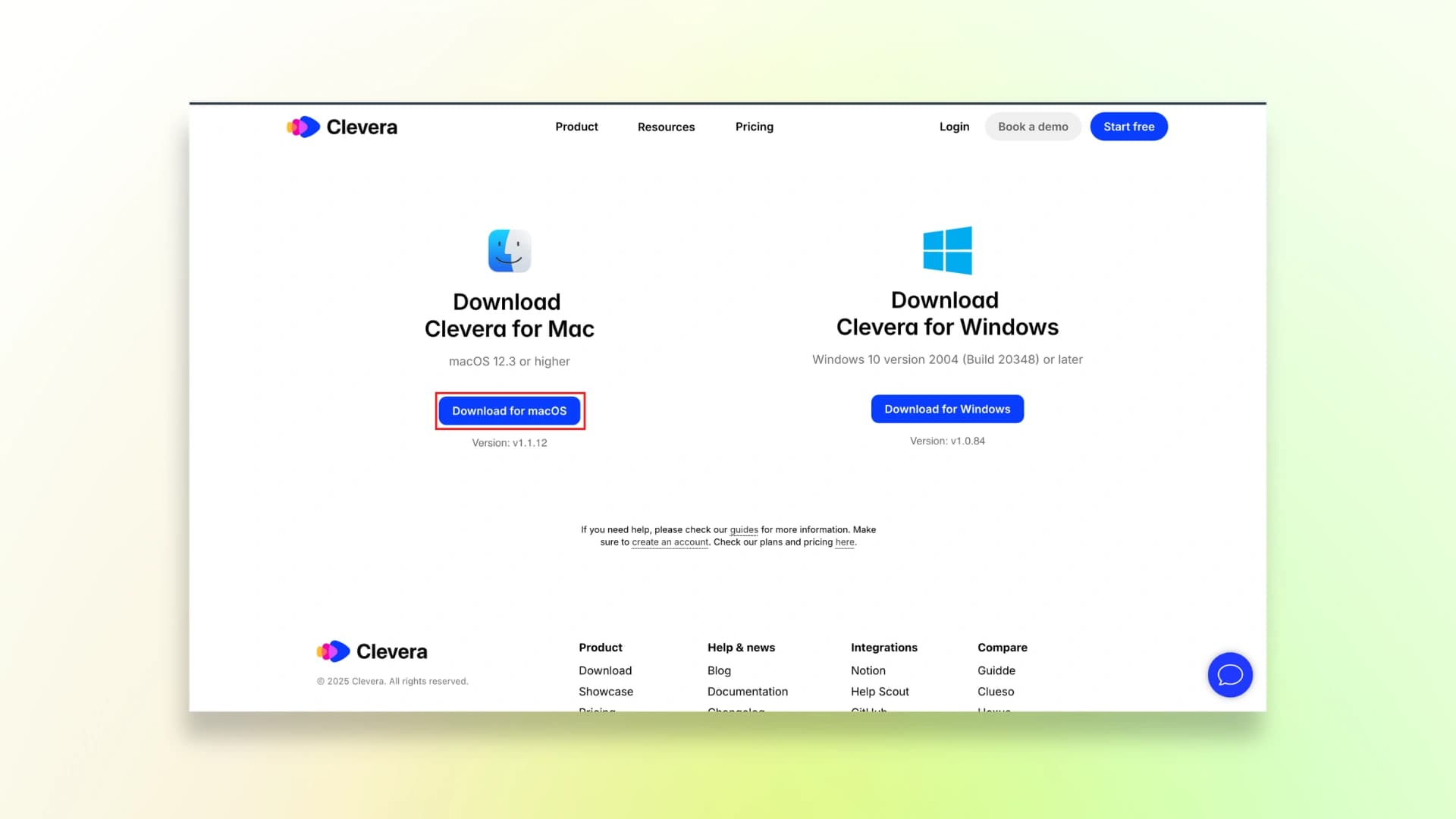
Step 1: Download the app for Mac or Windows from the website
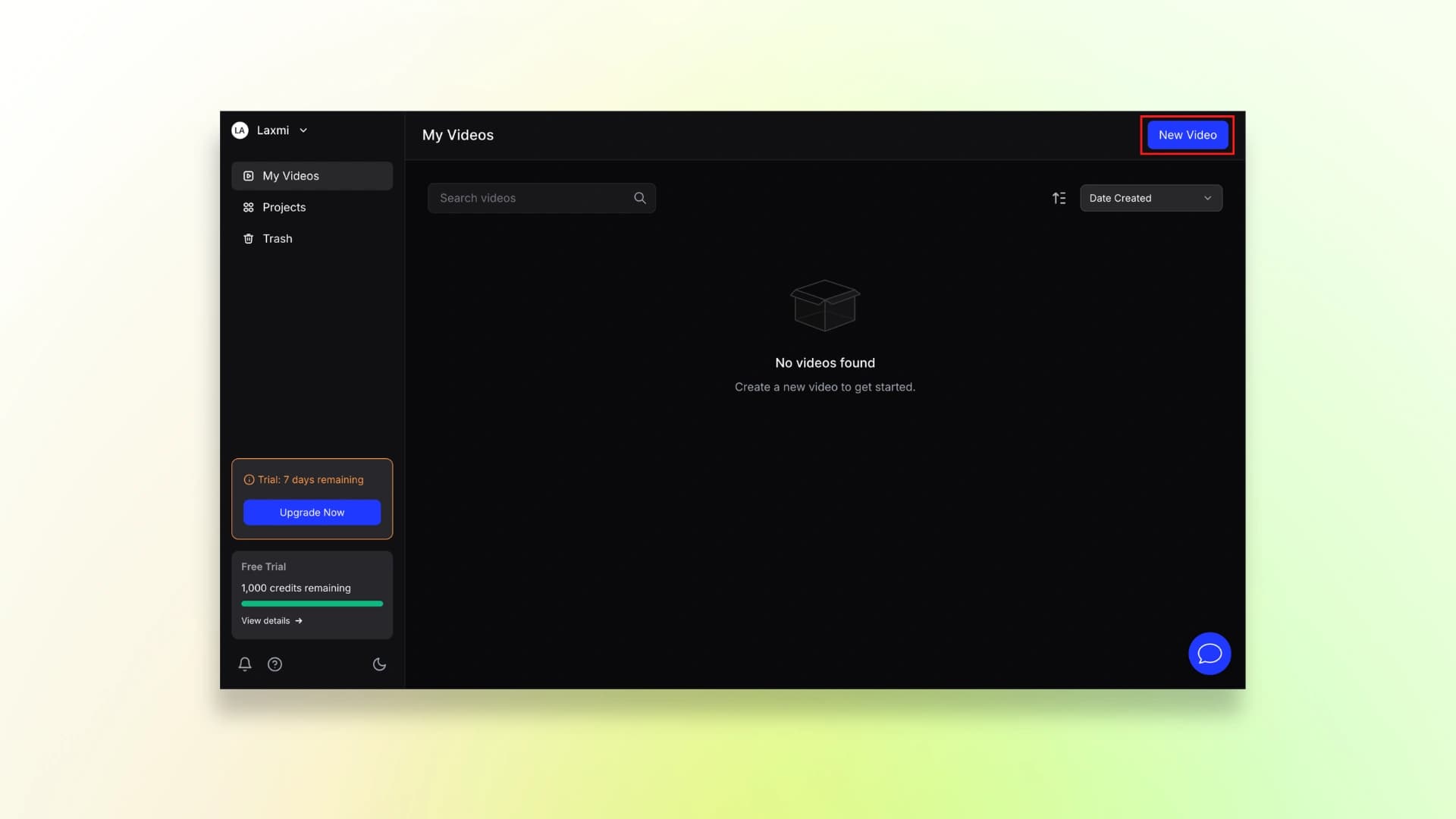
Step 2: Open the app, hit New Video, and start recording.
Step 3: Pick your style, grab a voice and language you like, and tap Create Video.
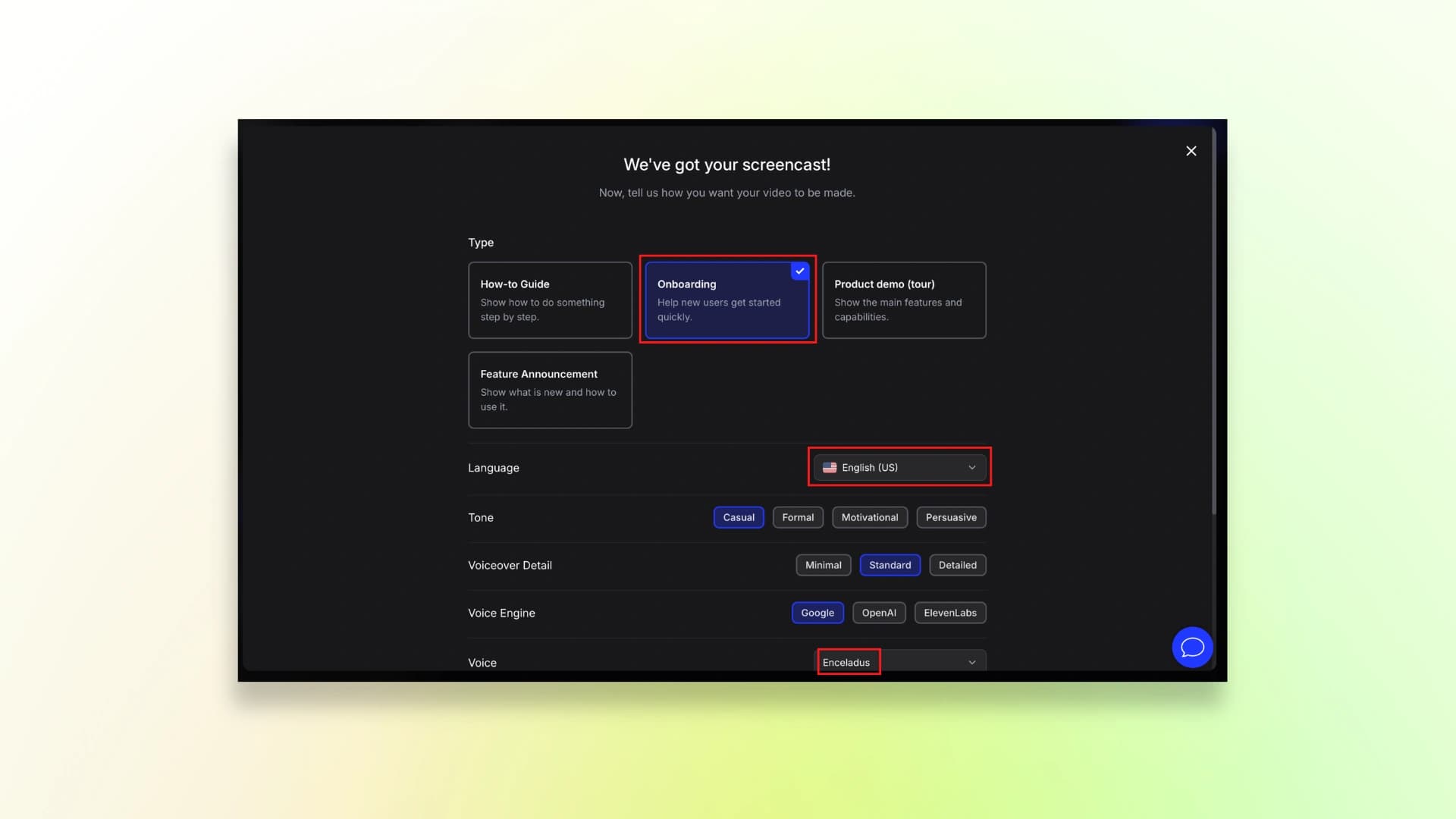
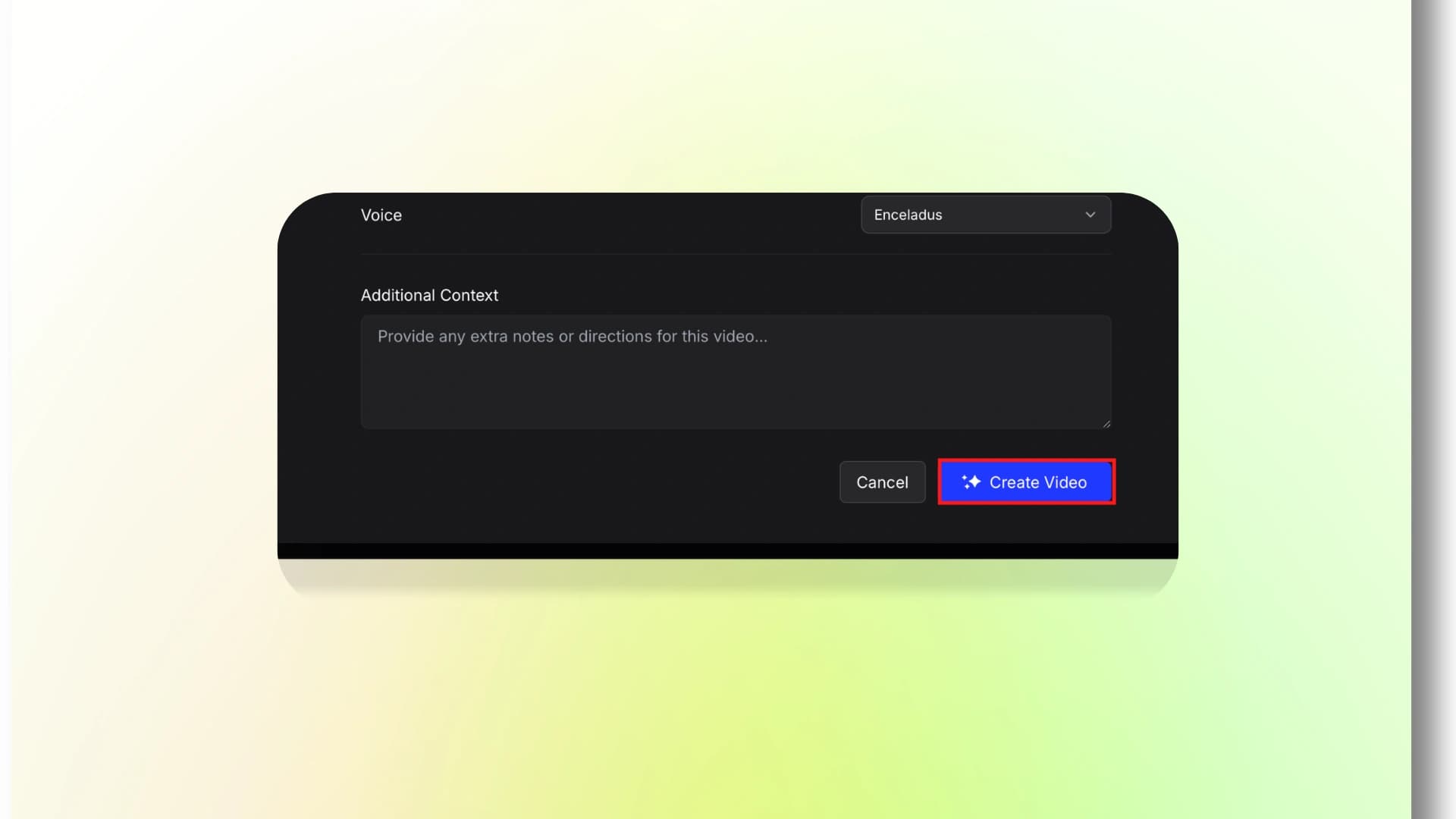
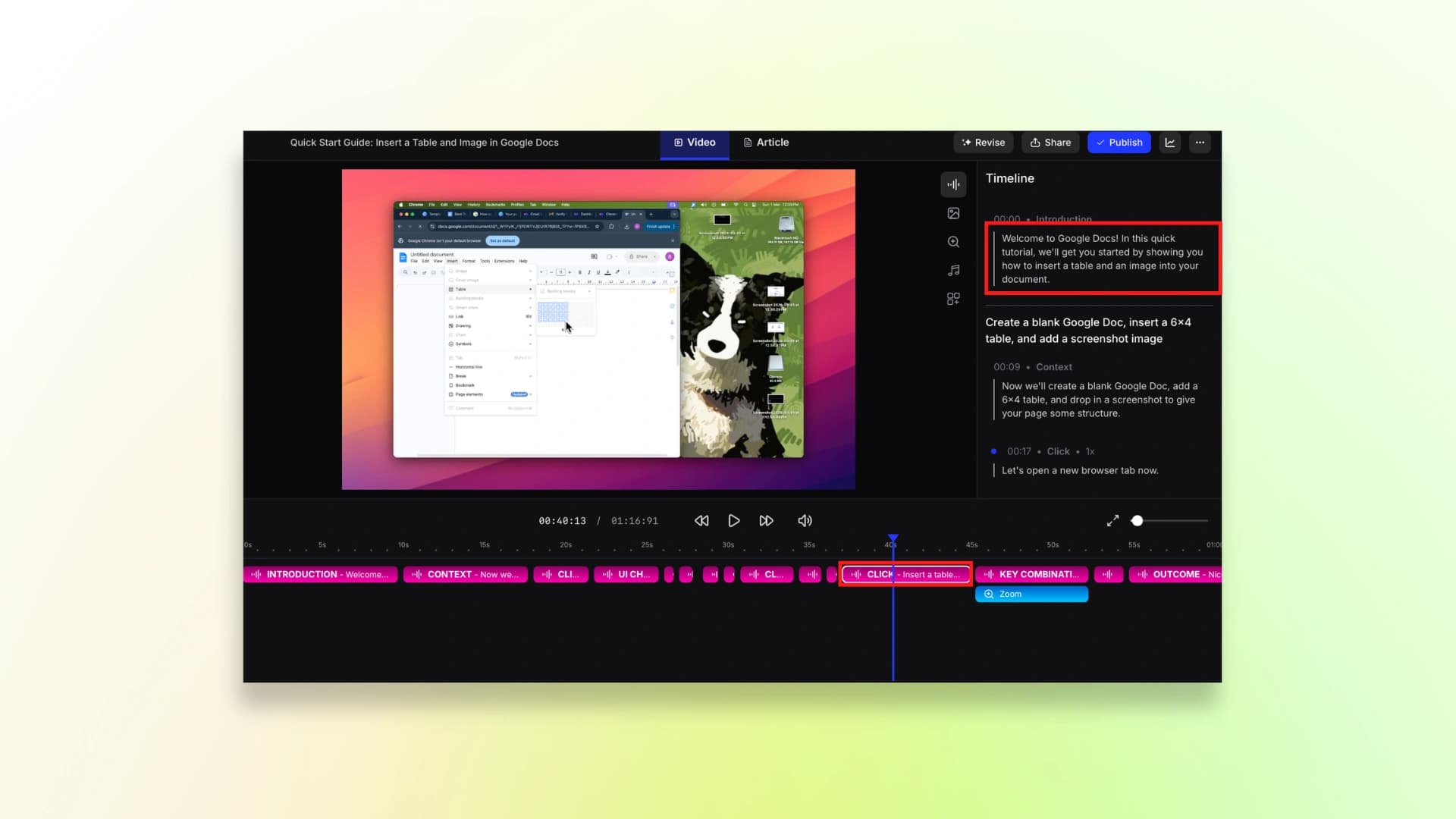
Step 4: Give it a quick watch. If anything looks off, just fix it up.
By the way: You can also turn the video into a blog post if you need a written version.
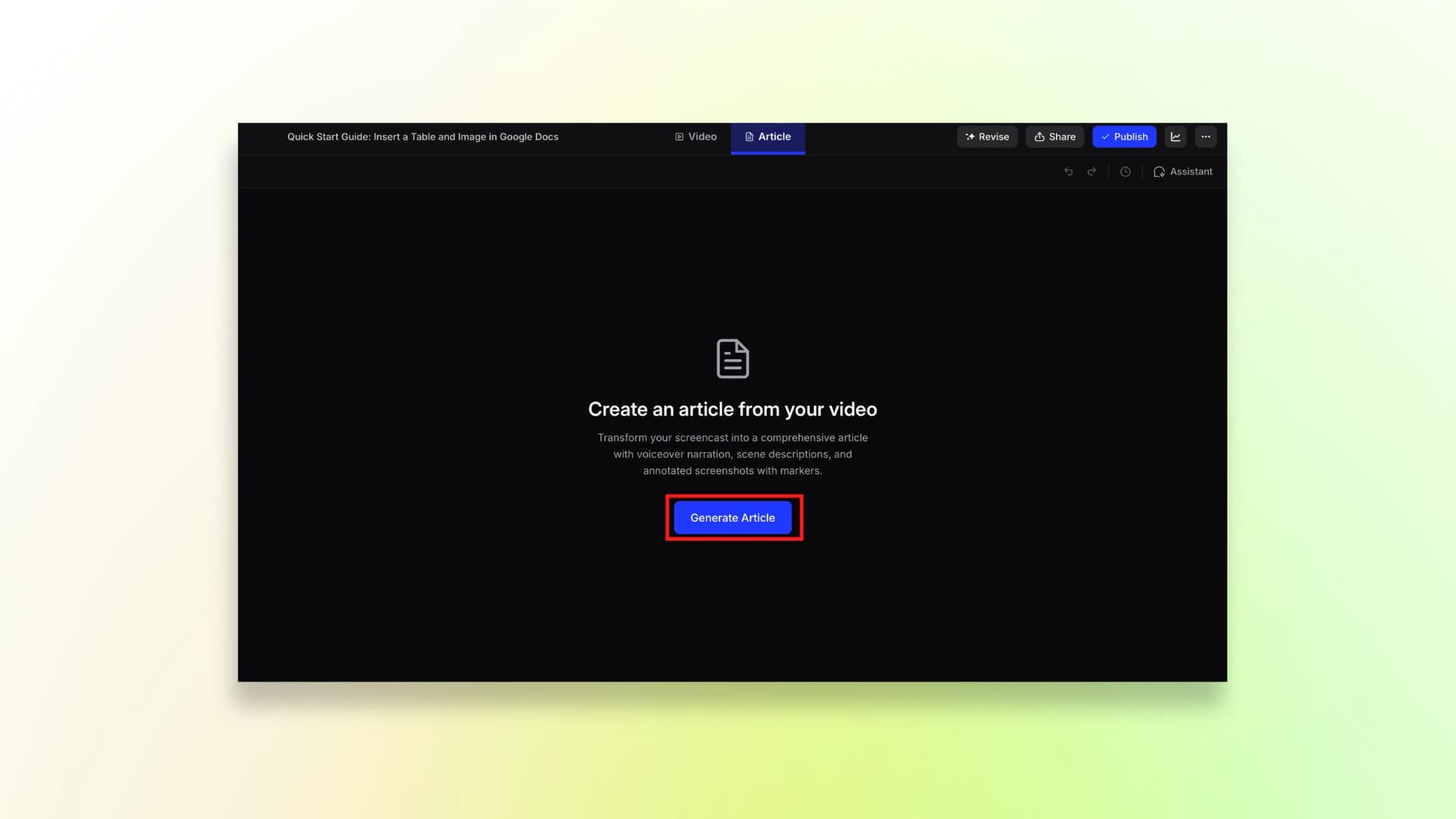
Step 5: Happy with it? Hit Publish and download your video.
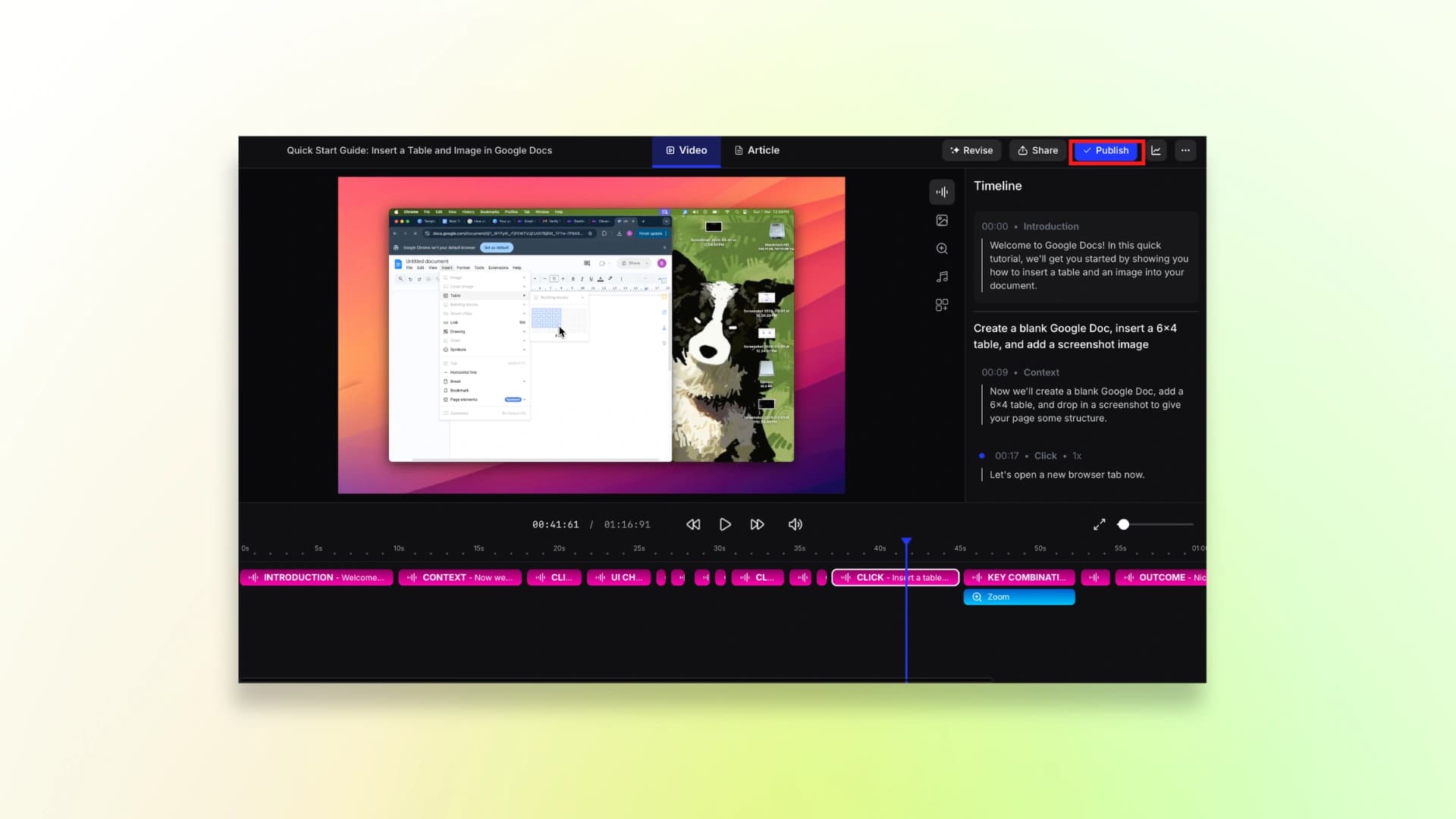
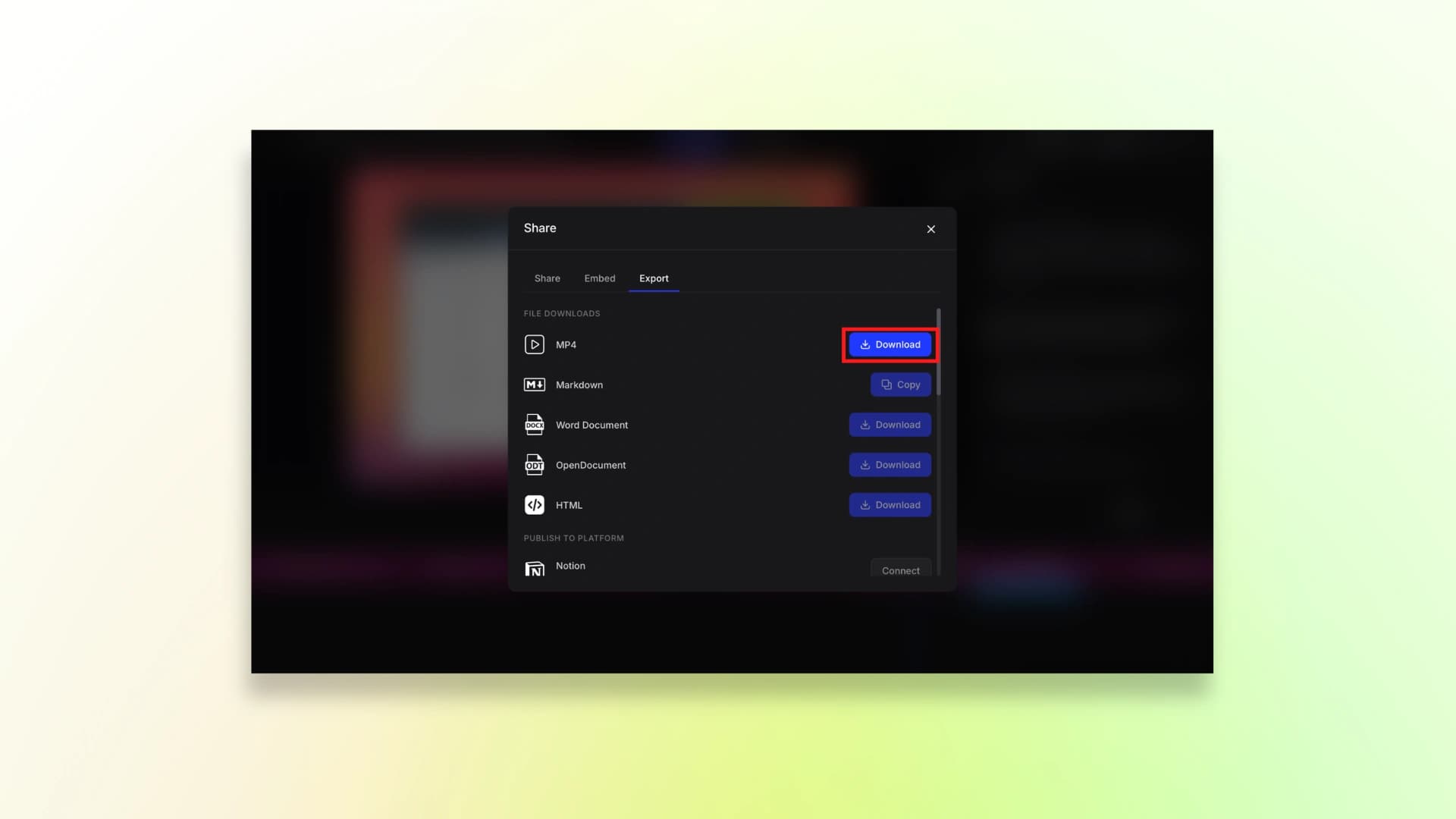
So, this is how you can generate a product demo video using Clevera.
Here is the finished video:
Pricing
Clevera.ai offers different plans depending on how many product demo videos you want to create and the size of your team.
- Solo: $99/month
- Growth: $299/month
- Scale: $599/month
Each plan includes a certain number of credits for creating and exporting product demo videos.
10. Guidde
The last but not the least, product demo software you can try is Guidde. Like Trupeer, it helps you turn screen recordings into short how-to videos for product demos, product walkthroughs, and internal product demo.
Along with the video, Guidde can also create a step-by-step document with screenshots, which you can use for help guides, documentation, or knowledge bases.
Like Trupeer and Trainn, it alos requires a chrome extension. So, here’s how you can use the tool.
How to use Guidde:
Step 1: First, download the Chrome extension
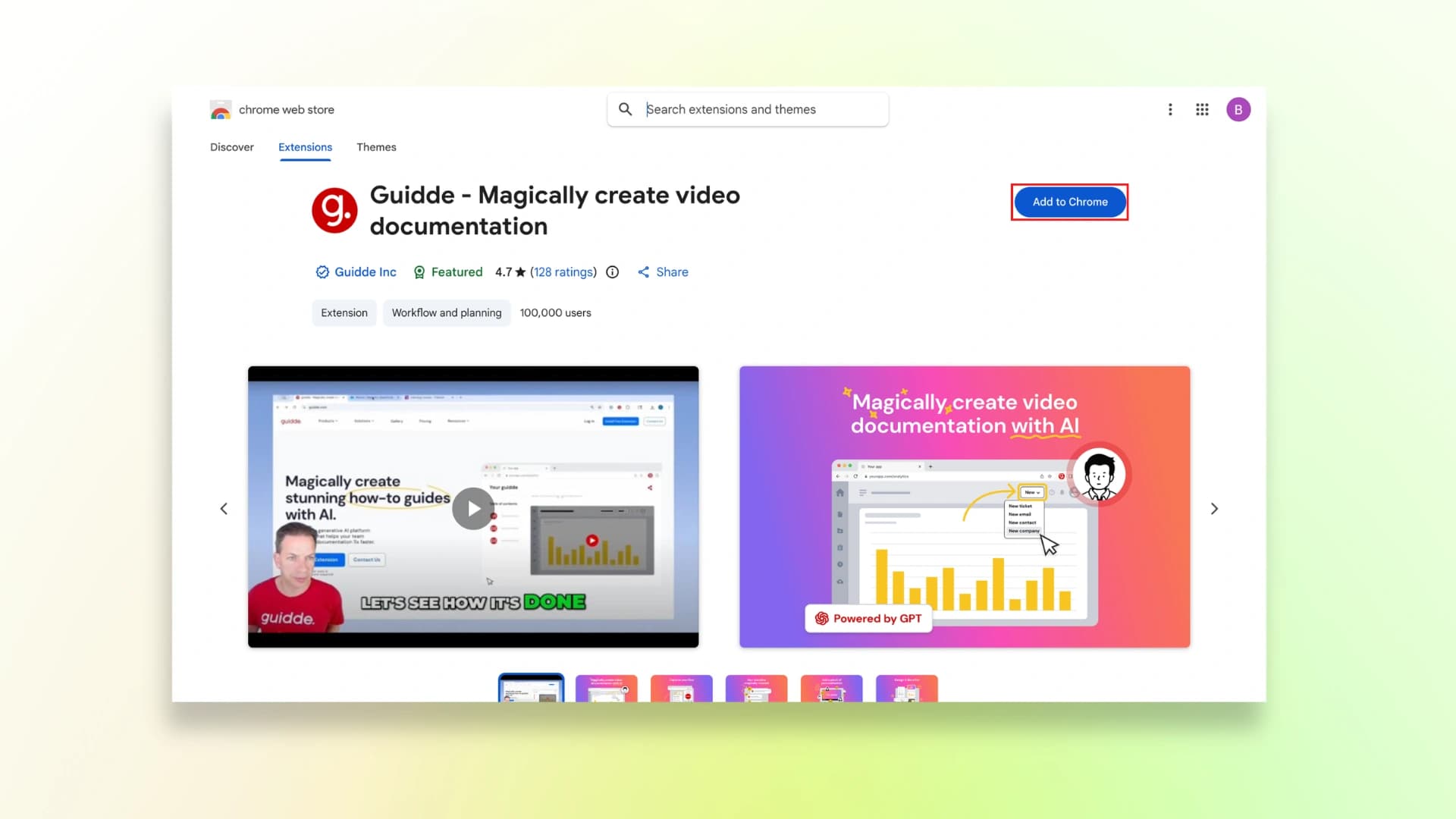
Step 2: After adding the extension to chrome, fill in these details, choose the type of video you will record and start recording your screen.
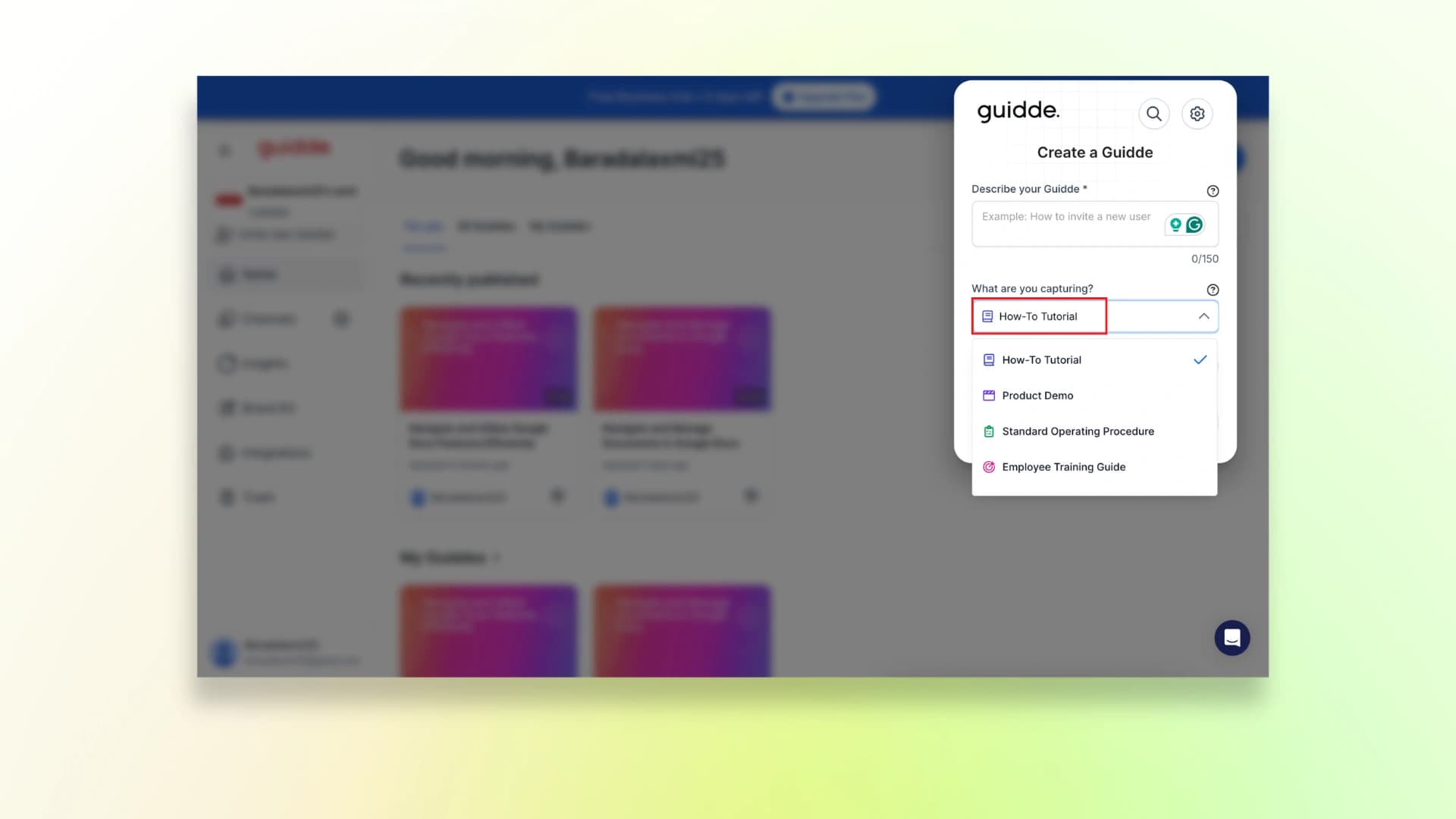
Step 3: Once the screen recording is done, just preview the video and then click Edit.
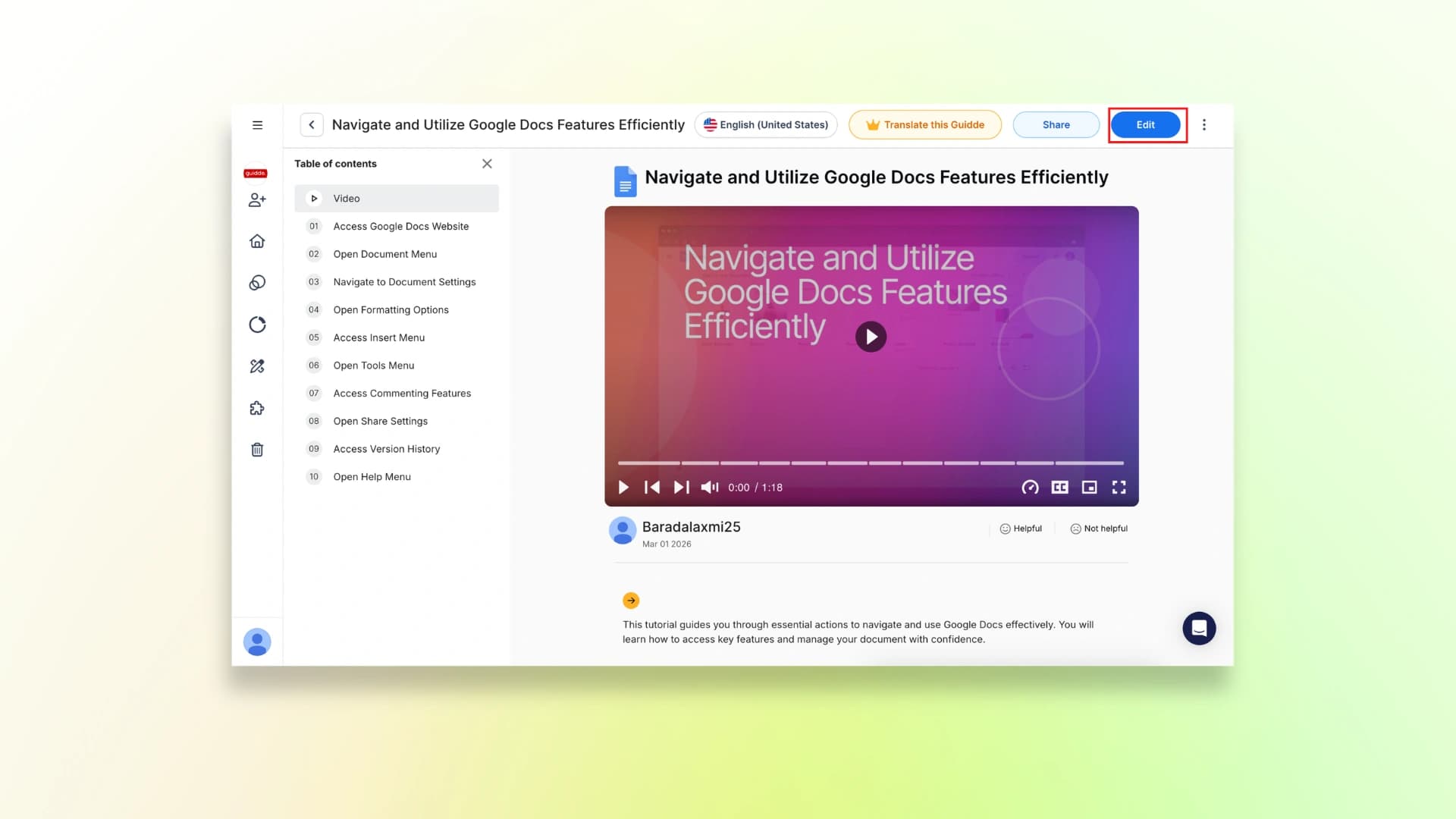
Step 4: Here you can check and edit the script lines, change the voiceover, add elements, captions etc., according to your choice.
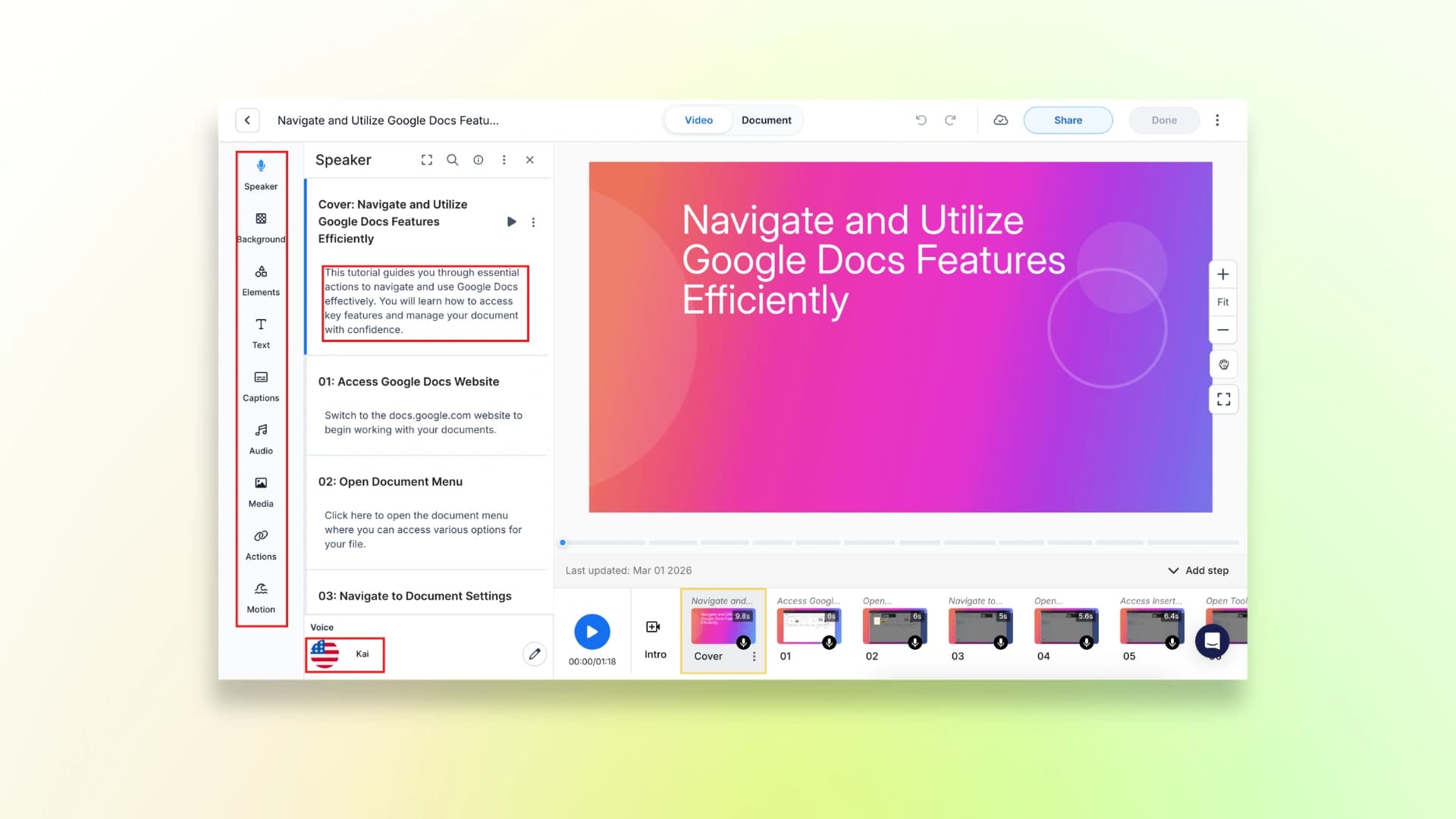
Guiddee also provides a full documentation of your video along with the screenshots that you can use for other purposes.
Step 5: Once you’ve edited the video click on share and export it in the medium that you want.
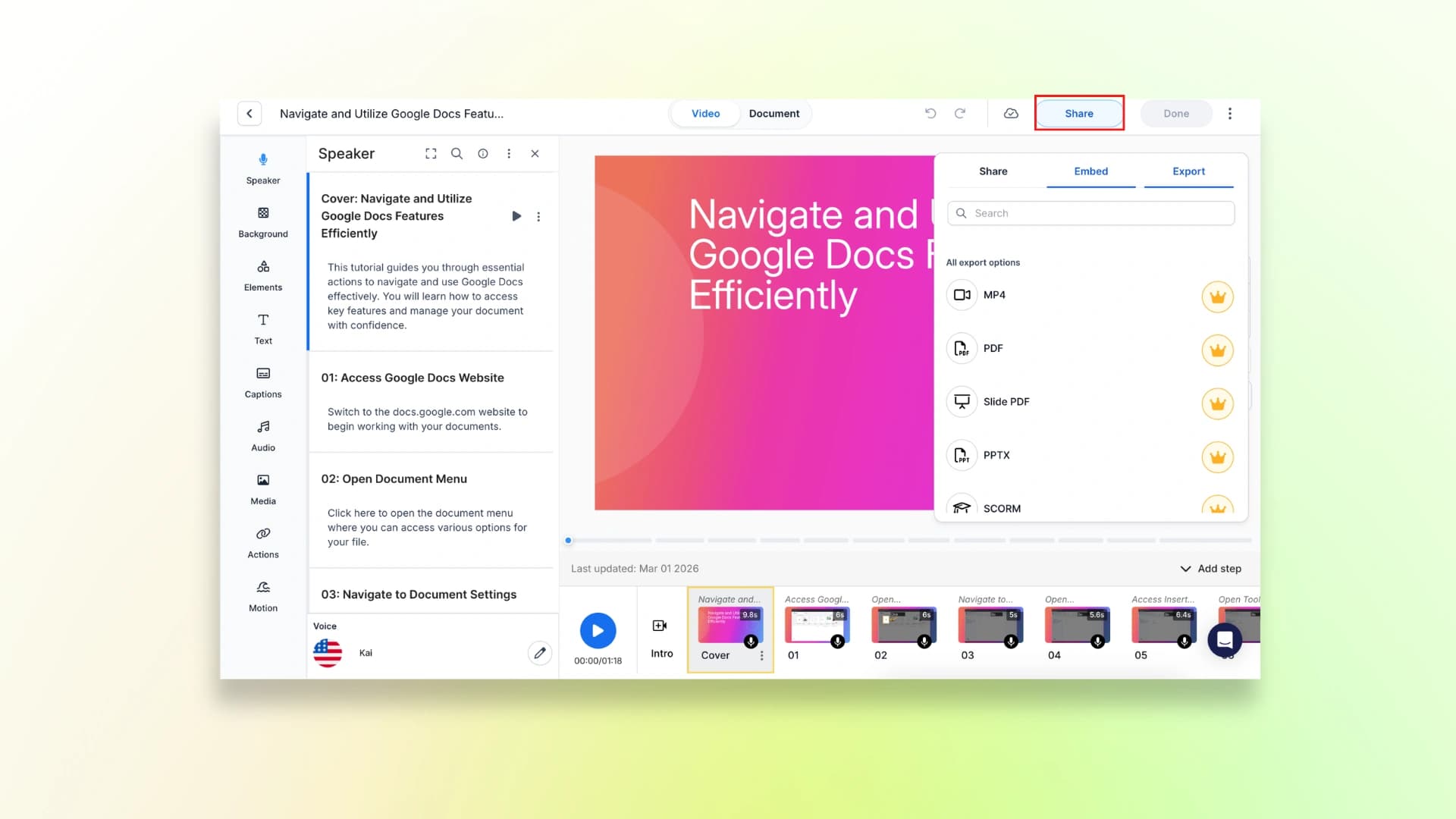
So, this is how you can create your product demo video using Guidde. Now, lets look at the pricing plans.
Here is the finished video:
Pricing
Guidde offers a few pricing plans depending on how many features and creators you need:
- Free: $0 per creator/month
- Pro: $18 per creator/month
- Business: $39 per creator/month (7-day trial available)
- Enterprise: Custom pricing (contact sales)
And if you’re planning to turn your demos into full learning content, here’s a step-by-step guide on how to create a video training course.
The Best SaaS Product Demo Video Tool for Your Workflow
All the tools we discussed can help you create SaaS product demo videos faster, but the best choice depends on your workflow and what you need.
If you want a quick and simple way to turn screen recordings into polished demo videos, tools like VideoMule, Trupeer, and Guidde are good options to start with.
Platforms like Trainn or WowTo.ai can also be useful if your team needs more advanced product demos or documentation features.
For teams that want the fastest setup, VideoMule is one of the easiest tools to start with. You can record your screen silently, and the platform automatically adds AI narration and syncs it with your video.
In the end, the right SaaS demo video tool is the one that fits your team’s workflow, budget, and content needs.
Choose your demo tool—and ship this week. Use VideoMule to polish and publish.
FAQs about Saas Product Demo Video Software
1. What's the best free SaaS demo video maker?
Some tools offer free plans or low-cost trials to help you get started. For example, VideoMule offers a 7-day free trial, making it easy to test how AI-powered demo video creation works.
2. Do I need video editing experience to create demo videos?
No. Most SaaS demo video tools are beginner-friendly. You usually just record your screen, and the tool automatically adds narration, captions, and simple edits.
3. How long should a product demo video be?
Most product demo videos work best when they are 1–3 minutes long. This is usually enough to explain the main feature without losing the viewer’s attention.
4. Can I add professional voiceover without recording my voice?
Yes. Many tools now provide AI voiceover for product demos. For example, tools like VideoMule can generate a natural AI voiceover automatically from your screen recordings.
5. What's better: screen recording or animated demos?
For SaaS products, screen recordings are usually better because they show the real product interface. This helps viewers understand exactly how the product works.
6. How much does professional demo video software cost?
Most SaaS demo video tools start around $10–$40 per month, while advanced platforms with more features or team collaboration can cost more.
7. Can these tools work on both Windows and Mac?
Yes. Most demo video tools are web-based or browser-based, so they work on both Windows and Mac without requiring special software.
8. How do I translate my demo videos?
Many tools allow you to translate captions or AI voiceovers into multiple languages, making it easier to create demo videos for global audiences.
Keep reading
Product Demo Video Maker
Turn a product recording into a polished demo with auto-zoom, AI script and voiceover.