How to Turn Screen Recordings into Knowledge Base Videos
Turn screen recordings into a knowledge base video with AI voiceover, captions, and scripts, perfect for training, onboarding, and tutorials.
You probably have a bunch of screen recordings saved somewhere, maybe in Drive or from Loom. You made them explain things quickly… but now they’re just sitting there.
And every time someone asks the same question, you either send that old video (if you can find it) or record a new one.
The problem is, these recordings never really become a proper knowledge base video. They’re not structured, not searchable, and not easy for others to use on their own.
Mostly because turning a simple recording into a complete video with script, voiceover, captions, and everything feels like too much work. So it just stays unfinished.
But it doesn’t have to be like that.
In this guide, you’ll learn how to create knowledge base videos from simple screen recordings.
And it’s worth doing. Around 69% of people prefer video when learning a product, and up to 60% of support questions can be solved with self-serve content.
If you’re also working on onboarding or product walkthroughs, you can check out our guide on creating customer onboarding videos to go deeper into that.
Already have screen recordings? VideoMule turns them into polished knowledge base videos with AI scripts, voiceover, and captions in minutes.
What Is a Knowledge Base Video (and Why a Screen Recording Alone Isn’t Enough)?
A knowledge base video is a short, focused video that explains one specific task clearly.
It’s usually added to help centers, documentation, or internal tools so users can quickly understand what to do without asking for help.
The real difference is in how it’s presented.
A raw recording usually has no narration, no captions, no proper title, and is often stored on Drive, making it hard to find.
On the other hand, a knowledge base video is structured. It includes clear narration, captions, a proper title, and is placed inside your help center or documentation, making it easy to search and reuse.
The 6-Step Workflow - Using Videomule (From Recording to Knowledge Base Video)
Step 1 : Decide What to Record
You should start by choosing one important task instead of trying to record everything.
A simple way to decide is this: Choose a task that people ask about often, that is repeated again and again, and doesn’t change frequently.
If a task fits these points, it’s a great choice for a knowledge base video.
For example, you can record tasks like resetting a password, creating a new project, uploading a file, or generating a report. These are simple, useful, and needed by many users.
One important rule to follow is: one video should explain only one task. This keeps your video clear, easy to understand, and easier to update later.
Step 2 : Record the Screen Using Videomule
Now it’s time to record your screen and turn your process into a video.
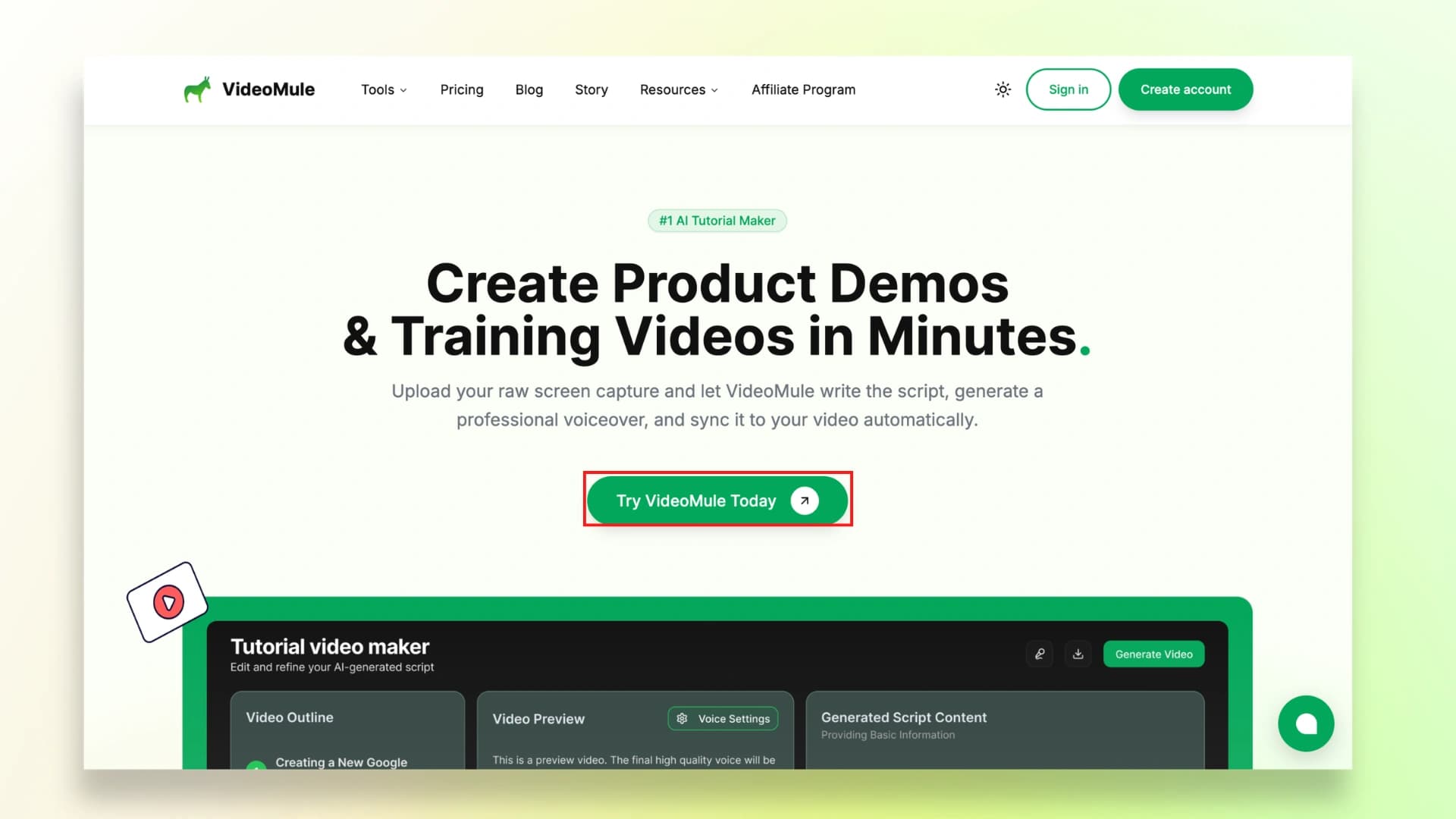
Start by going to Videomule’s website and clicking on “Try Videomule Today.”
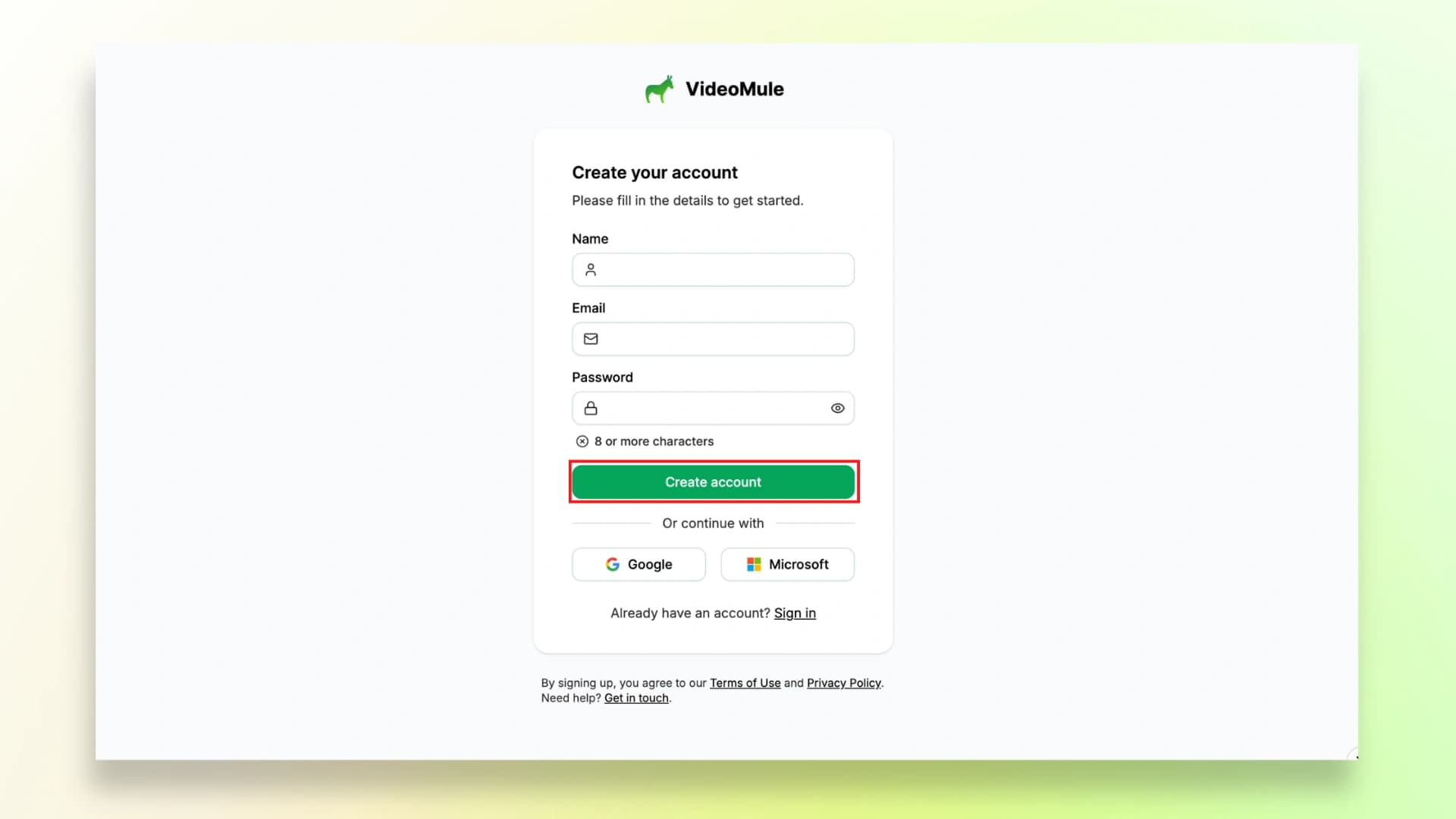
You can sign up using your Google account or simply enter your email to create an account.
Once you’re inside, click on “Record the Screen.”
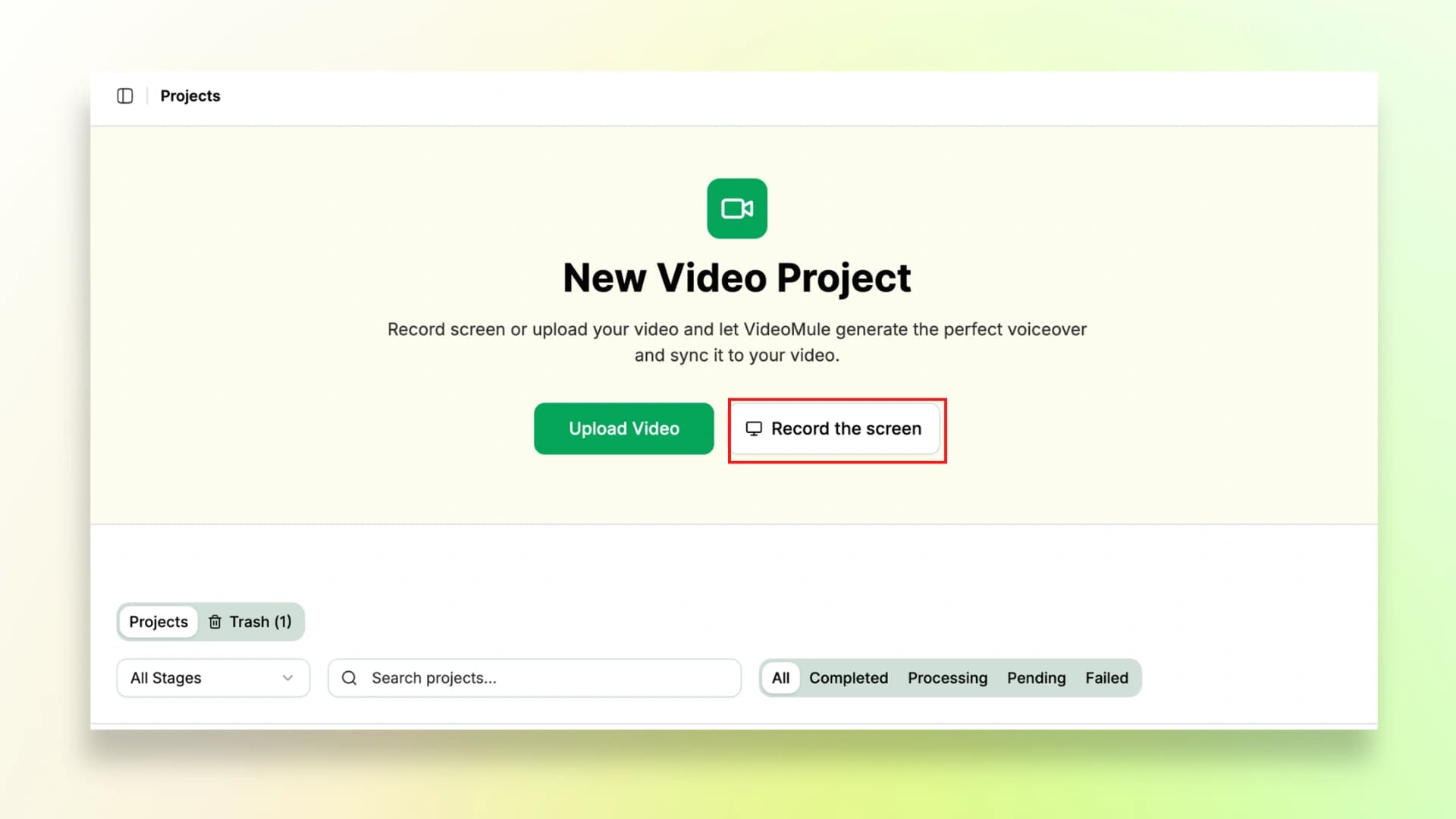
If you already have a screen recording, you can also choose “Upload Video” and use that instead.
Before you start recording, do a quick setup:
- Close unnecessary tabs
- Turn off notifications
- Zoom your screen to around 110–125%
- Keep all the pages ready that you’re going to use
If you're specifically looking to create tutorials, you can also follow our step-by-step guide on how to make a tutorial video on YouTube.
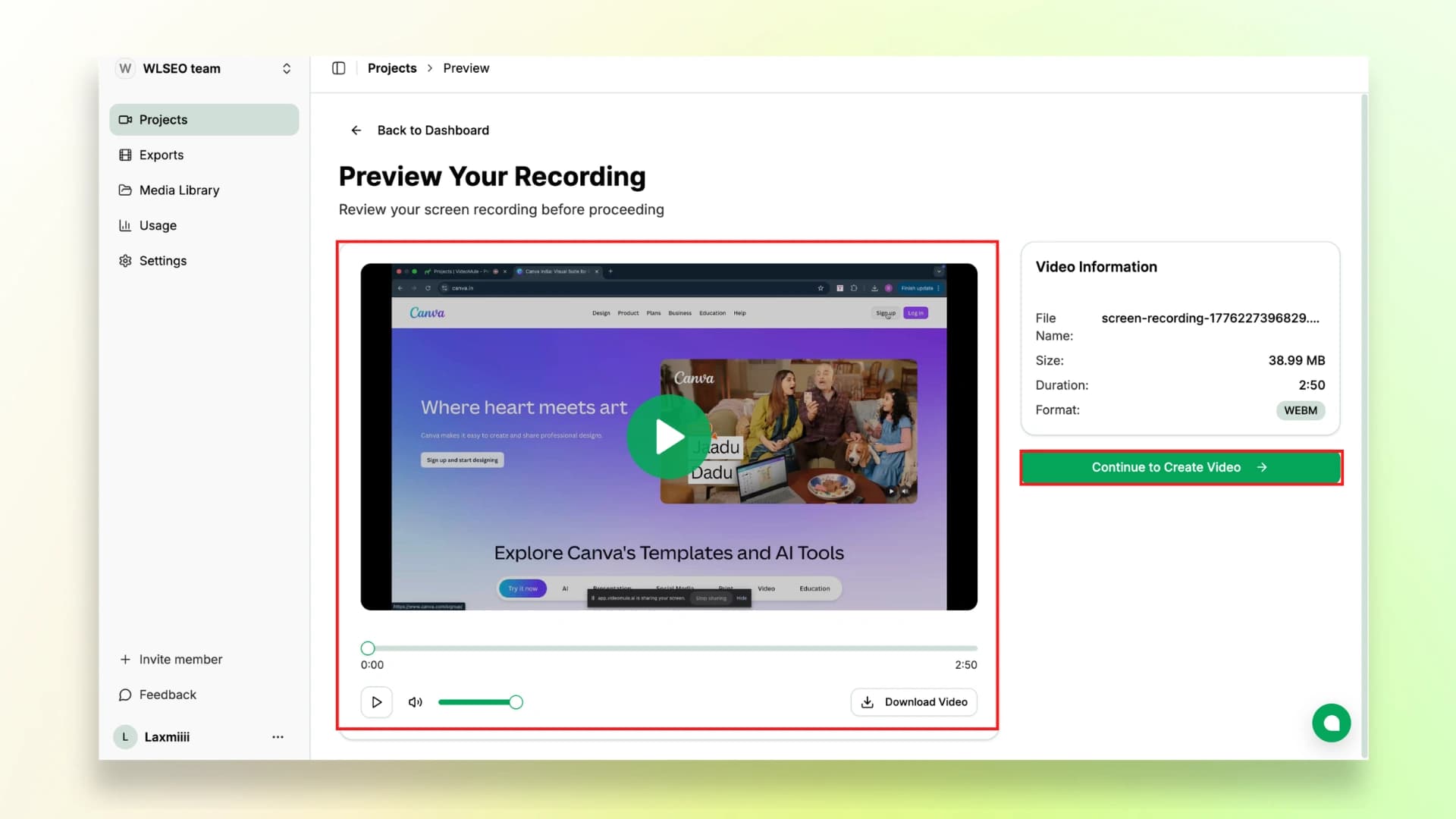
Step 3 : Preview the Recording
Once your recording is ready, you’ll see a preview of your recording.
Take a quick look to make sure everything looks correct and all steps are clear.
Step 4 : Generate Script Automatically
Now comes the best part, turning your recording into a proper tutorial.
First, add a clear title to your video. This helps the AI understand what your video is about.
Next, choose your preferred language and voice. Videomule gives you multiple options, so you can pick what fits your style.
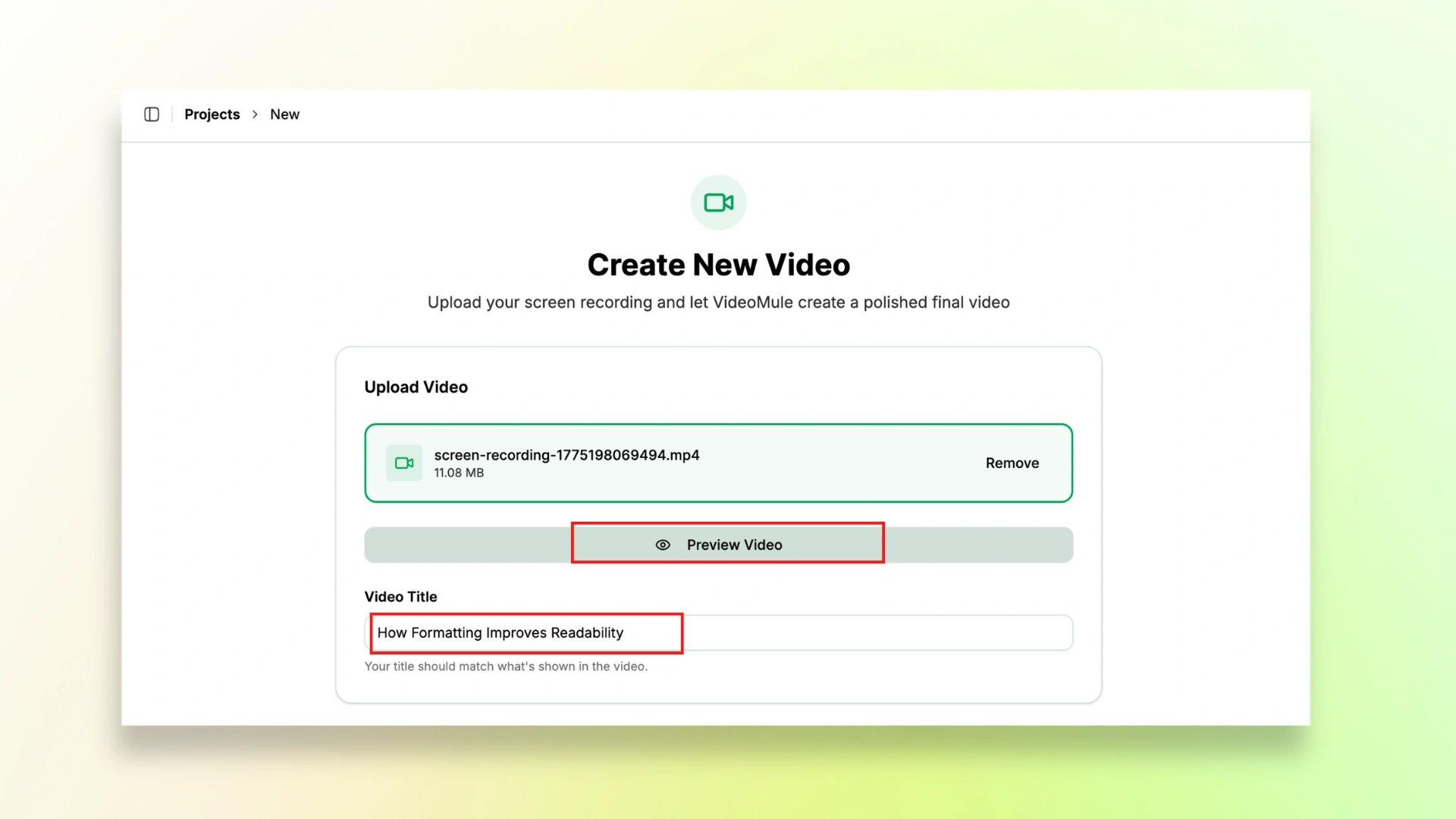
Once done, click on “Start Processing.”
This is what makes your content feel like proper knowledge base tutorial videos instead of just raw recordings.
Step 5 : Add Voiceover and Captions
Now that your video is ready, the next step is to refine and improve it.
You can edit the script line by line to make it clearer and more natural. Once you're done, you can also download the final script for future use. Then click on “Generate Voiceover.”
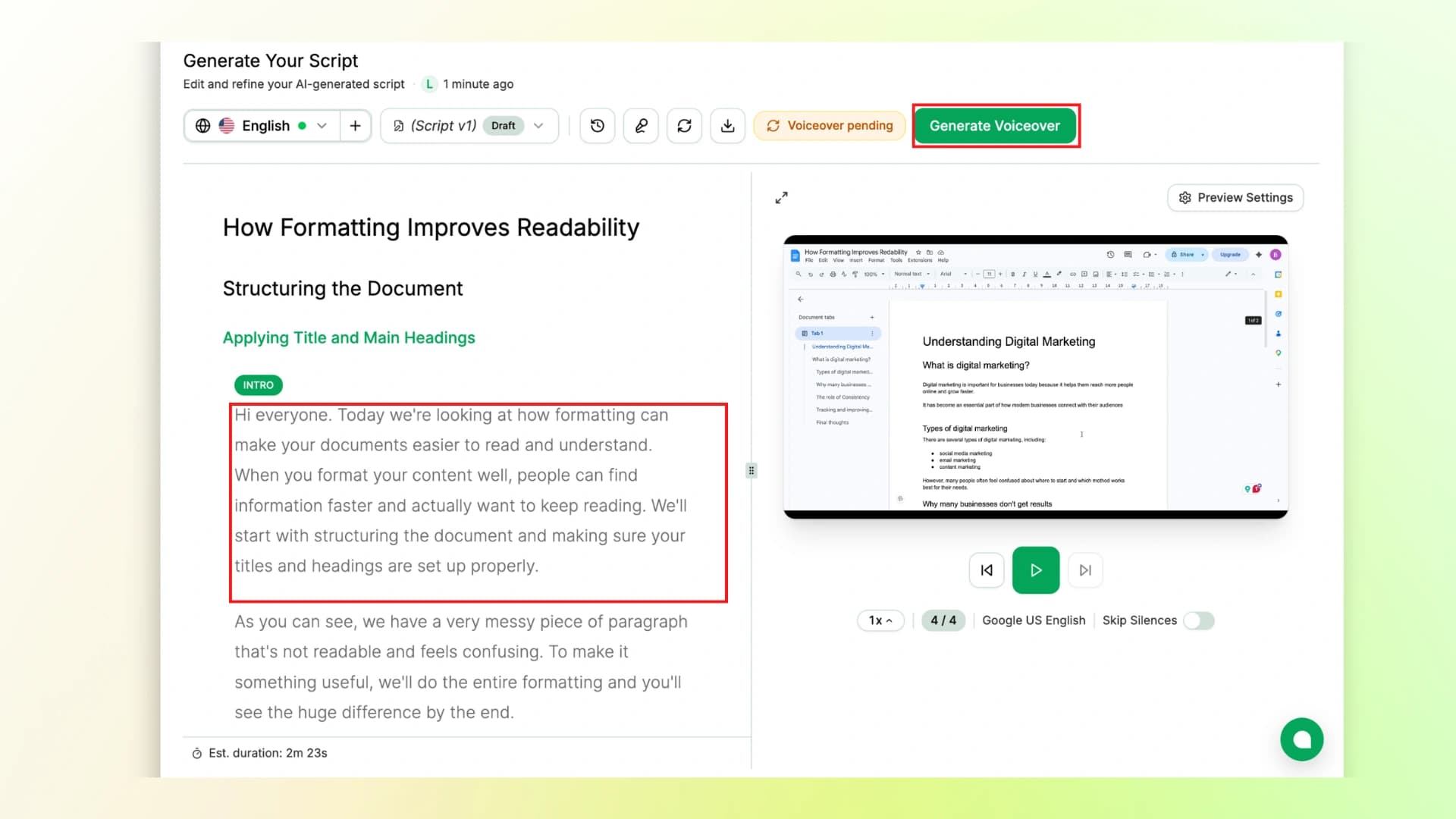
Videomule will automatically generate narration, match it with your steps, and add captions.
Step 6 : Export or Embed the Video
Once your video is ready, you can make final edits before publishing. You can adjust the timeline, change subtitle styles or colors, and fine-tune anything that needs improvement.
When everything looks good, simply click on “Export Video” and download it.
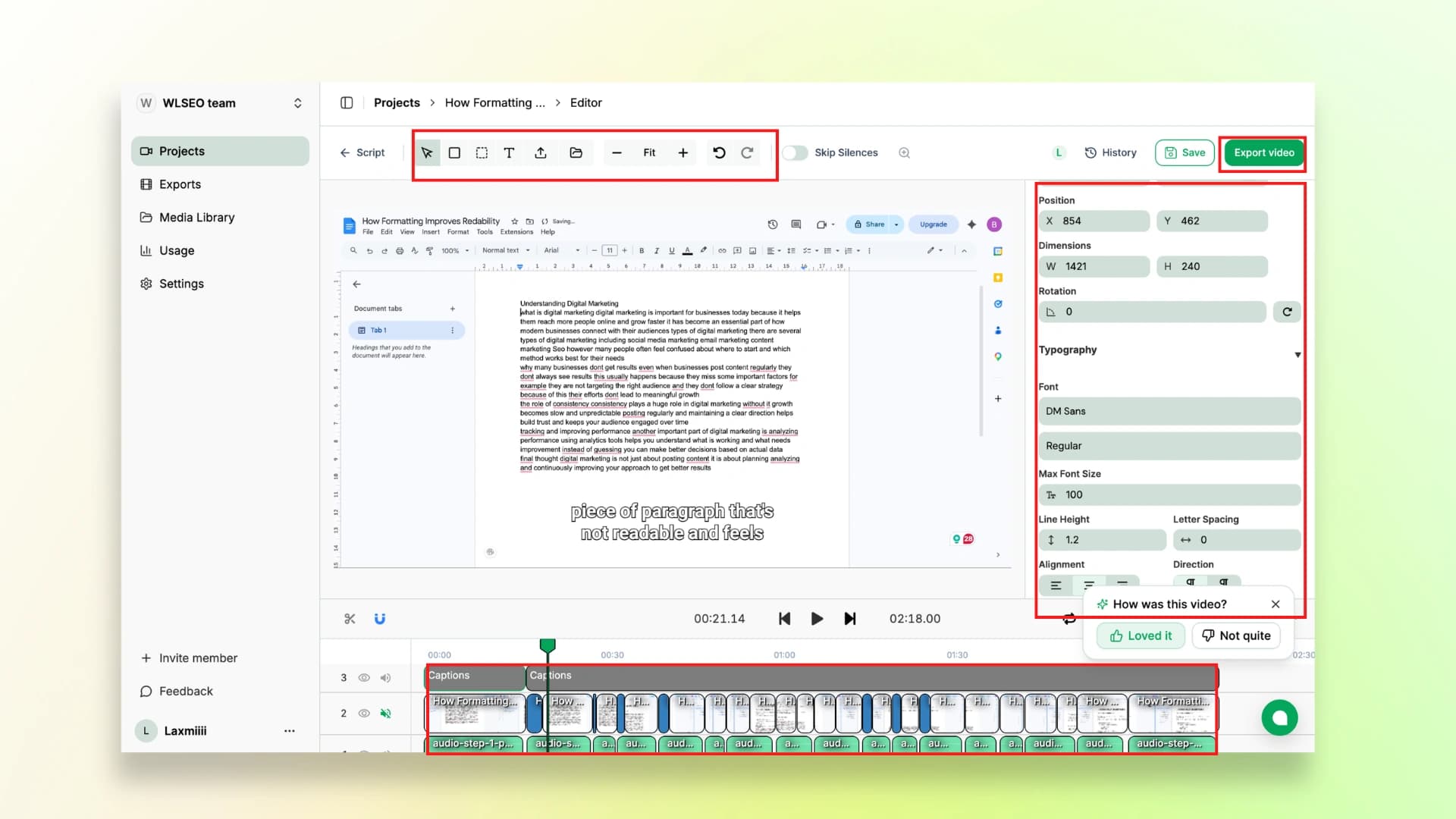
Now your video is ready to be shared.
You can use these as knowledge base training videos for your team or internal processes.
Also, check out our detailed guide on SaaS product demos if you want to apply this for different types of videos.
Here’s the final video:
Beginner vs Advanced Knowledge Base Workflows
Not every team needs a complex setup. You can start simple and improve over time based on your needs.
Beginner level:
At this stage, you just record your screen, let AI generate the script and voiceover, quickly review it, and publish. This is the fastest way to get started and usually takes around 20–30 minutes.
Intermediate level:
Here, you put in a bit more effort by adding your own voiceover, including branding elements, and exporting the video in higher quality. This gives a more polished feel and typically takes 45–60 minutes.
Advanced level:
This is for teams creating content at scale. You can use templates, voice cloning, create videos in multiple languages, and track performance using analytics.
Have a screen recording but no narration? VideoMule writes the script and adds a professional voiceover automatically.
Knowledge Base Video Best Practices
If you want your videos to actually help people (and not get ignored), keep them simple and easy to follow. You’re not trying to impress—you’re trying to explain.
- Keep videos short: 1 to 5 minutes is more than enough
- Focus on one task per video so it stays clear
- Always show the final result, so users know what they’re aiming for
Also, think about how people are watching your videos.
- Make sure they are mobile-friendly
- Add a quick text summary below the video for those who prefer reading
And don’t just upload and forget.
Check where people stop watching, and improve those parts over time.
Common Mistakes to Avoid
Even good videos can fail if a few basic things are missed.
Many teams make these common mistakes without realizing it, so here’s a quick checklist for you:
- Creating long 20-minute videos that users don’t finish
- Storing videos in random folders where they’re hard to find
- Skipping captions, even though many people watch without sound
- Using poor audio quality makes the video hard to follow
- Not updating videos after product changes
- Not adding videos to help articles or documentation
Turn Your Recordings into a Knowledge Base
It’s actually much simpler than it looks. You already have the recordings—you just need to turn them into something clearer, connected, and useful.
Once you follow a simple flow, everything starts to fall into place. Your videos become easier to follow, easier to find, and genuinely helpful for anyone using them.
That’s when it clicks, you’re not just creating videos, you’re making information easier to understand and use.
Your recordings are already your knowledge base. VideoMule turns them into narrated, captioned support videos automatically.
FAQs on Knowledge Base Videos
What is a knowledge base?
A knowledge base is a place where all helpful information is stored, like guides, tutorials, and answers to common questions. It helps people find solutions quickly without asking for support.
What are the 5 steps of knowledge management?
The five steps are creating knowledge, storing it, sharing it, using it, and updating it when needed.
What is the 3:2:1 rule in video editing?
It’s a simple idea to keep videos balanced and engaging. Instead of just talking, you should mix visuals, clear audio, and simple content so it’s easy to follow.
What is a knowledge base software?
Knowledge base software is a tool that helps you create and organize help content like articles and videos, so users can easily search and find what they need.
How long should a knowledge base video be?
A knowledge base video should usually be short, around 1 to 5 minutes, so it stays clear and easy to understand.
Keep reading
AI Screen Recorder
Record your screen in the browser and get the script, voiceover and captions back automatically.